

What are Additional Charges
Additional Charges are recurring or variable charges that are billed to a tenant in addition to base rent. They are used for items that do not need to be reconciled at year-end.
You use Additional Charges when:
- The charge is not base rent
- The charge should show as its own line item on the invoice
- The charge does not belong in Operating Expenses because it does not require reconciliation
You can also use Additional Charges for pass-through amounts that change month to month, as long as they do not require year-end reconciliation.
Why Additional Charges Matter
Additional Charges help you keep rent billing clean and consistent. They also improve reporting because these charges can be tracked across leases without mixing them into base rent or operating expenses.
Furthermore, creating Additional Charges allows you to define and standardize additional charges that are not base rent charges across your portfolio. These charges are created at the Organization level and become available for use in leases throughout your portfolio. By setting them up correctly, you ensure consistency in billing, reporting, and lease management across all entities and assets.
Types of Additional Charges
Creating multiple types of Additional Charges will allow you to define and standardize charges across your Organization.
These charge types are used in leases to capture recurring or variable charges beyond base rent. They can be created on the Organization detail page within the Additional Charges tab or when you enter a lease rate.
Examples of Additional Charge Types include parking, storage, elevator maintenance, and percentage rent.
Because STRATAFOLIO is built on a structured hierarchy of Organization → Entity → Asset → Building → Unit, defining these charge types at the top level ensures standardization across your entire portfolio.
Where Can I See All Additional Charges
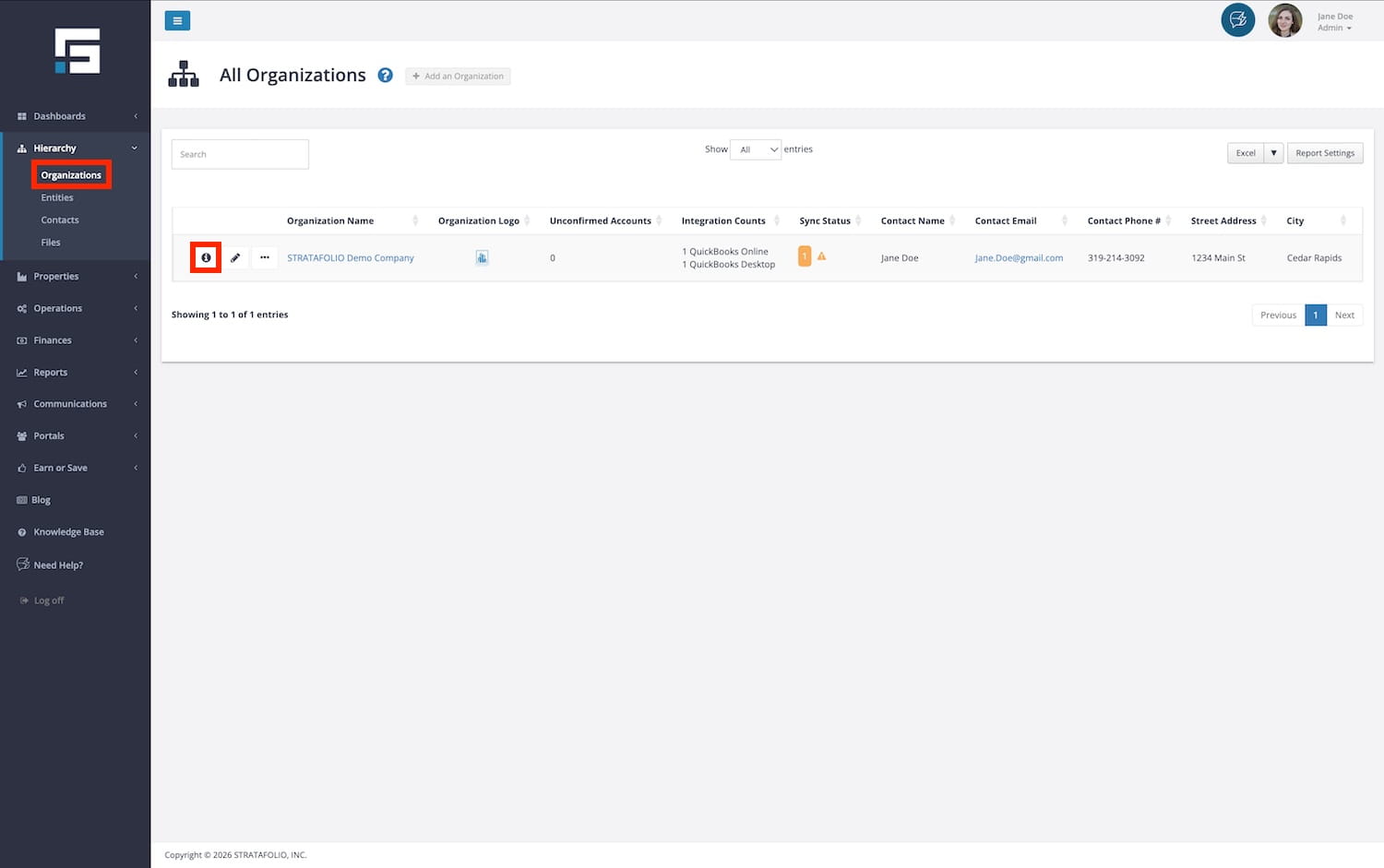
To view all Additional Charges, go to Hierarchy from the left-side navigation menu and go to Organizations. Click the i icon next to the Organization record, then go to the Additional Charges tab.
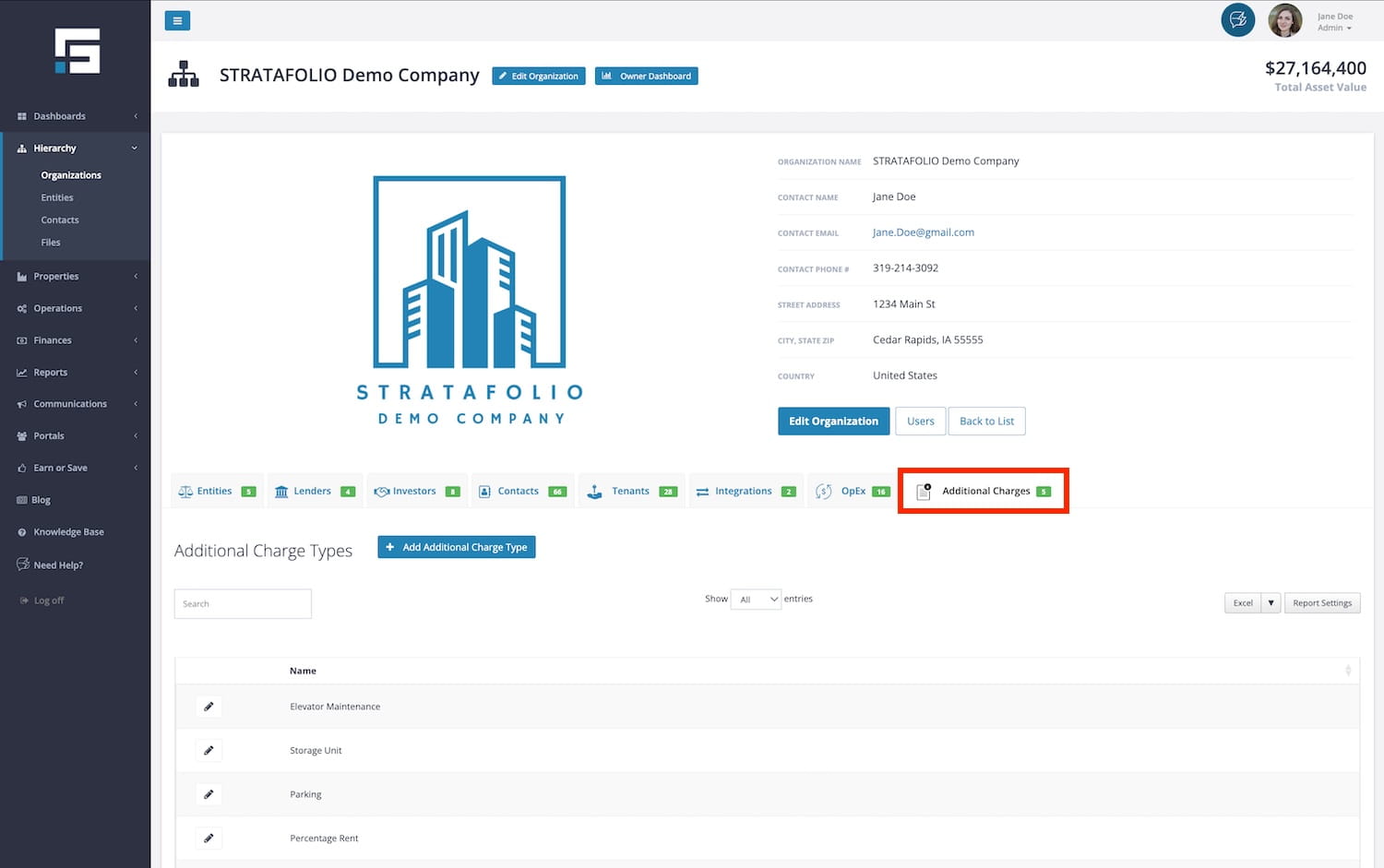
The Additional Charges tab at the Organization level is a master list of charge names used across your portfolio. It is meant for standardization, not tenant-specific corrections.
What you can do with the Additional Charges tab in the Organization record:
- View all Additional Charges created in your Organization
- Add new Additional Charges so they can be selected on leases
- Rename an Additional Charge name
- Remove an Additional Charge if it is not added to any lease rates
IMPORTANT: If you rename an Additional Charge, the new name applies to past and future use everywhere that charge appears. Use this carefully because it updates reporting labels across your entire Organization.
If the name only needs to change for a specific asset or scenario, create a new Additional Charge instead of renaming an existing one.
How to Use This Feature
Create an Additional Charge at the Organization Level
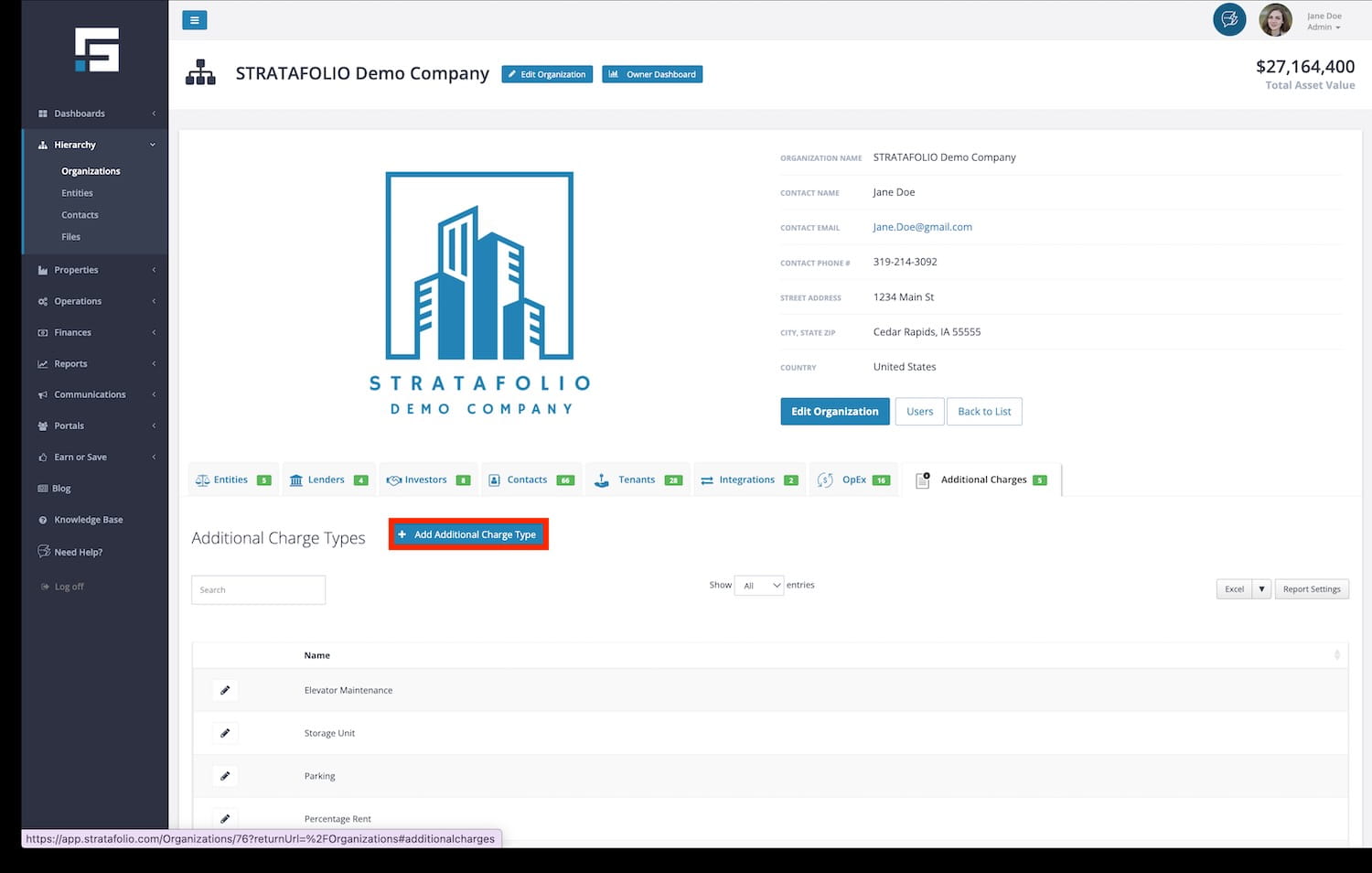
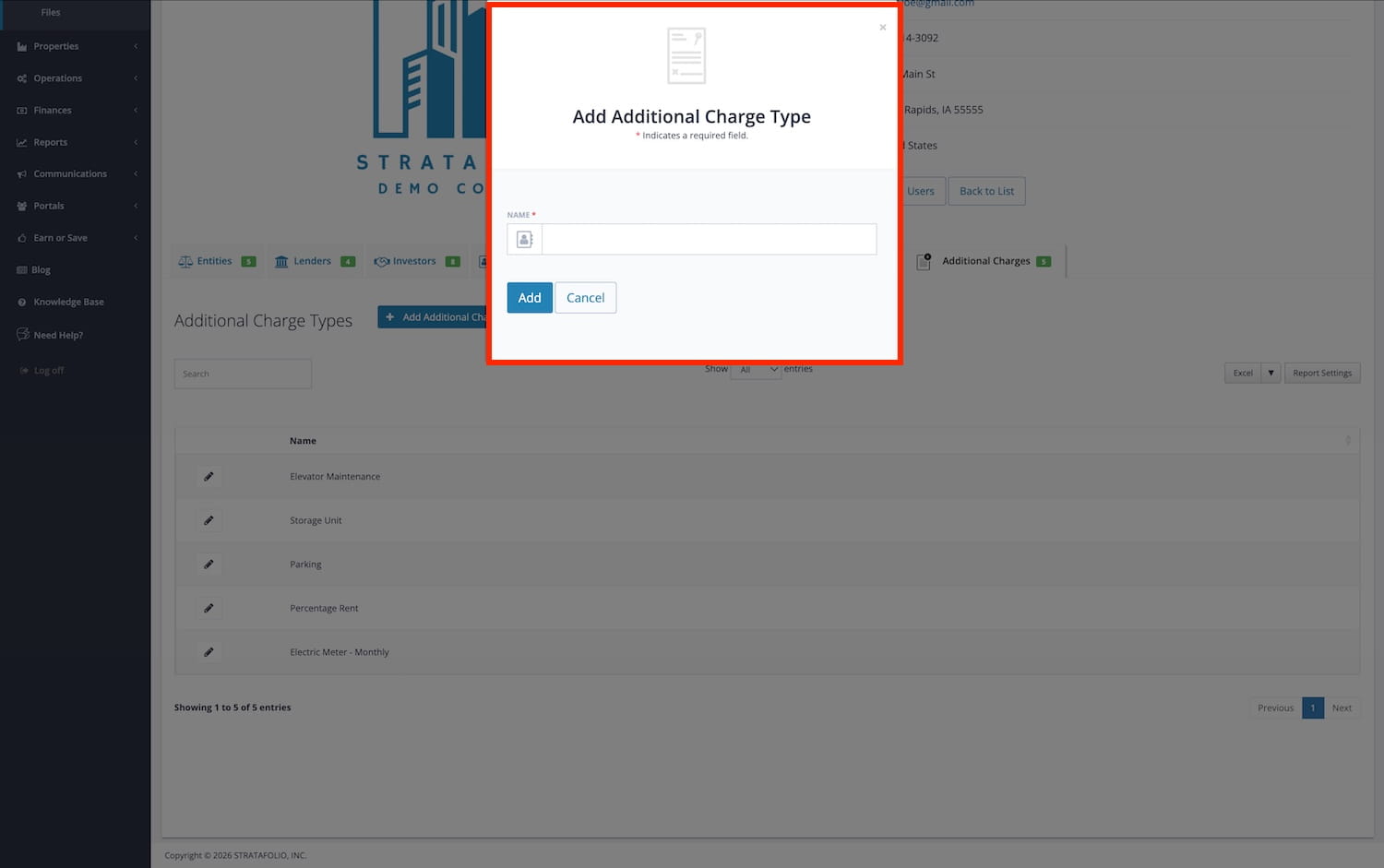
- From the left-side navigation, go to Organizations under Hierarchy and select the i icon next to the Organization record. Navigate to the Additional Charges tab.
- Click the Add Additional Charge Type button.
- Enter the name of the charge type, for example, Parking or Storage Unit.
- Select Add.
Once saved, this charge type becomes available for use in leases across your Organization.
Best Practices for Creating Additional Charges at the Organization Level
- Create Additional Charges before entering lease rates to maintain consistency.
- Use clear, standardized naming conventions.
- Avoid duplicate charge names that mean the same thing.
- Review your charge list annually to keep reporting clean and organized.
- Align charge types with how you map and report financial data.
By thoughtfully managing Additional Charge Types at the Organization level, you improve lease accuracy, streamline invoicing, and maintain clean portfolio-wide reporting inside STRATAFOLIO.
How to Add an Additional Charge at the Lease Level
Use these steps when you want the tenant to be invoiced for an Additional Charge.
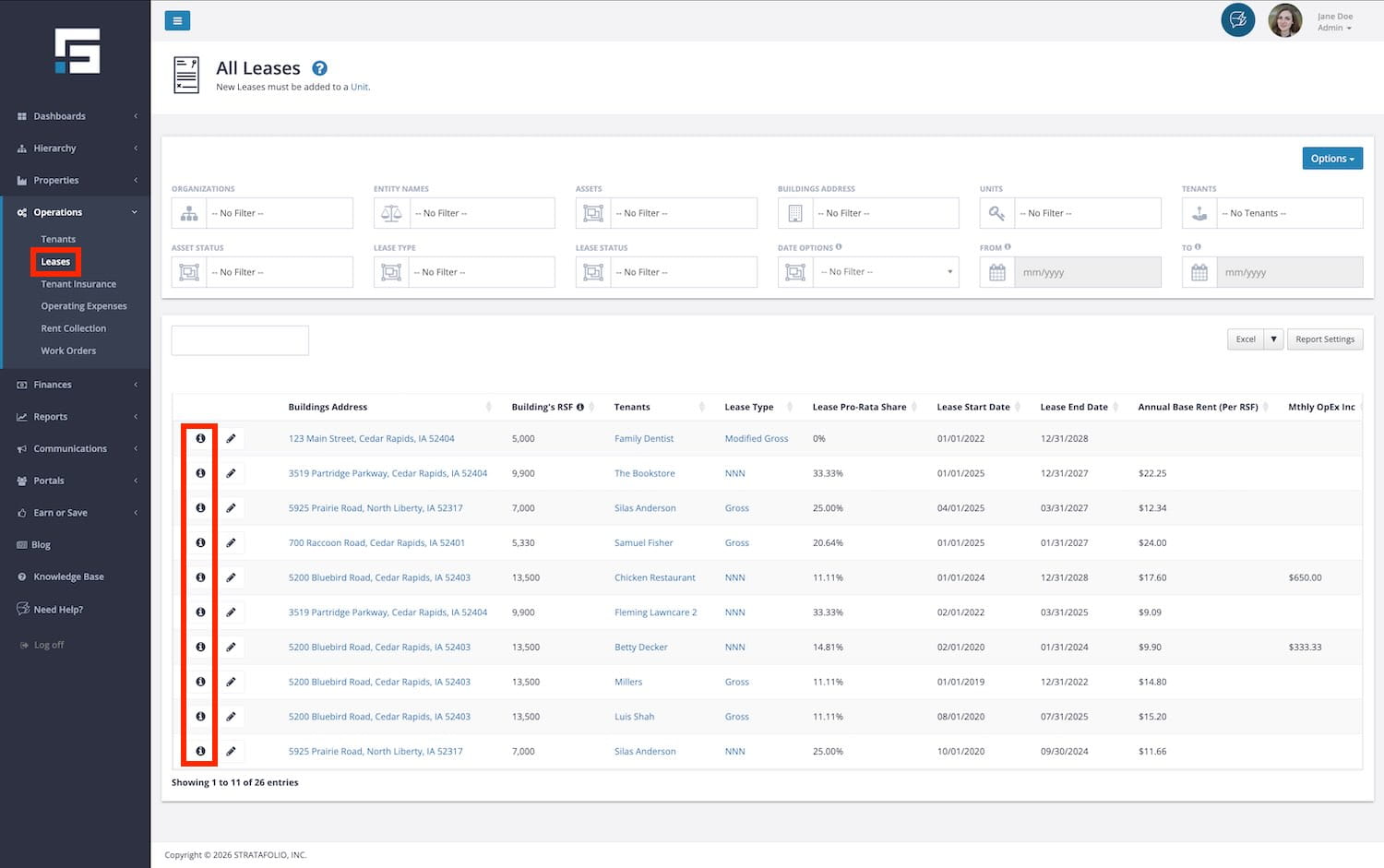
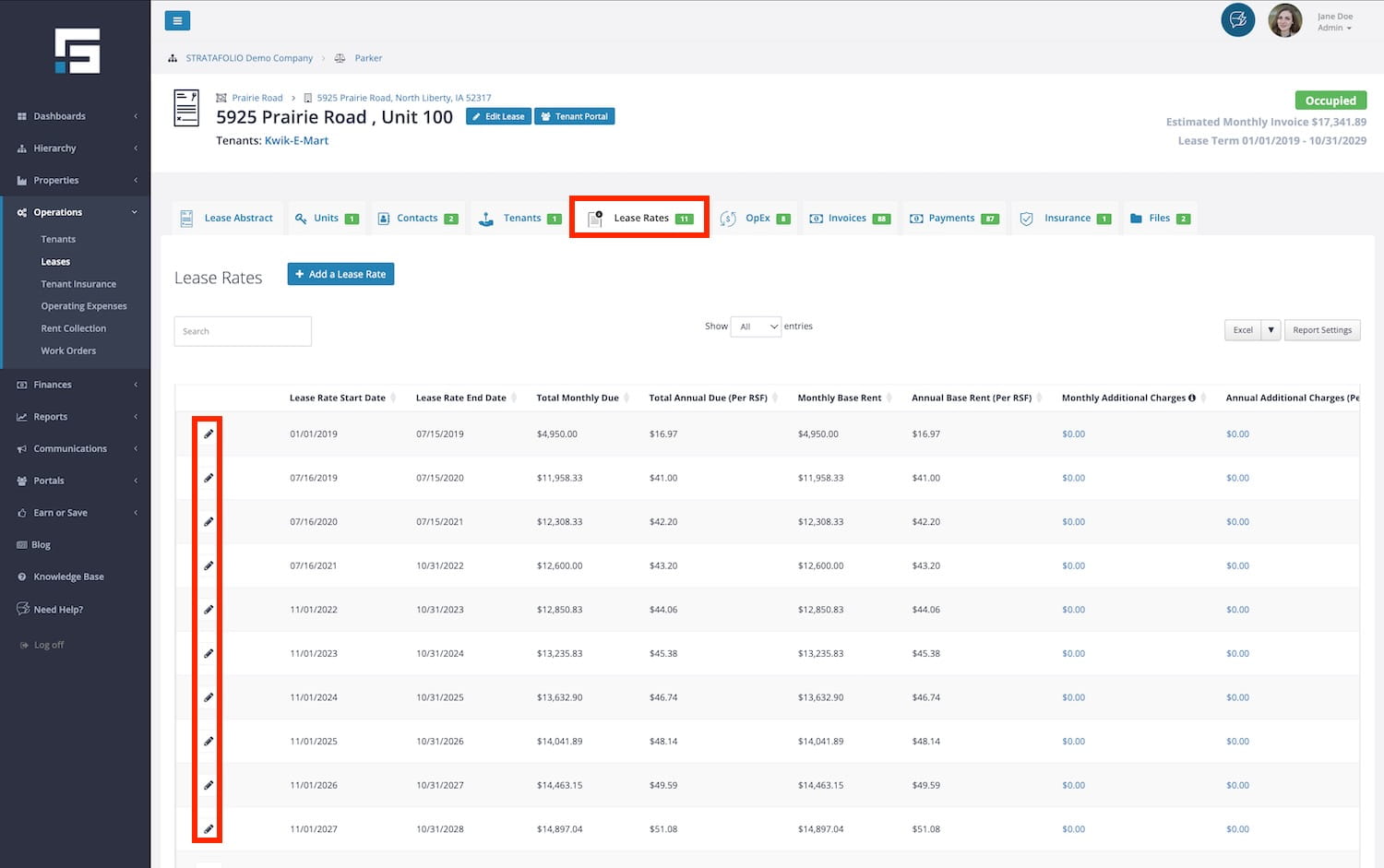
- From the left-side navigation menu, click on Operations, then Leases. Open the lease you want to update by clicking the i icon next to it.
- Go to the Lease Rates tab.
- Open the lease rate period you want to edit.
- Under the Additional Charges header section, add a line item.
- Select the Additional Charge name from the list. If it has not yet been created, create the Additional Charge at the organization level.
- Enter the Monthly Amount and the Amount Rate.
- Select the income item that the charge should map to in QuickBooks.
- Add notes if applicable.
- Save.
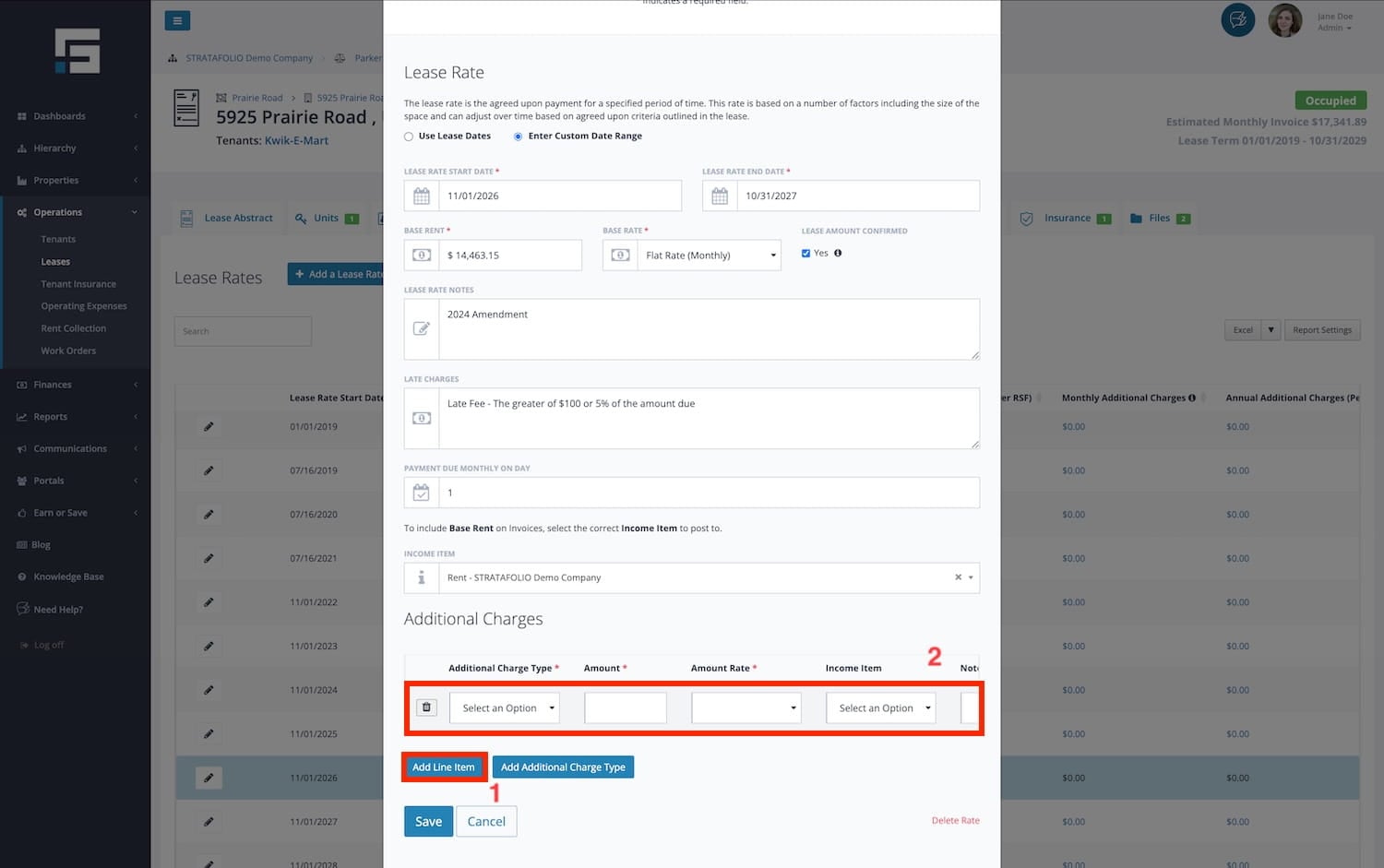
Once saved, the Additional Charge appears under the Additional Charge column for that lease rate period. It will be shown in that column on the Rent Roll as well. When creating an invoice for that period in STRATAFOLIO, the Additional Charge will be added automatically.
If you add an Additional Charge to the first lease rate period, STRATAFOLIO will automatically copy that Additional Charge into new lease rate periods you create later. The system assumes it should continue until you remove it.
How to Edit an Existing Additional Charge Type at the Organization Level
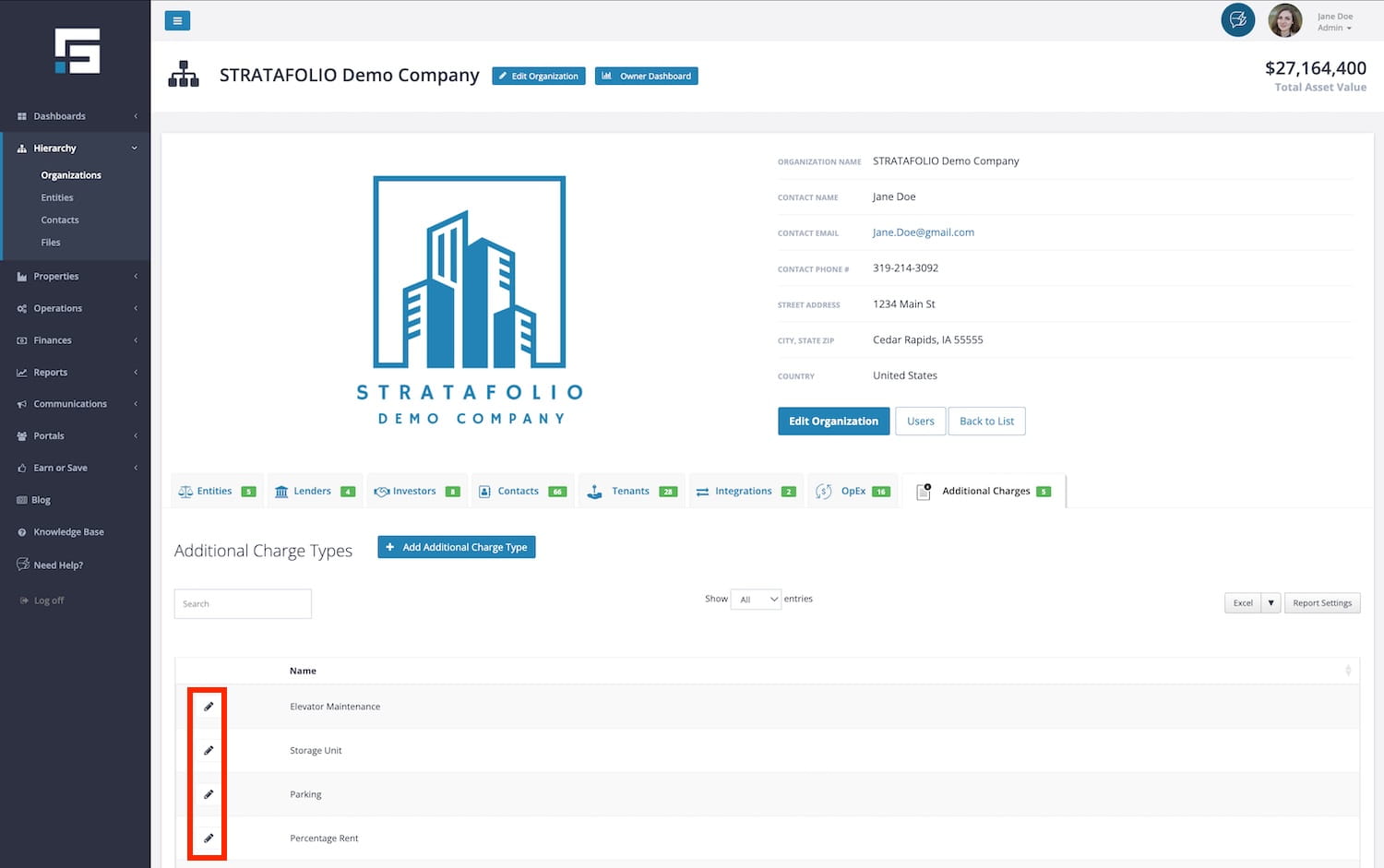
- From the left-side navigation menu, go to Hierarchy, then click Organizations. Select the i icon next to the organization, then go to the Additional Charges tab. Locate the charge type in the table.
- Click the Pencil Edit icon next to the charge type.
- Update the name as needed.
- Save your changes.
How to Remove or Delete an Additional Charge From One Lease
If you entered the wrong Additional Charge for a tenant, you should remove it from the lease rate, not from the Organization list.
To remove it from a tenant:
- Open the lease detail page by going to Operations in the left-side navigation menu, clicking on Leases, and selecting the i icon next to the Lease record.
- Go to the Lease Rates tab
- Open the lease rate period where the Additional Charge appears
- In the Additional Charges list, delete the line item
- Save.
- Repeat the steps for each lease rate period; the additional charge needs to be deleted from
This removes the charge for that tenant and that lease rate period. It does not affect other leases or other lease rate periods.
NOTE: Edits will update the standardized labels for both past and future entries. Always review active leases before renaming charge types to maintain reporting clarity.
Statuses, Workflows, and System Behavior
Additional Charges do not have a financial value on their own. Instead, they serve as reusable categories used within lease structures.
System behavior to understand:
- Charge types are created at the Organization level.
- They become selectable when configuring lease rates.
- They help standardize invoicing and reporting across Entities and Assets.
- Deleting or renaming a charge type may impact reporting consistency.
Because STRATAFOLIO connects operational and financial data through its hierarchy, maintaining consistent Additional Charge names ensures accurate lease reporting.
How Additional Charges Show Up in Rent Collection and Invoices
Additional Charges appear as a separate line item from base rent.
When you view Rent Collection, STRATAFOLIO separates charges so you can review billing before creating invoices. You will typically see:
- Base Rent
- Additional Charges
- OpEx
Additional Charges show on the invoice as their own income line item. This helps you keep the invoice clear and makes it easier to report on these charges later.
Can I Delete an Additional Charge in STRATAFOLIO
STRATAFOLIO will block deletion when a charge is attached to lease rates. You may only be able to delete a charge that is not used anywhere. Hovering over the delete option typically indicates how many lease rates are attached.
How to Use Additional Charges for Pass-Through Amounts That Change Monthly
Some teams use Additional Charges for amounts that fluctuate month to month, such as pass-through utilities that do not require year-end reconciliations.
Recommended workflow:
- Add the Additional Charge to the lease rate with a one-dollar ($1.00) amount
- Create invoices in bulk by saving as draft invoices (do not finalize)
- Edit only the invoices that need the pass-through amounts updated for that month
- Change the one-dollar ($1.00) amount to the amount needed to be added
- Finalize the invoice individually or in bulk
IMPORTANT: Do not set the amount to zero. A zero amount will be treated as a blank line and dropped from the invoice during creation. A one-dollar placeholder ensures the line item stays visible so you can edit it before finalizing.
Best Practices and Tips for Additional Charges
- Create Additional Charges before entering lease rates when possible, so naming stays consistent
- Use clear names that match how you want to report, such as Parking, Storage, or Garbage Fee
- Do not rename an Additional Charge unless you want the new name applied everywhere, past and future
- If a client asks to delete a charge because it was used incorrectly, remove it at the lease rate level instead
- Use Additional Charges only for items that do not require reconciliation
- If a charge requires reconciliation, it belongs in Operating Expenses, not Additional Charges
- Use a one-dollar placeholder for variable pass-through charges so the line item stays on draft invoices
