

Actuals Overview in the OpEx Tab
This is where STRATAFOLIO has calculated the invoiced amounts vs. actual expenses flowing in at the pro-rata share on a cash basis from the QuickBooks account. You can produce the CAM Reconciliation Reports from this view in STRATAFOLIO.
How to Go to the Actual Operating Expenses
To go here, select Operations in the left-side navigation menu and click Leases.
Select the i icon beside the lease to open the detail page and navigate to the OpEx tab in the lease detail page. From the upper right corner, select Actual.
Selecting the Time Period
The default period shown will be the most recent period. You will need to choose the time period for the report to be produced. These are set based on the time period created on the Invoice View. The amounts calculated here are based on that time period. For more information about the Invoice View, see the Knowledge Base article Operating Expenses Tab – Invoice View.
It is best practice and an industry standard to conduct CAM reconciliations once per calendar year; this is typically how STRATAFOLIO sets them up. If there are any questions about the calculations, the “i” next to the name will give more information.
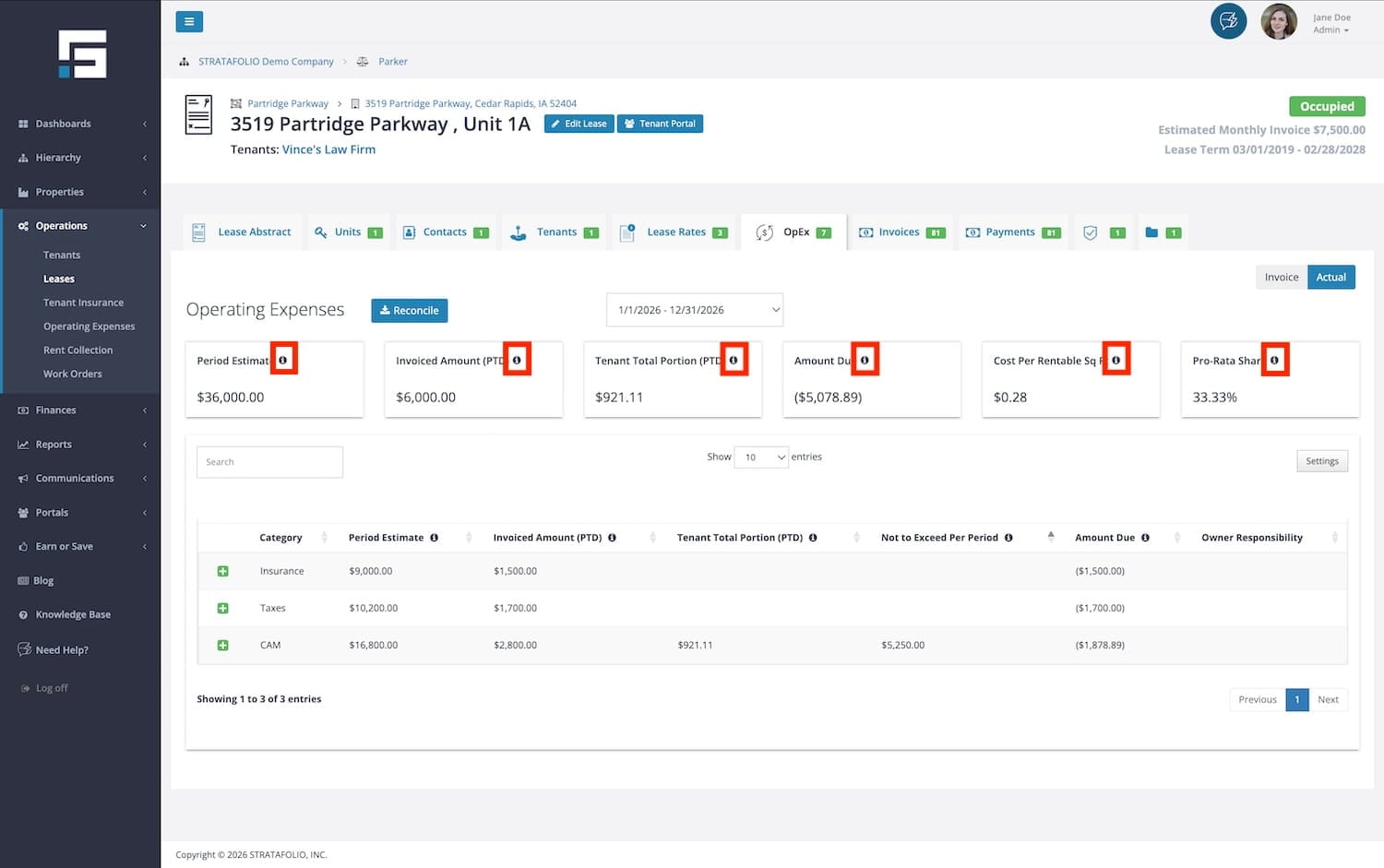
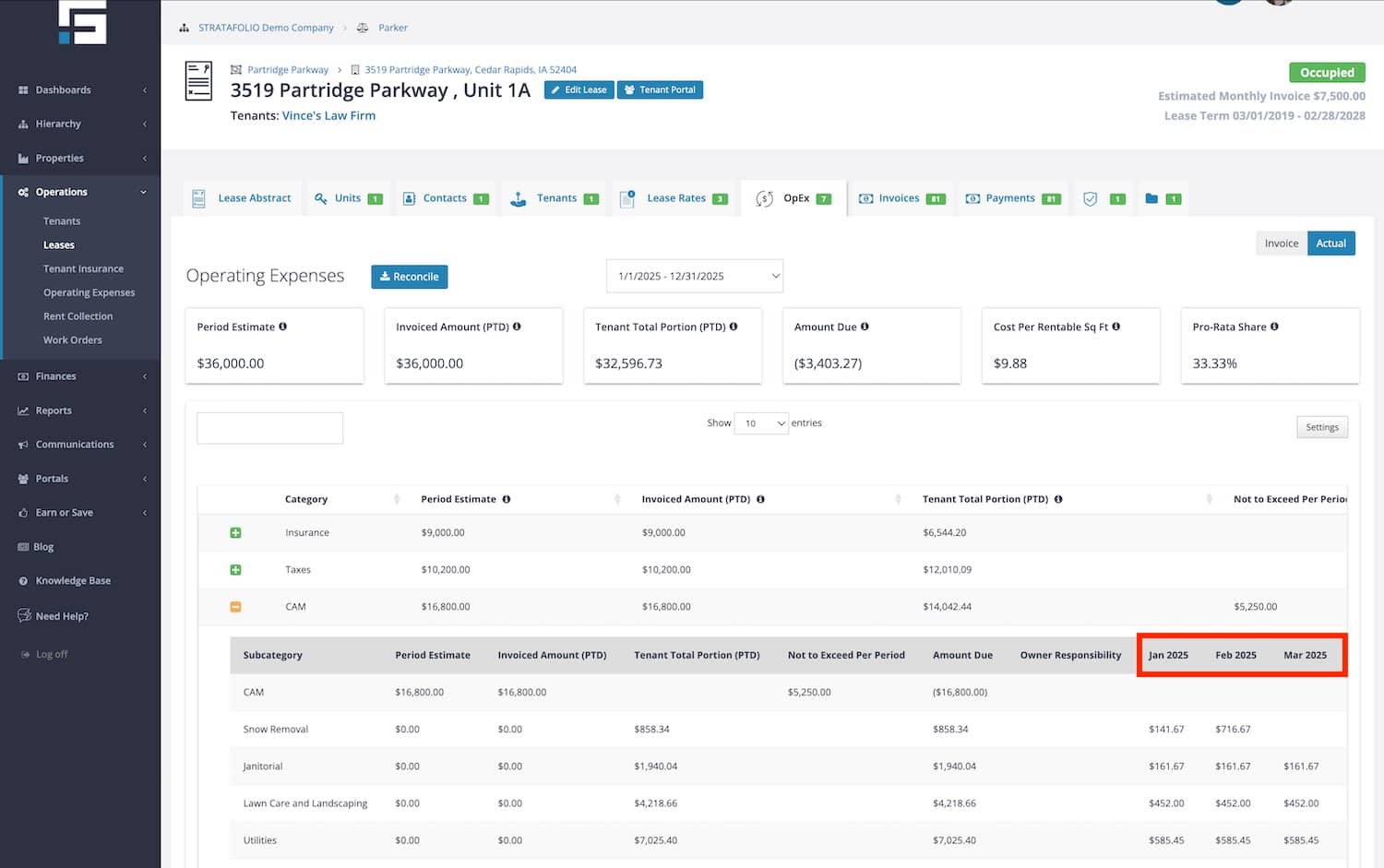
Each green + expands the category to see all the subcategories that make up that main category. The specific monthly amounts are shown with the tab expanded.
NOTE: The amounts are shown with the lease’s pro-rata share taken into account.
In the example below, all of these expenses are 33.33% of the total expenses for the building. STRATAFOLIO already takes that into account when showing the table below.
Using the dropdown in the middle of the page, you can view the different date ranges entered in the Invoice View. If you need a different date range, update it on the Invoice View first. The selected date range may also change the amount you should have invoiced and collected.
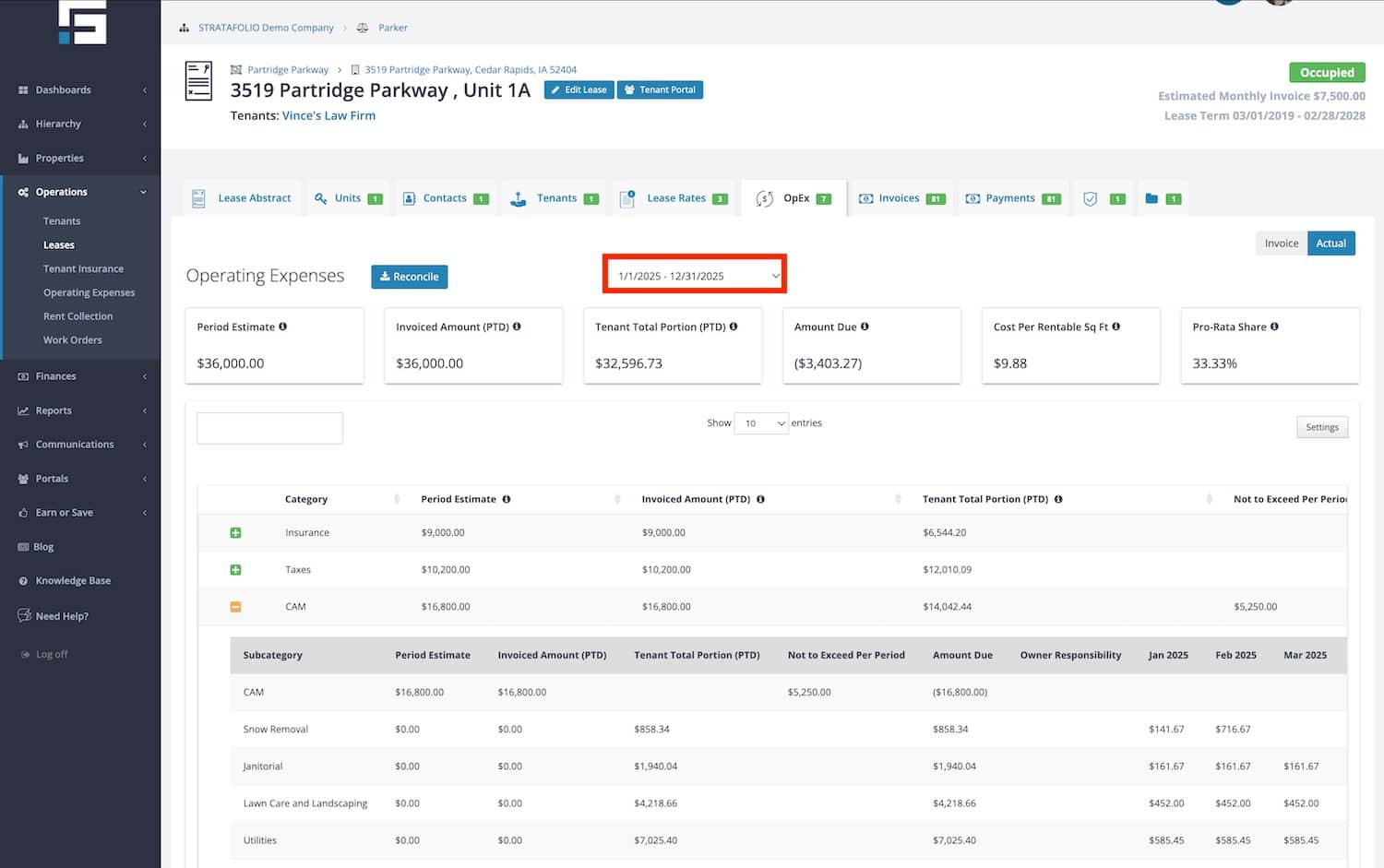
NOTE: Be careful when updating or changing the date ranges or the amounts on the Invoice View as they will affect invoices added or the CAM Reconciliations.
CAM Reconciliation Report
The Reconcile button exports the information to an Excel Spreadsheet. This export is called the CAM Reconciliation Report for STRATAFOLIO. The owner or property manager can give this report to the tenants to true-up their NNN or operating expenses for the year.
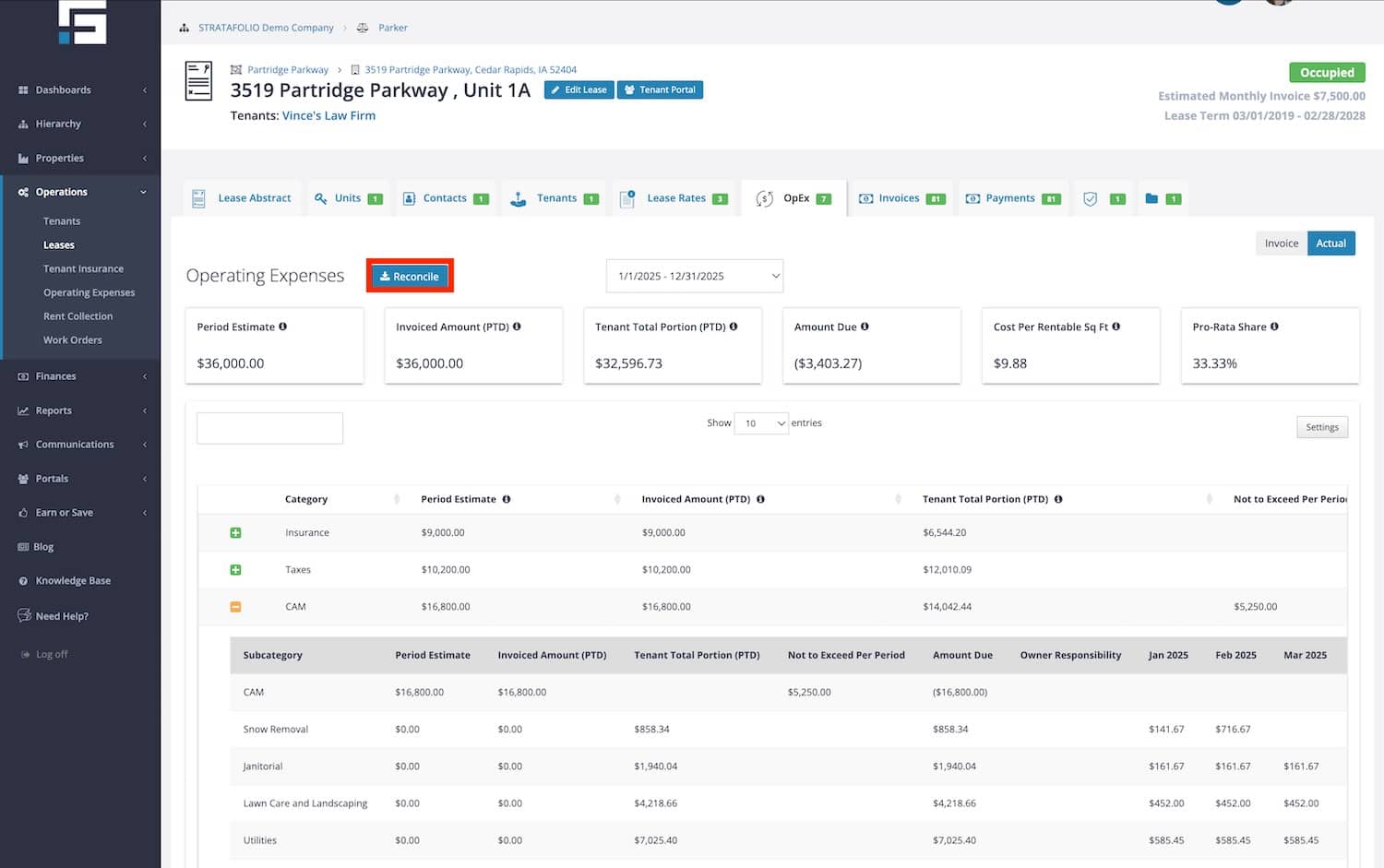
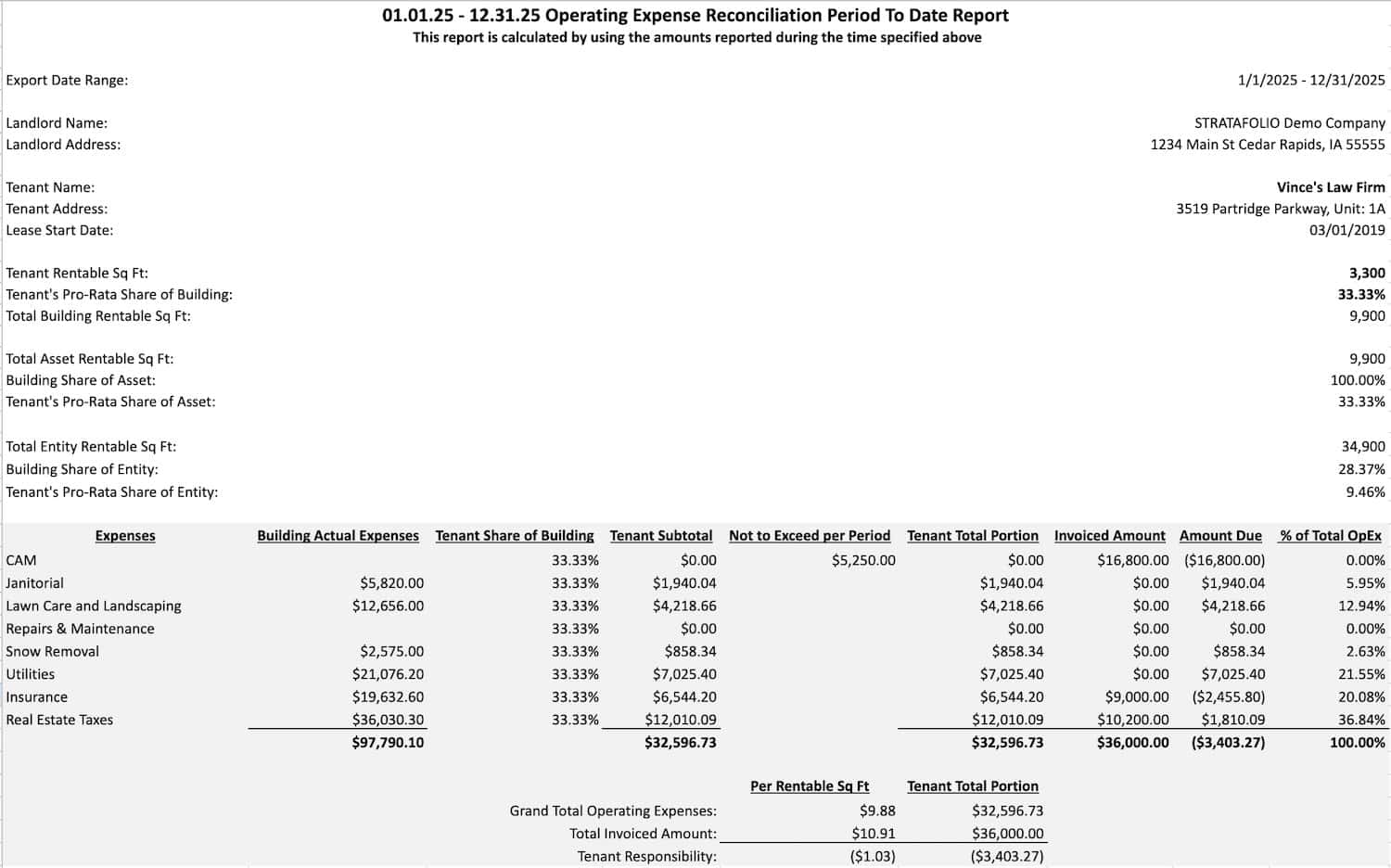
This report has two tabs.
- The first tab provides the overall summary of the reconciliation activity. This is a summation of the following:
- The amounts posted and mapped to the subcategories for the selected date range
- The pro-rata share of the subcategories
- The report shows the amount the tenant or the landlord owes for the lease true up.
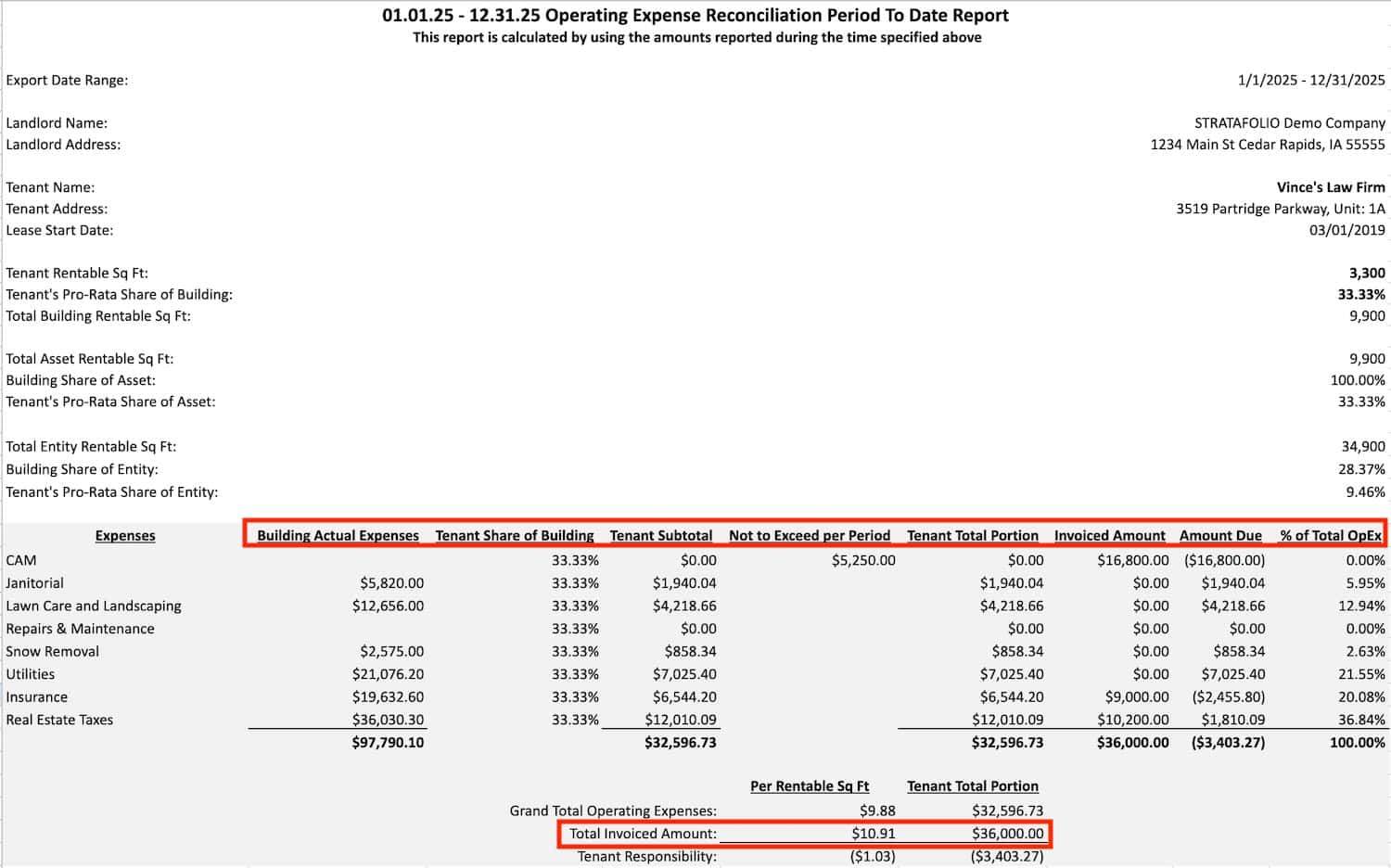
NOTE: Verify the amount shown under Invoiced Amount against the amount you actually collected from the tenant, in case the tenant paid more or less than the invoiced CAM amount for this period.
- The second page of the CAM Reconciliation Report shows the monthly breakdown per subcategory of expenses. STRATAFOLIO has already taken into account the pro-rata share of the expenses and has already calculated them for you.
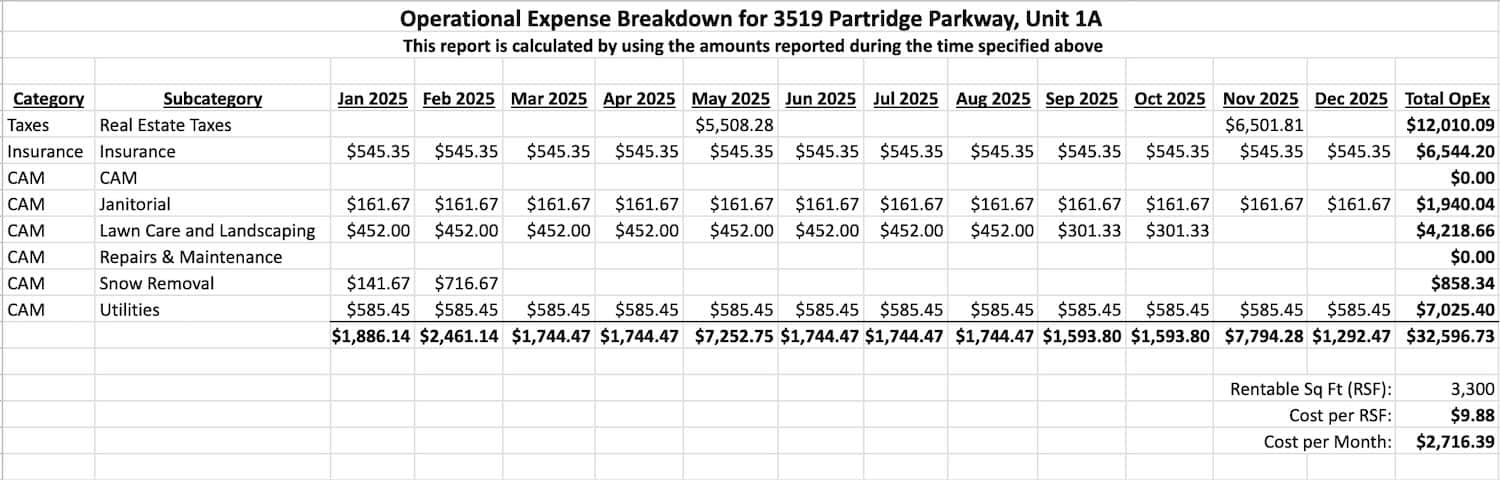
NOTE: Pages one and two on the CAM Reconciliation Report do not link together on the Excel. If something needs to be changed on one page, the other page will need to be updated as well.
You must input these subcategories in the Invoicing portion to make them appear on the Actuals tab. If you don’t add a set amount added to the monthly invoices for a specific income item, enter $0 for the amount.
Any income items with a $0 amount will disappear from the invoice during addition. However, you need to include these items to ensure they appear on the CAM Reconciliation Report in STRATAFOLIO. This allows you to pull all of the expenses spent for a building without adding additional income items on the invoices for the tenants.
Cash Basis
STRATAFOLIO displays all dollar amounts on a Cash Basis of Accounting. The reconciliations show amounts in the month you paid them in the QuickBooks account. This may be different from what you are using for your tax reporting.
If you compare the CAM Reconciliation Report to your QuickBooks amounts, select Cash Basis before running any QuickBooks reports.

