
What is a Security Deposit
A security deposit is a sum of money, usually equal to one month’s rent, that a tenant gives to the property owner when they move into a new property. The deposit is meant to cover any damage incurred during the tenancy, and it’s usually refunded (less any remaining charges) after the tenant vacates (provided they’ve left the place in good condition).
If the tenant causes severe damage or fails to pay rent, the owner can keep all or part of the security deposit. Some owners require first and last month’s rent in addition to a security deposit, so it’s always best to ask about all the required fees upfront before signing a lease.
How is the Security Deposit Amount Determined
The deposit usually equals one or two months’ rent when leasing commercial property. The deposit amount may be negotiable, depending on the owner and the property type. For example, office space may require a higher deposit than retail space. It may also be dependent on the personal or business credit of the lease guarantor. The deposit is intended to cover any damages during the term of the lease.
Are Security Deposits Taxable
If you own a commercial property, you may be wondering if the security deposit you collect from your tenants is taxable. The answer to this question depends on a few factors, including the type of property and the state in which it is located.
In general, if the funds will be returned to a tenant at the end of a lease, then the deposit is not taxable when received. If the owner retains the deposit, the security deposit will be taxable when liquidated from escrow to the owner. However, there may be some exceptions to this rule, so it is important to consult with a tax specialist if you have any questions.
How to Record a Security Deposit in QuickBooks
When you receive a security deposit from a tenant, you’ll need to record it in QuickBooks. If your security deposit is included in taxable income, you can record the receipt of the security deposit as Rental Income with a note in the description. However, if the security deposit is refundable to the tenant, then you should create a separate Other Current Liability account to track the deposits.
It is important to remember that this money does not belong to you. This security deposit is intended to be refunded to the tenant upon their vacating of the premises. Some states require a security deposit to be held in an escrow account, and most states disallow or require notice to the tenant if placed in an interest-bearing account. A separate account and possibly even a separate bank account should be kept for these security deposits, depending on your state’s laws. If you have any questions, please consult your tax accountant for your specific state’s rules and regulations.
Create a New Account in QuickBooks
1. Go to the tools menu and select Chart of Accounts.
2. Click on the green New button.
3. Fill out the information for the new account and click save.
Your new account is now ready to use. You will also need to add an Income Item for this line item when you are ready to create an Invoice. See Creating Income Items in QuickBooks Online for more help, if needed.
How to Record the Security Deposit in STRATAFOLIO
Once the Income Item is created in your QuickBooks account and synced with STRATAFOLIO, you can record the security deposit invoice and collection directly in STRATAFOLIO.
- Create a one-time invoice for the amount of security deposit required for the tenant.
- Post the payment in the Rent Collection view.
How to Finalize the Security Deposit When Closing Out Your Lease
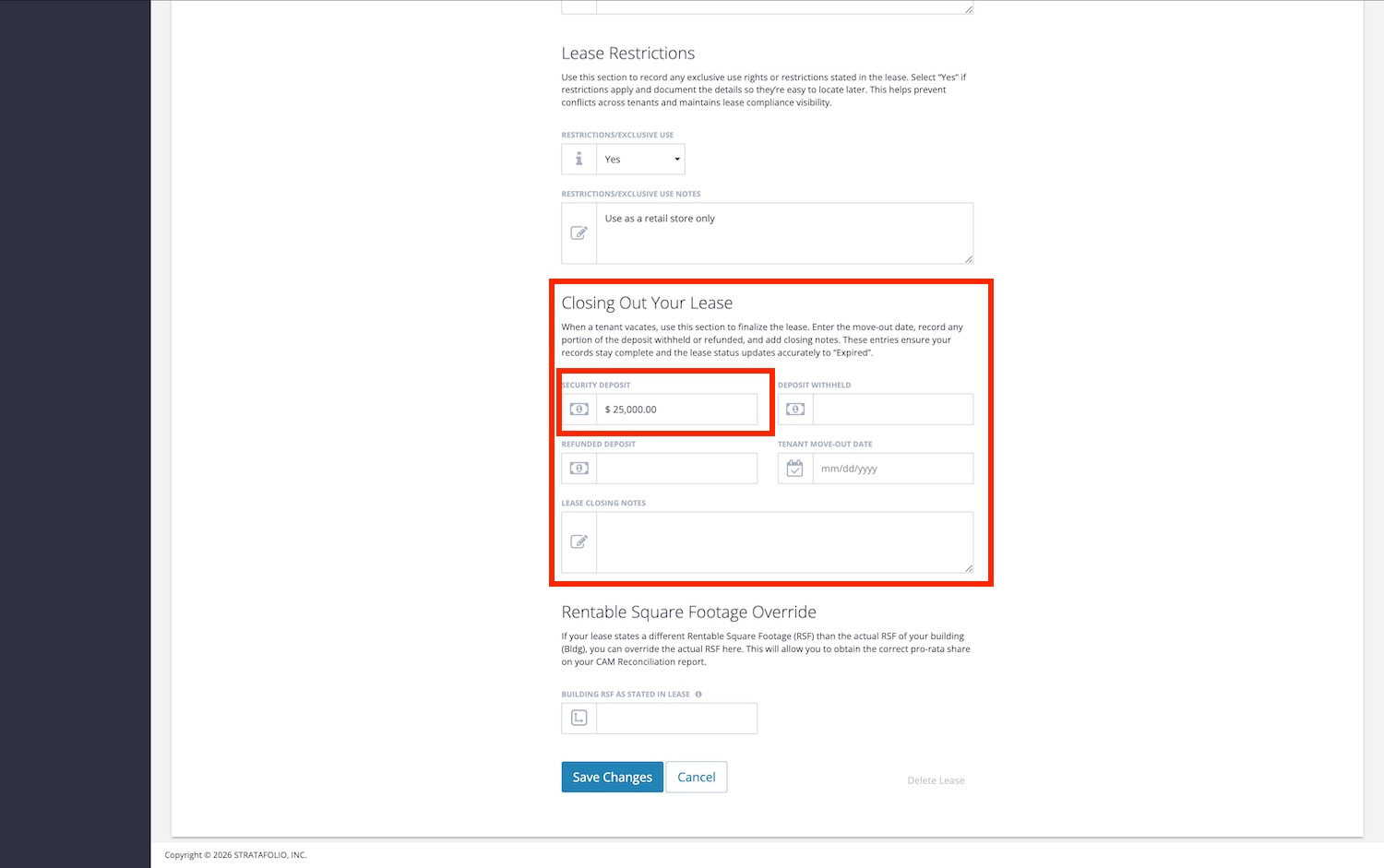
When a tenant vacates, you finalize the security deposit under the Closing Out Your Lease header section of the Edit Lease form. This ensures your lease record is complete and your reporting reflects the final outcome of the deposit.
You should update this section once the final deposit reconciliation is complete.
Where to find it:
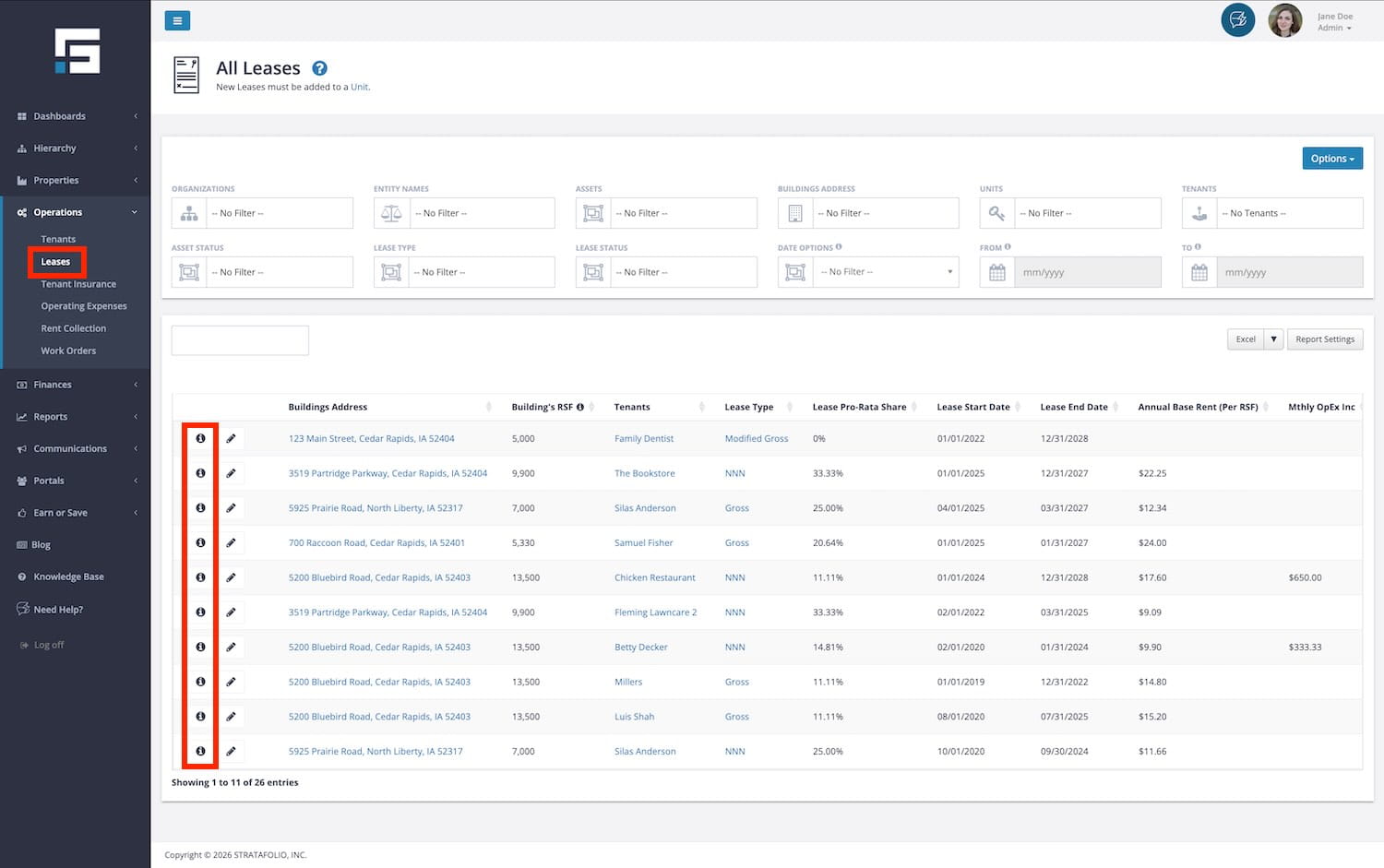
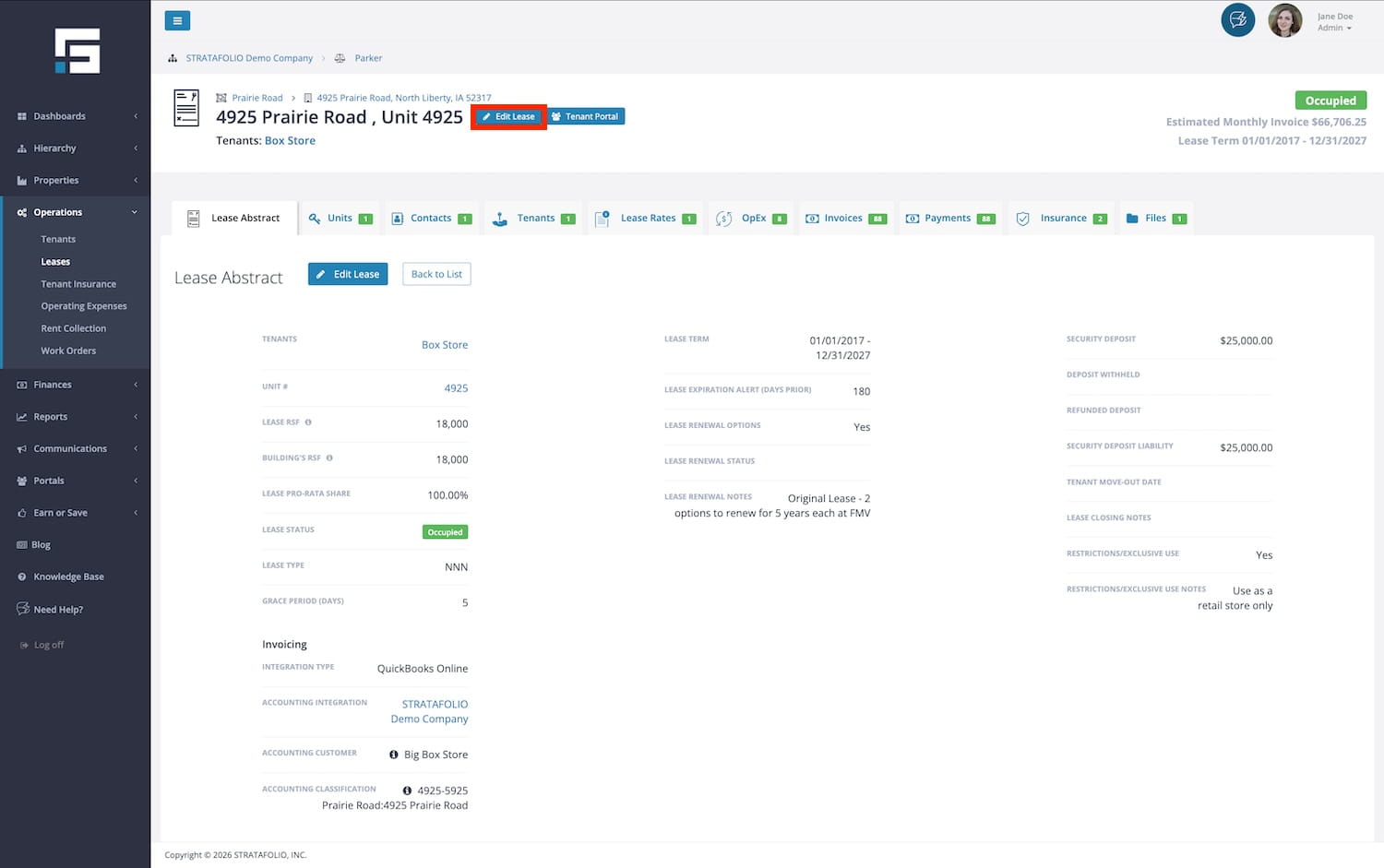
- Go to Operations from the left-hand side navigation menu
- Select Leases
- Open the lease detail page by clicking on the i icon beside it
- Click Edit Lease
- Scroll to Closing Out Your Lease
You will see the following fields:
- Security deposit: The amount collected from the tenant as an original deposit. Confirm it matches what was paid.
- Deposit withheld: Enter the portion of the deposit you are keeping for damages, unpaid rent, or other charges.
- Refunded deposit: Enter the amount returned to the tenant.
- Tenant move-out date: Enter the actual date the tenant vacated the unit.
- Lease closing notes: Add internal notes explaining what was withheld and why. This helps during audits or tenant follow-up questions.
Best practices for inputting the Security Deposit in the Closing Out Your Lease Header Section
Always document why funds were withheld and when the refund was issued. This creates a clear audit trail for your team.
How STRATAFOLIO Can Help You Track Your Deposit Liability
If you’re working with several entities and multiple tenants in QuickBooks, it can be difficult to ensure that your deposit liabilities are properly recorded. STRATAFOLIO consolidates all your QuickBooks files into a single dashboard to track your Rent Rolls, upcoming rent escalations, maturing loans, and security deposits. The STRATAFOLIO system integrates seamlessly with QuickBooks and provides additional features designed specifically for commercial property owners.
How to Create a Security Deposit Report from the Leases Index Page
You can generate a portfolio-wide security deposit report directly from the Leases Index Page by enabling the correct columns in Report Settings.
This method is useful when you need to:
- Review total deposits across properties
- Analyze lease types and deposit amounts
- Share deposit data with ownership
- Export information for audit review
Step-by-step instructions:
- Go to Operations from the left-hand side navigation menu
- Select Leases
- Click the Report Settings button
- Enable the following columns:
- Tenants
- ACH transfer settings
- Lease type
- Unit status
- Period CAM Exp inc per RSF
- Monthly other exp inc
- Annual other exp inc per RSF
- Security deposit
- Save your Report Settings view by clicking Add New Report. Create a descriptive report name.
- Click the Excel button next to the Report Settings button to download the report, or choose a different format from the dropdown.
TIP: By selecting this report from the Report Settings button, your team can quickly pull up the same report every time.
