Set up ACH Payments as a Tenant in STRATAFOLIO

Last modified: February 13, 2026
Estimated reading time: 8 min

Congratulations on taking the first steps to eliminate manual work!

Using ACH (Automated Clearing House) for rent payments delivers a safer, faster, and more convenient option than paying with checks or cash. ACH payments are processed electronically, reducing the risk of lost or stolen checks and eliminating the inconvenience of making in-person payments.

When you set up autopay to cover your full invoice balance, you’ll enjoy a hands-free automated service that guarantees timely payments. By using autopay in this way, you will never have to deal with a late payment fee, ensuring you always make the correct payment amount, even when rent escalations go into effect, which results in a positive payment history.

Finally, ACH transactions provide clear digital records for both you and your landlord. Overall, ACH payments offer enhanced security, efficiency, automation, and reliability.

How Landlords Should Guide Tenants Through ACH Setup

As a landlord or property manager, the easiest way to ensure tenants set up ACH payments correctly is to direct them to this knowledge base article.

This article is written specifically for tenants and walks through the full ACH setup process step by step, including entering bank details, verifying accounts, and understanding how payments are processed.

By sharing this article with your tenants, you can:

  • Reduce back-and-forth questions during setup
  • Ensure ACH information is entered accurately
  • Help tenants complete setup faster and with confidence

Tenants should follow the instructions in this article directly when enabling ACH payments in STRATAFOLIO.

How To Set up Payment as a Tenant

Once your landlord/property owner completes their set-up process, you will be invited to the Tenant Portal to set up your ACH Payments. For our US-based customers, the Tenant payment option allows ACH payments to be made on a one-time or recurring basis.

Note: Your landlord/owner must generate an invoice before you can initiate a payment.

Payment Account Types

You will have the option to set up your account as Standard or Premium, which will affect the payment limit for your ACH account.

Standard – This account type allows you to make payments of up to $50,000 (including applicable fees) over any 30-day period. During the set-up process, you must provide your First Name, Last Name, and Email Address to create this account type. Please note that in order to make payments exceeding $50,000 over any 30-day period, including fees, you will need to upgrade to our Premium plan. The good news is that there is no extra cost for this plan. It only requires you to provide a bit more information than the standard plan.

Premium – This account type allows you to make payments of up to $100,000 per transaction (including applicable fees). The required information varies based on the Business Type you have. Details are provided in the table below.

Account TypeMax Payment LimitBusiness TypesInformation Required
Standard$50,000
Over Any 30-Day Period
First Name, Last Name, and Email Address.
Premium$100,000
Per Transaction
PersonalIn addition to the information required for the Standard Customer Type, you will be required to provide Your Date of Birth and the Last 4 Digits of Your SSN.
Premium$100,000
Per Transaction
Sole ProprietorshipIn addition to what is required for a Premium Personal Account, you will be required to provide Your Business Name, Industry Classification, Business Location, and Business EIN.
Premium$100,000
Per Transaction
Corporation, LLC, and PartnershipIn addition to what is required for a Premium Sole Proprietorship account, you will need to provide information on the Account Admin, Controller, and Beneficial Owner.

For additional support during the process, read Document Verification Best Practices:

1. Accept the Invitation to Your Tenant Portal

You have 24 hours from when your landlord/owner invites you to your tenant portal to accept the invitation. You will receive an invitation via email from STRATAFOLIO. This is what your portal will look like when you first log in:
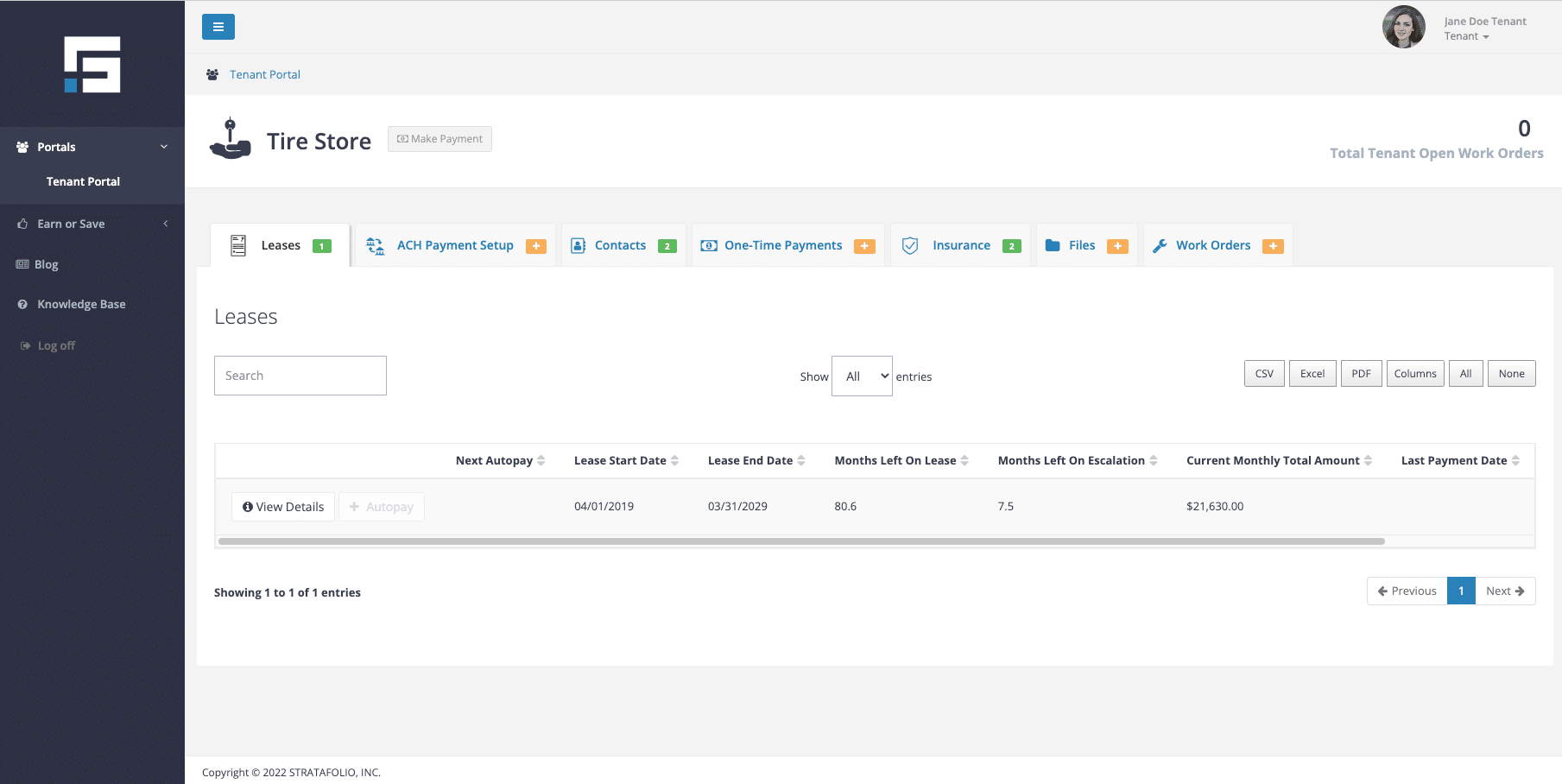
2. Complete ACH Payment Setup

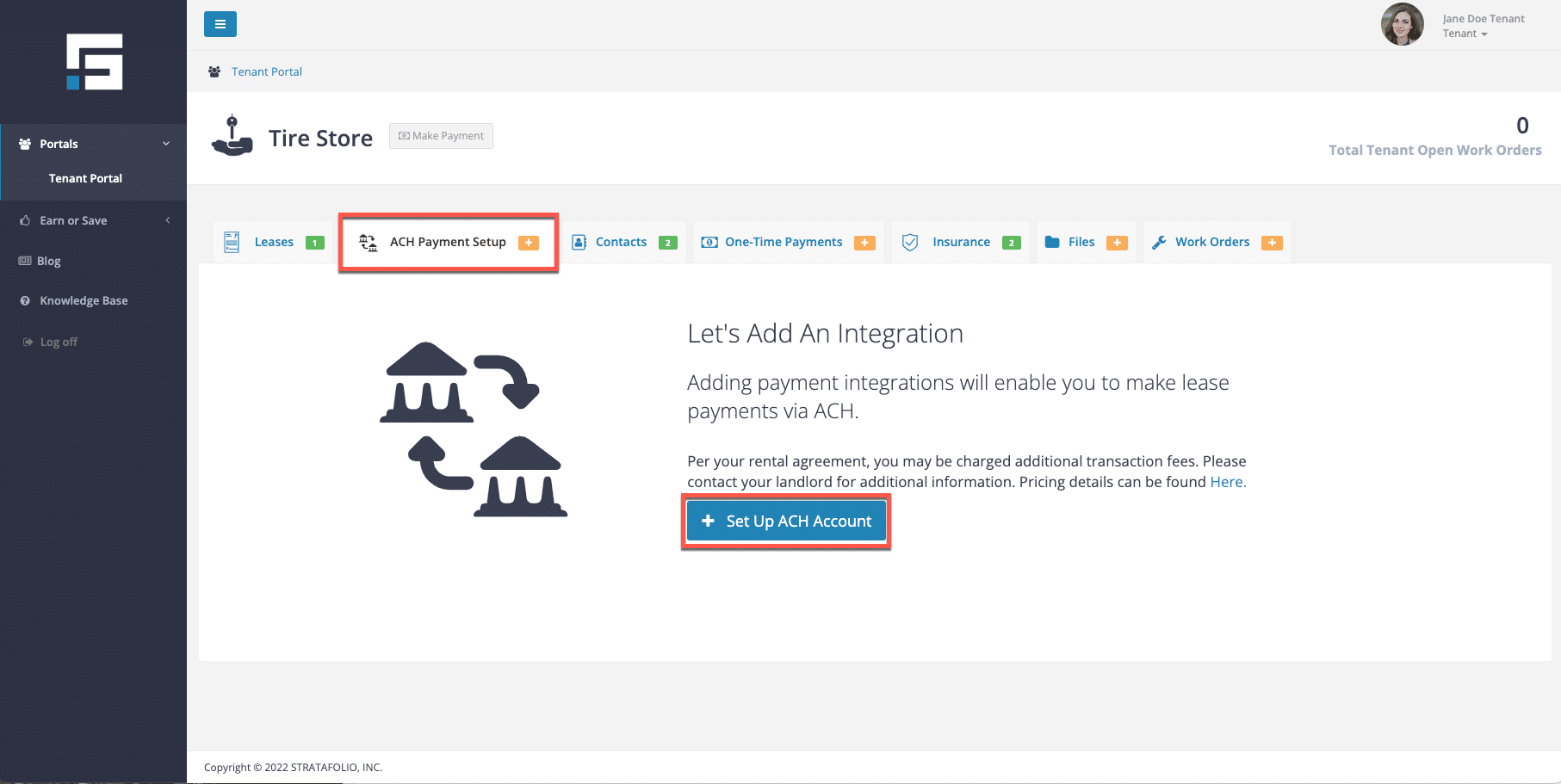
First, you will complete the ACH Payment Setup. To do this, click on the ACH Payment Setup tab, and click Set Up ACH Account.

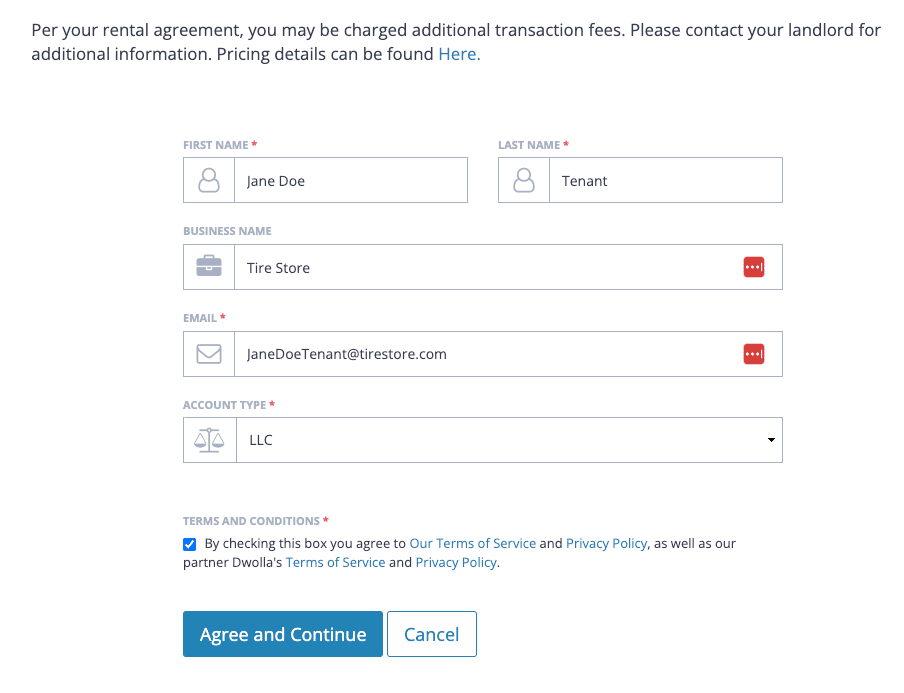
Fill out the requested information. Read the terms and conditions, and click the box and Agree and Continue button to continue.
3. Add a Bank Account

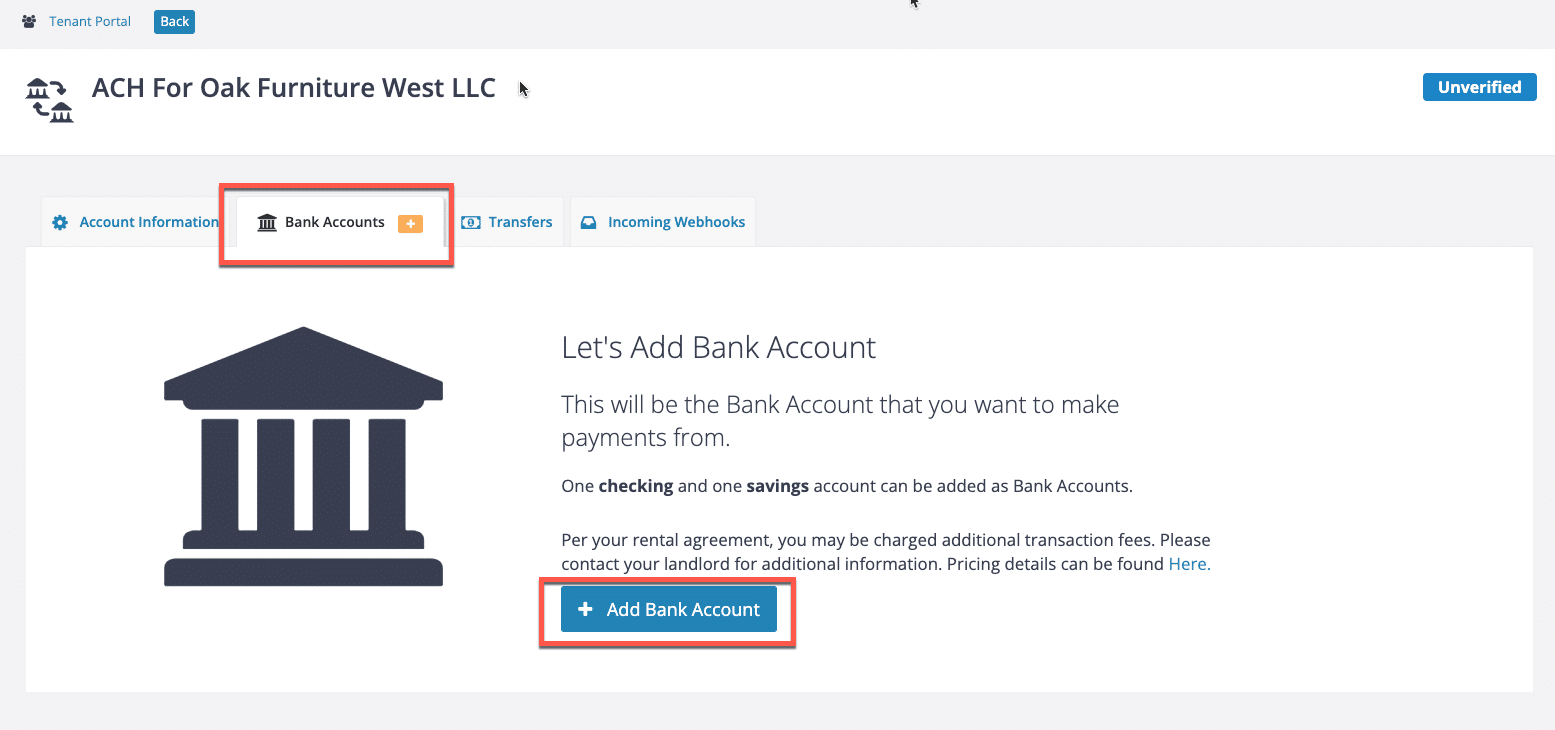
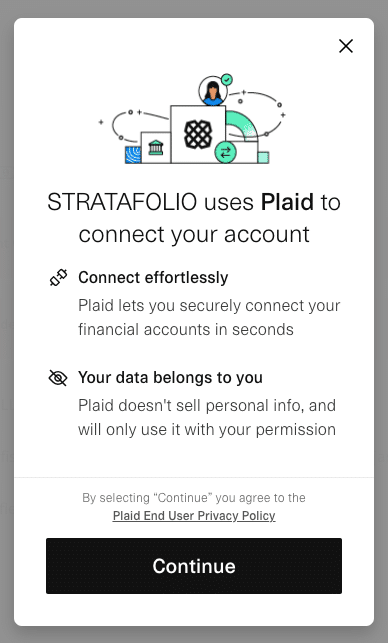
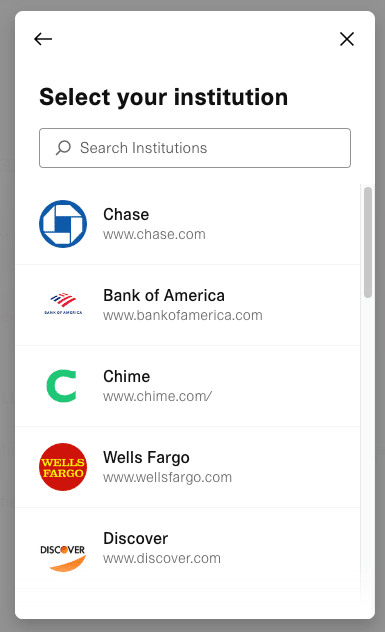
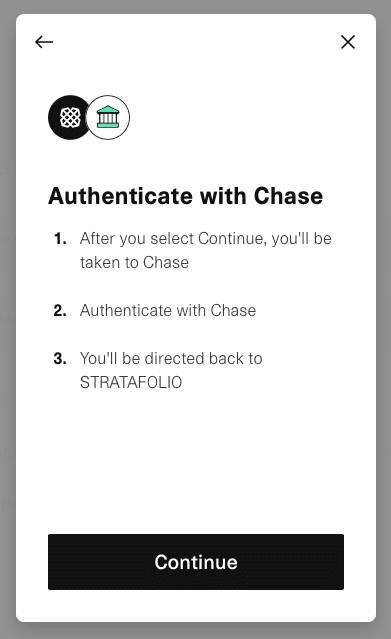
The next step is to add a bank account. STRATAFOLIO uses Plaid to make the setup safe. Click Add a Bank Account button and complete the steps as follows:

*Note: you can find the Add a Bank Account button in two different locations. From the ACH Payment setup tab and from inside the payment integration in the Bank Account tab.

warning-icon.png Warning: When searching for your lending institution, it is important to ensure you select the correct link. Many institutions have separate links for personal and business accounts. If you select the personal account link instead of the business account link, the bank may reject your account. It is important to double-check before proceeding to avoid delays in the setup process.
If you cannot find your lending institution on the list or through the search function, you can still link it manually using your account numbers.
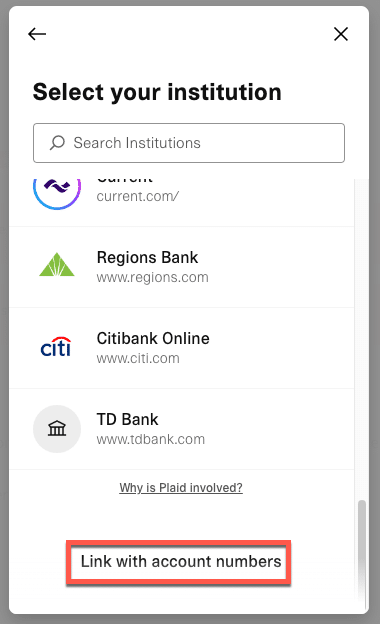
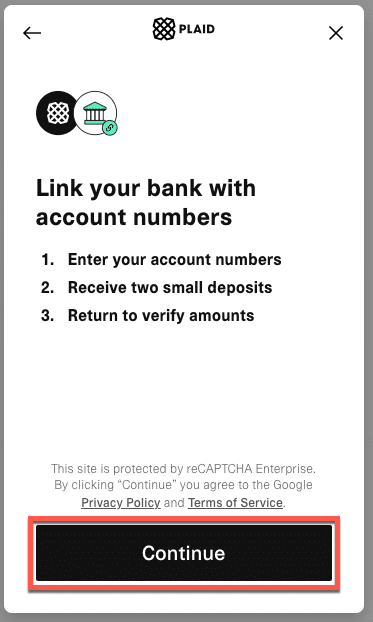
To add the accounts manually, you’ll need to:

  • Provide the account number, routing number, and the first and last name of the account holder listed on the account you’ll be using.
  • After you verify and approve your account numbers, you’ll receive two micro-deposits of $0.99 or less in the provided account within a few days. It is crucial to verify your account promptly since the system will automatically remove the micro-deposits if the account is not verified within a few days.
  • Once you receive the micro-deposits, you must return to STRATAFOLIO to verify your account. There, you will need to enter the two deposit amounts. If the amounts match, your account will be verified and activated.

If you set up your bank account correctly, it will look similar to the image below:
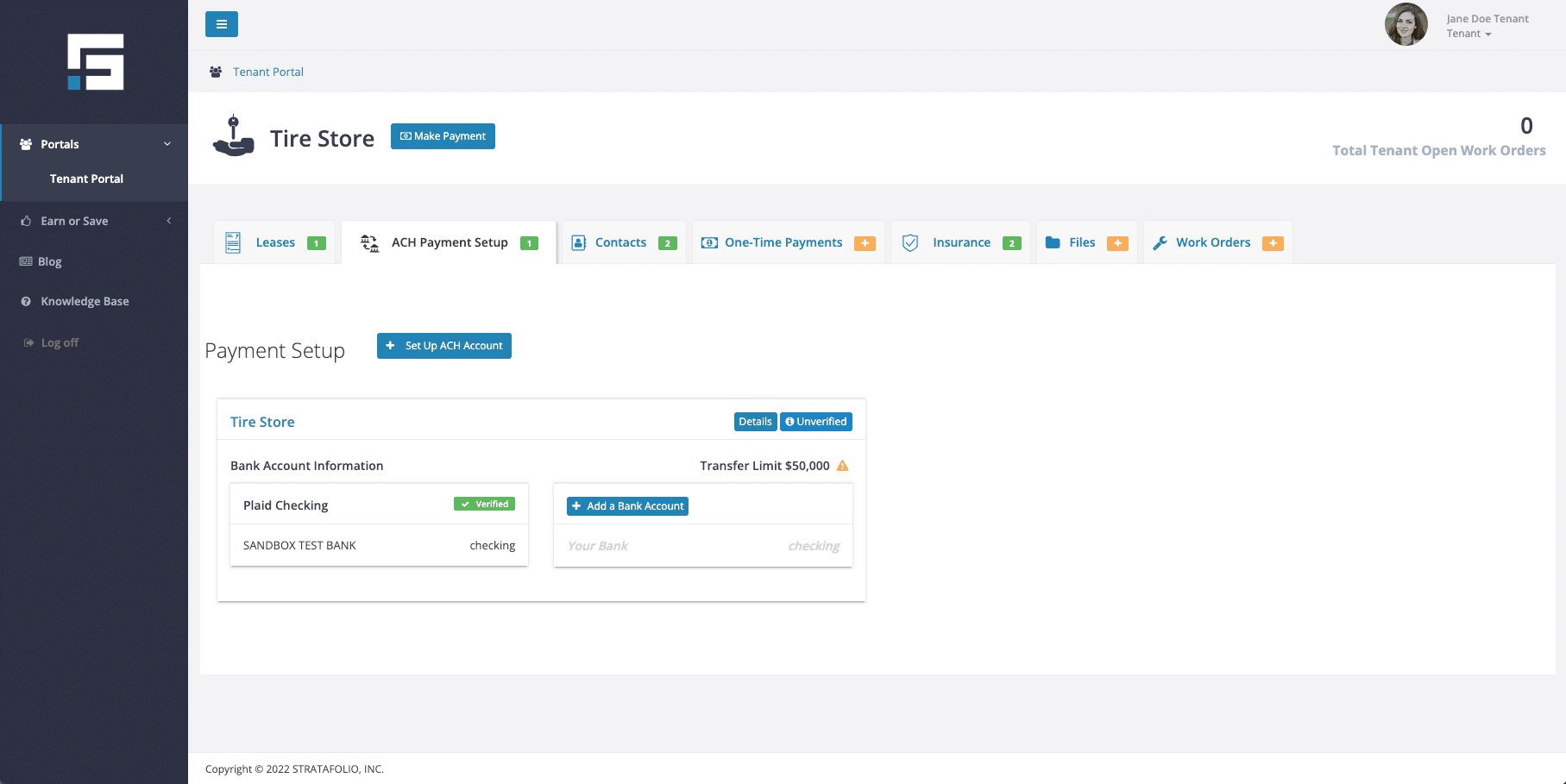
If your transactions will be $50,000 (including applicable fees) or less, then you can skip the next step, Verify Your Account.

4. Verify Your Account

If your payment is between $50,000 and $100,000 (including fees), you will be required to verify your account.

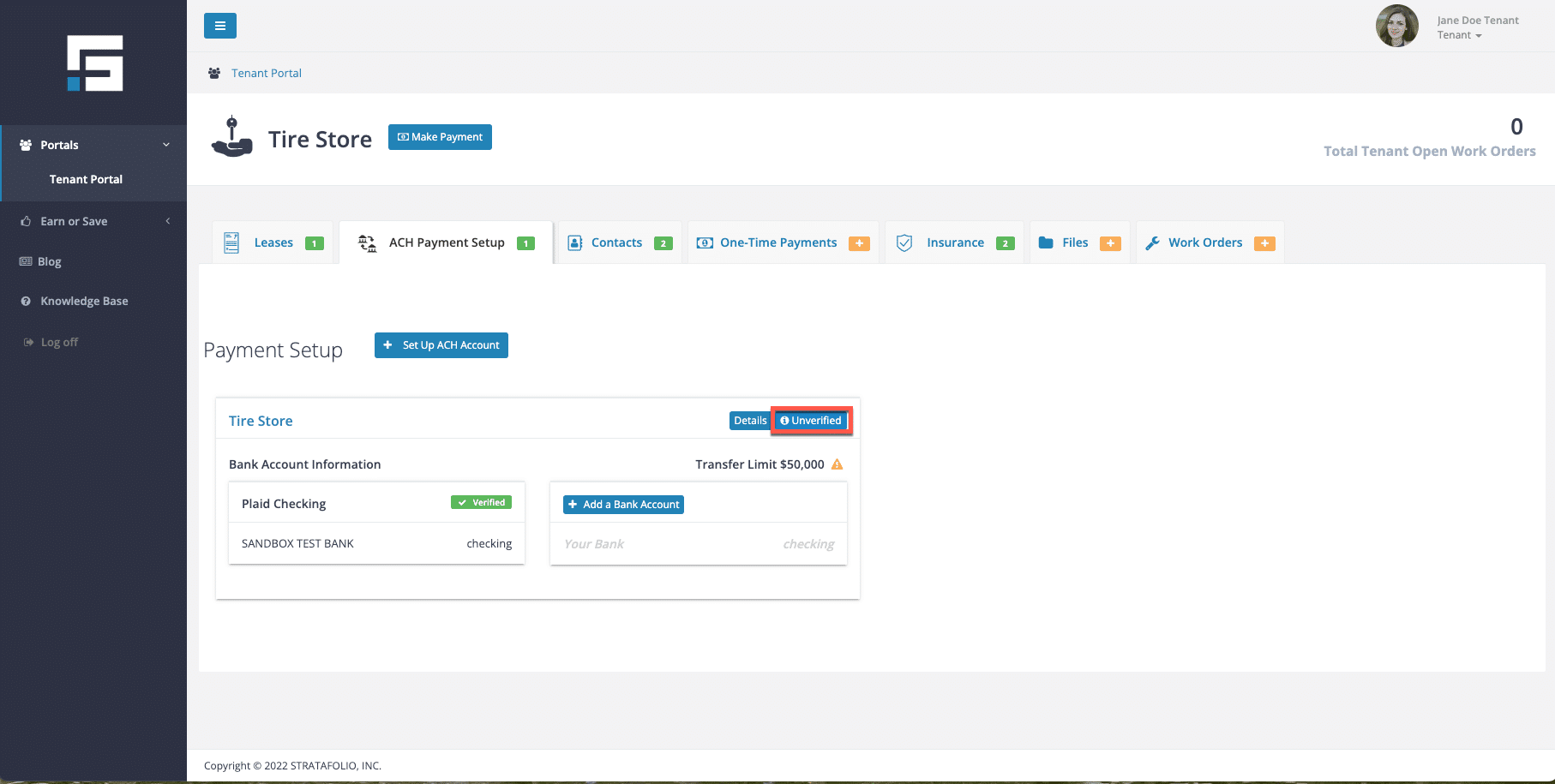
Click on the Unverified button to begin the verification process.
Then, click Verify:
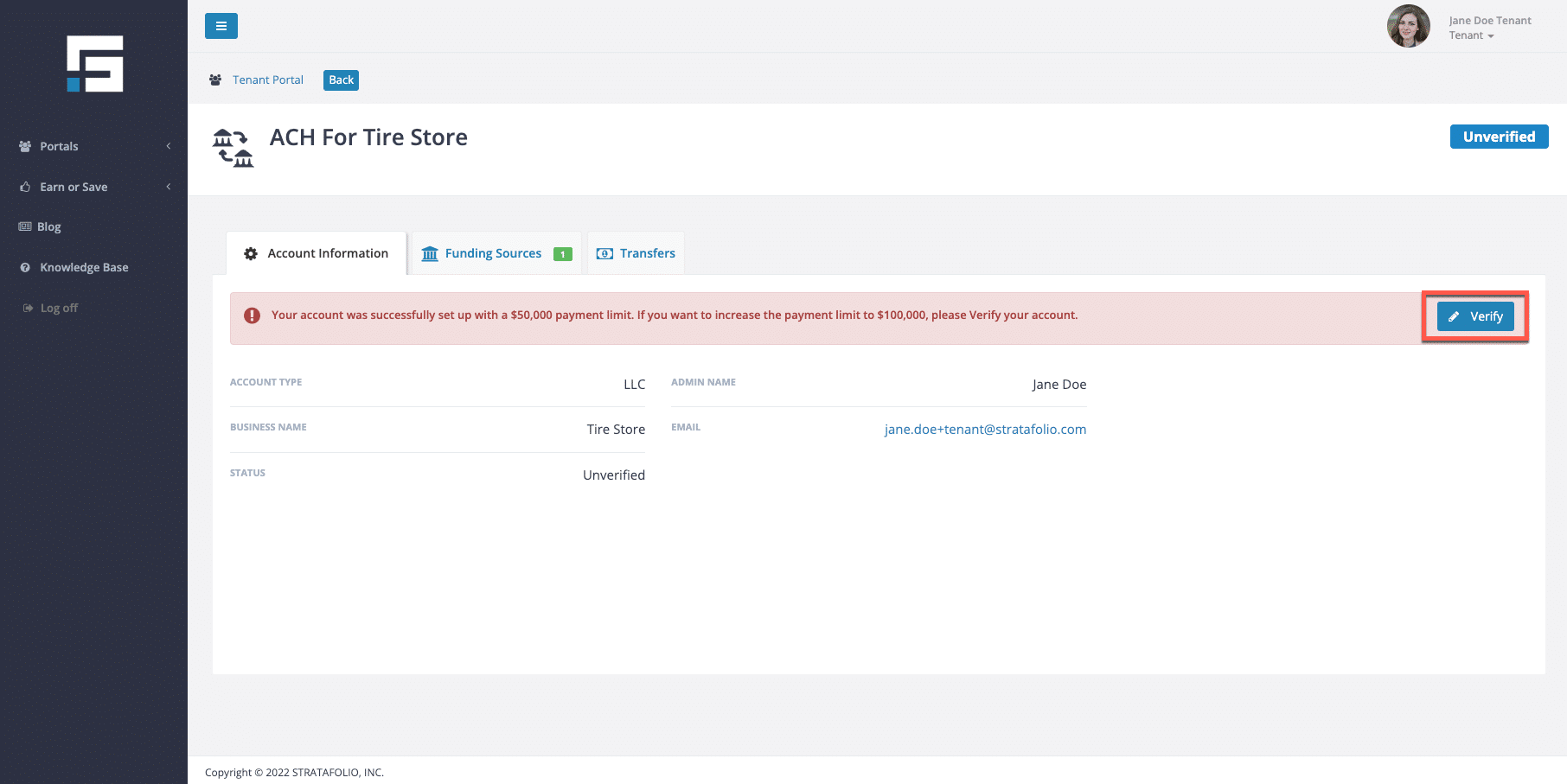
Complete the requested information.

5. Selecting Payment Type- Autopay or One-Time Payment

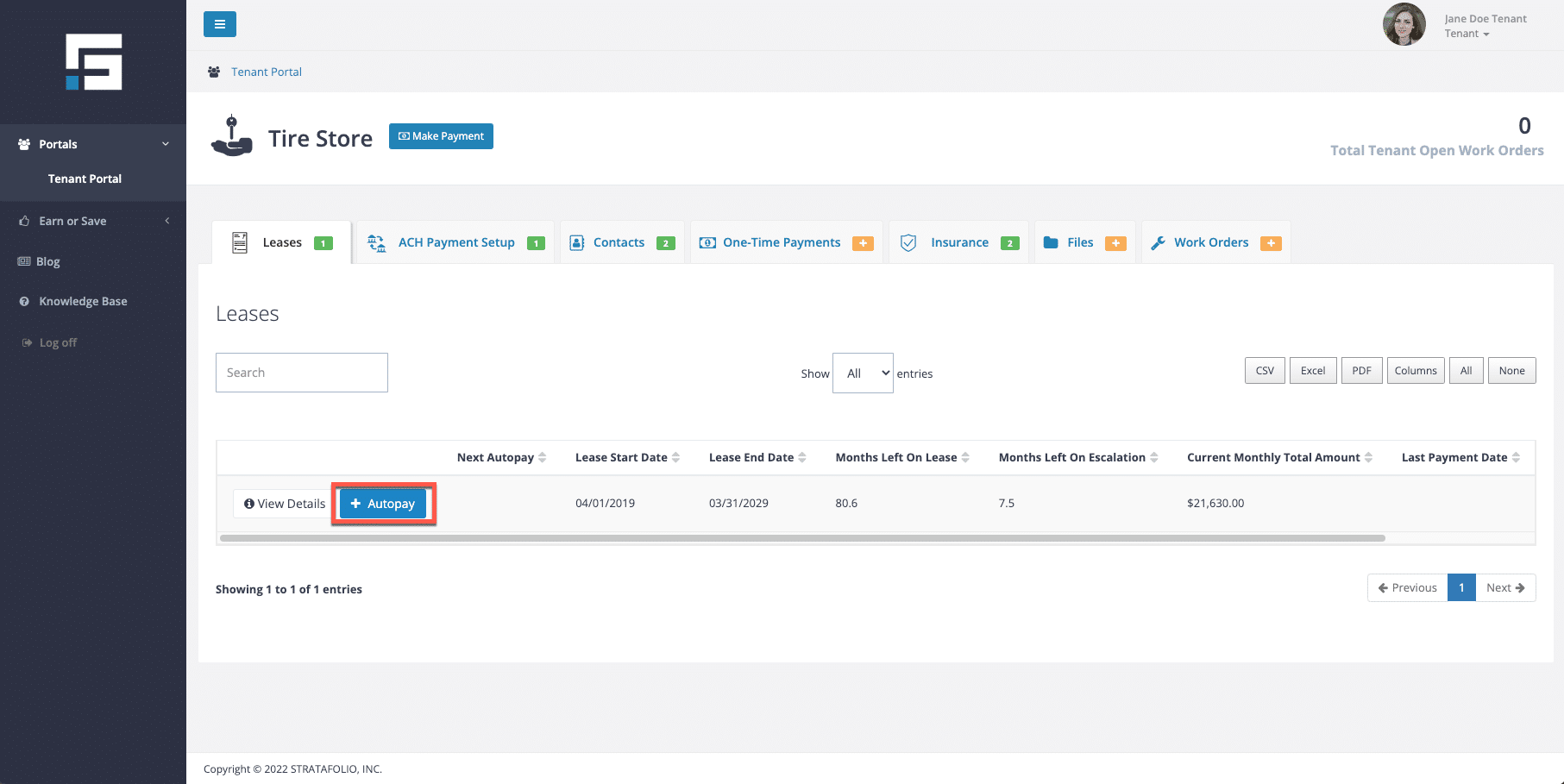
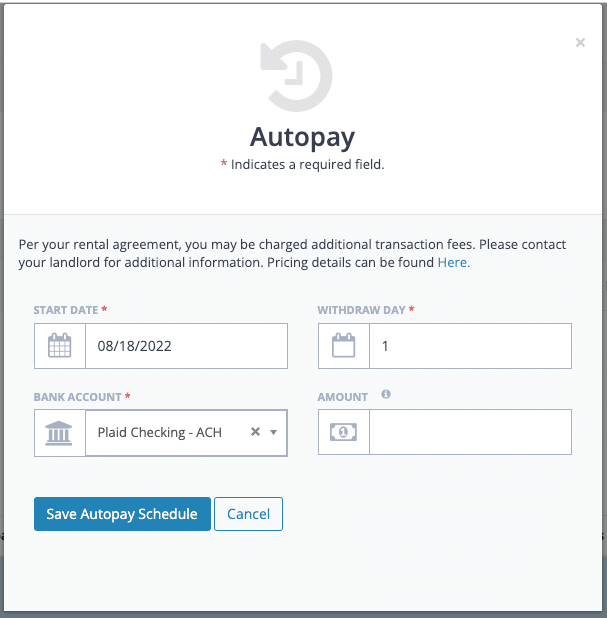
To set up AUTOPAY, select the + Autopay button on the Leases tab.

Next, enter the date, withdrawal day, bank account, and amount.
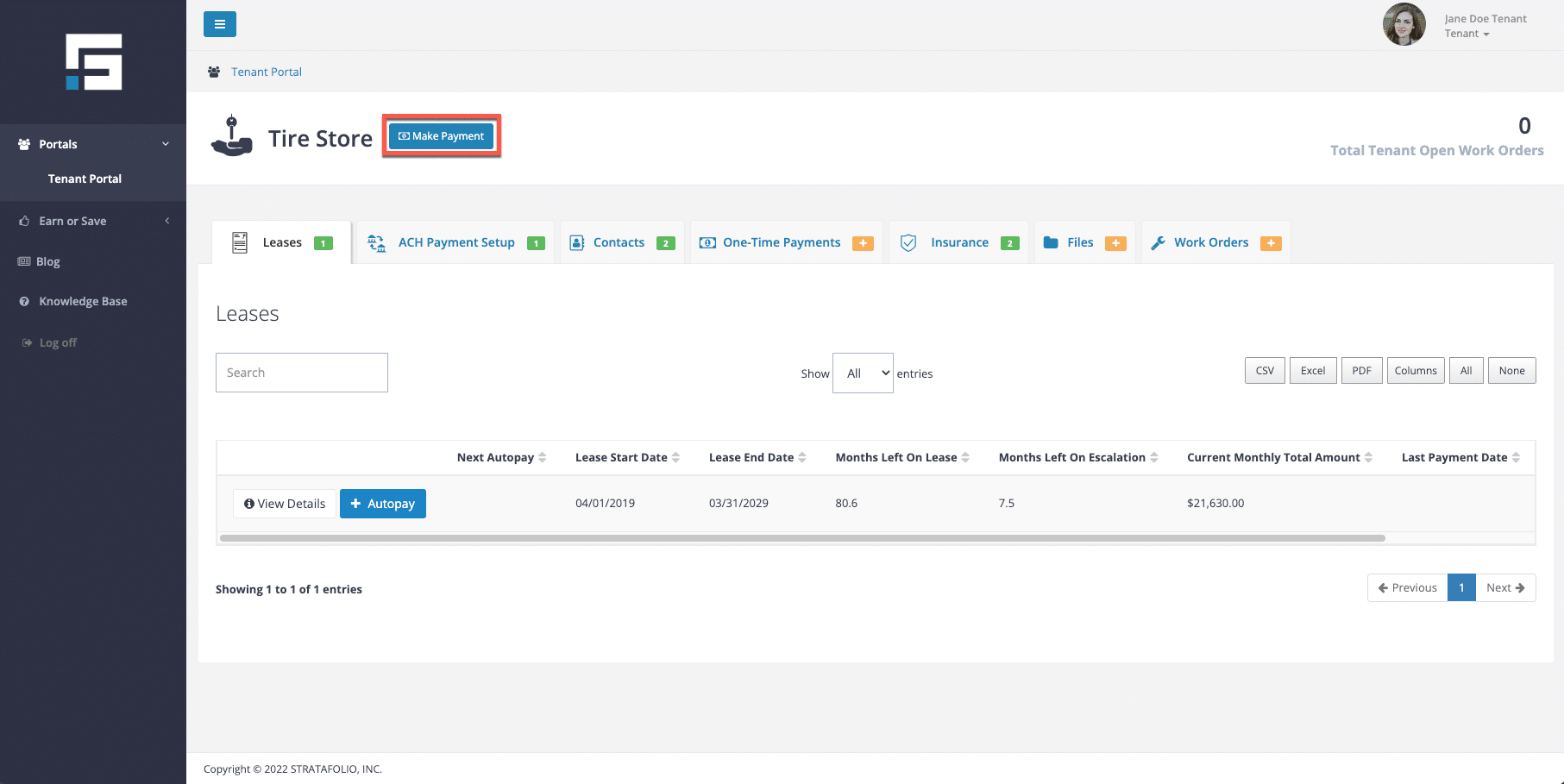
To set up a ONE-TIME PAYMENT, select the + Make Payment button on the Leases tab.
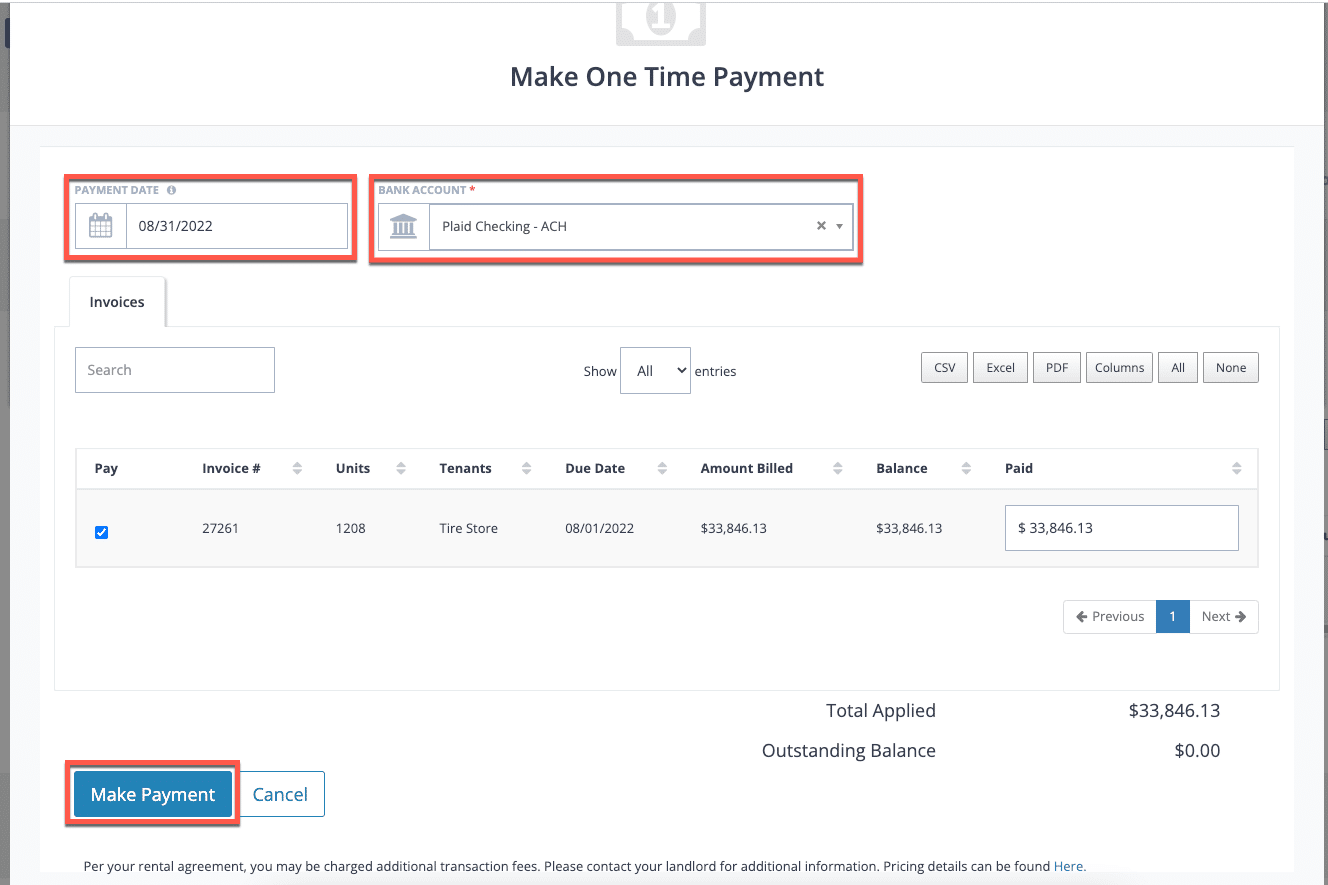
Follow the steps to set up a one-time payment.
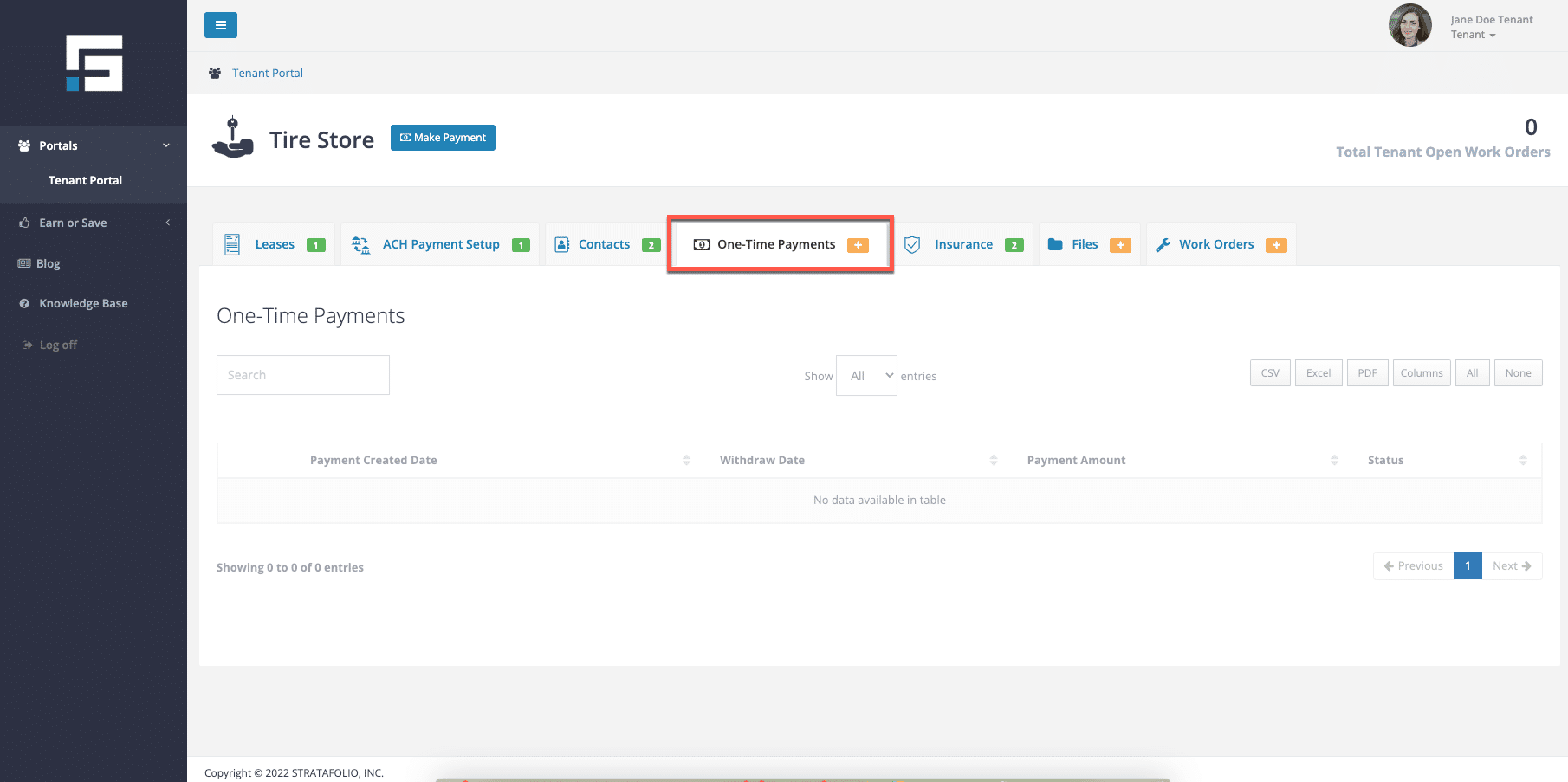
You can see a historical view of all your one-time payments on the One-Time Payments tab.
How Much Will This Cost Me?

There may be fees for making ACH payments. Please ask your landlord for more information if you are unsure of the fees.

Troubleshoot Failed ACH or Returned Payments

Anyone using the Automated Clearing House (ACH) may encounter an error code, also referred to as an ACH return code. In this knowledge base, we will cover potential errors that someone using ACH may encounter. We’ll cover all these error codes. Explain what each one means, its impact on you, your funding source, and how you can resolve the error.

Although using ACH for commercial real estate rent payments and collections offers convenience, significant time savings, automation, security, and reliability, sometimes errors can occur. Some factors are beyond our control, while others may come from unintentional actions we take. Understanding errors can help mitigate these issues.

If you need assistance setting up your ACH service in your tenant portal, check out our other knowledge base article. Tenant Payment Integration (ACH) in STRATAFOLIO

The acronyms and terms listed below will appear in the comprehensive table containing this information:

Acronym or TermDescription
ODFIOriginating Depository Financial Institution
RDFIReceiving Depository Financial Institution
OFACOffice of Foreign Assets Control
RCKRe-presented Check Entry
BlocklistedIf a funding source is added to the blocklist as a result of an ACH return code, you will need to contact your Customer Excellence Manager to get it removed.

Potential ACH Errors

The table below outlines potential errors that someone using ACH may encounter. It includes the ACH error codes, their impact on you and your funding source, and the steps to resolve the error. For more information, you can check out Dwalla’s FAQs. Recognizing ACH error codes early can save time and prevent further complications.

Error CodeDescriptionExplanationReturn Time FrameUser ImpactFunding Source ImpactAction to Resolve The Error
R01Insufficient FundsThe account does not have enough funds to cover the debit.2 banking daysNoneNoneConfirm that there are sufficient funds in the account before retrying the transaction.
R02Bank Account ClosedThe account has been closed.2 banking daysNoneUnverified and RemovedCheck if the account is closed. If it is, update with a valid funding source or provide a new account.
R03No Account/Unable to Locate AccountThe account number does not correspond to a valid account.2 banking daysNoneUnverified and RemovedCheck the account details. If they are wrong, update the funding source with the correct information. Make sure the account number and routing number are accurate.
R04Invalid Bank Account Number StructureThe account number structure is not valid.2 banking daysNoneUnverified and RemovedCheck the account number format and make necessary updates to the funding source. Ensure the format is correct and review for any errors.
R05Unauthorized Debit to Consumer Account Using Corporate SEC CodeA corporate debit entry was made to a consumer account without authorization.60 calendar daysSuspended (If already deactivated, status remains unchanged)Unverified, Removed, and BlocklistedUse the correct SEC code: Only use CCD/CTX for business accounts, not consumer ones. Or, Get proper authorization: Always collect and retain valid authorization before debiting any account. Lastly, Be ready to show proof: If an unauthorized return occurs, Dwolla’s Risk team may request authorization documents to respond to their partner bank. Have those ready in case they reach out.
R06Returned per ODFI’s RequestThe Originating Depository Financial Institution (ODFI) requested the return.Not DefinedSuspended (If already deactivated, status remains unchanged)Unverified, Removed, and BlocklistedCoordinate with the ODFI to understand the return reason and take action.
R07Authorization Revoked by CustomerThe customer revoked authorization for the debit.60 calendar daysDeactivatedUnverified and RemovedObtain a written statement of revoked authorization, and reactivate the account only after resolving the issue.
R08Payment StoppedThe receiver requested a stop payment on the debit.2 banking daysNoneUnverified and RemovedTalk to the customer to understand why they stopped the payment. Resolve their concern before retrying the transaction. Confirm the stop payment with the receiver and check if it’s okay to proceed with the payment.
R09Uncollected FundsSufficient balance exists, but uncollected items bring the balance below the debit amount.2 banking daysNoneNoneEnsure all deposits have cleared before retrying the transaction. If there are pending items, wait for them to clear or deposit additional funds.
R10Customer Advises Originator is Not Known to Receiver and/or Originator is Not Authorized by Receiver to Debit Receiver’s AccountThe customer claims not to know the originator or did not authorize the debit.60 calendar daysSuspendedUnverified, Removed, and BlocklistedGet a written statement of the unauthorized debit and investigate the issue before retrying the transaction. Provide proof of authorization to the customer.
R11Customer Advises Entry Not in Accordance with the Terms of the AuthorizationThe debit entry was inaccurate or improperly initiated.60 calendar daysDeactivatedUnverified and RemovedRequest a written statement for the unauthorized debit. Resolve the issue and obtain a new authorization before retrying the transaction.
R12Branch Sold to Another DFIThe account was sold to another financial institution.2 banking daysNoneRemovedUpdate the funding source with the new bank account details.
R13Invalid ACH Routing NumberThe routing number is not valid.Next File Delivery Time Following ProcessingNoneUnverified, Removed, and BlocklistedCorrect the routing number and update the funding source. Ensure the new routing number is valid.
R14Representative Payee Deceased or Unable to Continue in That CapacityThe representative payee is deceased or unable to continue.2 banking daysSuspended (If already deactivated, status remains unchanged)RemovedVerify the status of the representative payee. Update the account information accordingly.
R15Beneficiary or Account Holder DeceasedThe beneficiary or account holder is deceased.2 banking daysSuspended (If already deactivated, status remains unchanged)Unverified, Removed, and BlocklistedConfirm the account holder’s status. If deceased, close the account and update the funding source.
R16Account Frozen/Entry Returned per OFAC InstructionThe account is frozen or the entry was returned per Office of Foreign Assets Control (OFAC) instruction.2 banking daysSuspended (If already deactivated, status remains unchanged)Unverified, Removed, and BlocklistedContact the RDFI to understand the reason for the freeze. Resolve any compliance issues before retrying the transaction.
R17File Record Edit Criteria/Entry with Invalid Account Number Initiated Under Questionable CircumstancesThe entry contains an invalid account number or was initiated under questionable circumstances.2 banking daysSuspended (If already deactivated, status remains unchanged)Unverified, Removed, and BlocklistedReview the transaction for errors or suspicious activity. Correct any issues before retrying the transaction.
R20Non-Transaction AccountThe account is a non-transaction account.2 banking daysNoneRemoved, and BlocklistedConfirm the account type. If it’s a non-transaction account, update the funding source with a valid transaction account.
R22Invalid Individual ID NumberThe individual ID number is invalid.2 banking daysNoneUnverifiedVerify the individual’s ID number. Correct any discrepancies and update the funding source.
R23Credit Entry Refused by ReceiverThe receiver refused the credit entry.2 banking daysNoneUnverified and RemovedContact the receiver to understand the reason for refusal. Address the concern before retrying the transaction.
R29Corporate Customer Advises Not AuthorizedA corporate customer advises the debit was not authorized.2 banking daysSuspended (If already deactivated, status remains unchanged)Unverified, Removed, and BlocklistedObtain a written statement of unauthorized debit. Investigate and resolve the issue before retrying the transaction.
R31Permissible Return (CCD and CTX only)The return is permissible under CCD and CTX rules.Not DefinedSuspended (If already deactivated, status remains unchanged)Unverified, Removed, and BlocklistedCoordinate with the ODFI to understand the reason for the return and take appropriate action.
R37Source Document Presented for PaymentThe source document was presented for payment.60 calendar daysNoneRemovedEnsure the source document is valid. Address any issues before retrying the transaction.
R38Stop Payment on Source DocumentA stop payment order was placed on the source document.60 calendar daysSuspended (If already deactivated, status remains unchanged)Unverified, Removed, and BlocklistedContact the receiver to understand the reason for the stop payment. Address the concern before retrying the transaction.
R51Item Related to RCK Entry is Ineligible or RCK Entry is ImproperThe item related to a Re-presented Check Entry (RCK) is ineligible or improper.60 calendar daysSuspended (If already deactivated, status remains unchanged)Unverified, Removed, and BlocklistedObtain a written statement of improper entry. Investigate and resolve the issue before retrying the transaction.

More Details on Some of the Listed Error Codes:

R11 Error Code:

Why Did I Get An R11 Error?
  • Bank’s Perspective: The customer’s bank returned the debit because it believed the entry did not match the terms of the authorization. This could be the wrong amount, the wrong date, or a lack of required notice. It’s still considered an “authorized” debit, just processed incorrectly.
  • Consumer Protection Angle: Many banks issue R11 when their customer disputes a transaction they had authorized but says was executed incorrectly. This is different from R10 (“unauthorized”), which kills the mandate entirely.
What Dwolla’s Doing Automatically For The R11 Error:
  • Funding Source Removal: Dwolla proactively deactivates the funding source and account when it sees an R11 code generated by the user’s bank. This is a risk-control measure to stop further returns.
  • Your Option to Reactivate: You can re-enable the account and let the user re-add their funding source if, after reviewing, you’re confident the transaction error is fixable and the customer still consents.
What You Should Do Next For The R11 Error:
  1. Talk to the User: Confirm with them why they or their bank challenged the entry (wrong date, wrong amount, etc.). This is the “ultimate source of truth” because only they can clarify.
  2. Correct the Error: If it was, say, a timing mismatch or an amount error, fix it.
  3. Re-submit Properly: Nacha rules let you re-originate once corrected without needing a brand-new authorization, provided the original mandate is still valid.
  4. Document the Resolution: Keep records showing what was wrong and how it was fixed. This is important if your return rates get reviewed.

The key difference here is that R11 is fixable. It doesn’t mean fraud or no authorization; it just means your debit didn’t match the authorization exactly. Dwolla’s workflow is conservative (blocking then allowing you to re-enable), but that’s normal for ACH originators managing network risk.

Best Practices

To ensure a seamless experience, we recommend the following best practices.

  1. Enable two-factor authentication to add an extra layer of security to your account.
  2. Do not share your login information with anyone.
  3. Monitor your transactions regularly and ensure that your correct payment amounts are always entered.
  4. Do not mark the stratafolio.com domain as spam. This could prevent you from receiving important alerts we send out.
  5. Landlord: Ensure invoices are always added prior to the ACH transaction due date.
  6. Tenant: Set up your autopay and leave the amount blank to ensure you are paying the full invoice amounts. If you add an amount, ensure you update it when your lease escalations take effect to avoid underpaying your rent.

We hope this information provides you with the necessary details to ensure a pleasant ACH experience.

How to Stop Future ACH Payments

There may be situations where you or your tenants no longer want to process payments through STRATAFOLIO’s ACH integration. For example, payments may be handled outside the system, or issues with autopay limits may require ACH to be disabled. In these cases, you can stop ACH autopay to ensure no future payments are made through STRATAFOLIO.

Stopping ACH Autopay

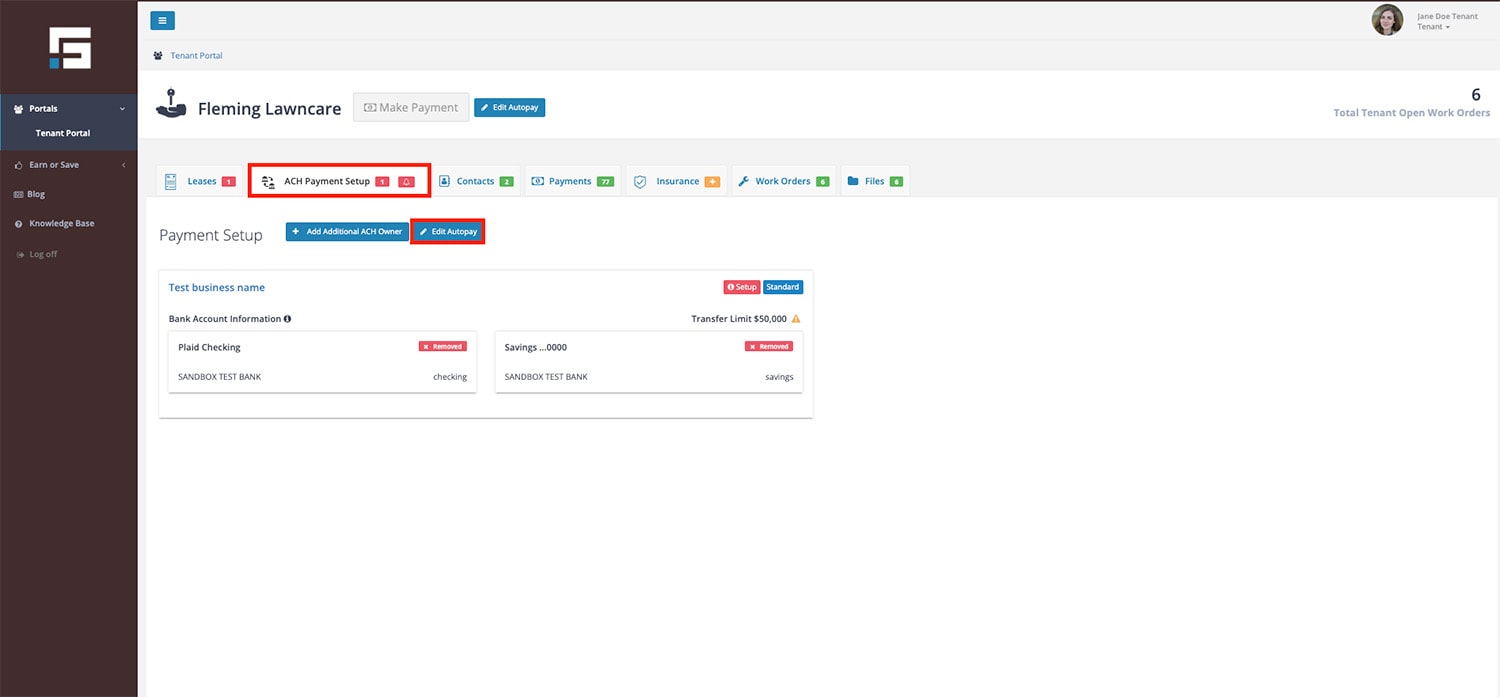
To prevent future ACH payments from being processed, tenants must stop their autopay settings in the Tenant Portal.

Steps to Stop Autopay:

  1. Log into the Tenant Portal.
  2. Select the ACH Payment Setup tab.
  3. Select Edit Autopay.
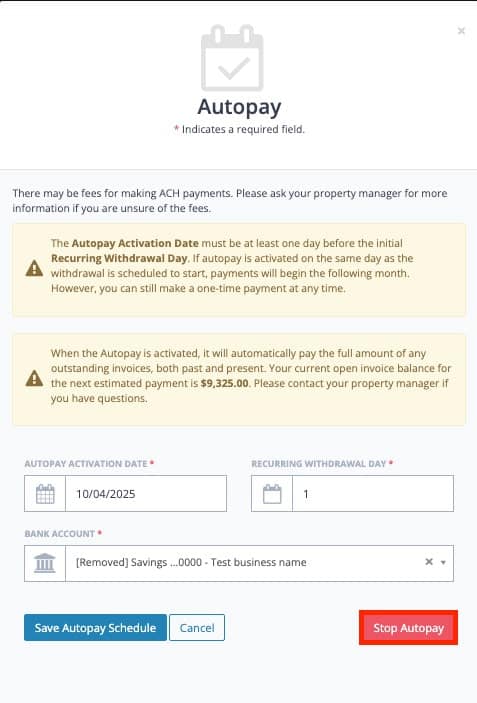
  4. Select Stop Autopay.
The Stop Autopay button in the autopay setup pop up

Once stopped, STRATAFOLIO will not attempt to run ACH autopay for future invoices. Tenants may still make one-time ACH payments if needed, but recurring payments will no longer process automatically.

Troubleshooting ACH Issues

Sometimes an ACH payment may fail or not process as expected. Here are common issues and solutions:

  • Autopay Limit Too Low
    • If the tenant’s maximum autopay limit is less than the invoice balance, the system will not process the payment.
    • Example: If an invoice totals $6,066.84 and the autopay limit is $3,033.42, STRATAFOLIO will not process the payment.
    • Solution: The tenant must either increase their limit or make a one-time payment to cover the full amount.
  • Invoice Not Finalized
    • Autopay only processes finalized invoices. If an invoice is still pending, the system will skip it.
    • Solution: Ensure invoices are finalized in STRATAFOLIO before the autopay date.
  • Timing of Invoice vs. Autopay Date
    • If an invoice date is later than the scheduled autopay date, the payment will not run.
    • Solution: Verify that invoice dates align with autopay schedules.
  • Pending Transfers
    • If an ACH transfer is already pending (e.g., expedited processing), it will continue unless stopped by the bank.
    • Solution: Contact your bank if you need to cancel a pending ACH transfer.

Best Practices

  • Stop Autopay Promptly
    • If you no longer plan to use STRATAFOLIO’s ACH, stop autopay immediately to prevent failed or partial payments.
  • Confirm Payment Responsibilities
    • When autopay is stopped, tenants are responsible for ensuring payments are made manually and on time.
  • Use One-Time Payments for Flexibility
    • If autopay doesn’t meet your needs (e.g., irregular invoice amounts), tenants can make one-time payments directly in the Tenant Portal.
  • Communicate Changes with Tenants
    • If you as an owner or property manager decide not to accept ACH payments in STRATAFOLIO, inform tenants so they can adjust their payment methods accordingly.
Click On A Tags To View Related Content:

Continue reading

Previous: Using STRATAFOLIO with Accrual-Based Accounting
Next: How to Add and Update Valuations in STRATAFOLIO