
Easily see a Rent Roll for the whole organization, a specific entity, asset, or month. There are different options for customizing what you see on the Rent Roll, and it is as easy as a few clicks. You can see your portfolio on a single professional-looking Rent Roll to give to lenders or investors whenever you need to.
Navigate to the Rent Collection Index Page
Select the navigation bar on the left-hand side. Open the Operations, then Rent Collection. For more information about the Rent Collection View and the options on it, see our Knowledge Base article, The Rent Collection Page in STRATAFOLIO.
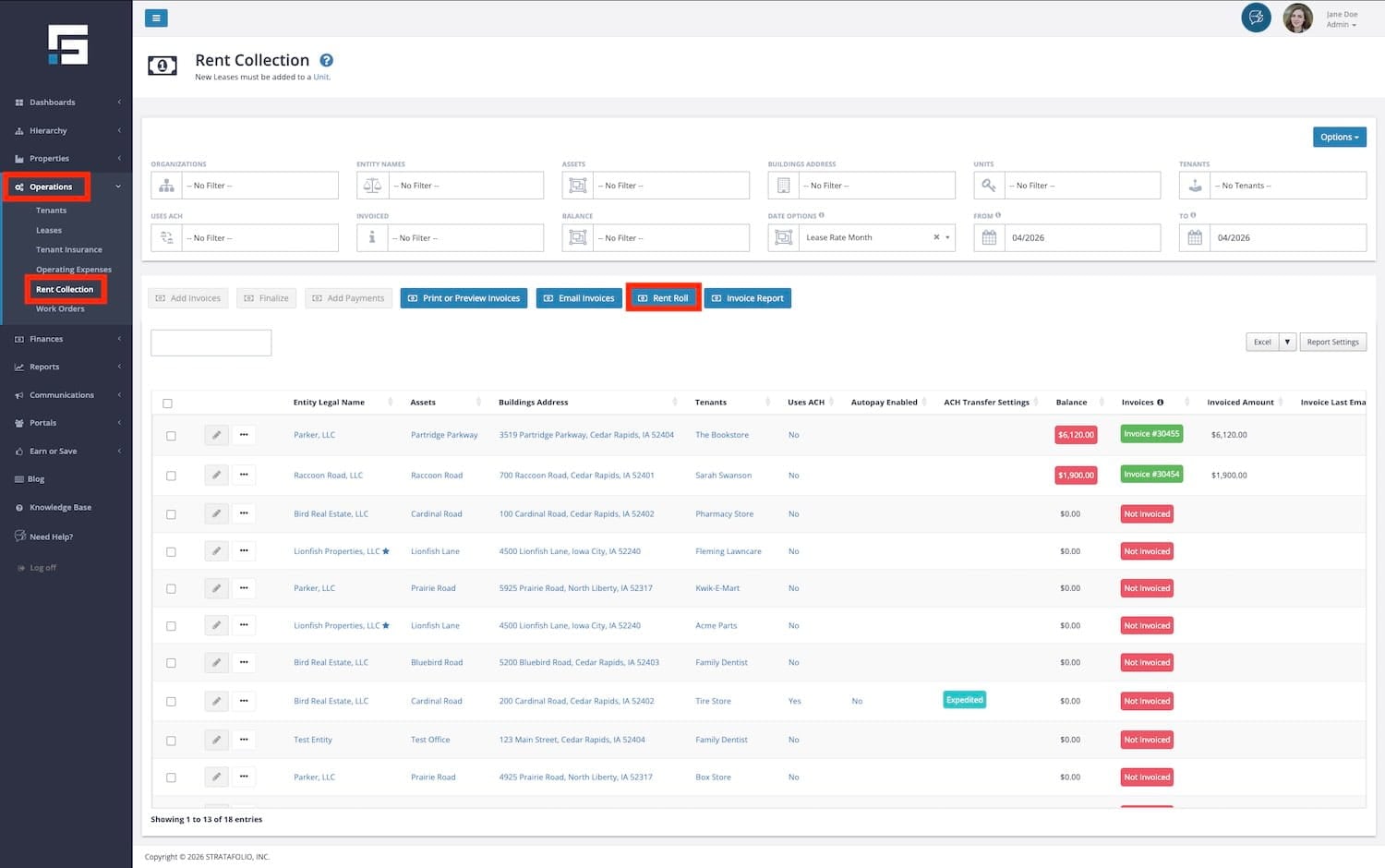
Select the Rent Roll button.
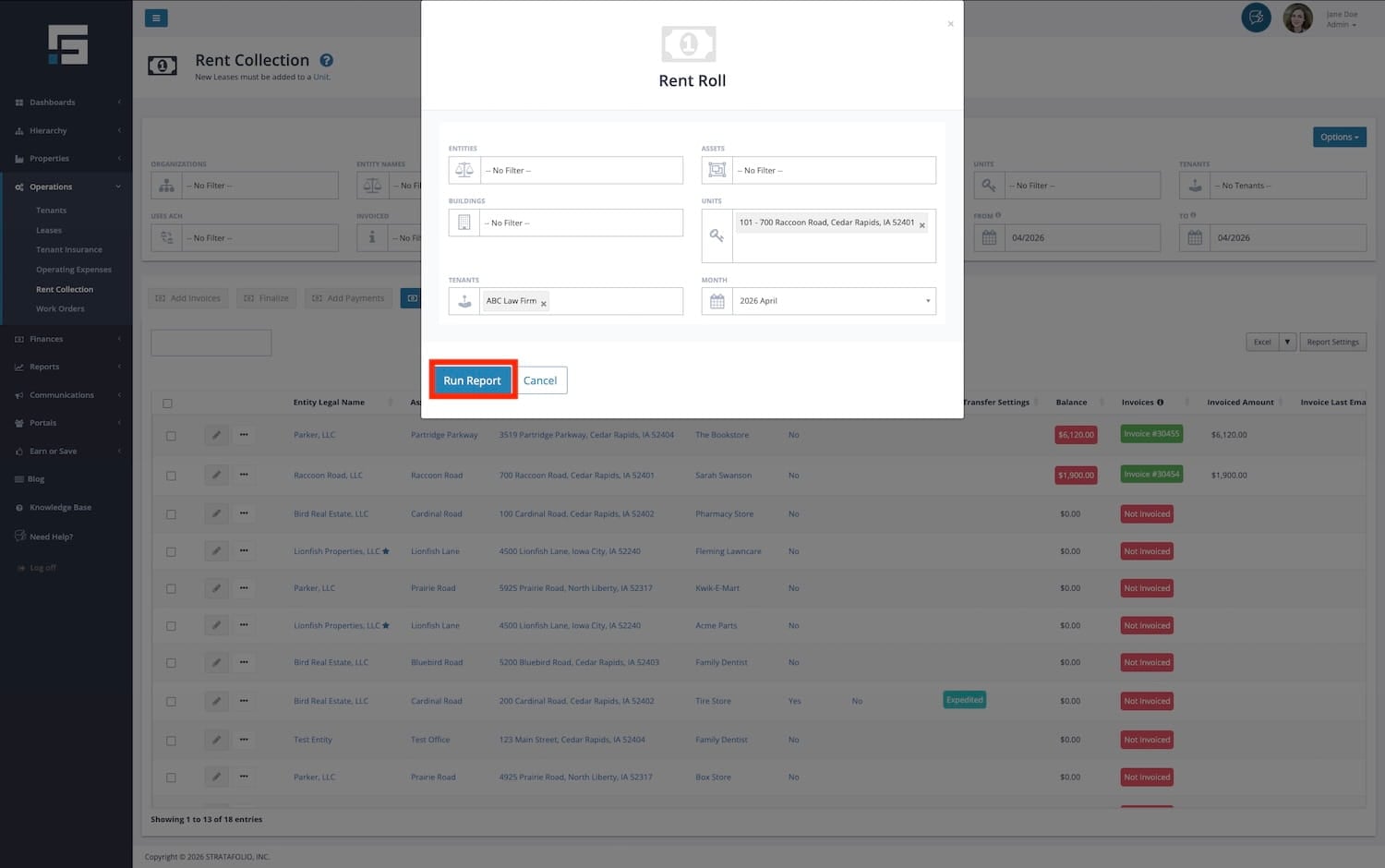
Enter the information to include in the report. The following filters can be selected when you run a Rent Roll. The entire portfolio will be included in the one report if nothing is selected.
- Entities
- Assets
- Buildings
- Units
- Tenants
- Month
Then select Run Report.
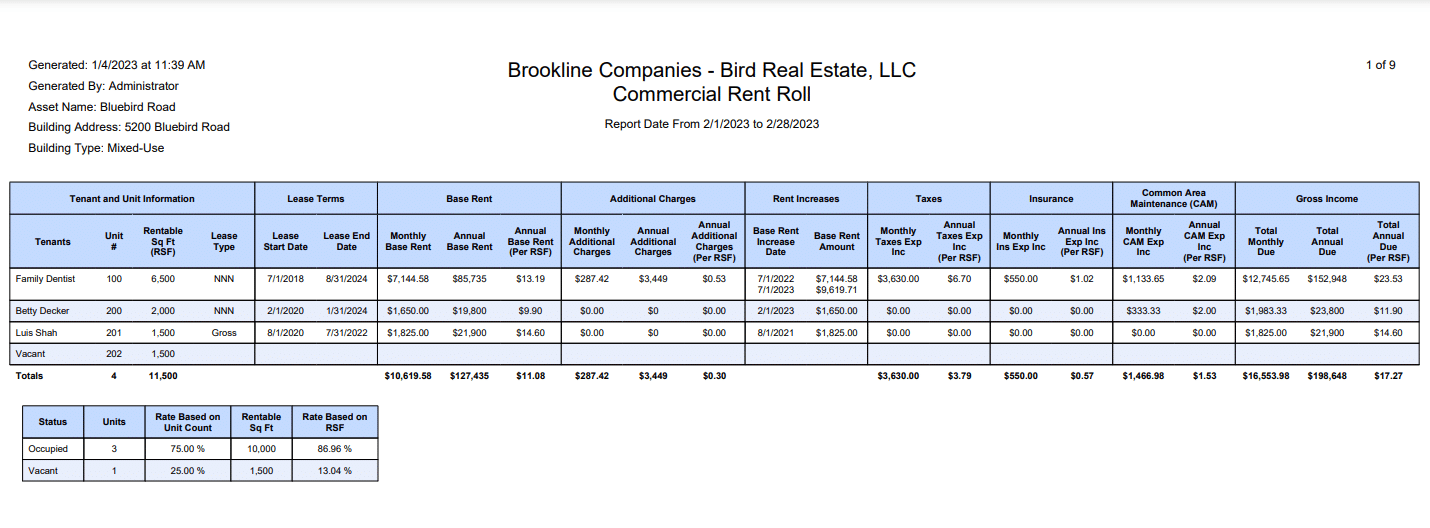
A report will be generated in a PDF format, allowing you to see a concise overview of the operations of your properties.
STRATAFOLIO reports vacancy by Units and by Rentable Square Footage at the bottom of each building on the Rent Roll.
The very last pages of the Rent Roll provide a consolidated view. Depending on the filters that you selected, you will get a consolidated report for the Entities. Assets, Buildings, or Tenants that you picked. This part of the Rent Roll also includes a consolidated vacancy report that shows the vacancy based on units or square footage.
Running a professional Rent Roll is simple with STRATAFOLIO. Another way to generate a Rent Roll report is to navigate to Reports from the left-side navigation menu. Selecting the Rent Roll report on this page will open a pop-up form where you can choose and adjust the filters needed to generate the report for your desired assets, entities, dates, or other criteria.
You can also find additional reports on the Rent Collection Page.
