

Monitoring Invoice Payment Status for Property Managers
If you own income-producing real estate, you know one of the most tedious tasks is invoicing and making sure your tenants pay their rent each month. And when their lease includes late fees, you need a quick and easy way to see which tenants have paid and which are past due. STRATAFOLIO offers invoicing that syncs with your QuickBooks accounts and provides a payment status snapshot, so you can quickly track paid and overdue invoices.
Why You Should Add Invoices for Your Tenants
Creating monthly invoices for all your tenants in your QuickBooks is a best practice. This does not mean you have to send the invoices to the tenants, but that they should have an invoice added. This helps with the following:
- Verifying the correct amount of Rent and NNN Charges are being invoiced to the tenant
- Make sure that you are not missing any escalations of rent
- Checking to make sure that the tenant is paying their invoices on time
- It is better business practice to show a paper trail for all Rent and NNN Charges if ever needed
In STRATAFOLIO, we show all payments collected from the tenants on a cash basis. This is another reason to ensure invoices are added in QuickBooks or STRATAFOLIO each month. We will not display Sales Receipts or A/R reports, so the Ices are the best way to track all payments due to your organization.
Steps to Viewing Payment Status
Add an Invoice
To see payment status in STRATAFOLIO, you must add an invoice in either STRATAFOLIO or your QuickBooks account. When you add an invoice in STRATAFOLIO, the invoice is pushed to your QuickBooks account. You can then print or email the invoices straight from STRATAFOLIO.
If any changes need to be made to the invoices after they are finalized and in your QuickBooks, you must make those updates in QuickBooks. Once the changes are made, QuickBooks will sync back to STRATAFOLIO with the updates.
No matter how you add the invoice (using either STRATAFOLIO or QuickBooks), the invoice information will sync to STRATAFOLIO and can be viewed on the Rent Collection page.
You can find more information about creating invoices in our Knowledge Base article for How to Add Invoices in STRATAFOLIO.
TIP: Using STRATAFOLIO to add invoices ensures that you will automatically capture any rent escalations or NNN changes that were entered for that lease.
Record Payments in QuickBooks
To have the status of the invoices accurately reflected in STRATAFOLIO, payments received must be properly posted to the correct invoice for the Customer/Tenant in QuickBooks. Once the payment is posted to the invoice in QuickBooks, it will be updated in STRATAFOLIO shortly.
You can find more information about posting payments in our Knowledge Base article How to Receive Payments in STRATAFOLIO.
NOTE: QuickBooks Online will sync with STRATAFOLIO whenever you make a change to your account. QuickBooks Desktop must be synced with the Web Connector to see the updates made in STRATAFOLIO.
REMINDER: STRATAFOLIO is only as up-to-date as your QuickBooks account!
How to Record Partial Payments in STRATAFOLIO
If you enter a payment amount that is less than the invoice balance, STRATAFOLIO will treat it as a partial payment. The system will apply the amount received to the selected invoice and continue to display the remaining balance as outstanding. This ensures you can track exactly how much is still owed.
Partial payments will sync to QuickBooks along with the invoice details. The unpaid portion will remain open until additional payments are recorded to bring the invoice balance to zero. Overdue balances will remain marked as past due on the Rent Collection page until the invoice is fully paid.
Navigate to the Rent Collection Page
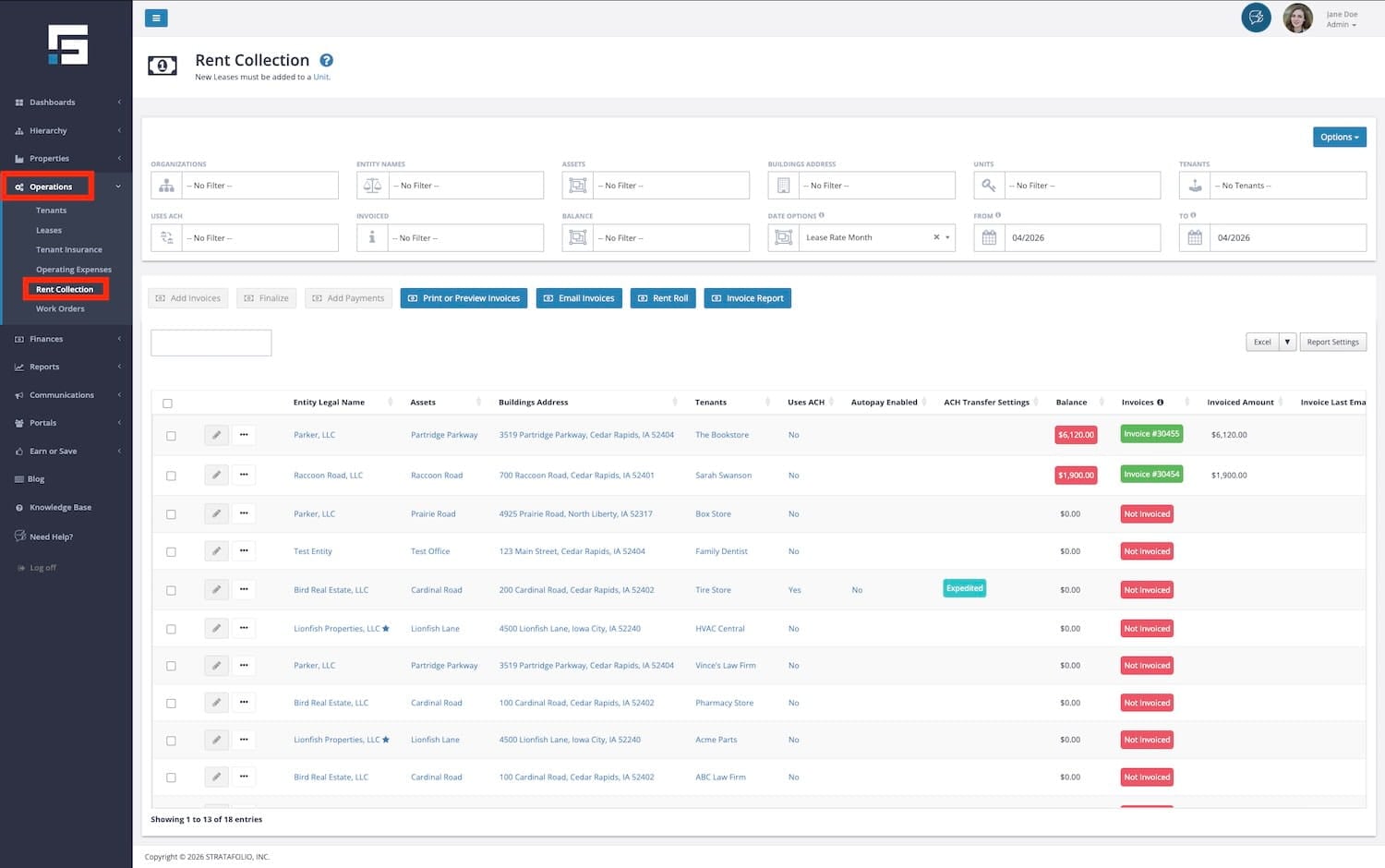
The quickest and easiest way to view the payment status for multiple invoices is to run a report from the Rent Collection page. Using the left side navigation panel, select Rent Collection under Operations.
Select Dates & Sort on Balance
Select Dates
- The Rent Collection page defaults to the next month, on the 16th of the month. You must select the date options and range you want to view for current/past invoices.
- Once you have selected the date range, bring the past due balances to the top by selecting Balance.

Scroll right to see more information, or select the green Invoice # block to open the invoice and view the details.
Additional Sort Options
Hierarchy Search in the Rent Collection Page
- On the Rent Collection page, you can also narrow the search to a specific Organization, Entity, Building, and all the way down to the Tenant level.
Invoiced Search in the Rent Collection Page
- You can select Not Invoiced, Draft Invoice, Sync Error, Sync in Progress & Finalized in the Invoiced search block. This is especially helpful if you prepare the invoices ahead of time and want to find all the draft invoices that need to be finalized.
Balance Search in the Rent Collection Page
- In the Balance search block, you can narrow the search by invoices that are Overdue, Current, or have a Credit.
Export Report
In the Rent Collection, you also have the option to export the report into Excel, as a PDF, or in CSV format.
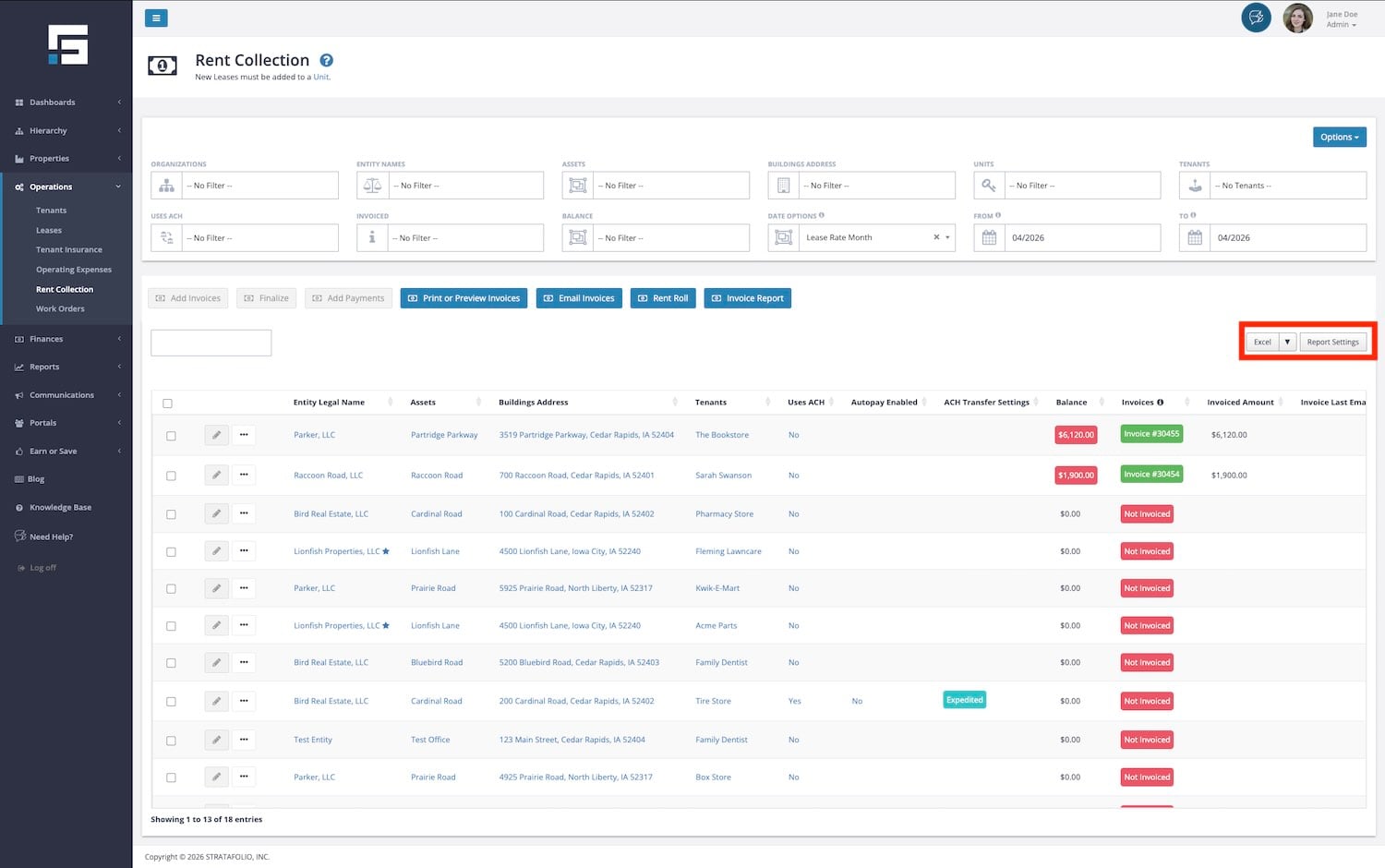
For more information about the Rent Collection page, see our Knowledge Base article about the Rent Collection.
How to Add Invoice Payments
We know owners and managers encounter many different situations, and sometimes, it is easier to post your invoiced rent payments in STRATAFOLIO rather than QuickBooks. Since STRATAFOLIO syncs with your QuickBooks account, once you add a payment to one account (either QuickBooks or STRATAFOLIO), it will sync to the other.
One advantage of adding payments through STRATAFOLIO is that all your QuickBooks accounts are accessible in one place. In STRATAFOLIO, switching between separate QuickBooks accounts to add payments is quick and easy. In fact, in STRATAFOLIO, there is no “switching,” as all invoices appear in a single location under the Rent Collection tab.
Receiving payments is a simple process within STRATAFOLIO.
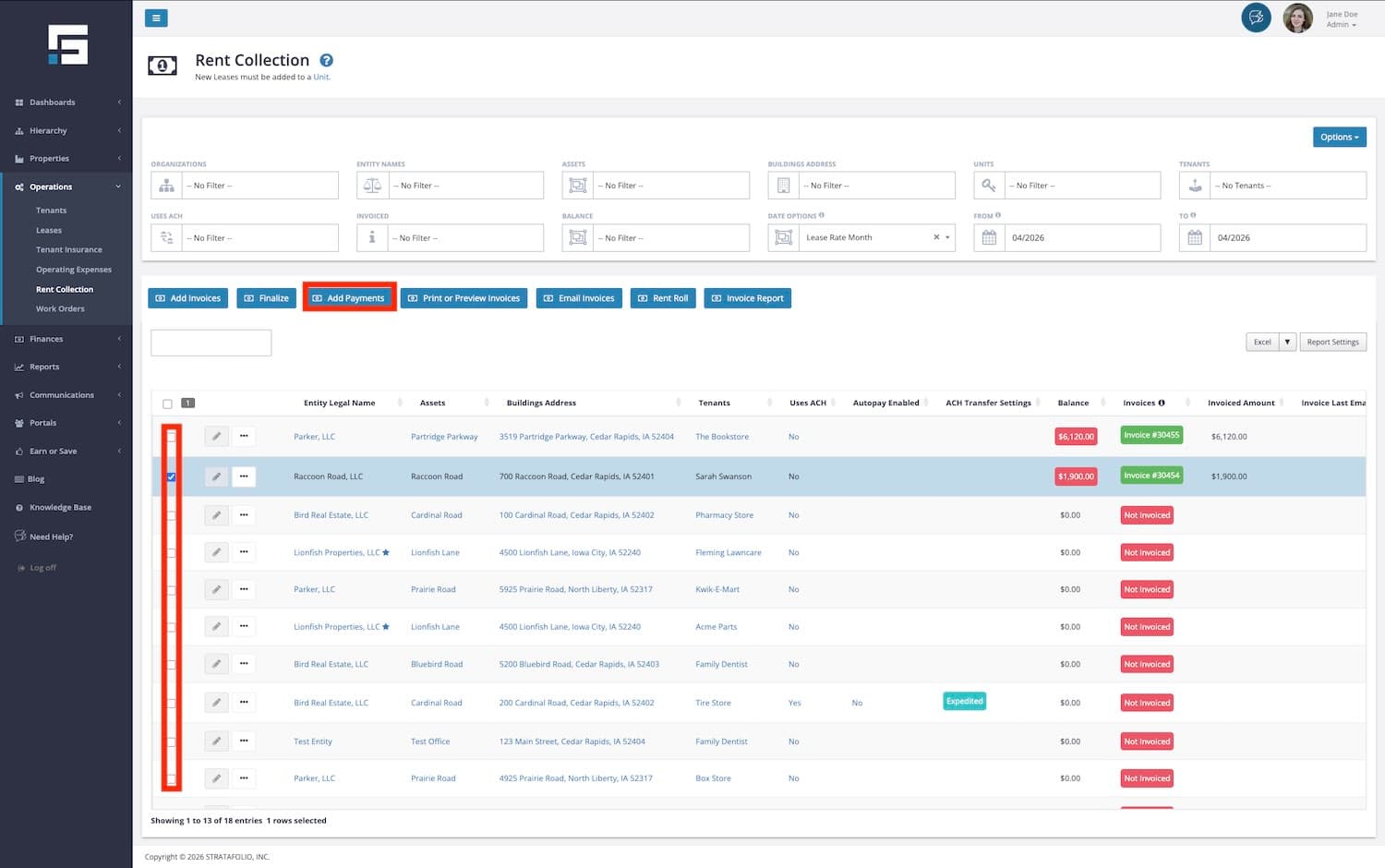
Navigate to the Rent Collection tab by going to the left-side menu > Operations > Rent Collection.
- The first step is to select the outstanding invoice(s) to which you want to add the payment.
- Next, select Add Payments.
Add the Payment Details
- Select the Date the payment was received.
- Identify the Type of payment received: Cash, Check, ACH, or Other.
- Add any Reference to help you track the payment received, such as the check number.
- Select the asset account to which the payment will be posted in QuickBooks.
- In QuickBooks, you typically post a deposit to Undeposited Funds and then move it to another account. You can use STRATAFOLIO to post the payment to any asset fund for QuickBooks.
- Select the invoice(s) that were paid and the amount paid. If the amount received was different than the balance, you will need to adjust the Amount Received.
- Displayed will be all invoices with an outstanding balance for the selected tenant(s).
- You cannot post an amount greater than the amount due on the invoice. If you need to apply an overpayment to an invoice, do so in QuickBooks.
- Select Add Payments. QuickBooks and STRATAFOLIO will sync at the next scheduled sync for QuickBooks Desktop, or within minutes for QuickBooks Online.
NOTE: A payment needs to be posted in only one location, either QuickBooks or STRATAFOLIO. If you made payments in QuickBooks, please synchronize and allow some time for STRATAFOLIO to show those payments.
