The Tenant Portal in STRATAFOLIO offers tenants a place to view lease information, set up ACH payments, and view or upload files.
If you prefer a visual walkthrough, the video below provides a complete tour of the STRATAFOLIO Tenant Portal. It demonstrates how to navigate the portal, review lease information, upload documents, and manage important tenant tasks.
Watching the video first can help you understand where everything is located in the portal before following the written instructions in this article.
How Tenants Access Their Invoices in the Tenant Portal
The Tenant Portal interface is different from the landlord view in STRATAFOLIO. Instead of viewing invoices on the Rent Collection page, tenants access them on their Lease Details page.
To view invoices, tenants should:
Log in to the Tenant Portal.
Open the Lease Details page for their lease.
Select the Invoices tab.
The Invoices tab displays all invoices associated with that lease, including outstanding balances and previously issued invoices. From this tab, tenants can review invoice details and, if ACH payments are enabled, submit payments directly through the portal.
If the Invoices tab is not visible, it may mean that invoices have not yet been generated for the lease or that portal access or billing setup still needs to be completed.
Upload and View Files in the Tenant Portal
As a Tenant, you will only be able to view the files your landlord has shared with you. You can also upload documents to share with your landlord. Uploading files can be handy if your lease requires you to submit a document periodically, such as a Certificate of Insurance.
NOTE: In order to access the Tenant Portal in STRATAFOLIO, your landlord must first send you an invitation.
Tenants have two different locations in the Tenant Portal where they can upload files. Understanding both locations will help ensure the right documents are organized and easy to find.
Navigate to Tenant Portal/Files Tab
First, log in to your STRATAFOLIO Tenant Portal account and navigate to the View Details button. Note: If you have more than one lease, select which lease to add/view files.
NOTE: In order to access the Tenant Portal in STRATAFOLIO, your landlord must first send you an invitation.
Files Related to a Specific Lease or Lease Files
To upload a file related to a specific lease:
Log into the Tenant Portal.
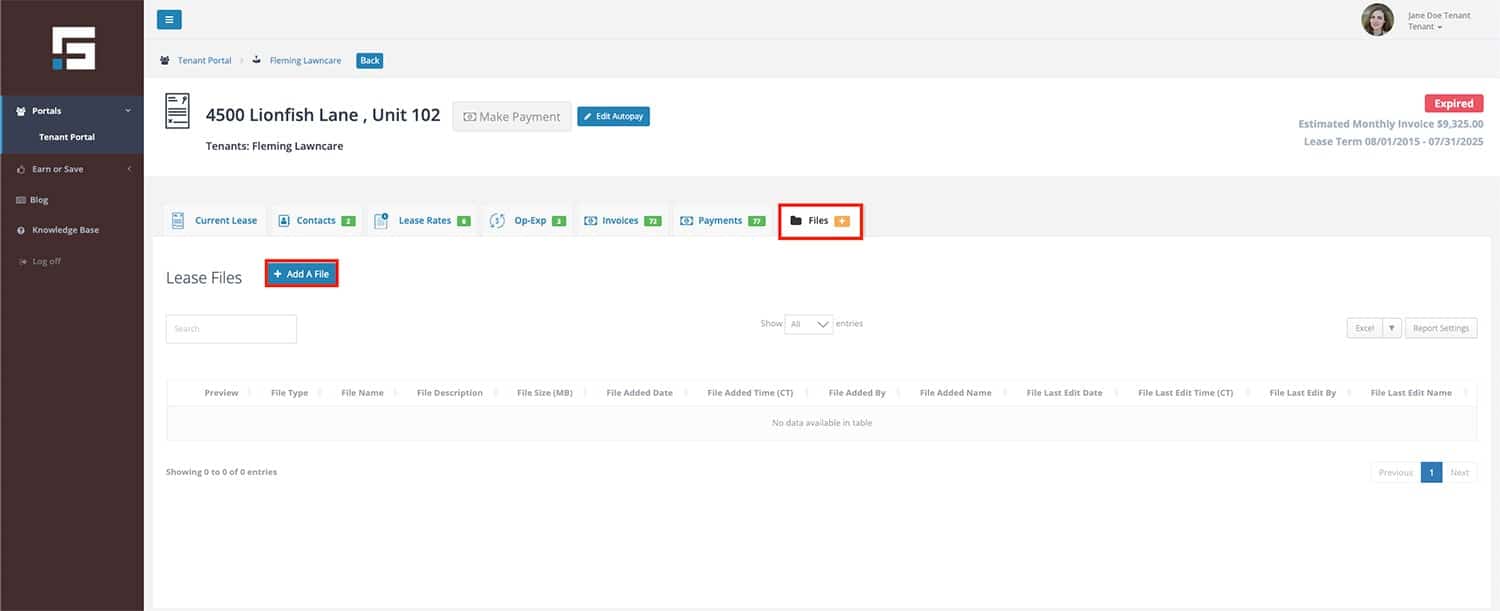
Locate the related Lease and select View Details beside the lease. Select the Files tab.
Select Add a File.Select the File Type from the dropdown and upload the document.
File Types available in the Lease > Files tab include:
Commercial Lease
Residential Lease
Lease Amendment
Estoppel
Lease Renewal
Letter of Intent
Tenant ID
Proof of Insurance
Move-In Picture
Move-Out Picture
Receipt
Security Deposit
Commencement Agreement
Assignment/Assumption
Guaranty
CAM Reconciliation
CAM Letter
Lease Abstract
Escalation Letter
SNDA
Lease Renewal Notice
Other
General Tenant-Related Documents or Tenant Documents
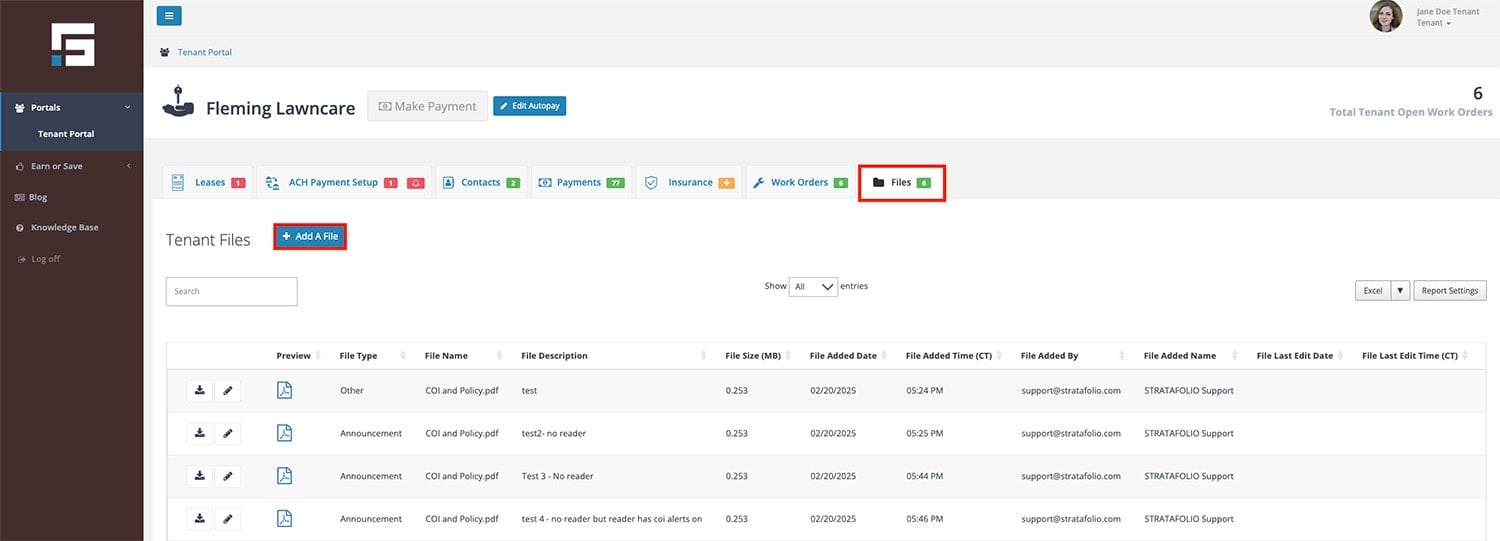
For documents that may not be tied directly to a single lease, or are related to announcements and work orders, tenants can use the Files tab in the Tenant Portal.
Log into the Tenant Portal. Navigate to Files. Select Add a File, choose the File Type and upload the document.
File Types available in the Tenant Portal > Files tab include:
Images associated with a submitted work order
Announcement
Other
Why Two Locations?
The Lease > Files tab is designed for lease-specific documents (such as insurance certificates, lease agreements, and move-in/move-out pictures).
The Files tab provides a central location for broader tenant files (such as IDs or announcements) that don’t necessarily belong to one lease.
By using both areas, you keep documentation well-organized and easily accessible for both tenants and property managers.
Note: If you do not see any files, your landlord has either not uploaded any files to STRATAFOLIO or has not selected any files to share with you at this time.
Uploading Files in the Tenant Portal
To upload a file, select the blue Add a File button.
Gray Drag & Drop Rectangle – In the Upload a File popup, you can drag or drop files into the gray rectangle or select the rectangle to browse for the file on your computer.
Upload Description – You can add a description in this field if needed.
File Upload Restrictions – Hover your mouse pointer over the “i” to see limitation details on the types of files that can be uploaded. In general, files may be no more than 30MB and should be standard file types such as: .jpg, .pdf, .docx, .xls, etc.
After you have selected the file(s) to upload, choose Upload File at the bottom of the popup and wait for the page to refresh. The file(s) you uploaded will appear at the bottom of the file list.
Accessing Files in the Tenant Portal
On the Files tab you will see a list of files that you have uploaded or files that the landlord has selected to share with you. For each file, the landlord can restrict access to the files. Access levels and how to download & view files are discussed below.
Download & View a File from the Tenant Portal
To view a file in the Tenant Portal, navigate to the download button
next to the file. This will download the file to your computer where you can open and view it.
File Access Levels in the Tenant Portal
The landlord can set the following access levels for each file in STRATAFOLIO, including the tenant upload files. File access levels are described below. When a tenant initially uploads a file to STRATAFOLIO, the tenant will have full access to view, edit & delete the file.
NOTE: The landlord can change the access level for files that the tenant uploads
1. View
View access allows a tenant to download and view the file only. The tenant cannot edit the file description or delete the file.
2. View and Edit
View and Edit access allow a tenant to download and view the file and edit the file description. However, the tenant cannot delete the file.
To edit the file description, select the Edit button
next to the file. If “delete file” in the lower right of the Edit File Information popup is grayed out, you do not have permission to delete the file.
3. View, Edit, and Delete
View, Edit, and Delete access allows a tenant to download and view the file, edit the file description and delete the file.
To edit the file description or delete the file, select the Edit button
next to the file.
4. Hide
If the landlord has selected to hide access to a file, the tenant will not see the file in their list in the Files tab of the Tenant Portal.
How to Manage COIs as a Tenant
As a tenant, your landlord requires you to maintain valid insurance coverage during your lease term. STRATAFOLIO makes it easy for you to upload and manage your Certificate of Insurance (COI) directly from your Tenant Portal, so your landlord always has the latest version on file.
This guide explains how you can upload your COI, update it before it expires, and manage insurance notifications.
Why Your COI Matters
Your COI is proof that you have the proper insurance coverage as required by your lease agreement. Keeping this document up to date helps:
Protect both you and your landlord if an incident occurs.
Prevent interruptions in your lease or access to your space.
Avoid unnecessary follow-up emails or compliance notices.
Where to Manage Your COIas a Tenant
You can manage your COI directly in your Tenant Portal.
To access it:
Log in to your STRATAFOLIO Tenant Portal.
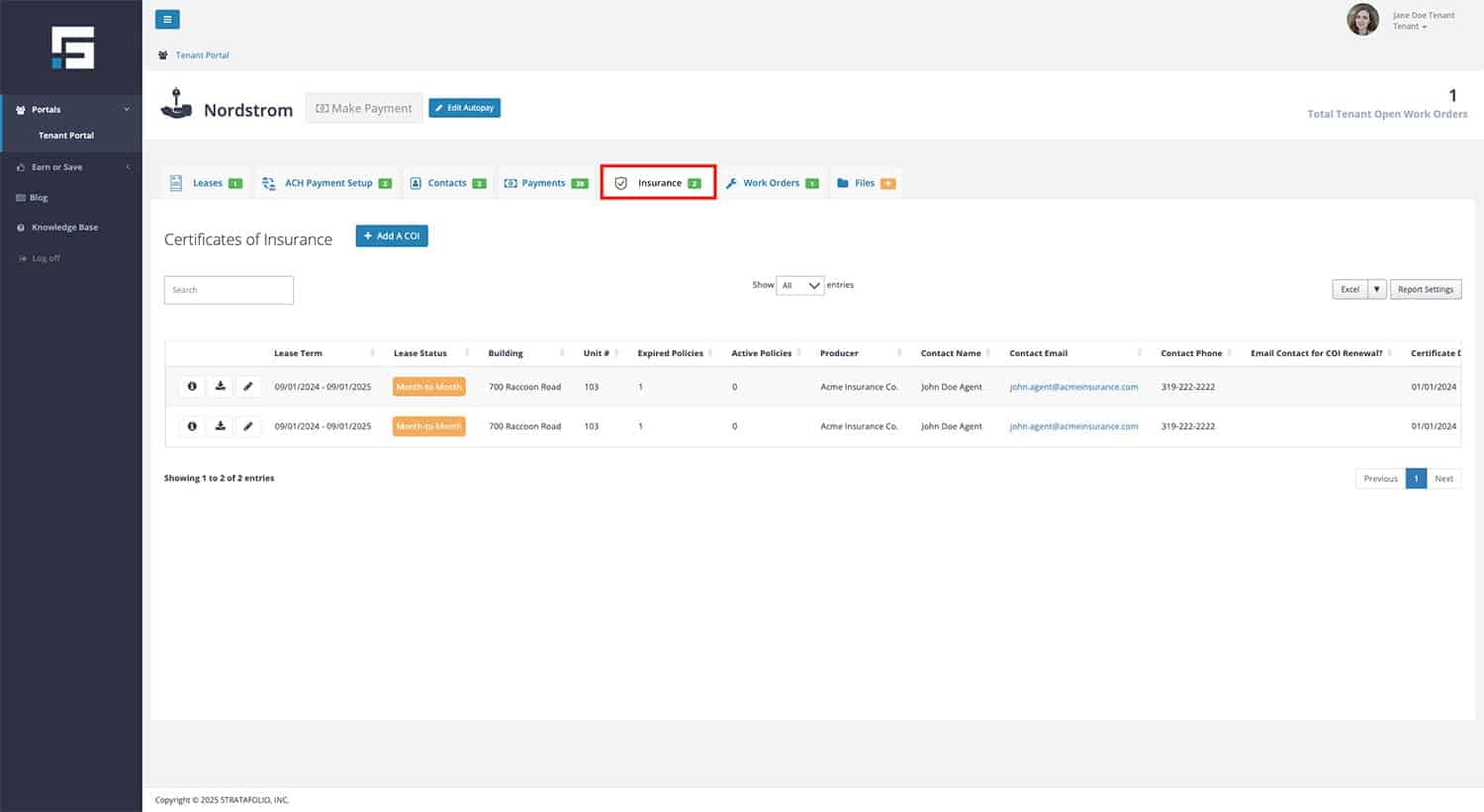
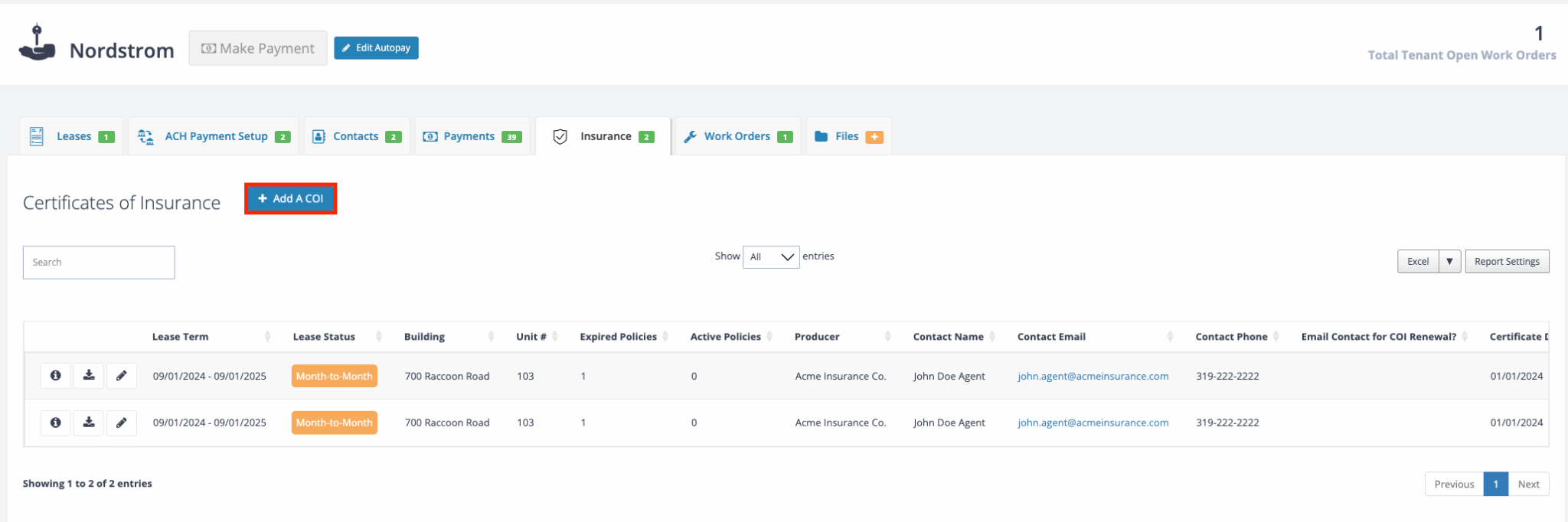
Navigate to the detail view of the relevant lease. Select the Insurance tab of the lease.
Review any existing COI on file and check the expiration date.
How to Upload Your COIas a Tenant
When your insurance provider issues a new COI, follow these steps to upload it:
Log in to your Tenant Portal.
Once you are in the relevant lease, select the Insurance tab.
Select the Add a COI button
Select your file from your device and select Upload.
Once uploaded, confirm that the document appears in your list of uploaded files.
You can upload your COI at any time. We recommend doing so as soon as you receive your updated policy to prevent coverage gaps.
Managing Insurance Expiration Alertsas a Tenant
STRATAFOLIO sends helpful reminders before your COI expires. These alerts help you stay compliant and avoid any disruption in your lease.
To manage these alerts:
Log in to your Tenant Portal.
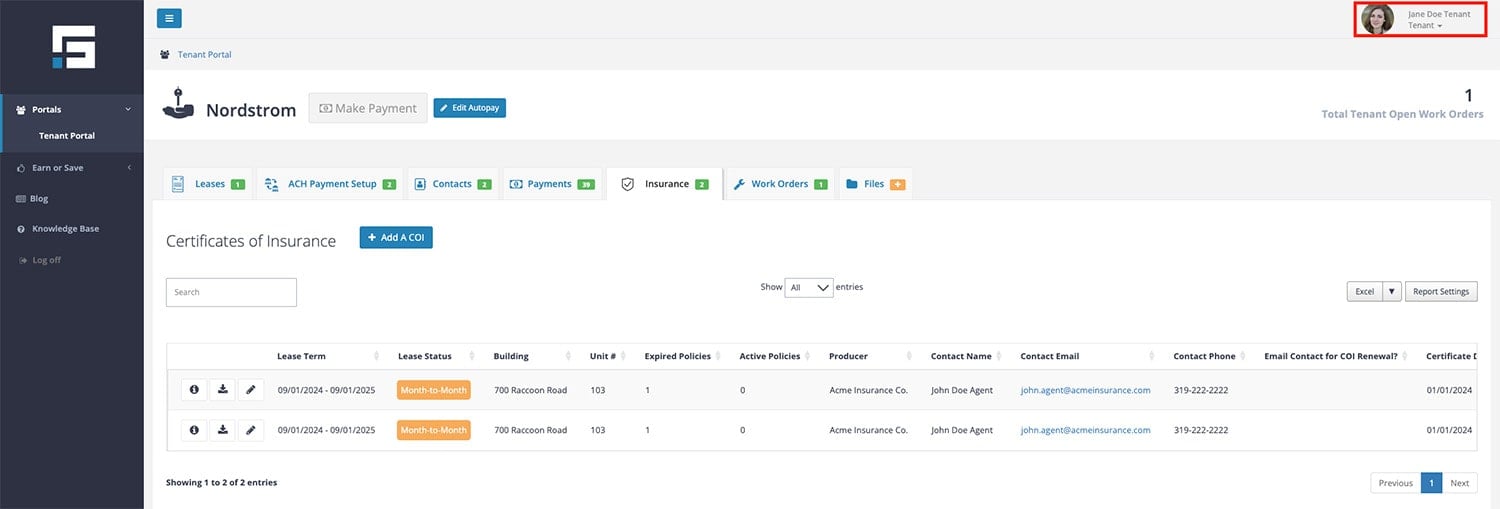
Select your Profile in the upper right-hand corner.
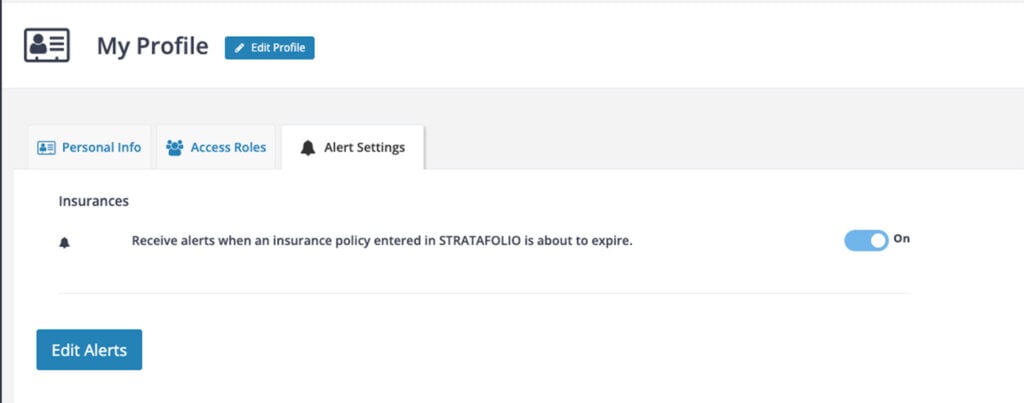
Open the Alert Settings tab.
Under Insurances, you can toggle alerts On or Off.
⚠️ Note: We recommend keeping insurance alerts enabled. This ensures you receive timely reminders before your policy expires. If you turn them off, it becomes your responsibility to track renewal dates and upload updated COIs on time.
Viewing Uploaded COIsas a Tenant
You can view your uploaded COIs any time in the Tenant Portal:
Navigate to the Lease‘s detail view. Do this by selecting the iicon beside the Lease.
Select the Files tab and open the document to verify the effective and expiration dates and other information.
Tips for Staying Compliant
Always upload a new COI before your existing one expires.
Double-check that the coverage matches your lease requirements.
Keep your alerts turned on to avoid missing renewal deadlines.
Contact your landlord or property manager if you’re unsure about coverage details.
Summary
With STRATAFOLIO, you can easily upload, view, and manage your Certificates of Insurance from one secure place. By keeping your COI up to date, you ensure smooth communication with your landlord, stay compliant with your lease, and avoid unnecessary interruptions.
If you need quick help, try our AI Assistant within STRATAFOLIO for step-by-step guidance. Simply select the chat button located on the upper right corner of STRATAFOLIO.