
STRATAFOLIO allows you to email finalized invoices to tenants. You can email invoices individually or in bulk from the Rent Collection Index. Each method behaves differently, so it is important to understand which options are editable and which are controlled by tenant level settings.
Invoices are not emailed automatically when they are created or finalized. You must manually trigger the email process once invoices are synced and available in STRATAFOLIO.
Where to Find This Feature
You can email invoices from the Rent Collection Index.
Navigation path:
Left Navigation → Operations → Rent Collection
This page displays all synced invoices and provides tools for emailing, filtering, and tracking invoice delivery.
How Can I Email an Invoice to a Single Tenant?
Emailing invoices individually gives you the most flexibility and control over delivery options.
Steps:
Navigate to Operations → Rent Collection from the left-side navigation menu. Select the Email Invoices button from the Rent Collection Index view.
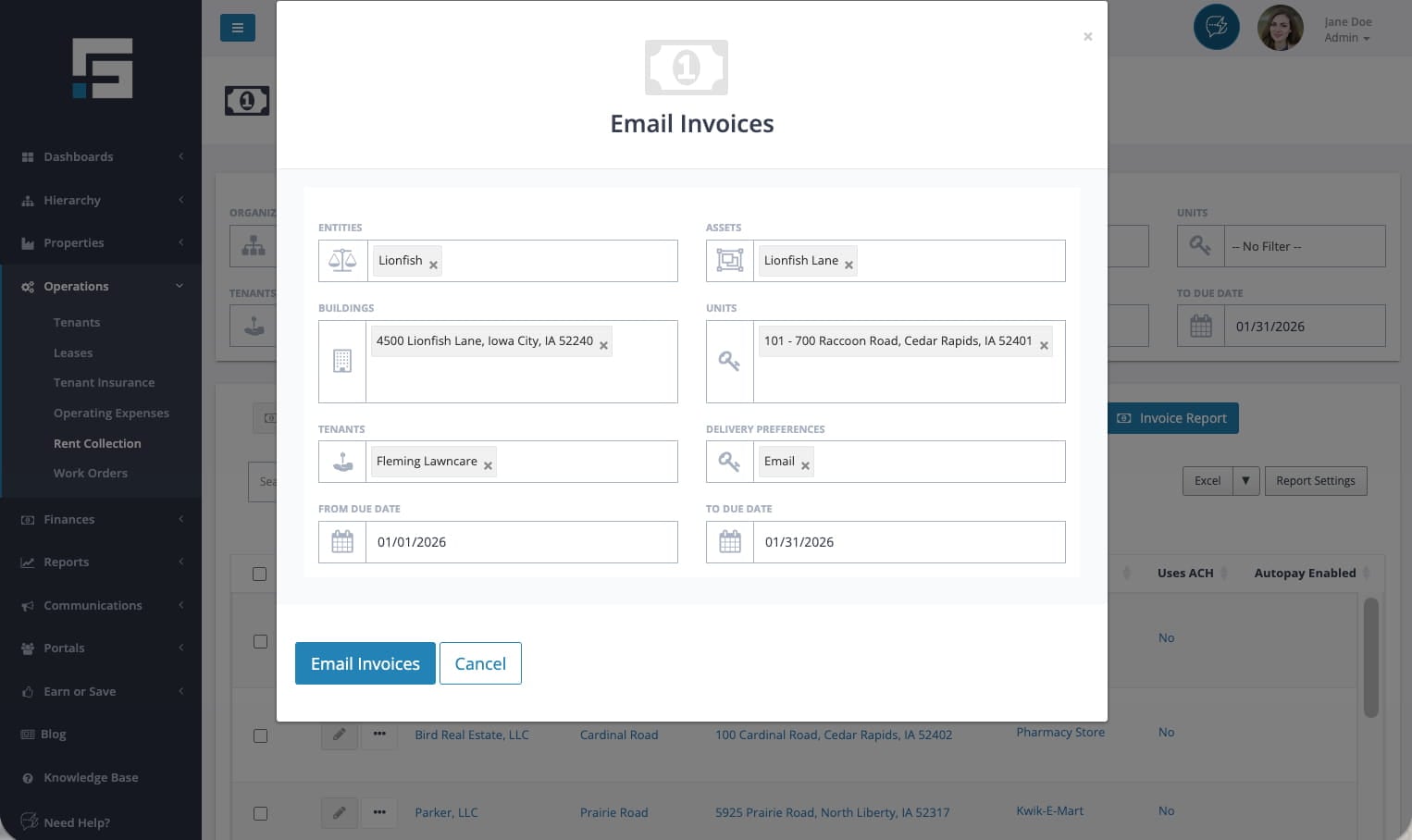
The Email Invoices pop up will show. Toggle all the filters to select the tenant to send the invoice to, and ensure that the correct details for the duration of the due dates are selected in order to send the correct invoice. Select Email Invoices.
Another pop up will show to indicate whether all the contacts can be emailed based on their contact settings. Any error that does not enable the tenant to be emailed will be available for download. Do this by selecting the Download Errors button. Address all issues then repeat the process from the beginning.
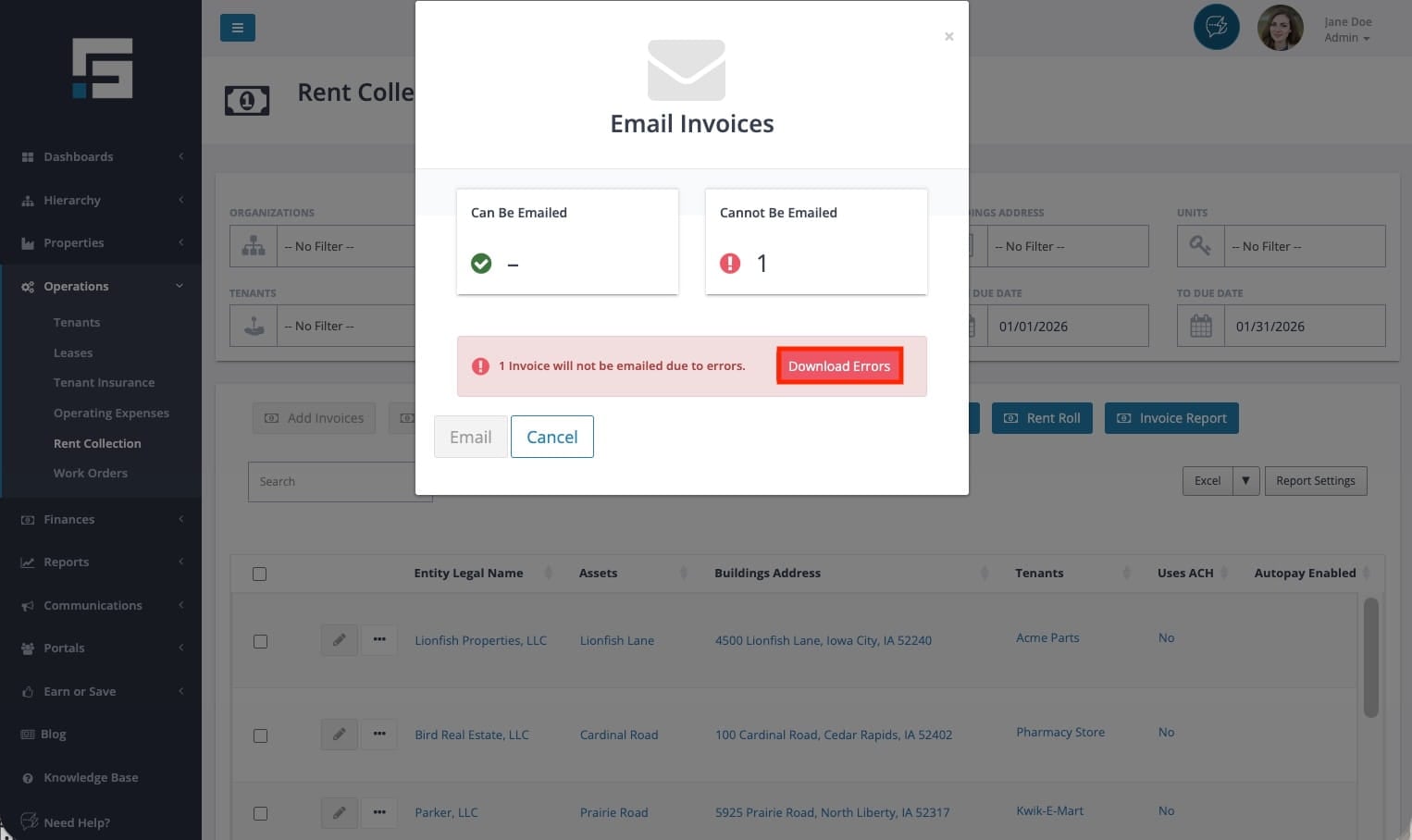
Choose Email once there are no longer any errors on the pop up.
When emailing an invoice individually, you can adjust options such as:
- Which tenant contact receives the email
- Reviewing invoice details before delivery
How Can I Email Invoices in Bulk?
Bulk emailing is designed for efficiency when sending multiple invoices at once. Bulk emails follow tenant level delivery preferences and do not allow individual customization during the send process.
Steps:
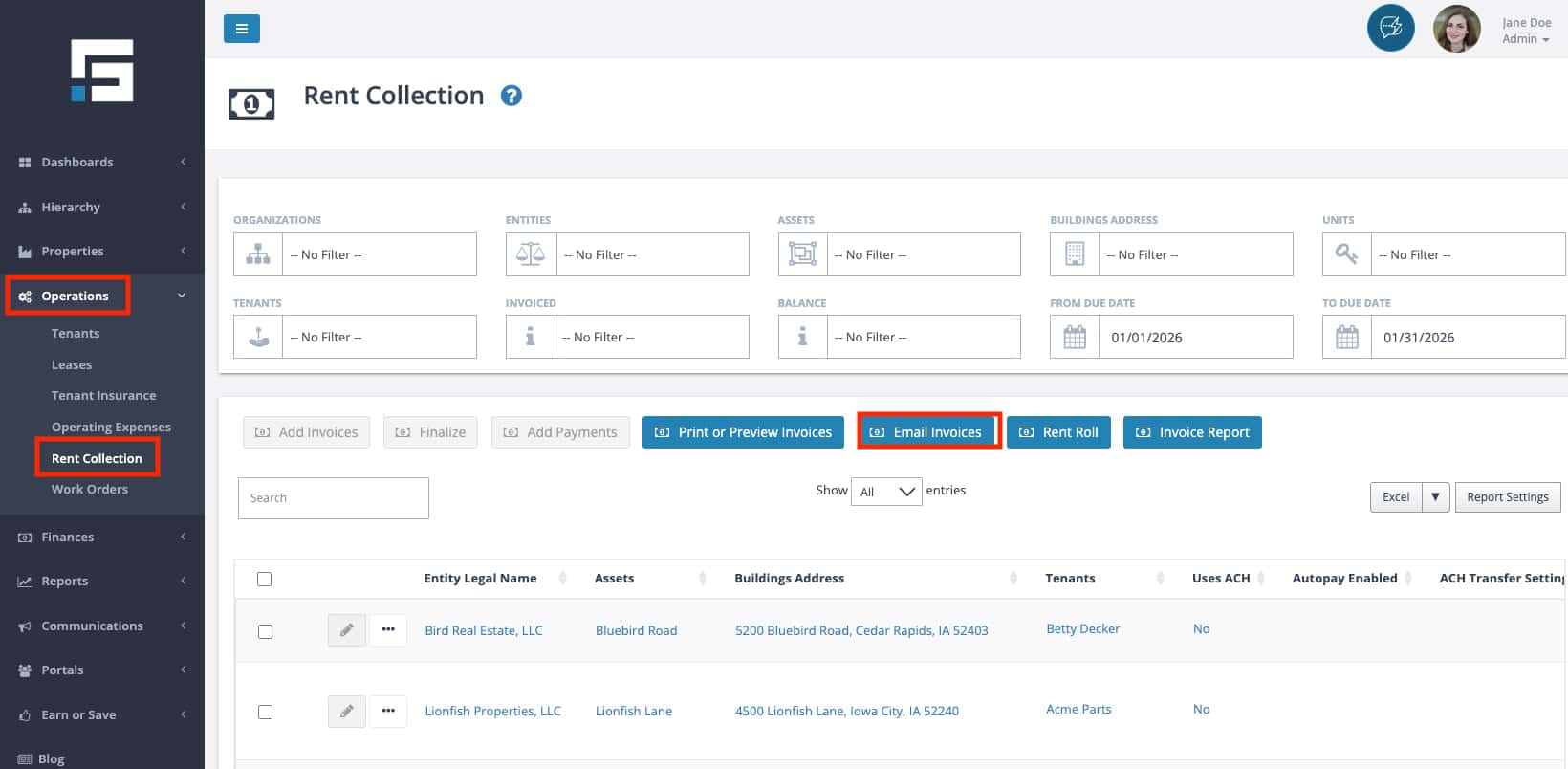
Go to Operations → Rent Collection from the left-side navigation menu.
Select Email Invoices.
The Email Invoices pop up opens. Use the dropdowns to select the invoices to be sent.
Review and ensure that the date filters are correct.
Choose the Email Invoices button to send.
Fix errors if there are any, and proceed to send the invoice by selecting Email from the pop up.
Important differences when emailing in bulk:
- Email delivery is controlled by tenant delivery preferences
- You cannot override individual tenant email settings
- All selected invoices are sent using the same delivery rules
Because of this, tenant records must be set up correctly before using bulk emailing.
Filters and Options Explained
The Email Invoices window includes filters that determine which invoices are sent.
The filters include:
- Entities, Assets, Buildings, and Units to limit invoices by property structure
- Tenants to target specific tenants
- Delivery Preferences to ensure invoices are emailed
- From Due Date and To Due Date to define the invoice date range
Important note: Only invoices that are finalized, synced, and match the selected filters will be emailed.
Statuses, Workflows and System Behavior
Invoices must meet the following conditions before they can be emailed:
- The invoice must be finalized
- The invoice must be successfully synced from your accounting integration
- The tenant must have a valid email address
STRATAFOLIO does not automatically email invoices upon creation or finalization. Emailing only occurs when you manually initiate the process from the Rent Collection page.
How Can I Check if the Invoice was Emailed?
You can confirm whether an invoice email was sent directly in STRATAFOLIO.
Steps:
Go to Operations → Rent Collection from the left-side navigation menu.
Locate the invoice number and select it.
Navigate to the Invoice Activities tab from the pop up. Review the invoice activity or status indicators.
If an invoice email was sent successfully, STRATAFOLIO records the email action. If the invoice was not emailed, it will remain available to be sent later.
Examples, Best Practices, and Tips
- Use individual emailing when testing tenant communication or sending corrected invoices
- Confirm tenant email addresses before running bulk sends
- Always verify invoices are synced before attempting to email
- Use filters carefully to avoid emailing unintended invoices
- Review tenant delivery preferences before bulk emailing
For more guidance on creating and finalizing invoices before emailing, refer to the knowledge base article on creating invoices.
