
In STRATAFOLIO, every lease must have a Tenant, and every Tenant must have at least one Contact.
There are several ways to add Contacts & Tenants in STRATAFOLIO. If you need to add just one or two new contacts to associate with a new lease, you can add them during the lease creation process.
The Add A Contact Form
First, navigate to the Organization record. Do this by clicking on Hierarchy and then Organizations and then the i icon next to the Organization.
Next, select the Contacts tab and then the Add A Contact button.
Once you select Add A Contact, the Add Contact pop-up will open. Here, you will enter a first and last name and any other information you would like added to the contact. Then choose Add Contact at the bottom to save the information to STRATAFOLIO. Multiple contacts can be associate to the same tenant if needed.
The only required fields on this page are “First Name” and “Last Name.” You should complete the other fields as much as possible based on the needs of your business. There are some tips and information below the image.
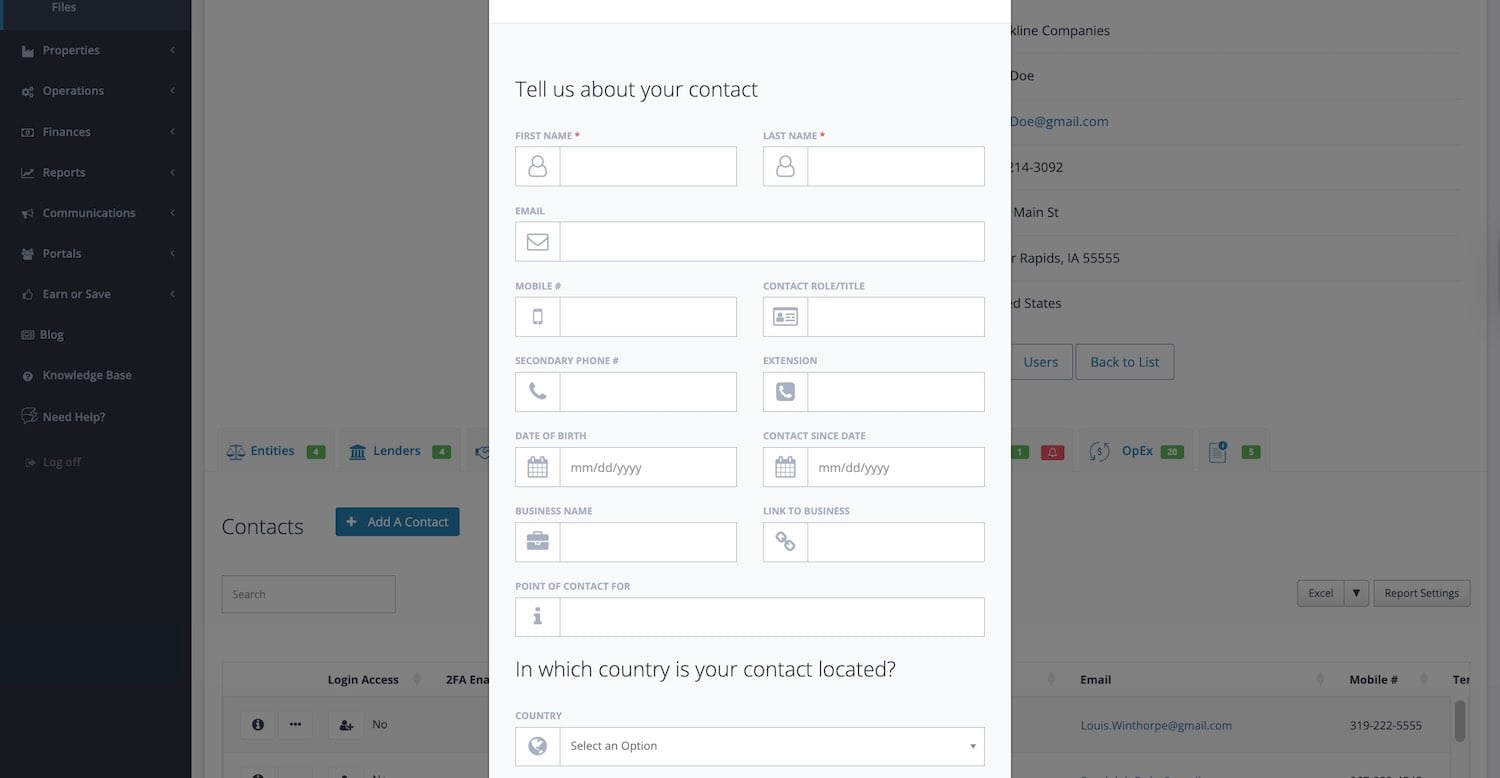
- First Name & Last Name (Required)
If the contact is a business, enter part of the name as the first name and the rest as the last name.- Examples:
First Name Last Name
STRATAFOLIO Inc.
Bob’s Pet Supplies, LLC
Yoga Studio
- Examples:
- Email (Required for invoices to be emailed from STRATAFOLIO)
A valid email is required for email invoicing out of STRATAFOLIO or giving access to the Tenant Portal. An email address is not required for print invoicing. - Country (and the rest of their address)
- Contact Rights (Required for email invoices and work orders)
- Request Work Orders (This contact can request a work order)
- Assigned To Work Orders (A work order can be assigned to this contact)
- Receive Invoice Emails (The Invoice Delivery Preference field for the Tenant must also be set to Email)
NOTE: To ensure a Contact/Tenant receives an invoice via email, the following is required:
The Tenant must include the option “Email“. in their “Invoice Delivery Preference” field.
The Contact must include the option “Receive Invoice Emails” in the “Contact Rights” field.
The Contact must have a valid email address and ensure the domain stratafolio.com is not set to spam.
In STRATAFOLIO, tenants can have multiple contacts, and we understand not all of these contacts should receive an invoice via email. To accommodate this, you can select whether the tenant will receive an invoice via email or as a printed document. If email is selected, then you have to specify which contacts will receive the emailed invoice by setting these two options accordingly.
The Add Tenant Form
Similar to adding a contact, add a tenant from the Organization record. Do this by clicking on the Tenants tab while you are in the Organization record and click on Add A Tenant.
Once you select Add A Tenant, the Add A Tenant pop-up will open. In this window, enter the tenant information and choose Add Tenant at the bottom to save the information to STRATAFOLIO.
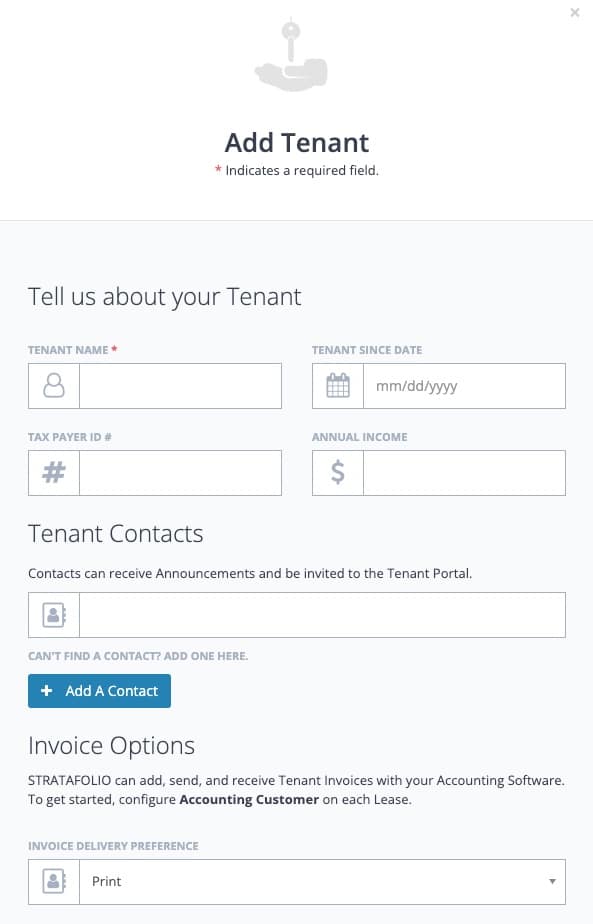
- Tenant Name (Required)
This can be the company name for a commercial lease or a person’s name for a residential lease. This will be the name that appears on the Rent Roll. - Tenant Since Date
This field is not required, but if desired, you can enter the date they first became a tenant. - Tax Tayer ID #
This field is not required but may be helpful. - Annual Income
This field is not required but may be useful. - Contacts (Required)
Every Tenant must have at least one Contact. If you have already added the contact information to STRATAFOLIO, as described above, simply click inside the contact block, and a drop-down list of contacts will appear. Select the contact that is associated with the Tenant. If you need to add a new Contact, you can select the Add A Contact button and enter the required information. You can add multiple Contacts to the Tenant. - Invoice Delivery Preference (Required for invoicing, and only one option can be selected.)
- Print (This is the default setting set to printing invoices)
- Email (At least one contact associated with the tenant must have the field “Contact Right” set to “Receive Invoice Emails” for them to be able to receive invoices via email.)
- Tenant Notes
Add additional information or notes if needed.
NOTE: To ensure a contact receives an invoice via email, the following is required:
The tenant must include the option “Email“. in their “Invoice Delivery Preference” field.
The contact must include the option “Receive Invoice Emails” in the “Contact Rights” field.
The contact must have a valid email address and ensure the domain stratafolio.com is not set to spam.
In STRATAFOLIO, tenants can have multiple contacts, and we understand not all of these contacts should receive an invoice via email. To accommodate this, you can select whether the tenant will receive an invoice via email or as a printed document. If email is selected, then you have to specify which contacts will receive the emailed invoice by setting these two options accordingly.
How Do I Invite or Give a Tenant Access to Their Portal
Once you give your tenant access to their portal, your tenant can enjoy access to several different features and functionality.
This feature is available at all levels of subscription. The only requirement is the tenant must have an email address on record within STRATAFOLIO.
Benefits of Giving Tenants Access to their Portal
- Your tenant will have access to their lease (and other documents you share)
- They can update their own contact information
- ACH functionality so they can make one-time payments or monthly rent payments through ACH
- Tenants can upload their own Certificates of Insurance directly (and they will receive reminder emails to facilitate this) rather than you having to reach out repeatedly
- You can send out announcements with attachments for tenants to access
- Finally, they can submit their own work orders that will be routed to your assigned property management staff
How to Give Tenants Access to the Tenant Portal by Sending Them a Link to Access
To give your tenants access to their portal,
- Locate the tenant from the Contacts Index page under Hierarchy from the left-side navigation menu.

- Select the silhouette button in the login access column on the Contacts Index Page. In the pop-up that appears afterward, you can verify that inviting the tenant grants them access to the tenant portal.
- Choose Yes, Invite.
NOTE: The padlock icon will be broken on that tenant button until the tenant accepts their invite. You can also resend an invite from that same location.
Here is a video walking you through the whole process.
How to Update Tenant Contact Information for a Contact Without Tenant Portal Access
Keeping tenant contact information up to date in STRATAFOLIO ensures smooth communication, accurate invoicing, and reliable reporting.
Steps to Update Tenant Contact Information
- Navigate to Hierarchy from the left-hand navigation panel.
- Select Contacts.
- Locate the contact you wish to edit and select the “…” button next to the contact’s name.
- Select Edit Contact to open the contact’s details.
- Select Save Changes to apply your changes once you finish updating the information.
Additional Notes
- Every tenant must have at least one contact associated with their lease.
- You can associate multiple contacts per tenant by selecting Add a Contact on the Tenant detail page.
- Enable Receive Invoice Emails under Contact Rights for any contact who should receive invoices by email, and set the tenant’s Invoice Delivery Preference to Email.
BEST PRACTICE: Review contact information regularly to ensure the correct people receive billing notifications, insurance alerts, and other automated communications.
Editing Contact Information for a Contact With Login Access
Once a contact is given login access to the Tenant Portal, that contact becomes a user in STRATAFOLIO. At that point, a few of their profile fields become locked for anyone else to edit. You will see these fields appear grayed out when you try to update that contact from Hierarchy.
These fields are locked for security reasons. They hold the information the contact uses to log in, so only that contact can change them. This protects the contact from losing access if their login details are changed without their knowledge.
If you need to update one of these locked fields for a contact who already has login access, you have two options.
Option 1: Ask the contact to update it themselves
Reach out to the contact directly and ask them to make the change from their own account by selecting My Profile (located at the top right of the screen). Since these are their login credentials, this is the fastest way to make sure the update does not affect their ability to log in.
Option 2: Remove and restore login access
If you need to make the change yourself, you can:
- Remove the contact’s login access (do this by opening their associated Tenant record and removing them as a contact).
- Update the contact’s information as needed.
- Restore the contact’s login access (add them back as a Contact in the Tenant record and send them an invite to STRATAFOLIO following the instructions here).
NOTE: Removing a contact’s login access does not delete the contact. It only removes their ability to log into the Tenant Portal until access is restored.
Before a Contact Has Login Access
If a contact has not been given login access yet, none of their fields are locked. You can update any of their information at any time from Hierarchy without restriction.
