

Common Area Maintenance (CAM) reconciliation is critical to managing commercial real estate. STRATAFOLIO recognized the need for a platform that simplifies the process and saves valuable time. The CAM reconciliation process with STRATAFOLIO is simple. With just one click, you can generate a report that is ready to share with your tenants.
Operating Expense reconciliation is known by many names including CAM reconciliation, OpEx reconciliation, NNN reconciliation, and CAM true up. Although the terminology varies across the industry, each term refers to the same essential annual process of comparing a tenant’s estimated operating expense payments to the actual costs required to operate and maintain the property throughout the year.
A CAM reconciliation evaluates the actual operating expenses incurred during the year against the budgeted amounts billed to the tenant. If the tenant paid more than their share, they receive a credit. If they paid less, an invoice is issued for the difference. This process ensures accuracy and fairness while maintaining transparency between landlords and tenants.
Lease terms often include important details that affect reconciliation such as base years, caps on annual increases, administrative fees, and distinctions between controllable and non controllable expenses. Because these provisions vary from lease to lease, it is essential to follow the exact language of each agreement to ensure the reconciliation is completed correctly.
When to Do CAM Reconciliation
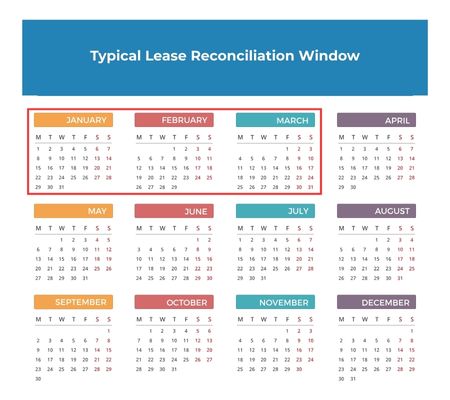
CAM reconciliations should be completed once the books are fully closed for the year. Most leases require that the landlord deliver the reconciliation within a specific window, commonly between 30 and 90 days. Delaying the reconciliation or failing to perform it consistently can create financial discrepancies, cash flow issues, and a growing gap between actual expenses and tenant reimbursements.
In addition, failing to complete the reconciliation within the contractual timeframe may limit your ability to increase charges appropriately for the following year. This can create budgeting challenges for your team and reduce your ability to recover actual operating costs.
Completing the reconciliation on time not only ensures accurate billing, it also sets the foundation for the coming year’s operating expense budget. It allows landlords and managers to communicate clearly with tenants, make data driven budgeting decisions, and keep financials aligned with real costs.
Before moving forward, watch this short tutorial walking through how to review your OpEx/CAM setup, confirm categories, and prepare your data correctly.
View the Operating Expenses/CAM
On the left-hand navigation bar, select Operations, Leases, then select the desired Lease with the “i”. This will give you more information about the lease that you select.
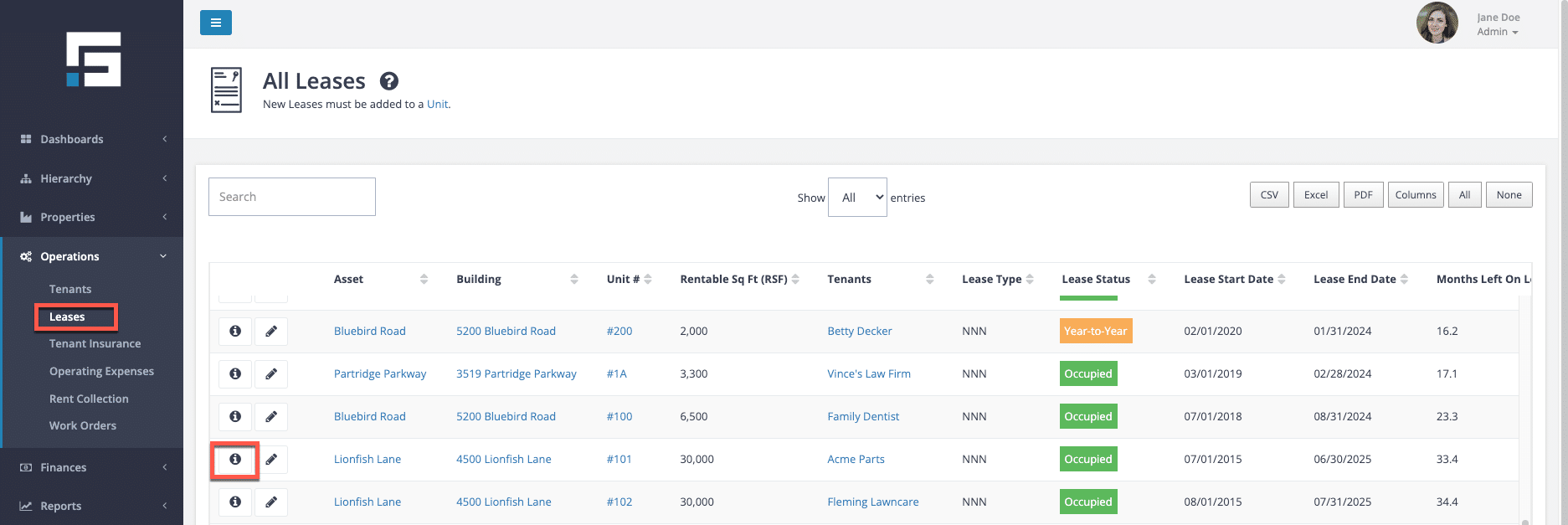
This will view the Lease Abstract. Select the OpEx tab to view the CAM expenses.
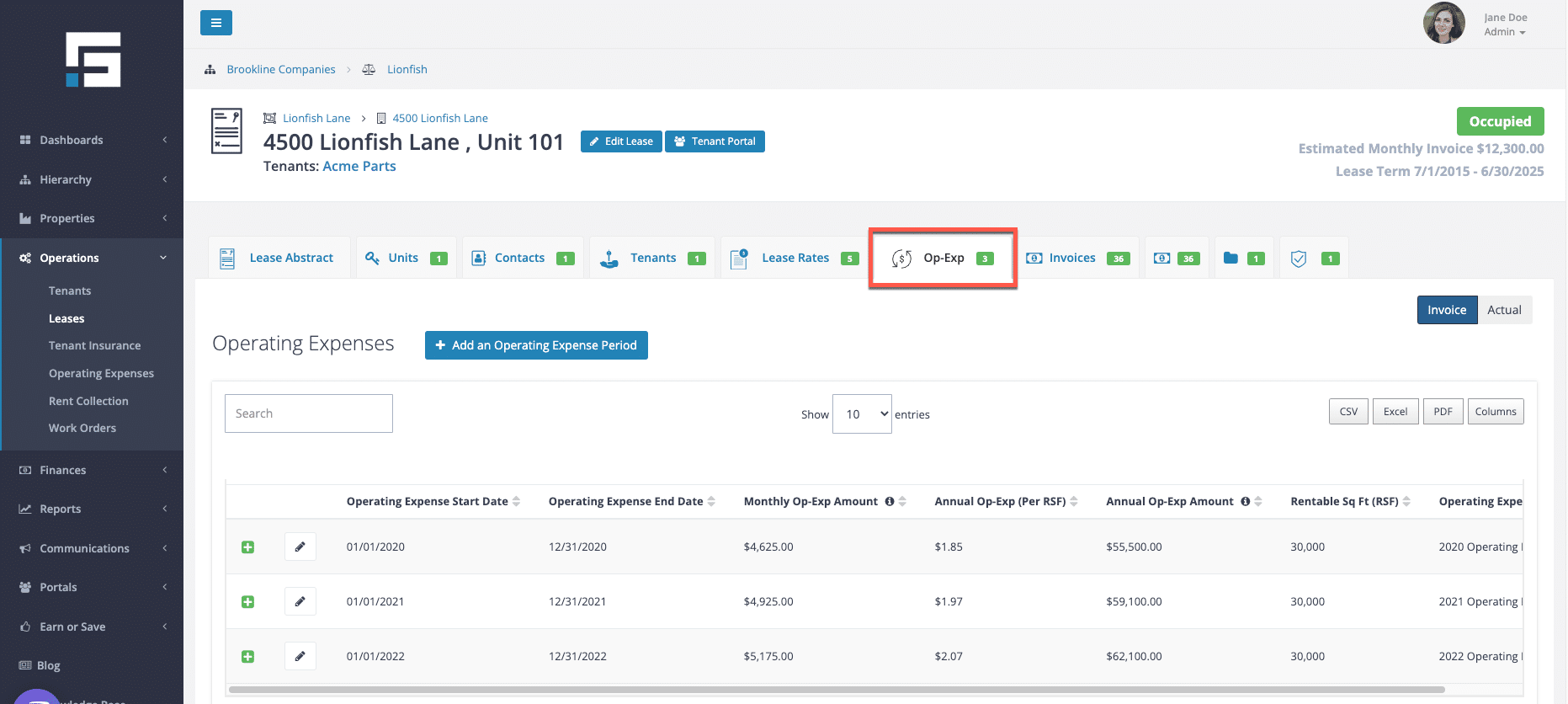
This view of the OpEx tab will display the current charges being added to the invoices each month. The period can be expanded using the green + symbol to open the subcategory breakdown. The time periods can be edited by using the pencil button. This allows rate changes, from Controllable or Non-Controllable, caps to be added, or if a change needs to be made to the Income Item to which the charge is being posted.
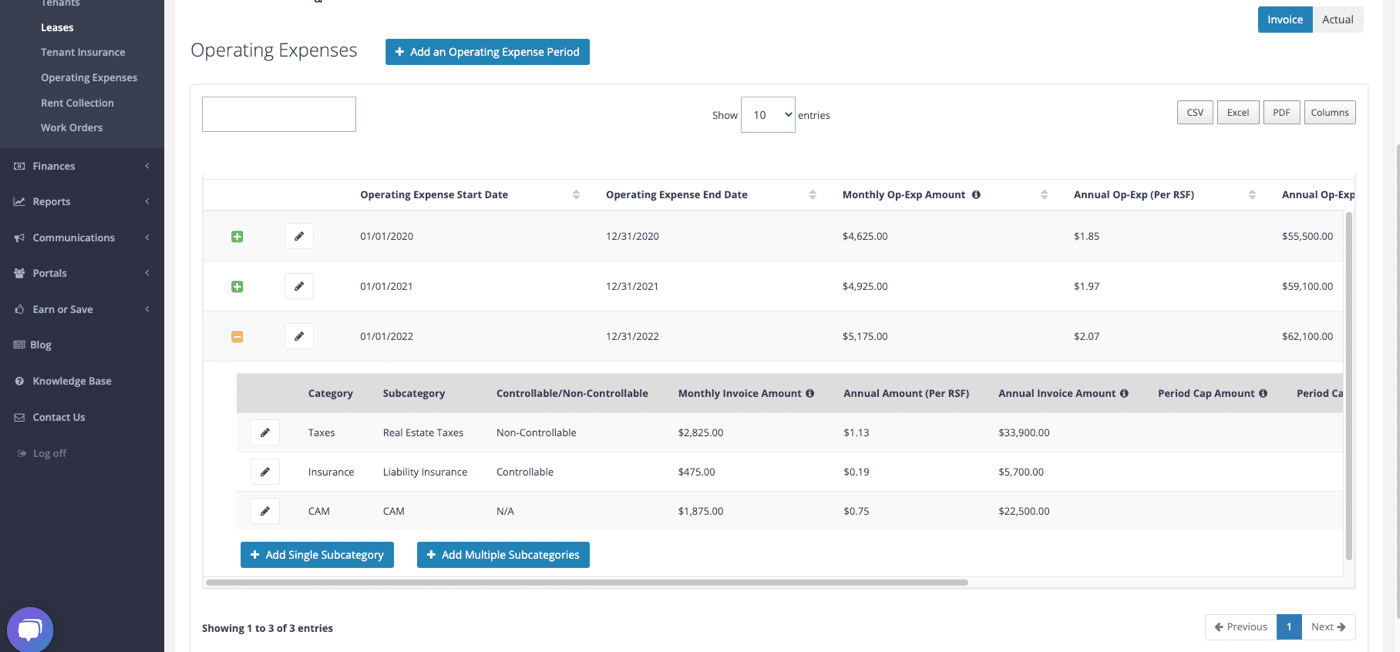
The Onboarding Team may have set up the OpEx/CAM with many $0 Subcategories. All of the subcategories listed here are added to the CAM Reconciliation Report. If there is a $0 listed for a subcategory, that means there is no amount for that subcategory on the invoice. However, it does need to be tracked as part of Operating Expenses and CAM so it needs to be added to the Invoice section here. More on the mapping will follow.
Expenses from QuickBooks – Actuals
Slide the button on the right of the page to Actuals. This is where the expenses posted in the integrated QuickBooks accounts will be shown.
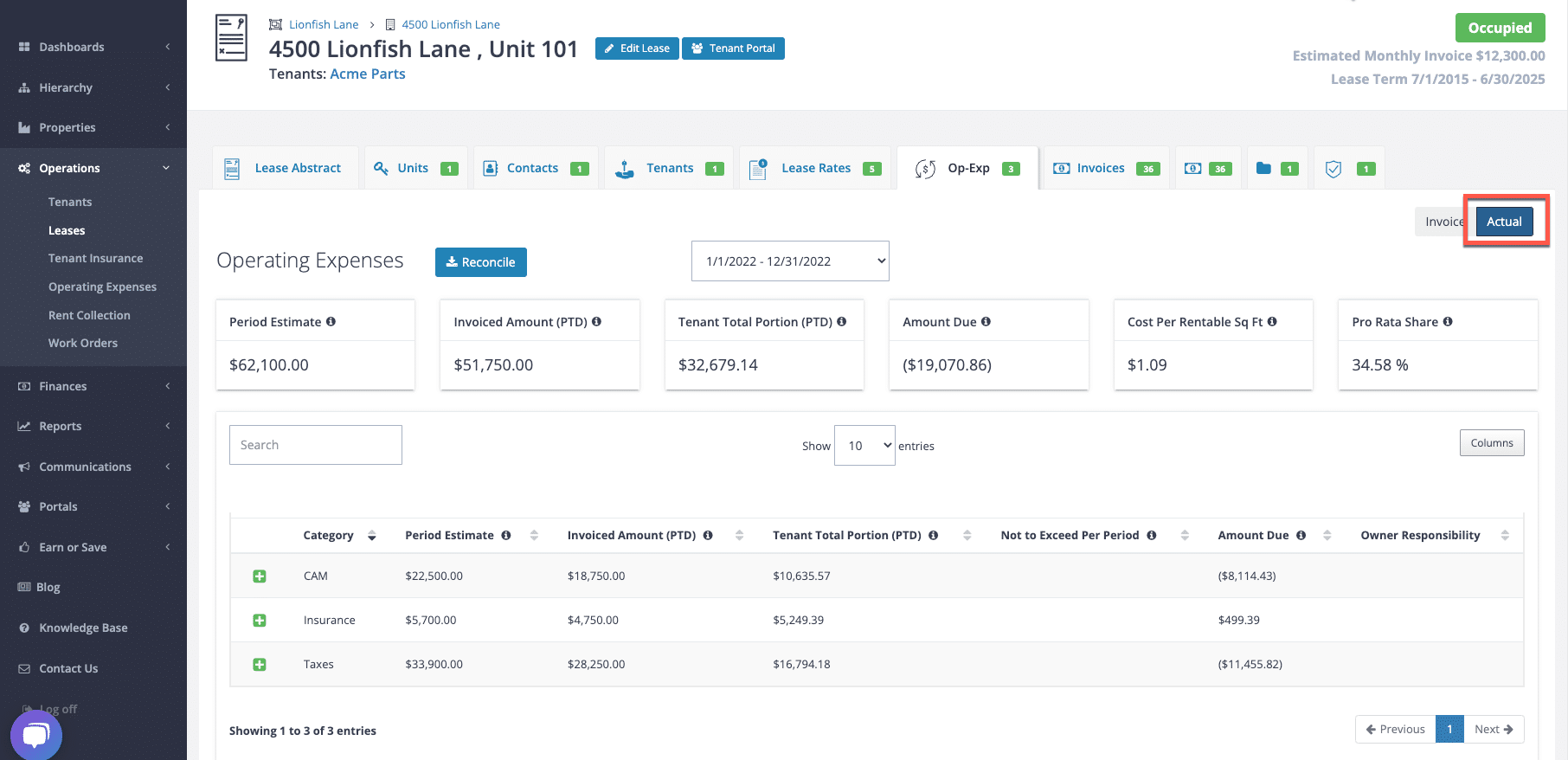
STRATAFOLIO runs on a Cash Basis. The expenses posted in the accounts show on the Operating Expenses pages when they are posted as paid in QuickBooks. Select the desired Operating Expense Period to look at. Again, there are more details for the subcategories by using the green + button to expand that category.
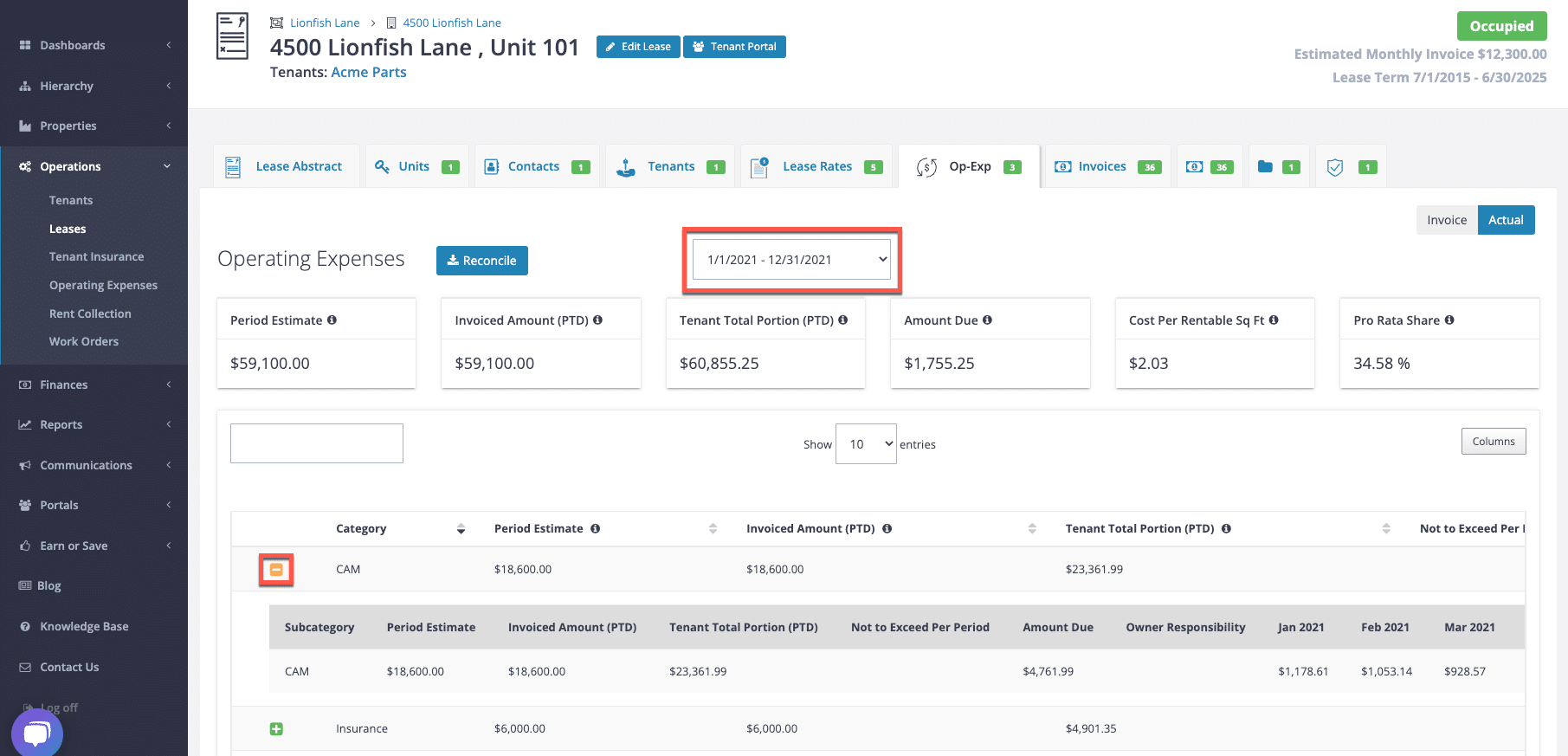
All of the transactions that are posted to the QuickBooks account during this period are shown. They are shown on a cash basis. This includes these Categories and Subcategories only. The amounts shown are calculated using the square footage of the unit and the Pro-Rata share of the Rentable Square Footage of the Building. In this example, it is 34.58%.
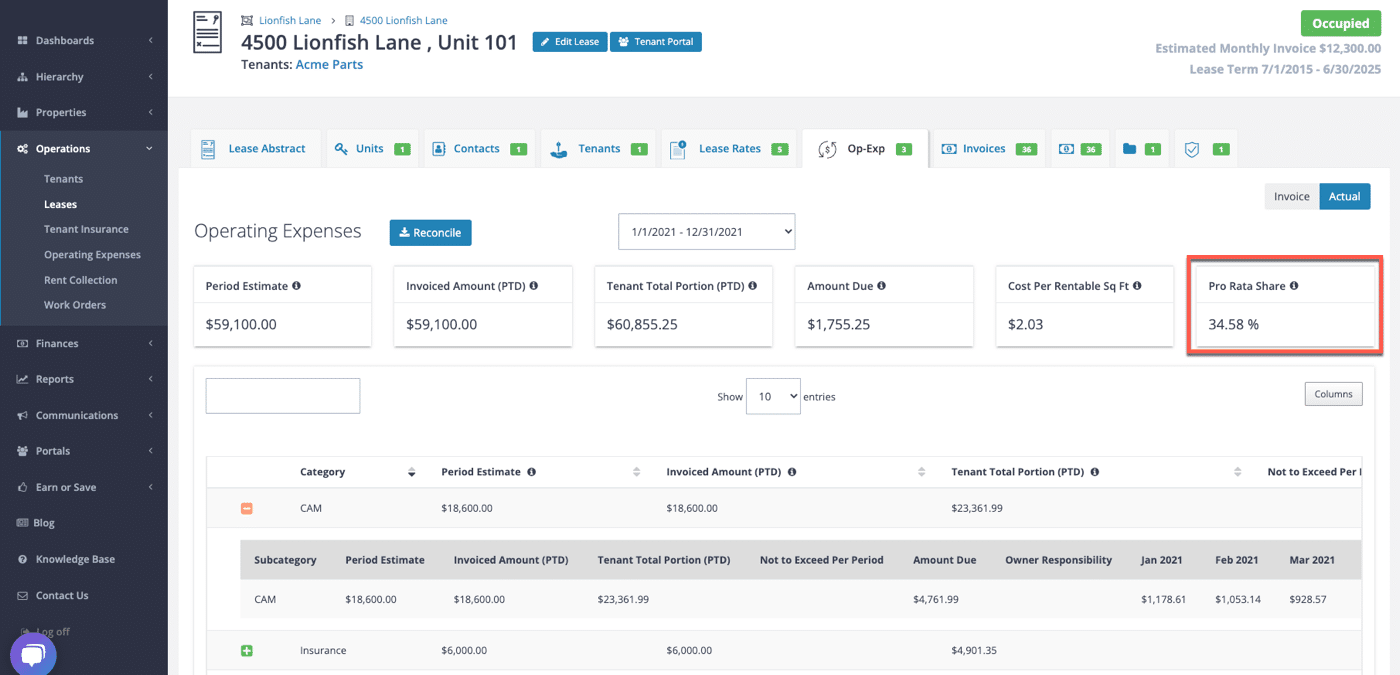
Sometimes, a Pro-Rata Share is not based on the Rentable Square Footage of the Building. If this is the case, there is an override under the Edit Lease function for Building Square Footage as Stated in the Lease. The override should only be used if the lease clearly states a different rentable square footage of the building or a different Pro-Rata Share for the lease. STRATAFOLIO uses up to 15 decimal places in the calculations for the Pro-Rata Share.
Before running your reconciliation, review the most common mistakes users encounter and how to spot them in your data.
Step-by-Step Process on How to Run a CAM Reconciliation
Step 1: Review the Operating Expenses/CAM (OpEx) Tab
Note: Steps 1–4 are first-time setup; subsequent years can start on Step 5
The first step is to ensure that your OpEx setup matches each lease accurately, because the OpEx tab determines how STRATAFOLIO calculates estimated annual expenses and the tenant’s share.
To review:
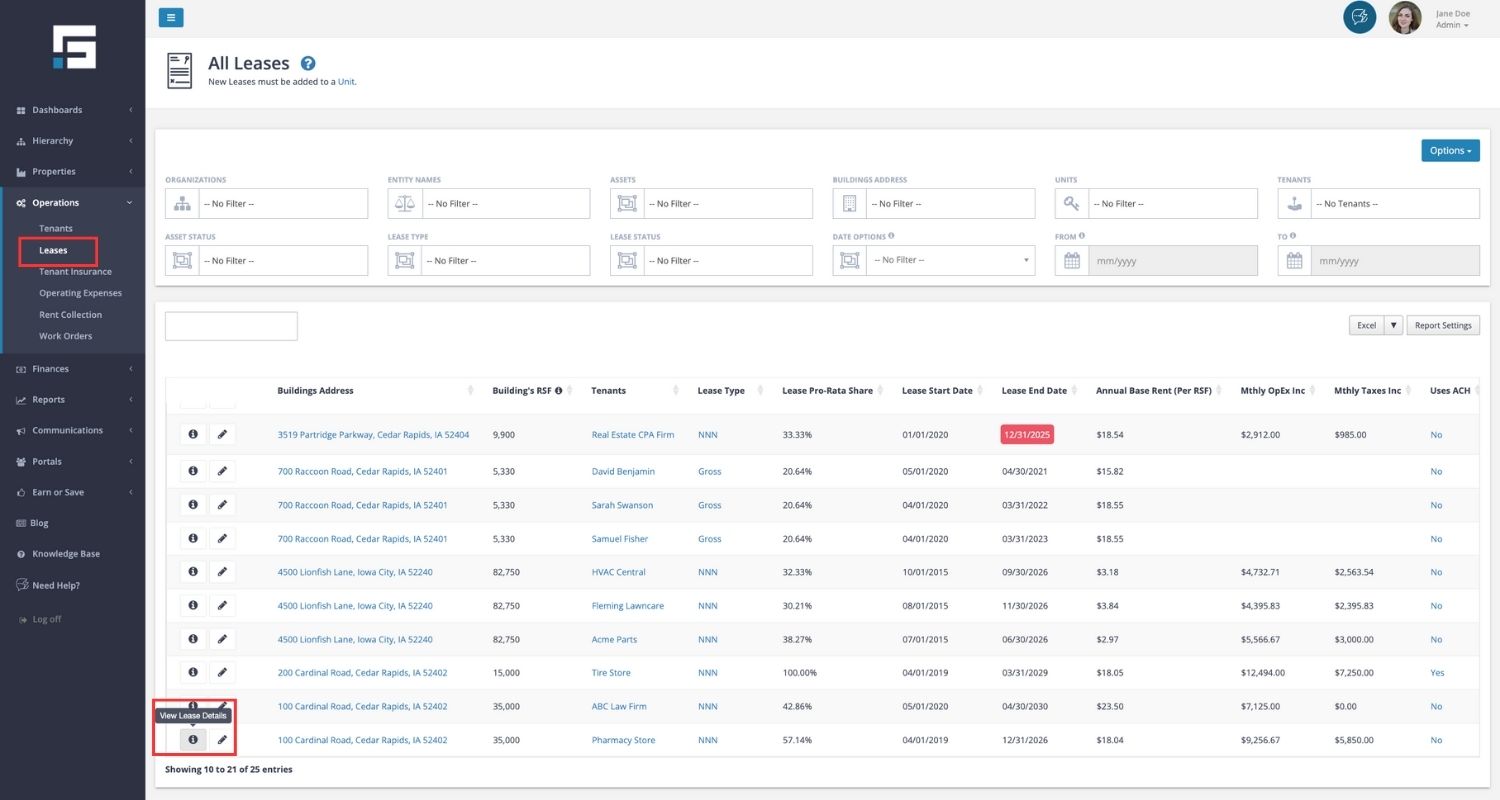
- Navigate to Operations → Leases → Lease Abstract → OpEx tab.
- Review:
- Subcategories included in the tenant’s CAM obligations
- Base year or expense stop (if applicable)
- Administrative fees
- Controllable vs. non-controllable categories
- Exclusions or special rules from the lease
- Caps (if applicable)
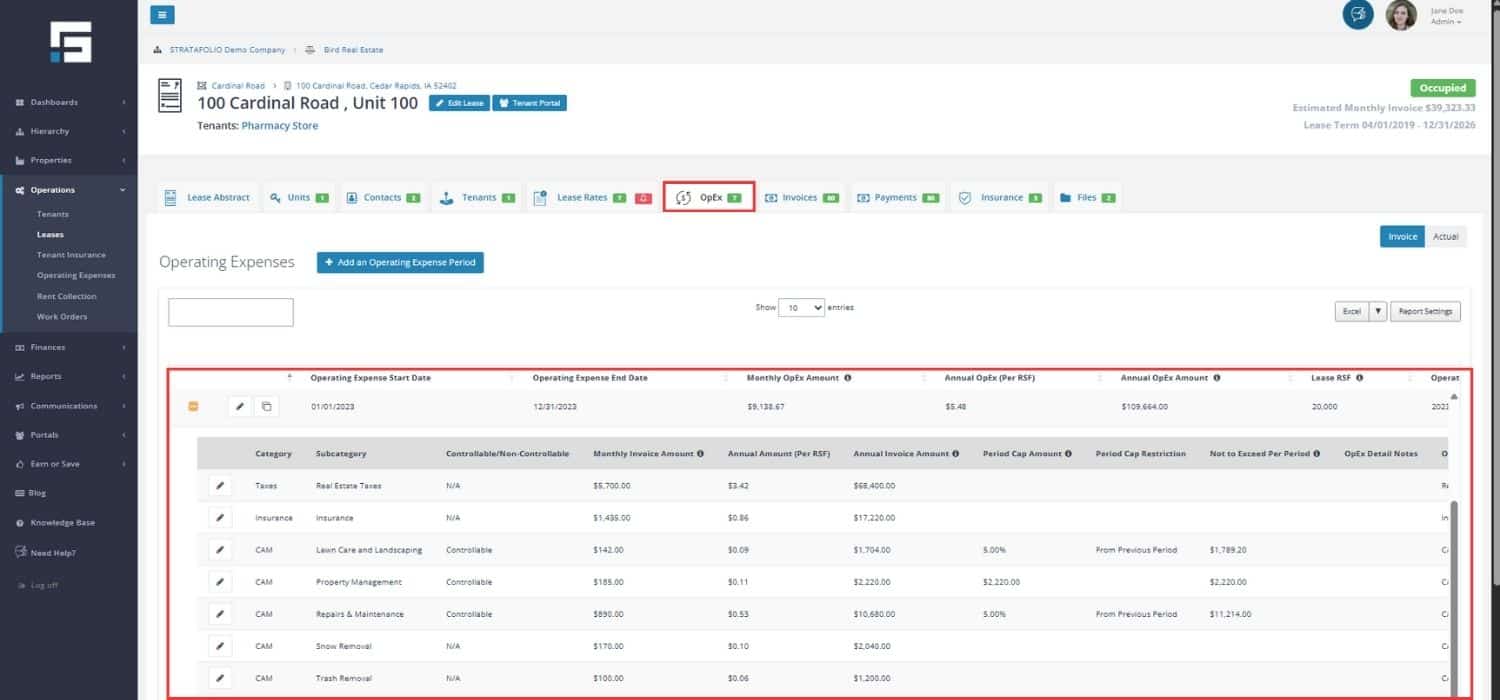
This tab shows the tenant’s estimated annual OpEx and how STRATAFOLIO will calculate their share.
Step 2: Review the Expenses from QuickBooks (Actuals)
STRATAFOLIO pulls every OpEx-related expense from QuickBooks based on:
- Class
- Account
- Date
- Review every expense line for:
- Correct class coding
- Date within reconciliation period
- Correct OpEx subcategory mapping
- No duplicates or missing expenses
To review, open the Expenses by selecting the Actuals button inside the same lease.
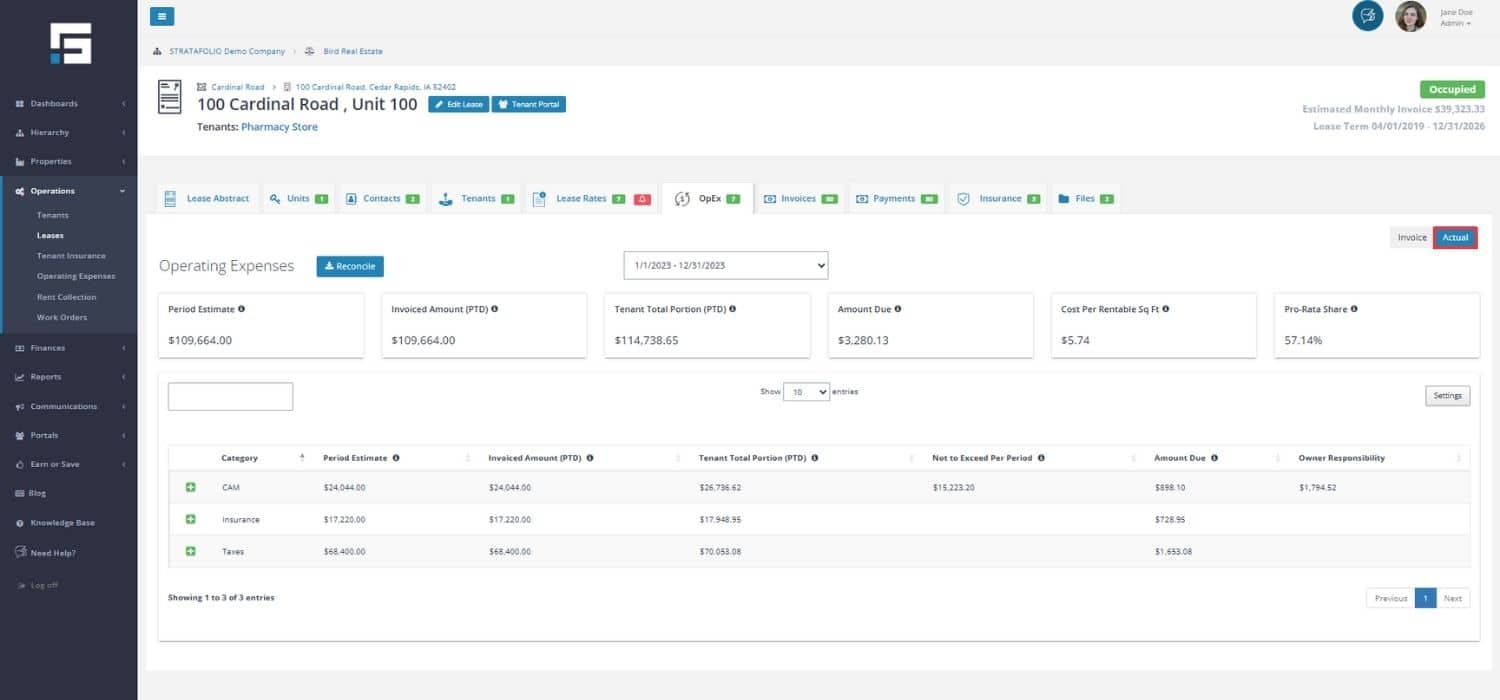
NOTE: The amounts are shown with the lease’s pro-rata share taken into account.
Step 3: Compare Expected vs. Actual Expenses
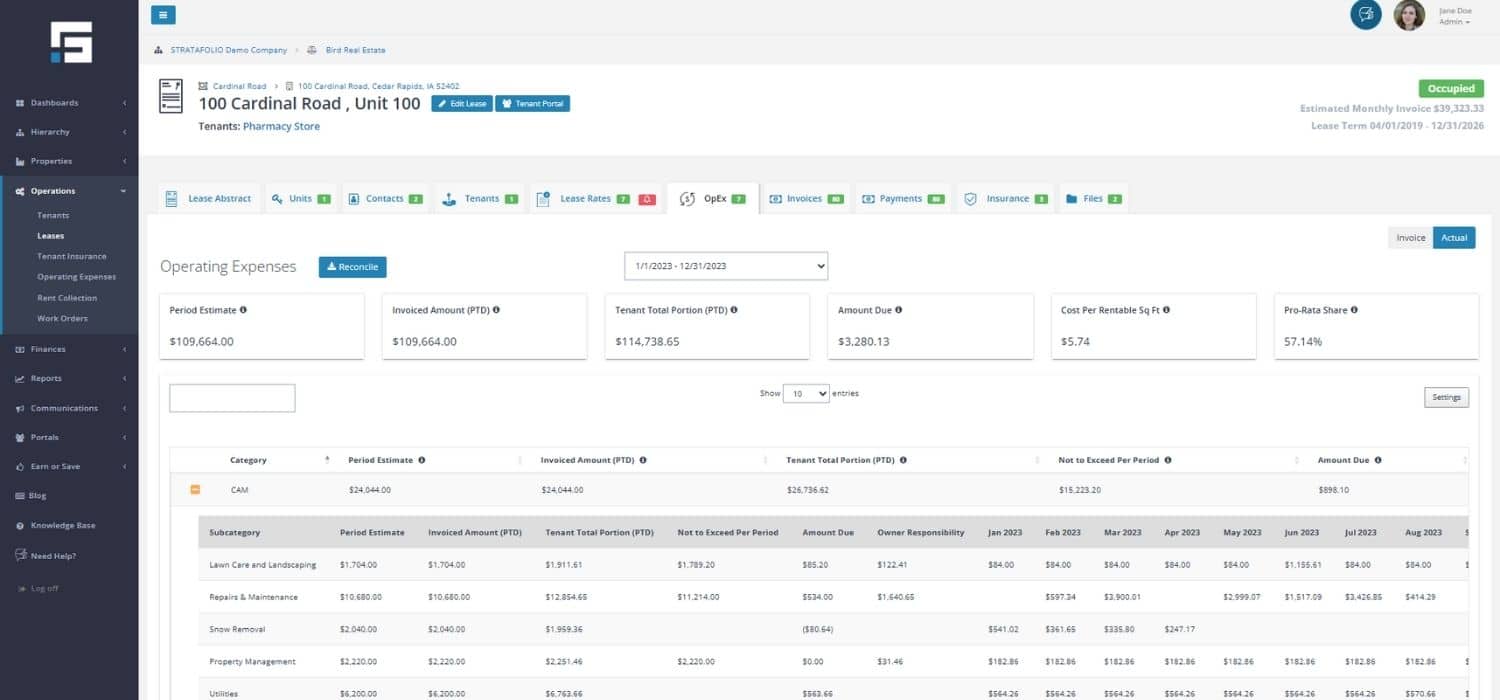
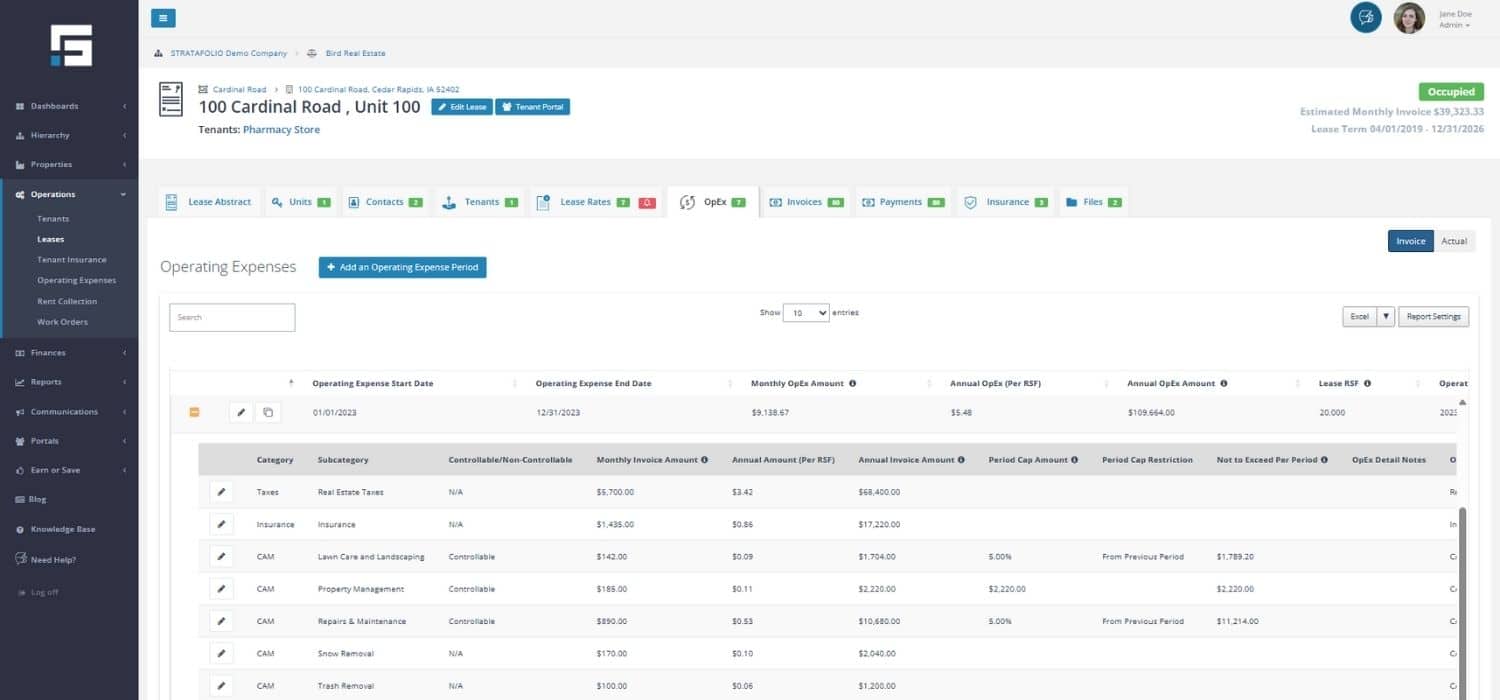
STRATAFOLIO performs the comparison automatically, but you must make sure:
- All OpEx categories appear under both tabs
- No category is accidentally omitted
- No expenses are incorrectly classified
Step 4: Review Class, Account, and Category Mapping (Critical in Setup)
Mapping ensures that QuickBooks accounts feed into the correct OpEx subcategories.
To verify mapping:
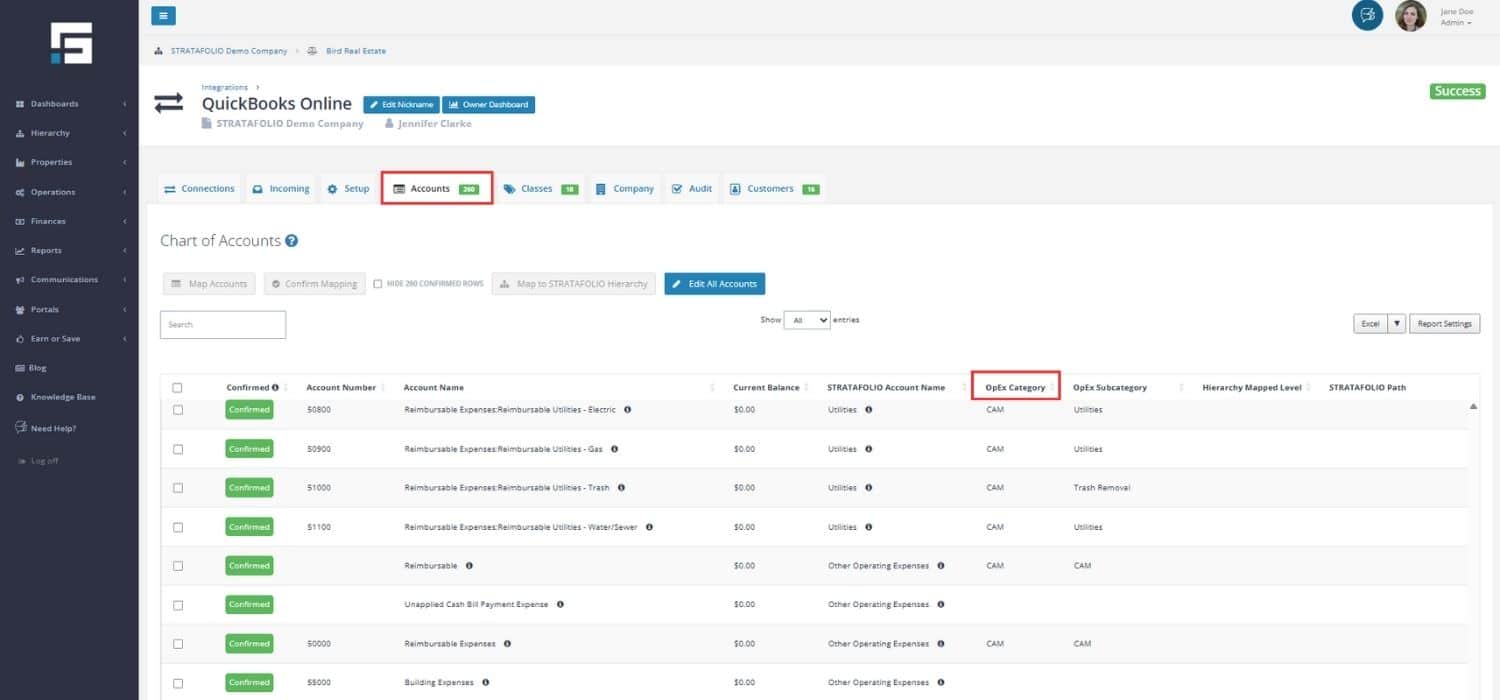
- Navigate to Organization → Select the relevant organization → Integrations → “i” icon next to the integration → Accounts
- The OpEx Subcategory column can be filtered to see what is being mapped in the account to which subcategory in the Operating Expenses.
- Confirm the subcategory and class mapping
- Correct any account that is:
- Mapped incorrectly
- Missing a subcategory
- Posting expenses outside the CAM period
- If mapping is incorrect:
- Select the correct OpEx subcategory.
- Re-run the reconciliation to update the results.
Step 5: Validate the Reconciliation Inputs
Before generating the actual reconciliation report, validate:
- The OpEx tab accurately reflects lease terms
- All expected subcategories are included
- All QuickBooks expenses appear in the Actuals tab
- Actual expenses fall within the reconciliation period
- No missing, duplicated, or misdated entries in QuickBooks
- Special administrative fees (if applicable) are included
- Controllable vs. non-controllable categories are correct
- All mapping corrections have been applied
- Confirm QuickBooks AR matches the amount invoiced and collected
This is the final quality check before running the reconciliation.
Step 6: Run the CAM Reconciliation Report
After all prior steps are validated:
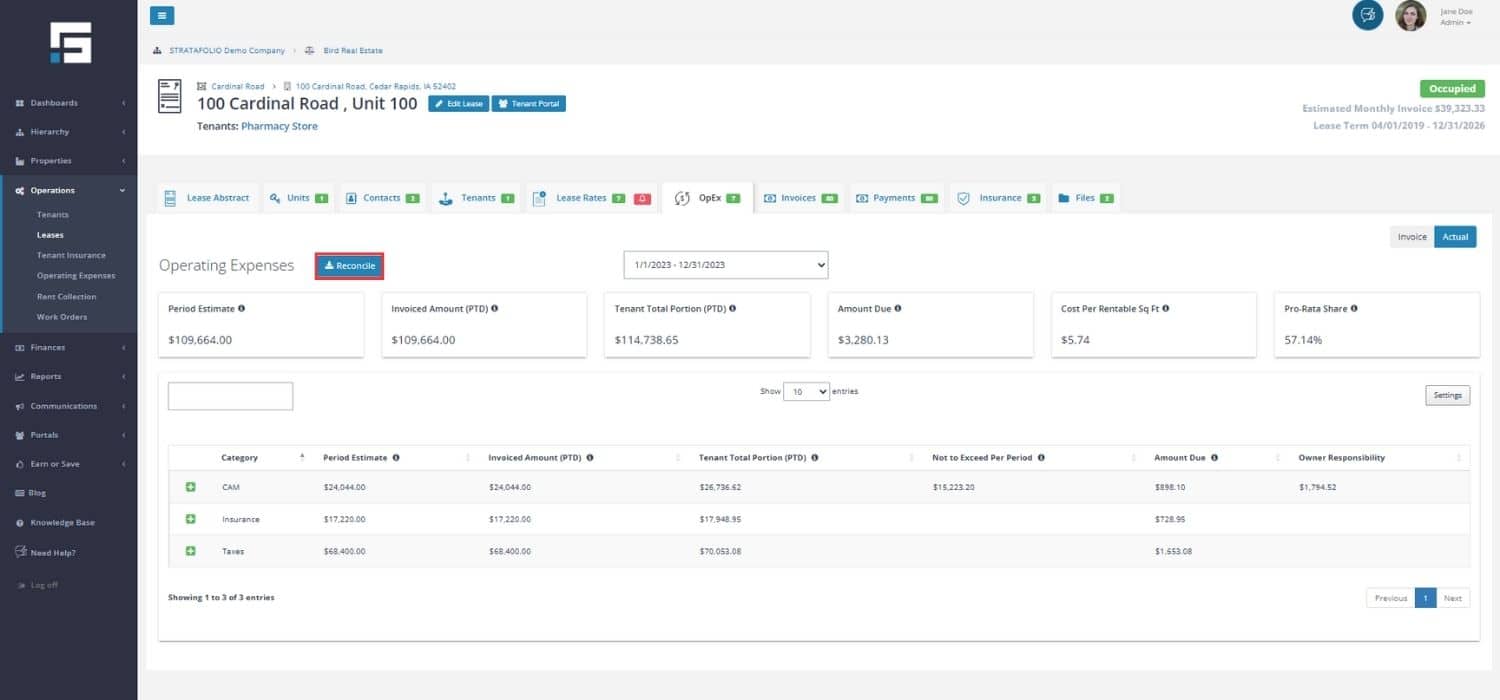
- Navigate back to the OpEx tab inside the lease. Select the Actual button to the right.
- Select reconciliation period
- Select Reconcile.
You will see:
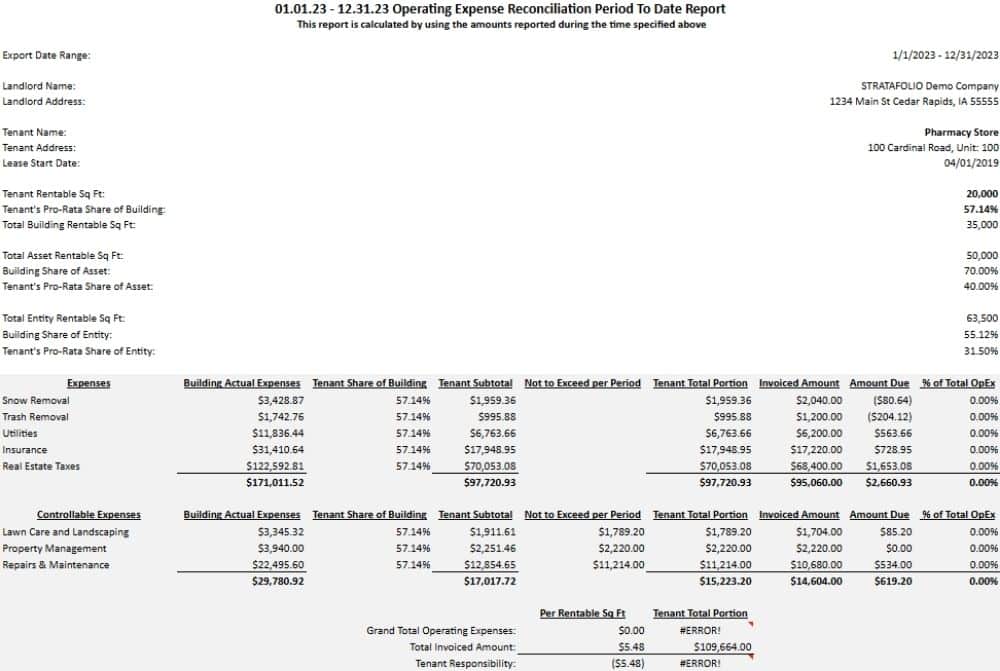
- Tenant’s estimated contribution
- Actual costs from QuickBooks
- Variance amount
- Amount owed by or owed to the tenant
Step 7: Update Mapping, Subcategories, or Lease Rules if Needed
If the reconciliation reveals unexpected results:
- Revisit mapping
- Update lease expense rules
- Add missing subcategories
- Correct any QuickBooks account issues
- Re-run the report
Do not finalize the reconciliation until the results match your expectations.
Step 8: Finalize Results and Issue Tenant Adjustments
Once the reconciliation results are confirmed:
- For underpayments → Add an invoice
- For overpayments → Create a credit memo.
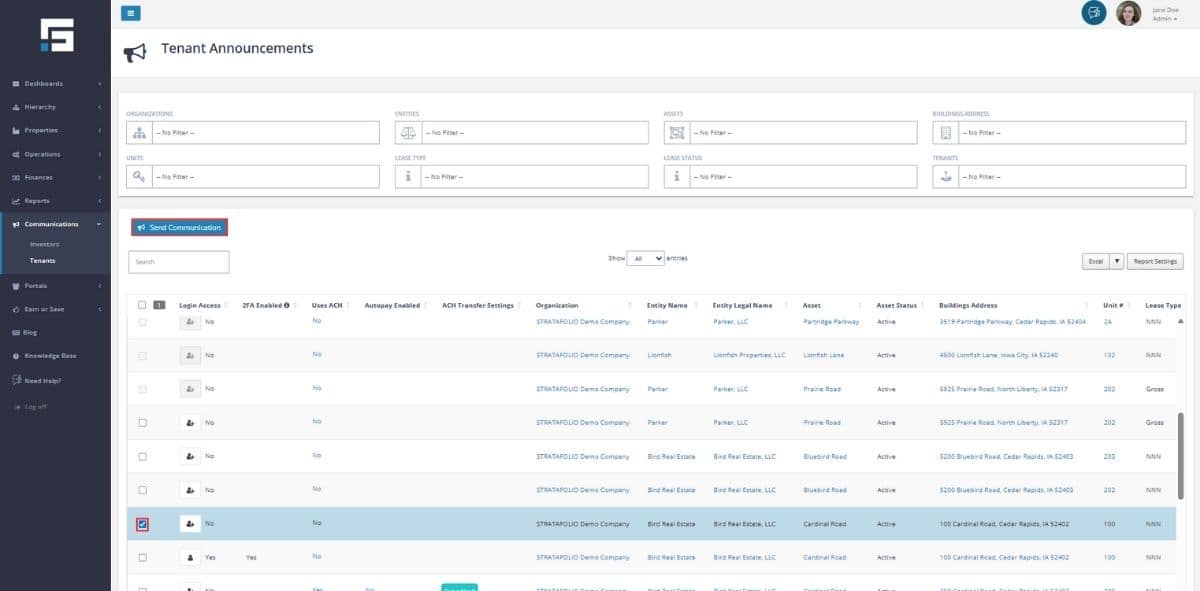
- Upload supporting documentation when you send an email to the Tenant through the Communications link from the left-hand navigation menu.
- Provide a reconciliation letter to the tenant.
- Save all reconciliation documents in the Files tab and the Tenant Portal.
Note: A sample reconciliation letter template is available on the STRATAFOLIO website in the main menu under Resources
Quick Reference for Completing a CAM Reconciliation in STRATAFOLIO
Use this checklist to ensure every required step, document, and verification is completed before issuing a final reconciliation to a tenant.
Before You Begin
- Close the books for the year
- Make sure QuickBooks is syncing with STRATAFOLIO
- Code all expenses correctly by class and account
- Confirm that no missing, duplicated, or incorrectly dated expenses remain in QuickBooks
STRATAFOLIO Setup Checks
- Navigate to Operations → Leases → Lease Abstract → OpEx tab
- Ensure all expected CAM subcategories have been added to the lease
- Verify controllable vs non controllable (if applicable)
- Verify base year rules, caps, administrative fees, and exclusions match the lease
Validate Results
- Compare actual expenses from QuickBooks to STRATAFOLIO totals if needed
- Validate pro-rata share matches the lease
- Verify base year is applied correctly if needed
- Verify CAM caps are applied, if needed
- Add administrative/management fees, if needed
- Investigate discrepancies such as:
- Missing or miscategorized expenses
- Incorrect class or asset allocation
- Transactions posted outside the OpEx period
- Confirm QuickBooks AR matches the amount invoiced and collected
After the Reconciliation
- Add an invoice if the tenant underpaid
- Create a credit memo if the tenant overpaid
- Use the reconciliation letter template (recommended)
- Provide a detailed breakdown of actual vs estimated expenses if requested only
- Pull supporting invoices from QuickBooks or internal files if requested or required
- Email or mail the reconciliation package and upload documents to the Tenant Portal
- Note any updated monthly OpEx amounts for the new year
- Clone the OpEx setup into the new year and resolve any cloning errors
- Adjust category amounts for the new budget year
- Save and confirm updates back in the lease’s OpEx tab
Best Practices
Following best practices ensures your reconciliations are accurate, transparent, and completed on time. These recommendations help prevent tenant disputes. They protect cash flow. And they create a smoother workflow year after year.
- Maintain Complete and Organized Records Year-Round
- Track all CAM related expenses consistently throughout the year
- Keep supporting documents organized (invoices, contracts, receipts)
- Structure your Chart of Accounts to separate reimbursable and non-reimbursable expenses
- Post expenses to the correct class to avoid reconciliation discrepancies
- Reconcile as Early as Possible
- Complete CAM reconciliations shortly after closing the books
- Most leases require delivery within 30 to 90 days. Always follow the lease terms
- Waiting too long creates tenant frustration and cash flow risk
- Verify Accuracy in QuickBooks Before Running Reports
- Fully reconcile QuickBooks before pulling reports in STRATAFOLIO
- Post all expenses for the year to the correct period
- Review “outlier” transactions. Large or unexpected charges may need categorization adjustments
- Ensure expenses fall within the OpEx period. STRATAFOLIO runs on a cash basis
- Understand and Apply Lease Terms Carefully
- Review base year, caps, exclusions, administrative/management fees, and controllable limits
- Apply CAM caps correctly
- Reflect any special tenant-specific rules accurately in the OpEx setup
- Communicate Early and Transparently with Tenants
- Give tenants advance notice when reconciliation is being prepared
- Provide clear explanations for increases or unusual adjustments
- Include supporting invoices when appropriate
- Upload reconciliation materials to the Tenant Portal so tenants always have access
- Use STRATAFOLIO to Its Full Potential
- Use the OpEx tab to track subcategories and expenses throughout the year
- Sync QuickBooks regularly to keep data fresh and accurate
- Use the CAM Reconciliation Report instead of manual spreadsheets
- Clone OpEx annually to ensure the new year starts with correct amounts
- Maintain consistent processes across leases for easier audit trails
- Use Reconciliation Results to Improve Future Budgeting
- Adjust future OpEx budgets based on historical trends
- Identify recurring increases and plan ahead
- Update subcategories annually after cloning OpEx as needed
- Incorporate caps, known increases, and upcoming contract renewals
To Check the Mapping of Operating Expenses/CAM
Accurate account mapping ensures your CAM reconciliation process produces complete and reliable reports. Users can check which accounts in the Chart of Accounts (COA) for each QuickBooks integration are being mapped to which Category or Subcategory in Operating Expenses. If a new account is created in the COA or an account needs to be updated to be added to OpEx, access the Integration’s Accounts for more information about how to map a Chart of Accounts in STRATAFOLIO.
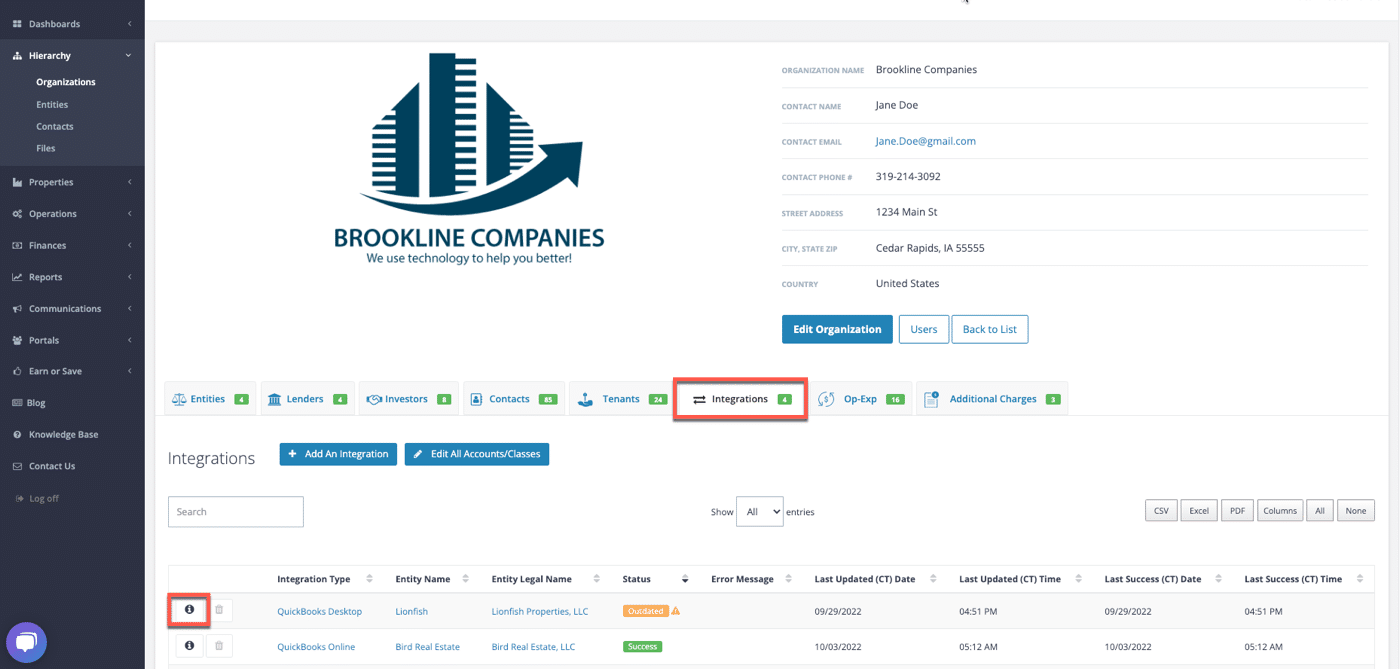
On the Organization page, navigate to the Integration tab and select the “i” next to the proper integration for more information.
Select the Accounts tab. The OpEx Subcategory can be filtered to see what is being mapped in the account to which subcategory in the Operating Expenses.
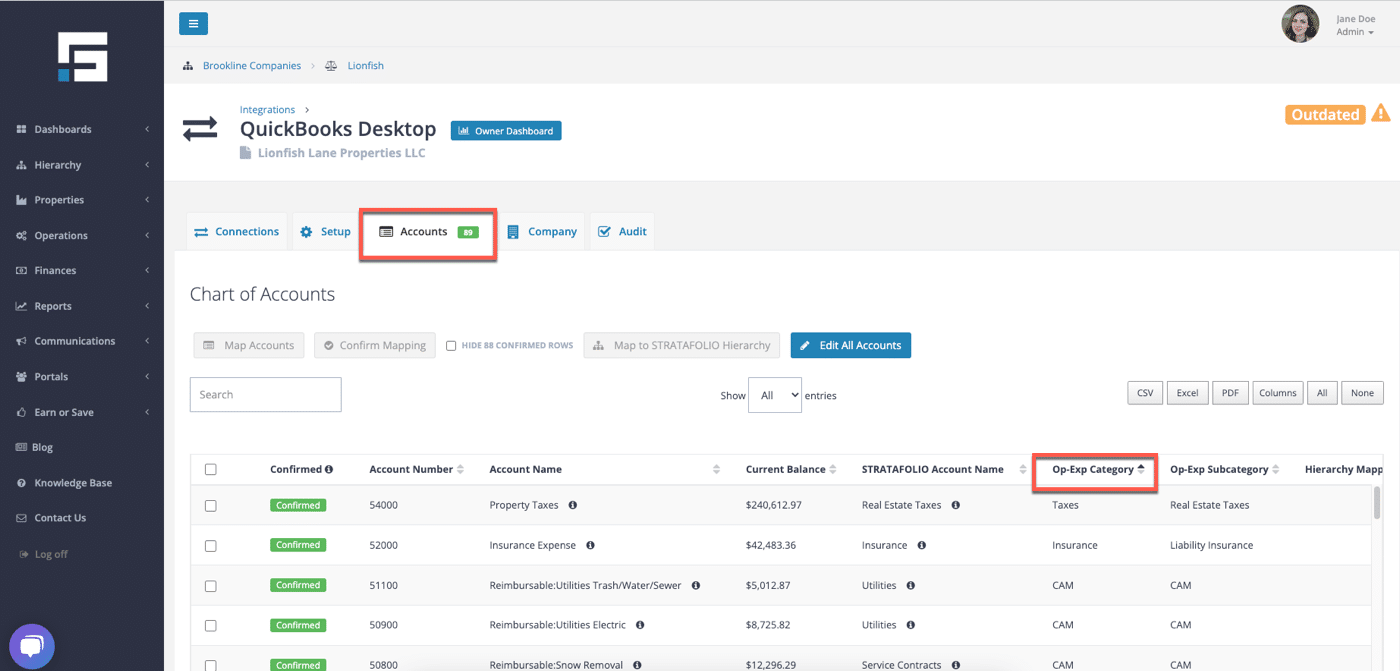
This is where the OpEx Categories and Subcategories get mapped to connect to the COA. Any time an expense is posted to any of these accounts mapped to an OpEx/CAM Category or Subcategory in STRATAFOLIO, the expense will go to the OpEx expense in the Leases it was added to. Multiple accounts can be utilized for one Subcategory, but only one Subcategory can be used per General Ledger account in QuickBooks. In the given example, multiple Reimbursable Utilities accounts are all going to the CAM Subcategory for the OpEx.
STRATAFOLIO cannot choose specific transaction lines from an account to be part of the OpEx or excluded. Please be sure the desired account is used appropriately and use Reimbursable and Non-Reimbursable/Operating accounts if any charges may be excluded from CAM. Here is the Chart of Accounts we created based on best practices that we have researched in commercial real estate:
To Update an Account
If an account needs to be updated or changed, select the box next to the account for updating. Choose the Map Accounts button.
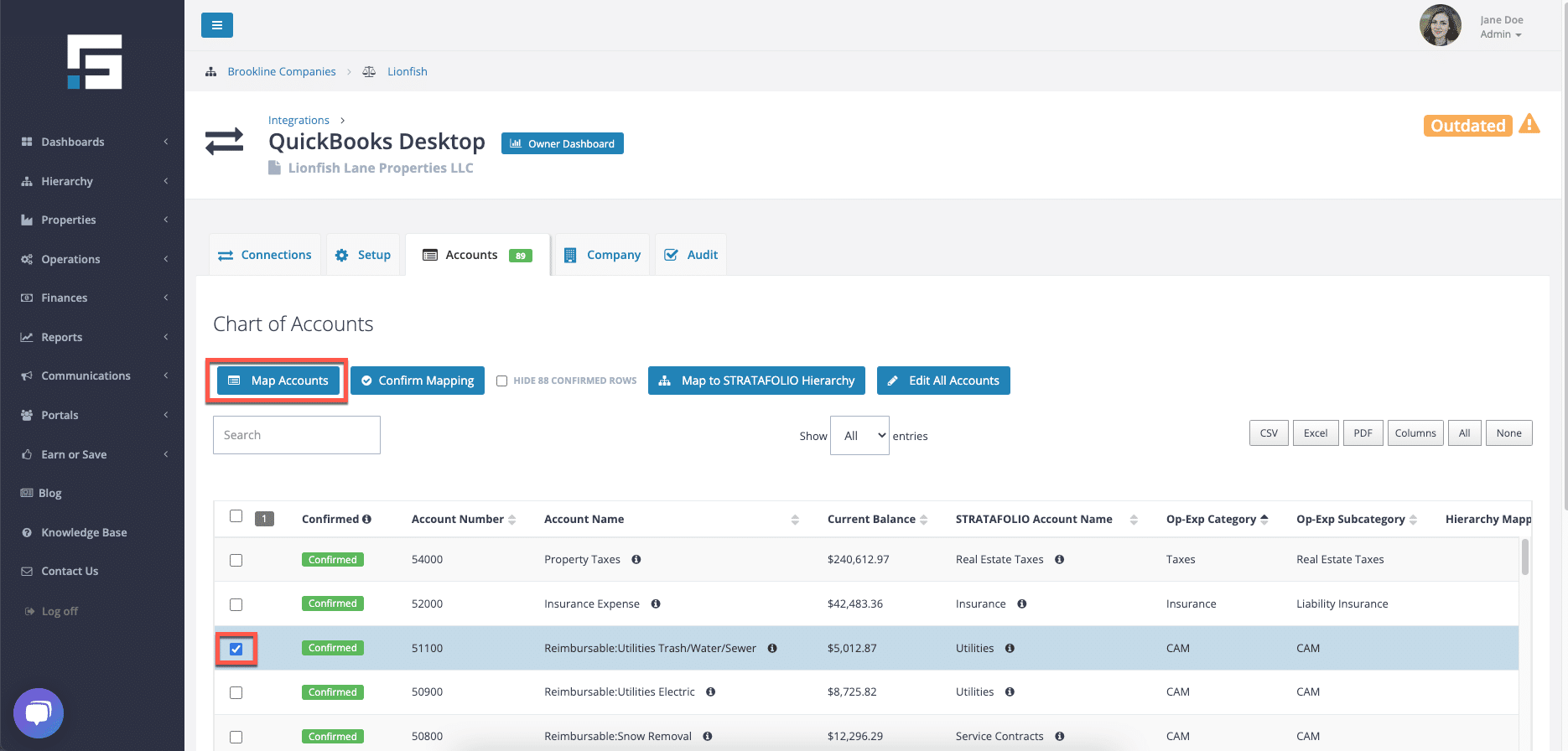
This will arrive at STRATAFOLIO’s condensed COA. Select the drop-down and choose an expense account under the Operating Expenses category. The Operating Expense Subcategory drop-down will pop up so that the Subcategory can be chosen for mapping. Add a Subcategory can be used if a new subcategory needs to be created. Select Save & Confirm.
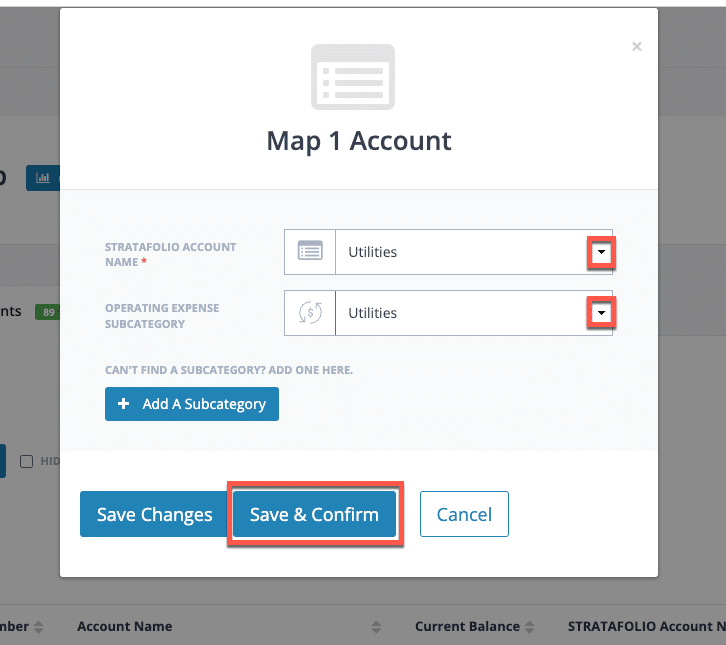
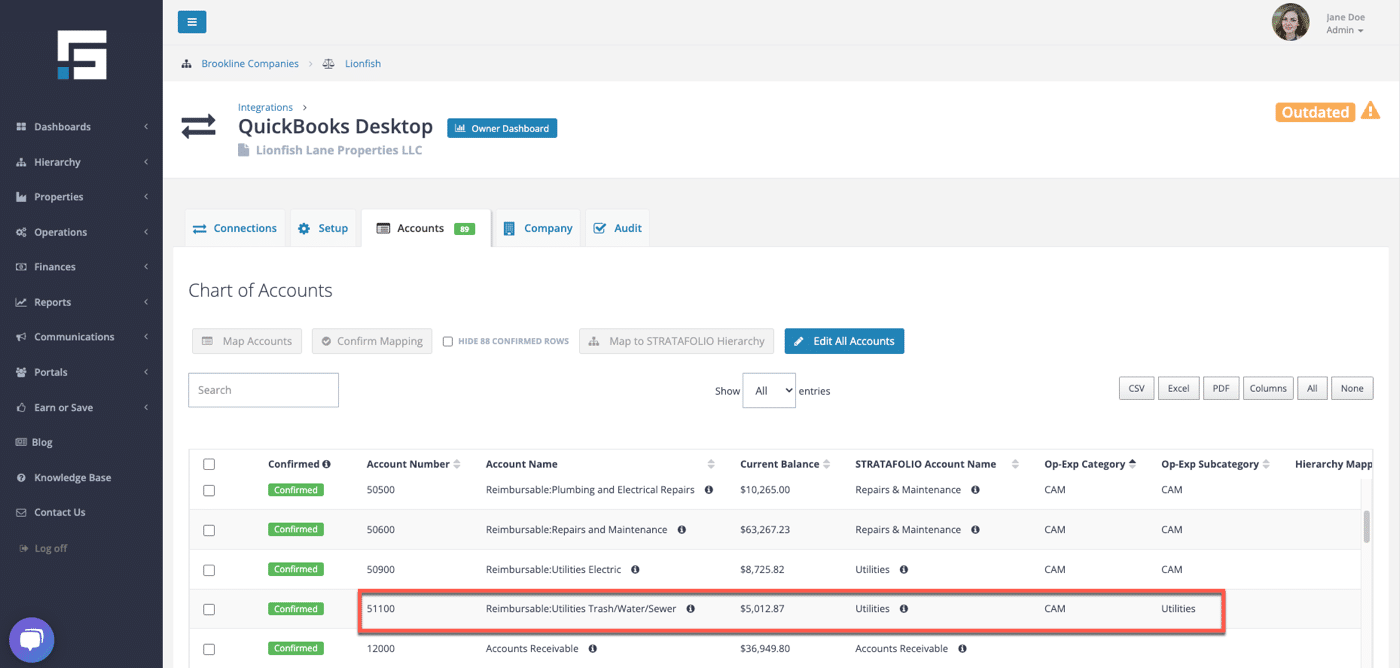
The level of detail available in the Operating Expense/CAM Reconciliation Report will depend on the chosen subcategories. Users can have as much detail as their accounts allow. For that reason, work with our team during the Onboarding process to get the customization you need.
By following these steps, you can confidently run CAM reconciliation in STRATAFOLIO and streamline your year-end reporting.
What’s Next
Once you complete your reconciliation, the next step is preparing the following year’s CAM/OpEx setup. Watch this tutorial on cloning CAM periods.
How Do I Clone OpEx and CAM Periods for the New Year
What is Cloning in STRATAFOLIO?
Cloning in STRATAFOLIO is the process of copying an existing Operating Expense (OpEx) period, including CAM subcategories, from one period to the next.
This ensures every lease has a complete OpEx/CAM setup for the upcoming billing cycle.
Cloning:
- Duplicates all OpEx and CAM categories that already exist in the lease
- Carries forward billing amounts, structures, and prorated allocations
- Allows you to optionally apply increases (percentage or flat-dollar) during the cloning step
- Automatically creates the next period using the same structure as the period you selected
Because CAM (Common Area Maintenance) is part of OpEx, cloning ensures your CAM structure and values continue seamlessly into the new year.
Why Cloning is Important
Cloning OpEx ensures the next year begins with:
- A complete and accurate set of OpEx categories already created
- Previous or updated values carried forward for budgeting
- A consistent structure for OpEx or CAM billing
- Smooth alignment between billing and reconciliation
- Stable cash flow for owners and tenants
If OpEx is not cloned:
- Invoices will not generate accurately. There will be no OpEx on the invoice
- Tenants may be under-billed or over-billed
- Cash flow becomes unpredictable
- Year-end reconciliations become less accurate
Cloning is a required annual step to support accurate OpEx or CAM billing and reconciliation.
When to Clone OpEx
Cloning should be done:
- After the prior year’s CAM reconciliation is complete
- Before generating the first invoice of the new OpEx period or calendar year
- As part of your annual budgeting workflow
This ensures OpEx estimates for the new period are based on the most recent year’s performance.
Cash Flow Impact
OpEx amounts determine what is billed to tenants monthly.
If they are not updated:
- Tenants may underpay throughout the year
- Owners may need to cover unreimbursed expenses
- CAM reconciliations may show large variances
- Tenant disputes and cash flow inconsistencies may increase
Accurate cloning supports accurate billing, better forecasting, and smoother tenant communication.
Step-by-Step Process on How to Clone CAM/OpEx Periods
Step 1: Navigate to the Operating Expenses Index View
From the left-hand navigation panel, go to:
Operations → Operating Expenses
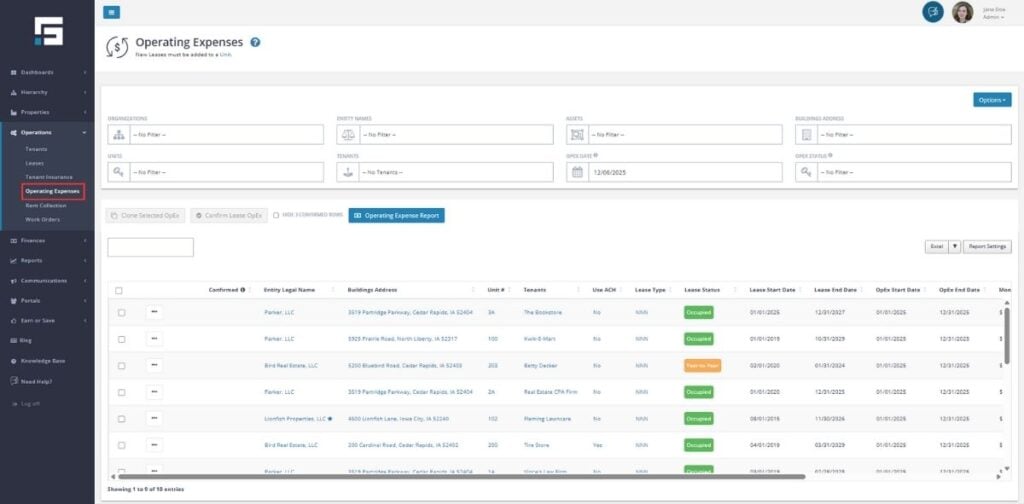
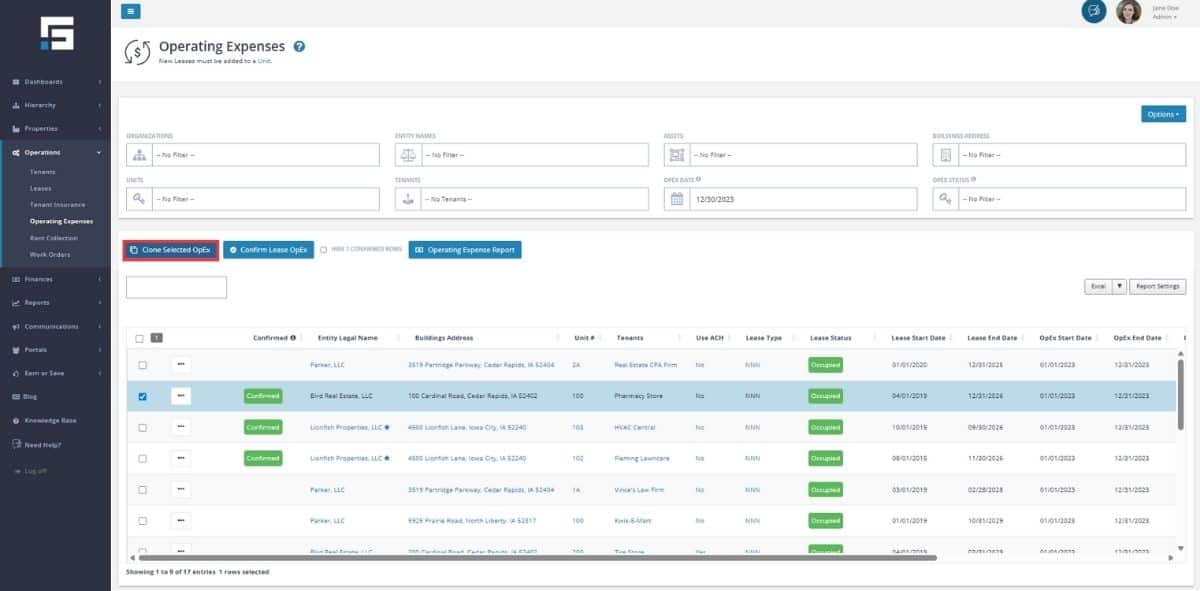
This opens the Operating Expenses Index View, where you can review all leases with existing OpEx periods.
Step 2: Identify the Lease(s) That Need a New OpEx Period
There are two ways to find the correct leases:
Option A — Use the OpEx Status Filter (Recommended)
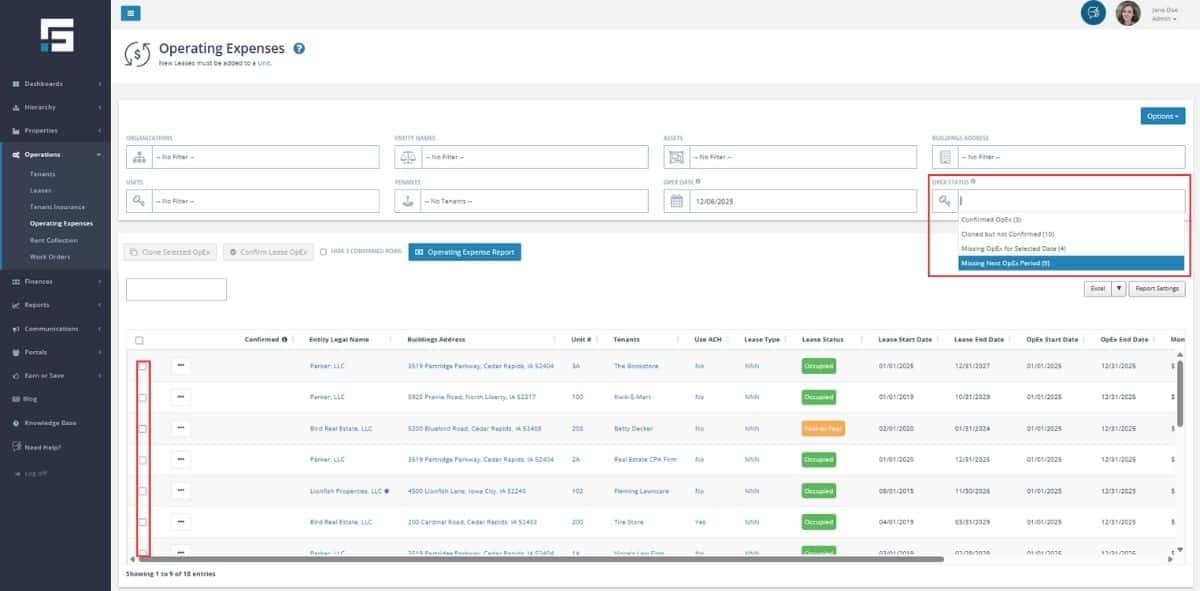
- At the top of the Operating Expenses table view, open the dropdown labeled OpEx Status.
- Choose Missing Next OpEx Period.
- This automatically filters to any lease that requires a new OpEx/CAM period.
- Review the list and check the box next to the lease(s) you want to clone.
Option B — Manually Filter by Date or Tenant
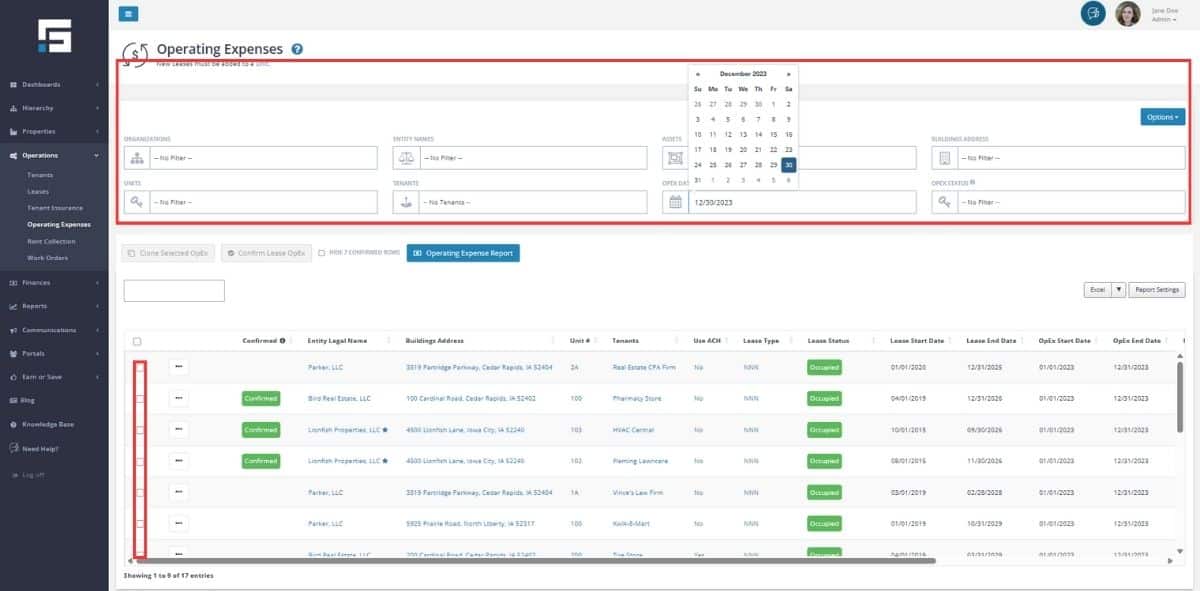
Select the checkbox next to the lease(s) you want to clone.
Use the filters at the top for Organization, Entity, Asset, Tenant, or Units to find the relevant lease.
Adjust the OpEx Date filter, if needed, to a date that the OpEx is in to clone over.
Step 3: Clone Selected OpEx
Select Clone Selected OpEx.
A confirmation window will appear.
If STRATAFOLIO detects issues:
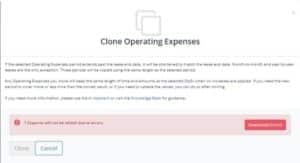
- A pop-up will appear showing the error list. The clone button will not be clickable.
- Select the Download Errors button to export an Excel file.
- Review the explanation for each error.
- Correct the issues in the lease’s OpEx tab (or lease details).
- Attempt the clone again.
Only after errors are resolved will the Clone button be clickable.
Step 4: Update OpEx Amounts
Once cloning is possible, you will see the cloning pop up with adjustment options:
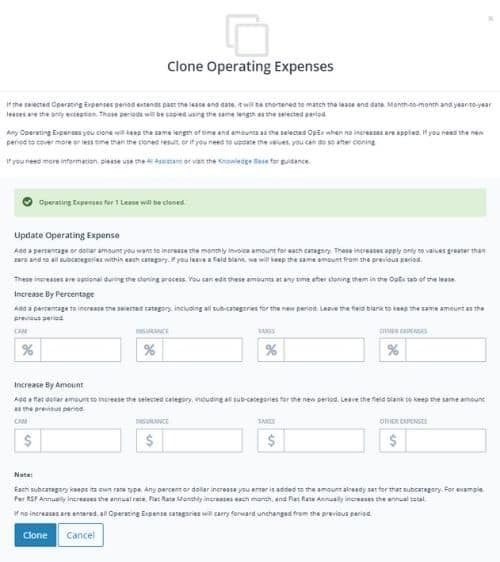
You may increase OpEx amounts in one of two ways:
A) Increase by Percentage
- Apply a % increase to any of the four categories:
- CAM
- Insurance
- Taxes
- Other Expenses
- Subcategories under each will also adjust automatically.
B) Increase by Amount
- Add a dollar increase (ex: $300/month) to any category.
- Again, subcategories update automatically.
⚠️ You may choose either a percentage OR a dollar amount per category, not both.
If you leave a field blank, STRATAFOLIO keeps the same amount from the previous period. The amounts can be updated at a later date, and you can still proceed with the cloning process.
Review the entries then select clone to proceed with cloning.
Step 5: Verify the Newly Cloned OpEx Period
After completing the cloning process, you must verify that the new OpEx period was created correctly in the lease.
STRATAFOLIO provides a quick way to jump directly into the lease’s OpEx tab using the ellipse (three dots) menu.
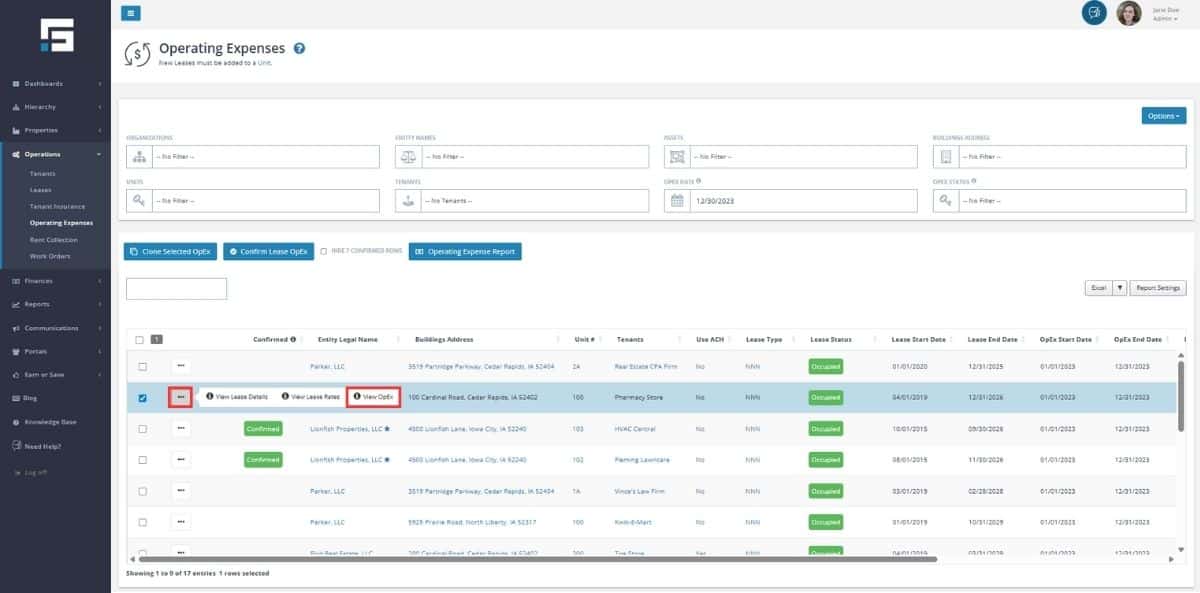
1. Use the Ellipse (⋯) to Open the Lease’s OpEx Tab
On the Operating Expenses view:
- Locate the lease you just cloned.
- Click the ellipse (…) on the far-left of the row.
- Select View OpEx to open the OpEx tab for that specific lease.
2. Review the Newly Created Period
In the OpEx tab of the lease, verify that:
- The new OpEx period has been added
- The dates of the cloned period match the prior period’s length
- All subcategories were included in the cloning
- Any percentage or flat-dollar increases (if used) are reflected
- Amounts being invoiced to the tenant are correct
Important Note About Period Length
Cloning always creates a new OpEx period that matches the number of months in the prior period.
- If the previous period was a full year, the cloned period will also span a full year.
- If the previous period covered only part of a year (e.g., a new tenant mid-year), the cloned period will be cloned for the same number of months in the previous period
Step 6: Confirm the OpEx Period
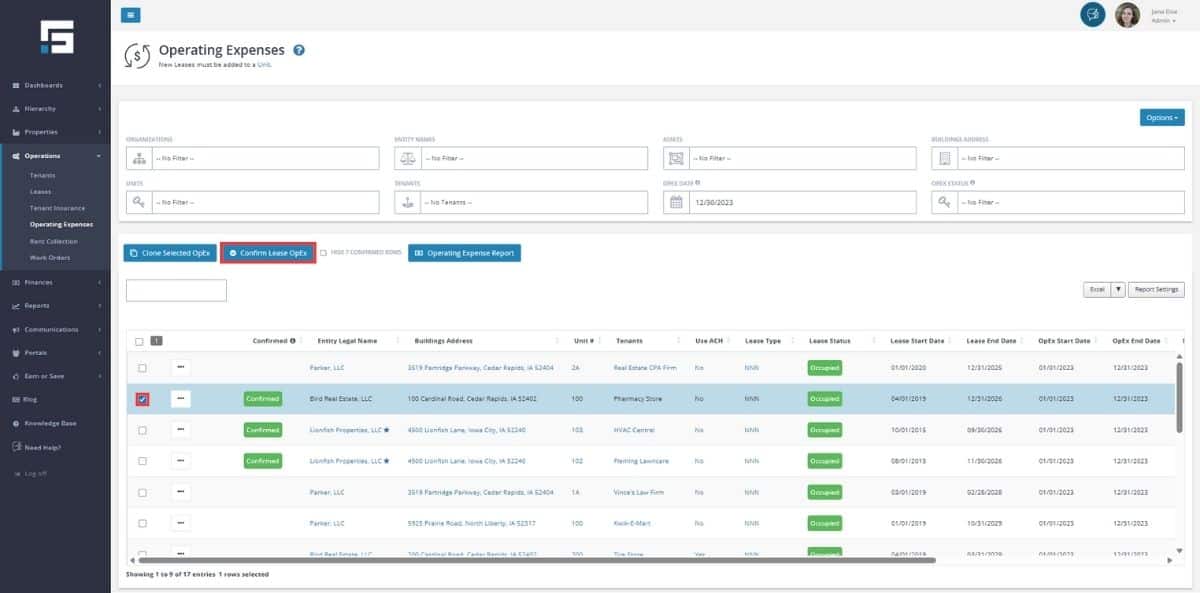
Return to Operations → Operating Expenses.
Locate the newly cloned lease(s).
Select the checkbox and select Confirm Lease OpEx to finalize the OpEx period.
Checklist for Cloning OpEx Periods
Before Cloning
- Confirm the existing OpEx period is accurate
- Ensure all subcategories are entered
- Verify the lease terms are correct
- Prepare budgets for the new year if possible
After Cloning
- New OpEx period appears in the lease
- Dates are accurate
- Lease term extended if needed
- All subcategories cloned properly
- New OpEx amounts updated per the budget if not done during the cloning process
- New year’s invoices scheduled as expected
Additional Steps
- Alert tenants about any increases for the following period
Best Practices
- Confirm the Current OpEx Period Is Accurate Before Cloning
- Verify the current OpEx period dates.
- Include all expected categories (CAM, taxes, insurance, etc.).
- Add and correctly assign all necessary subcategories.
- Generate and collect the tenant’s invoices for the period.
- Reflect any special rules accurately (admin fees, exclusions, allocations, etc.).
- Use Filters to Control What You Clone
- Use the new drop down feature to select the missing next OpEx period to see which leases need the OpEx cloned
- Filter by OpEx Date to select only the period you want to clone
- Use Organization, Entity, or Asset filters for bulk cloning
- Validate the list before selecting “Clone Selected OpEx”
- Resolve Errors Immediately
- Download the error report
- Review the explanation for each flagged lease
- Correct the issue in the lease or OpEx tab
- Attempt the cloning operation again
- Keep an Annual Cloning Routine
- Clone OpEx periods in bulk once per year before invoicing for the new period
- Make any annual rate increases immediately after cloning or during the cloning process
- Ensure newly cloned periods align with each lease’s term end
- Maintain Clean Records for Future Reconciliations
- To avoid issues later:
- Keep subcategories consistent across years and integrations when possible
- Avoid removing subcategories unless absolutely necessary
- Confirm invoice generation for each new period
- Audit cloned amounts before year-end reconciliation season
- To avoid issues later:
