Before setting up ACH payments for your tenants, we recommend reviewing How ACH Payments Work in STRATAFOLIO, which explains payment processing times, verification, fees, and other important details that apply to both tenants and owners.
NOTE: STRATAFOLIO does not update information in real time. After adding a bank account, a lease, or other ACH related information, refresh the page to see the latest status.
Get Started: Key Requirements for Autopay and Invoices
Timing of Invoice Addition
- Add, finalize, and sync invoices in STRATAFOLIO no later than one (1) day before the scheduled autopay date.
- If you add or sync an invoice on the same day as autopay, the system will not process that payment.
Invoice Date Requirements for ACH (Posting Date)
- The Invoice Date (posting date) must be on or before the scheduled autopay date.
- Example:
- Autopay Date = July 28, 2025
- Invoice Date = August 1, 2025 → Autopay will not process
- Invoice Date = July 28, 2025 (or earlier) → Autopay will process
- The Invoice Date signals to the system that the invoice is ready to be paid. If it is later than the autopay date, autopay will skip the invoice.
Why Would Autopay Not Run
- If autopay does not process because of timing or invoice date issues, the tenant must use the one-time payment option.
- Backdating an invoice after autopay has run will not trigger payment.
Checklist: Setting Up Invoices for Autopay
- Add, finalize, and sync invoices at least one day before autopay runs.
- Ensure the Invoice Date is on or before the autopay date.
- If autopay is missed, tenants must make a one-time payment.
How to Set Up an ACH Account as a Landlord
1. Add ACH Integration to Your Entity
The first step in setting up your organization to receive ACH payments is to add an ACH Integration to your Entity in STRATAFOLIO. If you have multiple entities, you will repeat this process for each one that will receive ACH payments.
TIP: The ACH Integrations tab in the Entity detail page displays the Entity Payment Integration name for each integration listed. You can see the name of each integration at a glance directly in the table, without needing to open the individual integration record. This is especially helpful if your Entity has more than one ACH integration set up, since you can quickly confirm which integration is which before taking action.
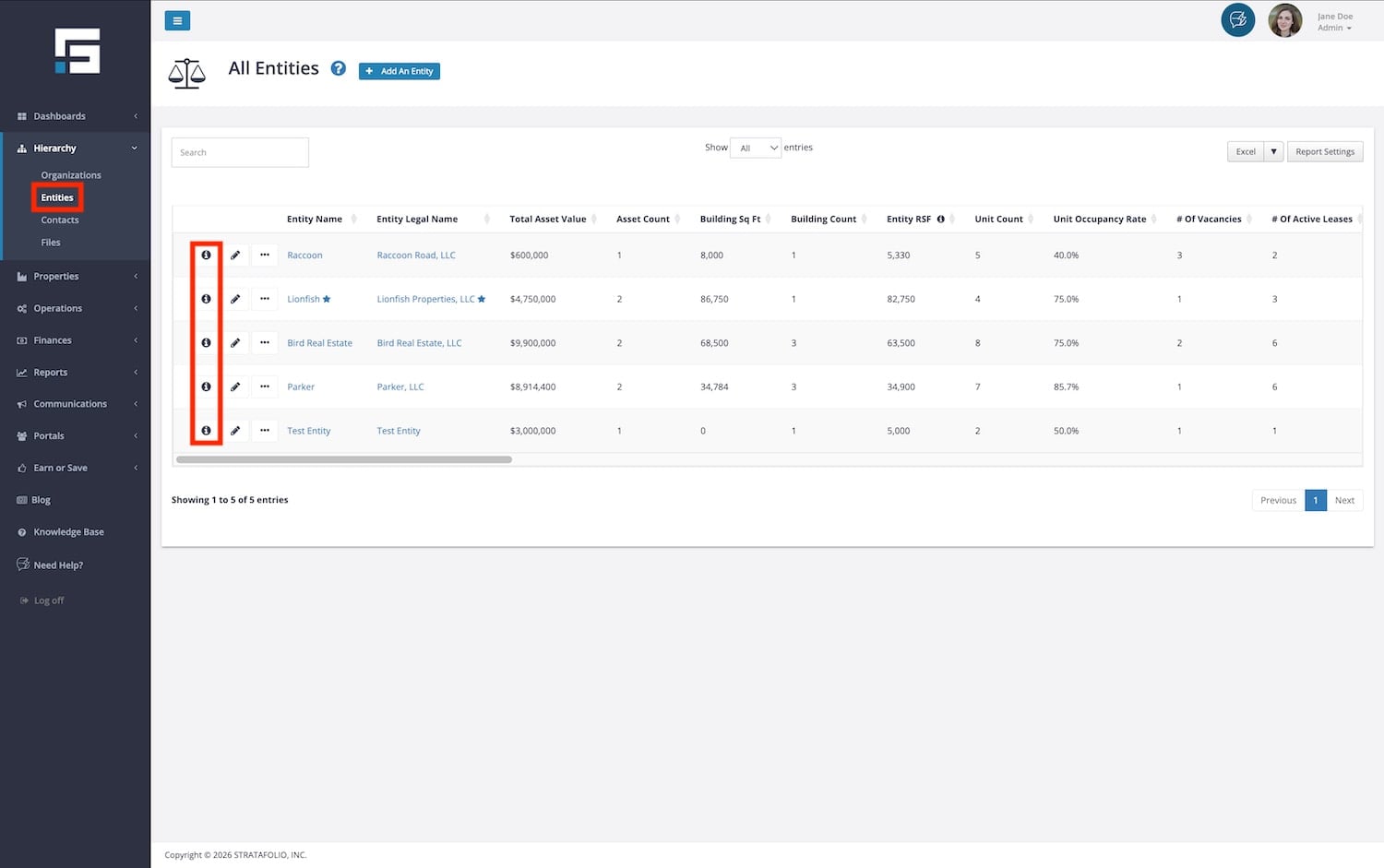
First, navigate to Hierarchy from the left-side navigation menu and click on Entities from the dropdown, then select the “i” next to the Entity that you will add the ACH Integration to. This opens the detailed view of the Entity.
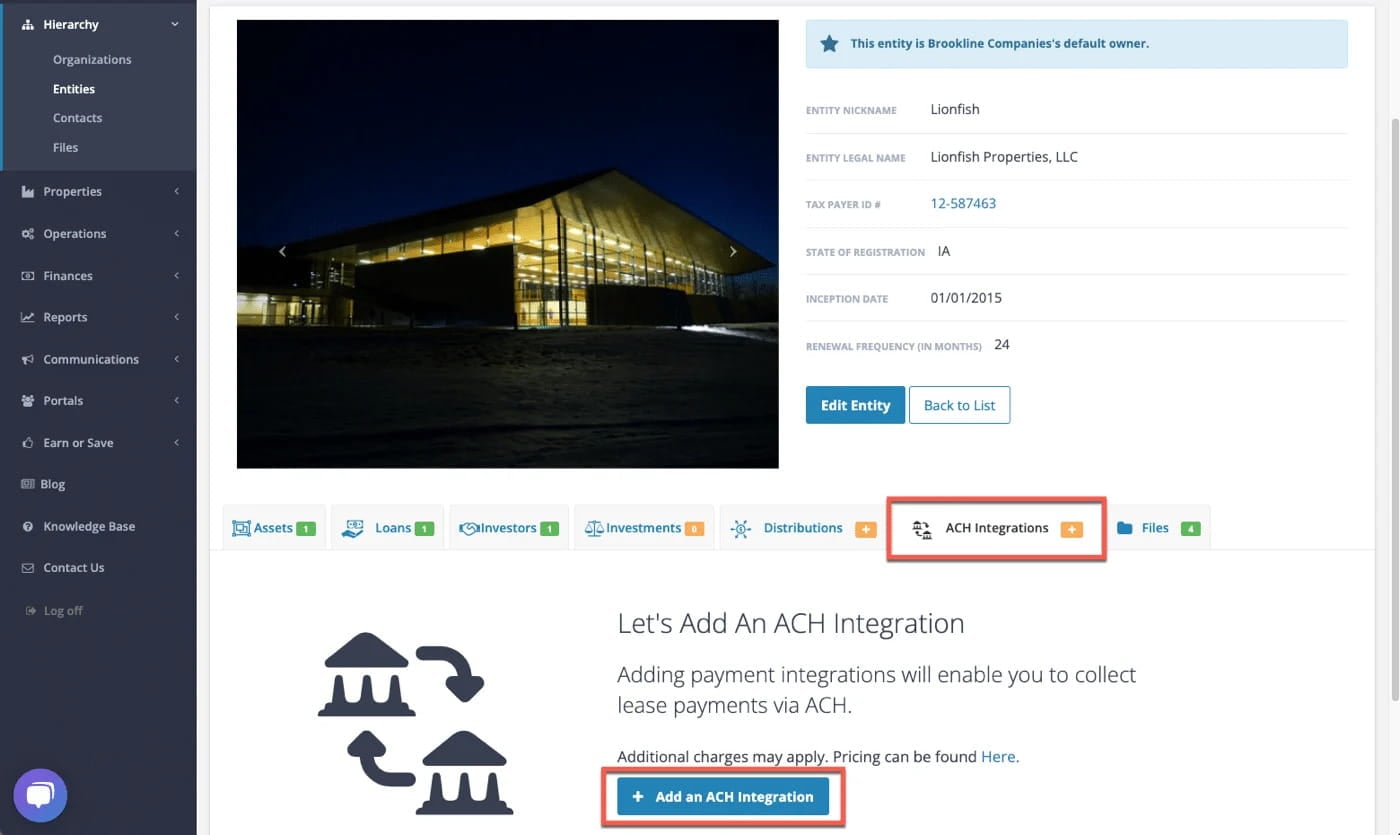
Next, select the ACH Integrations tab in the Entity’s detailed view, then click the Add an ACH Integration button at the bottom of the page.
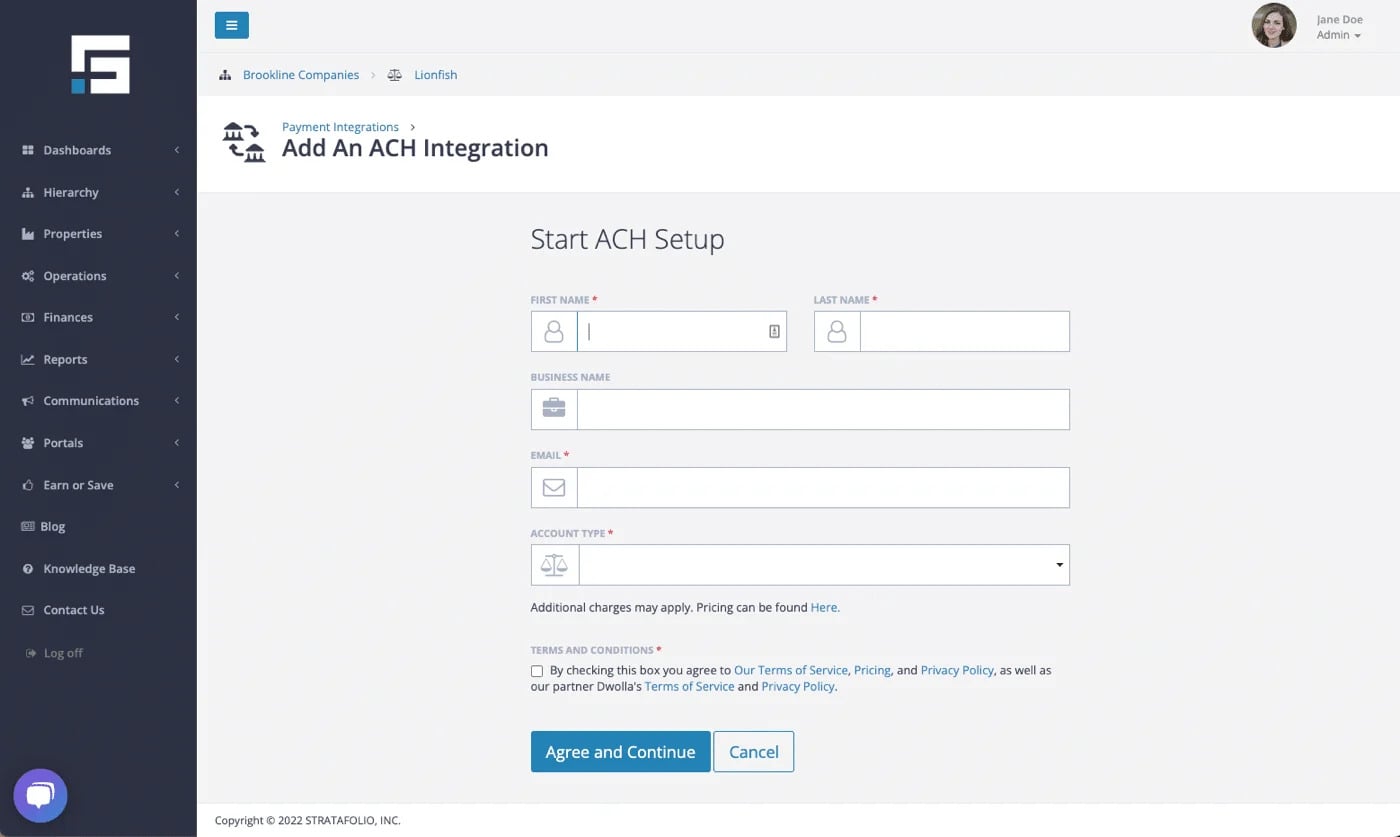
On the ACH Setup form, enter your first name, last name, business name, email, and account type. You must check the terms and conditions box to agree and continue.
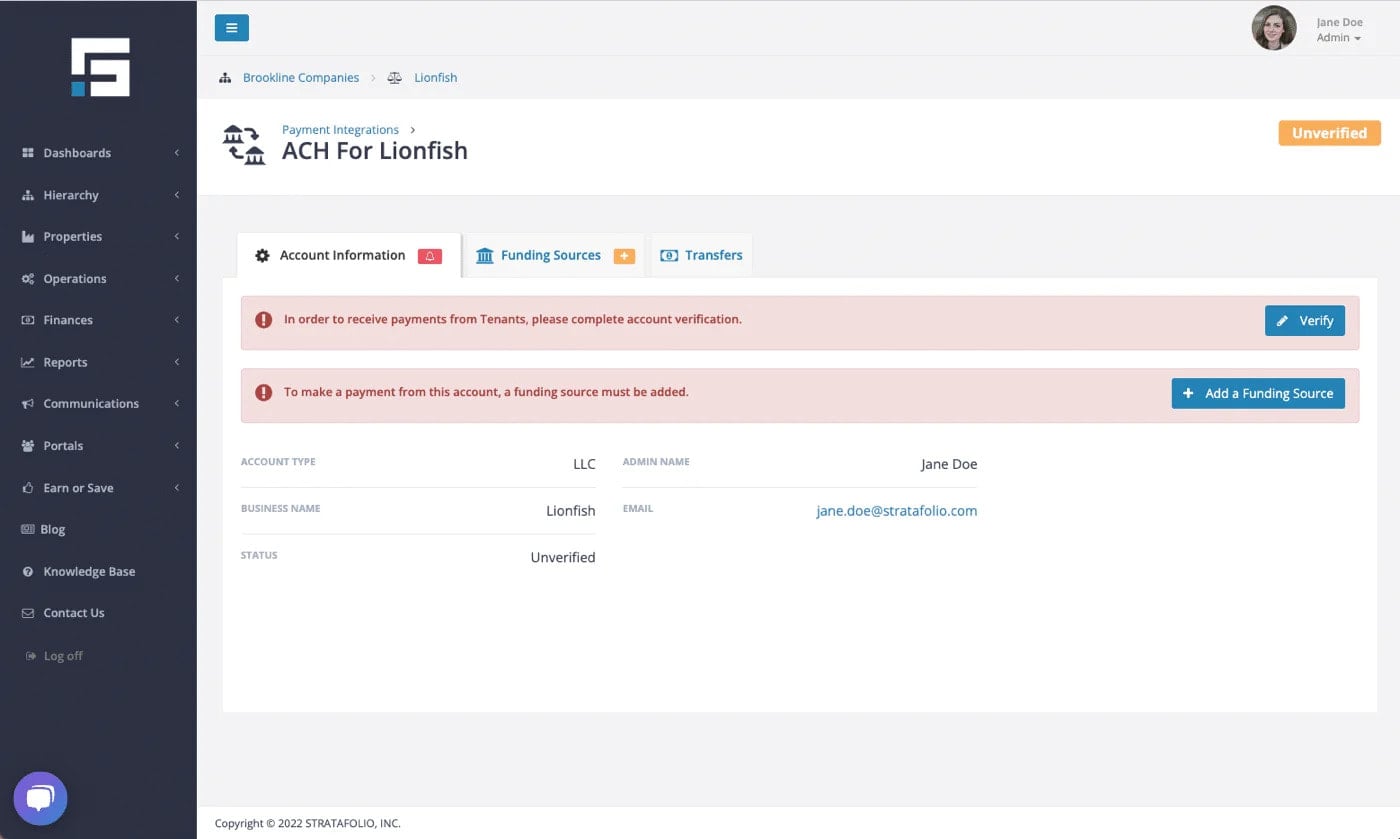
The next page highlights two alerts:
- Verify
- Add a Funding Source
These marks will clear once the tasks are completed.
2. Add Funding Source or Bank Account
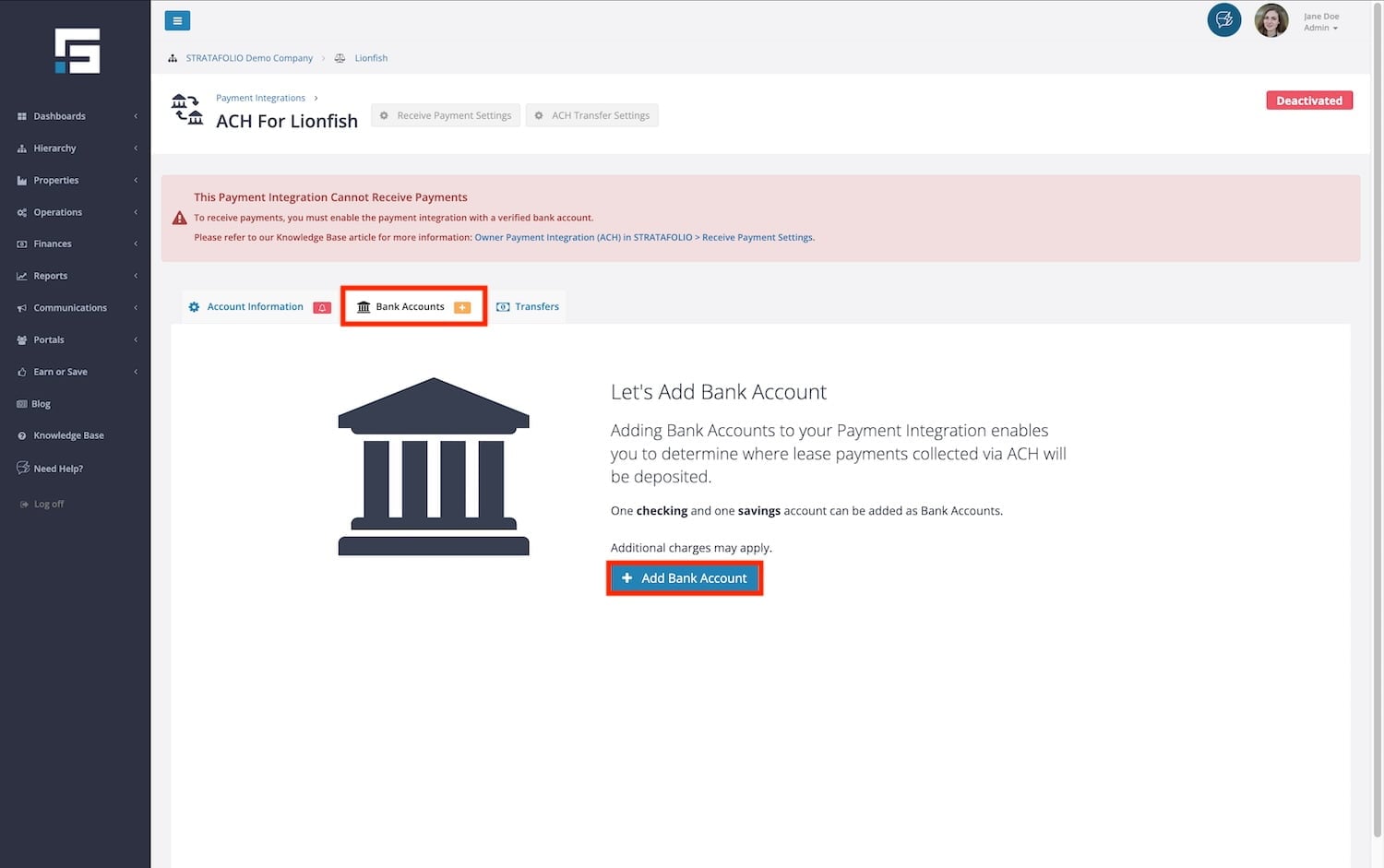
Once you have added an ACH Integration, you will need to add a bank account, also known as the Funding Source. The Funding Source is the bank account you would like to use to receive payments. Make sure you select the correct lending institution. Some lending institutions will list multiple listings for similar branches, or individual listings for personal or business use.
WARNING: When searching for your lending institution, ensure you select the correct link. Many institutions have separate links for personal and business accounts. If you select the personal account link instead of the business account link, the bank may reject your account. It is important to double-check before proceeding to avoid delays in the setup process.
STRATAFOLIO uses Plaid to make the setup safe.
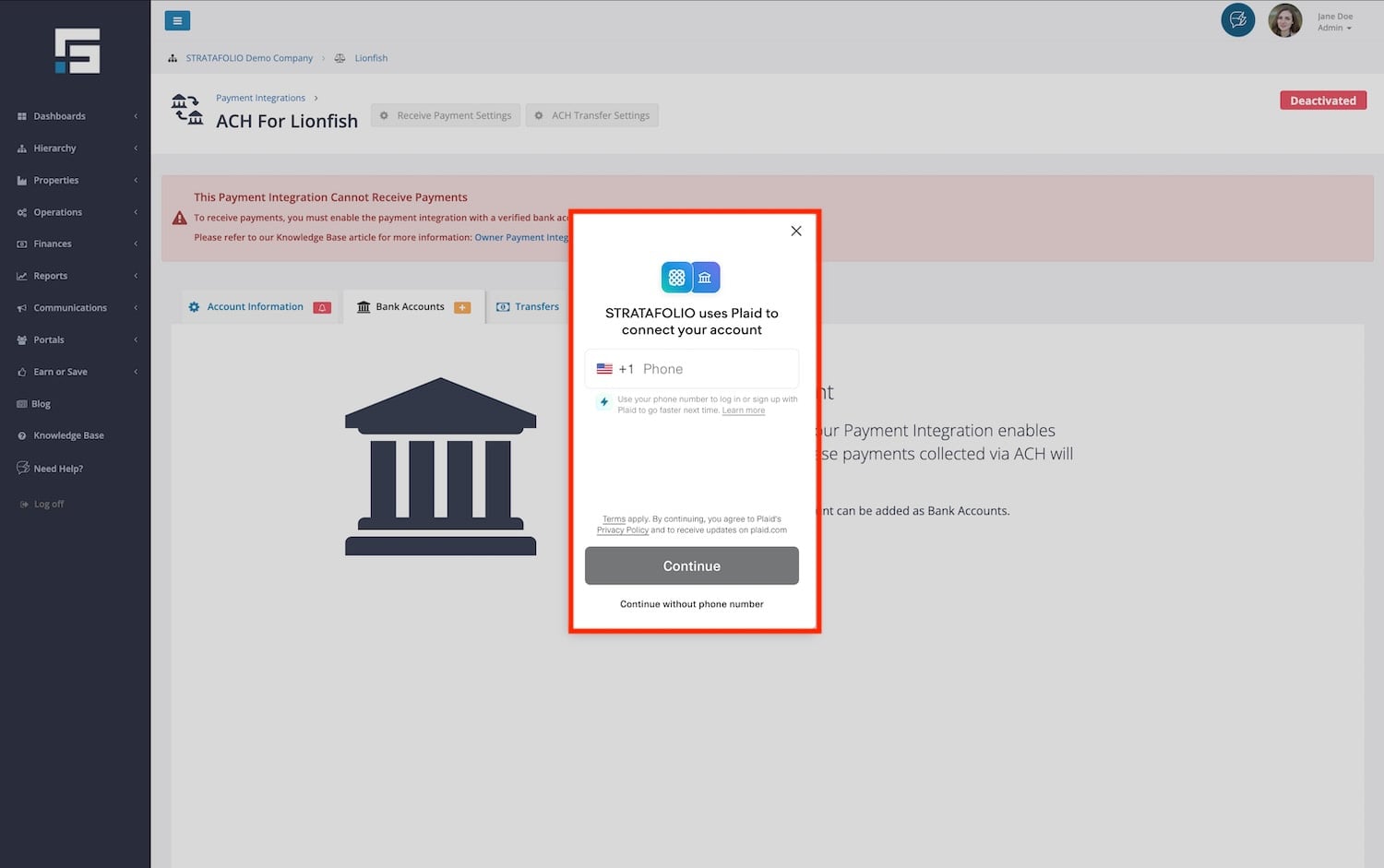
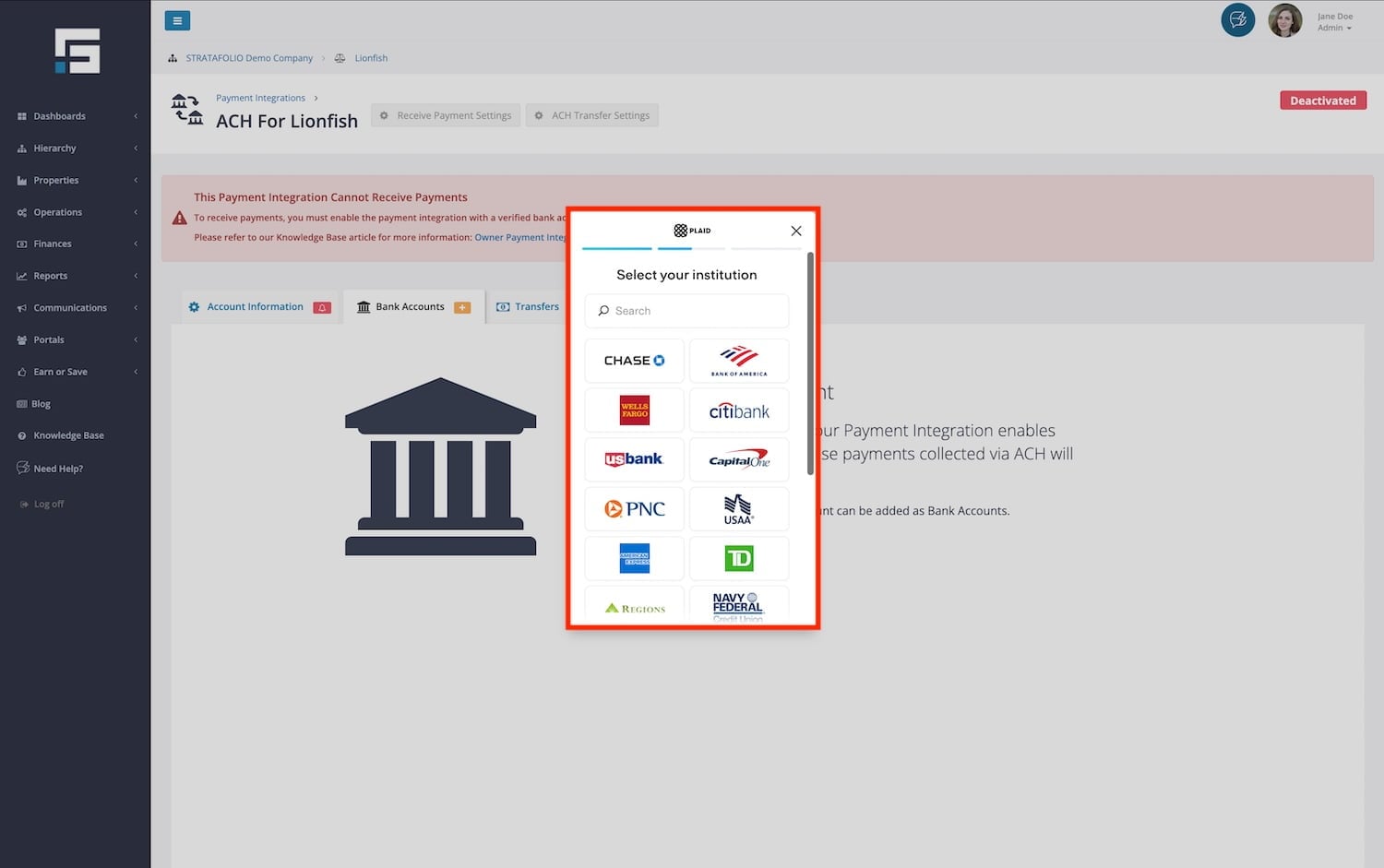
After selecting your institution, follow the next set of instructions on the pop-up.
If you cannot find your lending institution on the list or through the search function, you can still link it manually using your account numbers. Simply scroll to the bottom and select Link with account numbers. Continue with the next set of instructions on the screen.
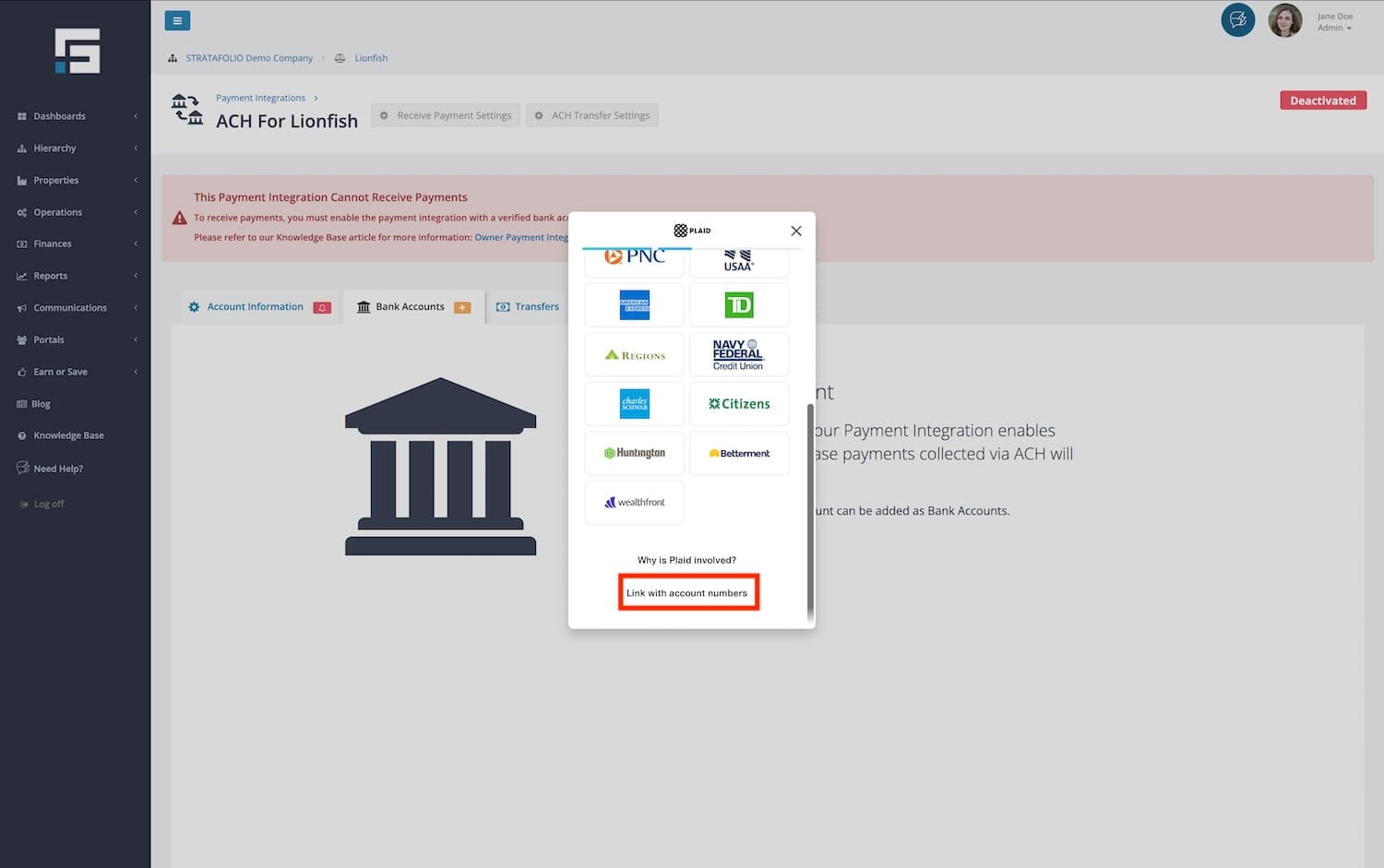
To add the accounts manually, you’ll need to:
- Provide the account number, routing number, and the first and last name of the account holder listed on the account you’ll be using.
- Once you verify and approve, you’ll receive two micro-deposits in the amount of $0.01 in the account number provided within a few days. A few days later, that amount will be removed.
- Once you receive the micro-deposits, you’ll return to STRATAFOLIO to verify your account by entering the two deposit amounts. If the amounts match, your account will be verified and activated.
You can also add additional funding sources.
Understanding Bank Account Status Colors
Once your bank account is connected, STRATAFOLIO displays a color indicator to help you quickly see the status of your funding sources at a glance.
- Green means at least one bank account is verified and ready to process payments. This is the status you want to see.
- Yellow means at least one account is verified, but one or more additional accounts on the integration are closed. Payments can still process through the verified account, but you should review and remove any closed accounts to keep your setup clean.
- Red means all bank accounts on the integration are closed. No payments can be processed until you add a new verified funding source.
- You may also see a bank account status of Manually Verified immediately after a micro deposit verification is submitted. This is a temporary status while STRATAFOLIO confirms the account. Refresh the page after a short wait to see the final status.
These status colors stay in sync with Dwolla, the payment processor STRATAFOLIO uses behind the scenes. If an account is closed on Dwolla’s end, STRATAFOLIO will automatically reflect that change so you always have an accurate view of your payment setup.
3. Verifying the Account
The next step in setting up your ACH account is to provide us with information about your business in order to verify its identity.
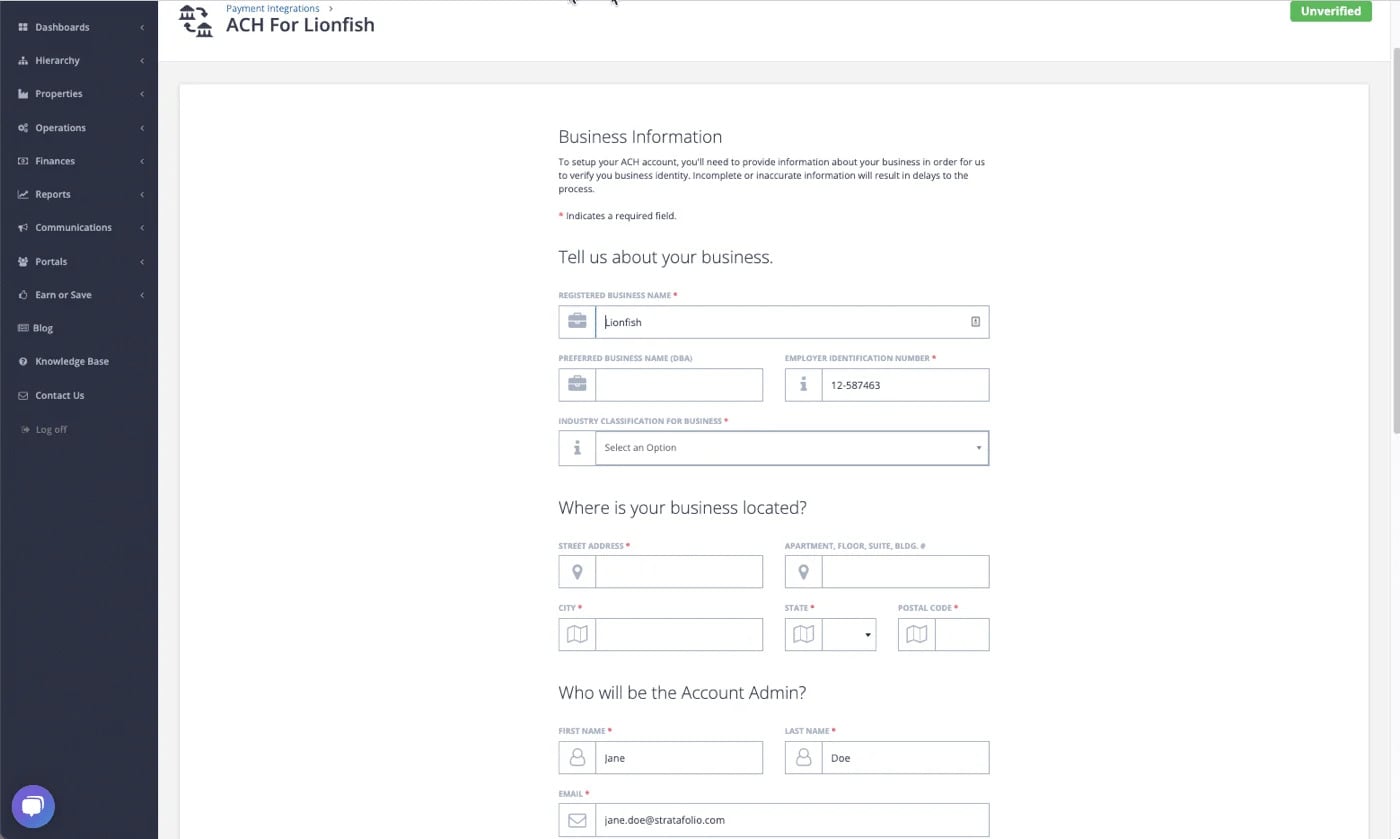
IMPORTANT: Premium Account Requirement for ACH Payments
ACH payments require that at least one party in the transaction has a Premium payment account. Because tenants can choose between Standard and Premium payment accounts, the receiving landlord account must be set up as a Premium account for ACH transfers to process successfully.
As part of setting up a Premium account, additional compliance information may be required for the receiving account, including a completed Form W-9. This information may be necessary to meet federal reporting requirements when payment activity reaches certain thresholds.
If the information required to maintain a Premium account is missing or incomplete, ACH payment capabilities may be temporarily restricted until the required information is provided.
NOTE: If Your Verification Document Is Not Accepted
STRATAFOLIO does not see or review the documents you upload as part of your ACH verification. These documents go directly to Dwolla, STRATAFOLIO’s payment processing partner, so STRATAFOLIO cannot tell you why a specific document was not accepted.
Before you submit a document, review it carefully. Confirm that all the information on it matches what you entered during setup, that the image is clear and not blurry, and that the full document is visible in the image.
If your document is still not accepted after you have reviewed it, submit a support ticket to STRATAFOLIO and include the name of the Entity you are applying verification for. The STRATAFOLIO team can look into Dwolla to check the status of your documents.
4. Beneficial Owners (depending upon your type of legal entity)
Depending on which type of legal entity you selected in Step 1, you may or may not have to add a Beneficial Owner. To help the government fight financial crimes, such as the use of legal entities to disguise involvement in terrorist financing, money laundering, tax evasion, corruption, fraud, and other financial crimes, our partner, Dwolla, requires compliance with Customer Due Diligence. To comply with this requirement, the disclosure of any owner who owns at least 25% of the legal entity is required.
Who needs to provide disclosure?
Any owner who owns at least 25% or more of the legal entity should be added. If your entity doesn’t have a single owner who owns at least 25%, please select No and confirm.
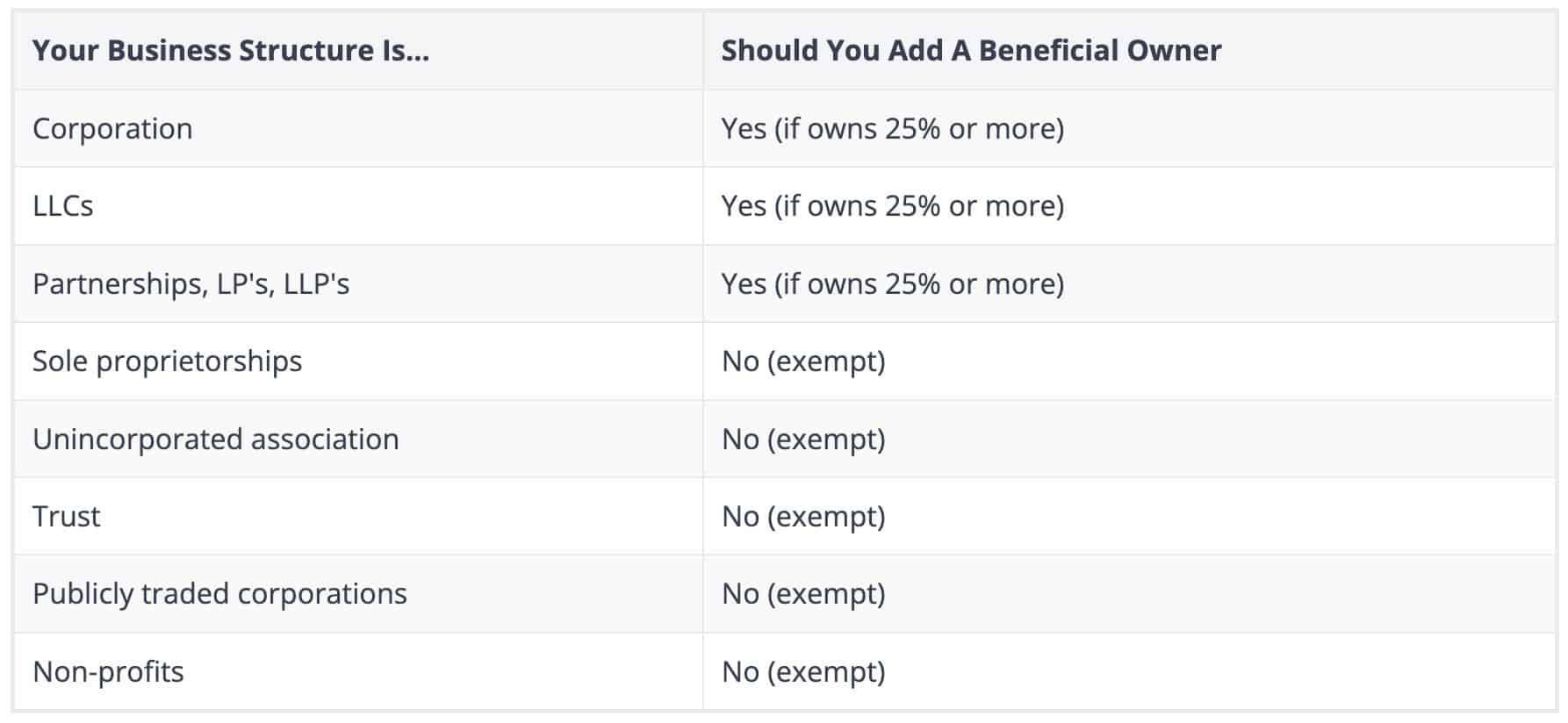
After you have verified your account and added your ACH source, and only if you selected Corporation, LLC, Partnerships, LPs, or LLPs in Step 1, you will see a new tab called Beneficial Owners appear.
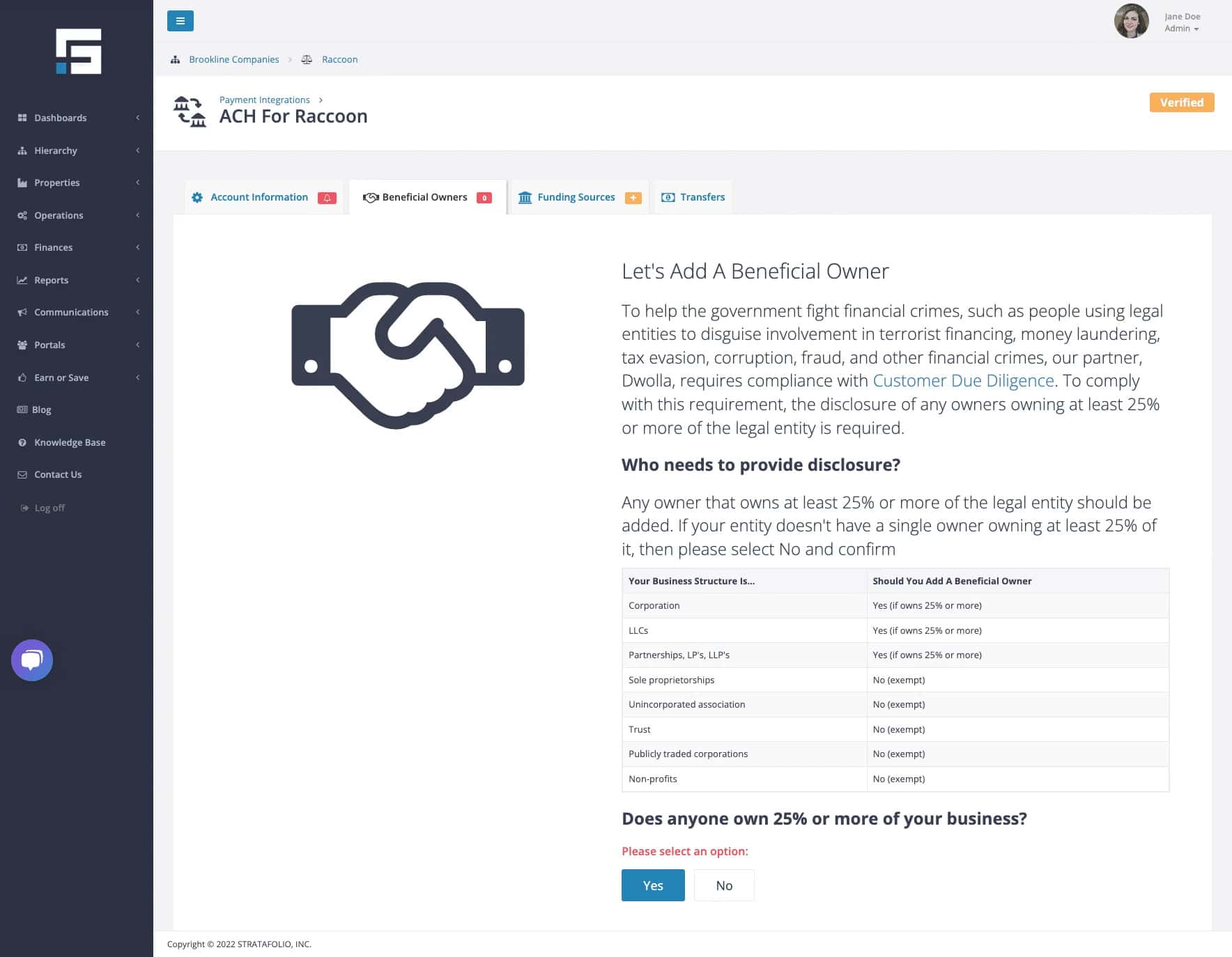
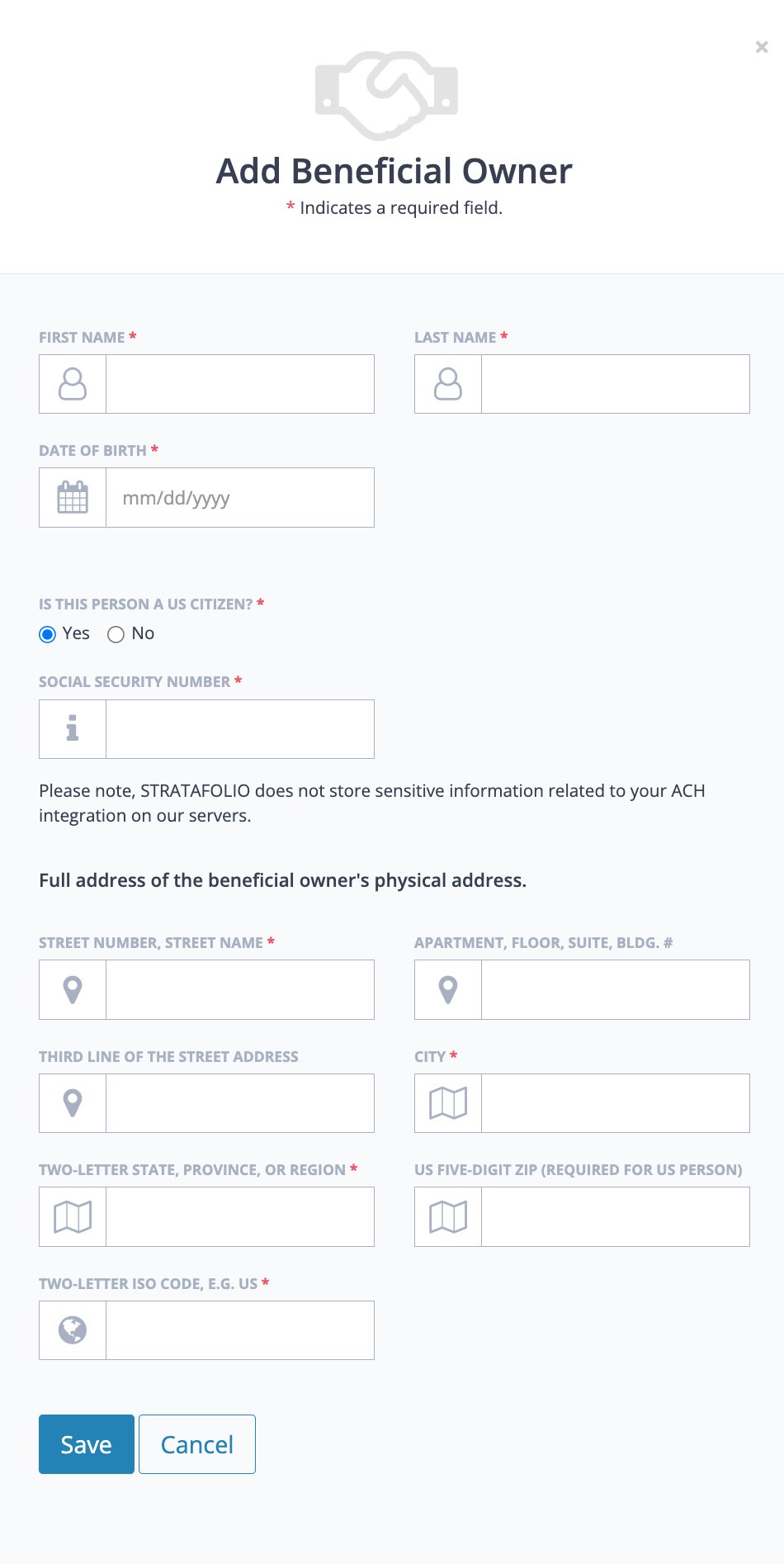
Follow the steps to add up to four Beneficial Owners to your account. If you need to add at least one beneficial owner, then they’ll need to fill out the information below:
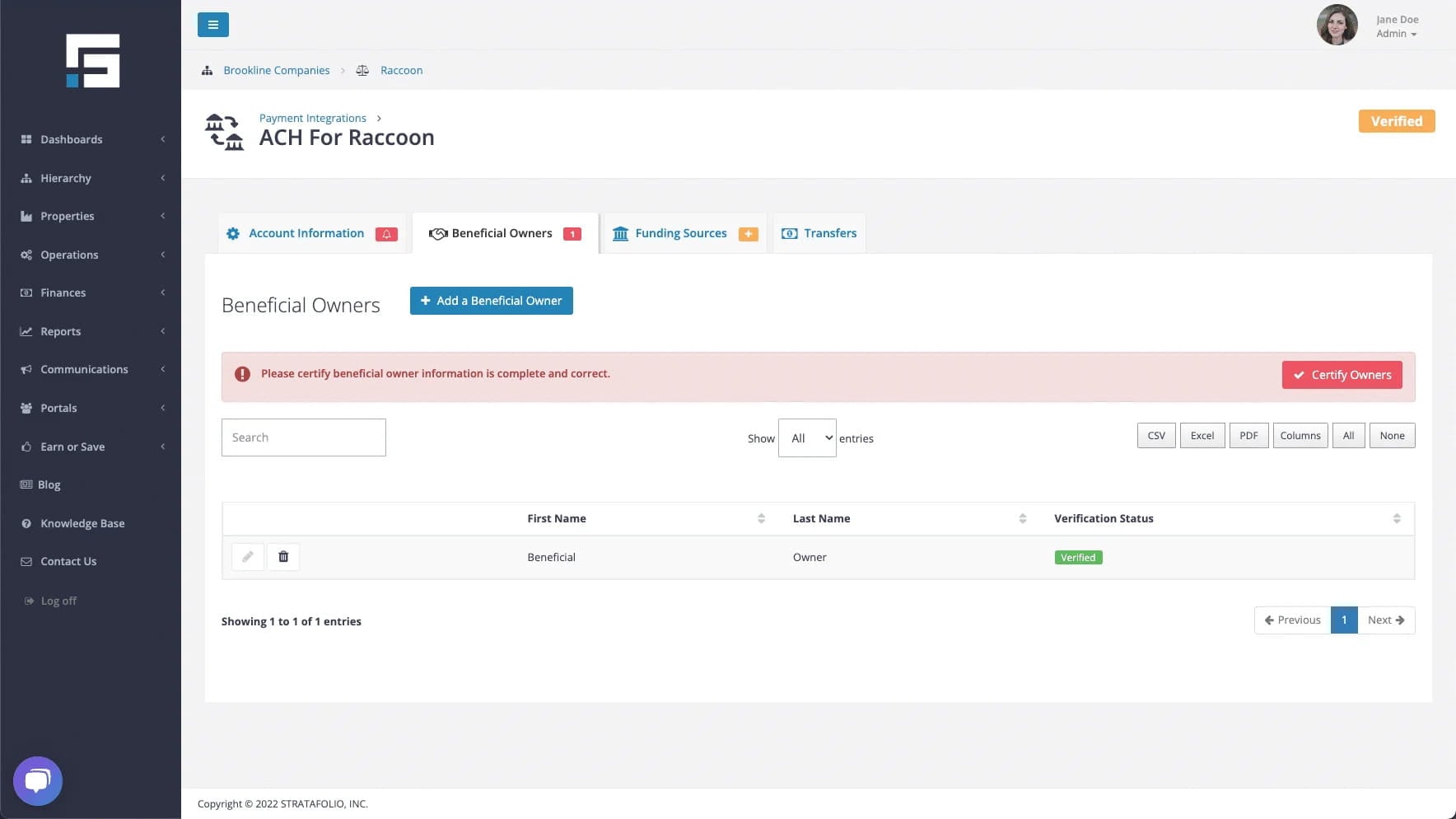
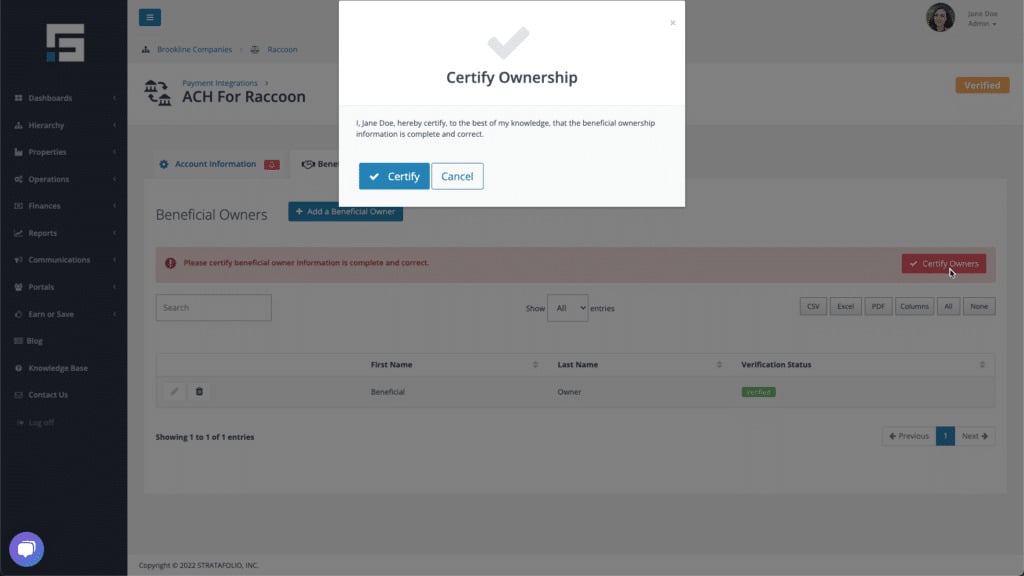
Once you are done adding the beneficial owners, or if you select you don’t have any beneficial owners, then you’ll need to certify that the information is complete and correct.
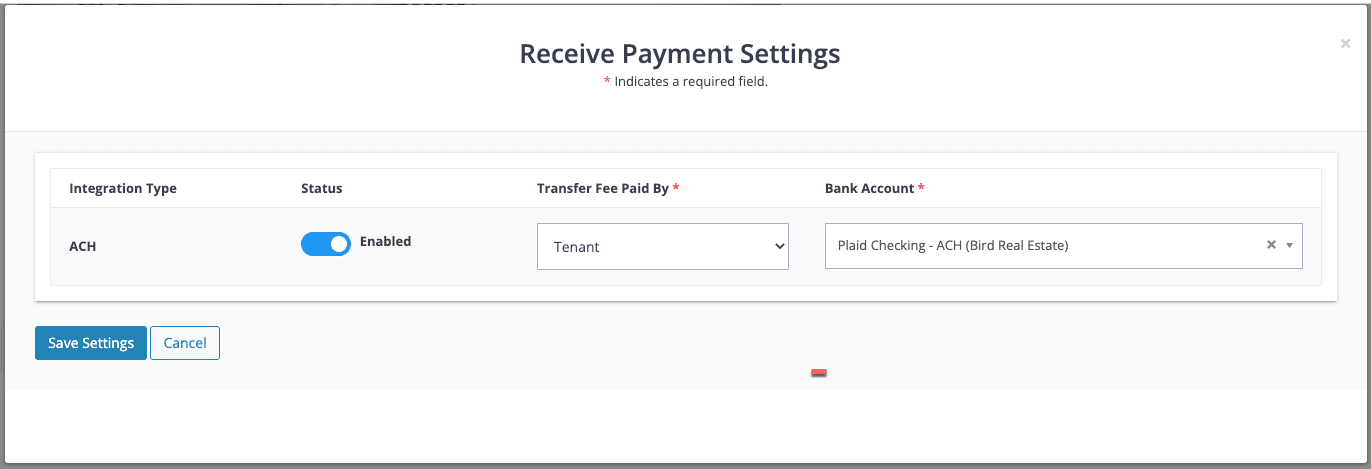
5. Receive Payment Settings
Once you have added a Funding Source and added Beneficial Owners if it applies to you, return to the ACH Integrations tab to select the bank account where you want your Tenant payments to be deposited. In this step, you will select the funding source you set up in Step 1 and the party that will pay the Tenant fees.
NOTE: This is an entity-wide setting. All tenants within an entity will be treated the same.
To verify that you’ve completed the setup properly, go back to the ACH Integrations page, and you should see the Checking is Enabled and the status is Verified.
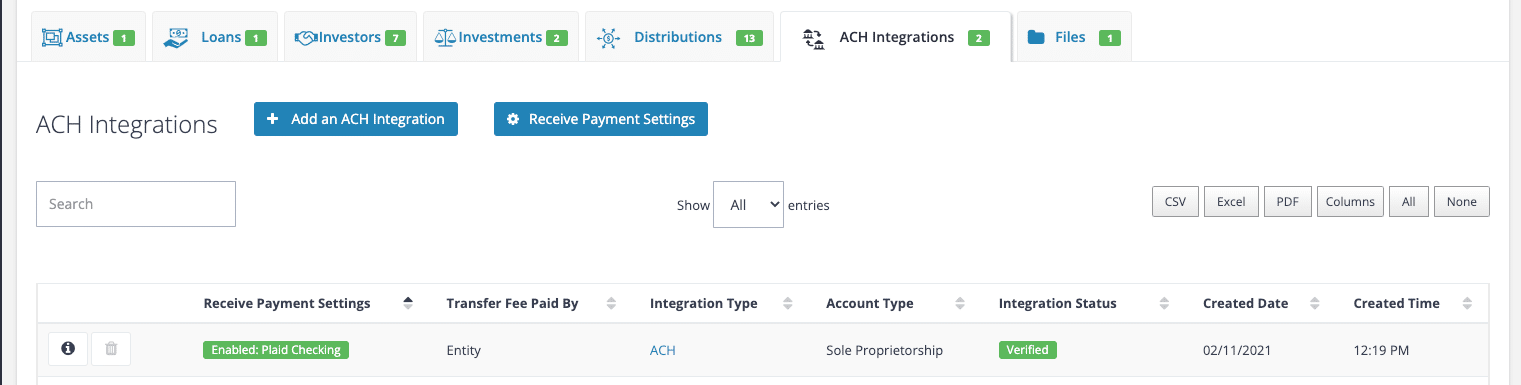
NOTE: It can take 4-6 business days for the transfer to be deposited into your bank account.
6. Invite Tenant to the Tenant Portal in STRATAFOLIO
Once the Landlord account is set up, the Tenant can be invited to the portal to complete their setup. Depending on the amount of the payment they wish to make, they can set themselves up as Standard users or Premium users. We require different information for each, as explained in the ACH for Tenants article.
If the Tenant has not yet been given access to their Tenant Portal, as the Landlord, you must ensure they have access by selecting the contact associated with your tenant and clicking the Send Invite to Tenant or Investor Portal button. This will send your Tenant’s contact an email with instructions to create a STRATAFOLIO account, giving them access to their Tenant Portal. You can invite them from the Tenants button within the Operations drop-down.
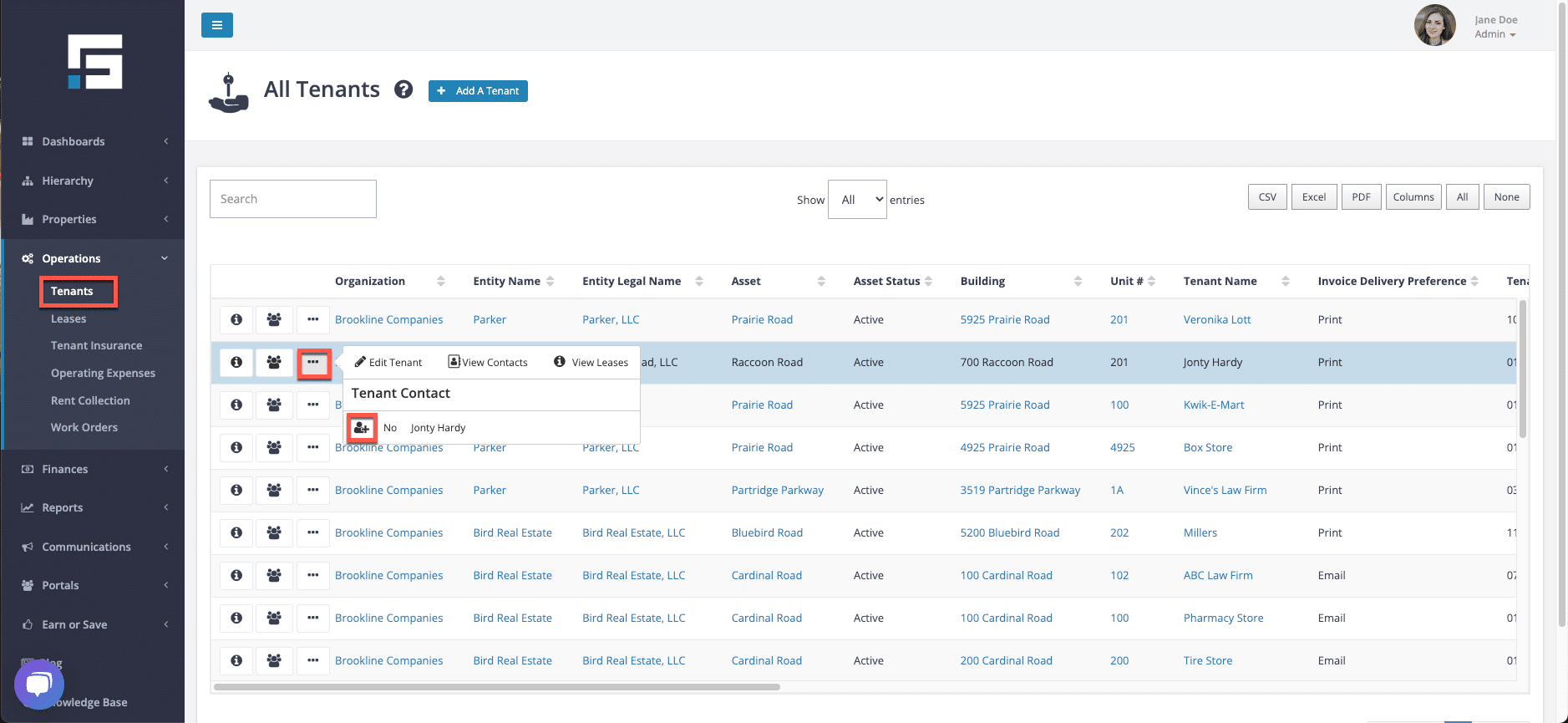
For specific information on the tenant setup, or to send it to your tenant for step-by-step instructions, visit the Tenant Payment Integration article in the STRATAFOLIO Knowledge Base. They will also be able to access certain lease details such as files you have shared with them, lease rates (including scheduled escalations), invoices, and past payments.
Managing Multiple Bank Accounts with a Unique Email Address
If you have multiple buildings and need to set up a separate bank account for each entity, you may encounter a requirement from the bank processor that each entity have a unique email address. Since you cannot reuse the same email address across multiple entities, this can be a challenge if you have only one email address.
Recommended Workaround: Using the “+” Email Trick
If your email provider supports it, you can create unique email variations of your existing address by adding a + sign followed by a custom identifier. For example, if your email address is [email protected], you could use variations such as:
Each of these is treated as a “unique” email address by the bank processor, satisfying its requirements, but any notification emails sent to these addresses will still be delivered directly to your main inbox.
An added benefit of this approach is that when the processor sends you communications about a specific account or tenant, the “+identifier” in the email address makes it immediately clear which entity the message is referring to, helping you stay organized across all your buildings.
If you already have multiple separate email addresses you prefer to use instead, that is also a perfectly valid option. Either approach will meet the processor’s requirements.
Notes on ACH for Landlords
- Tenants cannot make payments unless their lease is active and an invoice exists in STRATAFOLIO.
- Payments usually take 4–6 business days to deposit after processing.
- Step 2 (Adding a Funding Source) and Step 3 (Verifying the Account) can be completed simultaneously. Additionally, both Step 2 & Step 3 have to be 100% approved in order for you to enable the ACH for the tenant.
How to Remove a Bank Account
If you need to remove a bank account from your ACH Integration, you can do so from the Entity’s detailed view.
To remove a bank account:
- From the left-side navigation menu, go to Hierarchy, then select Entities.
- Select the i icon next to the Entity you want to remove the bank account from.
- Select the ACH Integrations tab.
- Select the i icon next to the integration.
- Select the Bank Accounts tab.
- Select the trash can icon next to the bank account you want to remove.
You may not be able to remove a bank account right away. STRATAFOLIO blocks the removal in a couple of situations, and will show you a message explaining why:
- The account is used to receive tenant payments. If the account you are trying to remove is currently set as your Receive Payment Settings, you will see this message: “This bank account is currently used to receive tenant payments. To remove it, first add another bank account or disable your Receive Payment Settings.” To remove the account, add a different bank account first, or turn off your Receive Payment Settings, then try again.
- The integration has associated data. If the payment integration itself has data tied to it, you will see this message: “This payment integration has data associated with it and cannot be deleted.” In this case, the trash can icon will be grayed out and unavailable. Contact STRATAFOLIO Support if you need help removing this integration.
TIP: You can use the toggle on the Bank Accounts tab to view only your active accounts, or to include accounts you have removed in the past.
How Do I Fix Rent and CAM Invoices Not Showing
If rent or CAM (Common Area Maintenance) invoices are not appearing for a tenant or unit, it’s usually due to a configuration issue in the lease setup, invoice generation, or user permissions. This article will help you quickly identify and resolve the issue.
Step-by-Step Troubleshooting Guide for ACH as a Landlord
Verify the Lease and Tenant Association if Invoices are Not Showing
Rent and CAM invoices will only generate when the lease is properly connected to both the tenant and the unit.
- From the left-side navigation menu, go to Operations → Leases.
- Select the i icon next to the lease.
- Confirm that the correct Tenant and Unit are linked.
- If the association is missing, edit the lease and connect the proper records.
TIP: Missing associations are one of the most common causes of missing invoices. STRATAFOLIO relies on this connection to create rent and CAM billing schedules.
Check Invoice Generation Settings if Invoices are Not Showing
Invoices are generated according to your billing schedule. If an invoice period hasn’t been generated yet, it won’t appear in the system.
- From the left-side navigation menu, go to Operations → Rent Collection.
- Locate the tenant.
- Select Add Invoices to manually add the missing invoice(s).
- Ensure all applicable income items (Base Rent, CAM, Insurance, Taxes) are included.
NOTE: Any items with a $0 amount will not appear on invoices but may still be included in the CAM Reconciliation Report.
Confirm Tenant Portal Access and Permissions if Invoices are Not Showing
If tenants report not seeing invoices:
- Verify that the tenant has Portal Access enabled.
- Navigate to Contacts → Tenants → Portal Access and ensure the toggle is set to Active.
- Double-check that your user role has permissions to view invoices.
- Administrators and Managers can view all invoices.
- Readers and Tenants may have limited access.
Adjust Filter Settings in Rent Collection if Invoices are Not Showing
Filters in STRATAFOLIO can sometimes unintentionally hide invoices.
- On the Rent Collection index view, select the dropdown filter.
- Remove any restrictive filters (such as specific buildings, date ranges, or statuses).
- Refresh the page to reload all available invoices.
Verify QuickBooks Sync (if applicable)
If your organization syncs invoices from QuickBooks, confirm that the sync has completed successfully:
- Navigate to Hierarchy, then Organizations, and click the i icon next to the main Organization record. Next, go to Integrations → QuickBooks.
- Ensure your connection is active and synced recently.
- Select Sync Now if needed to pull the latest financial data.
Connect the Lease to an Accounting Customer (QuickBooks Integration)
If invoices are missing despite proper lease and tenant setup, the most common cause is that the lease is not linked to an Accounting Customer in QuickBooks.
To fix this:
- Navigate to Operations → Leases from the left-side navigation menu.
- Open the affected lease and select Edit Lease.
- Scroll to the Invoicing section.
- From the Accounting Customer dropdown, select the correct QuickBooks Customer/Tenant.
- If your company uses Classes in QuickBooks, select the appropriate Class as well.
- Select Save.
- After saving, choose the Invoices tab in the Lease or Rent Collection page to confirm the invoices now appear.
NOTE: You must repeat this step for each lease missing an Accounting Customer. Invoices cannot be added or synced until this link is established.
If the Problem Persists with Processing ACH Payments
If invoices are still missing after completing these steps, your account may need to be reviewed by our onboarding or data support team. Please submit a ticket to the Support team for further assistance.
Related Articles
How to Update Your ACH Transfer Settings
After your ACH Integration is set up, you can choose how quickly you receive transfers from your tenants. STRATAFOLIO offers two transfer settings, Regular and Expedited, and you can apply your choice to an entire Entity or to specific tenants.
To update your transfer settings, navigate to Hierarchy from the left-side navigation menu and select Entities, then click the “i” icon next to the Entity you want to update. Open the ACH Integrations tab and click the ACH Transfer Settings button. A pop-up window will appear.
In the pop-up, use the Apply ACH Transfer Settings dropdown to choose the level you want the setting to apply to:
- Entity: Applies the same transfer setting to every tenant in the Entity.
- Tenant: Applies the transfer setting only to the tenants you select.
Next, use the Select Transfer Setting dropdown to choose either Regular or Expedited, then click Save.
If you choose to apply the setting at the Tenant level, a list of your tenants will appear. Check the box beside each tenant you want to update, then click Save.
NOTE: The availability of the Expedited setting depends on whether the linked bank account supports faster ACH processing. If the bank does not support it, for example when an account is linked manually with account numbers or the system cannot confirm the account balance electronically, the payment will still process using Regular timing so it can be completed. For details on transfer times and why some payments process as Regular, review How ACH Payments Work in STRATAFOLIO.
How Do I Stop a Tenant’s Future ACH Payments
Autopay is set up and controlled by the tenant in their Tenant Portal. Because the tenant authorizes their own recurring payments, you as the owner cannot stop or cancel a tenant’s autopay or future ACH payments on their behalf. Again, only the tenant can remove their autopay or ACH setup.
To stop future ACH payments, the tenant must stop autopay from their own Tenant Portal. You can ask your tenant to follow the steps in How to Stop Future ACH Payments as a Tenant. In short, the tenant logs in to their Tenant Portal, selects the ACH Payment Setup tab, selects Edit Autopay, and then selects Stop Autopay.
Once the tenant stops autopay, STRATAFOLIO will not run autopay for their future invoices. The tenant can still choose to make one-time ACH payments if they wish.
NOTE: If an ACH transfer is already pending, for example an expedited transfer that has already started processing, it cannot be stopped within STRATAFOLIO. In that case, the tenant should contact their bank to cancel the pending transfer.
Why Encourage Autopay vs. One-Time Payments
Autopay is the easiest and most reliable way for your tenants to stay current on rent. When a tenant sets up autopay, STRATAFOLIO withdraws the payment automatically each month, as long as the invoice has been added, finalized, and synced on time. This removes the guesswork for your tenant and reduces the chance of a missed or late payment.
One-time payments give your tenant more control, but that control comes with some risk you should understand.
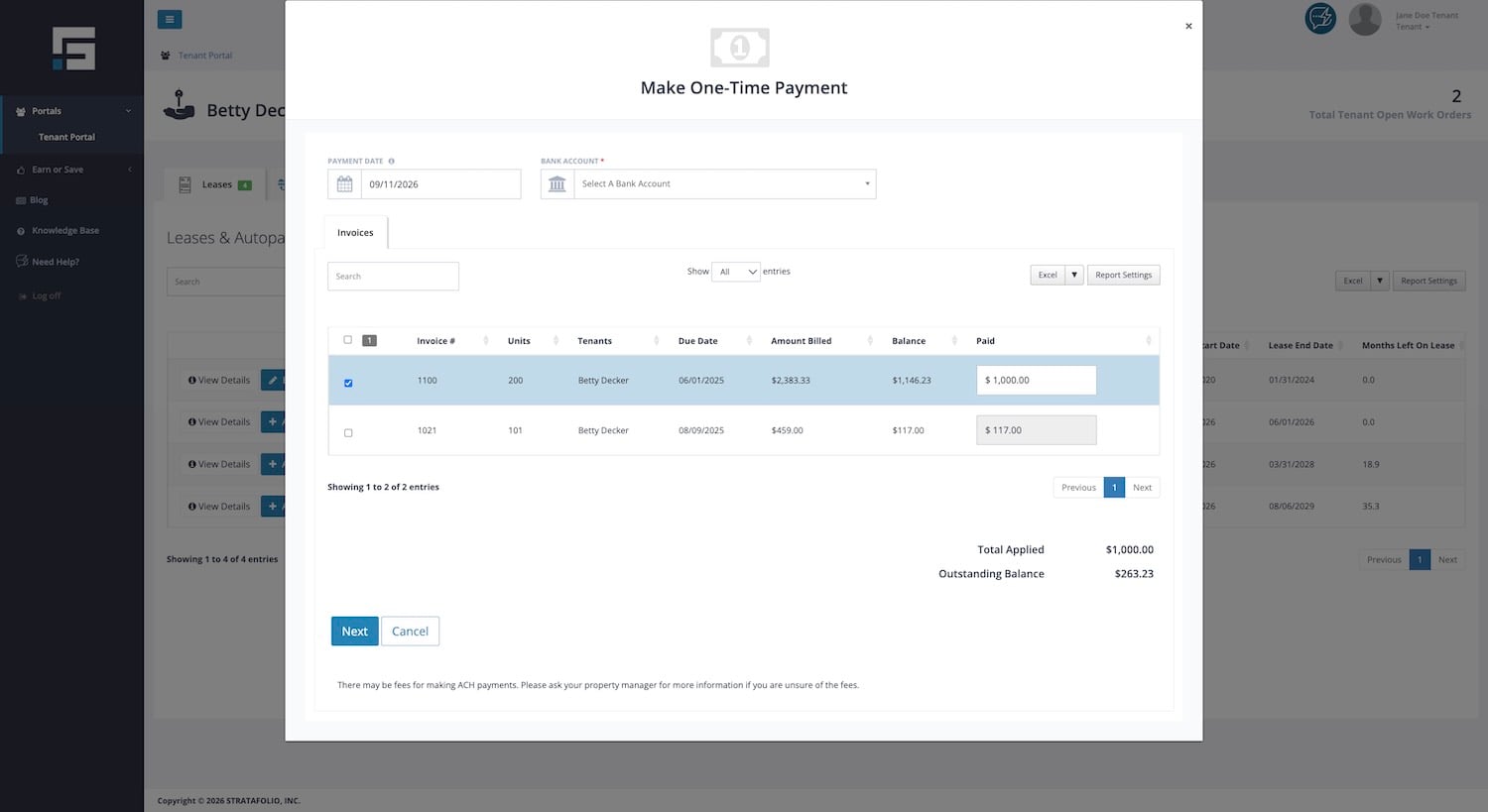
When a tenant makes a one-time payment, they see every open invoice on their lease listed in the Make One Time Payment window. They can choose which invoice(s) to pay, and they can even pay less than the full balance on any invoice they select. This flexibility is helpful if a tenant genuinely needs to split a payment across two months, but it also means the tenant is making decisions that you would normally control through your billing process.
Two risks are worth watching for.
First, a tenant who selects invoices manually can accidentally pay only part of what they owe, or pay an older invoice while leaving a newer one open. If you are not checking your Rent Collection page regularly, a partial payment can sit on your books longer than you expect.
Second, and more importantly, a tenant who pays this way can miss a rent escalation. If a lease has multiple open invoices at once, for example, one at the prior rate and one at the new escalated rate, the tenant might choose to pay the lower, older invoice out of habit and overlook the invoice reflecting the new rate. Because the tenant is the one selecting the amount and the invoice, STRATAFOLIO will process exactly what they choose, even if it does not match your current lease terms.
To reduce these risks, encourage every tenant to set up autopay as their primary payment method. Autopay always pulls from the invoices STRATAFOLIO has on file, so it stays aligned with your current billing, including any escalation you have added to the lease. Reserve one-time payments for exceptions, such as an early payoff or a tenant catching up on a past-due balance, rather than as their everyday payment method.
If you do have tenants using one-time payments regularly, check your Rent Collection page often to confirm the correct amount and the correct invoice were paid, especially in any month when a rent escalation takes effect.