
What You’ll Learn
Learn how to use classes in QuickBooks Online for Commercial Real Estate (CRE) accounting so that you can streamline your reports and manage expenses more effectively.
- How to Use Classes in QuickBooks for Commercial Real Estate
- What is the Purpose of Using Classes?
- Steps for Posting Expenses in QuickBooks with Classes
- Posting Entity Specific Expenses
- Posting Asset Specific Expenses
- Posting Building Specific Expenses
- Posting Unit Specific Expenses
- Steps for Adding Classes in QuickBooks
How to Use Classes in QuickBooks for Commercial Real Estate
What is the Purpose of Using Classes?
QuickBooks’ class tracking feature lets businesses categorize financial data beyond the standard chart of accounts. It assigns classes to transaction lines so that companies can monitor income, expenses, and profitability across properties without cluttering the Profit & Loss (P&L) with subaccounts.
Class tracking is particularly helpful for commercial real estate for tracking common area maintenance expenses.
Scenario I:
There is one QuickBooks account for a single entity/single LLC, and this entity has one Asset and a Building with multiple Tenants. Most expenses will be distributed to all Tenants, but certain expenses may be only appropriate for certain Tenants.
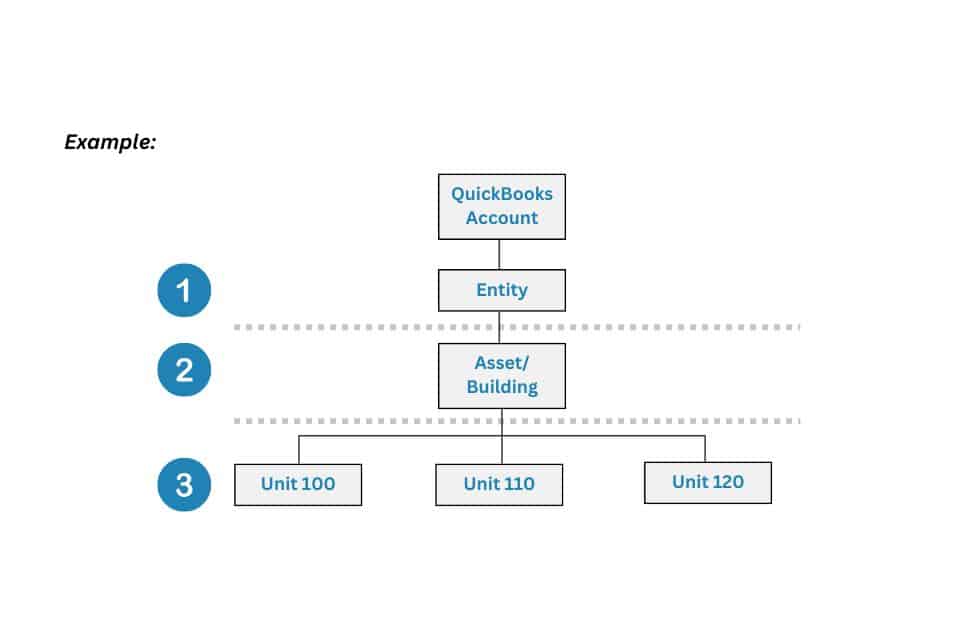
1. All reimbursable expenses classed at this level will be shared by all tenants within the Entity at their pro-rata share of the Entity.
2. All reimbursable expenses using this class will be shared pro-rata among all tenants in the Asset/Building based on their rentable square footage of the Building.
3. All reimbursable expenses using the specific subclass for the Unit will be 100% allocated to only this Tenant/Unit.
*Note: For STRATAFOLIO CAM Reconciliations, the reimbursable expense account(s) must be mapped to an Operating Expense subcategory for allocation to occur.
Scenario II:
There is one QuickBooks account for multiple entities/LLCs, but within the same QuickBooks account, there are multiple Entities, Assets, Buildings, and Tenants.
We do not recomment this setup with STRATAFOLIO because you will lose some classification details. Use it only with the approval of your accountant.
However, if you combine multiple entities in one QuickBooks account, you will need to make a class for each entity and then the subclasses for the Assets, Buildings, and Tenants.
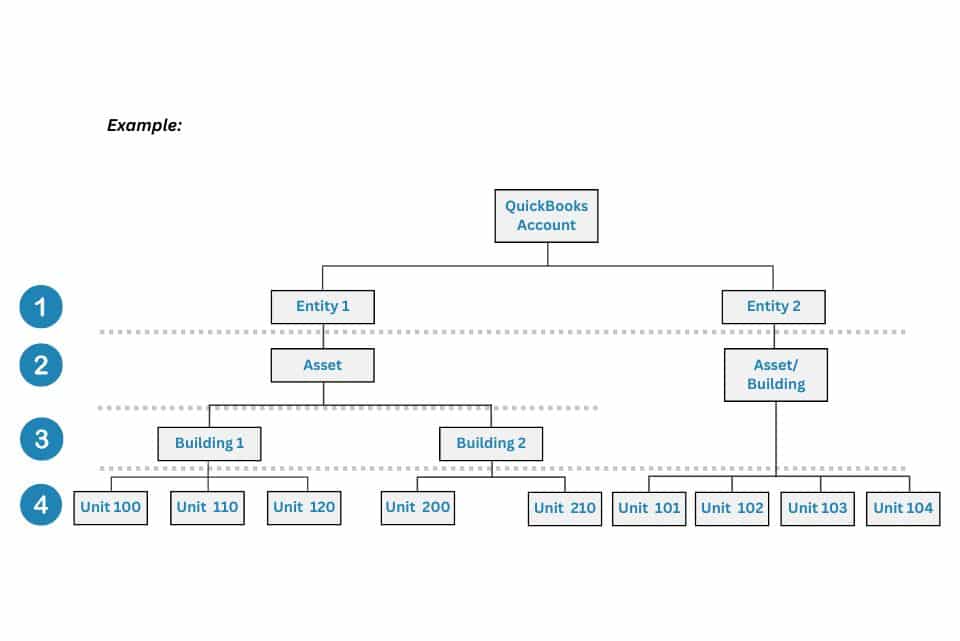
1. All reimbursable expenses classed at this level will be shared by all tenants in only this Entity at their pro-rata share of the Entity.
2. All reimbursable expenses using this class will be shared pro-rata among all tenants in only this Asset based on square footage of the Asset.
3. All reimbursable expenses using this class will be shared pro-rata among all tenants in only this Building based on square footage of the Building.
4. All reimbursable expenses using the specific subclass for the Unit will be 100% allocated to only this Tenant/Unit.
*Note: For STRATAFOLIO CAM Reconciliations, the reimbursable expense account(s) must be mapped to an Operating Expense subcategory for allocation to occur.
Scenario III:
There is one QuickBooks account for a single entity/single LLC, but this entity has multiple Assets, Buildings, and Tenants within the same entity.
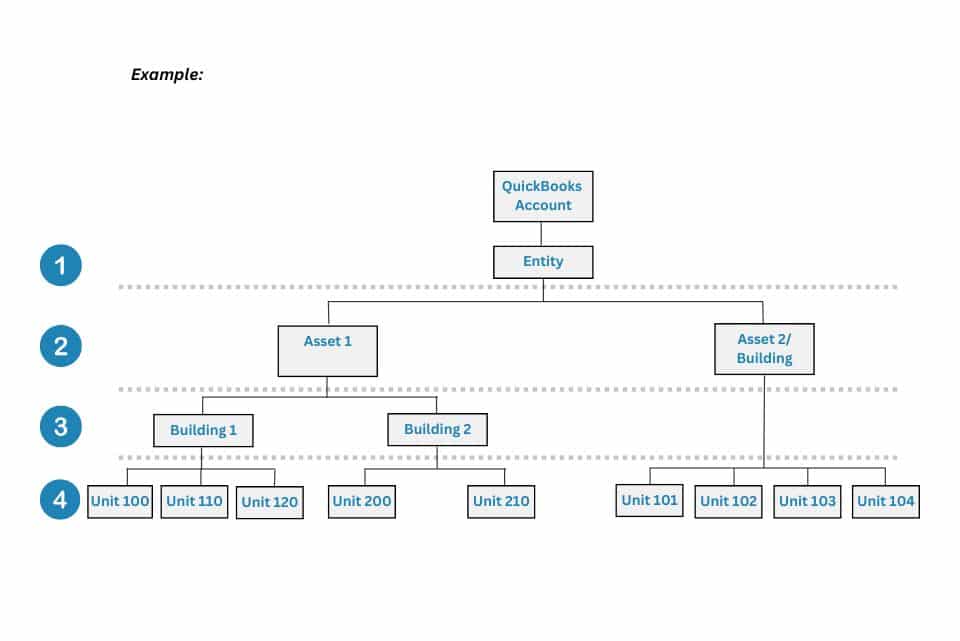
1. All reimbursable expenses classed at this level will be shared by all tenants within the Entity at their pro-rata share of the Entity.
2. All reimbursable expenses using this class will be shared pro-rata among all tenants in only this Asset based on square footage of the Asset.
3. All reimbursable expenses using this class will be shared pro-rata among all tenants in only this Building based on square footage of the Building.
4. All reimbursable expenses using the specific subclass for the Unit will be 100% allocated to only this Tenant/Unit.
*Note: For STRATAFOLIO CAM Reconciliations, the reimbursable expense account(s) must be mapped to an Operating Expense subcategory for allocation to occur.
To streamline your financial record-keeping for commercial real estate with a well-structured chart of accounts, learn how to set up Chart of Accounts for a Commercial Real Estate Company.
Steps for Posting Expenses in QuickBooks with Classes
We will use the example of the Restaurant in the Shopping Center Example shown below. They are the tenant renting Unit 110 in Building 1 for all of the examples below.
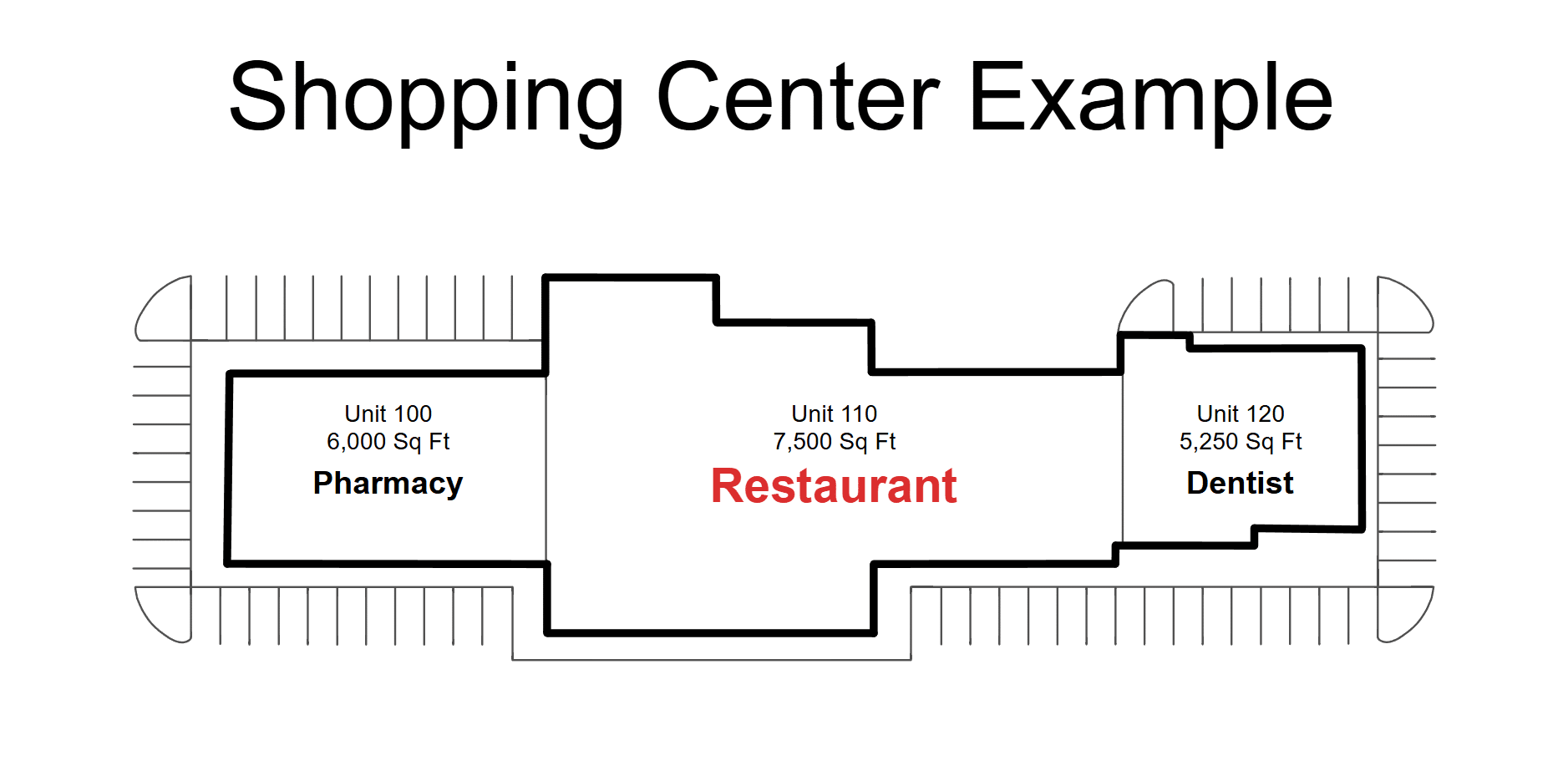
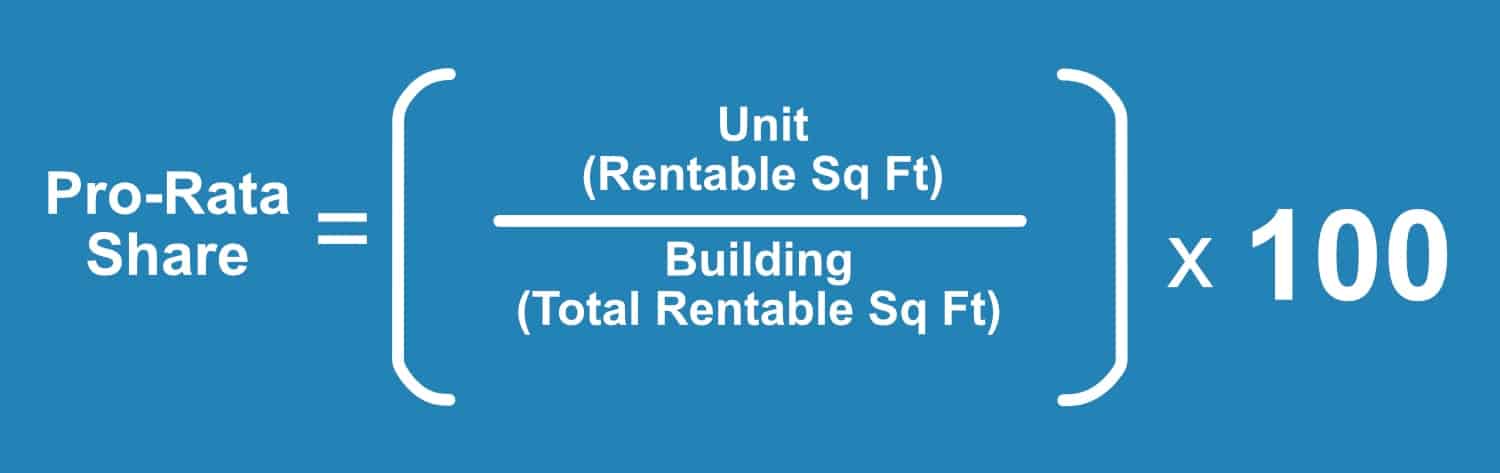
For the Restaurant, take its 7,500 square feet and divide by 18,750 (total rentable sq. ft. of the building). Then, take that number and multiply by 100. The Restaurant’s pro-rata share of the Building is 40.00%.
- Unit 110 Square Footage – 7,500 = 100%
- Total Building Rentable Square Footage – 18,750 = 40%
- Total Asset Rentable Square Footage (Scenario 2 and 3) – 35,714 = 21%
- Total Entity Rentable Square Footage (Entity 1 in Scenario 2) – 35,714 = 21%
- Total Entity Rentable Square Footage (Scenario 3) – 90,850 = 8.26%
**Assuming Building 2 is 16,964 sq ft and Asset 2 is 55,676 sq ft**
Posting Entity Specific Expenses:
The Property Insurance expense is typically an Entity specific expense, so post this to the general ledger reimbursable account called Property Insurance in the Chart of Accounts (COA). Depending on your class setup, this will be allocated to the tenants by their pro-rata share of the Entity in STRATAFOLIO.
Scenario I:
Posting the expense using the class “Entity” or “Asset/Building” will calculate 40% of the expense to Unit 110 on the CAM Reconciliation in STRATAFOLIO.
Scenario II:
Posting the expense using the class “Entity 1” or “Asset 1” will calculate 21% of the expense to Unit 110 on the CAM Reconciliation in STRATAFOLIO.
Scenario III:
Posting the expense using the class “Entity 1” will calculate 8.26% of the expense to Unit 110 on the CAM Reconciliation in STRATAFOLIO.
Posting Asset Specific Expenses:
Real Estate Taxes expense are typically expenses that will be incurred for the building or parcel, so post these to the general ledger account called Reimbursable:Real Estate Taxes in the Chart of Accounts (COA). Depending on your class setup, this will be allocated to the tenants by their pro-rata share in STRATAFOLIO.
Scenario I:
Posting the expense using the class “Asset/Building” will calculate 40% of the expense to Unit 110 on the CAM Reconciliation in STRATAFOLIO.
Scenario II:
Posting the expense using the class “Asset 1” will calculate 21% of the expense to Unit 110 on the CAM Reconciliation in STRATAFOLIO.
Scenario III:
If posting the expense using the class “Entity 1” will calculate 8.26% of the expense to Unit 110 on the CAM Reconciliation in STRATAFOLIO. Post this as in Scenario II.
Posting Building Specific Expenses:
Landscaping expense are typically expenses that will be incurred for the building, so these will be posted to the general ledger account called Reimbursable:Landscaping, which is set up in the Chart of Accounts (COA). Depending on your class setup, this will be allocated to the tenants by their pro-rata share in STRATAFOLIO.
Scenario I:
Posting the expense using the class “Asset/Building” will calculate 40% of the expense to Unit 110 on the CAM Reconciliation in STRATAFOLIO.
Scenario II:
Posting the expense using the class “Building 1” will calculate 21% of the expense to Unit 110 on the CAM Reconciliation in STRATAFOLIO.
Scenario III:
If posting the expense using the class “Entity 1” will calculate 8.26% of the expense to Unit 110 on the CAM Reconciliation in STRATAFOLIO. Post this as in Scenario II.
Posting Unit Specific Expenses:
For the Restaurant, a grease trap expense is a tenant-specific expense that needs to be allocated 100% to the tenant. Post this to the general ledger account called Reimbursable: Grease Trap in the Chart of Accounts (COA). All three scenarios are the same, so post the expense to the subclass created for Unit 110.
Steps for Adding Classes in QuickBooks
Whether you’re managing different departments, projects, or locations, adding classes in QuickBooks helps streamline reporting and provides a clear view of your financial performance. We will walk you through the simple steps to enable and add classes in QuickBooks. This ensures your accounting is precise and tailored to your business needs.
Step 1
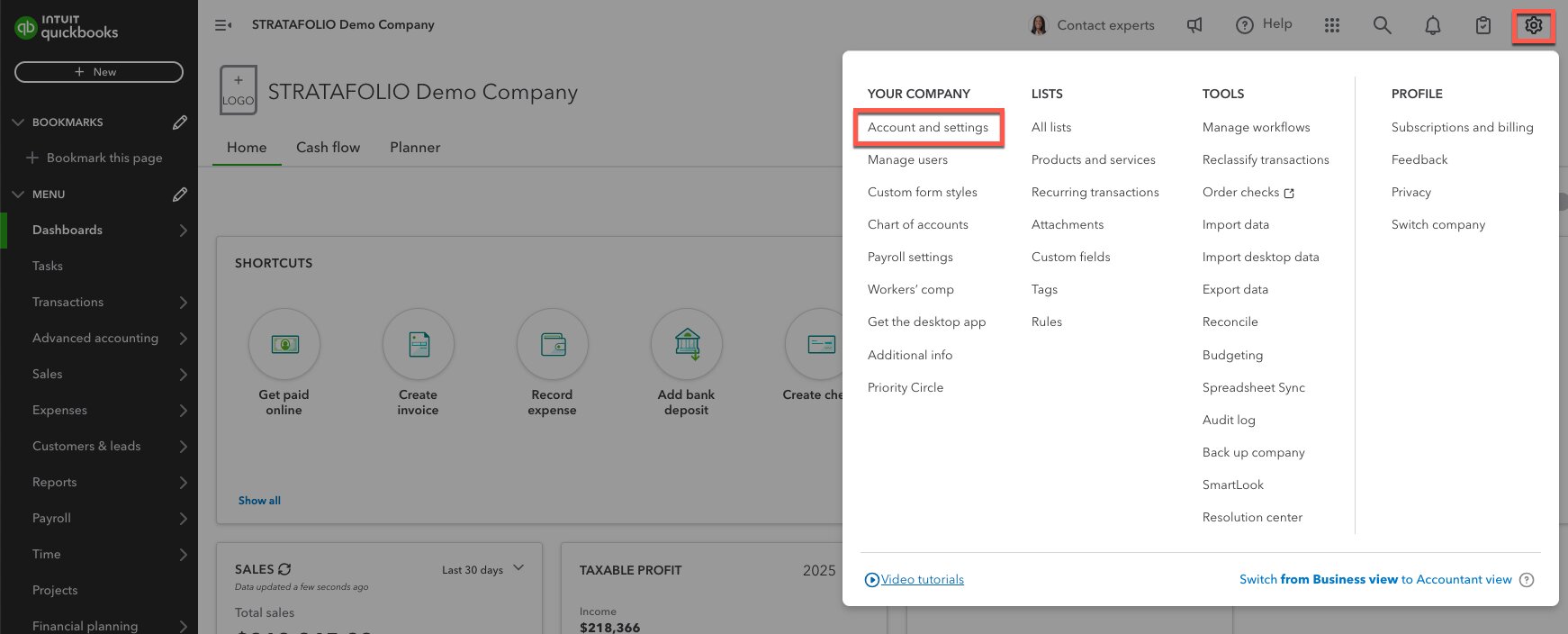
In QuickBooks Online, go to Settings using the gear icon. Then, select Account and Settings.
Step 2
Select Advanced. Then, turn on Track Classes. Assign classes one to each row in transactions. Save your updates.
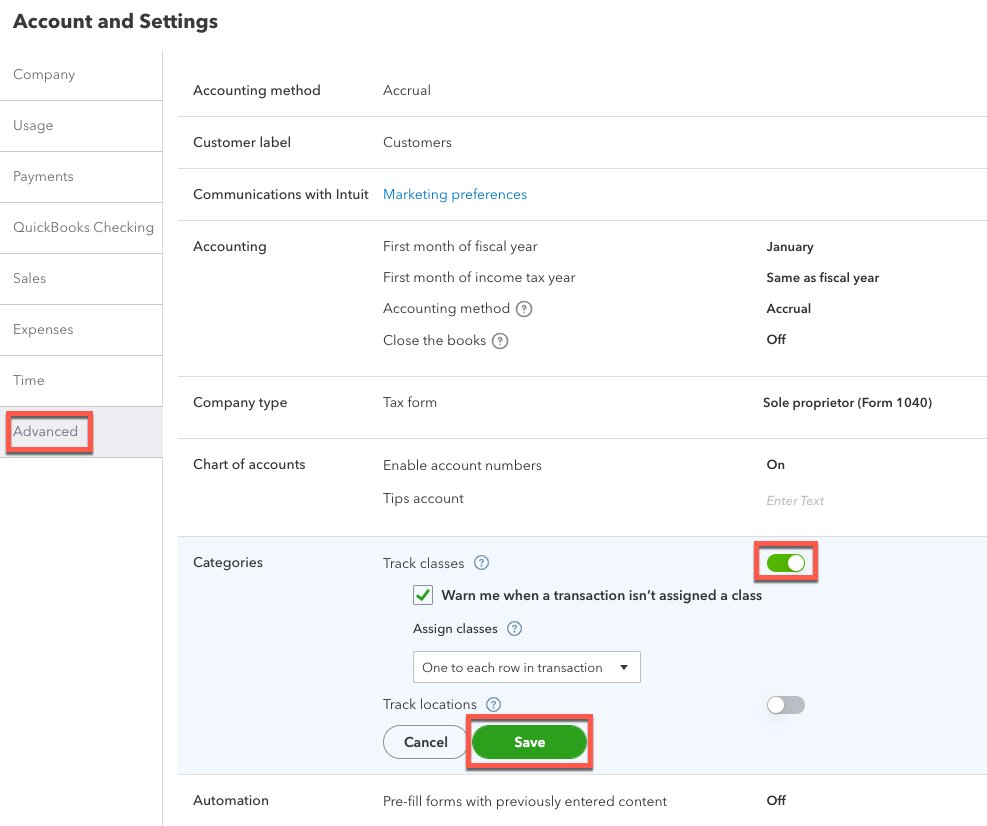
We recommend selecting the option to Warn when a transaction has no assigned class. This way, you will have a reminder for every transaction to have a class assigned. We suggest using an Overhead class so that all transactions have a class assigned to them.
Step 3
Next, you need to set up the actual classes. Go to the Settings in the gear icon again and select All Lists. Then, click on Classes. This listing contains a complete list of the classes you are using.
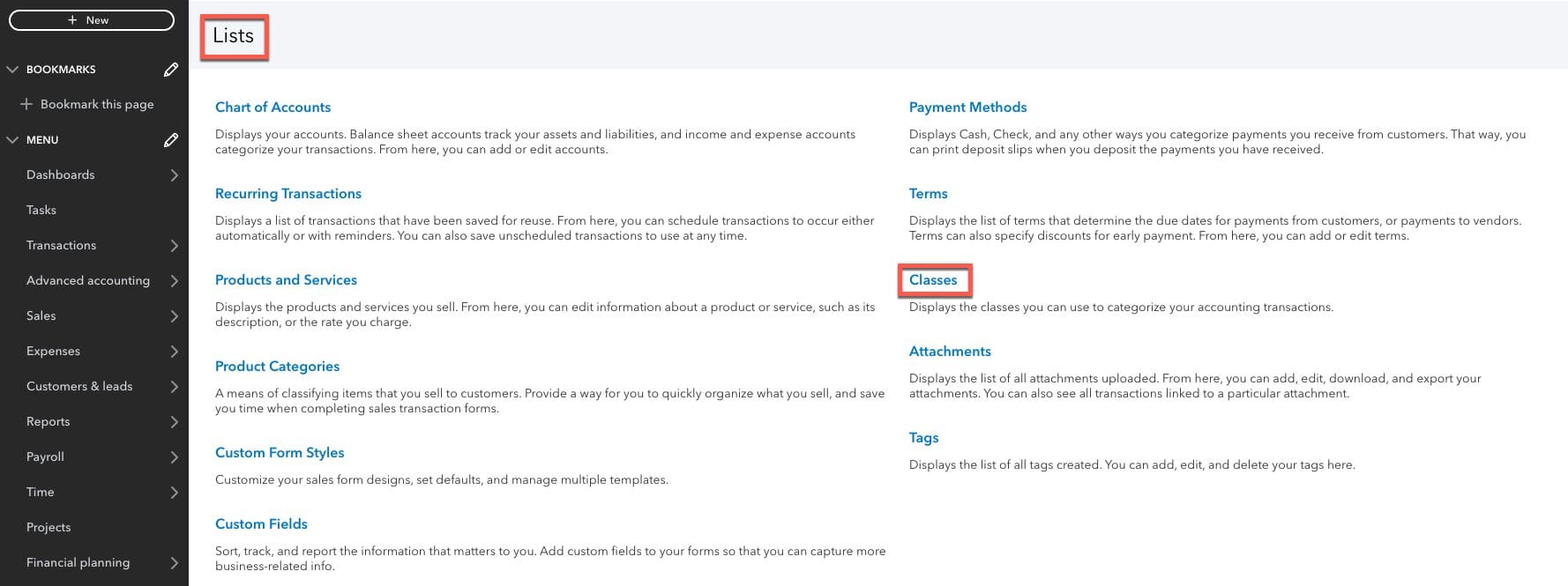
Step 4
To create a new class, select New, then type the class name that you have decided to use. We suggest the name of the LLC, Asset, or Building. Then, Save your updates.
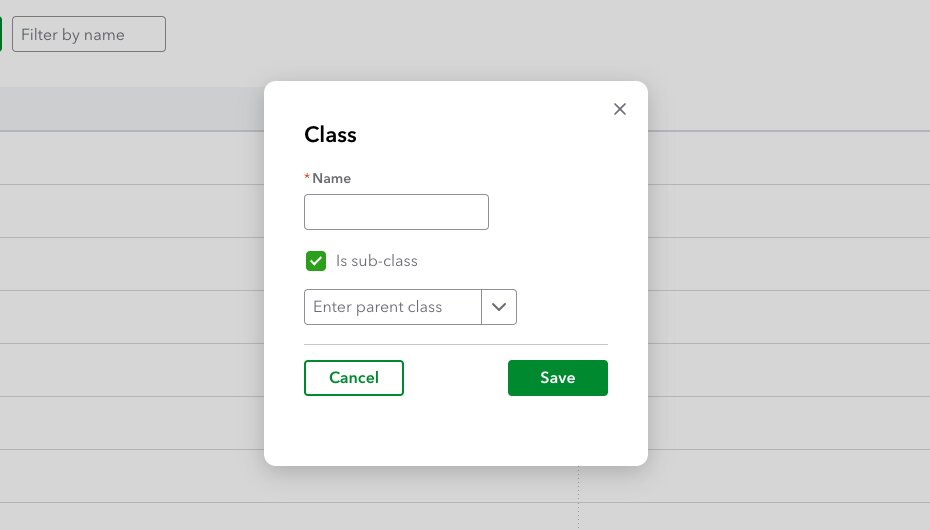
To enter another class or sub-class, repeat the steps above. When creating the sub-class, select the check mark and the correct class that needs to be the parent. In QuickBooks Online, you can make a parent and up to 4 children/sub-classes under each parent class.

Adding classes in QuickBooks is a straightforward process that can significantly enhance your financial organization and reporting. By leveraging this feature, you can gain valuable insights into your business operations and make informed decisions with ease. Start using classes today to keep your accounting system organized and aligned with your business goals.
We also have other resources to help you learn more about classes in QuickBooks Online for Commercial Real Estate (CRE) accounting. Explore these resources to streamline your reports and manage expenses more effectively.