
Congratulations on completing your CAM Reconciliation Reports for your NNN tenants. You have invoiced them all year based on your budgeted operating expenses. As it turns out, you paid out more than was expected during the year for your repairs. It is now time to invoice those tenants for the amount they owe to true up the year.
This process can also be used when you need to create a one-time invoice for other items, such as late fees, unexpected repairs that only one tenant needs to pay for, or anything else that your tenant needs to reimburse you for. It is a simple process in STRATAFOLIO, and the basics apply to all of these situations.
Before You Start with Adding One-Time Invoices
If you do not already have an Income Item for the charge, you will need to create one now in your QuickBooks account(s). STRATAFOLIO has a detailed article explaining how to create Income Items in QuickBooks Online. If you are using QuickBooks Desktop, you can find a YouTube video from Intuit explaining how to create customers and Income Items.
If you are making an invoice for the first time for a true-up, you can create an Income Item, such as Prior Year Recoveries or Past Year CAM Reconciliations. Whatever makes sense to you and your accountant. This is the same process for Late fees or any other expenses you may need to invoice for.
Adding a One-Time Invoice
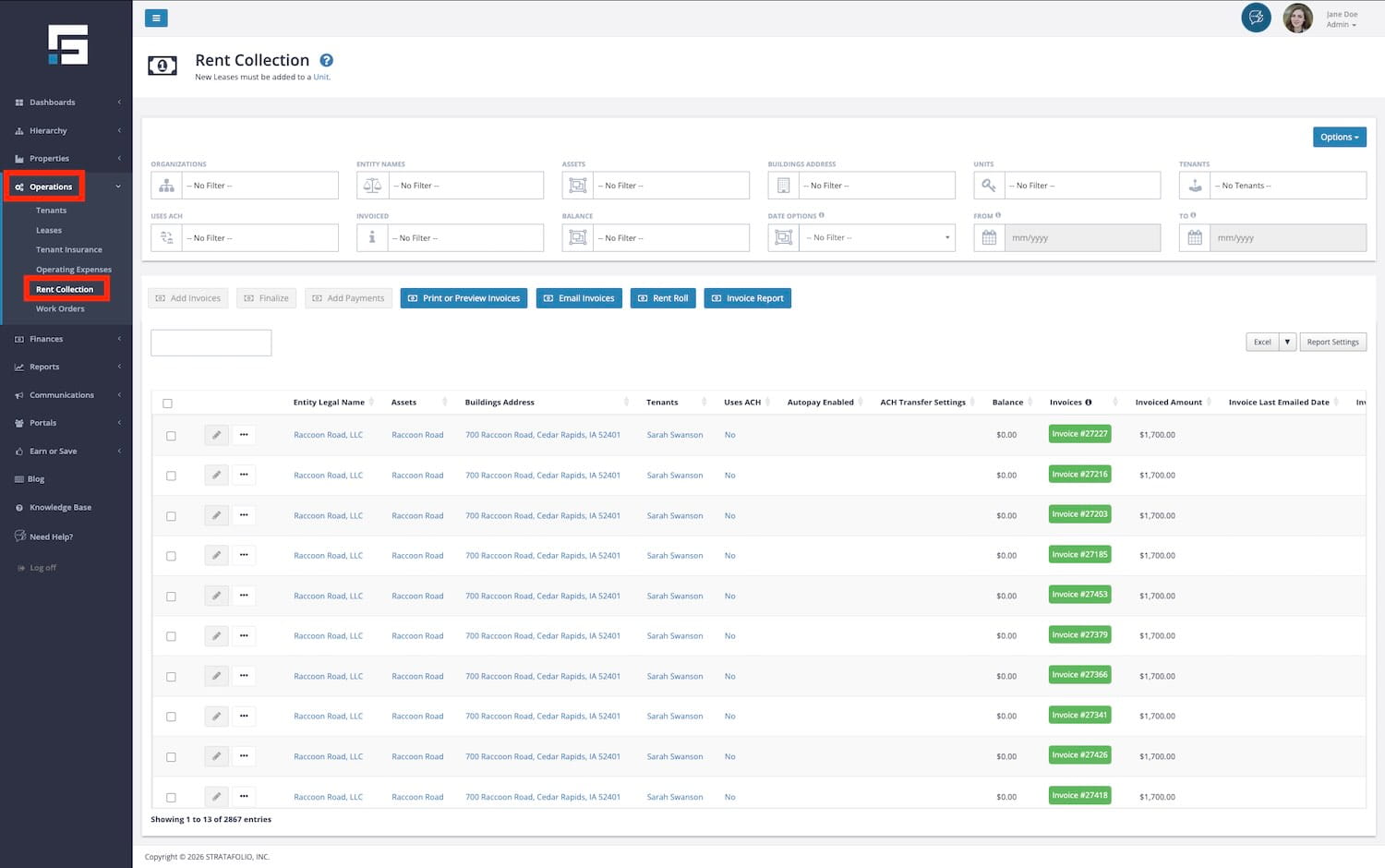
- Using the left-hand navigation in STRATAFOLIO, select Operations and then Rent Collection.
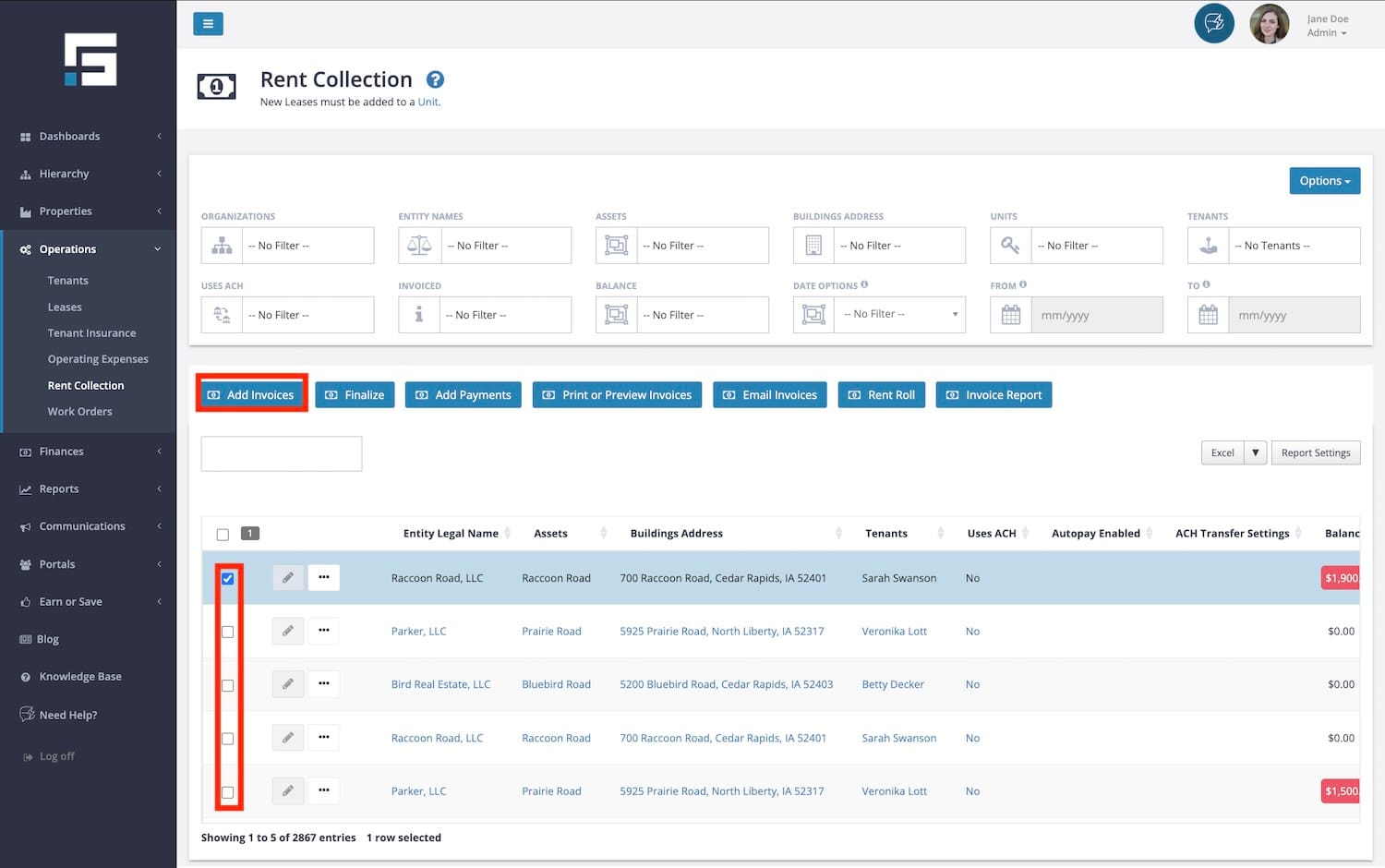
- Choose the tenant for whom you need to make an invoice. Select Add Invoices.
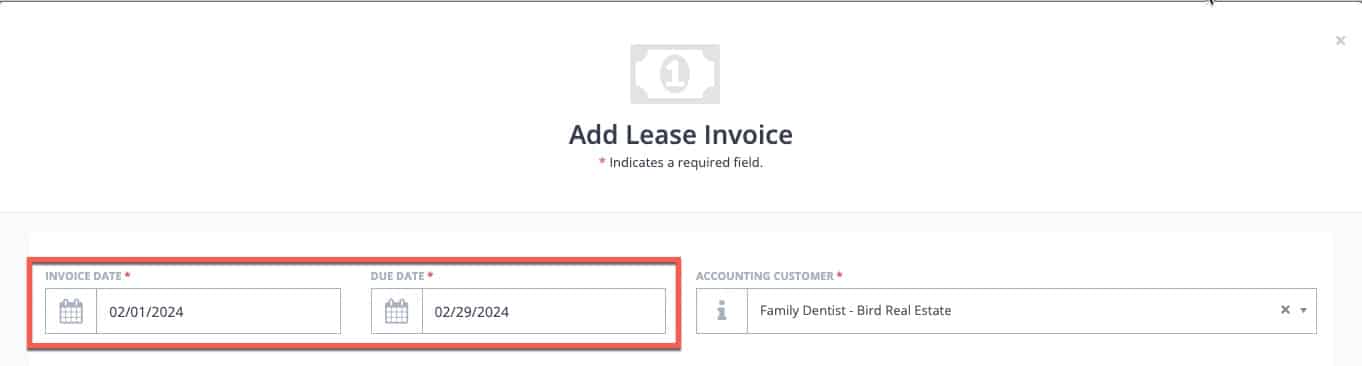
- Update the date that you want this invoice posted to your QuickBooks account. If the due date is different from the auto-populated date, update it now.
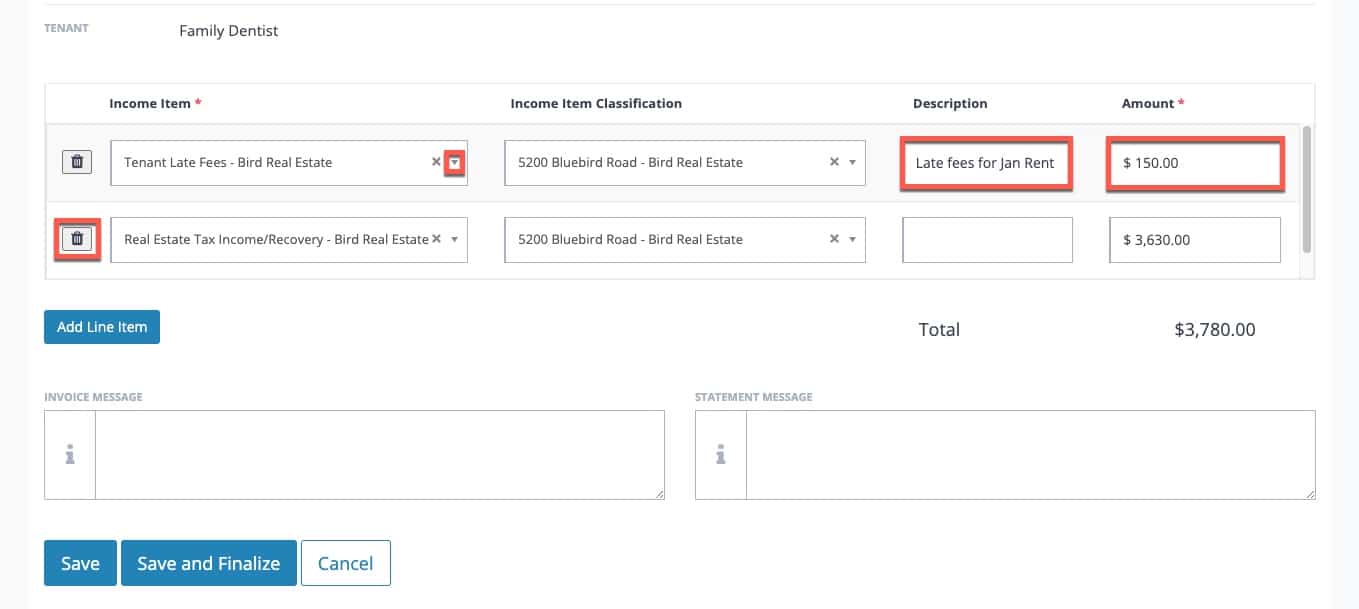
- Change the top Income Item to Prior Year Recoveries, Tenant Late Fees, or whatever the Income Item is that you created. Add a description to the item and change the amount to the amount due for the tenant. Delete all other Income Items as needed with the Trash Can. The only line item on the invoice is the true-up.
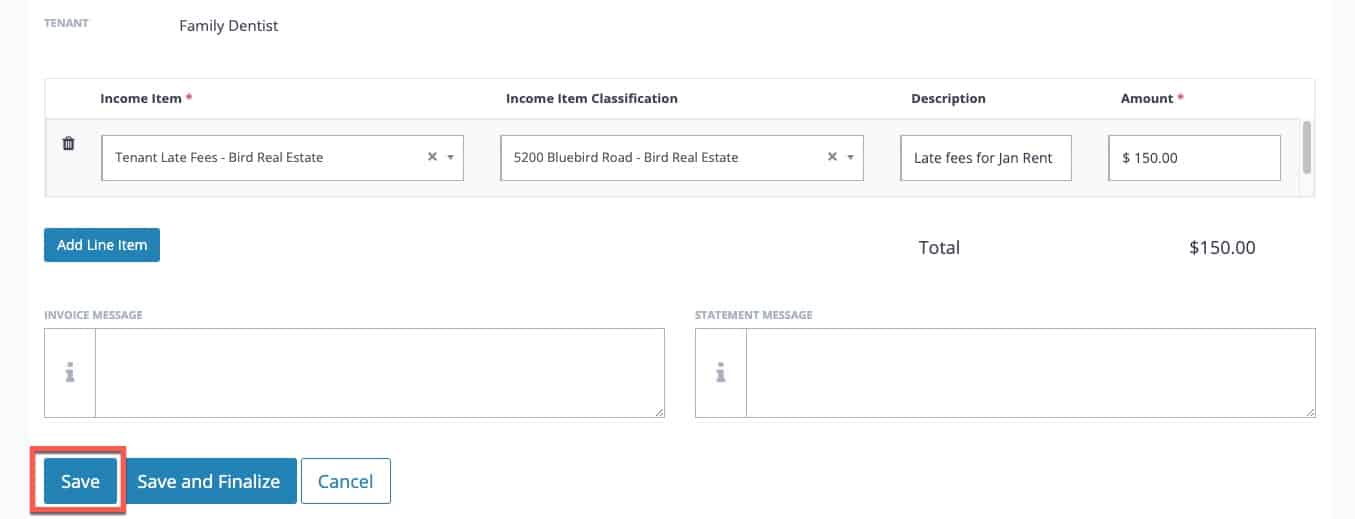
- Select Save on the invoice. Do not choose Finalize yet! Choosing save will add a draft invoice but will not push it to QuickBooks. You can then edit it if needed before it is finalized.
Running the Invoice Report
You can run several different reports on the Rent Collection page. For more detailed information about each, see the article The Rent Collection Page in STRATAFOLIO. For this purpose, you will want to run the Invoice Report.
- When selecting this report, you can use the filters to see Draft Invoices, Finalized Invoices, or All Invoices if nothing is selected in the Status field. Select the date range you want the report to run (to include the date of the invoices that you just made) and Run Report.

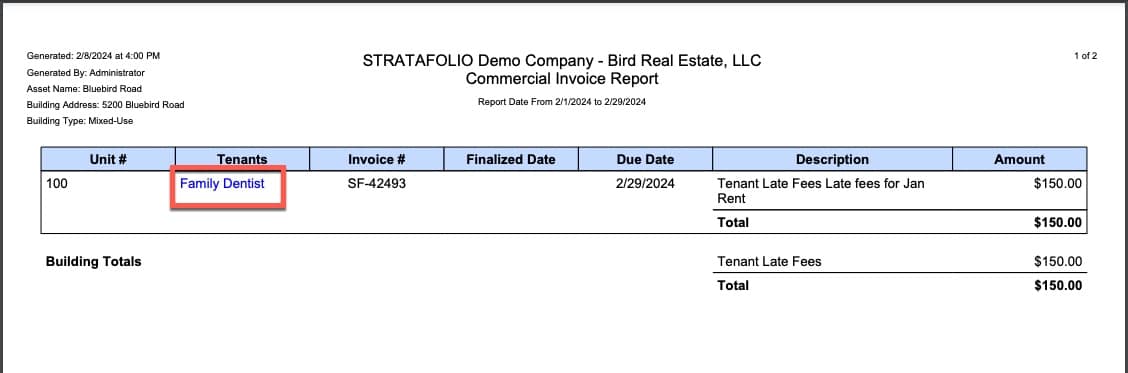
- The report will download to your computer. With this report, you can see all of the finalized invoices as well as draft invoices. The blue links for the tenants will allow you to easily open up the invoices for a specific tenant and alter them if needed.
NOTE: It is a good idea to use this feature for any invoice additions when there are many updates to make. This allows you to verify that all of the invoices are correct before adding them to your QuickBooks.
- After any changes are made, finalize the invoices if needed. Select the checkbox on the same row of all of the invoices that are ready, and then select Finalize. This will put all of the invoices in a queue ready to be added to your QuickBooks the next time your QuickBooks syncs with STRATAFOLIO.
Making Changes to Invoices
If you need to make any changes to the invoices after selecting Finalize, you can do so in your QuickBooks account(s). Please sync your QuickBooks Desktop or wait a little bit for QuickBooks Online. Once the invoices are green on the Rent Collection page, they have successfully synced and are in your QuickBooks account. If you refresh your Rent Collection page, you can see the progress of the invoices.
It is then that you can alter the invoices. You can change the amount, the description, the due date, or anything else that needs to be changed. The changes will be reflected in STRATAFOLIO once the account syncs again.
NOTE: Updating invoices in QuickBooks before they turn green in STRATAFOLIO may prevent the invoice from syncing correctly. It is best practice to wait until it has turned green and an invoice number has been assigned to it in your QuickBooks account before altering it in any way.
