


Adding a Unit to STRATAFOLIO is straightforward once you know where to start. Units fall under Buildings in the STRATAFOLIO Hierarchy (left). Since Unit(s) are always part of a Building, to add a Unit you will start at the Building Details page.
For more tips & information on Units, check out our Understanding Units in STRATAFOLIO knowledge base that covers units in more detail.
Understanding Units
Units in STRATAFOLIO are used to define rentable spaces within a building. In some buildings, they may be called suites, rooms, or even an entire floor, which can be defined as rentable space within a building. Most buildings have more than one unit, but some buildings (single-family homes, for example) will only have one rentable space.
In STRATAFOLIO, Unit(s) is a required field for a Lease. Even for buildings with only a single space to lease, you will need to enter a unit number in STRATAFOLIO.
Unit Numbers
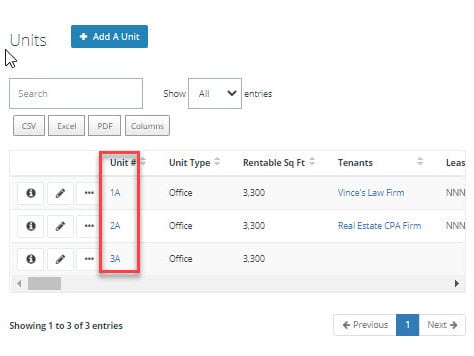
Units are most often entered as a number (1, 104, 18, etc.). But you can also use words for your unit, such as “Ground” for a ground floor unit. Or “2nd Floor” if the lease is for the entire 2nd floor. Also, when there is a single unit building, you can use the unit’s address, “203” for 203 Main St., or you can use “1” for the unit.
More Than One Unit Per Lease
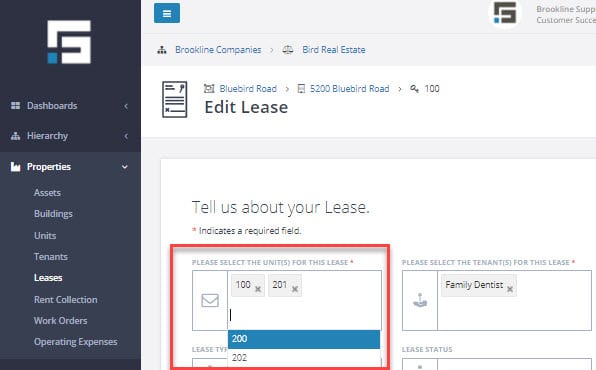
You can add more than one unit to a lease. If a tenant has one lease for two (or more) units in the same building, you can add both units under one lease. However, if the tenant has separate leases, pays separate rates for each unit, or the units are in different buildings, it is usually better to enter the units separately and not combine them under one lease.
Unit Type
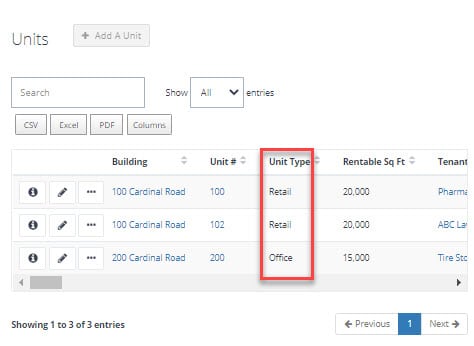
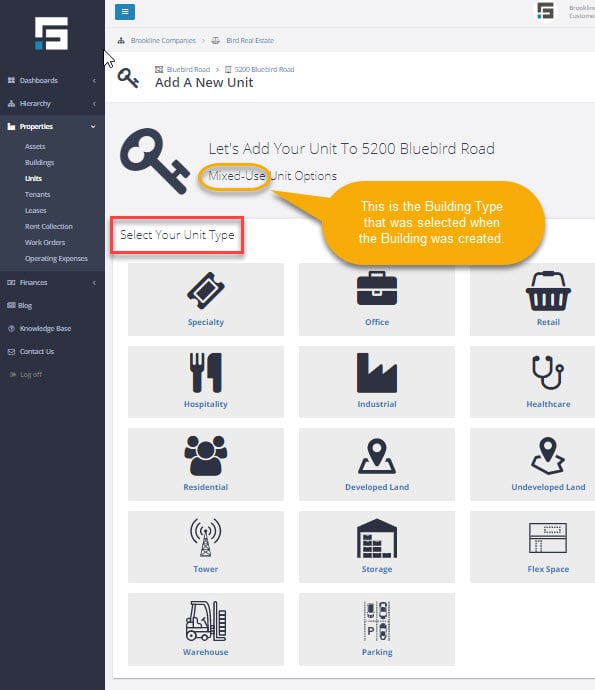
The unit type helps to describe your unit. When adding a new unit to a building, the Unit Type options will be limited based on the Building Type you selected.
TIP: To change the Building Type, you will need to edit the Building information.
Is there a new Building Type that you would like to see in STRATAFOLIO? Let us know! Email us at [email protected].
Rentable Square Footage
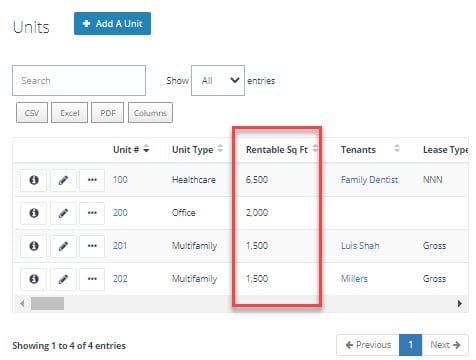
The square footage of a unit should be as accurate as possible. If you don’t have the square footage of the unit handy, you might be tempted to enter a guess – however, rentable square footage is an important input!
TIP: The square footage for the unit is used in several calculations in STRATAFOLIO. Some examples are:
 Calculating the percent occupancy of the building. Calculating the $/square foot for each unit. Calculating the tenant’s share of the Common Area Maintenance,
Real Estate Taxes and Insurance expenses.
Edit Unit Details
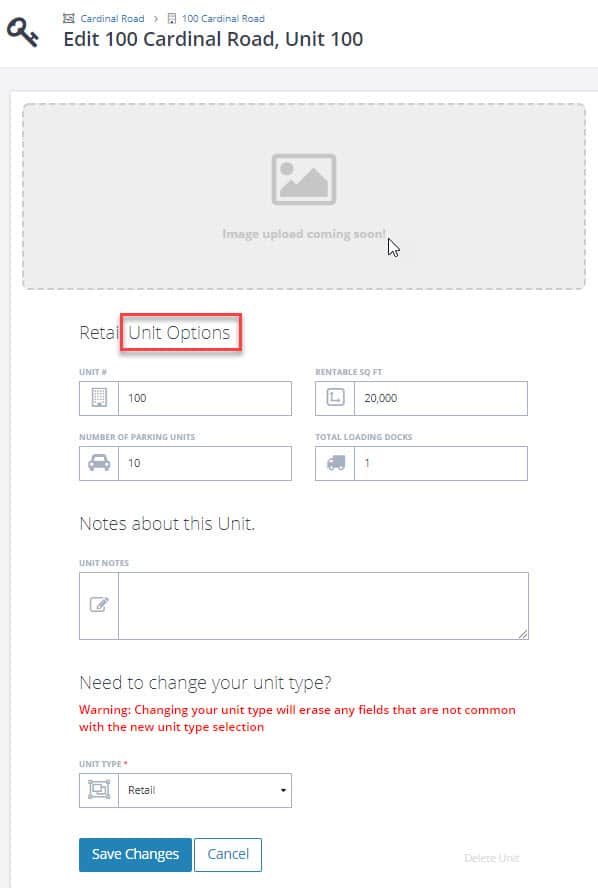
Entered a unit number wrong? Need to update the square footage? Remodeled and changed the Unit Type? No problem. You will want to navigate to the Unit Options page where you can update all of the Unit information.
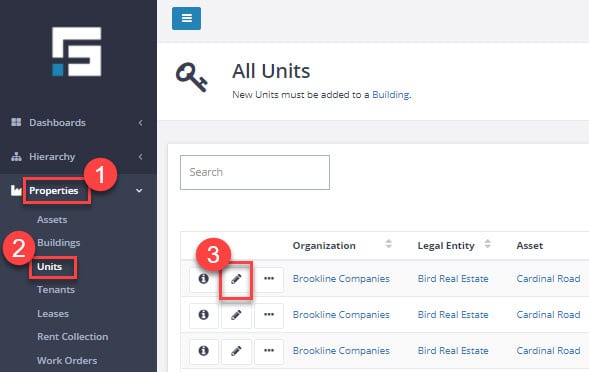
Starting in the left-side navigation panel:
- Select Properties.
- Select Units.
- Select the pencil next to the unit that you want to edit.
You should now be on the Unit Options page where you can edit/update any of the unit details.
Deleting a Unit
Deleting a unit is pretty simple, however, STRATAFOLIO only allows you to delete a unit if there aren’t any leases attached to it. ALSO NOTE: If there is an expired lease attached to the unit – you will not be able to delete the unit in STRATAFOLIO.
To delete a unit, follow the steps above in the EDIT UNIT DETAILS section to open the Unit Options page.
Once on the Unit Options page, scroll to the bottom and look for Delete Unit in the lower right.
- If Delete Unit is red, select it to delete the unit.

- If Delete Unit is grey, the unit is attached to a lease and you will not be allowed to delete it in STRATAFOLIO until the connected lease is removed.

How to Add a Unit
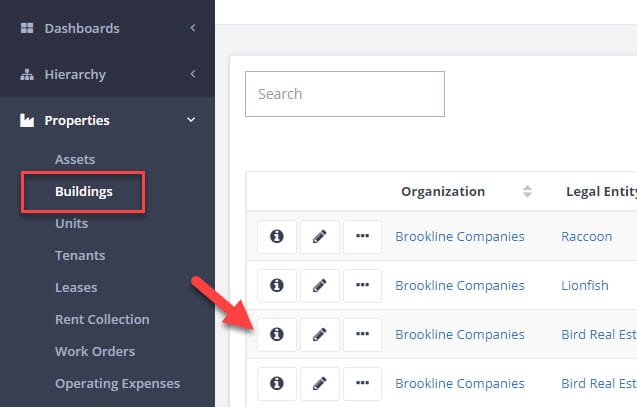
Navigate to the Building Details page
Start on the left-side navigation panel under Properties, navigate to Buildings then select the
TIP: If you have a lot of buildings in your portfolio, use the SEARCH box to find the building you are looking for.
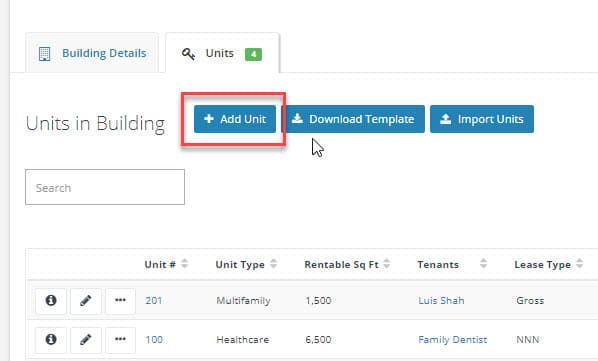
Navigate to the Units tab.
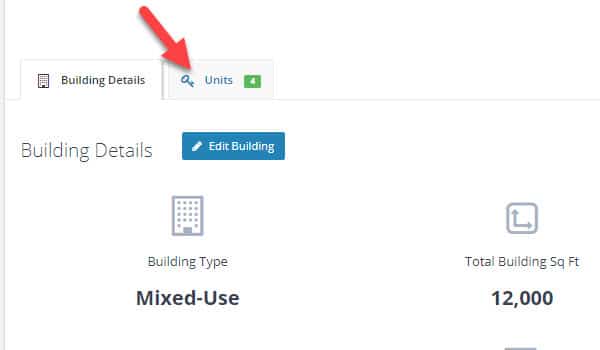
Select Add Unit
Select Your Unit Type
Once on the Add A New Unit page, you will see several options for the type of unit that you are adding. Select the one that best matches your unit.
NOTE: If you do not see an appropriate option for your unit on this page, you may have entered a Building Type that limits your options. For example, if the Building Type is Office, you will not be able to add a Hospitality unit to the building. Similarly, you will not be able to add a Residential unit to a Building Type designated as Industrial. To change the Building Type, you will need to edit the Building information then you can navigate back to the Add A Unit page to select the desired unit type.
Add Unit Information
Once you have selected the unit type, the Add a New Unit page will open, and you can add the unit details. The type of unit you chose (Office was used for this example) will appear in several places on this page, but the information fields on this page will be similar for each unit type.
NOTE: Residential Units also include options to list the Number of Bedrooms, Number of Bathrooms (full & half), and Pet Options.
Each information field for an Office Unit is discussed below.
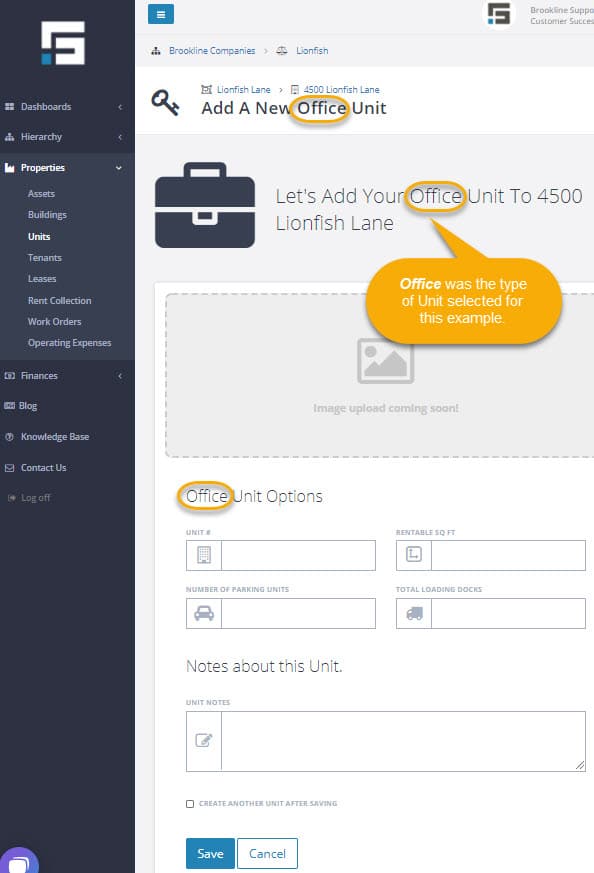
Unit # – In this field enter what you would like to call this unit. Unit # can be a number or a word. Examples: 1st Floor, 100, Storage, Warehouse, 3829, etc.
NOTE: If you leave the UNIT # field empty, it will display as N/A in the unit list for the building.
Rentable Sq Ft – This should be the most accurate square footage you have for this unit. STRATAFOLIO will use the square footage to calculate several things: 1) the percent occupancy of a building, 2) the rent cost per square foot, 3) the Common Area Maintenance costs that apply to this unit, and other information. It is important to enter an accurate number in this field.
Number Of Parking Units – If parking spaces are assigned to this unit, you can enter that number here.
Total Loading Docks – If the unit has loading docks, enter the number here.
Unit Notes – This field is for any additional information you want to enter about this unit. For example, if the unit has something special about it – like it has a large street-facing window, or the unit has its own restroom. In addition, you can add a note about renovations or changes to the unit.
Choose Save, and you are done!
Once you have added all the information for the Unit, select SAVE at the bottom of the page.
NOTE: It may take a few seconds for your new unit to appear in STRATAFOLIO. If you do not see it right away, wait a moment and refresh the page.
Once you choose save, you will be on the Unit Details page where you can review the information for the Unit you just entered. If you need to make a change, select Edit Unit.
