
It is important for property managers to have easy and customizable access to the exact lease information they need. To make managing and accessing your lease information easy, STRATAFOLIO also offers the ability to view all of your leases at once from the Leases page. From this page, you can view the complete list of your leases, apply combined filters to narrow your search, and interact with every lease from one place. This article will describe each lease index’s functions and how to access them quickly.
Navigating to the Lease Index
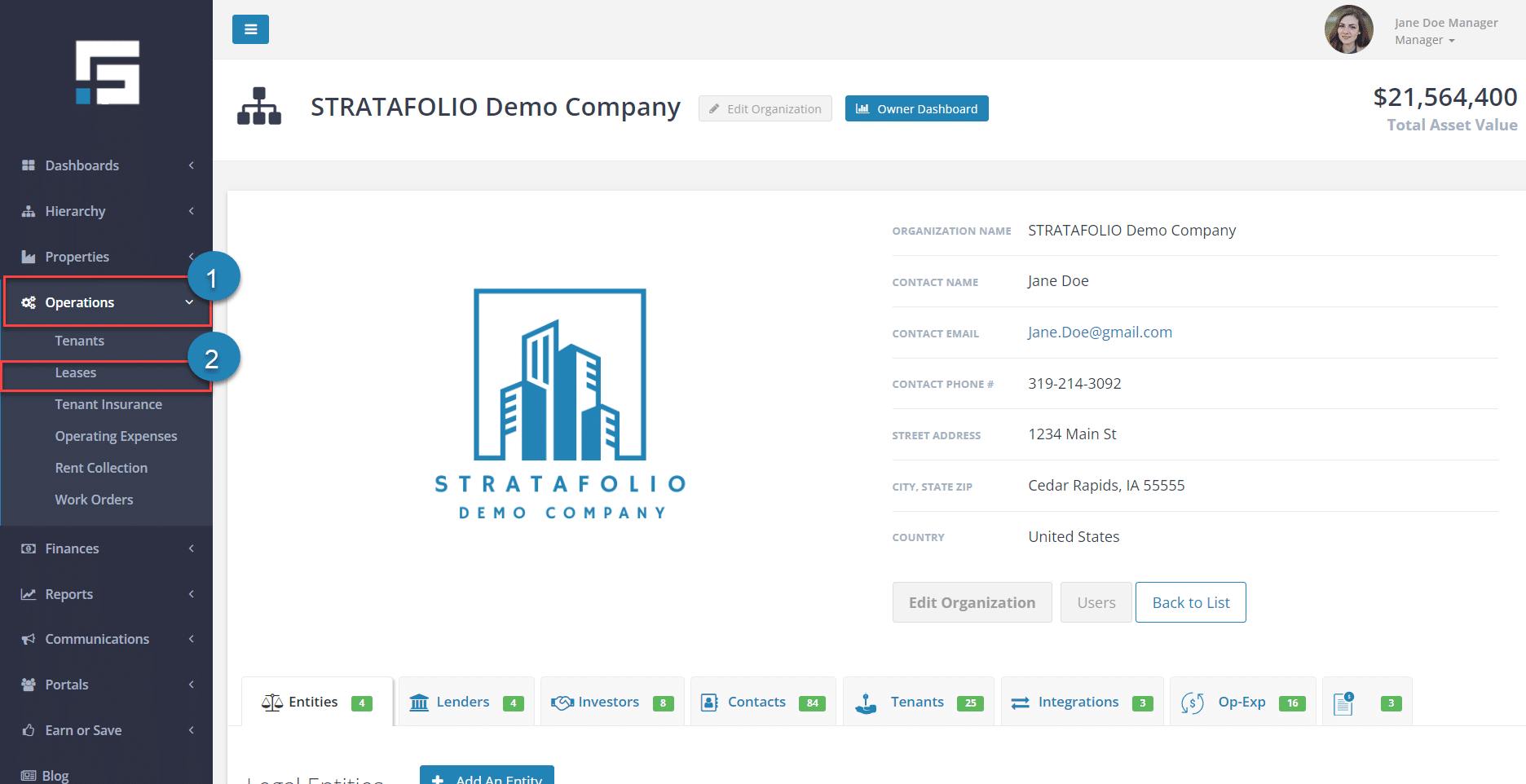
From the STRATAFOLIO homepage, navigate to the left sidebar and click on Operations, then Leases, to see an index of all the leases. For more information on adding leases to STRATAFOLIO, read How to Input a Lease in STRATAFOLIO.
Using Lease Index Filters
You will see the STRATAFOLIO Lease Index. At the top is a list of filters you may use to narrow down your lease search. We will now briefly explain the top row of filters.
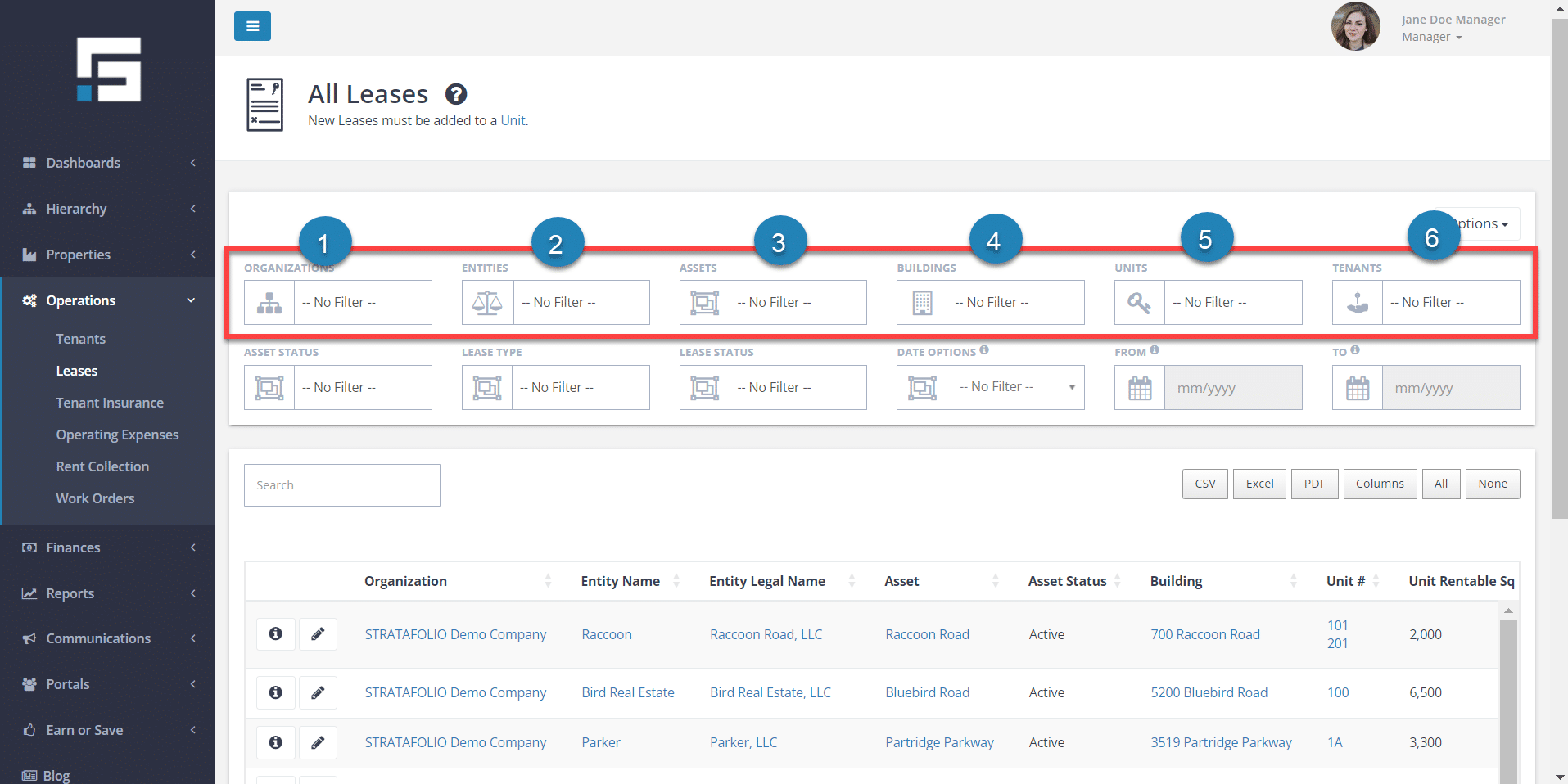
- Organizations: this option allows you to select the organization you want to see leases from. It will search for leases only in the organization(s) you select.
- Entities: this option allows you to select the entity from which you want to see leases. It will search for leases only in the entity you select.
- Assets: this option allows you to select the asset from which you want to see leases. It will search for leases only in the asset(s) you select.
- Buildings: this option allows you to select the building from which you want to see leases. It will show all leases under the building you selected.
- Units: this option allows you to select the unit you want to see leases from. If a unit has had multiple leases, it will show all associated with your selected unit.
- Tenants: this option allows you to select a tenant to see leases attached to them. It will display only leases that have been attached to your chosen tenant.
Note: You can apply multiple filters at once to narrow down your searches most efficiently. For example, if you select an entity to filter by, then the asset filter will allow you to choose an asset from the chosen entity. This helps narrow down your search precisely.
The Lease Index also allows you to search for leases based on their characteristics. We will now explain the next three options you can filter with.
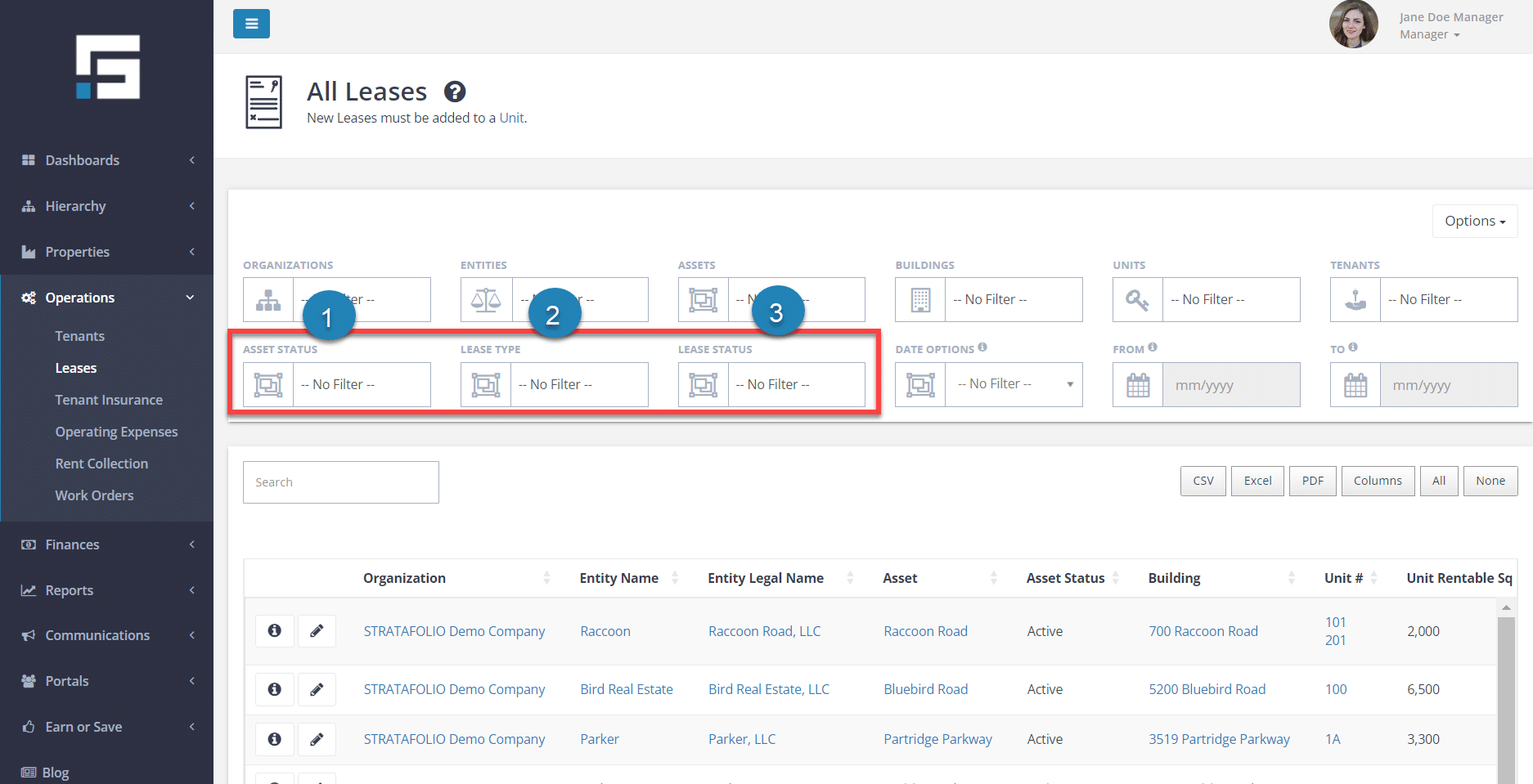
- Asset Status: this feature allows you to search for leases based on the status of the attached asset. For example, you can search leases from only active assets.
- Lease Type: this feature allows you to search for leases based on their type. For example, you could narrow your search to only triple-net or gross leases.
- Lease Status: this feature allows you to search for leases based on their status. For example, you could narrow your search to only expired or month-to-month leases.
You may also filter your lease search by date. When filtering by date, you have four options. Each of these options will unlock the date boxes for you to select a date. We will now explain the four options of date filtering for leases.
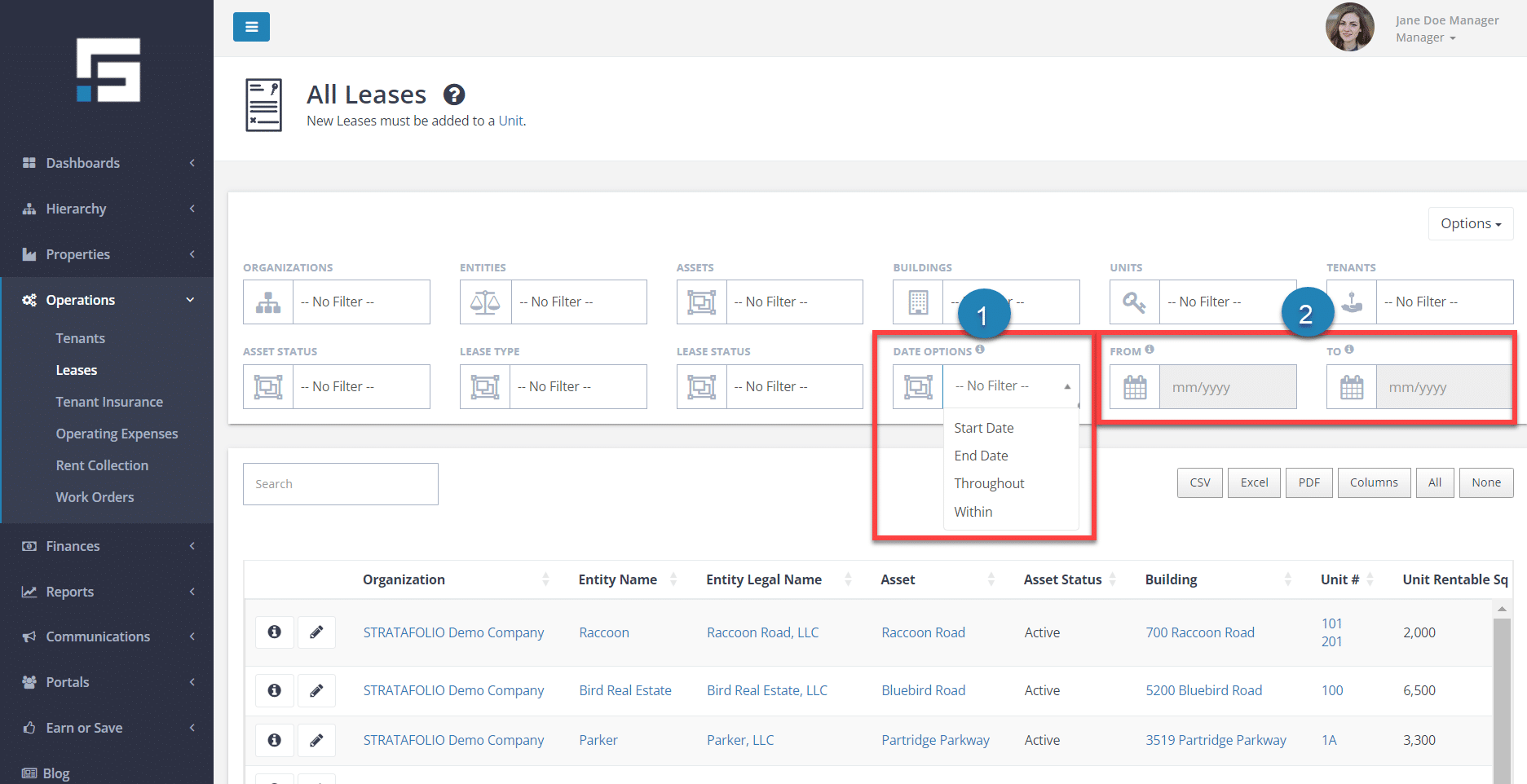
- Start Date: selecting this option will allow you to search for leases that begin at a specific date and onward. For example, you could select September 2020, and it would only show leases that started during September 2020 and afterward.
- End Date: selecting this option allows you to search for leases that end on a specific date and before. For example, if you wanted to search for active leases before September 2020 but not after, you would select that date from the boxes on the right.
- Throughout: this search feature allows you to search for any active leases during your provided time frame. This includes leases with terms that only partially fall within the provided time frame.
- Within: this search feature allows you to search for any leases that completely took place during the time frame you provided. This will only include leases with terms that are completely contained within the provided time frame. For example, if you select Sept. 2020-2022 as the dates, a lease that started in 2019 but ended in 2021 will not be included in the search results.
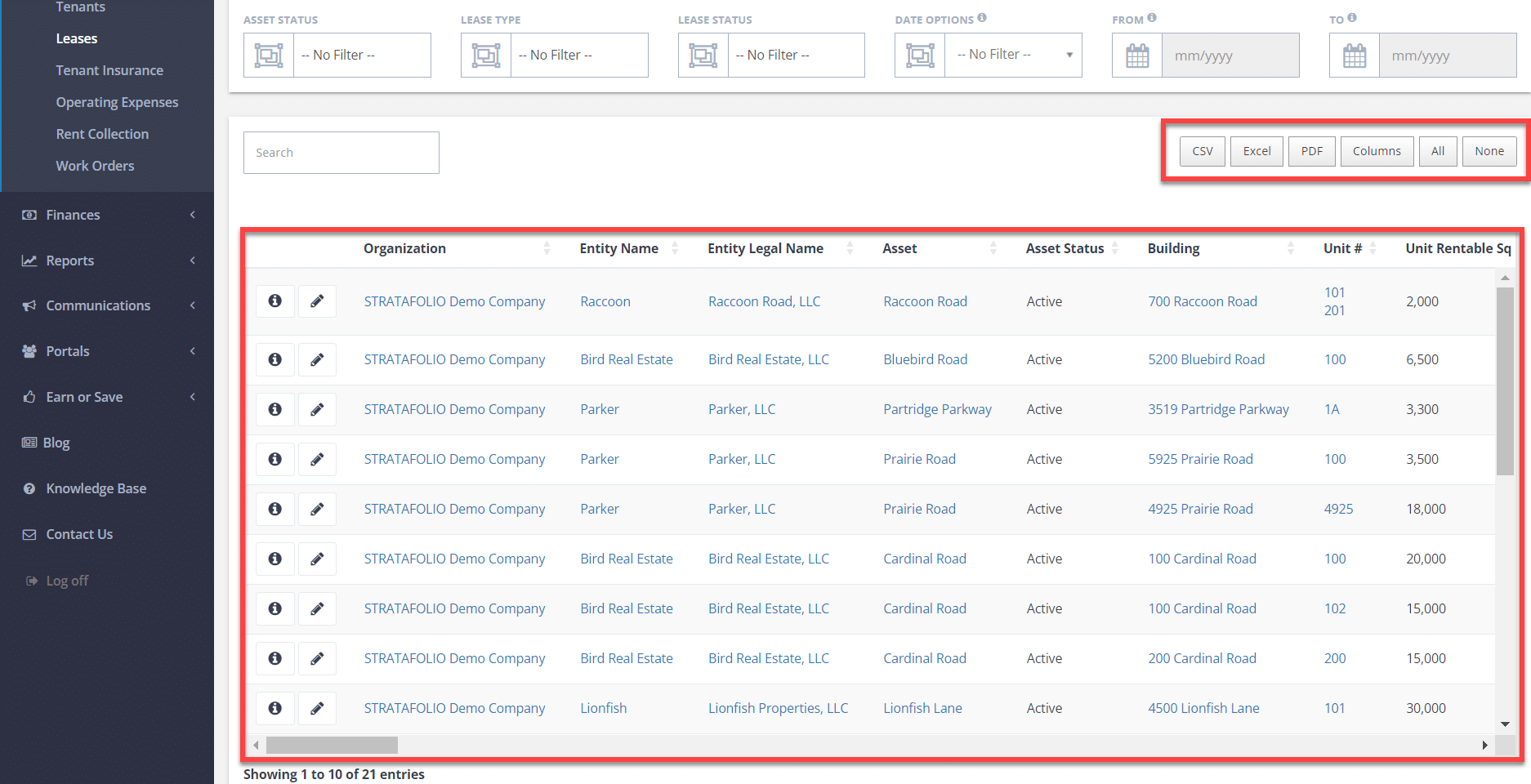
Based on the filters you use in your search, your desired leases will appear in the list below. This area works exactly the same as all other STRATAFOLIO functions. Remember that you can choose to export your list to several file types, and you may also change which columns of information appear on the list.
What do the Lease Statuses in STRATAFOLIO Mean?
Feature
You have a new lease from a tenant and are trying to enter it into STRATAFOLIO. What do all of the different statuses mean and which is the best for this specific tenant? Which ones will be automatically updated for me and which ones will I need to change?
Benefits
Things are hectic when a new tenant moves in. If the lease statuses in STRATAFOLIO automatically change when you reach the lease start or end date, you can enter a lease before the actual start date. You can also be assured that when the lease ends, it will expire in STRATAFOLIO. It will not appear on the Rent Roll. Hopefully, this will make the management of the leases easier for everyone involved.
Finding the Lease Status
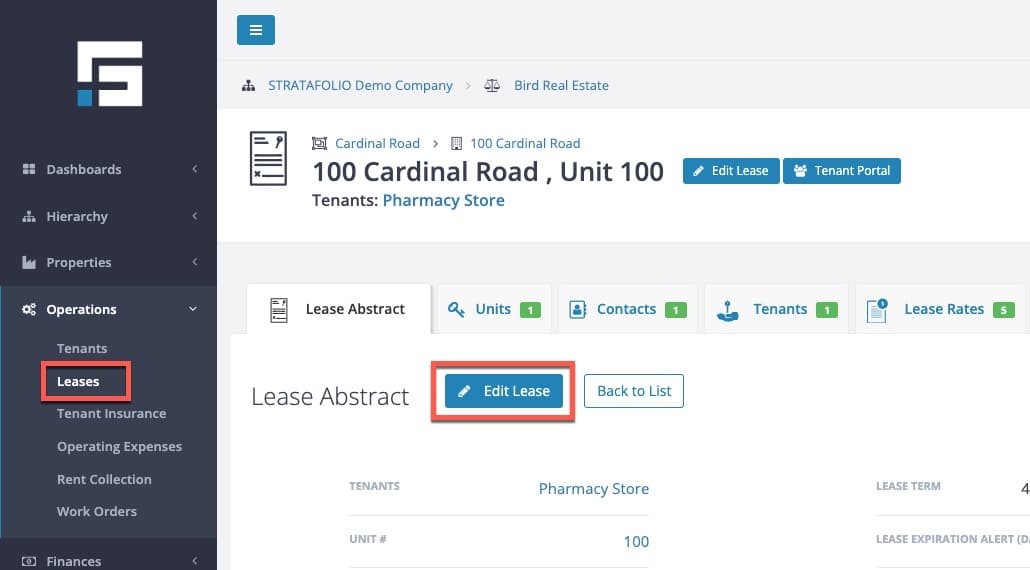
Navigate to the Lease Abstract view. Choose the Edit Lease button.
The Lease Status is to the right of the Lease Type. This is a dropdown menu.
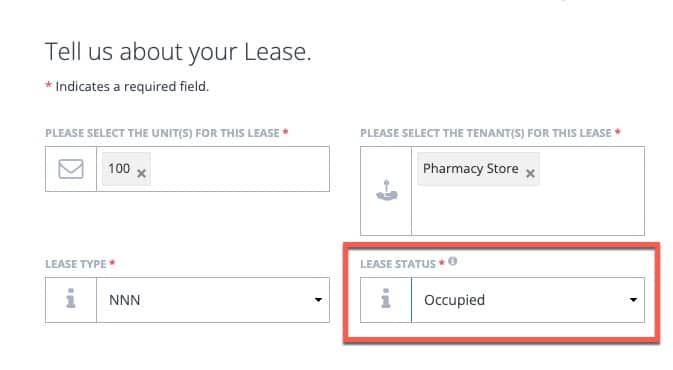
The choices are as follows:
- Future Lease
- Occupied
- Month-to-Month
- Year-to-Year
- Expired
- Notice – Available to Rent
- Breach of Contract
- Eviction Started
- Evicted
We will go into each of these in a little more depth and how STRATAFOLIO tracks each.
Future Lease
A Future Lease indicates the unit is rented, a lease has been signed, and the tenant is set to move in at a future date. This allows you to enter the lease into STRATAFOLIO before the lease starts. This is especially helpful when a build-out needs to be done and the exact start date is unknown. You can enter it any time you would like to and on the day the lease starts, it will change to Occupied. This date may need to be updated several times for new construction.
Occupied
An Occupied lease is one where a tenant is in the space, they are current on payment obligations, and the lease terms have not expired. These are the current, active leases that will show up on the Rent Roll.
Month-to-Month
A Month-to-Month lease has reached its agreed-upon end date, and the tenant has opted for a short-term stay. The tenant may have chosen to select a Month-to-Month contract rather than making a long-term commitment. There is no specified end date to the lease.
Year-to-Year
A Year-to-Year lease is a lease in which the tenant can renew yearly without the need for a new lease or amendment. This is normally at an agreed-upon rate for an agreed-upon number of years. They could also opt out at the end of the year. There is no specified end date to the lease.
Expired
An Expired lease has reached its end date without breach of contract. The tenant and rent will not be included on the Rent Roll.
The day after the last day of the lease term, the lease will automatically turn to Expired for you. It is important to ensure the lease gets updated as soon as an amendment has been signed. If there is a time while waiting for the new agreement, it is best to temporarily move this to a Month-to-Month lease to keep it on the Rent Roll and active. Only active leases will show up in the Rent Collection and add invoices for them.
Notice – Available to Rent
A Notice-Available to Rent lease indicates the tenant has moved out, but the lease terms have not yet expired. Therefore, a new tenant can move in now and take over the existing lease until it expires. This will still be included on the Rent Roll.
Breach of Contract
A Breach of Contract lease is a lease in which the tenant breached the terms set in the lease. The breach could be related to the tenant going out of business, or any other violations of the terms set in the lease. The rent will not be added to the Rent Roll.
Eviction Started
An Eviction Started lease is a lease that has begun the proper legal eviction process for the removal of the tenant.
Evicted
An Evicted lease is a lease that has completed the proper legal process for removing the tenant, and the tenant has been evicted from the premises. The rent will not be added to the Rent Roll.
Note: With the Month-to-Month and Year-to-Year lease statuses, the latest lease rate will continue every month. They will stay at the same rate until the lease is stopped or until a newer lease rate is entered.
