Your investors want to know how their money is working for them, and the Investor feature in STRATAFOLIO gives them a live, secure answer without you having to build a report by hand. This companion walks you through adding an investor, connecting them to the right entities, inviting them into STRATAFOLIO, and understanding what each investor role can see, so you always know where to go, what each button does, and how to confirm your work.
STRATAFOLIO lets you add as many investors as you need and connect each one to the entities they hold ownership in. Once an investor record is set up and the investor is invited, they can log in and see contributions, distributions, and performance information that stays current without any extra work from you. Investors only see the entities tied to their own ownership, never your full portfolio.
Why the Investor Role Matters
Investors want confidence in the numbers you share with them, and a self serve dashboard builds that confidence. When an investor can log in at any time and see their contributions and distributions update on their own, you spend less time answering one off status requests and more time running your properties. Assigning the right access level to each investor also protects your other data, since every investor only sees what belongs to them.
How the Investor Role Works
When you add an investor, STRATAFOLIO creates an investor record that you connect to one or more entities. You then invite the investor by email and assign them either a Full Access or a Restricted Access role. Once the investor accepts the invitation, their dashboard reflects the entities, contributions, and distributions tied to their ownership (depending on their role), and it updates automatically as new financial data comes in.
How to Add An Investor
Add an Investor Record
Before you can invite an investor or connect them to an entity, you must add the person as a contact in STRATAFOLIO. For more guidance on how to do this, read How to Add a Contact.
Afterwards, you can add their investor record:
From the left navigation menu, select Hierarchy, then Organizations, then once you are in the Organization record go to the Investors tab and click on Add Investors. Fill in the investor’s information, then select Add Investor to save the record.
Connect the Investor to their Entities
Once the investor record exists, connect the investor to every entity they hold ownership in. STRATAFOLIO uses this connection to decide which contributions, distributions, and entity-level data the investor is allowed to see, so an investor who is not connected to an entity will not see any of that entity’s information.
Go to Entities under Hierarchy in the left-side navigation menu, then click on the entity record, and the Investors tab. From here click on the Add An Investor Ownership to link your Investor.
Choose the Right Access Level for Each Investor
STRATAFOLIO offers two investor roles, and the role you choose determines what the investor sees on their dashboard. Administrators, Managers, and Property Managers assign investor roles from the Contacts view.
A Full Access Investor has the most complete view of their investment. From their dashboard, a Full Access Investor can:
- Review information about every entity they are invested in
- See their ownership percentage in each entity
- Track income and expenses for the entities they are tied to
- Monitor their asset and equity value, along with debt responsibility if they are a guarantor
- View contributions and distribution calculations, including total, last, and estimated annualized figures
- Look at tenant and lease information tied to their investment
For example, a Full Access Investor might see that they hold 20 percent of an LLC, that the property generated 200,000 dollars in income and 80,000 dollars in expenses for the quarter, and that they received a distribution of 15,000 dollars. Full Access Investor is available at the Enterprise service level.
A Restricted Access Investor sees a simplified, summary-only view. This role is designed for investors who do not need entity-level detail. A Restricted Access Investor can:
- View total contributions to date
- Review total distributions received
- See estimated annualized distributions
- Access a high-level summary of their distributions
Both roles can upload files into their dashboard, and both can only edit or delete files they personally uploaded, and only if you have that permission enabled. Neither role can change organizational data or another investor’s files.
Choose the Right Access Level for Each Investor
| Feature | Full Access Investor | Restricted Access Investor |
| View Entities Invested In | Yes | No |
| Ownership Percentages | Yes | No |
| Equity and Debt Portions | Yes | No |
| Income & Expenses | Yes | No |
| Distributions | Yes | No |
| Upload Files | Yes (own files only) | Yes (own files only) |
| Delete Files Uploaded | Yes (own files only) | Yes (own files only) |
| Organizational Data (view only) | Yes | No |
Choose the right investor role by going to Finances from the left-side navigation menu, then clicking on Investors, and then the edit icon next to the Investor to update their contact details.
Invite the Investor to STRATAFOLIO
Adding an investor record does not give the investor login access on its own. You still need to send an invitation so the investor can create their account.
- Head to the left-side navigation bar and select Hierarchy, then Contacts.
- Locate the contact record of the investor, then select the single person icon in that investor’s row to invite them to STRATAFOLIO.
STRATAFOLIO emails the investor an invitation to access their account. The page will show a Pending message next to the investor’s name until the invitation is accepted. The invitation link expires after 24 hours, so if the investor does not create an account in that window, send a new invitation.
Review What a Full Access Investor Sees
A Full Access Investor reaches their dashboard by navigating to Finances, then Investors, then selecting the i icon next to their name, then choosing the Investments tab. From there, their dashboard shows entity level detail, including ownership percentages, income and expenses, equity and debt, and tenant or lease information tied to their investment.
Review What a Restricted Access Investor Sees
A Restricted Access Investor lands on the Investor Portal as soon as they log in. From there, they select the Investors tab, choose their name, and navigate to Investments to see their summary totals. This role never shows entity-level detail such as ownership percentages or income and expense breakdowns.
Show Investors the Graphical View of Distributions
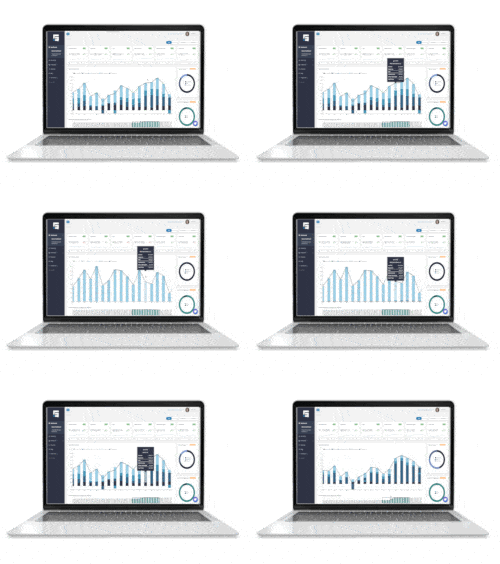
Both investor roles can visualize their performance the same way many investors track a stock portfolio. To reach this view, navigate to Investors under Finances, select the i icon next to the investor’s name, choose the Distributions tab, and select the distribution period to view.
- Total Investment Contributions
- Total Distributions to Date
- Trailing 12 Month Distributions and Cash-on-Cash Return
- A historical chart of annualized cash on cash returns over time
- A detailed table of investment dates, contributions, distributions, and monthly returns
Investors can filter this view by investment or distribution period to focus on a single asset or timeframe, and they can export the data to Excel, CSV, or PDF if they need to share or analyze it further.
Manage Investor File Uploads
Investors of either role can upload files into their dashboard, such as agreements or supporting documentation. They can only edit or delete files they personally uploaded, and only if you have enabled that permission. Investors cannot alter organizational data or view files uploaded by another investor.
They can upload files by going to the Files tab and clicking on Add A File.
Verify the Investor Is Fully Set Up
After you invite an investor, confirm the setup is complete before considering the investor active. Check that the Pending message next to the investor’s name has cleared, which happens automatically once the investor accepts the invitation. Then confirm the investor is connected to every entity they should see, and that you assigned the access level you intended.
Checklist for Adding Investors
Before You Add An Investor
- Add the investor as a contact
- Confirm the entity or entities the investor holds ownership in already exist in STRATAFOLIO
- Gather the investor’s legal name, contact information, and taxpayer ID
Add and Connect the Investor
- Select Finances, then Investors, then Add Investors, and fill in the investor’s information
- Connect the investor to every entity they hold ownership in
- Choose Full Access or Restricted Access based on the detail the investor needs
Invite and Verify
- Select Hierarchy, then Organizations, then the Investors tab to send the invitation
- Choose the access level, then select Yes, Invite
- Watch for the Pending message to clear once the investor accepts
- Confirm the investor’s entity connections and access level are correct
Best Practices for Investors
- Keep Investor Records Clean
- Use each investor’s legal name in the Investor Legal Name field, and save any shorter or informal name as the nickname
- Record the Tax Payer ID and Investor Since Date as soon as you have them, since these details are harder to track down later
- Use the Investor Notes field for anything your team needs to remember about the relationship
- Assign Access Levels Deliberately
- Reserve Full Access for investors who are actively engaged in decision-making or need entity-level detail
- Use Restricted Access for investors who only need to see their own summary totals
- Revisit an investor’s access level if their role in the deal changes
- Keep Entity Connections Current
- Connect every investor to each entity they hold ownership in as soon as the ownership is finalized
- Review entity connections whenever an entity’s ownership structure changes
- Support Investor Self Service
- Point investors to the Distributions tab so they can review their own performance history instead of asking you for updates
- Enable file upload permissions only where they add value, since investors can only manage the files they personally upload
- Send invitations promptly and remind investors that the link expires after 24 hours