The All Payments view gives you a complete picture of every payment across your organizations in one place. You can filter, review, and understand how payments move through their lifecycle. This article explains how to navigate the page, use the filters, read payment statuses, and understand the workflows behind them.
Overview
The All Payments page is your centralized location for tracking tenant payments, autopays, and one time payments. You can quickly see payment activity across entities, assets, buildings, and tenants. The view also helps you identify issues by understanding the payment status and workflow.
Where to Find This Feature
Go to Operations (from the left-side navigation menu) → Payments
This opens the Payments index view, showing the filters at the top and the payment table below.
How to Use This Feature
1. Apply Filters to Narrow Your Results
Use the dropdown filters to focus on specific data such as organizations, entities, assets, units, tenants, payment methods, date ranges, or statuses. Multi select filters allow you to combine several filters for a precise view.
Steps:
- Click any filter dropdown found at the top of the page.
- Select one or more options.
- Click Apply (blue button) to refresh the table.
- Clear filters at any time to return to the full dataset.
2. Review the Payments Table
The table displays each payment along with details such as organization, entity, asset, building, tenant, method, payment status, ACH usage, autopay status, and transfer type.
3. Export Your Data
Click on the Export button above the table to download your filtered results. Exports reflect exactly what is currently on your screen.
4. Customize Columns Using Report Settings
Click Report Settings to show or hide columns. You can save custom report layouts for future use.
Filters, Options, and UI Panels Explained
STRATAFOLIO’s filtering system helps you find the exact payment data you need.
Common filters include:
- Organizations
- Entities
- Assets
- Buildings
- Units
- Tenants
- Lease status
- Payment date range
- Payment method
- Payment status
- Payment origination
- Transfer type
- ACH integration
Export Button
Downloads table data based on your active filters.
Report Settings
Controls which columns appear in the table and allows saving custom views.
Statuses, Workflows, and System Behavior
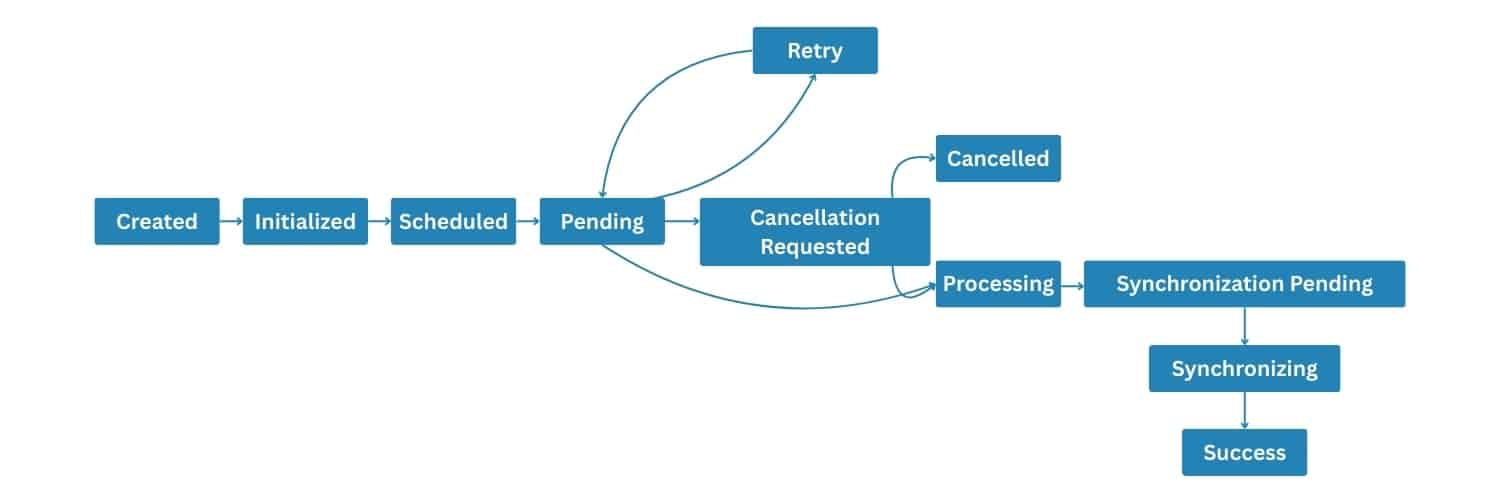
Payment statuses tell you exactly where each payment stands in the processing timeline. Workflows show the steps a payment moves through depending on the method and origin.
| Name | Where it Applies | What it Means |
|---|---|---|
| Created | One-time Payment, Autopay, Manual Payment, QuickBooks Payment | The payment record has been successfully created in our system. Please note that this serves as a status update. To find the details of the payment source, please refer to the “Payment Origination” information. By reviewing both the payment status and the payment origination, you will gain a clear understanding of where the payment was created. |
| Initialized | One-Time Payment, Autopay | The payment was successfully initialized in STRATAFOLIO before being processed by our payment partner to ensure accuracy and security. |
| Scheduled | One-Time Payment, Autopay | Payment is scheduled for processing by us at a later date. If the payment date is the next day or forward, it will be held until that day to be processed by us, and then by our payment partner. If the payment date is today, it will be processed shortly. |
| Pending | One-Time Payment, Autopay | The payment has been submitted to our payment partner and is currently being processed. We will resume our workflow once we receive confirmation of success from our payment partner. |
| Retry | One-Time Payment, Autopay | If, for some reason, our payment partner didn’t process the payment and needs to retry, we receive this status from them, letting you know the payment has been retried. |
| Synchronization Pending | One-Time Payment, Autopay, Manual Payment, QuickBooks Payment | This means we now have all the necessary information about your payment. If you are using QuickBooks Desktop, we need you to sync the integration linked to the payment on your end, and the payment will be posted in your book without any extra work on your side. If you are using QuickBooks Online, this process is automatic. The sync will start in a few. Please don’t post any payments from your QuickBooks before syncing with STRATAFOLIO. |
| Synchronizing | One-Time Payment, Autopay, Manual Payment, QuickBooks Payment | The synchronization of your payment with QuickBooks until the synchronization with STRATAFOLIO is complete. |
| Success | One-Time Payment, Autopay, Manual Payment, QuickBooks Payment | The payment has been successfully processed and recorded in both our system and your QuickBooks. |
| Manual | Manual Payment | A manual payment has been recorded in our system. If you are using QuickBooks Desktop, we need you to sync the integration linked to the payment on your end, and the payment will be posted in your book without any extra work on your side. If you are using QuickBooks Online, this process is automatic. Please don’t post any payments from your QuickBooks before syncing with STRATAFOLIO. |
| Error | One-Time Payment, Autopay, Manual Payment, QuickBooks Payment | An error occurred during processing your payment. An error can originate from either our payment partner, your QuickBooks integration with us, or our system. One common reason is that you posted a payment in QuickBooks Desktop before synchronizing your integrations with us. At the same time, we have already collected the payment from your tenant, which is now in “Synchronization Pending” status. Another common reason is that your QuickBooks integration is not working, and the synchronization can’t complete successfully. If any error occurs, we will inform you through this status and provide details about the failure in the “Error Message” column. |
| Failure | One-Time Payment, Autopay, Manual Payment, QuickBooks Payment | A failure occurred while processing your payment. This issue may stem from our payment partner validations, your QuickBooks integration with us, or our own internal validations. This may be due to insufficient funds or any other validation from our payment partner. If any failure occurs, we will inform you via this status and provide details in the “Error Message” column. |
| Invalid | One-Time Payment, Autopay, QuickBooks Payment | Your payment has been marked as invalid because it does not meet the minimum requirements to proceed. This may be due to the tenant belongs to a different integration, your bank account has been disabled or removed, your landlord bank account has been disabled or removed or not configured to receive payments, your subscription with us is no longer active, the amount of your payment is under the minimum allowed or the amount of your payment is over the admitted limit of your ACH integration type. If you need to pay for a higher amount please update your ACH integration. We will provide more information in the “Error Message” column to help you resolve the issue. |
| Cancellation Requested | One-Time Payment, Autopay | A payment cancellation has been requested but has not yet been processed by our payment partner. We will keep you updated regarding any changes to this status. If the cancellation is completed, we will update this to “Cancelled.” If the cancellation does not occur, we will continue with the usual process. |
| Cancelled | One-Time Payment, Autopay | The user has cancelled the payment. No further actions are required, and no amount has been charged. Details regarding the cancellation will be provided in the “Error Message” column. |
| Processing | One-Time Payment, Autopay | Your payment is currently undergoing processing, which means that it is being verified and finalized for completion by our payment partner. |
Payment Workflows
Payments follow different workflows depending on how they were created.
One Time Payment or Autopay Workflow
Manual Payment Workflow
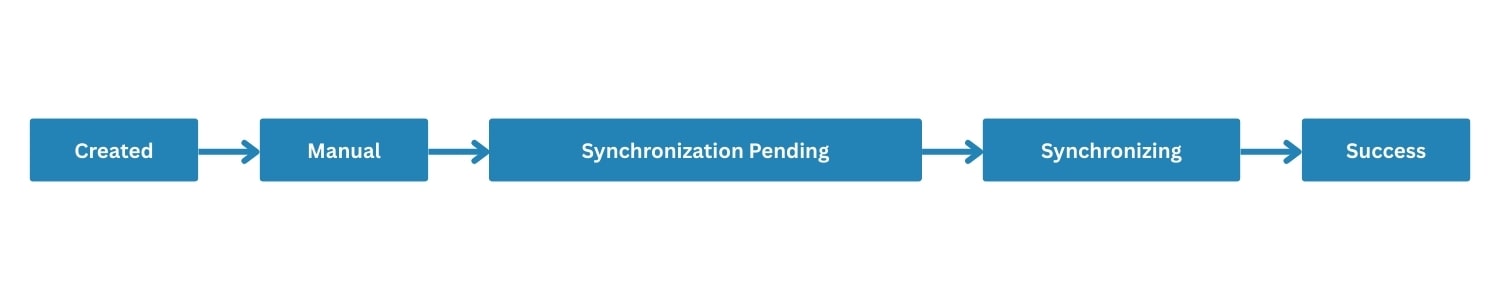
QuickBooks Payment Workflow

Workflow diagrams help you understand how payments move step by step.
Payment Methods
Different payment methods determine how the payment is processed.
| Name | Where it Applies | What it Means |
|---|---|---|
| Cash | Manual Payment, QuickBooks Payment | Payment made using physical currency. |
| Credit | Manual Payment, QuickBooks Payment | Payment made using a credit card. |
| ACH | One-Time Payment, Autopay, Manual Payment, QuickBooks Payment | Payment transferred electronically via ACH. |
| Check | Manual Payment, QuickBooks Payment | Payment made using a paper or electronic check. |
| Other | Manual Payment, QuickBooks Payment | Payment made using a method not listed above. |
Payment Details
This describes the type of charge or transaction being paid.
| Name | What it Means |
|---|---|
| Undefined | No specific payment detail was set. |
| Autopay | A recurring payment automatically processed via STRATAFOLIO’s ACH feature. |
| One-Time Payment | A single payment initiated by the tenant through the Tenant Portal and processed via STRATAFOLIO’s ACH feature. |
| Manual Payment | A payment recorded in STRATAFOLIO that is not processed via STRATAFOLIO’s ACH feature. |
| External Payment | A payment made in an external accounting system and then synchronized with STRATAFOLIO. |
Payment Origination
Shows where the payment was started: STRATAFOLIO, QuickBooks Online, or QuickBooks Desktop.
| Name | Where it Applies | What it Means |
|---|---|---|
| STRATAFOLIO | One-Time Payment, Autopay, Manual Payment | Payment originated within STRATAFOLIO. |
| QuickBooks Online | QuickBooks Payment | Payment originated in QuickBooks Online and synced to STRATAFOLIO |
| QuickBooks Desktop | QuickBooks Payment | Payment originated in QuickBooks Desktop and synced to STRATAFOLIO |
| Spreadsheet | N/A | Payment originated from a spreadsheet import and synced to STRATAFOLIO |
Tenant Transfer Type
This describes how funds are transferred from the tenant’s bank.
Examples, Best Practices, and Tips
Example 1: Find all failed payments this month
- Set Payment Status to Failed
- Apply Date filters
- Review tenants with recurring issues
Example 2: Audit ACH autopays
- Filter by Payment Method → ACH
- Filter by Autopay Enabled → Yes
- Export for accounting review
Best Practices
- Use Saved Report Settings to create reusable audit views
- Check Pending and Scheduled statuses during month end
- Use Payment Origination to solve discrepancies between STRATAFOLIO and QuickBooks
- Use filters before exporting to avoid cleaning spreadsheets later