
What is CAM?
Operating Expenses (OpEx) represent the ongoing costs required to run and maintain the common areas of a commercial property. These expenses include real estate taxes, insurance, landscaping, snow removal, janitorial services, utilities, general repairs, and other essential services that support daily operations.
Common Area Maintenance or CAM represents the shared expenses necessary to keep a commercial property functional and well maintained. These operating expenses typically include landscaping, snow removal, repairs, janitorial services, utilities, maintenance, and other costs identified in the lease as reimbursable operating expenses specific to the upkeep of common areas.
STRATAFOLIO bills these costs to tenants based on their lease structure and pro-rata share. This allows you to enter OpEx/CAM amounts per lease, track them annually, and clone them forward each year to streamline your annual budgeting cycle.
Many users confuse Operating Expenses (OpEx) and Common Area Maintenance (CAM), thinking they are separate concepts or interchangeable terms. However, in practice, CAM is simply one part of OpEx, and STRATAFOLIO uses OpEx as the broader framework that includes CAM.
OpEx represents the full set of expenses required to operate and maintain a commercial property. Within that structure, CAM refers specifically to the maintenance and operational costs of shared areas. In other words, CAM is a key component of OpEx, but not the entire picture.
It is important to note that CAM on its own does not include insurance or real estate taxes. In a traditional NNN structure, the three components are:
- Taxes
- Insurance
- CAM
Together, these three categories make up the full NNN charges billed to tenants, with CAM representing only one of the three parts.
What are NNN Leases
The big difference with Commercial Real Estate is that the leases are typically Triple Net/NNN leases. Each of the N’s in a triple net lease stands for a specific expense that the tenant will pay their portion of.
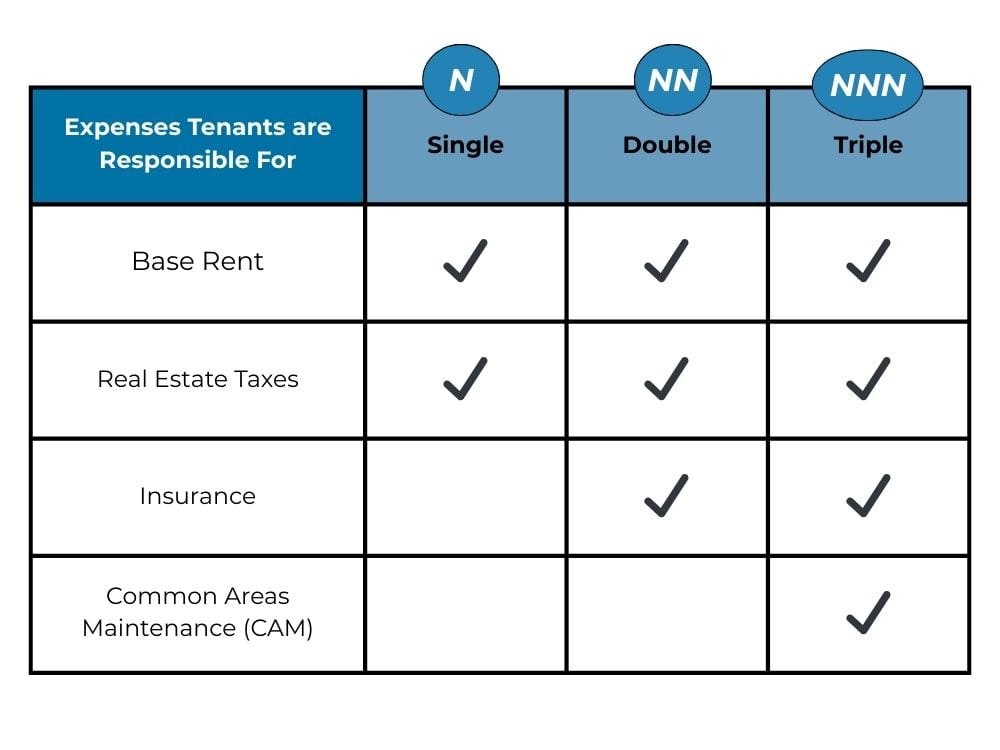
All of the tenants will pay their Base Rent. Then, depending on the lease, they may only pay for one expense, two expenses, or all three of them.
The first N represents Real Estate Taxes, which tenants often must pay, even under a ground lease.
The next N is for Insurance, such as the General Liability Insurance that the landlord pays for the building. Therefore, the lease will state that this is a cost that they share and is a typical expense that the tenant will pay.
The last N is for Common Area Maintenance (CAM). Here, it is important to know what the tenant will and will not pay for as part of their lease. This is a negotiating factor for many tenants and landlords. Most large corporations have specific items that they will and will not pay for, therefore the leases should clearly states this.
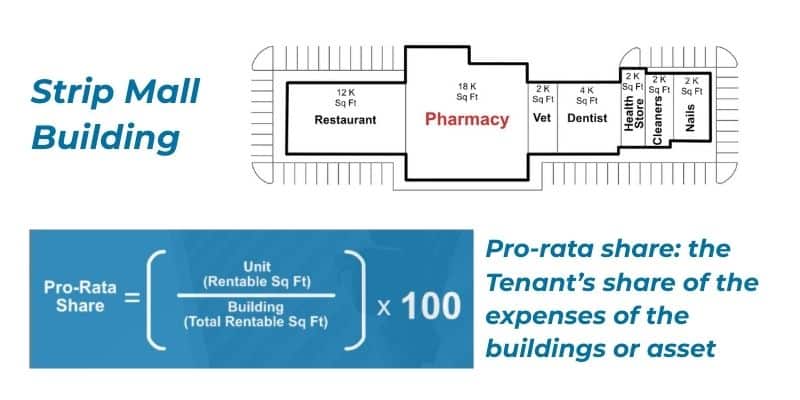
Tenants share CAM charges based on their proportionate or pro-rata share of the property, as defined in their lease.
NOTE: Pro-rata share is the Tenant’s share of the expenses of the buildings or asset
CAM Reconciliations
STRATAFOLIO’s Common Area Maintenance (CAM) Reconciliations Reports are a powerful tool for Commercial Real Estate (CRE) Investors and Managers when dealing with NNN leases. Quick and easy CAM reconciliations mean better tracking of expenses and budget performance. Accurate CAM reconciliations play an essential role in ensuring you do not leave money on the table and that tenants reimburse costs as outlined in the signed leases.
Best Practices When it Comes to Common Area Maintenance and CAM Reconciliations
A best practice for Common Area Maintenance and CAM Reconciliations is to calculate the budgeted amount from the past year’s actual expenses, if available. You can use that amount to calculate the tenant’s monthly amount you will invoice. For example: Building total CAM is $24,000 → Tenant pro-rata: 33.33% → enter $8,000 as the Annual Amount.
This allows several things:
- The tenant pays a set amount monthly, so no large bills at the end or beginning of the year
- Saves time doing pass-thrus for expenses monthly (especially for the bookkeepers who are basically doing monthly reconciliations of these expenses)
- The owner doesn’t have to pay the whole expenses upfront
STRATAFOLIO highly recommends utilizing Reimbursable and Non-Reimbursable GL accounts. This delineates between expenses that you should include in CAM reconciliations or not in the QuickBooks accounts. This leads to more clarity and accuracy in reporting.
The OpEx Tab in STRATAFOLIO
Invoicing vs. Actuals
The OpEx tab has two parts: Invoicing and Actuals. The slider is located on the right-hand upper corner of the OpEx tab in the lease. These two parts of OpEx work together to invoice the correct amount of CAM to collect monthly on the invoices and to complete the reconciliations at the end of the period.
- Read more on the OpEx Tab – Invoice View
- Read more on the OpEx Tab – Actuals View
How to Add Subcategories for CAM
STRATAFOLIO has customizable subcategories for all Operating Expenses. For NNN leases, most of the expenses will be CAM, Insurance, and Property Taxes. Depending on the level of detail needed on the CAM Reconciliation Report, you can break expenses into more specific subcategories such as snow removal, parking lot, elevator, light bulbs, or any other categories required by the budget and leases. Because you share this report with tenants, include only the subcategories for which you want to share specific details.
How to Name Subcategories
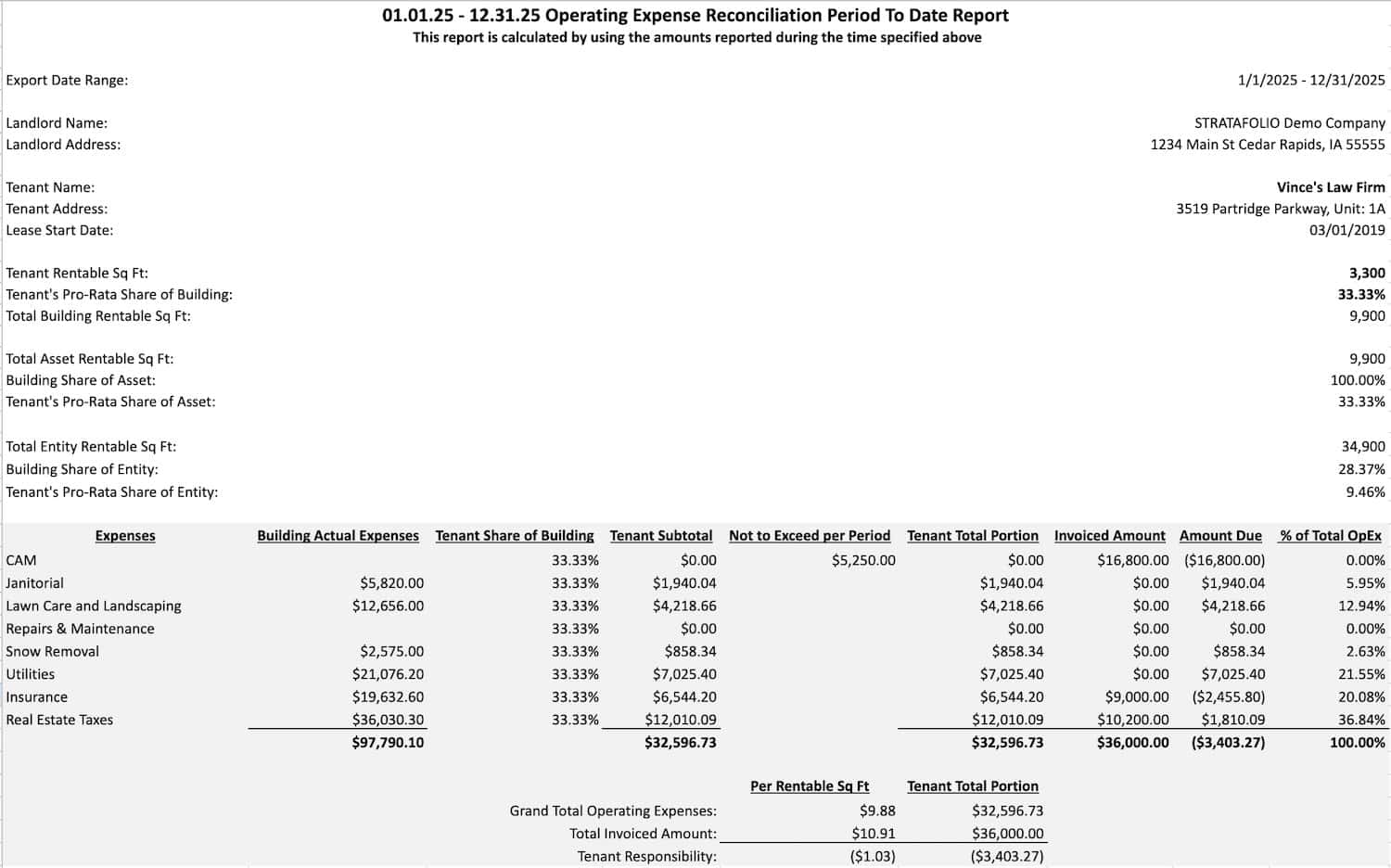
Subcategories are also customizable per lease in STRATAFOLIO. Because leases determine which expenses tenants pay, add only the expenses each tenant has agreed to cover in the lease. It is best practice to include enough detail to help explain the expenses to the tenant at the end of the year. The example below has the standard subcategories added.
- Janitorial
- Lawn Care and Landscaping
- Repairs & Maintenance
- Snow Removal
- Utilities
- Insurance
- Real Estate Taxes
How Do I Add a New Subcategory
Subcategories are already added during the onboarding process. To add a new subcategory, follow the directions below. For each subcategory to add, repeat the same set of steps. You will not be able to add multiple subcategories in one action.
Navigate to the Organization Detail Page through the Hierarchy link on the left-side navigation menu and clicking on the Organization link next. Then open the OpEx tab.
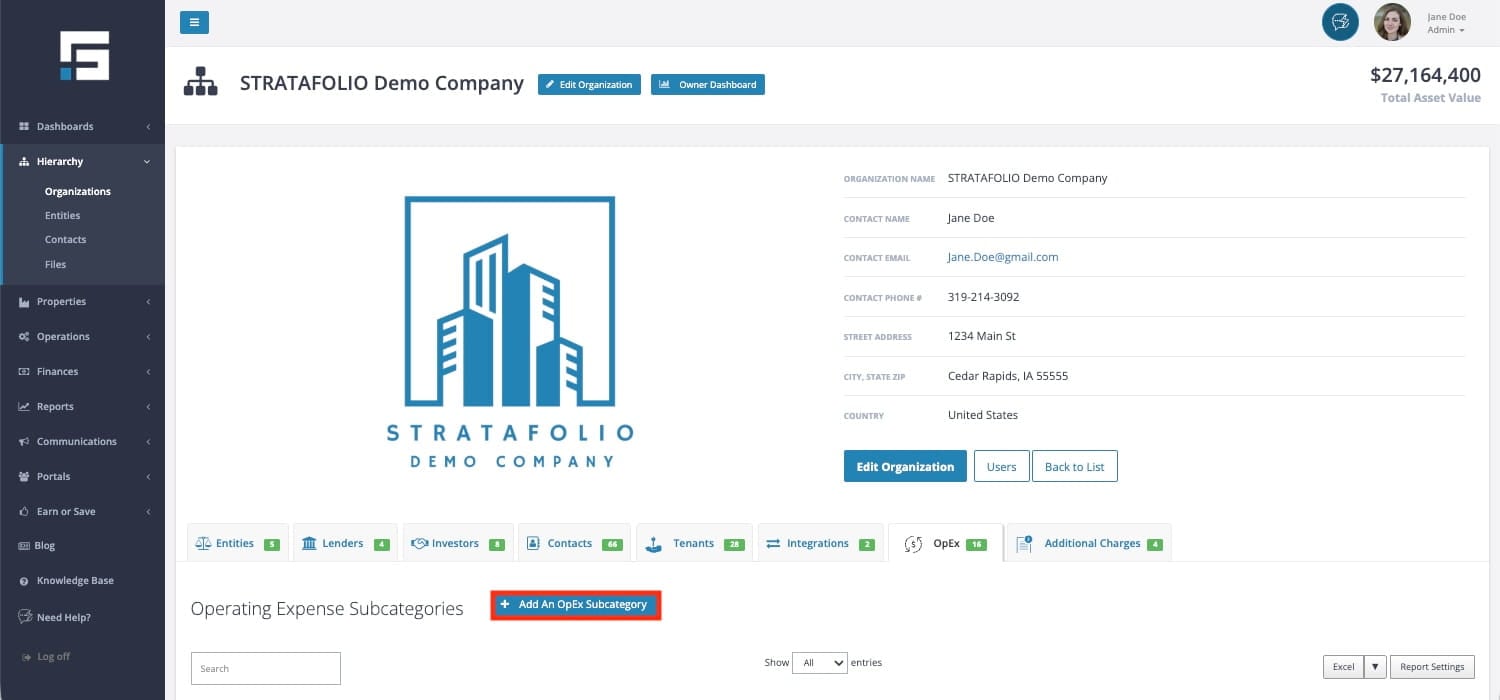
Select Add An OpEx Subcategory to add a new Subcategory.
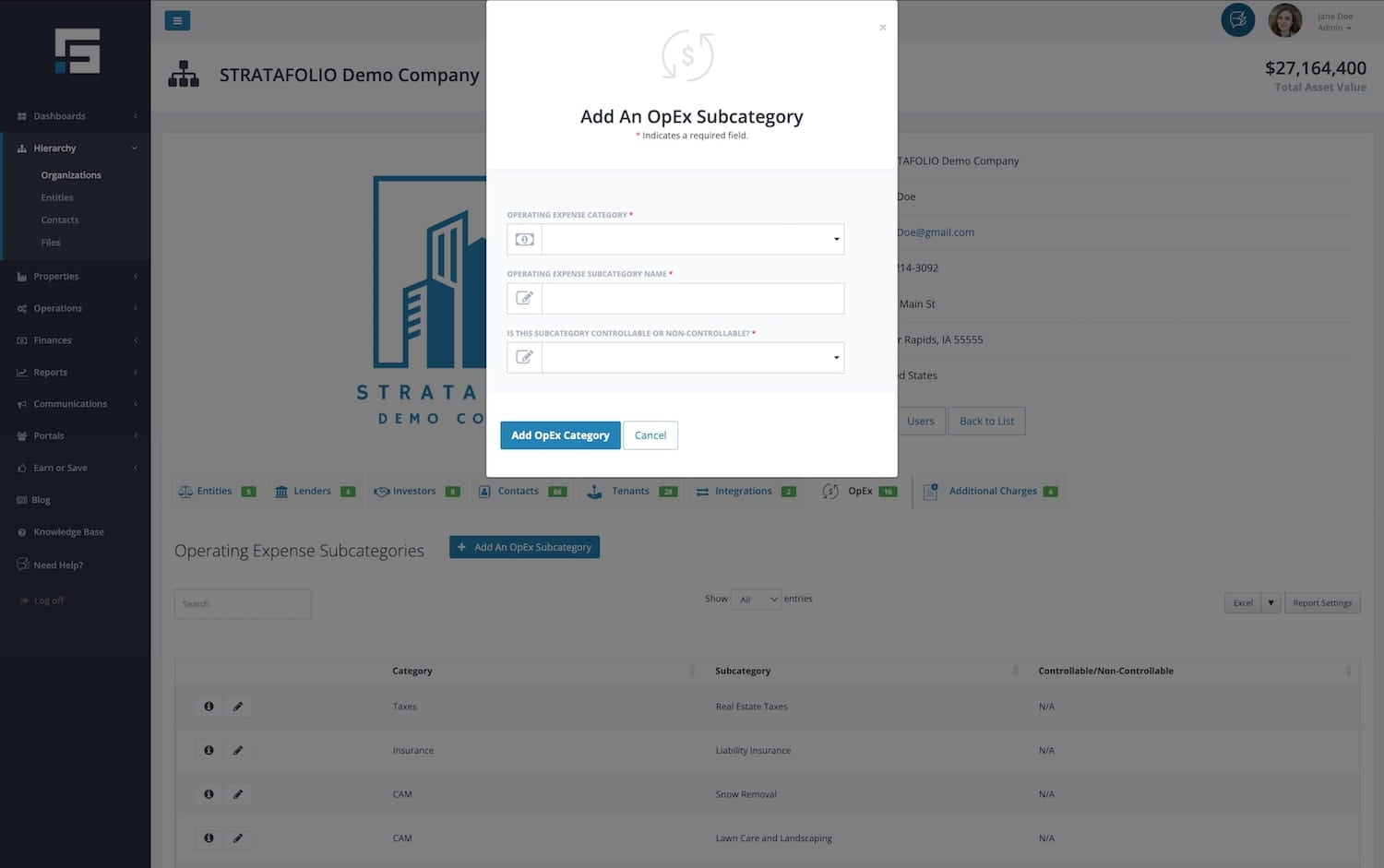
Select the Operating Expense Category to use in the drop-down
- CAM
- Insurance
- Real Estate Taxes
- Other Non-Reconciliable Expenses
- Reconcilable Expense
On the Rent Roll in STRATAFOLIO, the amounts for each of the categories will be displayed. For any of the categories, if there is more that one amount listed, they will be added together and shown as one amount.
Type the Operating Expense Subcategory Name that you would like to use. The Tenants will be shown these names on the CAM Reconciliation Reports. Be sure that the name is entered as it should appear to them.
Is this Subcategory Controllable or Non-Controllable? This is the default setting for the subcategory when adding it to your leases. You can changed or updated this per lease as needed. You can also select N/A and this is the default for this field. During the onboarding process, subcategories are set to N/A unless there are caps provided.
NOTE: Changing the Subcategory to Controllable or Non-Contollable here does not change the leases that have already been added across STRATFOLIO. If any changes need to be done, it will need to be done at the lease level. This means these changes need to be made per lease.
After adding, you will need to add the Subcategories to the lease(s) they apply to and map them to your QuickBooks account. For more information on how to map the QuickBooks account, see our Knowledge Base article How to Map A New QuickBooks Account in STRATAFOLIO.
Operating Expense Caps for CAM or CAM Caps
STRATAFOLIO can enter caps on operating expenses, so your CAM Reconciliation Report will contain those caps either by an amount or by a percentage. For more information on operating expense caps, check out this article on understanding the different types of CAM caps. You can increase the caps by a percentage over the previous year, by a set amount, or by a percentage over a given value.
How Can I Add Operating Expense Caps or CAM Caps
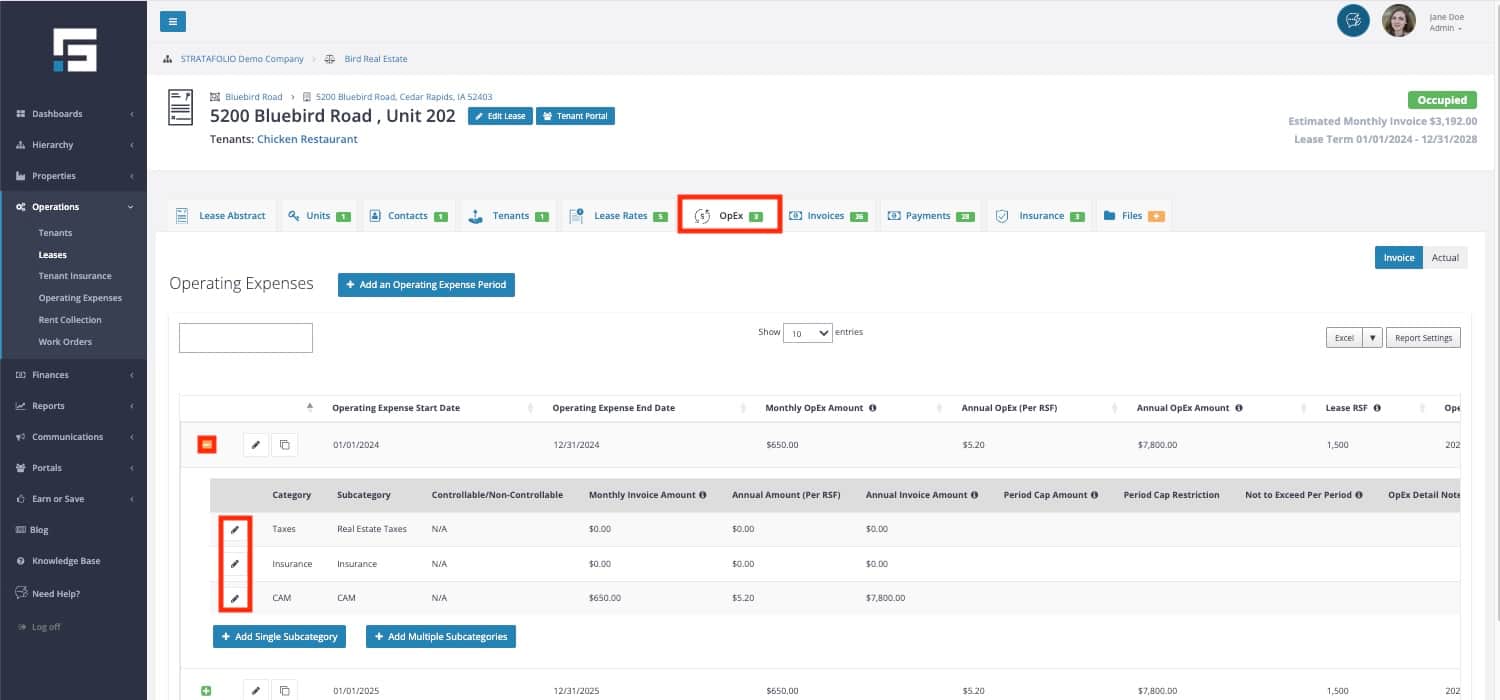
Navigate to the Leases view from the left-side navigation menu under Operations. Select the “i” icon of the lease record to open the Lease Abstract.
From here, select the OpEx tab found at the top of the page. Make sure you are on the Invoice view here. Do this by clicking on the green “+” button to expand the view of the OpEx period you are going to edit and then click the pencil icon beside the category. This will open the Operating Expense form where you can add in the caps.
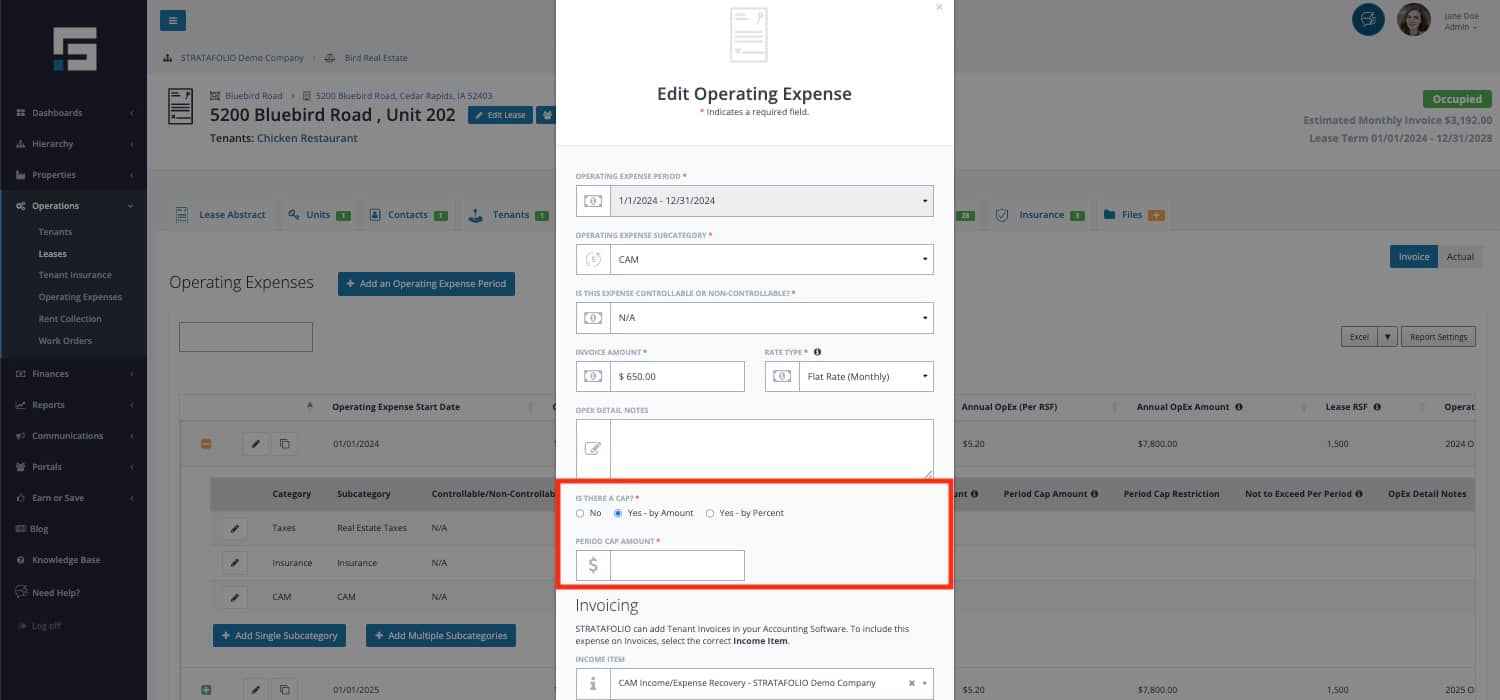
Simply select the button confirming that there is a cap to reveal the fields for making the necessary edits. Create your edits here and select “Save Changes”.
Adding a cap creates an additional column and calculation in STRATAFOLIO’s CAM Reconciliation Report. If the “Building Actual Expenses” column multiplied by the “Tenant Share of Building” (or Pro-Rata Share) exceeds the amount in the “Not to Exceed per Period” column, the “Not to Exceed per Period” amount (or cap) will appear in the “Tenant Total Portion” column.
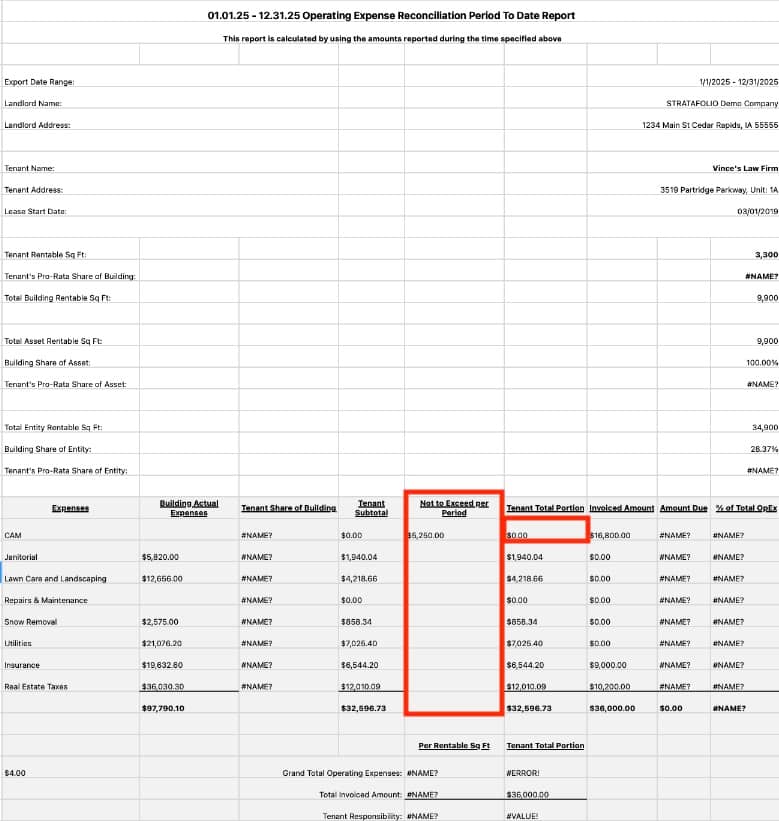
When you use the cloning feature, it carries over caps to the next year to prevent overcharging tenants for operating expenses.
Detailed Common Area Maintenance Expense Guidelines
There are times when the CAM Reconciliation Reports have detailed circumstances either by Tenant or by Entity. Some of these circumstances can include separating out the Controllable from the Non-Controllable expenses, calculating Base Years or Floors, and may also include restricted expenses. This may also include adding additional fees for Administrative or Management Fees.
Controllable/Non-Controllable Expenses
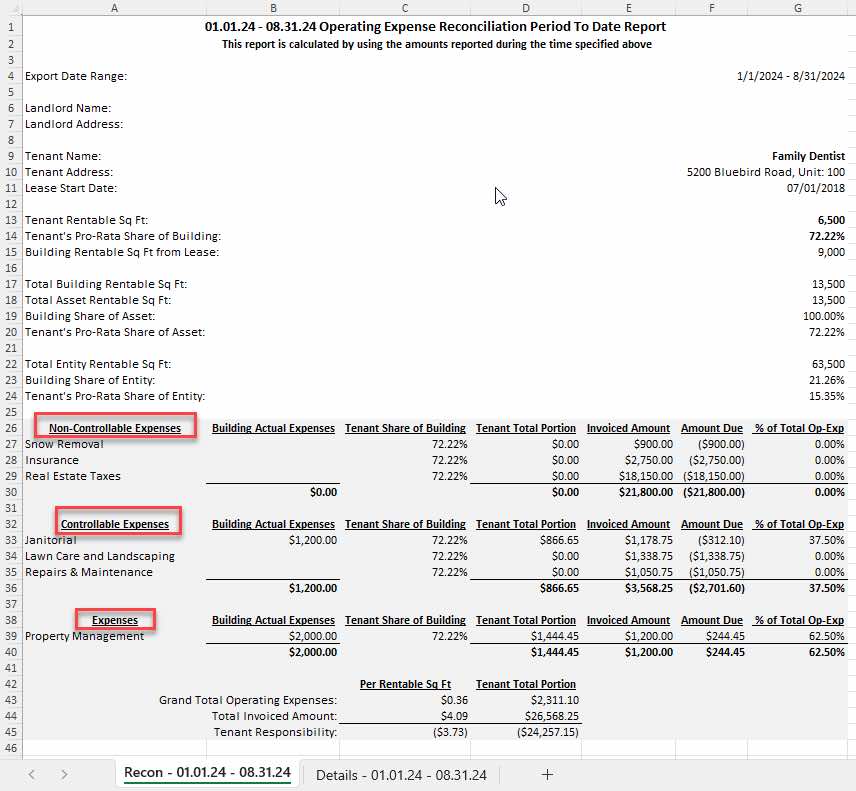
STRATAFOLIO has the ability to break out Subcategories into Controllable, Non-Controllable, and N/A expenses. This helps when a lease has caps on controllable expenses to group those together. As an industry standard, Real Estate Taxes and Insurance are expenses that are typically Non-Controllable. Separating out these expenses on the CAM Reconciliation Report helps with differentiating these to calculate the caps correctly.
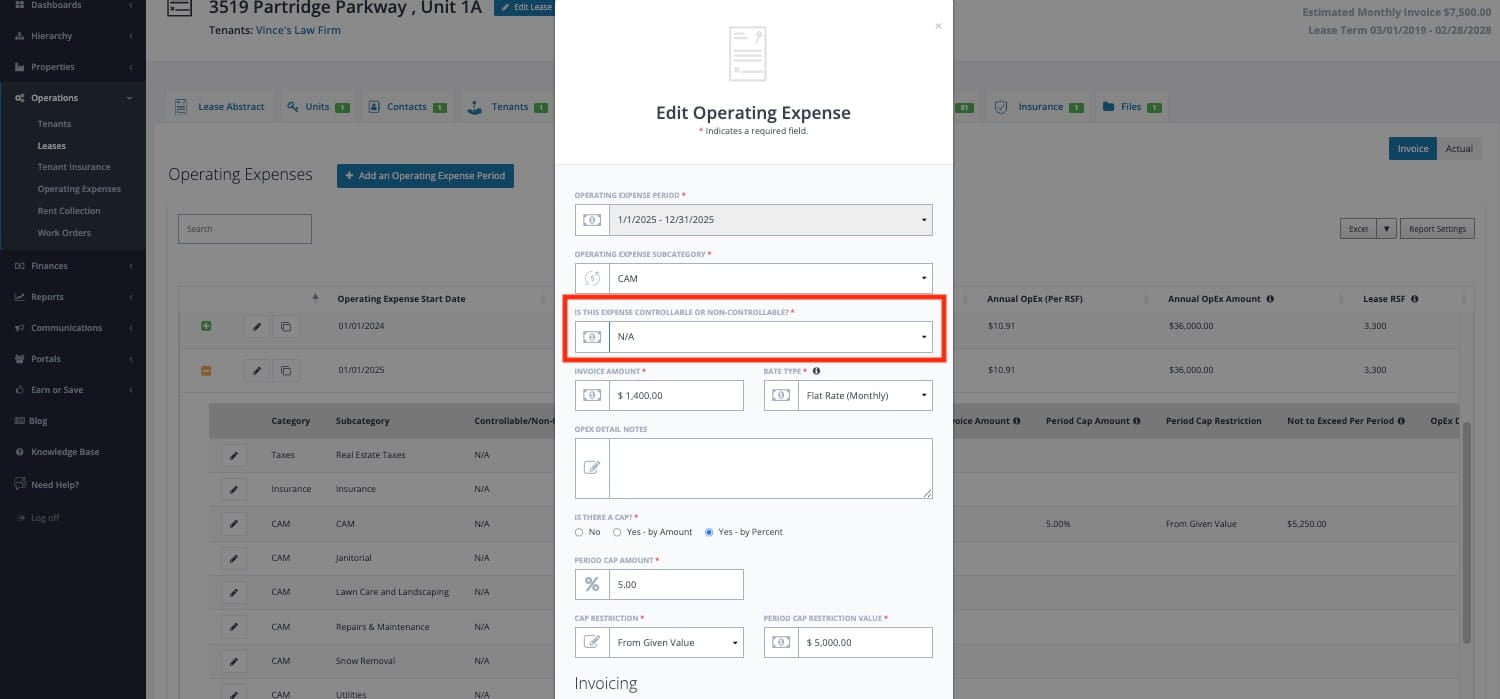
Under the OpEx tab in the Lease Abstract, expand the Operating Expense time period by clicking on the “+” button beside it and click on the Edit pencil next to the Subcategory that needs to be updated. Choose Controllable, Non-Controllable, or N/A in the drop-down for each of the Subcategories that need to be updated.
The groups created on the CAM Reconciliation Report can be seen below:
Base Years/Floors
STRATAFOLIO does not calculate base year automatically on the CAM Reconciliation Report. However, the Onboarding Team does have a way to help with that calculation. Please submit a ticket to request for assistance.
Restricted Expenses
When leases exclude charges still charged to the other tenants in the building, it is simple to set this up in STRATAFOLIO. The Subcategory expense should be removed or not added to the OpEx Invoice tab for this lease. This ensures that the expense for this Subcategory will not be added to that particular CAM Reconciliation Report. Each lease is set up individually so it is important to make sure that you are adding the specific requirements as set forth in the lease.
NOTE: The expense will not be spread over the remaining leases in the building but will come in at each tenant’s pro-rata share of the expense.
Administrative/Management Fees
You can create a Subcategory for Administrative or Management Fees even if you do not have an account in your QuickBooks designated for this. This will create a line on the CAM Reconciliation Report for you to later calculate and add the fees. Sometimes, you can utilize the grouping of Controllable, Non-Controllable, or N/A expenses from the directions above if only specific Subcategories can have the fees added.
Creating a new line in the Excel sheet also works if you would prefer to add it manually.
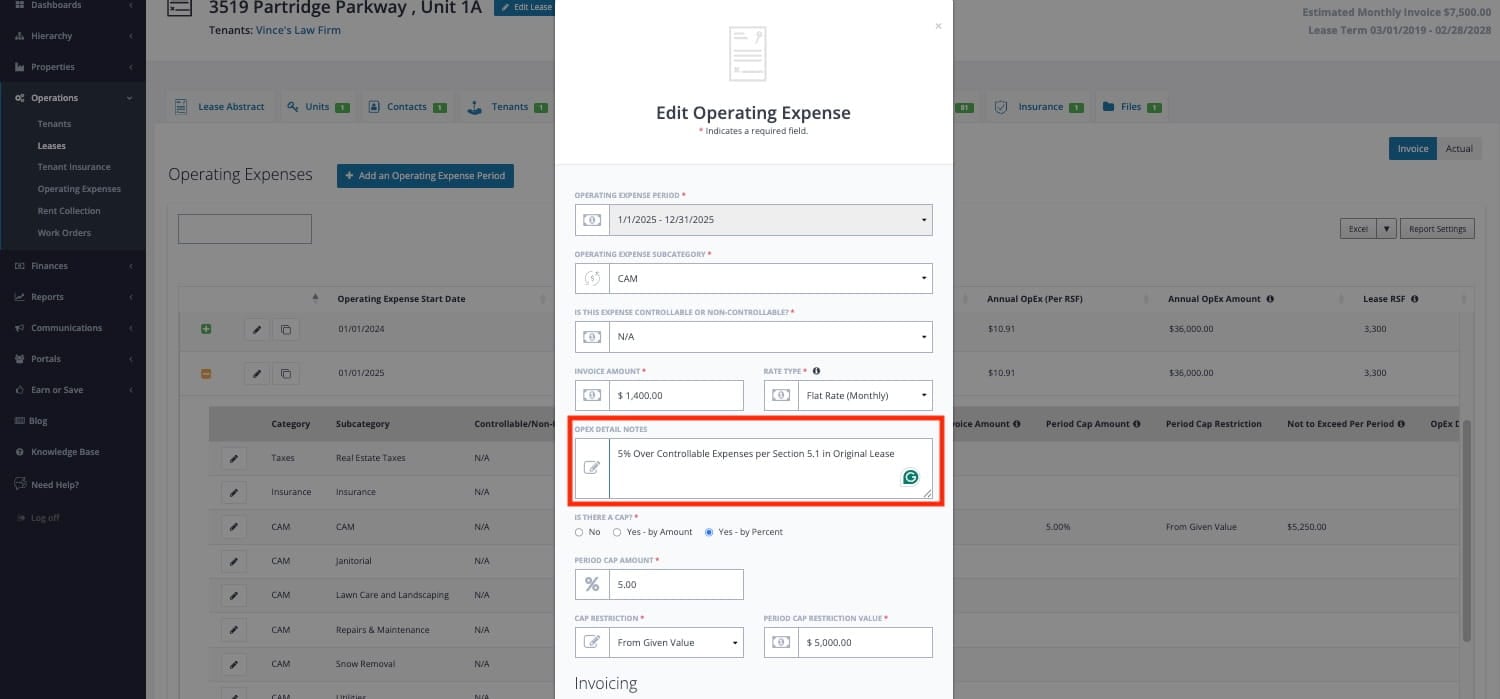
It is highly recommended to add any verbiage or restriction around Administrative/Management Fees from the lease. Use the Note section under the Subcategory selection. This will save time and resources when looking for that information annually when producing the CAM Reconciliation Report.
Mapping CAM or Operating Expense Accounts
To make your CAM Reconciliation Reports accurate, mapping the General Ledger accounts from QuickBooks is critical. This is a significant component of the onboarding process for NNN leases for a reason. Getting the mapping correct for your CAM or Operating Expense accounts is vital to make it all work. Here is the magic behind STRATAFOLIO’s CAM Reconciliation Reports.
How to Navigate to the General Ledger Accounts/Chart of Accounts (COA)
STRATAFOLIO links each CAM subcategory to a General Ledger (GL) account in the QuickBooks account. STRATAFOLIO highly recommends utilizing Reimbursable and Non-Reimbursable GL accounts. This separation clearly defines which expenses you should include in CAM reconciliations and which you should exclude. This leads to less confusion and inaccuracies in the posting and reporting.
All subcategories must have a GL account from which they get the expense transaction information. When you link a GL account to a CAM subcategory, STRATAFOLIO pulls in all transactions from that account on a cash basis, so you must post only reimbursable expenses to that account.
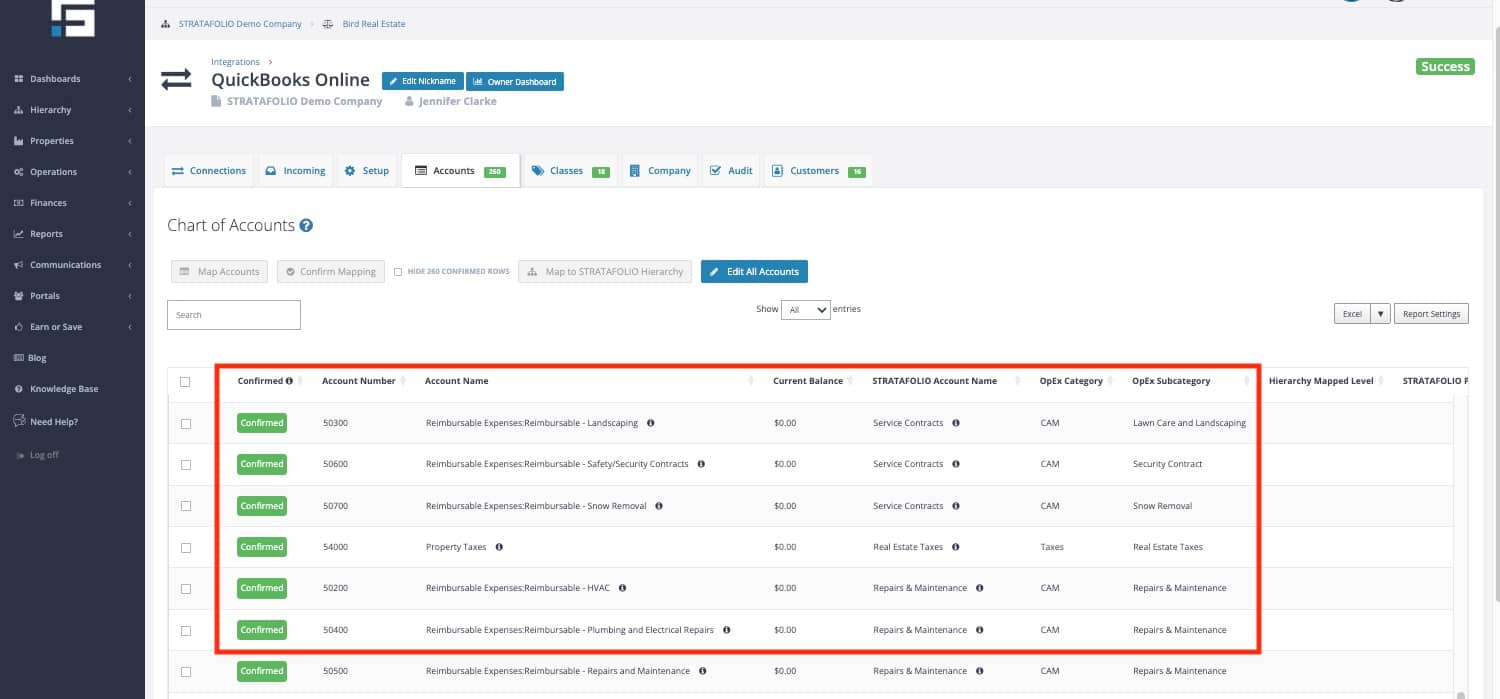
You can add multiple QuickBooks GL accounts to the same subcategory in STRATAFOLIO. In the example above, the Repairs & Maintenance subcategory has multiple GL accounts linked to it. Parking Lot Repairs, HVAC Repairs, and Plumbing Repairs are just a few of them. This allows the QuickBooks account to keep more detailed records for each of the GL accounts and only shows it as Repairs & Maintenance to the tenant on the CAM Reconciliation Report.
How to Map a New Account in STRATAFOLIO Created in QuickBooks will help with the steps for mapping.
Using Classes to Help with CAM Mapping
Using the Classes feature allows a QuickBooks user to delineate expenses to a specific area of an entity. For commercial real estate, we suggest using Classes when additional assets have the same ownership. This allows for multiple assets in one QuickBooks account while keeping the Income and Expenses separate.
In STRATAFOLIO, you can link a Class to an Entity, Asset, Building, or Unit. When you create a CAM Reconciliation and post an expense to a Reimbursable GL account that is classed to a specific Asset, STRATAFOLIO posts the expense correctly. The CAM Reconciliation Report allocates expenses based on each Unit’s pro-rata share of the Building’s rentable square footage (RSF).
STRATAFOLIO can also cover those particular unit expenses at 100% pro-rata when using classes in QuickBooks. Specifically, you link the class directly to a unit in STRATAFOLIO. As a result, this setup allocates all expenses posted in QuickBooks to a single tenant. This feature is especially useful when an expense applies only to one Unit or Tenant and not to the rest of the building or other tenants.
For more assistance on how to Mapping Classes in STRATAFOLIO. We also have a guide for How to Use Classes in QuickBooks for Commercial Real Estate that includes flow charts that may help.
NOTE: If you leave a class unmapped in STRATAFOLIO, the integration allocates expenses posted to a Reimbursable account with that class across all units. Map all classes that are not attached to an asset to Ignored. You can leave Admin classes unmapped because they should only contain G&A expenses.
Per Unit Expenses with Classes and Subaccounts
As mentioned above, STRATAFOLIO can also apply 100% of a reimbursable expense to a tenant’s CAM Reconciliation report.
If you use classes, map the account directly to the unit to which it applies. See Mapping Classes in STRATAFOLIO.
If you use accounts or subaccounts for this process, follow the subaccount mapping directions in our Knowledge Base article, How to Map a New Account in STRATAFOLIO That Was Created in QuickBooks.
Cash Basis for CAM Reconciliations
STRATAFOLIO displays all dollar amounts on a Cash Basis of Accounting. This means STRATAFOLIO shows reconciliation amounts in the month you posted them as paid. This may be different from what you are using for your tax reporting. Therefore, if you are comparing the CAM Reconciliation Report or Owner’s Dashboard to the amounts in QuickBooks, make sure to select the Cash Basis before running any of the reports out of QuickBooks.

