
A Certificate of Insurance, or COI, is a document your insurance company provides. It proves that you have the insurance coverage your lease requires. Your landlord needs a current COI for the entire lease term.
In STRATAFOLIO, you can upload your COI yourself from the Tenant Portal. You do not need to email it to your landlord or property manager. Once you upload it, your landlord can see it right away. STRATAFOLIO also checks it against the insurance requirements on your lease.
This article shows you how to find the Insurance tab, upload your COI, read your COI status, manage your insurance reminder emails, and fix common problems.
Why Your COI Matters
- It protects you and your landlord if something goes wrong, such as property damage or an injury.
- It helps you stay in good standing with your lease.
- It stops reminder emails and follow-up requests from your landlord.
Before You Begin Uploading or Updating Your COI
Make sure these things are in place before you try to upload your COI.
- You have access to the Tenant Portal. Your landlord or property manager gives you this access. If you do not have a login, contact your landlord.
- Your landlord has added at least one insurance requirement to your lease. You can’t upload a COI to a lease with no insurance requirements. Only your landlord can add these requirements. If you cannot add a COI, this is the most likely reason.
- You have a digital copy of your COI. Ask your insurance agent or provider for a copy you can save to your computer.
- Your COI shows the coverage your lease requires. Check your lease for the types of insurance and the minimum coverage amounts you need. Some leases also require you to list your landlord as an Additional Insured on your policy.
Where to Manage Your COIs
You manage your COI from the Insurance tab of your lease in the Tenant Portal.
Navigation path: Tenant Portal → your lease → View Details (or the i icon) → Insurance tab
If you have more than one lease, each lease has its own Insurance tab. Make sure you open the lease that matches the space your COI covers.
How to Upload or Update Your COI
Follow these steps any time your insurance provider sends you a new or renewed COI.
- Log in to your STRATAFOLIO Tenant Portal.
- Select the Insurance tab.
- Review the COI currently on file and check its expiration date.
- Select the Add a COI button.
NOTE: This will not be clickable if your landlord has not added an insurance requirement. - Drag and drop your COI file into the upload window, or select the file from your computer.
- Select Upload to send the file.
- Review the details STRATAFOLIO pulls from your COI. For every lease that you have, fill in any blank required fields marked with a red asterisk.
- Select Save.
- Confirm that your COI appears on the Insurance tab with the correct expiration date.
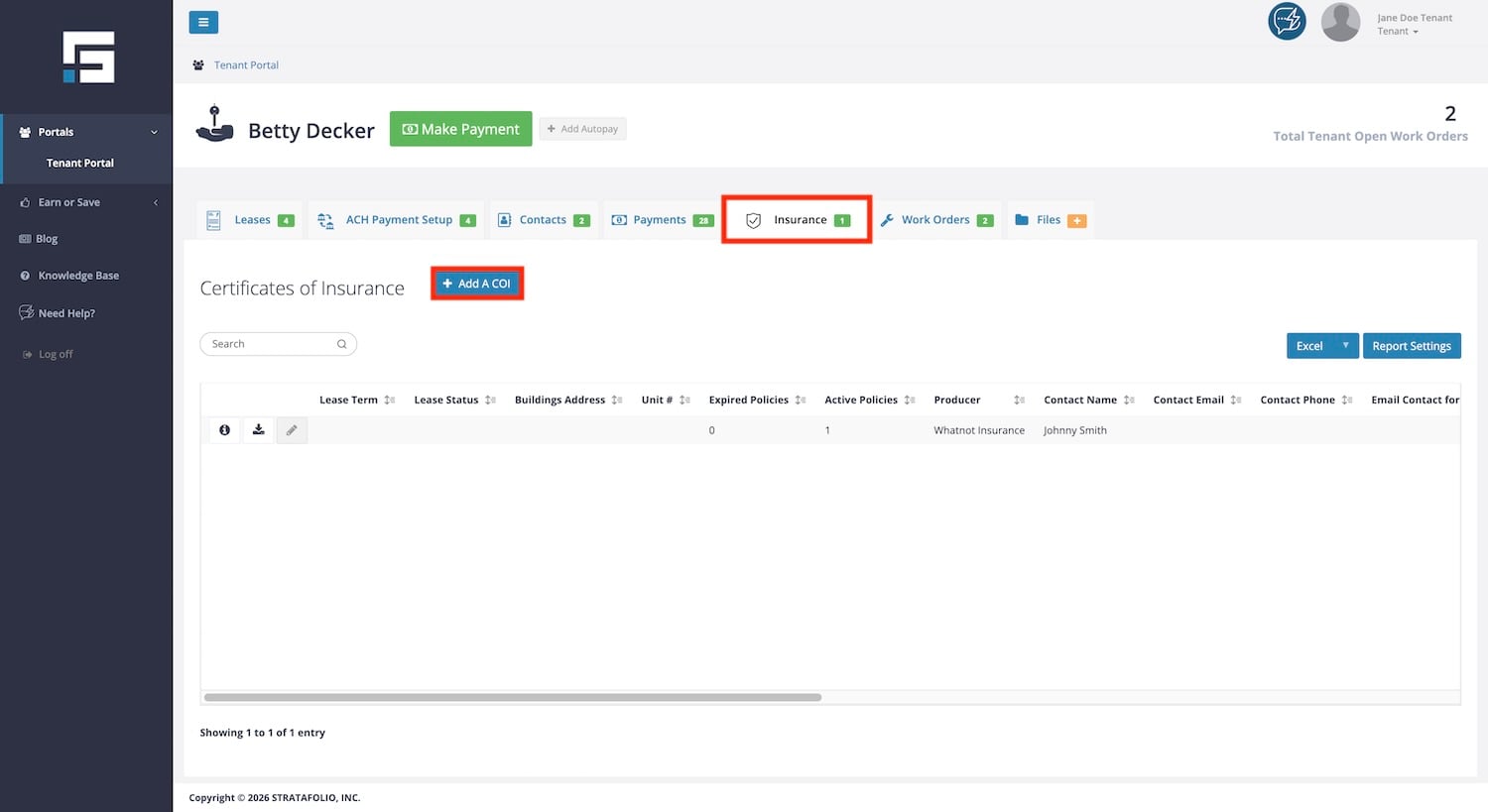
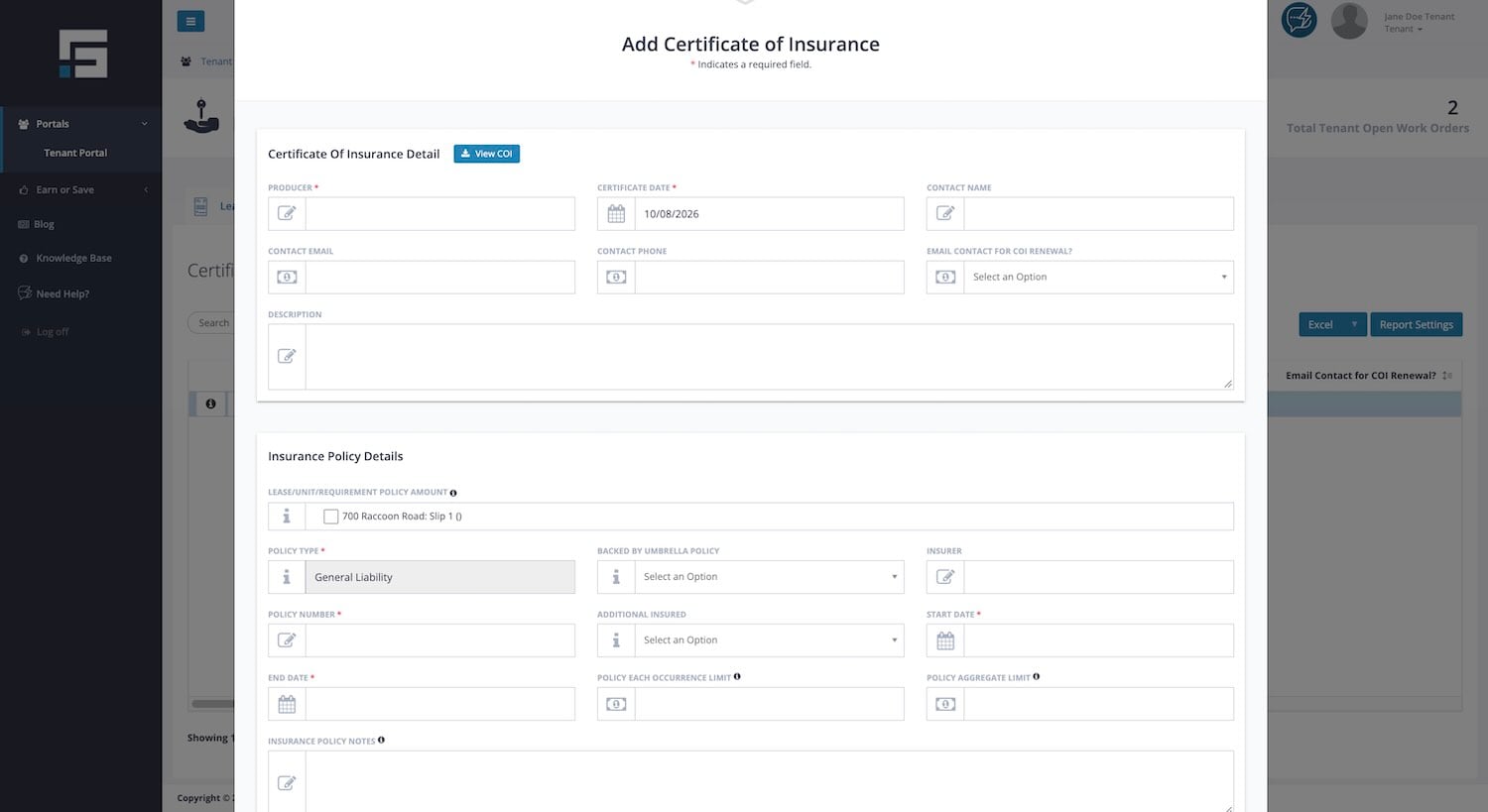
You can upload your COI at any time. The best time is as soon as you receive your renewed policy. This keeps your record current and prevents a gap in coverage.
How to Update Your COI Before It Expires
Insurance policies usually renew once a year. When your policy renews, your insurance provider will send you an updated COI. To update your record, simply follow the upload steps above with your updated COI. You do not need to delete the old COI first. Your landlord keeps a history of your COIs on file.
How to View Your Uploaded COIs
- Log in to your Tenant Portal.
- Select the i icon beside your lease to open its detail view.
- Select the Files tab.
- Open your COI to check the effective date, expiration date, and coverage details.
Troubleshooting COIs as a Tenant
I do not see the Add a COI button, or I cannot add a COI.
Your lease most likely has no insurance requirements yet. Only your landlord can add these requirements. Contact your landlord or property manager and ask them to add the insurance requirements to your lease.
I cannot log in to the Tenant Portal.
Your landlord controls access to the Tenant Portal. Contact your landlord or property manager to request access or a new invitation.
I uploaded my COI, but some fields are blank.
STRATAFOLIO could not read part of your document. Try uploading the file again, or type the missing details yourself in the next window that pops up after uploading the file. Fields marked with a red asterisk must be completed before you can save.
I uploaded my COI, but my landlord says it still does not meet the requirements.
Your COI may be missing a required policy type, or your coverage may be lower than the minimum amounts on your lease. Review your lease requirements and your COI side by side. If something is missing, ask your insurance provider for an updated COI.
I uploaded my COI, but I am still getting reminder emails.
Make sure you uploaded the COI to the correct lease and that the expiration date on your COI is correct. If you have more than one lease, check each one. If the reminders continue, contact your landlord.
I want to stop getting insurance reminder emails.
If you have Tenant Portal access, go to your Profile, open Alert Settings, and turn insurance alerts Off under Insurances. Keep in mind that you’ll need to track your renewal dates on your own.
I cannot find my COI after uploading it.
Give the platform some time to show your updates. If it still does not show, retry uploading the COI again.
If you need quick help, try the AI Assistant inside STRATAFOLIO. Select the chat button in the upper right corner of the screen.