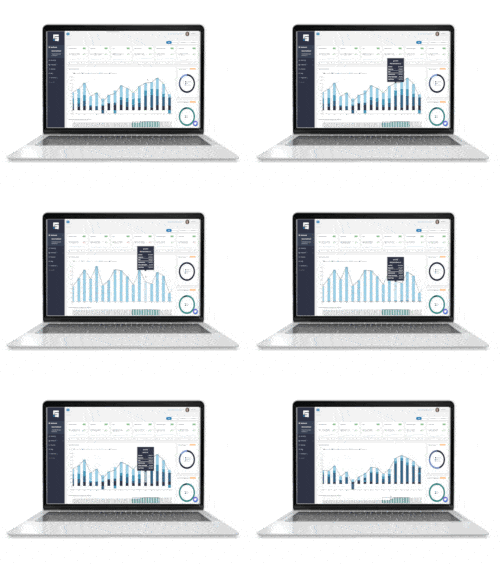
Operating expenses, or OpEx, are the shared costs of running a property, such as CAM, insurance, and real estate taxes. In a NNN lease, the tenant pays their share of these costs every month as part of their invoice. Keeping those amounts current for every lease is one of the most important parts of accurate billing and year-end CAM reconciliation.
The Operating Expenses index page shows the OpEx period for every lease in one table. From this page, you can see what each tenant is billed for OpEx, find leases that are missing their next OpEx period, clone periods for a new year, confirm new periods, and export everything for budgeting or review.
This article explains where to find the Operating Expenses index page, how to filter it, what each column means, and how to use the page to keep OpEx billing on track.
Before You Begin
The Operating Expenses index page shows OpEx periods that already exist on your leases. To get the most out of this page, make sure you have:
- Added your leases: Each lease needs a tenant, a unit, and lease dates. Learn how in Add a Lease and Assign a Unit.
- Added OpEx periods and subcategories to your NNN leases: Each period lists the expenses the tenant agreed to pay and the amounts that go on their invoice. Learn how in View Operating Expense (OpEx) Invoices.
- Connected your leases to your accounting integration: Missing Operating Expense Period alerts only apply to leases linked to your accounting integration.
NOTE: A lease with no OpEx period for the date you are viewing still appears in the table, but its OpEx dates and amounts are blank. This makes the page a helpful way to find NNN leases that still need OpEx setup.
Where to Find This Feature
From the left-side navigation menu, go to Operations, then select Operating Expenses. The page opens with your leases and the OpEx period that includes today’s date. Some columns may sit past the edge of your screen, so scroll to the right to see the OpEx dates and amounts.
How to Use This Feature
Filtering the View
At the top of the page, you will find filters that narrow the table to the leases you want to see:
- Organization: Show leases for one organization at a time.
- Entity: Focus on the leases held by one or more Entities.
- Asset: Limit the table to one or more Assets.
- Tenant: Jump straight to one tenant.
- Units: Narrow the table to specific units.
You can combine filters. For example, you can select one Entity and one Asset to review OpEx for just that property.
Using the OpEx Date Filter
The OpEx Date filter controls which OpEx period appears for each lease. It starts on today’s date, so the table shows the period that is active today.
If you want to see a different period, change the OpEx Date to any date inside that period. For example, to review last year’s amounts, pick a date from last year. To check whether next year’s periods have been added, pick a date in next year.
Using the OpEx Status Filter
The OpEx Status dropdown at the top right of the page helps you find leases that need attention. Choose Missing Next OpEx Period to show only the leases whose current OpEx period has no next period after it. These are the leases that will have no OpEx on their invoices once the current period ends.
TIP: Missing Operating Expense Period alert emails include a link that opens this page with the Missing Next OpEx Period filter already applied. You do not need to set the filter yourself.
Sorting the Table
Click the arrows next to any column header to sort the table by that column. Click once to sort in ascending order and again to sort in descending order. Sorting by OpEx End Date is the quickest way to see which periods end first.
Opening a Lease’s OpEx Tab
To review or edit the OpEx details for one lease, select the ellipsis (⋯) on the far left of that lease’s row, then select View OpEx. This opens the OpEx tab for that lease, where you can add a period, update subcategories, or change invoice amounts.
Cloning OpEx Periods for a New Year
Cloning copies a lease’s current OpEx period and its subcategories into a new period of the same length. It is the fastest way to set up the next year for many leases at once.
- Use the OpEx Status filter or the other filters to find the leases you want to clone.
- Check that the OpEx Date filter falls inside the period you want to copy.
- Select the checkbox next to each lease you want to clone.
- Select Clone Selected OpEx.
- If STRATAFOLIO finds any problems, a window lists the errors and the Clone button stays unavailable. Select Download Errors to get an Excel file that explains each error, or select Need Help? (top right of the screen) to have the AI Assistant explain the errors and how to fix them. Fix the issues, then try again.
- When there are no errors, you can enter a percentage or dollar increase for CAM, Insurance, Taxes, or Other Expenses. Leave the fields blank to keep the same amounts as the current period.
- Select Clone.
For full details, see How to Clone CAM Periods in STRATAFOLIO.
Confirming OpEx Periods
After you clone or add a period, review it in the lease’s OpEx tab to make sure the dates, subcategories, and amounts are correct. Then return to the Operating Expenses index page, select the checkbox next to the lease, and select Confirm Lease OpEx to finalize the period.
Exporting the Table
Use the export option above the table to download the leases in your current view. Your export matches the filters you applied, including the OpEx Date, so set your filters first. The export is useful for annual budgeting, owner reviews, and planning your CAM reconciliation.
Customizing the Report
Click Report Settings to choose which columns appear in the table. Save your layout so it is ready the next time you open the page.
More Information on the Operating Expenses Index Page
Understanding the Columns in the Operating Expenses Index Page
The Operating Expenses index page brings together lease details and OpEx amounts in one table. The table below explains each column in the view and in the export.
| Column | What It Shows | Why It Helps |
|---|---|---|
| Confirmed | Whether the OpEx period has been confirmed with the Confirm Lease OpEx button. | Helps you spot periods that still need a final review before invoicing. |
| Entity Legal Name | The legal name of the Entity that owns the lease. | Lets you group and review OpEx by ownership. |
| Buildings Address | The address of the building where the leased space is located. | Helps you find every lease in one building. |
| Unit # | The unit tied to the lease. | Helps you tell leases apart when a tenant has more than one space. |
| Tenants | The tenant on the lease. | Shows who is billed for the operating expenses. |
| Use ACH | Whether the tenant pays through ACH in STRATAFOLIO (Yes or No). | Helps you see which tenants pay electronically when OpEx amounts change. |
| Lease Type | The lease structure, such as NNN or Gross. | NNN leases usually bill OpEx. Gross leases usually do not. |
| Lease Status | The current status of the lease, such as Occupied, Month-to-Month, or Year-to-Year. | Helps you confirm the lease is still active before you bill OpEx. |
| Lease Start Date | The date the lease term begins. | Shows when the tenant’s obligations started. |
| Lease End Date | The date the lease term ends. | Compare it with the OpEx End Date to see whether a new period will be needed. |
| OpEx Start Date | The first day of the OpEx period shown in the table. | Tells you which period you are looking at. |
| OpEx End Date | The last day of the OpEx period shown in the table. | Sort by this column to find periods that are about to end. |
| Monthly OpEx Amount | The OpEx amount billed to the tenant each month for this period. | Shows what appears on the tenant’s monthly invoice. |
| Annual OpEx (Per RSF) | The yearly OpEx amount divided by the unit’s rentable square feet. | Lets you compare OpEx costs fairly across spaces of different sizes. |
| Annual OpEx Amount | The total OpEx billed to the tenant over a full year (the monthly amount times 12). | Gives you the yearly total for budgets and CAM reconciliation planning. |
How the OpEx Amounts Work Together
The three amount columns describe the same OpEx period in different ways:
- Monthly OpEx Amount is what the tenant sees on each monthly invoice.
- Annual OpEx Amount is the monthly amount for a full year. For example, a tenant billed $650.00 per month has an Annual OpEx Amount of $7,800.00.
- Annual OpEx (Per RSF) divides the annual amount by the unit’s rentable square feet. In the example above, $5.20 per RSF means the unit is about 1,500 square feet.
The Per RSF number is the best way to compare OpEx across your portfolio. A large store and a small office will have very different monthly amounts, but their cost per square foot shows whether one space is billed much more or less than the others.
These amounts are the budgeted amounts on the tenant’s invoice, not the building’s actual expenses. To compare budgeted amounts with what you really spent, see View Actual Operating Expenses (OpEx).
Why Some Rows Have No OpEx Dates or Amounts
A row with blank OpEx columns means the lease has no OpEx period that includes the OpEx Date you selected. This is normal for Gross leases, where the tenant usually does not pay a separate share of operating expenses. If you see a blank row for a NNN lease, the lease likely needs an OpEx period. Open it with View OpEx and add the missing period.
Missing Operating Expense Period Alerts
STRATAFOLIO emails you when a lease’s current OpEx period is about to end and no next period exists. Alerts arrive 60 days, 30 days, 15 days, and 1 day before the period ends, and again 7 days after it ends if the next period is still missing. Once you add and confirm the new period, the alerts stop. Learn more in A Guide to STRATAFOLIO Alerts and Notifications.
Suggested Reports
Every column on the Operating Expenses index page can be shaped into a report. Set your filters, use Report Settings to choose your columns, then export. These views are a strong starting point.
Missing Next OpEx Period List
Set the OpEx Status filter to Missing Next OpEx Period and show Tenants, Unit #, OpEx End Date, and Lease End Date. Sort by OpEx End Date. This is your to-do list for cloning or adding the next period before invoices go out without OpEx.
Annual OpEx Budget by Entity
Set the OpEx Date to a date in the year you are budgeting and show Entity Legal Name, Tenants, Monthly OpEx Amount, and Annual OpEx Amount. After you export, build a PivotTable to total the Annual OpEx Amount for each Entity. Use it for owner budgets and cash flow planning.
OpEx Per RSF Comparison
Show Buildings Address, Unit #, Tenants, and Annual OpEx (Per RSF), then sort by Annual OpEx (Per RSF). Tenants in the same building usually pay a similar amount per square foot. A number that stands out may point to a typo or a missing subcategory.
Year-over-Year OpEx Comparison
Export the table twice, once with the OpEx Date in last year’s period and once with it in this year’s period. Compare the Monthly OpEx Amount for each tenant to see how much each one changed. This is helpful when you send increase notices to tenants.
NNN Leases Without OpEx
Show Lease Type, Lease Status, Tenants, OpEx Start Date, and Monthly OpEx Amount. After you export, filter Lease Type to NNN and look for blank OpEx dates. These leases need an OpEx period added before their next invoice.
OpEx Ending Before the Lease
Show Tenants, OpEx End Date, and Lease End Date. Look for leases where the OpEx End Date is much earlier than the Lease End Date. Invoices after the OpEx End Date will have no OpEx until you add the next period.
Unconfirmed OpEx Periods
Show Confirmed, Tenants, OpEx Start Date, and OpEx End Date. Review any period that has not been confirmed, check it in the lease’s OpEx tab with View OpEx, then confirm it with Confirm Lease OpEx.
Tenant Increase Notice List
After you clone a new period with increases, set the OpEx Date to the new period and show Tenants, Use ACH, Monthly OpEx Amount, and OpEx Start Date. Use this list to tell each tenant their new monthly amount before the first invoice. This matters most for tenants who pay through ACH.
TIP: Save any view you plan to use again so you do not rebuild it each time. See How to Customize and Save a Report View for the steps, and the Reports Companion guide for the full reporting picture.
Examples, Best Practices, and Tips When Using the Operating Expenses Index Page
Example 1: Prepare next year’s OpEx in bulk. In the fall, set the OpEx Status filter to Missing Next OpEx Period and sort by OpEx End Date. Select every lease whose period ends December 31, select Clone Selected OpEx, and enter any known increases. Review each new period with View OpEx, then confirm it with Confirm Lease OpEx.
Example 2: Find NNN leases with no OpEx set up. Export the table and filter the Lease Type column for NNN in Excel. Any NNN lease with blank OpEx dates needs a period added before its next invoice.
Example 3: Check a lease that ends soon. If a lease’s Lease End Date matches its OpEx End Date, renew or extend the lease before you clone. An OpEx period cannot run past the end of the lease term.
Clone after your CAM reconciliation is complete and before you generate the first invoice of the new period.
Keep each OpEx period at 12 months, usually January 1 to December 31. Cloning copies the length of the current period, so a period that is too short or too long carries that error into next year.
Compare the OpEx End Date with the Lease End Date. If the OpEx period ends soon but the lease runs for years, invoices after that date will have no OpEx until you add the next period.
Review the Per RSF column during budgeting. A number that is much higher or lower than similar spaces may point to a typo or a missing subcategory.
Tell tenants about any OpEx increases before the new period begins.
Troubleshooting the Operating Expenses Index Page
A lease I expect to see is not in the table.
Check your Organization, Entity, Asset, Tenant, Units, and OpEx Status filters. Clear any filters you do not need and look again.
A lease shows blank OpEx dates and amounts.
The lease has no OpEx period that includes the selected OpEx Date. Change the OpEx Date to a date inside the period you expect. If nothing appears, open the lease with View OpEx and add a period.
The Clone button is not available.
STRATAFOLIO found a problem with one or more selected leases. Select Download Errors to see what needs fixing, or select Need Help? for assistance. Correct the issue in the lease or its OpEx tab, then try again.
I cloned a period, but the amounts did not change.
Cloning copies the current amounts unless you enter a percentage or dollar increase. Open the lease with View OpEx and update the amounts for the new period.
I still receive Missing Operating Expense Period alerts.
Make sure the next period was added and confirmed. Open the lease with View OpEx to check that the new period’s dates follow right after the current period.