
Learn how to connect STRATAFOLIO’s two-way integration with QuickBooks Online in a few simple steps. Manage your commercial real estate and finances with ease.
Follow The Steps Below to Automate
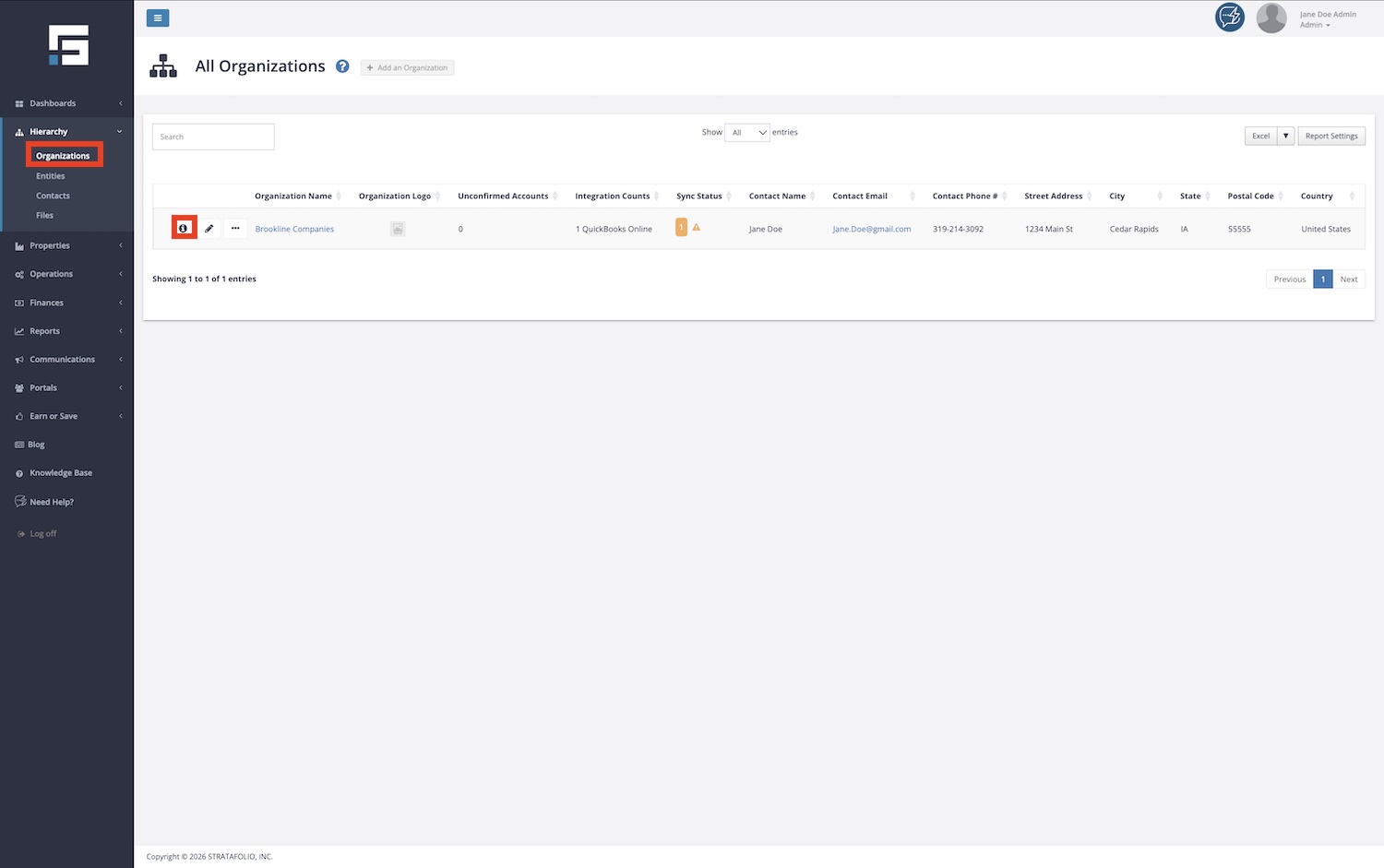
Go to your Organization’s detail view. Do this by expanding the Hierarchy menu in the left-side navigation, clicking the Organizations link, and clicking the Organization record.
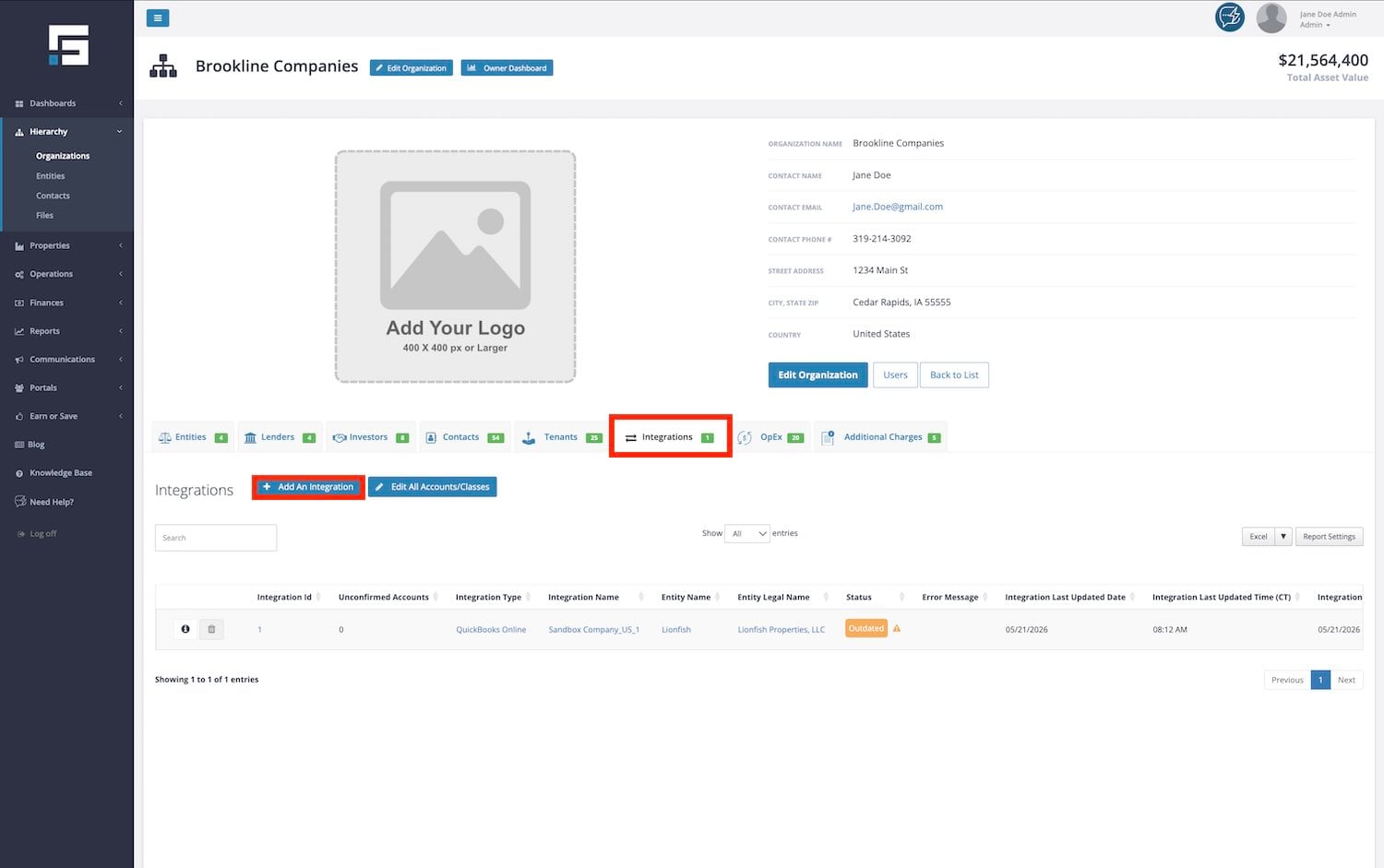
Then, click on the Integrations tab and click on the Add An Integration button.
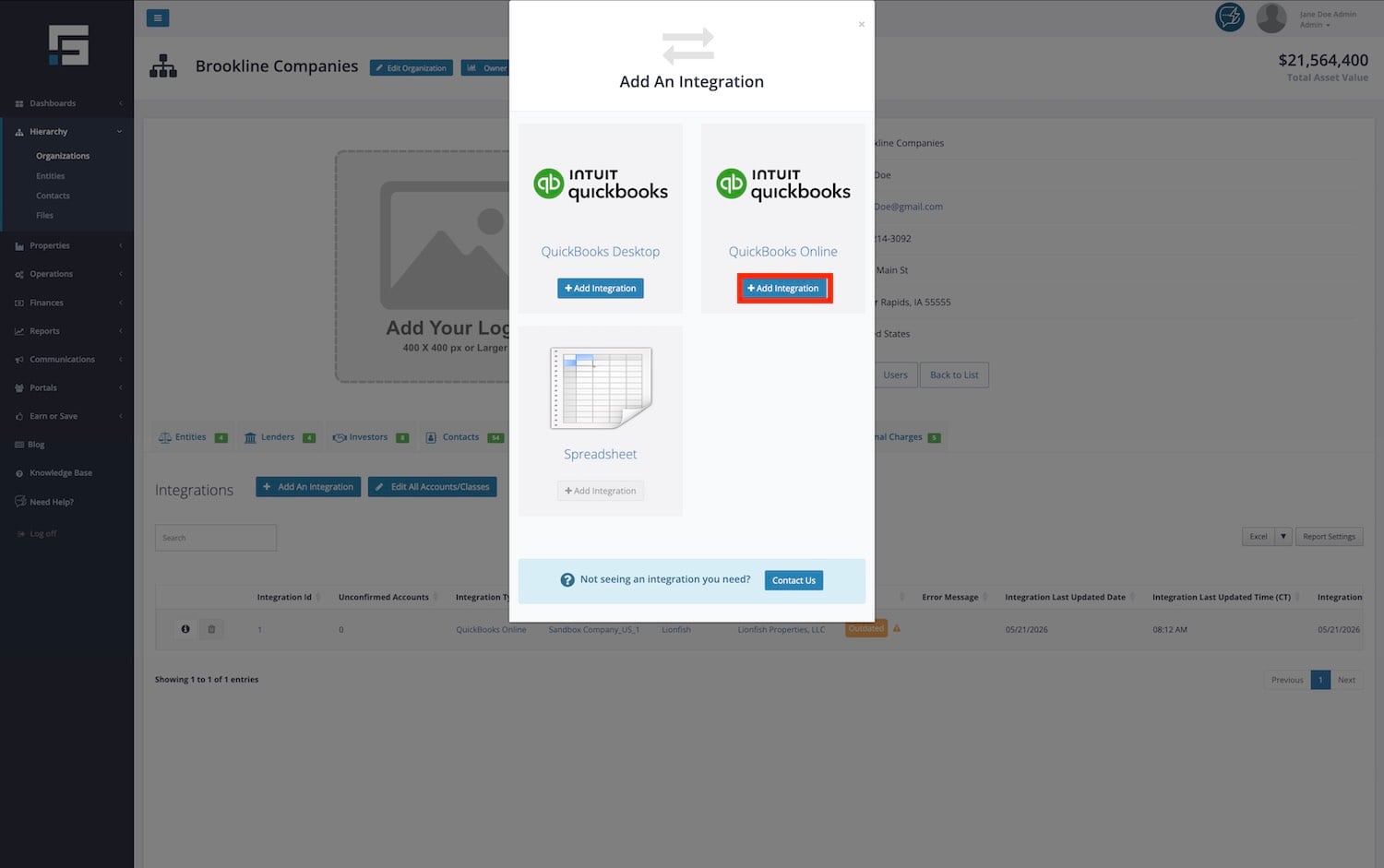
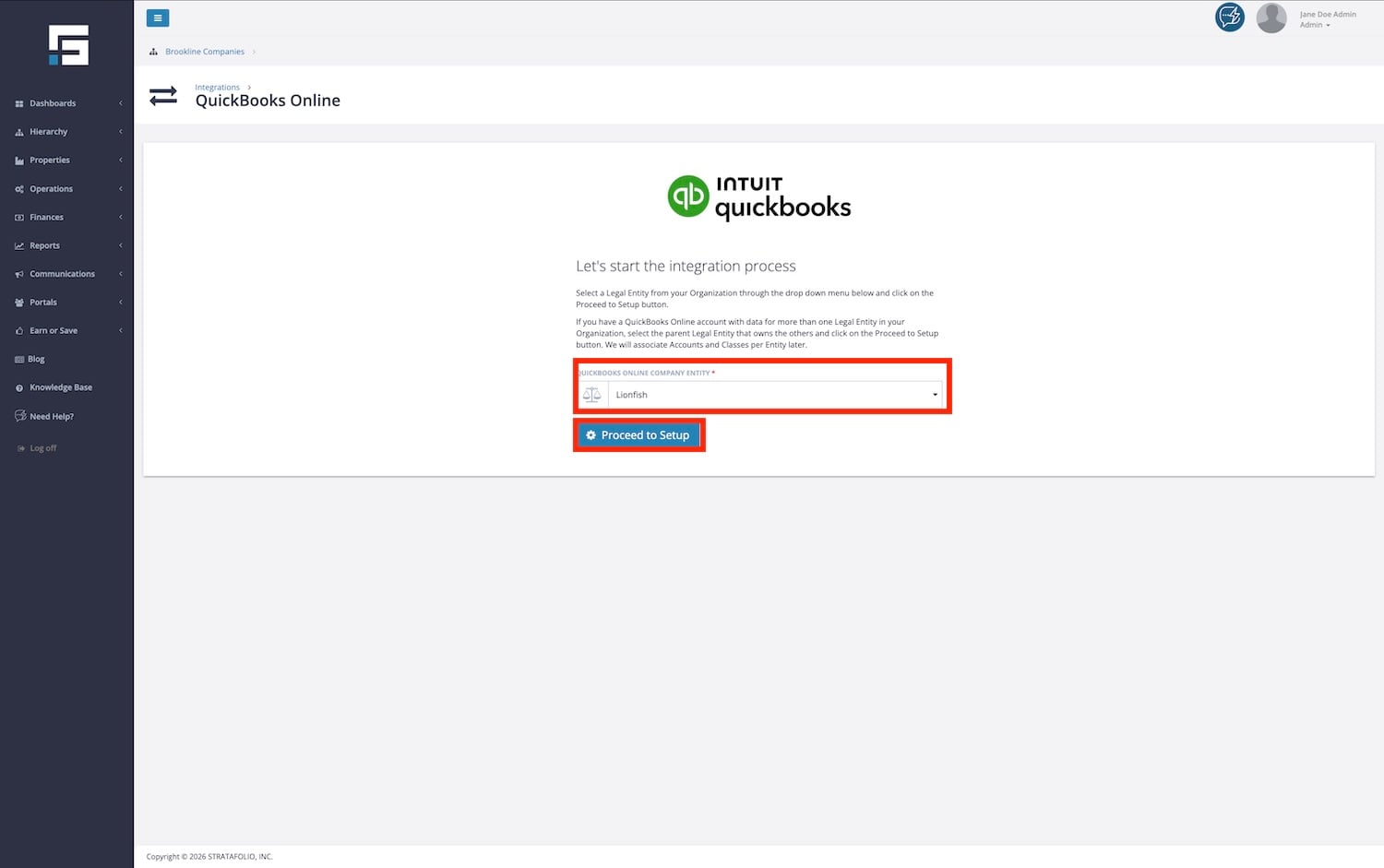
Select the QuickBooks Online integration option. Choose the Company File Entity from the dropdown, and click on the Proceed to Setup button.
If you are not logged into QuickBooks Online, log in now. Otherwise, proceed to the next step.
Under the Setup tab, click the Connect to QuickBooks button.
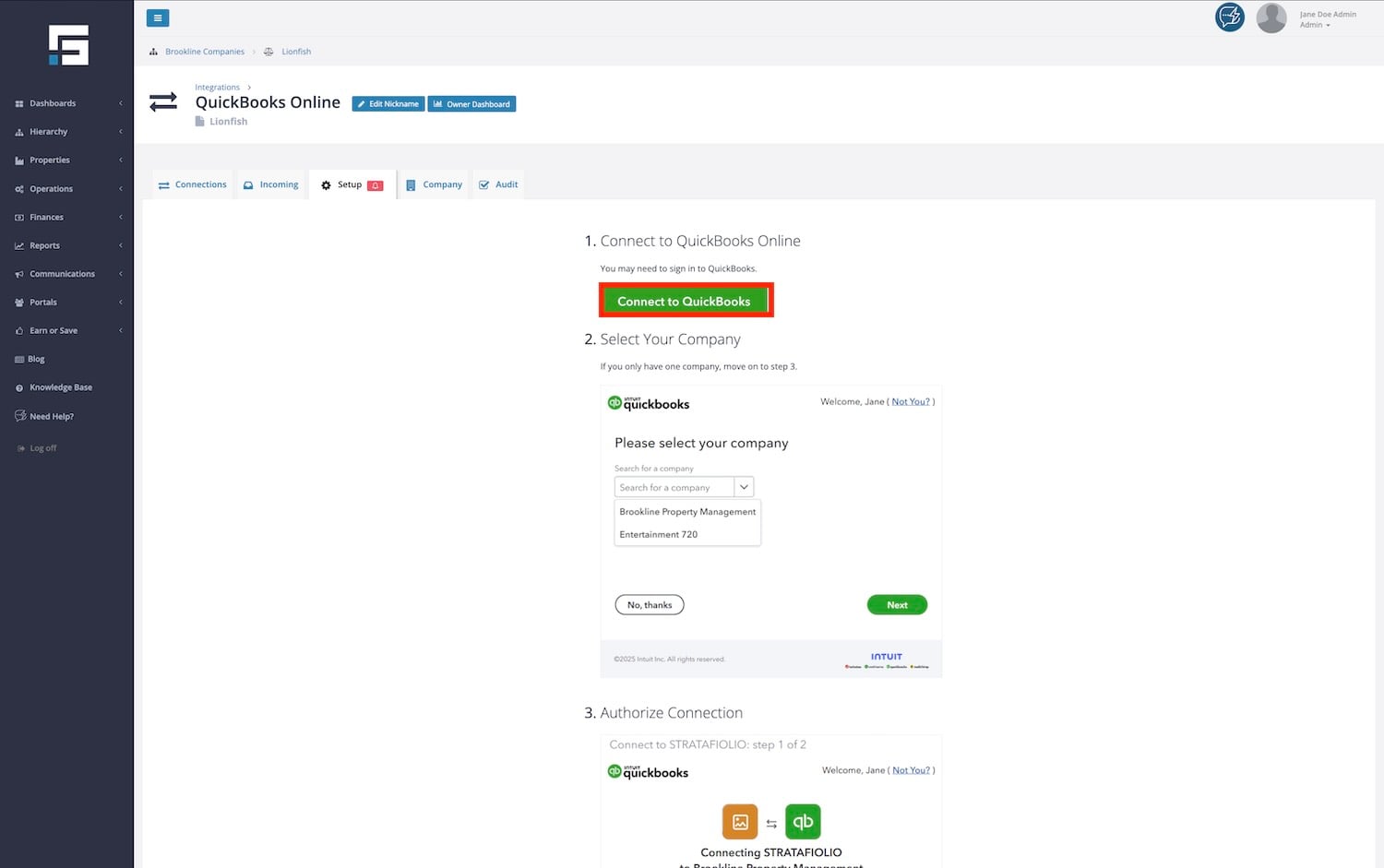
If you own multiple companies, select the correct one. If you have only one company, proceed to the next step.
If you agree to STRATAFOLIO’s Terms of Service and Privacy Policy, click on the Connect button.
Once you see the Connected to QuickBooks Online message in the Setup tab, congratulations, you have successfully completed the connection. If you have any issues connecting your account, please submit a ticket and the team will get back to you within 24 hours.
