Keeping track of tenant insurance across an entire portfolio can be one of the most time-consuming parts of managing commercial real estate. The Tenant Insurance view in STRATAFOLIO solves this by giving you a single place to see every active lease, the insurance each lease requires, and whether your tenants are meeting those requirements. From this one screen, you can quickly spot leases with no insurance requirements, find policies that need attention, check expiration dates, and export everything for reporting or review.
This article explains where to find the Tenant Insurance view, how to filter and search it, what each column shows, and how to use the Requirement Status column to stay on top of compliance.
Before You Begin
The Tenant Insurance view displays insurance requirements and policies that have already been entered in STRATAFOLIO. To get the most out of this view, make sure you have:
- Added insurance requirements to your leases: Each lease should list the insurance the tenant agreed to carry. Learn how in How to Add, Track, and Manage Tenant COIs.
- Uploaded Certificates of Insurance: You or your tenants can upload COIs so STRATAFOLIO can match policies against your requirements. Tenants with Tenant Portal access can upload their own COIs.
- If a lease has no requirements entered, it will still appear in this view with the status No Requirement in Lease, which makes this page a helpful tool for finding leases that need setup work.
Note that without an insurance requirement, Tenants will not be able to upload their COIs.
Where to Find This Feature
From the left navigation menu, go to Operations and select Tenant Insurance.
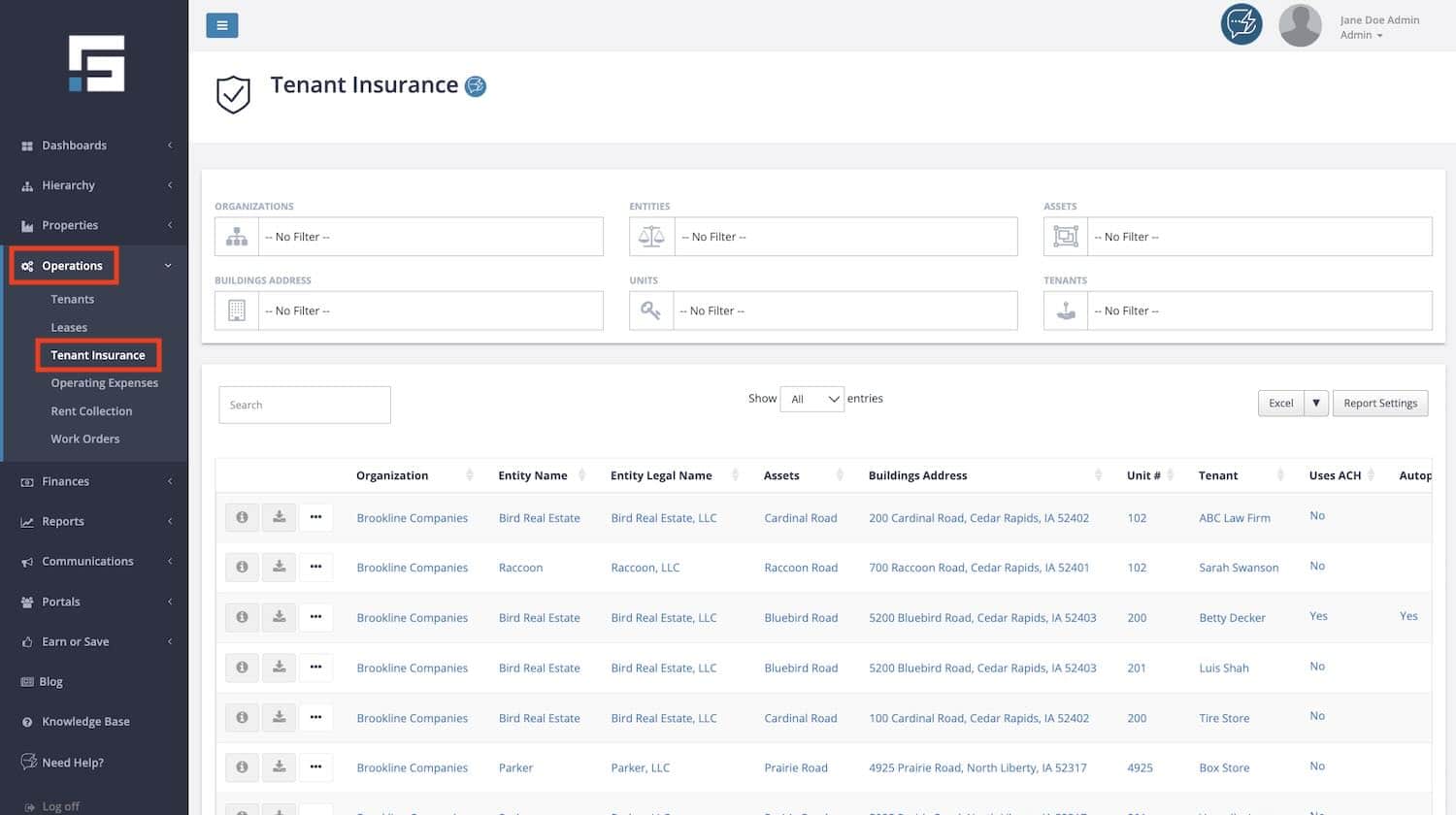
The page opens with all of your active leases listed. Insurance details continue beyond the first screen; scroll to the right to see the requirements and policy columns.
How to Use This Feature
Filtering the View
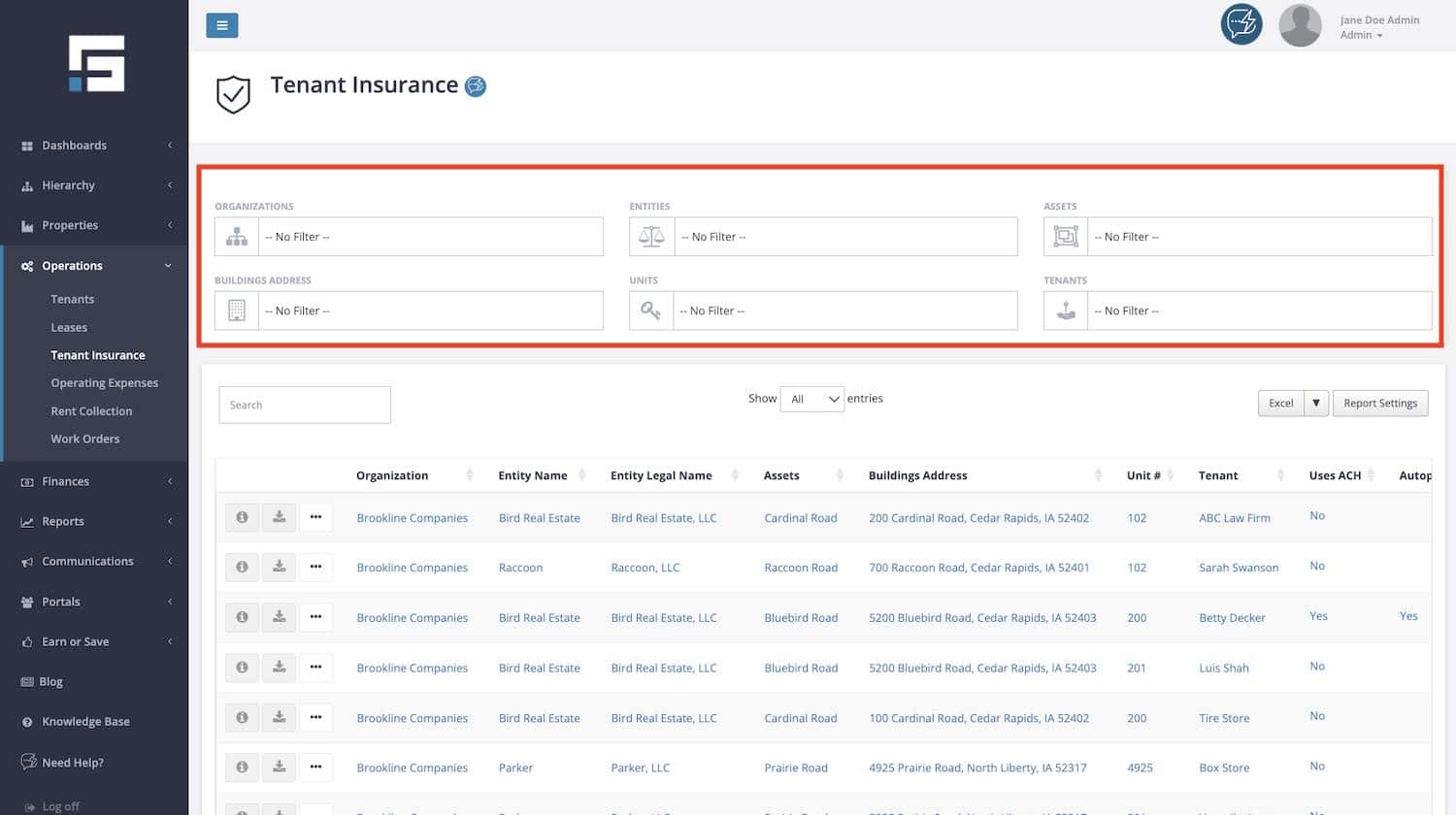
At the top of the page, you will find six filters that narrow the list to exactly what you want to see:
- Organizations: Show leases for one organization at a time.
- Entities: Focus on the leases held by a single entity.
- Assets: Limit results to one asset.
- Buildings Address: Show only the leases at a specific building.
- Units: Narrow the list to a specific unit.
- Tenants: Jump straight to one tenant.
Searching and Adjusting the List
- Each filter reads No Filter until you make a selection: You can also combine filters. For example, you can select one entity and one building to review insurance compliance for just that property.
- Search box: Type a tenant name, address, or any other value to instantly narrow the table to matching rows.
- Show entries: Use the Show dropdown to control how many rows appear on the page at once.
- Sorting: Click the arrows next to any column header to sort the table by that column. Sorting by Requirement Status is a quick way to group all leases that need attention.
Exporting to Excel
Click the Excel button above the table to export the view. The export includes the full set of insurance data for every lease in your current view, which makes it easy to share compliance information with your team, your insurance agent, or your lender.
Customizing the Report
Click the Report Settings button to create custom reports of the data you want to show. This lets you tailor the view to the information that matters most to your workflow.
More Information on the Feature
Understanding the Columns in the Tenant Insurance Index Page
The Tenant Insurance view brings together lease, tenant, payment, requirement, and policy information in one table. The table below explains every column available in the view and in the Excel export.
| Column | What It Shows |
|---|---|
| Organization | The organization that the lease belongs to. |
| Entity Name | The entity that holds the lease. |
| Entity Legal Name | The full legal name of the entity. |
| Assets | The asset that the leased building belongs to. |
| Buildings Address | The street address of the building where the leased unit is located. |
| Unit # | The unit the tenant occupies under the lease. |
| Tenant | The name of the tenant on the lease. |
| Uses ACH | Shows Yes or No to indicate whether the tenant pays through ACH. |
| Autopay Enabled | Shows Yes or No to indicate whether autopay is turned on for the tenant. |
| ACH Transfer Settings | The ACH transfer setting applied to the tenant, such as Regular. |
| Requirement Type | The type of insurance the lease requires, such as General Liability. |
| Tenant Requirement Notes | Any notes entered on the insurance requirement, such as carrier rating or additional insured language from the lease. |
| Minimum Each Occurrence Limit | The minimum coverage amount per occurrence that the lease requires. |
| Minimum Aggregate Limit | The minimum total coverage amount that the lease requires. |
| Policy Status | The current status of the insurance policy on file, such as Active. |
| Requirement Status | The compliance status of the insurance requirement. See the Requirement Status table for the full list of statuses and what each one means. |
| Required | Shows Yes when the lease requires the tenant to carry insurance. |
| Producer | The insurance agency that issued the Certificate of Insurance. |
| Certificate Date | The date listed on the Certificate of Insurance. |
| Policy Each Occurrence Limit | The coverage amount per occurrence listed on the tenant’s policy. |
| Policy Aggregate Limit | The total coverage amount listed on the tenant’s policy. |
| Policy Type | The type of insurance policy listed on the COI, such as General Liability. |
| Policy Number | The policy number listed on the COI. |
| Insurer | The insurance company that provides the coverage. |
| Additional Insured | Shows Yes when the landlord or property manager is listed as an additional insured on the policy. |
| Backed By Umbrella Policy | Shows whether the policy is backed by an umbrella policy. |
| Start Date | The date the policy coverage begins. |
| End Date | The date the policy coverage ends. This is the expiration date to watch. |
| Policy Added Date | The date the policy was added to STRATAFOLIO. |
| Policy Added Time (CT) | The time the policy was added, in Central Time. |
| Policy Added By | The email address of the user who added the policy. |
| Policy Added Name | The name of the user who added the policy. |
| Policy Last Edit Date | The date the policy was last edited. |
| Policy Last Edit Time (CT) | The time the policy was last edited, in Central Time. |
| Policy Last Edit By | The email address of the user who last edited the policy. |
| Policy Last Edit Name | The name of the user who last edited the policy. |
Understanding the Requirement Status Column
The Requirement Status column is the heart of this view. It tells you, at a glance, whether each lease meets its insurance requirements. STRATAFOLIO uses the statuses below to help you identify which leases or policies need further attention from your team.
- No Requirement in Lease: An active lease does not have any insurance requirements in place.
- No COI Attached/Unsatisfied: An insurance requirement has been added to the lease, but a COI containing an insurance policy matching that requirement has not been uploaded for the lease.
- Has Active Policy: The lease requirement does not specify any minimum coverage amounts, and a COI has been uploaded containing an active insurance policy that matches the required policy type. STRATAFOLIO strongly recommends adding minimum amounts to all lease requirements so tenants do not satisfy a requirement with low coverage limits.
- Partially Satisfied: The lease requirement specifies both a Minimum Each Occurrence Limit and a Minimum Aggregate Limit, but the uploaded policy meets or exceeds only one of those amounts.
- Satisfied: The lease requirement specifies one or both minimum coverage amounts, and the uploaded policy matches or exceeds every minimum amount listed in the requirement.
For the full workflow of adding requirements and uploading COIs, see How to Add, Track, and Manage Tenant COIs.
Expiration Alerts Related to Tenant Insurance
STRATAFOLIO automatically sends email alerts when insurance policies are nearing expiration, so the Tenant Insurance view works alongside a proactive notification system. You can read about alert timing and who receives alerts in How to Add, Track, and Manage Tenant COIs.
Examples, Best Practices, and Tips When Using the Tenant Insurance Index Page
- Run a weekly compliance sweep: Sort the table by Requirement Status and review everything that is not Satisfied. Leases showing No COI Attached or Unsatisfied need follow-up with the tenant.
- Find leases that need setup: Filter or sort for No Requirement in Lease to find active leases where insurance requirements were never entered. Adding requirements to every lease is the first step toward complete compliance tracking. If your leases do not require tenant insurance, read What’s the Purpose of Requiring Certificates of Insurance from Tenants to learn why they should.
- Watch the End Date column: Scroll right to review policy End Dates during your regular reviews. This helps you anticipate expirations before the automatic alerts even go out.
- Always set minimum coverage amounts: A lease requirement without minimum amounts can only ever reach the Has Active Policy status. Adding a Minimum Each Occurrence Limit and Minimum Aggregate Limit lets STRATAFOLIO verify that coverage is actually sufficient, not just present.
- Use the export for renewals and lenders: The Excel export includes policy numbers, insurers, coverage limits, and dates, which makes it a ready made packet for annual insurance reviews or lender requests.
- Check the Additional Insured column: Confirm that the landlord or property manager is listed as an additional insured whenever the lease requires it.
Troubleshooting the Tenant Insurance Index Page
- A lease shows No Requirement in Lease but the lease does require insurance: The requirement has not been entered in STRATAFOLIO yet. Open the lease, go to the Insurance tab, and add the requirement. See How to Add, Track, and Manage Tenant COIs for steps.
- A tenant sent a COI but the status still shows No COI Attached: The COI has not been uploaded to the lease in STRATAFOLIO, or the uploaded policy does not match the requirement policy type. Upload the COI through the Insurance tab on the lease, and confirm the policy type on the COI matches the requirement.
- The status shows Partially Satisfied: The requirement lists both a Minimum Each Occurrence Limit and a Minimum Aggregate Limit, but the uploaded policy meets only one of them. Review the policy limits against the lease requirement and follow up with the tenant if the coverage falls short.
- I cannot see the insurance columns: The insurance details sit to the right of the lease and tenant columns. Scroll the table to the right, or use Report Settings to customize the data shown.
- A lease I expected to see is missing: Check whether a filter is still applied at the top of the page, and clear the search box. The view displays your active leases.