Sometimes you may need to reconnect your QuickBooks Online integration to STRATAFOLIO, especially if you see an error message. This can happen for several reasons. The QuickBooks Online administrator on the account may have changed. A password may have been updated. Intuit may have changed its integration certificates. Whatever the cause, this does not happen often, and it is usually easy to fix. Reconnecting the account tells STRATAFOLIO and QuickBooks Online to trust each other again so your financial data can keep flowing between the two systems.
Before You Begin
Only the Administrator on your STRATAFOLIO account, or a user with Admin rights, can reconnect a QuickBooks Online integration. Before you start, have your QuickBooks Online login information ready, since you will need to sign in during the reconnection process.
Where to Find This Feature
You can find your QuickBooks Online integrations from your Organization’s detail view in STRATAFOLIO. Expand Hierarchy from the left-side navigation menu, select Organizations, and click your Organization’s name. Then select the Integrations tab. Then select the Integrations tab. Each integration shows two statuses. The Integration Status tells you whether STRATAFOLIO is still connected to QuickBooks Online. The Sync Status tells you whether the most recent sync worked. An integration that needs attention shows a warning icon, and you can hover over a status to see more detail. You may also see a red bell icon alerting you that something needs attention.
If the Integration Status shows Disconnected or Error, you need to reconnect, even if the Sync Status still shows Success. A successful last sync only means the connection worked at that time. When a QuickBooks Online connection has a problem, STRATAFOLIO also shows a notice with the date and time the problem was recorded, when that information is available. The notice appears once per browser session.
How to Use This Feature
- From the Integrations tab, click the QuickBooks Online integration whose Integration Status shows Disconnected or Error.
- Select the Setup tab. This tab shows the specific error message from QuickBooks Online, such as “Could not connect to QuickBooks Online. Please try again.” along with a short error description.
- Click the green Connect to QuickBooks button.
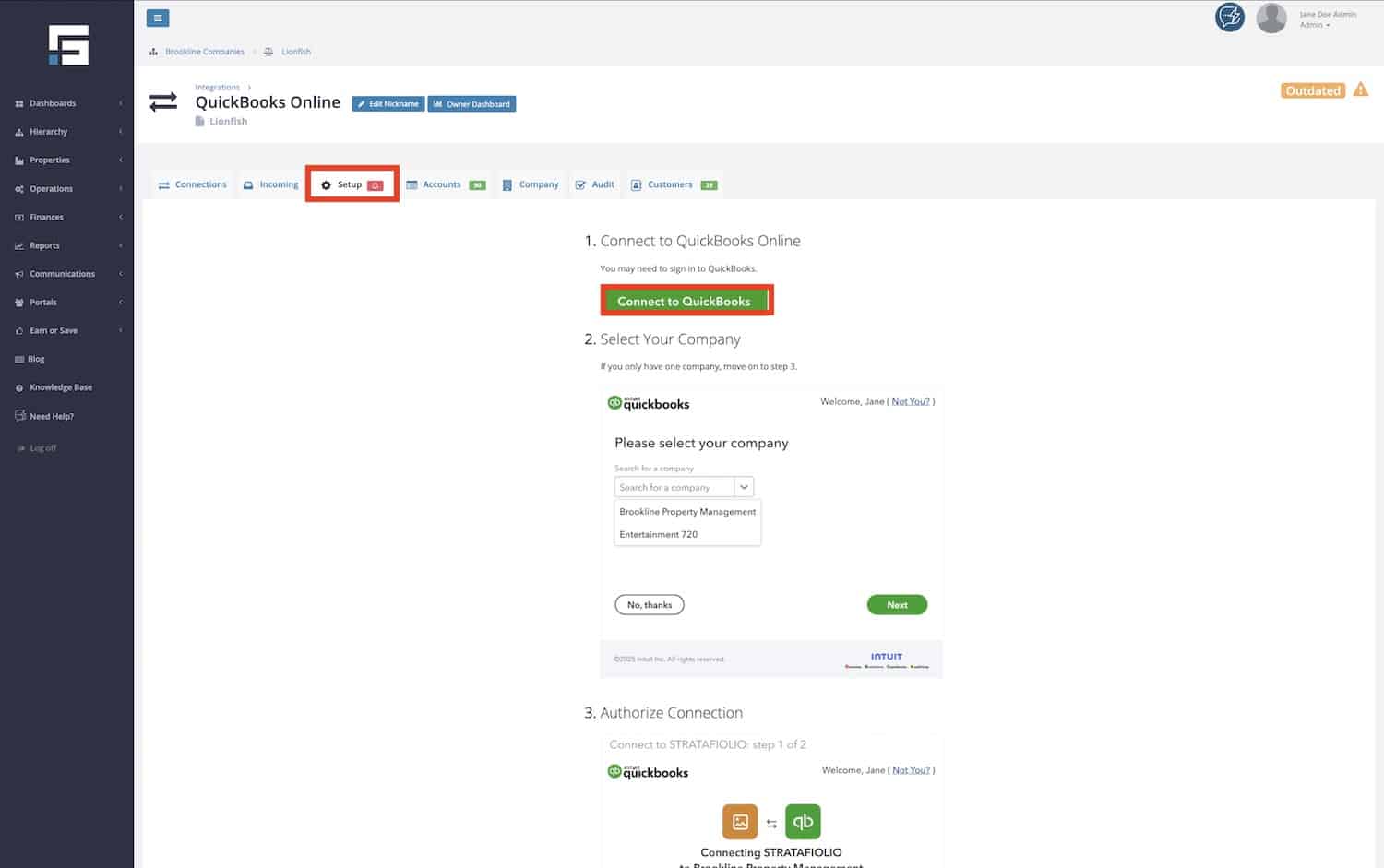
- This opens QuickBooks Online in your browser. Sign in if you are not already logged in.
- Select the same QuickBooks Online company you connected before. It is important to choose the same account, since connecting a different one can cause your STRATAFOLIO data to map incorrectly.
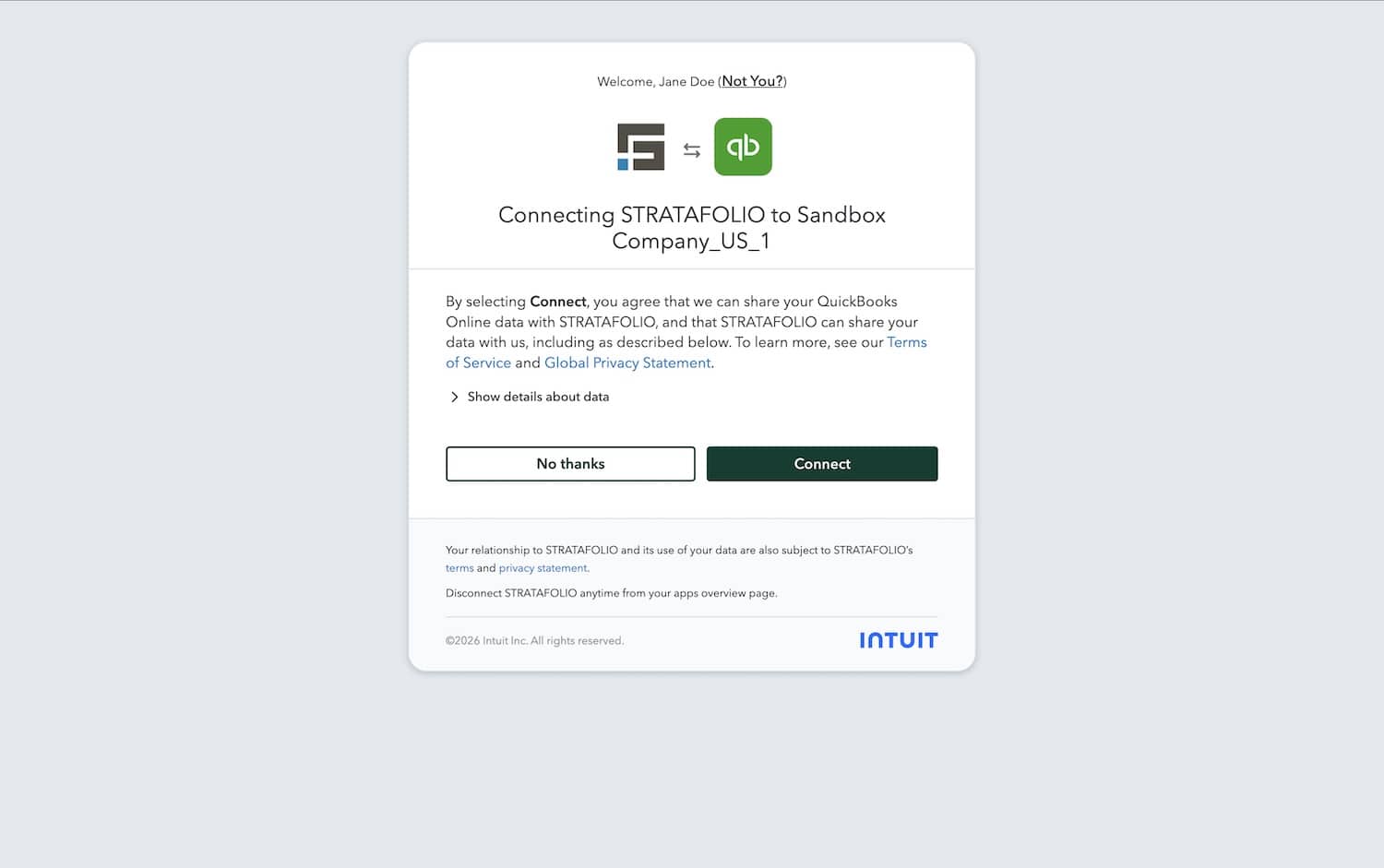
- Follow the remaining prompts to confirm the connection. Once finished, return to STRATAFOLIO and refresh the Integrations tab. The Integration Status should change to Connected, and the Sync Status should show Success within a few minutes.
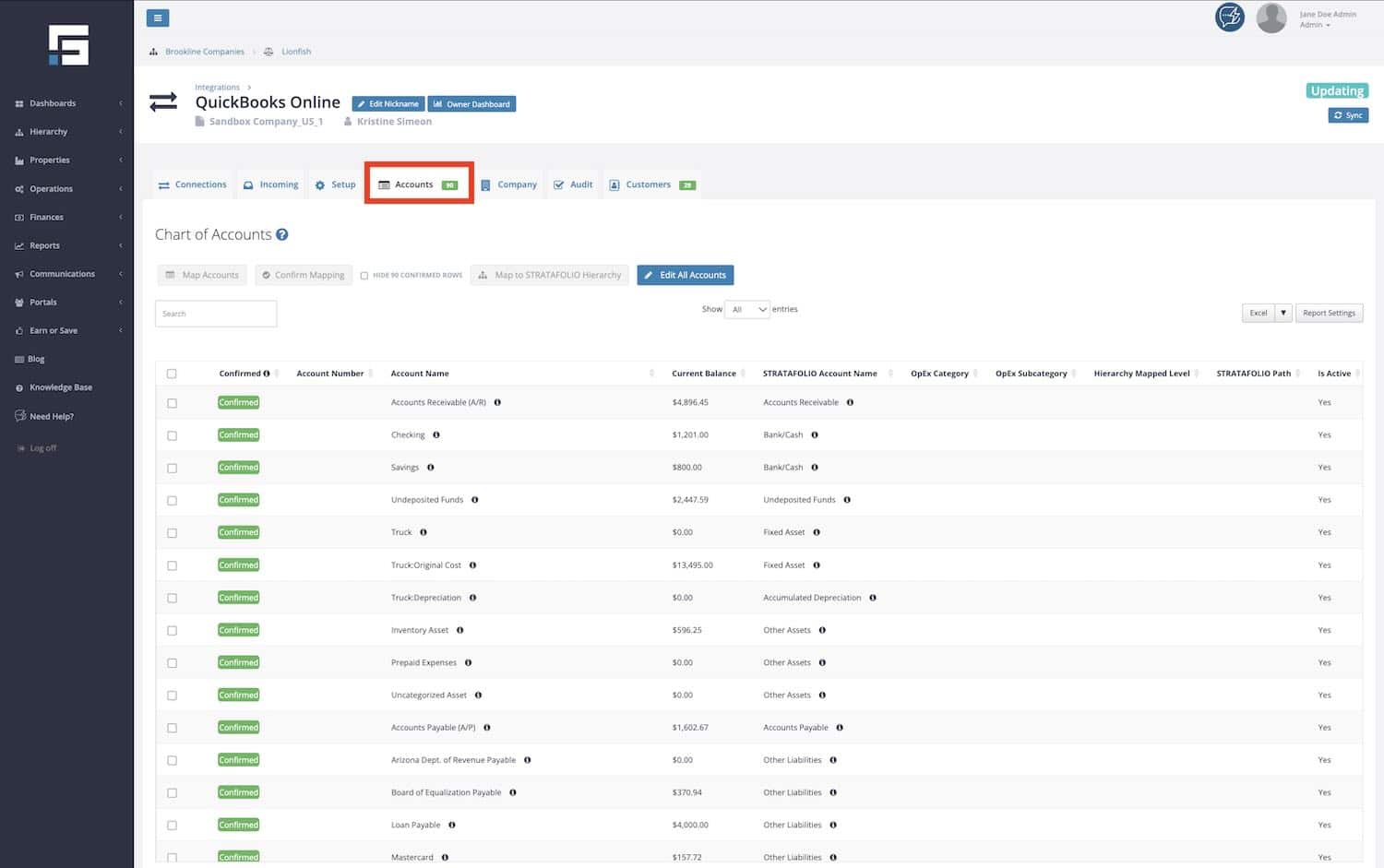
- If any new accounts or classes were added in QuickBooks Online since your last successful sync, you may need to confirm them before your data is complete. You can do this from the Accounts tab inside the same integration.
More Information on QuickBooks Online Integrations
Not every alert on the Integrations tab means something is broken. An Outdated Sync Status usually means there has been no activity in your QuickBooks Online account for more than 72 hours. This is normal and does not require reconnecting. If you complete a transaction in QuickBooks Online, the status should refresh within a few minutes. If it does not update after an hour, reach out to STRATAFOLIO support.
A Disconnected or Error Integration Status is different. It means STRATAFOLIO can no longer connect to QuickBooks Online, and the steps above are needed to restore the connection. Common error messages you may see include Authorization has expired, Authorization denied, Unauthorized, and Authorization failed, along with the generic Unknown error message shown in the example above.
Examples and Best Practices When Using QuickBooks Online
If you manage more than one entity, you may have several QuickBooks Online integrations connected to STRATAFOLIO. Check the Integrations tab regularly and repeat the reconnection steps for every integration whose Integration Status shows Disconnected or Error, not just the first one you find.
Always reconnect using the same QuickBooks Online company you originally linked. Connecting the wrong company can cause income, expenses, and accounts to map incorrectly across your portfolio.
Troubleshooting Your QuickBooks Online Integration
If you complete the steps above and the integration still shows Disconnected or Error, double-check that you are signed into the correct QuickBooks Online account and that you have Administrator access on that account. If the Sync Status shows Success but recent data is missing, check the Integration Status. The connection may have been lost after the last successful sync. If the issue continues, use the Contact Us button in the left-hand navigation bar to reach STRATAFOLIO support for further assistance.