Maintenance requests come from every direction: tenants, property managers, owners, and your own preventive maintenance schedule. The Work Orders index page in STRATAFOLIO brings every one of those requests into a single list, so you always know what work is open, who it is assigned to, how urgent it is, and what it costs. From this one screen, you can create new work orders, filter by status or priority, review activity history, and export a full report for your team or your records, making work order tracking easier.
This article explains where to find the Work Orders index page, how to filter and search it, what each column shows, and how to use it to keep maintenance moving across your entire portfolio.
Before You Begin
The Work Orders index page displays the work orders that exist in your STRATAFOLIO account. To get the most out of this view:
- Know how to create a work order. You can create work orders directly from this page. For a walkthrough of every field on the work order form, see How to Add a Work Order.
- Give tenants portal access if you want them to submit requests. When tenants have access to the Tenant Portal, they can submit their own work orders, and those requests flow into this same list.
- Set up your team roles. Work orders can be assigned to your maintenance and property management staff. Learn more in User Access Roles in STRATAFOLIO.
Where to Find This Feature
From the left navigation menu, go to Operations and select Work Orders.
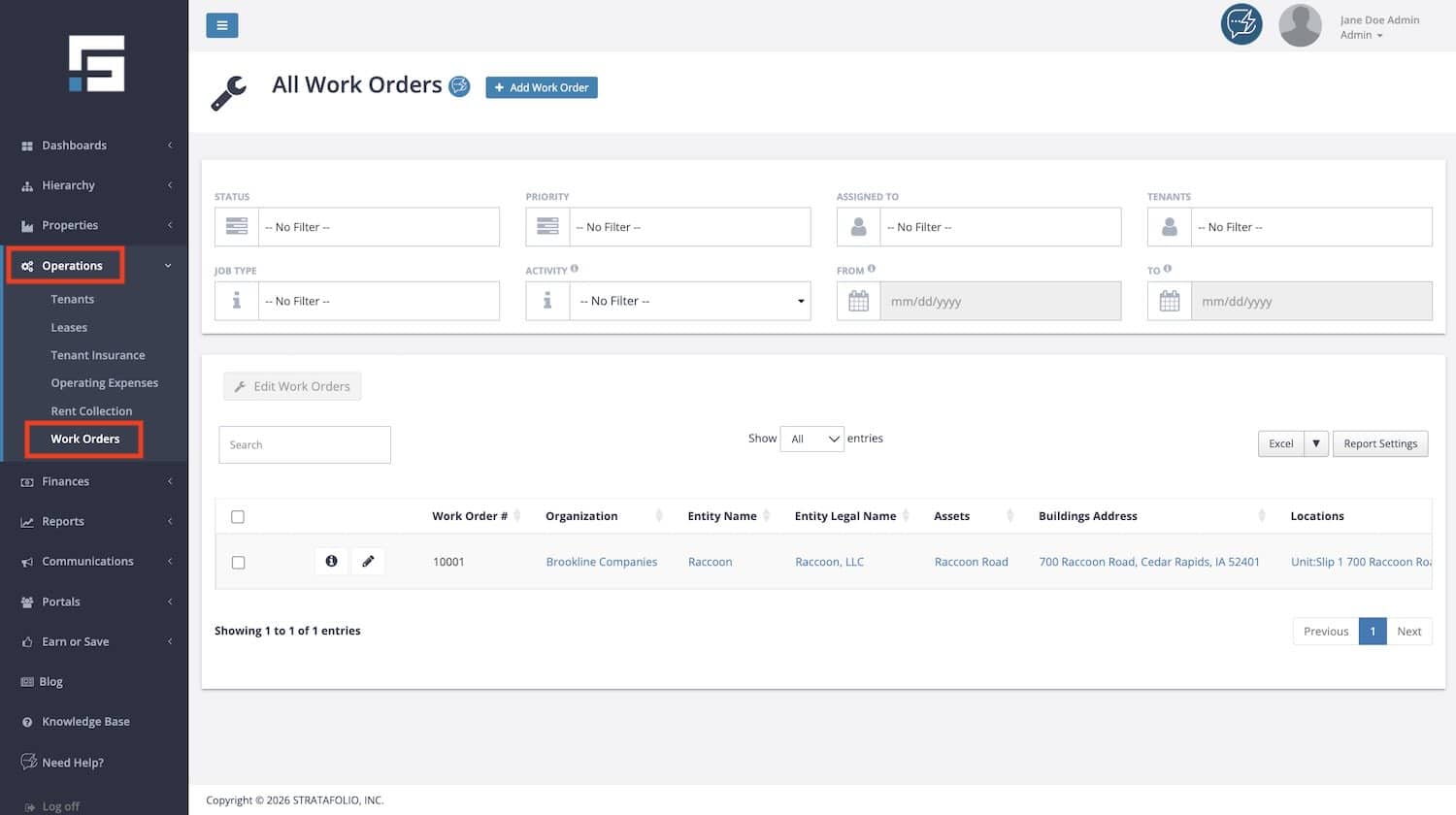
The page opens with the title All Work Orders and lists your work orders in a table. The Add Work Order button sits at the top of the page next to the title.
How to Use This Feature
Creating a Work Order
Select the Add Work Order button at the top of the page and complete the form. The only tool you need to start a new maintenance task lives right on this page. For a full explanation of each field, including Title, Description, Priority, Job Types, Status, and Due Date, see How to Add a Work Order.
Filtering the View
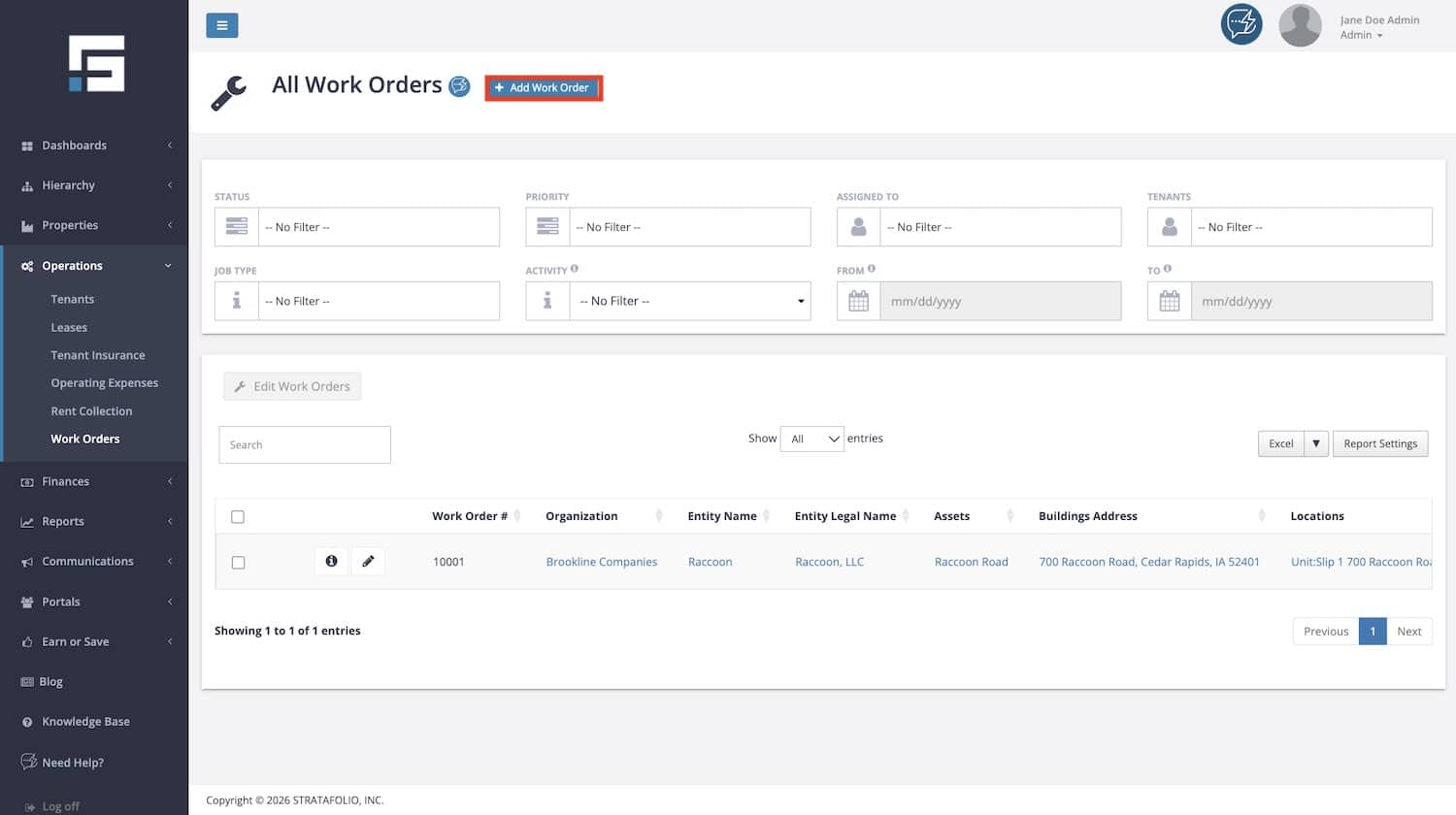
The filter dropdowns at the top of the page lets you narrow the list to exactly the work you want to review:
- Status: Select from Pending, Waiting on Parts, Dispatched, Complete, and Cancelled.
- Priority: Select High, Medium, or Low.
- Assigned To: Show only the work assigned to a specific person.
- Tenants: Show the work orders connected to one tenant. This also helps you track which tenants require the most work orders.
- Job Type: Filter from a list of 19 job types, ranging from air conditioning to sidewalks to preventive maintenance.
- Activity: Select Created, Dispatched, or Completed.
- From and To: Enter dates to review work orders for a specific time period. The Activity filter and the date fields work together, so you can answer questions like which work orders were completed last month.
Each filter reads No Filter until you make a selection, and you can combine filters. For example, select the High priority and the Pending status to see the urgent work that has not been started.
Searching and Adjusting the List
- Search box: Type a work order number, tenant name, address, or any other value to instantly narrow the table to matching rows.
- Show entries: Use the Show dropdown to control how many rows appear on the page at once. Use the Previous and Next buttons below the table to move between pages, and check the entry count in the lower left corner to confirm how many work orders match your current filters.
- Sorting. Click the arrows next to any column header to sort the table by that column. Sorting by Priority or Due Date is a quick way to plan the day for your maintenance team.
Exporting a Report
Use the export button above the table to pull a report of your current view. Reports can be pulled in a CSV, Excel, or PDF format. The export includes the full set of work order data, making it easy to share maintenance activity with owners, review costs, or maintain records outside of STRATAFOLIO.
Customizing the Report
Click the Report Settings button to create custom reports of the data you want to show. This lets you tailor the view to the columns that matter most to your workflow.
Editing Work Orders
Each row includes a checkbox on the left side, and an Edit Work Orders button sits above the table. Each row also includes its own action buttons. The Edit Work Orders button will only be clickable if one or more checkboxes have been ticked.
More Information on the Feature
Understanding the Columns
The Work Orders index page brings together location, tenant, assignment, cost, and activity information for every work order. The table below explains every column available in the view and in the exported report.
| Column | What It Shows |
|---|---|
| Work Order # | The number that identifies the work order in STRATAFOLIO. |
| Organization | The organization that the work order belongs to. |
| Entity Name | The entity connected to the work order. |
| Entity Legal Name | The full legal name of the entity. |
| Assets | The asset where the work takes place. |
| Buildings Address | The street address of the building where the work takes place. |
| Locations | The specific location of the work, including the unit and address. |
| Tenants | The tenant involved in the work order, if any. |
| Uses ACH | Shows Yes or No to indicate whether the tenant pays through ACH. |
| Autopay Enabled | Shows Yes or No to indicate whether autopay is turned on for the tenant. |
| ACH Transfer Settings | The ACH transfer setting applied to the tenant, such as Regular. |
| Tenant Permissions | The permission the tenant has on the work order, such as Delete. |
| Title | The name of the work order. |
| Job Types | The job type category assigned to the work order, such as Air Conditioning. STRATAFOLIO includes 19 job type categories. |
| Requested By | The person who requested the work. This can be the tenant or the owner. |
| Assigned To | The person the work is assigned to. |
| Priority | The priority of the work: High, Medium, or Low. |
| Status | The current status of the work order: Pending, Waiting on Parts, Dispatched, Complete, or Cancelled. |
| Due Date | The date you want the work completed. |
| Hours Worked | The hours recorded on the work order. |
| Mileage | The mileage recorded on the work order. |
| Labor Cost | The labor cost recorded on the work order. |
| Material Cost | The material cost recorded on the work order. |
| Total Cost | The total cost recorded on the work order. |
| Description | The detailed description of the work that needs to be performed. |
| Last Activity | The most recent activity recorded on the work order, such as a status change and the reason for it. |
| Last Activity Date | The date of the most recent activity. |
| Last Activity Time (CT) | The time of the most recent activity, in Central Time. |
| Last Dispatched | The most recent date the work order was dispatched. |
| Last Completed | The most recent date the work order was completed. |
| Last Closed | The most recent date the work order was closed. |
| Work Order Added Date | The date the work order was created in STRATAFOLIO. |
| Work Order Added Time (CT) | The time the work order was created, in Central Time. |
| Work Order Added Name | The name of the user who created the work order. |
| Work Order Last Edit Date | The date the work order was last edited. |
| Work Order Last Edit Time (CT) | The time the work order was last edited, in Central Time. |
| Work Order Last Edit Name | The name of the user who last edited the work order. |
Understanding Statuses, Priorities, and Job Types
- Status tracks the work order as it moves through the process. The statuses are Pending, Waiting on Parts, Dispatched, Complete, and Cancelled. Update the status as the work progresses so this view always reflects reality.
- Priority marks how urgent the work is: High, Medium, or Low.
- Job Types organize your work into 19 categories, ranging from air conditioning to sidewalks to preventive maintenance. Consistent job type selection makes the Job Type filter far more useful when you review maintenance history.
Work Orders From Tenants
When your tenants have Tenant Portal access, they can submit their own work orders, and this view gives you one single location to track all the incoming work from tenants. A notification is sent to the designated resource to address the issue, tenants can see the progress as the issue is addressed, and you build a historical record of all repairs requested from your tenants. The Requested By column shows you which requests came from tenants.
Examples, Best Practices, and Tips When Using the Work Orders Index Page
- Start each day with a priority sweep. Filter the Status to Pending and sort by Priority to see the most urgent open work first.
- Review workloads by assignee. Use the Assigned To filter to check how much open work each team member is carrying before you assign something new.
- Track tenant activity. Filter by a tenant to see their full work order history. This is useful during lease renewals or when a tenant reports a recurring problem.
- Use Activity with dates for reporting. Combine the Activity filter with the From and To dates to answer questions like how many work orders were completed this quarter, then export the result for your records.
- Record hours and costs as you go. The Hours Worked, Mileage, Labor Cost, Material Cost, and Total Cost columns are only as useful as the data entered on each work order. Keeping these current turns this view into a maintenance cost report.
- Keep statuses honest. A work order left in Dispatched after the job is done makes your whole list harder to trust. Update statuses as part of closing out each job.
Troubleshooting the Work Orders Index Page
- A work order I expected to see is missing: Check whether a filter is still applied at the top of the page, clear the search box, and confirm the From and To dates are not limiting the list. Also check the pagination at the bottom of the table in case the work order is on another page.
- A tenant says they submitted a request but I cannot find it: Search by the tenant name or filter the Tenants filter to that tenant. If nothing appears, confirm the tenant has portal access and submitted the request.
- The cost columns are blank: Hours, mileage, and cost values appear only after they are recorded on the work order. Open the work order and enter the values to see them in this view.
- The export does not include a column I need: Click Report Settings to customize the data shown, then export again.