The STRATAFOLIO AI Assistant is your built-in helper inside STRATAFOLIO. It answers questions about the platform, guides you through tasks step by step, and connects you with the support team when you need more help. The AI Assistant understands which page you are viewing, so it can suggest actions, explain features, and share links to Knowledge Base articles that relate to what you are working on right now.
With the AI Assistant, you can chat about any STRATAFOLIO feature, share screenshots to show what you are seeing, rate the answers you receive, copy helpful responses, export or email your conversations, review your past chats, and request a support ticket without leaving the app.
Before You Begin Chatting with the AI Assistant
You must be logged in to STRATAFOLIO to use the AI Assistant. Keep these points in mind as you get started:
- All help requests to the STRATAFOLIO team are submitted via support tickets. Creating a ticket through the AI Assistant makes sure your request is tracked from start to finish and answered as quickly as possible.
- Only support tickets created through the AI Assistant appear on the AI Assistant homepage. Tickets created manually will not display there.
- Your feedback on each answer helps the AI Assistant improve over time, so rate responses whenever you can.
- Images you share in the chat are kept for 24 hours from the time you upload them. If you think you may need help from the support team, request your ticket within that time so your images are included with it.
Where to Find This Feature
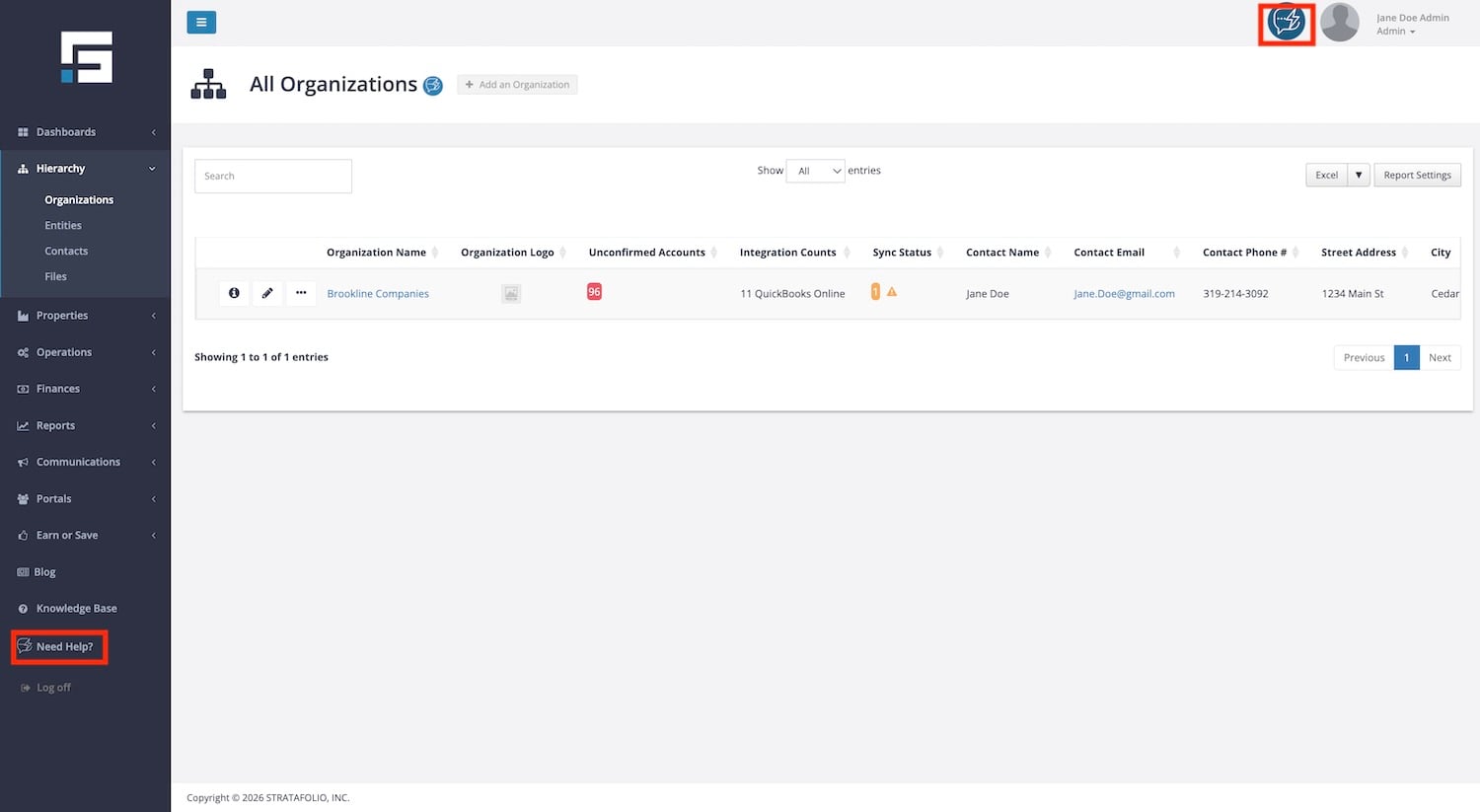
The AI Assistant is available on every page in STRATAFOLIO. To open it, select Need help? from the left-side navigation menu. You will also see a blue Need help? button at the top right of the header, next to your profile image. This button opens the chat box to access the AI assistant.
How to Use This Feature
Starting a Chat
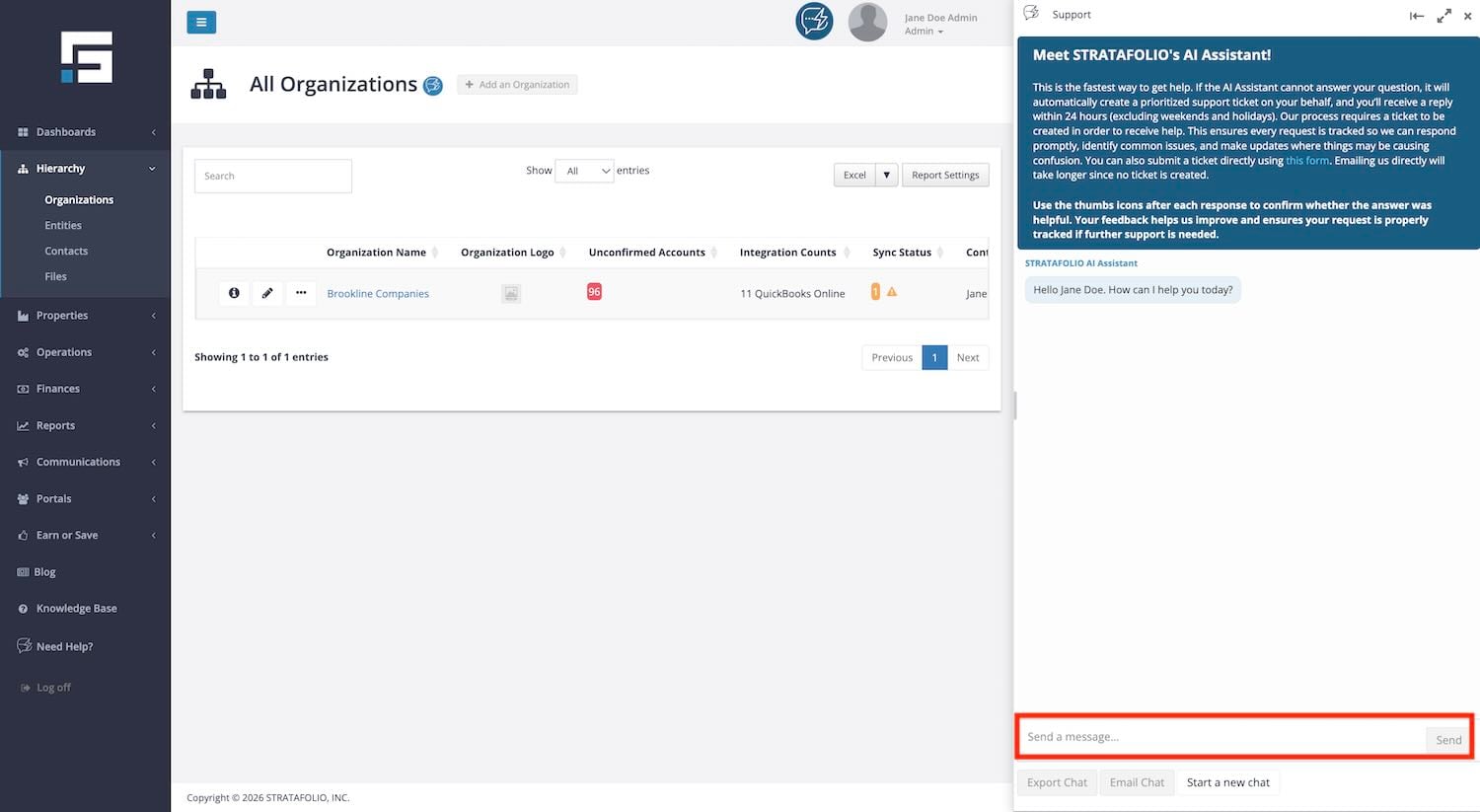
Type your question in the message field. The AI Assistant responds directly in the chat. You can ask about any STRATAFOLIO feature, workflow, or error message. When the AI Assistant needs more detail to give you a good answer, it will ask you to clarify your question.
Sharing Images with the AI Assistant
Sometimes it is easier to show the AI Assistant what you see than to describe it. You can share screenshots and other images in the chat, and the AI Assistant uses them to better understand your question. You can send an image along with a typed message, or send an image by itself.
You can add an image in three ways:
Attach it: Select the paper clip icon in the message box, then choose an image from your computer.
Paste it: Copy a screenshot or image, click in the message box, and paste it.
Drag and drop it: Drag an image file from your computer and drop it into the chat.
Before you send your message, a preview of each image appears. If you added the wrong image, remove it from the preview and add the correct one.
Supported images
You can share PNG, JPEG, WebP, and GIF images. GIFs must be still images. Large images are resized automatically, and hidden file details, called metadata, are removed before the image is sent.
How long images are kept
Images you share are stored for 24 hours from the time you upload them. They are kept secure and stay linked only to the conversation where you shared them. After 24 hours, the image is removed, and the chat shows that the image is no longer available. Your messages and the AI Assistant’s answers stay in your chat history.
Getting Help for the Page You Are Viewing
The AI Assistant knows which page you are currently on. This means it can provide guidance based on where you work. If you are ever unsure what a page can do, ask:
What can I do on this page?
The AI Assistant will suggest the actions and features available on that page, explain how to use them, and share links to related Knowledge Base articles.
Choosing How the Chat Displays
You can display the chat in two ways:
- Docked view: The chat stays fixed to the right side of your screen.
- Free-floating view: The chat becomes a movable window you can position anywhere on your screen.
Choose the option that fits how you like to work. Docked view is helpful when you want the chat visible while you follow steps. Free floating view is helpful when you want to move the chat out of the way.
Keeping the Chat Open While You Work
The chat window stays open as you move between pages in STRATAFOLIO. This means you can follow the AI Assistant’s directions step by step while navigating through the app. The chat remains open until you close it yourself.
Rating Responses
After each response, you can rate the answer:
- Select Helpful if the response answered your question.
- Select Not Helpful if it did not.
Your ratings directly shape how the AI Assistant improves, so this quick step makes a real difference.
Copying Questions and Answers
Each question and answer in the chat has a copy icon. Select the copy icon to copy that question or answer so you can save it, reuse it, or share it with a teammate.
Canceling a Response
If you send a message and change your mind, you can cancel it at any point while the AI Assistant is working on the response. This is helpful when you select Send by accident, realize you want to add more detail, or want to ask a clearer question. Cancel the response, update your message, and send the improved version.
Exporting Your Chat
To save a copy of your conversation, select the Export Chat button in the chat window. The chat exports to a PDF that matches the look of the chat itself, making it easy to read.
Images that are still available are included in the exported PDF. Images shared more than 24 hours ago are no longer available and are not included.
If there is no conversation to export, the Export Chat button is disabled and displays the message No chat to export.
Emailing Yourself a Chat
You can also email a copy of the conversation to yourself directly from the chat window, without requesting help from the support team. This is a convenient way to keep a record of useful guidance in your inbox.
The AI Assistant Homepage
You can expand the chat window to a full-page view. This opens the STRATAFOLIO AI Assistant homepage, a dedicated space for managing all of your conversations. From the homepage, you can:
- View your past chats. This includes your regular conversations and the support ticket conversations you created through the AI Assistant.
- Search your chat history. You can search across all of your conversations and find specific content inside each one. This makes it easy to locate helpful answers from past chats instead of starting over.
- Rename a chat. Give your chats clear names so they are easier to find later.
- Delete a chat. Remove any chat you no longer want displayed on your end.
- Reopen a chat. Pick up a previous conversation where you left off. Images shared more than 24 hours ago show as no longer available when you reopen a chat. Ticket conversations cannot be reopened. See the ticket section below for how to follow up on a ticket.
To exit from this page, select the x or minimize button at the top right corner of the screen.
NOTE: Only tickets created through the AI Assistant appear on this page. Manually created tickets will not display here.
Requesting a Support Ticket
When you need help from the STRATAFOLIO support team, the AI Assistant creates a support ticket for you. Tickets are how the support team tracks every request, so each issue gets resolved, and nothing gets lost.
Here is how the process works:
- Ask the AI Assistant to create a support ticket, or select the ticket option when the AI Assistant offers it.
- The AI Assistant asks you to briefly explain why you need support. Your explanation becomes the subject of the ticket, so a short, clear sentence works best.
- A message appears in the chat confirming that your ticket has been requested.
- Once the ticket is created, another message confirms it. This message provides your ticket number for your records and confirms the ticket is open.
- You receive an email containing your ticket number, the ticket subject, a summary of your conversation with the AI Assistant, and a PDF copy of the full conversation.
Images included with your ticket
Any images you shared in the chat within the last 24 hours are included with your ticket, so the support team sees the same thing you do. Images shared more than 24 hours ago are no longer available and are not included. If you still need the support team to see them, attach them again when you request the ticket.
If you have additional questions about your ticket or need to share images with the support team, reply directly to that email. This keeps everything connected to the same issue and helps the team respond faster. Please do not create additional tickets for the same issue while your ticket is open, since duplicate tickets cause delays.
Once your ticket is closed, create a new ticket for any new issue or question.
Getting Help with OpEx Cloning Errors
If you encounter errors when cloning Operating Expenses, you do not have to figure them out on your own. On the Clone Operating Expenses page, next to the Download Errors button, you will find an Ask AI button. Selecting it opens the AI Assistant with a prewritten message that already includes the errors you encountered.
The AI Assistant will help you understand why the errors happened, how to fix them, and how to prevent them in the future. This saves you from copying error messages by hand.
How to Dictate Messages to the STRATAFOLIO AI Assistant
The AI Assistant is your built-in helper inside STRATAFOLIO. It answers questions, walks you through tasks, and points you to the right Knowledge Base articles without making you leave the page you are working on.
With dictation, you can speak your question out loud instead of typing it. Your spoken words appear in the message box first, so you can read them, fix anything that sounds off, and add more detail before you send.
Dictation is completely optional. You can type, speak, or mix both in the same message. If dictation isn’t available in your browser or on your device, the microphone stays on screen but cannot be used, and you can keep typing like normal.
How to Use This Feature
Step 1: Open the Support Agent
Open the AI Assistant from the left-side navigation menu under Knowledge Base, or select the chat icon in the top right corner.
Step 2: Select the microphone icon
Select the microphone icon next to the message box. If your browser asks for permission to use your microphone, select Allow.
Step 3: Speak your message
When the AI Assistant is listening, you will see a listening status. Speak clearly and at a normal pace. Your words appear in the message box as they are recognized.
Step 4: Stop dictation
Select the microphone icon again when you finish speaking. Dictation also stops automatically if you pause for a while or if a session runs long.
Step 5: Review and edit
Read what appears in the message box. Click into the box to fix any words the system misheard, or type more details. If you start dictation again, your new words are added to the end of what is already there. Nothing you already wrote is erased.
Step 6: Send your message
When your message looks right, send it the same way you normally would. The AI Assistant responds just as it does to a typed message.
Examples, Best Practices, and Tips for Using the STRATAFOLIO AI Assistant
Example Uses of the AI Assistant
- You are on a page and are not sure what it does. Open the AI Assistant and ask, What can I do on this page? You will get a list of available actions, guidance on using them, and links to related articles.
- You are following steps to set up a lease and need to move between several pages. Keep the chat open in docked view. It stays with you on every page until you close it.
Tips to Get the Most Out of the AI Assistant
- Rename important chats right away. A chat named CAM reconciliation questions is much easier to find later than an unnamed chat.
- Use the search on the AI Assistant homepage instead of scrolling. You can search within each conversation, so even a single detail from memory is enough to find the right chat.
- Keep one ticket per issue. Reply to the ticket email for follow-up questions and images. This gets you answers faster than opening a second ticket.
- Use Export Chat or the email option to keep a record of helpful guidance before deleting a chat.
- Crop your screenshots to the area that matters. This keeps the focus on your question and avoids sharing details you do not need to share.
NOTE: The AI Assistant cannot fetch data or reports, or update records for you.
Troubleshooting the AI Assistant
- The Export Chat button is grayed out: The button is disabled when there is no conversation to export, and it displays the message No chat to export. Start a chat first, then export it.
- I cannot reopen a ticket conversation. Ticket conversations cannot be reopened from the AI Assistant homepage. If your ticket is still open, reply to the ticket email with your questions or images. If your ticket is closed, create a new ticket.
- My ticket does not appear on the AI Assistant homepage. Only tickets created through the AI Assistant display on the homepage. Tickets created manually are still being worked by the support team; they simply do not appear in this view.
- The AI Assistant says it is unavailable. This means the AI Assistant is temporarily down. You can still create a support ticket manually, and the team will assist you.
- I created two tickets for the same issue. Duplicate tickets can delay your resolution. Reply to the original ticket email and let the team know, and use only one ticket per issue going forward.