
If you are considering a move from QuickBooks Desktop to QuickBooks Online, STRATAFOLIO can support the transition. The right steps for you depend on how your QuickBooks Online file was set up. This article walks you through the two possible scenarios, the mapping updates you will need to make, and how to request removal of your QuickBooks Desktop integration when you are ready.
Before You Begin
Before you start, figure out which of the two scenarios below applies to your situation. The steps you take will differ depending on your answer.
NOTE: If you use ACH through STRATAFOLIO, it may be wise to wait until mid-month to begin your transition. This helps you avoid interfering with any payments that are already being posted.
Understanding Your Migration Scenario
There are two common scenarios when moving from QuickBooks Desktop to QuickBooks Online.
Scenario A: All Data Transferred to QuickBooks Online
In this scenario, all of your data from the QuickBooks Desktop file was converted or transferred to the QuickBooks Online file. This means you have full historical information in the new Online file. Because both files would otherwise contain the same transactions, the QuickBooks Desktop account needs to be deleted and purged from the database by STRATAFOLIO engineers. This prevents duplication of transactions between the two files.
Scenario B: QuickBooks Online Started on a Specific Date
In this scenario, you started your QuickBooks Online file on a specific date and are using your QuickBooks Desktop file for historical information prior to that date. Going forward, QuickBooks Online is your active file. Because none of the transactions are duplicated between the two files, you simply disconnect the Desktop file rather than purging it. This keeps your historical information intact while you use the Online file going forward.
In either scenario, you will need to complete mapping updates once your QuickBooks Online account is connected.
Steps to Move from QuickBooks Desktop to QuickBooks Online
Integrate the QuickBooks Online file with the appropriate Entity. Follow the Knowledge Base article How to Connect STRATAFOLIO to QuickBooks Online for these steps.
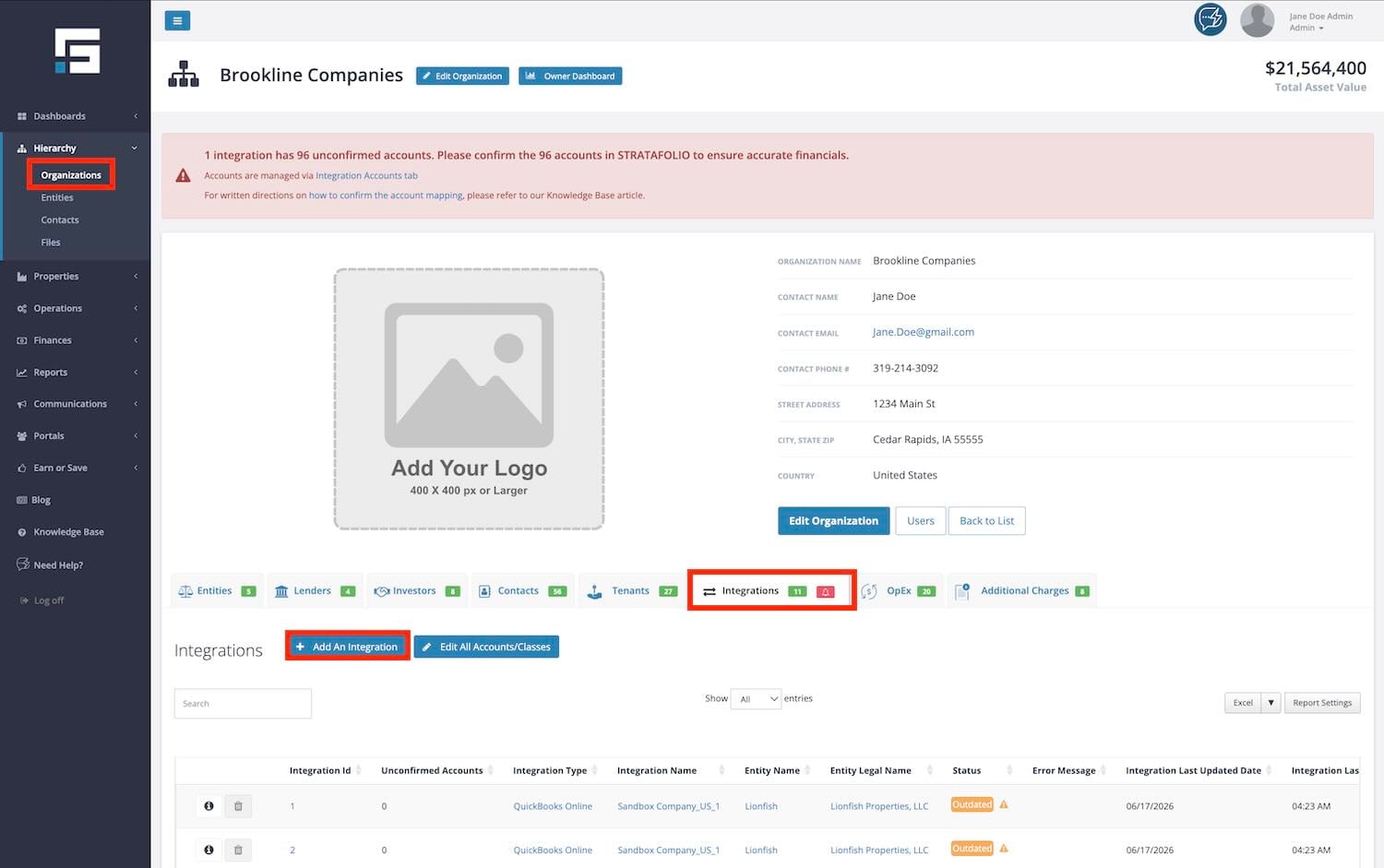
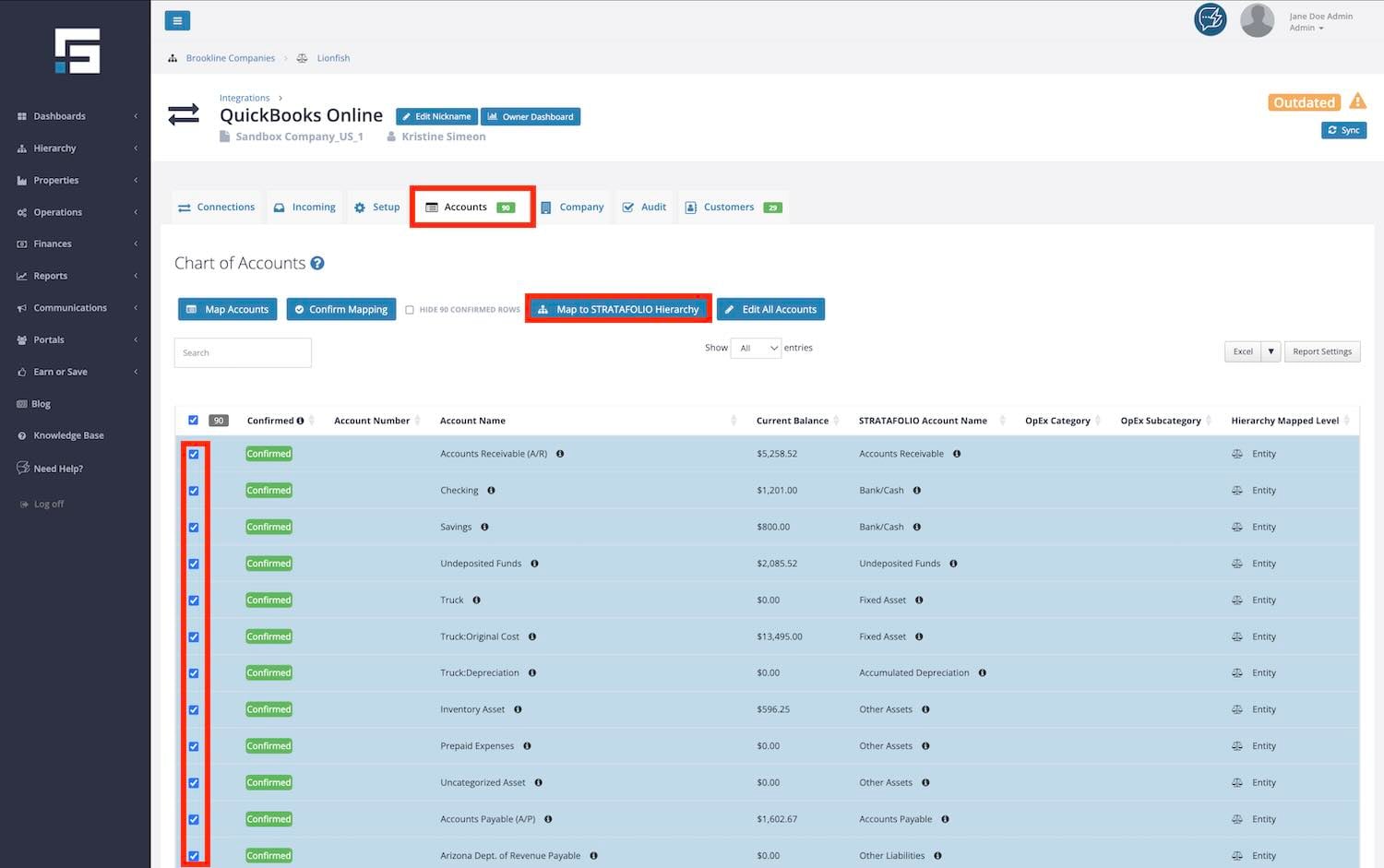
Map the Accounts in the Integration to match your QuickBooks Desktop accounts mapping. Map the applicable Classes, Locations, Loans, Interest, and Hierarchy in the Online file, using your Desktop file as a guide.
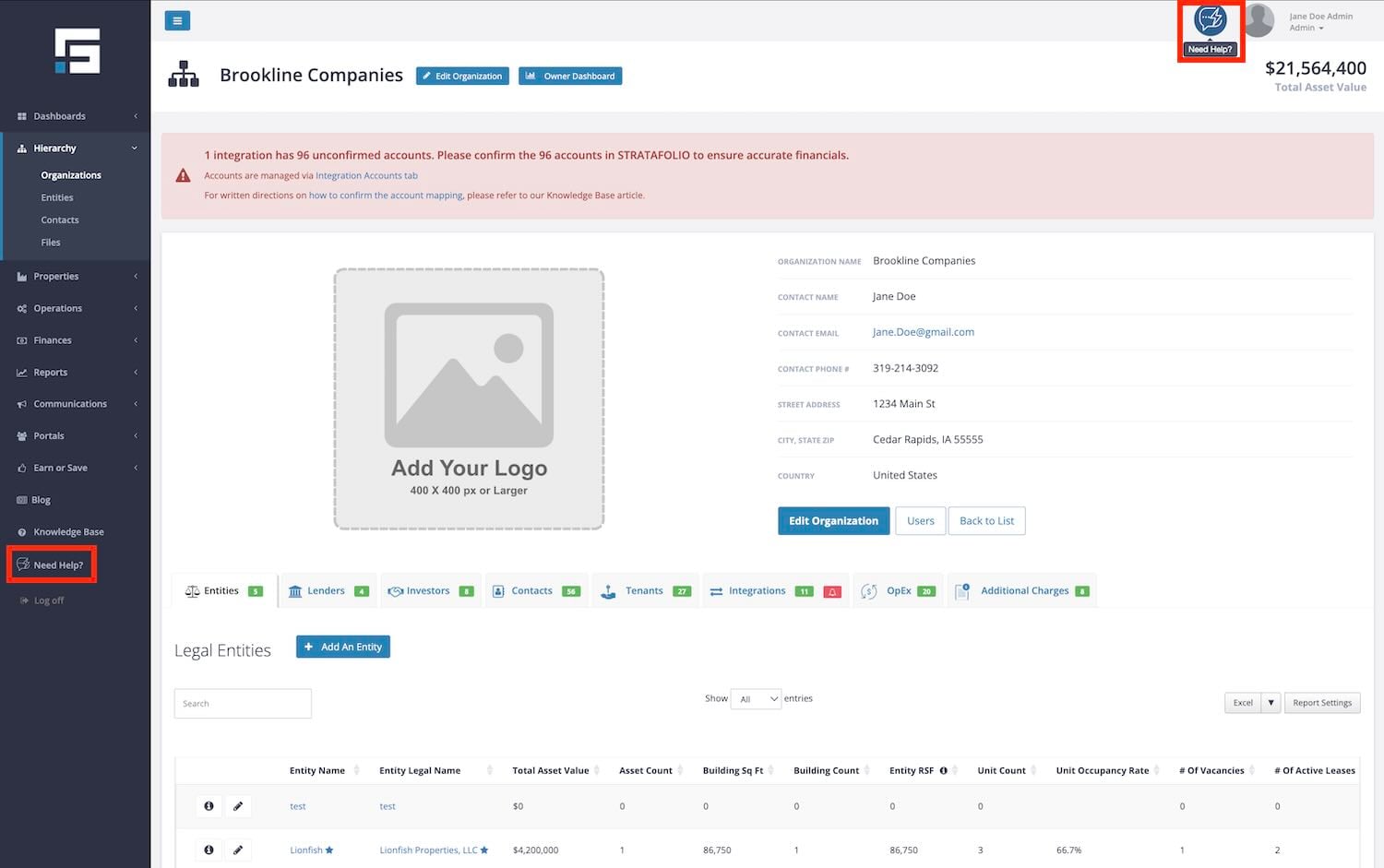
Contact STRATAFOLIO Support using the AI ticket, found through the Need Help button, to request the removal and purging of your QuickBooks Desktop file.
Map the Accounting Customers, Classifications, and Income Items for all Leases associated with this Integration.
Requesting Removal of Your QuickBooks Desktop File
If your situation matches Scenario A above and you are ready to disconnect and purge your QuickBooks Desktop file from your portfolio, provide the support team with the following information for each Integration you want removed:
- The name of the Desktop Integration you want to remove completely
- The number associated with the Desktop Integration you want to remove, found in the first column of the Integration Table
Once you submit this information, a ticket will be created for engineering to remove the integration from your portfolio and purge the database of all its data. This process must be completed after hours, so it may take a few days to finish.
TIP: If you have multiple Entities or Integrations to remove, it is best to submit them all at once. This allows engineers to complete the process once and invoice you once, rather than handling and billing each removal separately.
If Your Scenario Matches Option B
If your situation matches Scenario B, there is no need to contact STRATAFOLIO Support for removal. You will still need to complete the mapping updates described above, the same as you would for Scenario A.
Quick Reference: What You Need to Map After Connecting QuickBooks Online
Once QuickBooks Online is connected, you will need to update the mapping on all of the leases and accounts that were attached to your Desktop integration, so they point to your new Online integration.
In the Leases, this includes:
- Accounting Customers
- Classifications, if applicable
- Income Items, including Lease Rates and OpEx
In the Integration, this includes:
- Accounts
- Loans, if applicable
- Interest, if applicable
- Hierarchy, if applicable
- Classes, if applicable
- Locations, if applicable
TIP: We strongly recommend using the Accounts, Classes, and Locations mapping from your QuickBooks Desktop file as a reference when mapping your QuickBooks Online file. This helps keep your reporting consistent between the two systems.
Considerations if You Are Consolidating Multiple Companies into One QuickBooks Online Company
Some clients use separate QuickBooks Desktop company files for each building and are considering a move to a single QuickBooks Online company that uses Classes to represent each building instead. This is a significant change to your accounting structure, and STRATAFOLIO recommends discussing this decision with your CPA or tax advisor to make sure it aligns with your financial reporting needs.
STRATAFOLIO does have clients who successfully use a single QuickBooks Online company with Classes for each building, though in those cases the ownership structure is the same across all of the buildings involved. An accountant has also written an article on this topic, Importance of Separate QuickBooks Accounts for Real Estate, which may help as you think through this decision.
From STRATAFOLIO’s perspective, both QuickBooks Desktop and QuickBooks Online integrate well with the platform. There is no strong recommendation for one product over the other based solely on the STRATAFOLIO integration, though STRATAFOLIO does have many more QuickBooks Online Plus users than any other product.
If you are in the process of onboarding additional buildings while considering this kind of migration, it is recommended that you halt further onboarding until the migration is complete, since the change will require extra mapping. For properties that are already connected, disconnect the existing QuickBooks Desktop connections when you are ready to transition, then reconnect those properties to the new QuickBooks Online company once the migration is complete. STRATAFOLIO can work with you on timing to help minimize disruption during this process.
How QuickBooks Online Changes Daily Syncing
Moving to QuickBooks Online also changes how your data syncs with STRATAFOLIO. With QuickBooks Desktop, the STRATAFOLIO Sync application needs to run regularly to transfer data between QuickBooks Desktop and STRATAFOLIO. With QuickBooks Online, the connection is cloud-based, so there is no desktop sync application to install or run each day. Data synchronization happens automatically via the online connection, eliminating the daily manual sync required with QuickBooks Desktop.
Troubleshooting Migration from QuickBooks Desktop to QuickBooks Online
I Am Not Sure Which Scenario Applies to Me
Review the two scenarios described above. The key question is whether all of your QuickBooks Desktop data was transferred to your new QuickBooks Online file, or whether your QuickBooks Online file only contains data from a certain date onward. If you are still unsure, contact STRATAFOLIO Support by submitting a ticket for guidance before proceeding.
I Am Still Building Out My Portfolio and Considering This Migration
If you are in the middle of onboarding additional buildings, plan to pause connecting new properties until your migration to QuickBooks Online is complete. This avoids extra rework and keeps your mapping consistent.
