
The Tenants Index Page is your master list of every tenant across your organization. Each row is a tenant record, bringing together who they are, where they lease, how they pay, and how to reach them, all in one searchable table. Think of it as your starting point for tenant management. From here you can review your whole tenant base at a glance, drill into any single tenant, and launch the work that follows, such as leases, contacts, invoices, and portal access.
This page is also one of the places STRATAFOLIO uses to power reporting. Because every column on this page can be shown, hidden, sorted, filtered, and exported, you can turn your tenant list into focused reports in just a few clicks.
Before You Begin
A few things help this page make sense:
Every lease must have a tenant, and every tenant must have at least one contact. A tenant is the leasing party. A contact is a person you reach out to. Keeping at least one contact for each tenant ensures reliable communication and invoicing.
Tenant Status and Lease Status are not the same thing. Tenant Status tells you whether the tenant record is Active or Inactive in STRATAFOLIO. Lease Status tells you the state of their lease, such as Occupied, Month-to-Month, or Expired. A tenant can be Active while a specific lease is Expired.
Where to Find This Feature
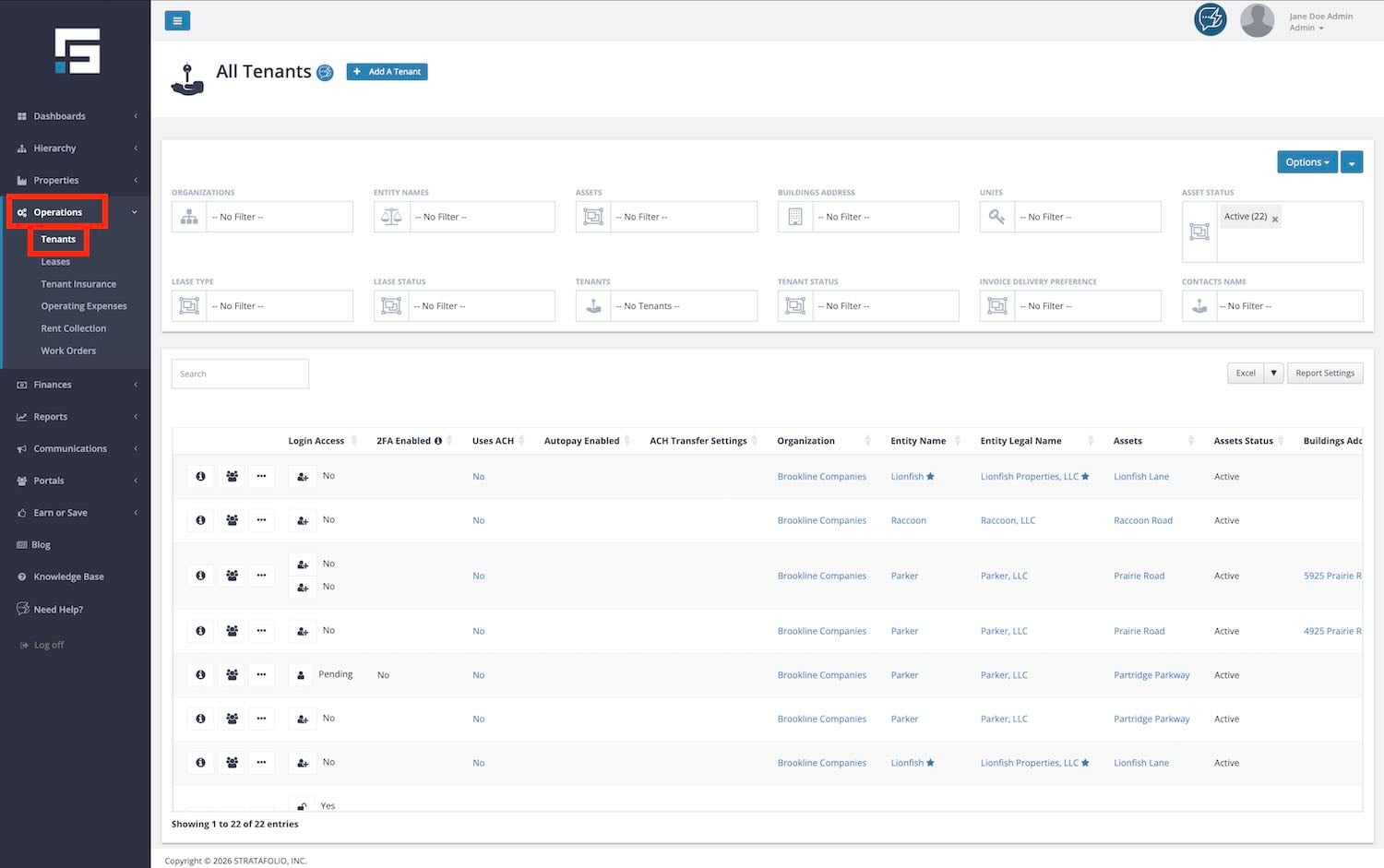
From the main STRATAFOLIO navigation, click on Operations and then Tenants to get to the Tenants Index Page. The page opens to your full list of tenants. Each tenant name appears as a blue hyperlink. Selecting that name opens that tenant’s Details page, where you manage their leases, contacts, portal access, and notes.
How to Use This Feature
You can do four core things on this page: view, search and filter, open a record, and add a new tenant.
- View all tenants. When the page loads, you see every tenant in your organization, one per row. Scroll to browse, or use the column headers to sort. Selecting a column header sorts the list by that column, which is handy for tasks like sorting by Lease End Date to see who is expiring soonest.
- Search, sort, and filter. Use the search bar to type a tenant name and jump straight to it. Use the column filters to narrow the list by criteria such as name, asset status, lease status, or payment method. This helps you isolate a specific tenant or a whole group, such as every tenant who pays by ACH.
- Open a tenant record. Select the blue tenant name to open that tenant’s Details page. This is where you move from the big picture list into managing one tenant.
- Add a new tenant. Select the Add Tenant button to open the Add Tenant form. Enter the required tenant information and save. Remember that every tenant needs at least one contact, so add a contact as part of setting the tenant up.
- Customize columns and export. Use the column settings control to choose which columns are visible, then use the export option to download your current view for reporting. You decide what shows, in what order, and what leaves the page as a file.
NOTE: The columns you choose to show, along with your sorts and filters, define what gets exported. Set up the view first, then export.
Understanding the Columns
The Tenants Index Page includes many columns. Some you will use every day, and some matter only for certain workflows like ACH or portal access. The table below defines every column so you can quickly look up what any heading means and how to use it.
| Column Name | What It Means and How You Use It | Example Value |
|---|---|---|
| Login Access | Shows whether the tenant has access to the Tenant Portal. You will see Yes, No, or Pending. Pending means an invite was sent but the tenant has not finished setting up their login. | No / Pending |
| 2FA Enabled | Shows whether the tenant turned on two factor authentication for their portal login. This adds a second security step when they sign in. | No |
| Uses ACH | Shows whether the tenant pays you by ACH bank transfer through STRATAFOLIO. | Yes / No |
| Autopay Enabled | Shows whether the tenant set up automatic recurring ACH payments, so their invoices are paid on schedule without manual action. | No |
| ACH Transfer Settings | Shows the ACH processing speed chosen for the tenant. Regular follows the standard timeline. Expedited moves funds faster. | Regular |
| Organization | The top level company or portfolio the tenant belongs to. | Brookline |
| Entity Name | The short name of the legal entity (the company that owns the property) tied to the tenant’s lease. | Lionfish |
| Entity Legal Name | NameThe full registered legal name of that entity. | Lionfish Properties, LLC |
| Assets | The property the tenant occupies. | Lionfish Lane |
| Assets Status | Whether that property is Active or Inactive in your portfolio. | Active |
| Buildings Address | The street address of the building the tenant occupies. | 5925 Prairie Road, North Liberty, IA 52317 |
| Unit Number | The specific unit or suite the tenant leases inside the building. | 102 |
| Lease Type | The lease structure tied to the tenant, such as NNN, NN, or Gross. This defines who pays which property expenses. | NNN / Gross |
| Lease Status | The current state of the tenant’s lease, such as Occupied, Month-to-Month, Expired, or Draft. | Occupied |
| Lease Start Date | The date the tenant’s current lease began. | 06/21/2026 |
| Lease End Date | The date the tenant’s current lease is scheduled to end. | 06/31/2029 |
| Tenant Status | Whether the tenant record itself is Active or Inactive in STRATAFOLIO. This is separate from the lease status. | Active / Inactive |
| Tenant Name | The tenant’s name. This is the blue hyperlink that opens the tenant’s Details page. | Samuel Fisher |
| Invoice Delivery Preference | How the tenant receives invoices, either by Email or Print. | Print / Email |
| Tenant Since Date | The date this tenant first became a tenant in your portfolio. Useful for measuring how long they have rented from you. | 06/30/2026 |
| Tax Payer ID # | The tenant’s tax identification number, stored for your records and reporting. | 12-1233455 |
| Annual Income | The tenant’s reported annual income or revenue. Helpful for screening and risk context. | $650,000 |
| Contacts | The people linked to the tenant record, with names and phone numbers. Every tenant must have at least one contact. | Samuel Fisher 319-224-4457 |
| Tenant Notes | Free text notes about the tenant, such as renewal likelihood or history. | Good chance of renewing the lease. |
| Added Date | The date the tenant record was created in STRATAFOLIO. | 08/07/2022 |
| Added Time (CT) | The time the record was created, shown in Central Time. | 06:07 AM |
| Added By | The email address of the user who created the record. | [email protected] |
| Added Name | The display name of the user who created the record. | Jane Doe |
| Last Edit Date | The date the record was last changed. | 06/29/2026 |
| Last Edit Time (CT) | The time of the last change, shown in Central Time. | 08:08 AM |
| Last Edit By | The email address of the user who made the last change. | [email protected] |
| Last Edit Name | The display name of the user who made the last change. | Jane Doe |
Suggested Reports
Because you can show, hide, sort, filter, and export any column, the Tenants Index Page doubles as a flexible reporting tool. Here are report views worth saving and reusing:
ACH and Autopay Adoption. Filter Uses ACH to Yes and show Autopay Enabled and ACH Transfer Settings. This shows who pays you electronically and who still pays another way, so you can encourage more tenants onto ACH and autopay.
Portal Access Status. Show Login Access and 2FA Enabled. This surfaces tenants who have not activated their portal, who are still Pending, or who have not turned on extra security.
Tenant Tenure. Sort by Tenant Since Date. This highlights your longest-standing tenants, which is useful for renewal outreach and relationship building.
Invoice Delivery Method. Filter Invoice Delivery Preference to Print. This finds tenants still receiving paper invoices that you may want to move to email.
Lease Expiration by Tenant. Show Tenant Name and Lease End Date, then sort by Lease End Date. This gives you a quick list of who is expiring soon so you can plan renewals.
TIP: Once you build a useful view, save it so you do not have to rebuild the filters and columns each time. For step-by-step help on saving and reusing views, see How to Customize and Save a Report View. For the full picture of reporting across STRATAFOLIO, see the Reports Companion guide.
More Information on the Feature
The Tenants Index Page sits at the center of tenant management. Everything you do for a tenant tends to start here:
- It is the entry point. From a tenant record, you reach leases, contacts, portal access, invoices, and notes.
- It reflects payment readiness. The ACH, Autopay, and ACH Transfer Settings columns let you see at a glance how each tenant pays, without opening each record.
- It reflects portal readiness. Login Access and 2FA Enabled show whether tenants can use the Tenant Portal and whether they have added security.
- It feeds reporting. Any view you create here can be exported and shared.
Examples, Best Practices, and Tips
Examples When Using the Tenants Index Page
- Onboarding check. After adding several new tenants, filter to your newest records using Added Date, then confirm each one has a contact, a delivery preference, and a lease attached. This catches gaps early.
- ACH campaign. Filter Uses ACH to No to build a list of tenants to invite onto ACH payments. Export that list and use it for outreach.
Best Practices When Using the Tenants Index Page
- Keep contacts current. Since every tenant needs at least one contact, review the Contacts column regularly so invoices and announcements always reach a real person.
- Confirm status fields. When something looks off, check both Tenant Status and Lease Status. A tenant can be Active while an old lease shows Expired, and that is expected.
TIP: sort before you export. Set your sort order and filters first, since your export matches the view on screen.
Troubleshooting
- A tenant is missing from the list. Check your active filters first. A filter on status, asset, or payment method can hide tenants. Clear filters to see the full list.
- A tenant name is not a clickable link. Tenant names appear as blue hyperlinks. If a name does not open a record, refresh the page, then confirm you have permission to view that tenant.
- Login Access shows Pending. This means an invite was sent but the tenant has not finished setting up their portal login. Resend the invite or follow up with the tenant.
- An export is missing columns you expected. Exports match your current view. Open the column settings, turn on the columns you need, then export again.
