
The Rent Collection page contains a lot of information regarding Invoices, Payments, and Rent Roll. It includes the ability to sort, filter, and search for invoices across all of your STRATAFOLIO tenants and leases in one easy-to-use location.
This article provides an overview of the Rent Collection page and links to other helpful articles in our Knowledge Base for detailed information on invoicing, adding payments, and running reports.
How to Navigate to the Rent Collection Page
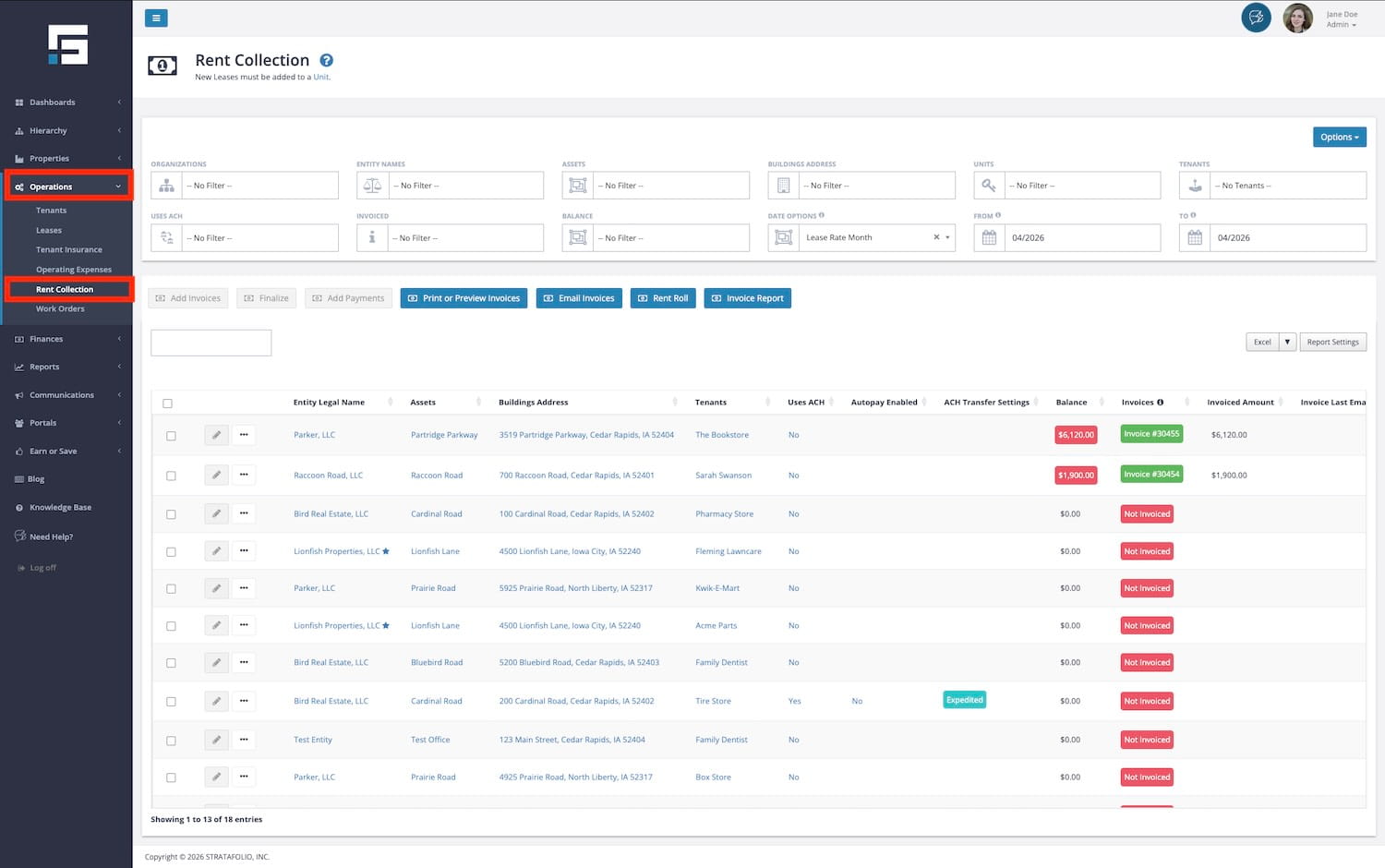
Navigate to the Rent Collection page by navigating to Operations on the left-side navigation menu, then Rent Collection.
The Rent Collection Index Page
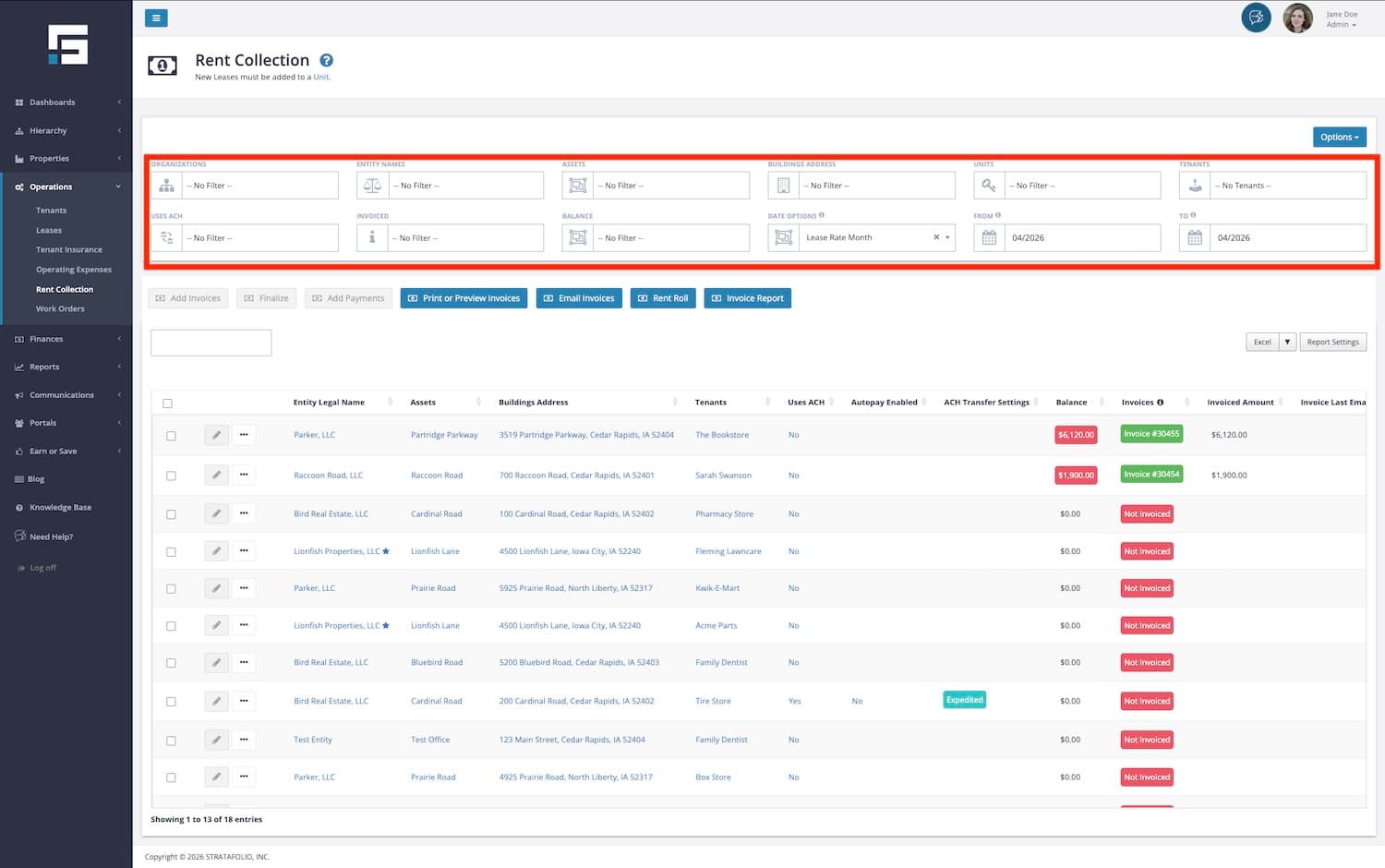
The top section of the Rent Collection page allows you to filter the invoices by different categories. You can choose one or more options within each category. For example, under Units, you can select Units 100, 200, and 103. If you have a large portfolio, these filter options are a quick and easy way to drill down to the information you need.
The available filters are:
- Organizations
- Entity Names
- Assets
- Buildings Address
- Units
- Tenants
- Uses ACH
- Invoiced
- Balance
- Date Options
- From
- To
Uses ACH Filter: Use this filter to quickly identify invoices paid via ACH bank transfer. This makes it easy to separate ACH transactions from other payment types without scrolling through your full list.
Date Options Filter: Use this filter to control how STRATAFOLIO filters your invoices by date. See the Filter by Date section below for a full explanation of each Date Option available.
How can I View Past Due/Overdue Rent or Invoices?
Want to see just the unpaid invoices? Or just the invoices that still have a balance? The Invoiced and Balance filters allow you the flexibility to find these invoices within the selected period with just a couple of clicks.
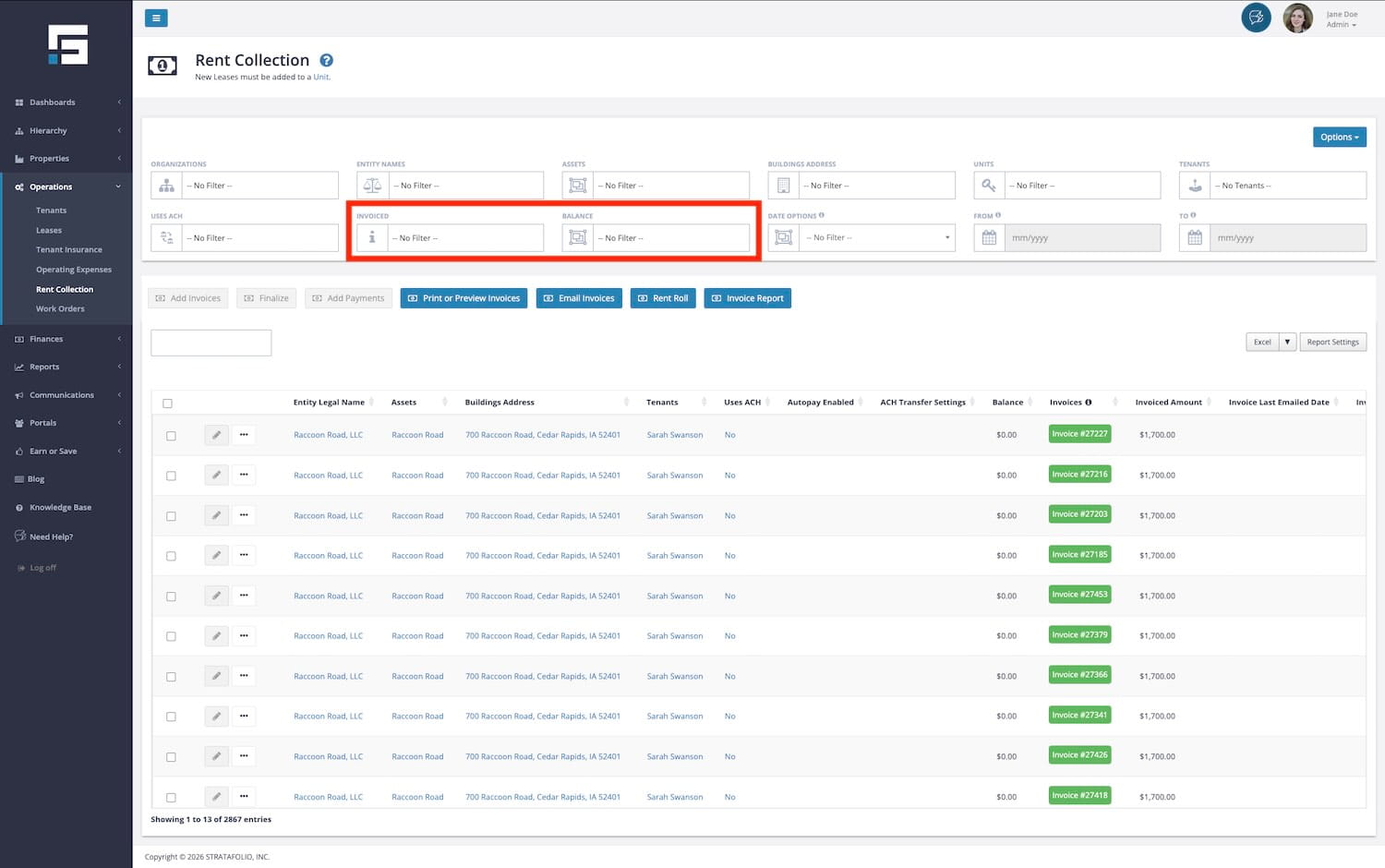
The Invoiced filter includes updated status labels that provide clearer, more precise information on where each invoice stands. The options for these two filters are:
INVOICED:
- Not Invoiced
- Draft Invoice
- Finalized: The invoice has been fully processed and is complete.
- Sync Error: Something went wrong during syncing with QuickBooks. Review these invoices to resolve the issue.
- Sync in Progress: The invoice is currently syncing with QuickBooks.
BALANCE:
- Overdue
- Current
- Credit
The Rent Collection page also shows the balance due for each invoice. Navigate to the invoice number to open the detailed view.
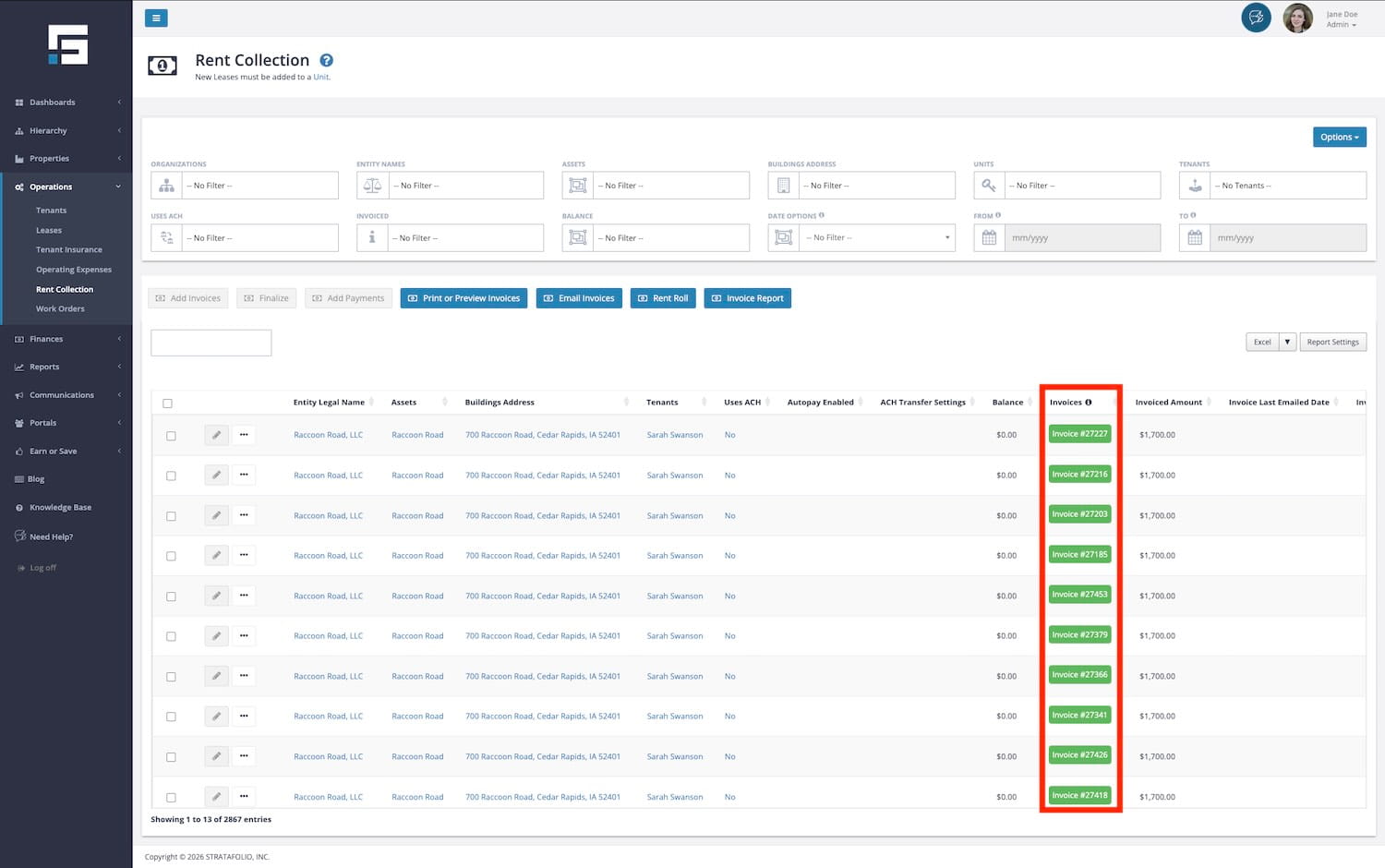
For more information on how to quickly view paid and overdue invoices in STRATAFOLIO read this.
Filter by Date
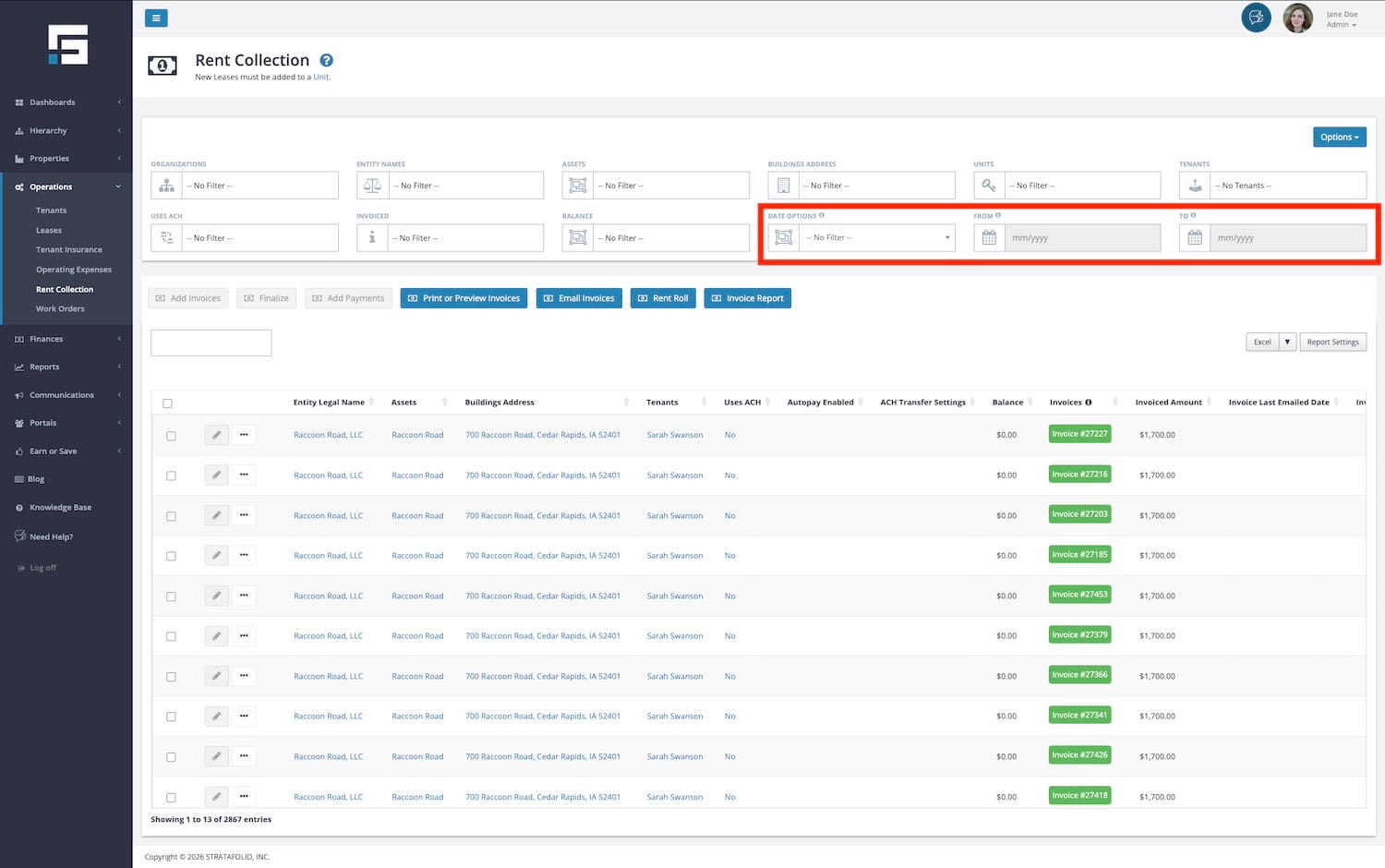
The Date Options filter on the Rent Collection page gives you control over how STRATAFOLIO filters and displays your invoices based on date. Be sure to double-check the date range when you are working on this page. Selecting the correct date range helps narrow or expand your search.
Use the Date Options dropdown to select which type of date you want to filter by, then use the From and To fields to set your date range. The available Date Options are:
Lease Rate Month: Filters invoices based on the month of the lease rate. This is the default selection and is the most commonly used option. Use this when you want to see invoices for a specific billing period.
Invoiced Due Date: Filters invoices based on the date the payment is due from the tenant. Use this to see which invoices are coming due or are past due within a specific date range.
Invoiced Finalized Date: Filters invoices based on the date the invoice was finalized in STRATAFOLIO. Use this to confirm which invoices were finalized during a specific period.
Invoiced Received Date: Filters invoices based on the date a payment was received. Use this when you want to see which invoices were paid within a specific date range.
Invoiced Modified Date: Filters invoices based on the date an invoice was last modified. Use this to track any recent changes to invoices within a specific period.
Export Your List as a Report
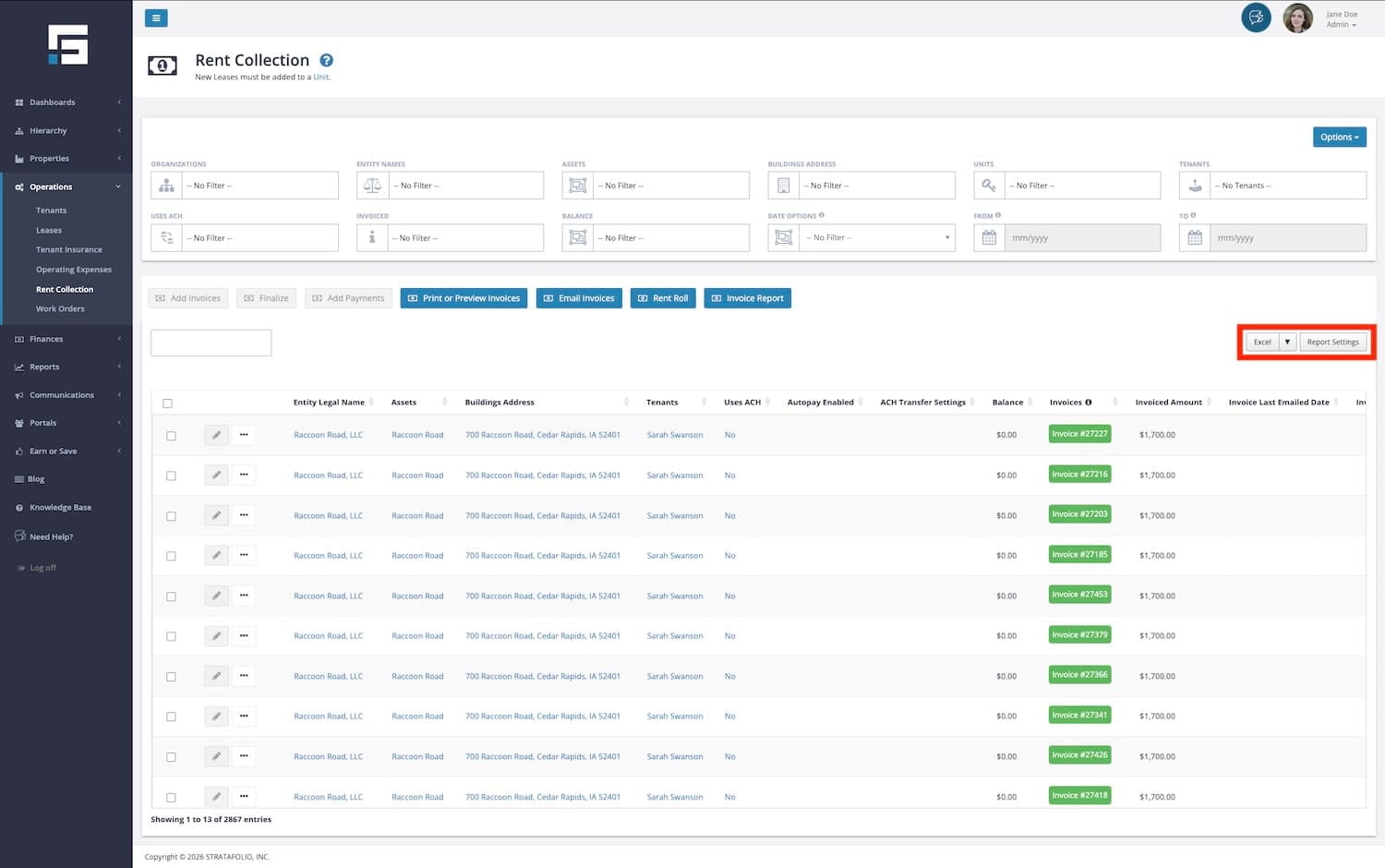
Once you have selected the desired filters and date range, you can export exactly what you see on the Rent Collection page (including outstanding balances in the Balance column). Use the Excel, PDF, or CSV export options (the buttons outlined in red above) on the right side of the page to save or share the report. You can also use the Report Settings button next to it to change the order and which columns are visible before you export the report.
Shareable Filtered Pages
Your filter selections on the Rent Collection page are automatically included in the URL. This means that when you copy and share the link, anyone you share it with will see the exact same filtered view that you are looking at, no need to walk them through which filters to apply.
This makes it easier to collaborate with your team, troubleshoot invoice issues, and quickly share specific views. Simply apply your filters, copy the URL from your browser, and share it.
Invoicing, Payments & Reports
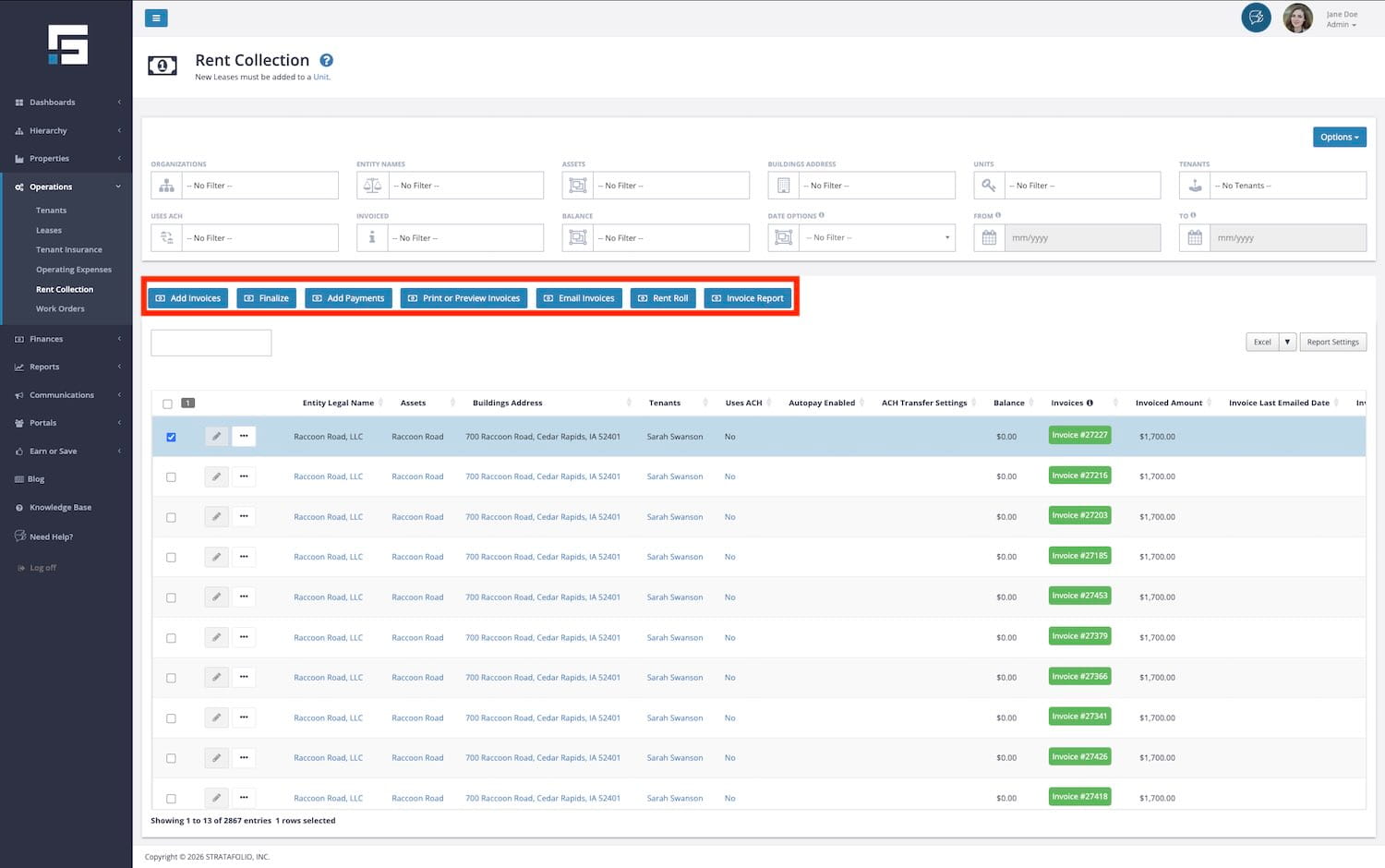
The Rent Collection page includes several options accessible via the blue buttons in the middle of the page. Information about each of these functions is provided in the sections below.
NOTE: The first three buttons (Add Invoices, Finalize, Add Payments) are only clickable after selecting a checkbox beside the Lease record you want to perform actions related to invoicing.
Invoicing
Invoice Last Updated Date and Time
STRATAFOLIO displays the Last Updated Date and Last Updated Time for each invoice directly in the Rent Collection table as their own columns. This gives you instant visibility into when an invoice was last changed without any extra clicks.
 |  |  |
| Select the unit(s) to add an invoice(s) to, then select the Add Invoices to add details and save the invoice(s). Also, see Creating Invoices in STRATAFOLIO. | Use the Finalize button to finalize draft invoices. Also, see Creating Invoices in STRATAFOLIO. | With the Print or Preview Invoices button, you can select a single invoice or a set of invoices to download and print in a format that is suitable for mailing to tenants. Also, see All About INVOICES in STRATAFOLIO. |
Payments
 |
| The Add Payments button is used to record payments received from tenants. Payment recorded in STRATAFOLIO will be posted to your QuickBooks Account. Also, see Adding Invoice Payments in STRATAFOLIO. |
Reports
 |  |
| A Rent Roll is a detailed list of tenants, rent rates, and vacancy status for each unit. To run a Rent Roll, select the Rent Roll button, then choose the assets, buildings, etc. you would like to include for a particular month. Also, see How to Run a Rent Roll – STRATAFOLIO. | An Invoice Report summarizes the invoices for each asset and then rolls all the information up into a summary page at the end. Use this report to see any of the assets, buildings, and tenants in the date range that you want to include in the report. This will show both the Draft and Finalized invoice. Also, see All About INVOICES in STRATAFOLIO. |
