Benefits of Invoicing with STRATAFOLIO
Why should you use STRATAFOLIO for invoicing? With STRATAFOLIO, invoicing is simple and streamlined.
- Automatically Capture Rent Escalations – STRATAFOLIO automatically includes the correct lease escalations and operating expense amounts on all the invoices generated through the application. This means you can consistently bill your tenants in accordance with the lease obligations without creating cumbersome spreadsheets and calendar reminders.
- Bulk Invoice Across All QuickBooks Company Accounts – Since STRATAFOLIO integrates all your QuickBooks accounts together in the Rent Collection section, bulk invoicing allows you to add invoices across all your QuickBooks accounts with just a couple of clicks.
- Syncs with QuickBooks – Our bi-directional integration with QuickBooks ensures that STRATAFOLIO also automatically adds invoices to your QuickBooks account within minutes.
- Receive Payments in STRATAFOLIO – Since all your tenants appear on the Rent Collection page of STRATAFOLIO, regardless of their QuickBooks accounts, adding payments is quick and easy. Once you apply a payment to a tenant’s invoice in STRATAFOLIO, STRATAFOLIO also applies it to your QuickBooks account within minutes. This process eliminates the need for double data entry.
- Receive Payments with ACH – Receive Payments with ACH – Tired of tracking late payments? With the ACH option in STRATAFOLIO, tenants can set up automatic payments, so their payments are never late again. Your tenants can also make a one-time payment via the STRATAFOLIO ACH for late fees.
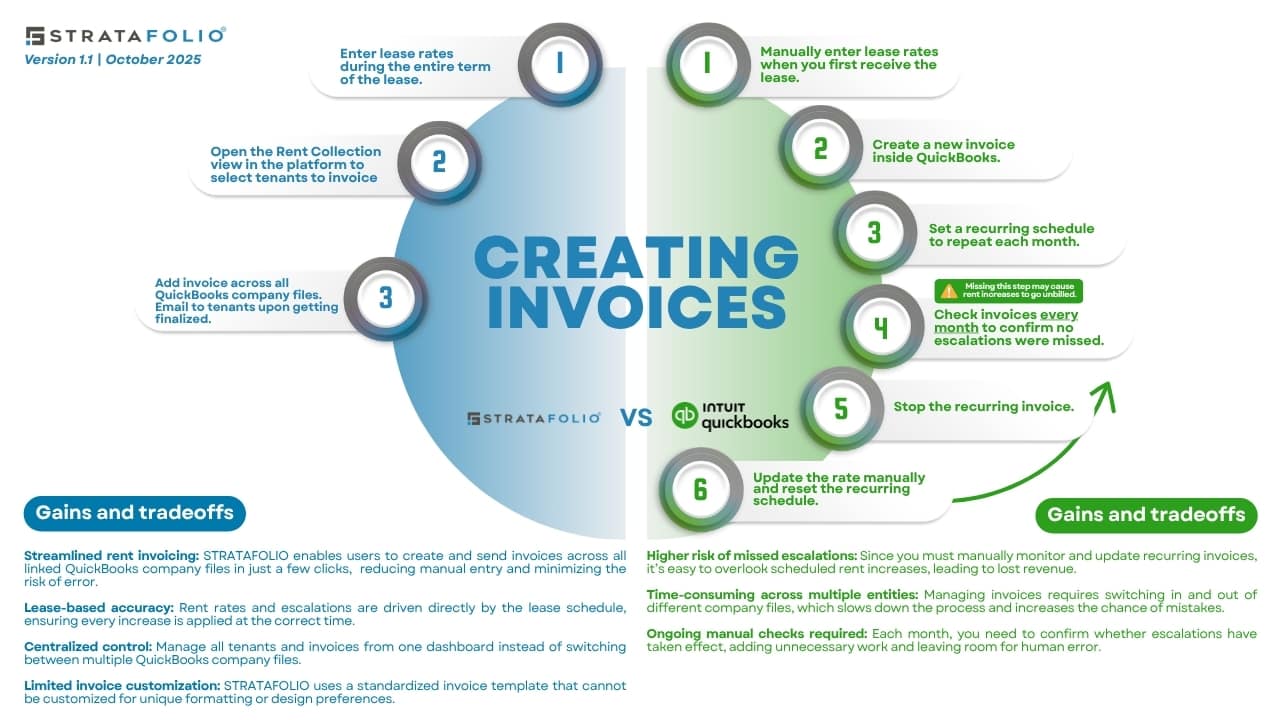
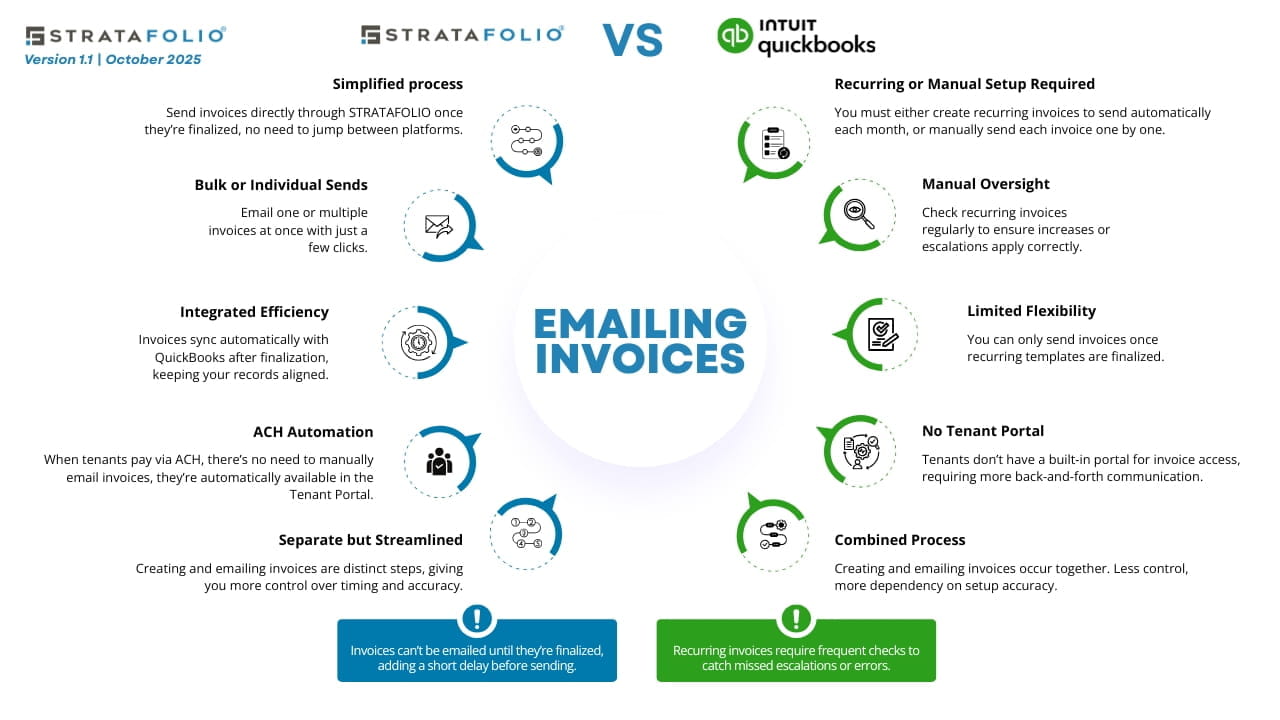
- The graphic below shows how creating invoices in STRATAFOLIO compares to handling the same process directly in QuickBooks. Because STRATAFOLIO pulls rent rates and escalations directly from each lease schedule, STRATAFOLIO generates your invoices with the correct amounts across all your linked QuickBooks company files in just a few clicks, without building and maintaining a separate recurring invoice in each account.
Invoicing Tips & Tricks
Invoice Number
The Rent Collection page displays Invoice Numbers to make it easy to see the status of each invoice.
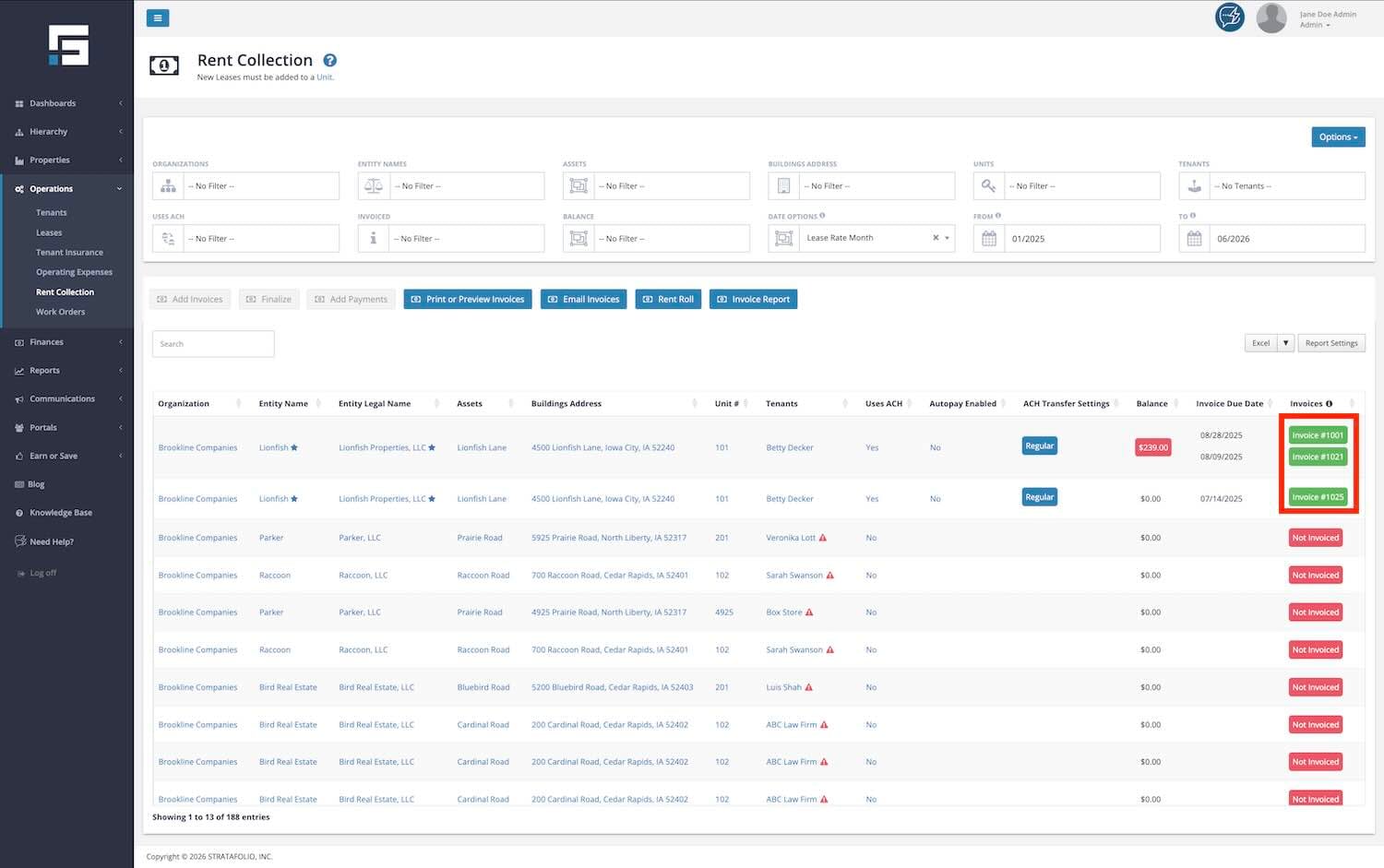
The green invoices with a number indicate that the invoice is complete. The number is the QuickBooks account number, and the $0.00 in the Balance column indicates that the invoice has been recorded as paid in QuickBooks.
You may have sent two invoices with the same due date. In these cases, check if it’s a duplicate if the Invoiced Amount is twice the usual monthly amount. However, two invoices in one month could be correct if you billed the tenant separately for a special charge.
When you first add an invoice in STRATAFOLIO, it will be given an “SF” number. The next time STRATAFOLIO syncs with QuickBooks, the number will update to the QuickBooks-assigned invoice number, and “SF” will be replaced with the QuickBooks-generated number.
The red status on invoices indicates that an invoice has not been finalized. In this case, the invoice has been added and saved as a “Draft.” It has an “SF” number because the invoice has not been synced with QuickBooks and can not until it is finalized.
NOTE: After syncing with QuickBooks, if the invoice is not given a number from QuickBooks, for example, if 
Tenant Must Be Associated With An Accounting Software Customer
On the Rent Collection page, if there is a red triangle next to the tenant’s name in the invoices column, hover over the triangle for more information. Generally, it is a warning indicating your tenant is not set up for invoicing.

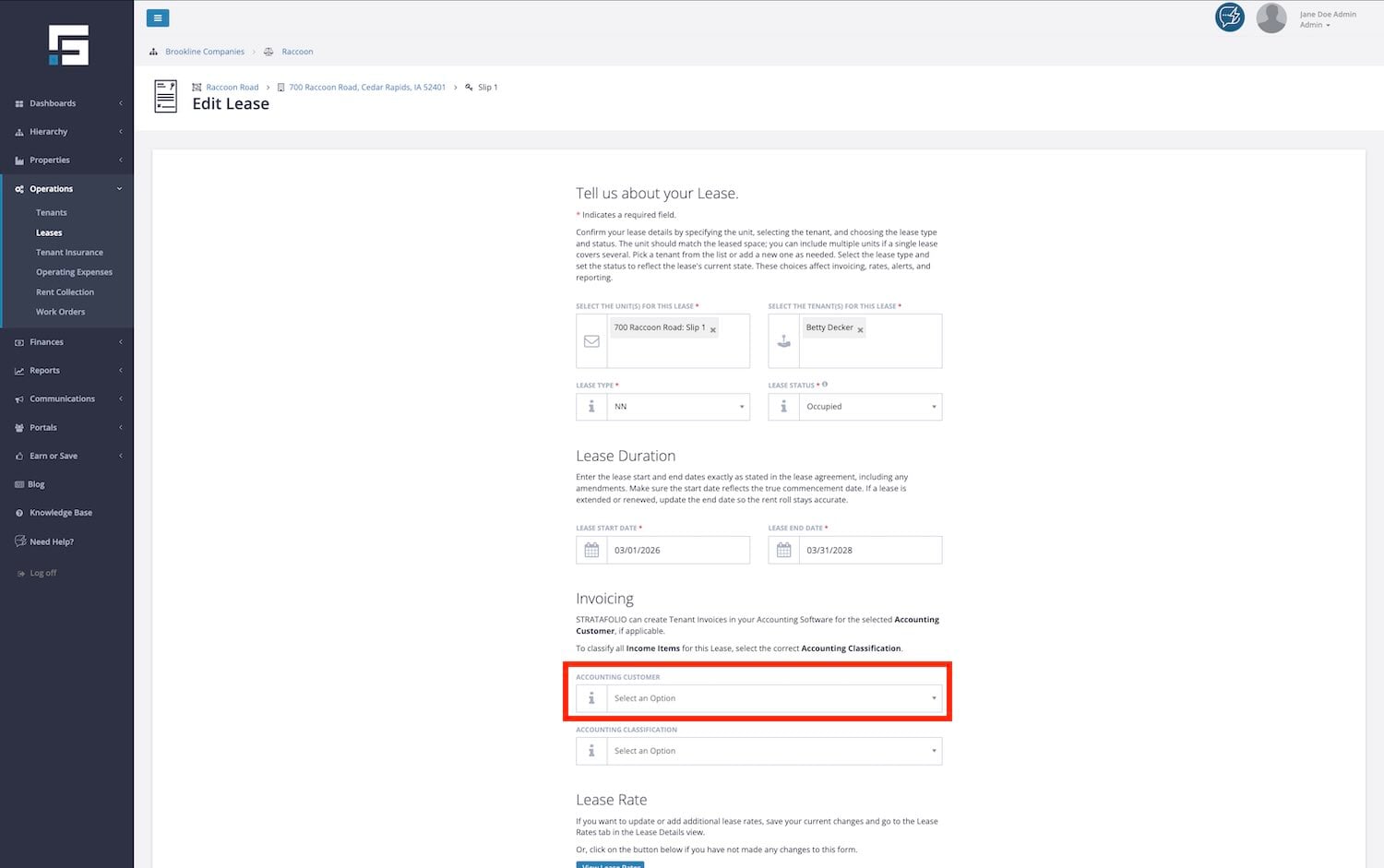
The Accounting Software Customer must first be entered into QuickBooks as a Customer. Then, in STRATAFOLIO, you will select this customer under the Lease information to link the two together.
To do this, start by navigating to the Lease from the Leases index page under Operations in the left-side navigation menu. Click on the pencil icon to edit the Lease information.
Once in the Edit Lease pop-up window, select the Accounting Software Customer from the dropdown options about halfway down the page. You can also select Print or Email under Invoice Preferences in this window.
Why Invoices Show the Company Address, Not an Entity Address
When STRATAFOLIO generates an invoice, the address that appears on it always comes from the company address on file in QuickBooks. It does not come from an individual entity.
This matters if you use classes in QuickBooks to track multiple entities within a single QuickBooks company file. For example, if you set up five separate entities as classes in one QuickBooks file, every invoice for those entities will still show the same company address. STRATAFOLIO will not display the address of the specific entity tied to that class.
This happens because the address is a company-level field in QuickBooks, not a class-level field. Since STRATAFOLIO pulls the address directly from QuickBooks, invoices always reflect the company address on file there, no matter how many entities you track by class within that file.
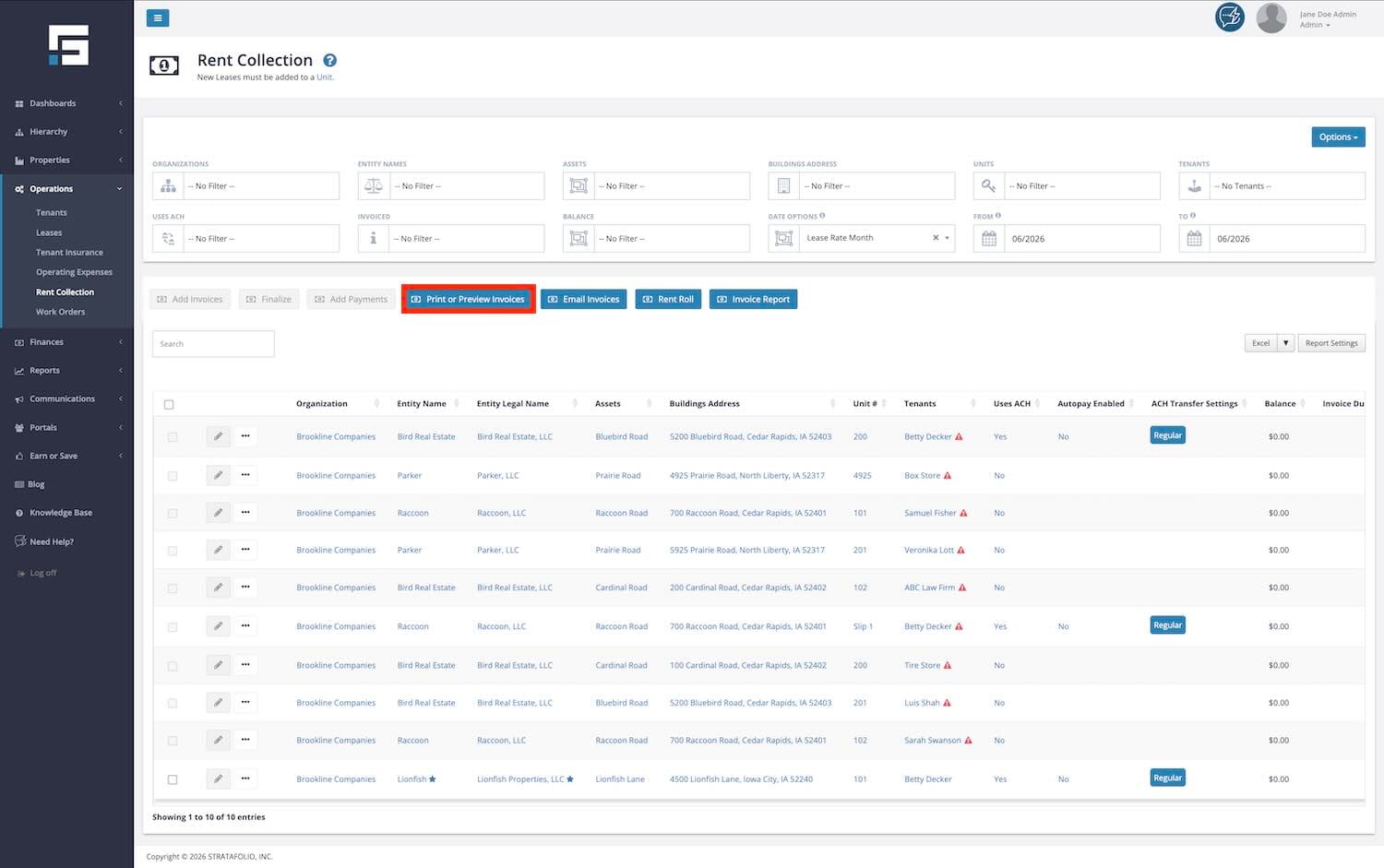
How to Print or Preview Invoices
The Print or Preview Invoices button 
How to Email Invoices
Before walking through the setup, here’s how emailing invoices in STRATAFOLIO compares to QuickBooks. In STRATAFOLIO, creating and emailing are separate, deliberate steps, so you control exactly when invoices go out. You can email a single invoice or multiple at once, and tenants who pay via ACH can access their invoices directly in the Tenant Portal, no manual emailing needed.
Similar to Print/Preview Invoices, above, selecting the Email Invoices button 
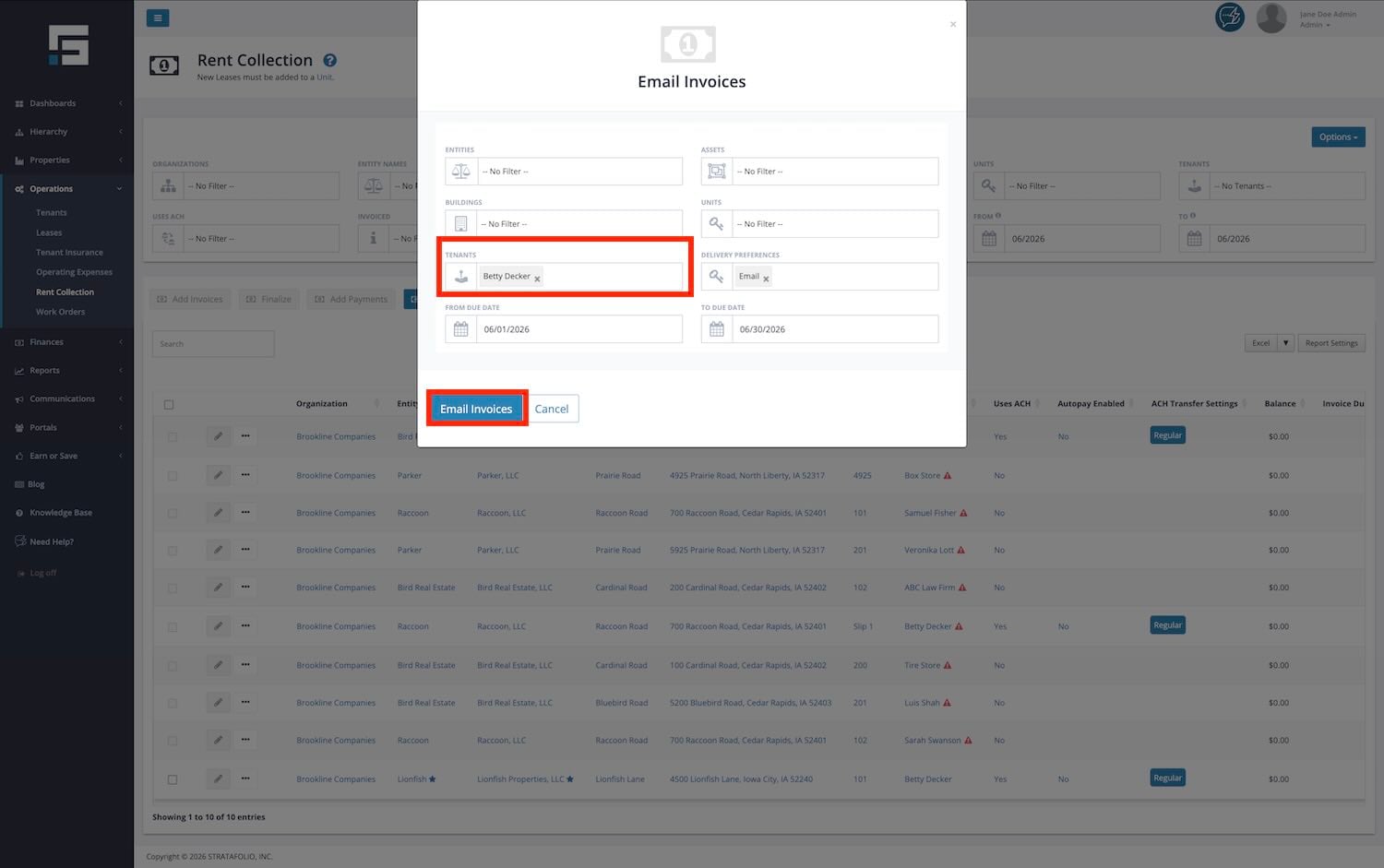
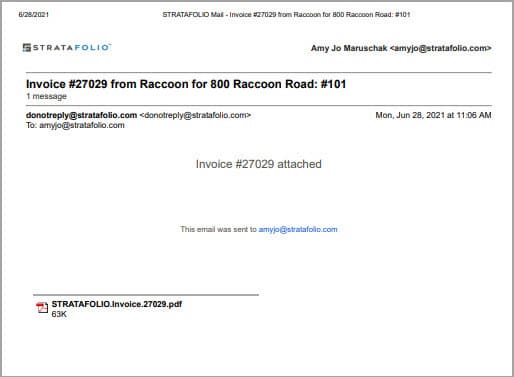
NOTE: Tenant & Contact must be set up to receive invoices from STRATAFOLIO.
How to Set Up Tenants & Contacts to Receive Emailed Invoices
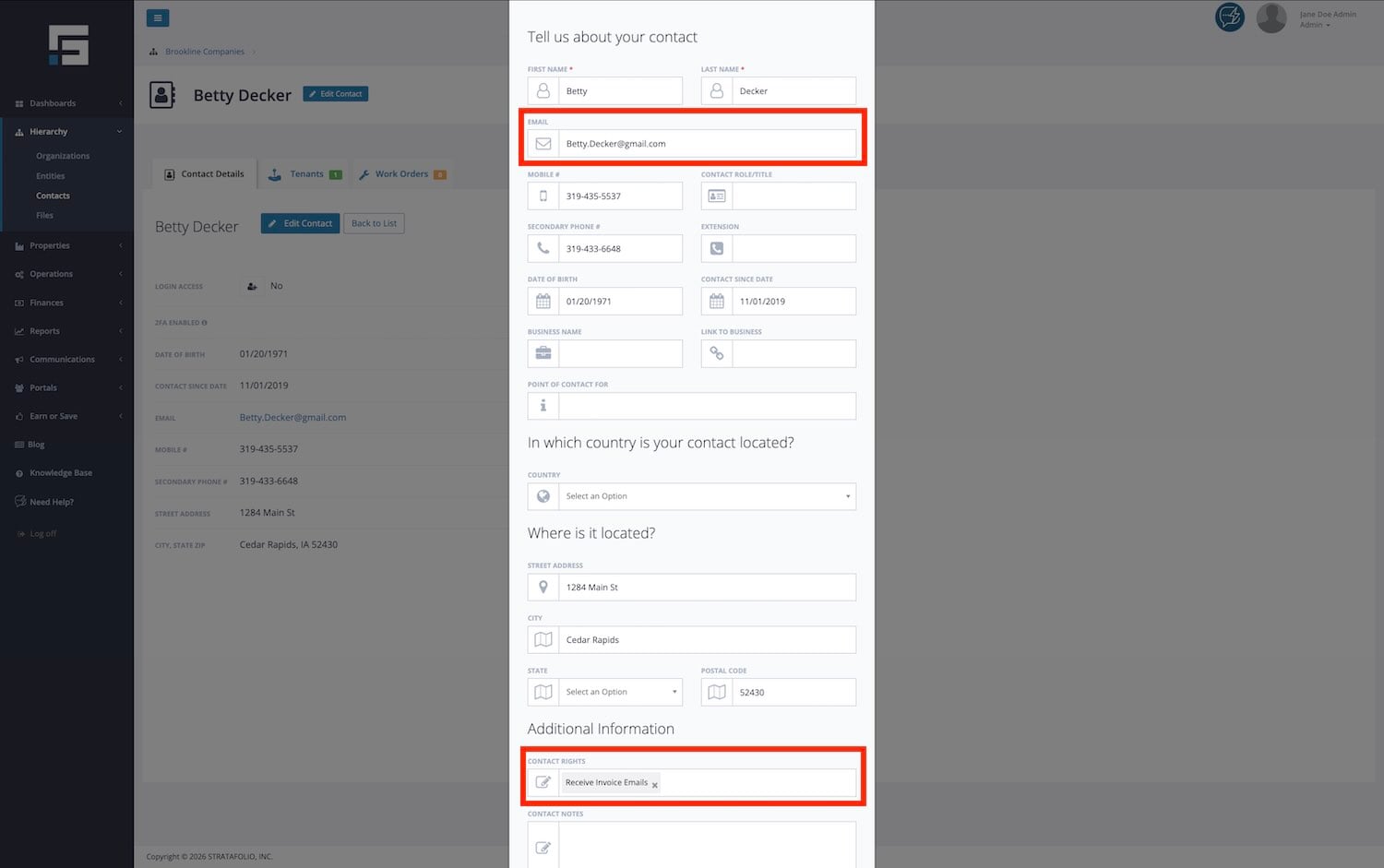
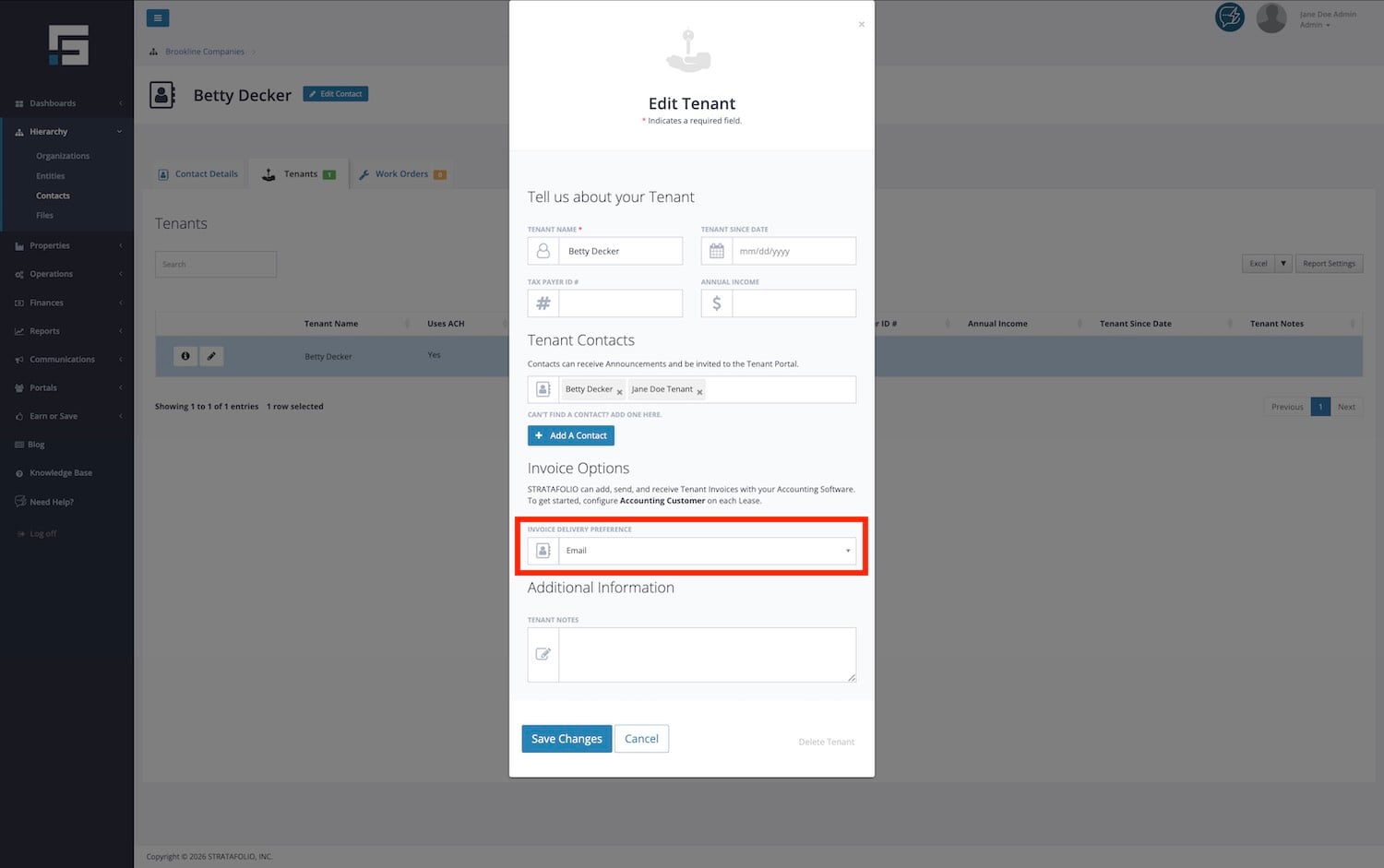
In order to email invoices, the Contact & Tenant set up in STRATAFOLIO must include the following:
- The Contact in STRATAFOLIO must have an email address.
- The Contact in STRATAFOLIO must be set up to Receive Invoice Emails.
- The Tenant in STRATAFOLIO must have Email selected as their Invoice Delivery Preference.
To update the Contact or Tenant information, select Edit
Contact Information
Tenant Information
Invoice Report
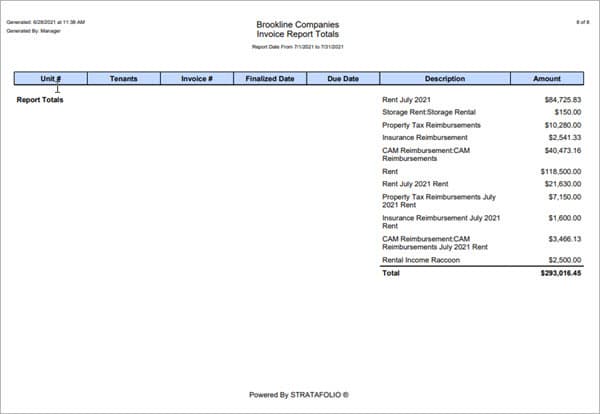
The Invoice Report function, located on the Rent Collection page, is especially useful for running a summary report of all the invoices for a specific building, asset, or time period. As with the other buttons discussed above, selecting the Invoice Report 
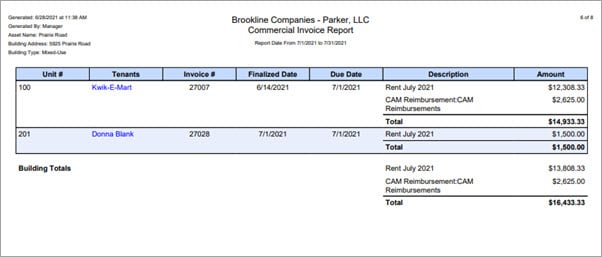
TIP: The last page of the Invoice Report is a summary of Invoice Report Totals, which will show you the total amount invoiced for this report.
Single vs. Bulk Invoicing
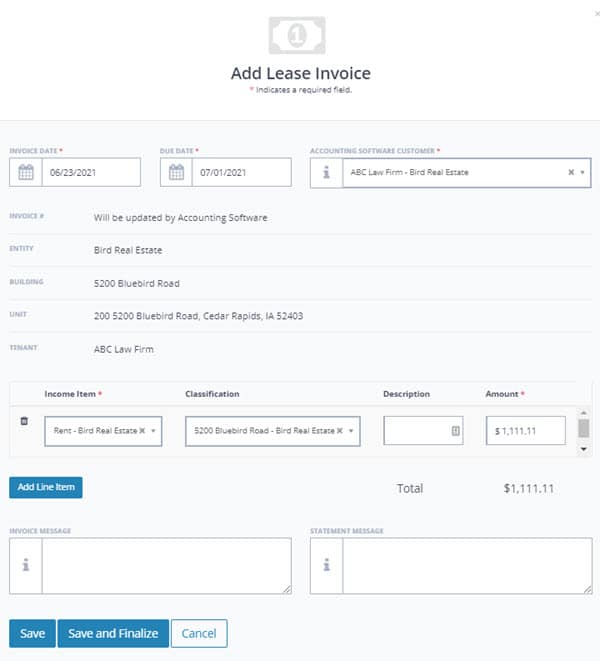
Single Invoicing
- Allows the most flexibility for reviewing & editing income items, classes, due dates, etc. for each invoice.
- Allows adding amounts that are not included in the regular lease rate. For example, a one-time extra CAM charge due to underpayment in the prior term.
- Allows the amount charged per income item to be manually changed before syncing with QuickBooks.
Bulk Invoicing
- Add several invoices or many with just a couple of clicks.
- Cannot edit the amounts or income items/classes on any of the invoices.
- Adding information on the Add Invoices page will be reflected across all selected invoices.

Read this for step-by-step instructions on how to add Single or Bulk Invoices in STRATAFOLIO.
Error Messages
If you try to invoice a tenant that is not set up for invoicing in STRATAFOLIO, or if you try to email an invoice to a tenant without an email address, you will see an error like this:
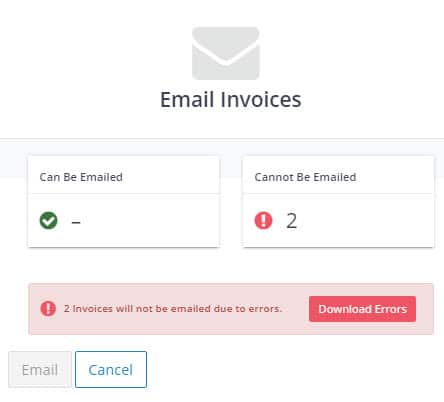
To get more information about the specific error, click on the Download Errors button to download a file with more details. Once the error is corrected, invoicing will be available for this lease.
If a tenant attempts to make a one-time ACH payment on an invoice that has since been deleted from QuickBooks, they will see an error message in their Tenant Portal letting them know the invoice is no longer available.
NOTE: If a tenant sees this error, it means the invoice they selected was deleted from QuickBooks after it appeared in STRATAFOLIO. The tenant should refresh the page and try again. If the invoice no longer appears after refreshing, the owner will need to recreate it in QuickBooks and sync it back to STRATAFOLIO before the tenant can make a payment.
How to Fix Invoices Created with the Wrong Date
When creating invoices in STRATAFOLIO, the system uses the exact date entered in the invoice creation window. If the year is entered incorrectly or abbreviated in a way the system misreads, the invoice may post to an unintended year.
Because STRATAFOLIO syncs with QuickBooks, posting dates must be accurate before invoices are finalized.
Option 1: Unfinalize and Correct the Existing Invoices
If the invoices have already been finalized, they must first be unfinalized.
- Unfinalize the invoice by opening it and clicking on Unfinalize. Once the invoices are returned to draft mode, update the posting date to the correct date.
- Review the invoice for accuracy.
- Finalize the invoice again.
IMPORTANT: Unfinalizing invoices may require manual processing by STRATAFOLIO Support. This can take some time depending on volume.
Option 2: Create New Invoices With the Correct Date
If you would prefer not to wait for the invoices to be unfinalized, you may:
- Create new invoices with the correct posting date.
- Confirm the amounts and charges are correct.
- Wait for the original invoices to be returned to draft mode.
- Delete the incorrect invoices once they are back in draft status.
This approach allows you to continue billing operations without delay.
Can I Delete an Invoice
Draft Invoices can be edited, updated, or deleted in STRATAFOLIO until they are finalized. Users with permission to edit invoices, such as the Property Manager, Manager, and Admin roles, can add or remove invoice line items while the invoice is still in Draft status. However, only users with an Administrator role can delete an invoice.
Lastly, once an invoice is finalized in STRATAFOLIO, any changes to the invoice must be made in QuickBooks. Any changes made in QuickBooks will be reflected on the invoices shown in STRATAFOLIO once the account is synced.
What if I Created Additional Invoices by Accident?
If you accidentally create an extra or duplicate invoice for a lease, how you remove it depends on whether STRATAFOLIO has already synced the invoice to QuickBooks.
If the Duplicate Invoice Has Not Synced to QuickBooks
If the invoice is still in Draft status or hasn’t synced to QuickBooks yet, you have two options.
Option 1: Unfinalize and delete the invoice in STRATAFOLIO
- Open the duplicate invoice that you want to remove.
- Select Unfinalize.
- Select Delete Invoice.
Option 2: Remove the invoice from QuickBooks, then sync
- Sync your QuickBooks account.
- In QuickBooks, remove the duplicate invoice you don’t need.
- Sync your QuickBooks account with STRATAFOLIO again. Once the sync completes, STRATAFOLIO will no longer show that invoice as pending, draft, or unfinalized.
Either option works. Choose whichever fits how you prefer to manage your records.
If the Duplicate Invoice Has Already Been Finalized and Synced
Once STRATAFOLIO finalizes and syncs an invoice, you cannot unfinalize and delete it directly in STRATAFOLIO. Instead, remove it from QuickBooks first.
- In QuickBooks, remove the duplicate invoice you don’t need.
- Sync your QuickBooks account with STRATAFOLIO again.
Once the sync completes, STRATAFOLIO removes the duplicate invoice from the Rent Collection list.
NOTE: STRATAFOLIO does not currently offer a way to unfinalize and delete multiple invoices at once. If you have several duplicate invoices, remove them one at a time, using whichever option above matches each invoice’s status.