
What is a COI
An insurance company issues a Certificate of Insurance (COI) to verify active insurance coverage for a tenant or vendor. Landlords and property managers often require a COI before work begins or a lease is signed.
A standard COI typically includes:
- General Liability Insurance
- Workers’ Compensation Insurance
- Commercial Auto Coverage
Commercial lease agreements commonly require COIs. Tenants generally must provide an updated COI whenever they issue or renew a policy.
However, requirements may vary depending on the lease.
This documentation provides financial protection in the event of property damage, injury, or other unforeseen incidents.
How to Add Insurance Requirements
- Navigate to the tenant’s Lease Details.
- Select the Insurance tab.
- Click + Add Insurance Requirement.
- Complete the form.
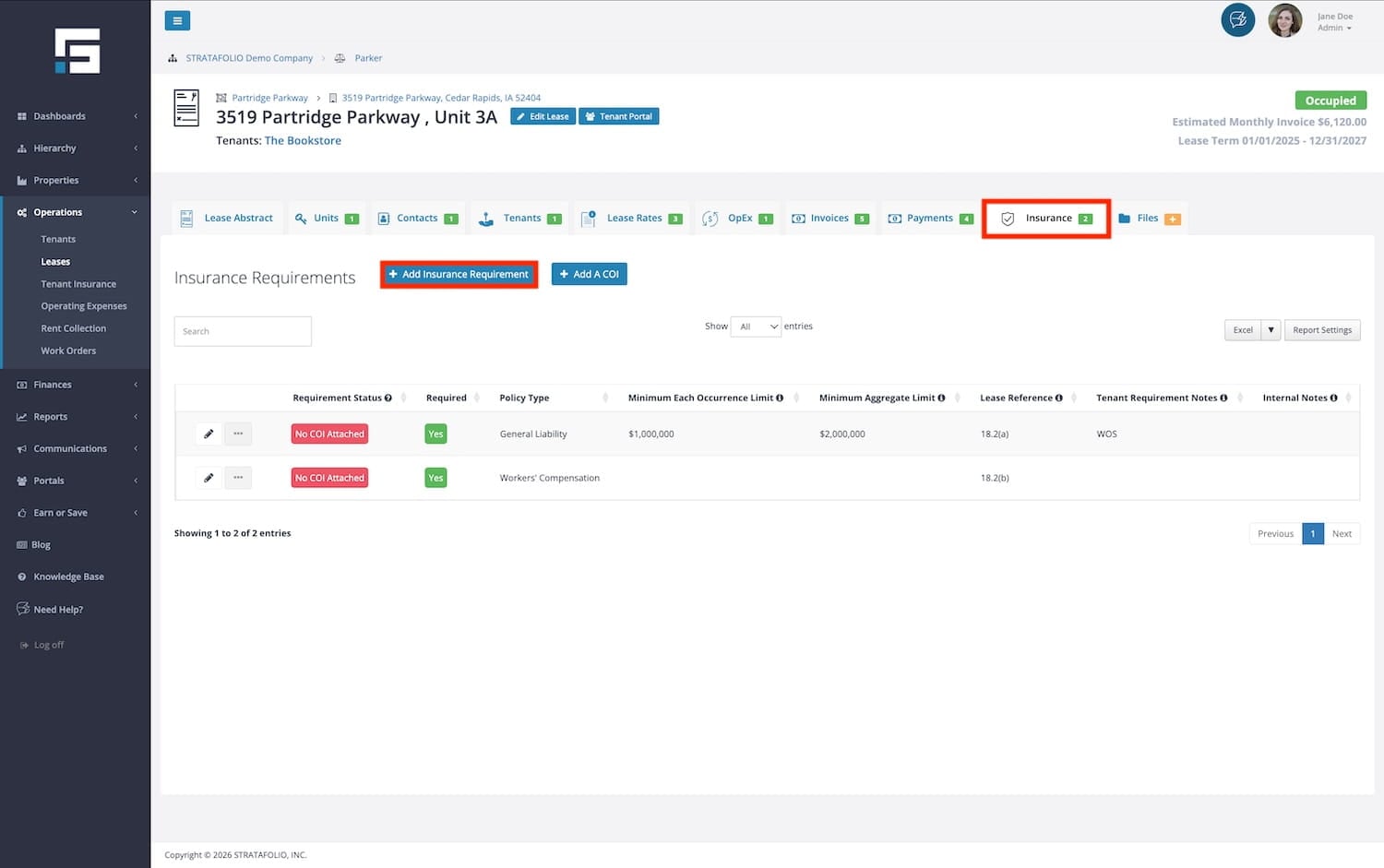
You must complete only the Policy Type field, but STRATAFOLIO strongly recommends that you enter as much detail as possible, including:
- Minimum Each Occurrence Limit
- Minimum Aggregate Limit
- Additional coverage specifications
More detailed requirements make compliance tracking easier and more accurate.
How to Add a COI and Insurance Policies
Once insurance requirements are added, you can upload the tenant’s COI.
If the tenant has access to the Tenant Portal, they can upload the COI themselves.
NOTE: If the lease has no insurance requirements, a COI cannot be uploaded.
Add at least one insurance requirement before uploading a COI.
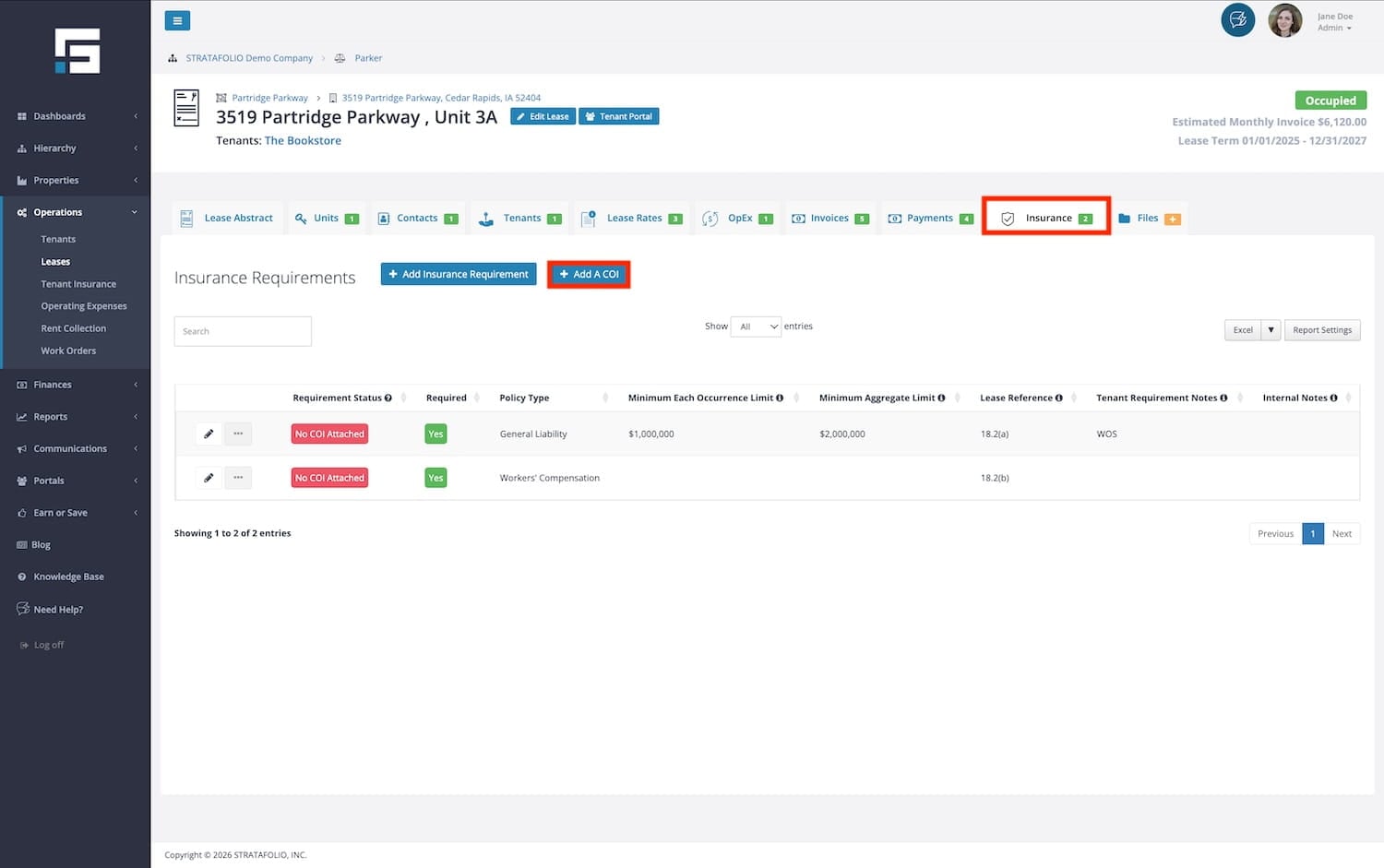
- Navigate to the lease abstract.
- Go to the Insurance tab.
- Select the Add A COI button.
- Upload the document by:
- Dragging and dropping the file, or
- Selecting the file from your computer.
- Click Process. STRATAFOLIO’s secure and proprietary machine-learning algorithms will do their best to match the insurance agent, policy, and requirement stated in the lease and the COI.
How STRATAFOLIO Processes COIs
STRATAFOLIO uses a proprietary machine-learning model trained by our software engineers, so rest assured your data is secure. We do not use public-facing AI models or LLMs such as ChatGPT.
Once our machine-learning model finishes doing the hard work for you, you will see a new form containing the prepopulated COI information, and we’ll do our best to match all the insurance policies in the COI to your lease requirements.
If you do not fully populate the form, we apologize for the inconvenience. This means something went wrong, and we failed to process your COI. At this point, you can try again or manually populate the rest of the form.
Learn more about COIs by reading the Top 7 Commercial Real Estate Insurance Misconceptions article. Joe Vens explains the Common Definitions and Misconceptions of the lease requirements, insurance policies, and COIs.
You cannot save the form until you populate all the required properties. These properties show up with a red asterisk * at the end of the property name. If you try to save without populating one of them, we will show a red warning below the property. Although many properties are not required, we encourage you to add as much available information as possible. The more information you have, the easier it becomes for you and your team to find answers.
Follow the steps below in order to save the new form.
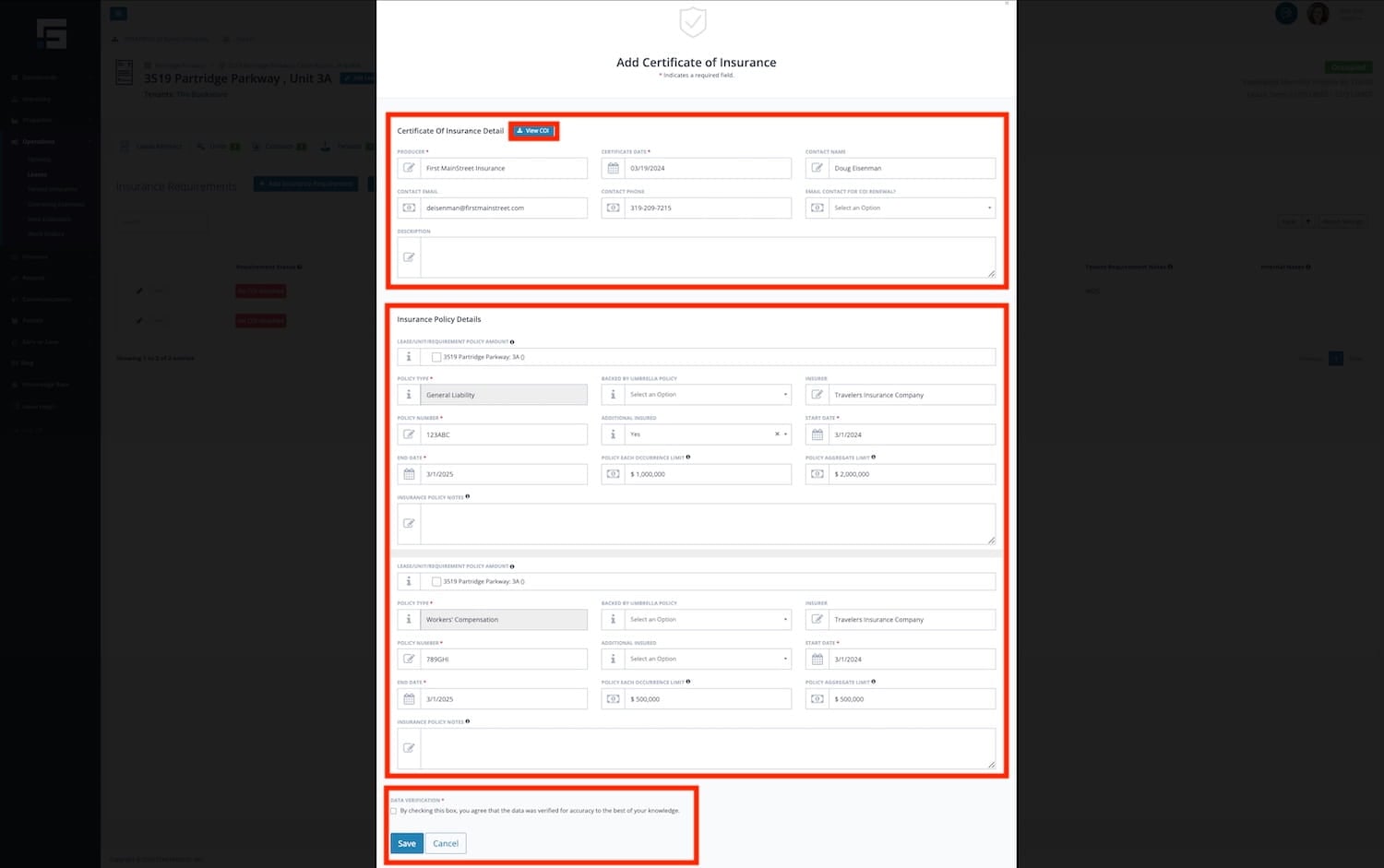
- Ensure you View the Uploaded COI by selecting the View COI button.
- Verify or update the Certificate of Insurance Detail header section of the form, confirming all coverage details are accurate.
- Verify or update as needed the Insurance Policy Detail header section of the form.
- Select the verified checkbox to confirm you reviewed the form content, then click the Save button to save the form.
Always confirm that:
- Coverage amounts meet lease requirements.
- Confirm that the landlord or property manager is listed as Additional Insured, if required.
Understanding Lease Requirement Statuses
You can view all insurance requirement statuses by navigating to:
Operations → Tenant Insurance
This dashboard shows compliance across active leases.
What are the Different Lease Requirement Statuses
| Requirement Status | Requirement Status Meaning |
|---|---|
| No Requirement in Lease | This status is used when an active lease does not have any insurance requirements in place. If your leases do not require your tenants to carry insurance, you can learn more about why your leases should require insurance and What’s the Purpose of Requiring Certificates of Insurance from Tenants. |
| No COI Attached | This status is used when a lease requirement has been added to a lease. But, a COI containing an insurance policy matching the insurance requirement specified in the lease agreement has not been uploaded for that lease. |
| Unsatisfied | This status is used when a lease requirement has been added to a lease. However, a COI containing an insurance policy matching the insurance requirement specified in the lease agreement has not been uploaded for that lease. |
| Has Active Policy | This requirement status is used when a lease requirement does not specify any minimum coverage amounts. Yet, a COI has been uploaded containing an active insurance policy matching the requirement policy type required by that lease. STRATAFOLIO strongly recommends adding minimum amounts to all the lease requirements in an active lease to provide guidance to your tenants. You want to avoid a tenant taking out a policy with low coverage limits just to satisfy your requirement. |
| Partially Satisfied | This requirement status is used when a lease contains a lease requirement specifying both a Minimum Each Occurrence Limit amount and a Minimum Aggregate Limit amount. Yet, a COI was uploaded to that lease containing an insurance policy that contains only one of those amounts. The amount listed in the policy matches or exceeds the minimum amount listed in the insurance requirement in order to consider this requirement partially satisfied. |
| Satisfied | This requirement status is used when the lease requirement specifies one or both a Minimum Each Occurrence Limit amount and a Minimum Aggregate Limit amount, and a COI was uploaded with an insurance policy that matches or exceeds the minimum amounts listed in the lease requirement. |
Getting Email Alerts for Expiring Insurance Policies
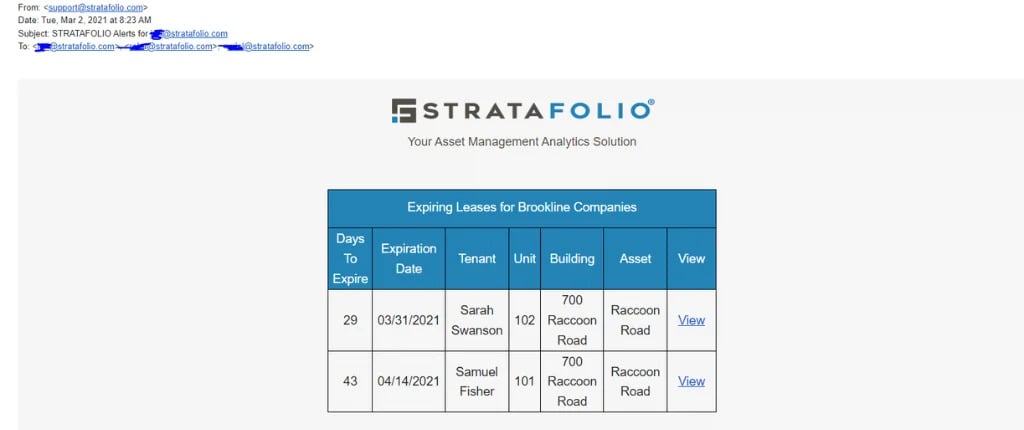
STRATAFOLIO automatically sends email alerts when insurance policies are nearing expiration.
NOTE: Make sure your tenant Contact has a valid Email Address so they can receive email alerts when an Insurance Policy is about to expire. The tenant must have access to the tenant portal in order to get the alerts. Administrators, managers, and property managers will still get alerts. If you do not want to receive any of these alerts and want to disable them, check out our How to Change Your Alert Settings in STRATAFOLIO knowledge base article.
STRATAFOLIO generates email alerts for an expiring insurance policy until you update the policy or the lease expires.
If you do not update the policy, STRATAFOLIO sends multiple email alerts.
- The first email will trigger 30 days before the Insurance Policy expires.
- The second email will trigger 7 days before the Insurance Policy expires.
- The third email will trigger on the day the Insurance Policy expires.
- The fourth email will trigger 3 days after the Insurance Policy expires.
- The fifth and final email will trigger 7 days after the Insurance Policy expires.
- In the alert email, you will receive information regarding each certificate in reference to the above timeline.
Who Receives Alerts
- Tenant contacts (must have valid email + portal access)
- Administrators
- Managers
- Property Managers
NOTE: If the COI form includes the Agent’s Email and you set the property field Email Contact For COI Renewal? to Yes (or leave it blank), STRATAFOLIO sends alerts to the insurance agent. If you set it to No, STRATAFOLIO does not send notifications to the agent.
How to Manage Your Insurance Policy Expiration Alert Settings
To manage your alerts:
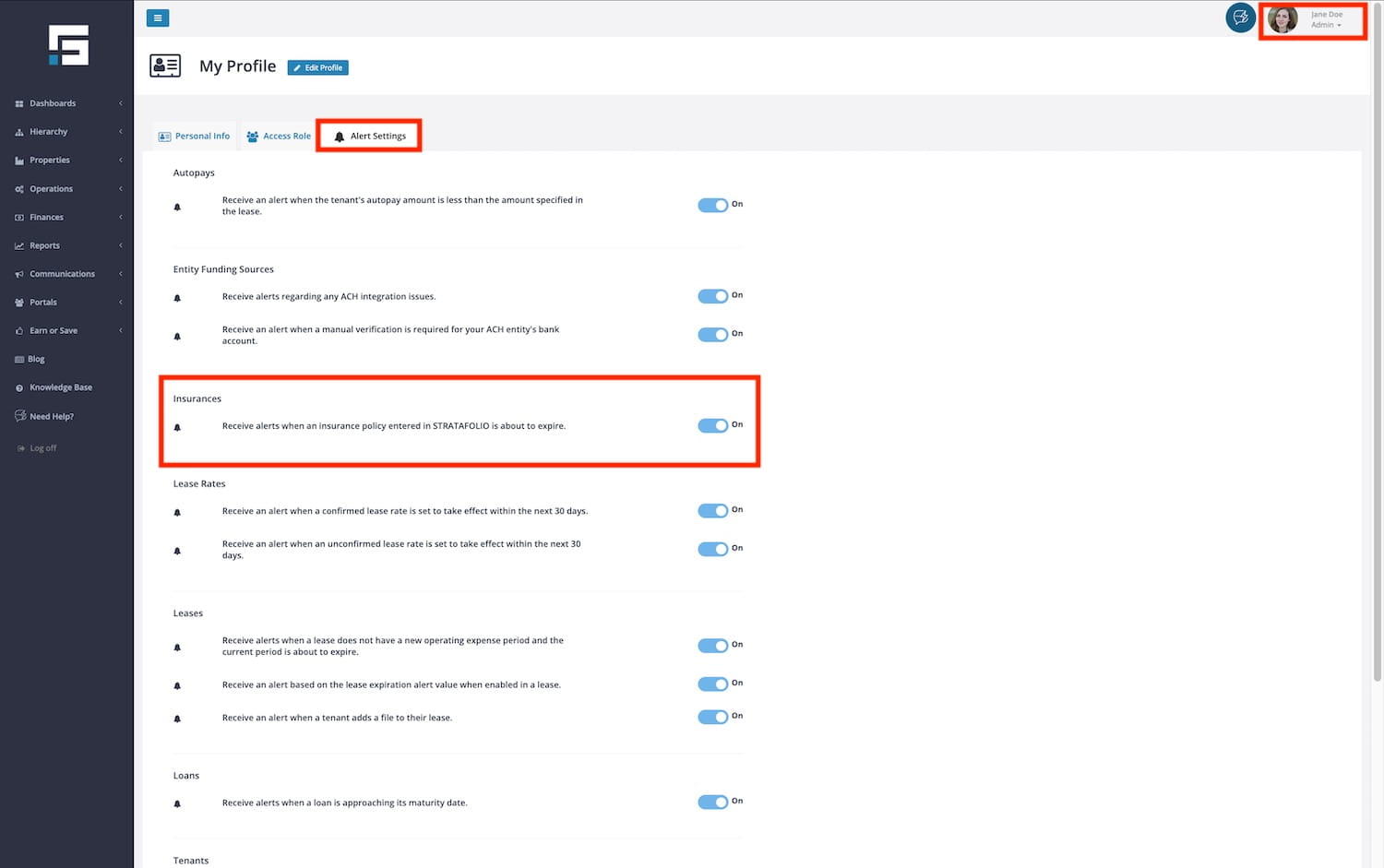
- Click your Profile (top right corner).
- Open the Alert Settings tab.
- Enable Insurance Alerts.
- Click Save Changes.
For detailed instructions, read How to Change Your Alert Settings in STRATAFOLIO.
How to Monitor Insurance Policy Expirations
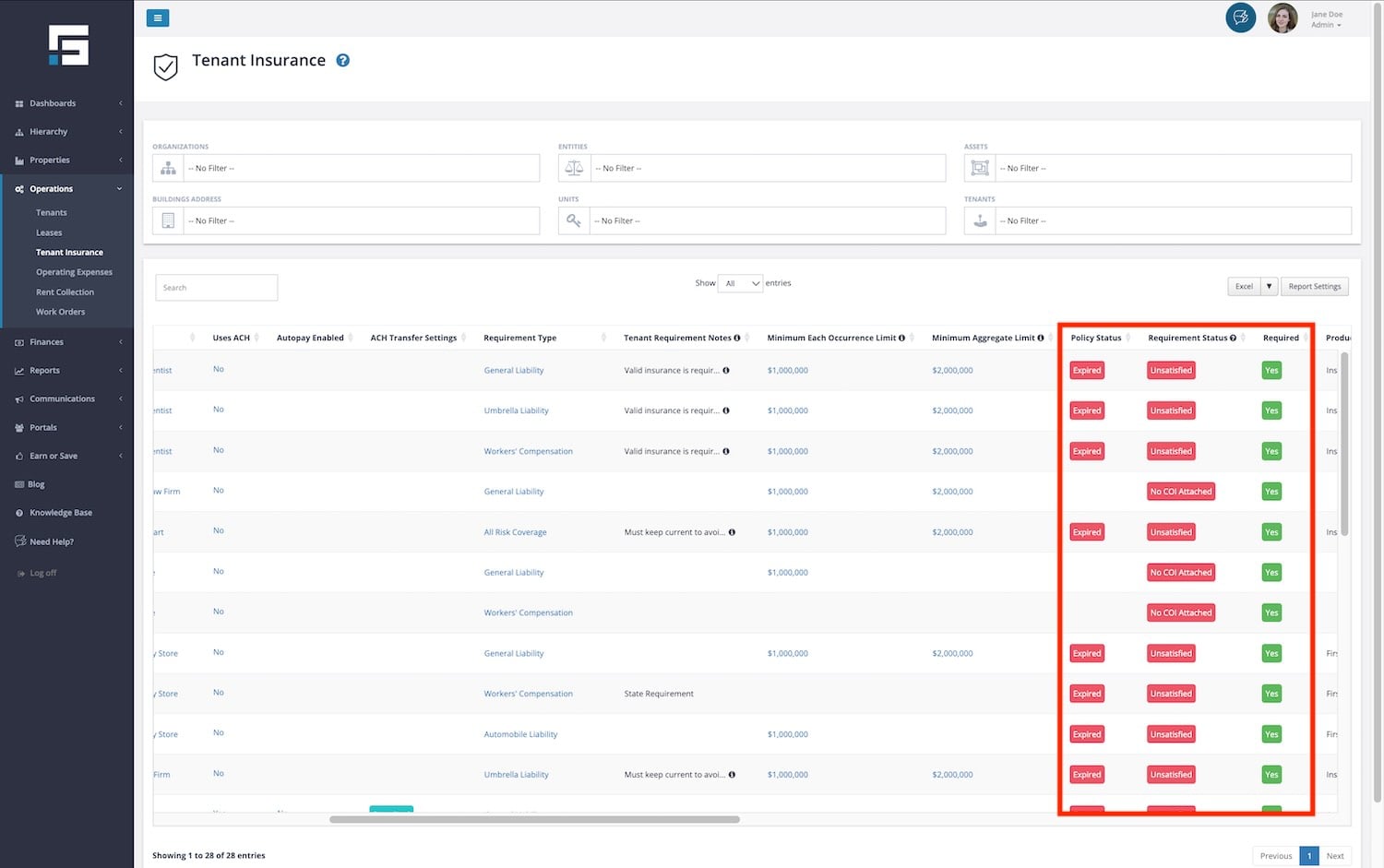
STRATAFOLIO provides you with a single location where you can view each one of your leases to quickly know which insurance policies are expiring, along with each policy’s expiration date and coverage details.
- Navigate to Operations and then Tenant Insurance on the left-side navigation bar. Scroll to the right.
- You can also create custom reports of the data you want to show, by selecting the settings button.
Reporting on COIs
STRATAFOLIO’s Tenant Insurance Report provides a portfolio-wide view of:
- Coverage details
- Expiration dates
- Compliance status
How to Access the Tenant Insurances Report
To open this report, navigate to the left-hand navigation bar, select Operations, then select Tenant Insurance.
At the top of the report, you will see filter dropdowns for Organizations, Entities, Assets, Buildings, Units and Tenants. Use these filters to focus only on the insurance records you want to review. For example, you can filter by a single building or view insurance data for your entire organization.
How to Customize Your Report View
Navigate to the Report Settings button in the upper-right corner of the page to adjust what data appears in your report. Within Report Settings, you can:
- Show or hide columns using checkboxes.
- Rearrange columns by dragging them into a new order.
- Save multiple report views for different purposes (e.g., one for your property managers, another for your compliance team).
- Update or reset saved reports as needed.
- Set a default view so your preferred setup loads automatically each time.
Encourage your team to create and save custom report profiles. You can save a significant amount of time when running recurring COI compliance checks.
Once your report is set the way you want, click the button to download the data into Excel, CSV, or PDF. The exported file will match the columns and the order you applied on screen.
Simplify COI Tracking
To simplify COI tracking, it is recommended to give your tenants access to the Tenant Portal. Once tenants have access, they can view their lease information, make payments, and respond to insurance reminders directly in STRATAFOLIO. For directions, read up on how to give a tenant access to their tenant portal..
Tenants can also upload their own COIs securely through the portal. This ensures you receive the latest documents quickly, without relying on back-and-forth emails. Direct them to the instructions on uploading and viewing documents in the tenant portal.
By encouraging tenants to use the portal, you reduce administrative work, improve compliance, and maintain a complete record of insurance documentation inside STRATAFOLIO.
Best Practices for COI Managing and Tracking
- Require tenants to submit updated COIs before their existing policy expires.
- Review COIs regularly to confirm coverage limits meet lease requirements.
- Use reports to share compliance status with property managers or ownership groups.
- Keep all COI documents in STRATAFOLIO to avoid lost or misplaced files.
- Remember that some owners may also need to show proof that tenants maintain proper insurance. Tracking COIs in STRATAFOLIO helps owners work more efficiently and proactively with their own insurance providers.
