

Do you have a new loan to input? Or would you like to enter updated loan information into STRATAFOLIO?
In this Knowledge Base Article, we share the steps for inputting a loan into STRATAFOLIO. With our software, you have a single location for easy reference of loan and financing information. Every time your loan is updated in QuickBooks, your loan balance is reflected on the Loan Dashboard in STRATAFOLIO. This ensures your analytics are always up to date with your accounting.
NOTE: Loans can only be created after you have created a Lender to house them. Go here for more information on creating a Lender in STRATAFOLIO.
Adding a Loan
To input a loan in STRATAFOLIO, follow the steps below:
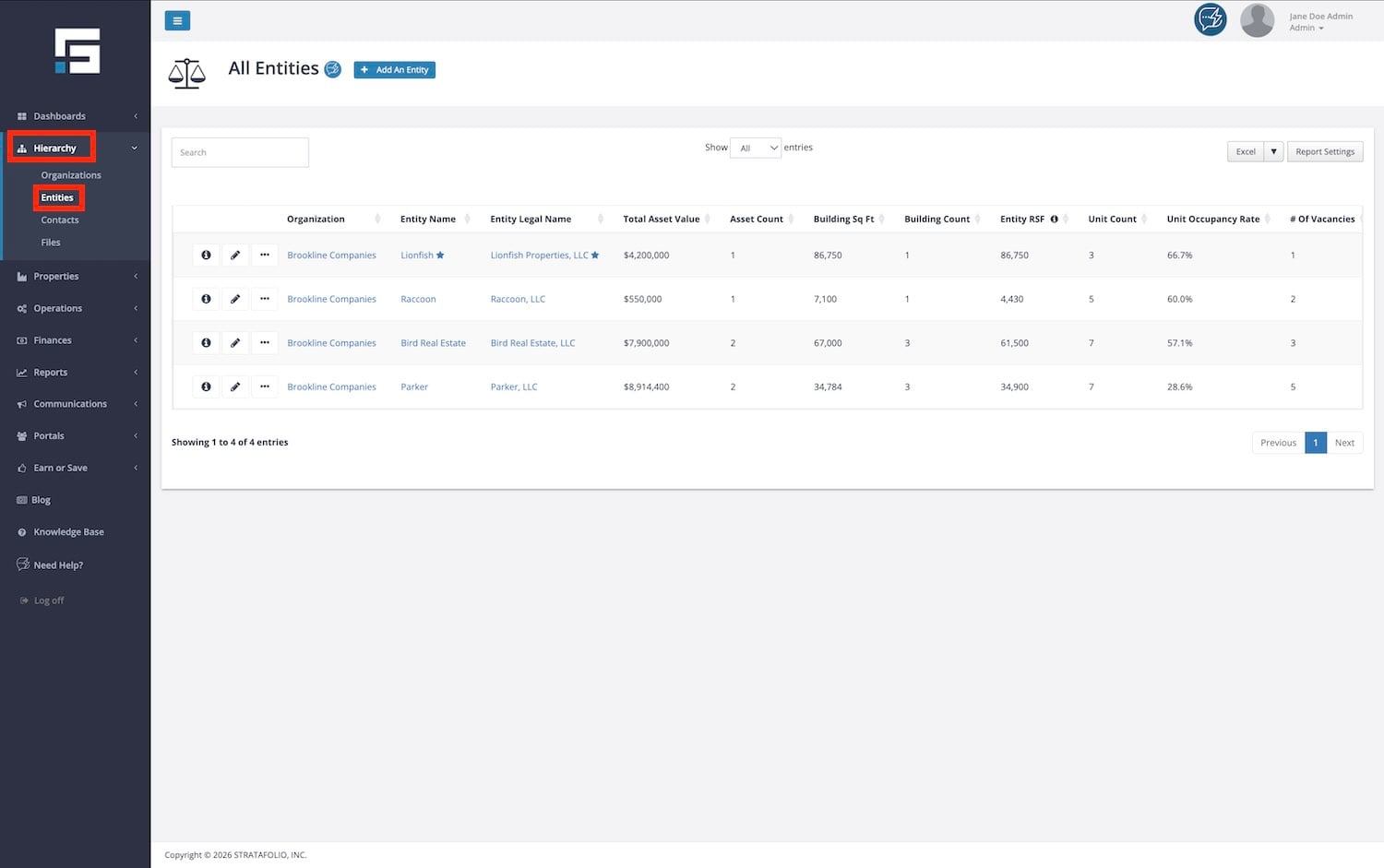
- Head to the navigation bar on the left-hand side and select Hierarchy and then Entities.
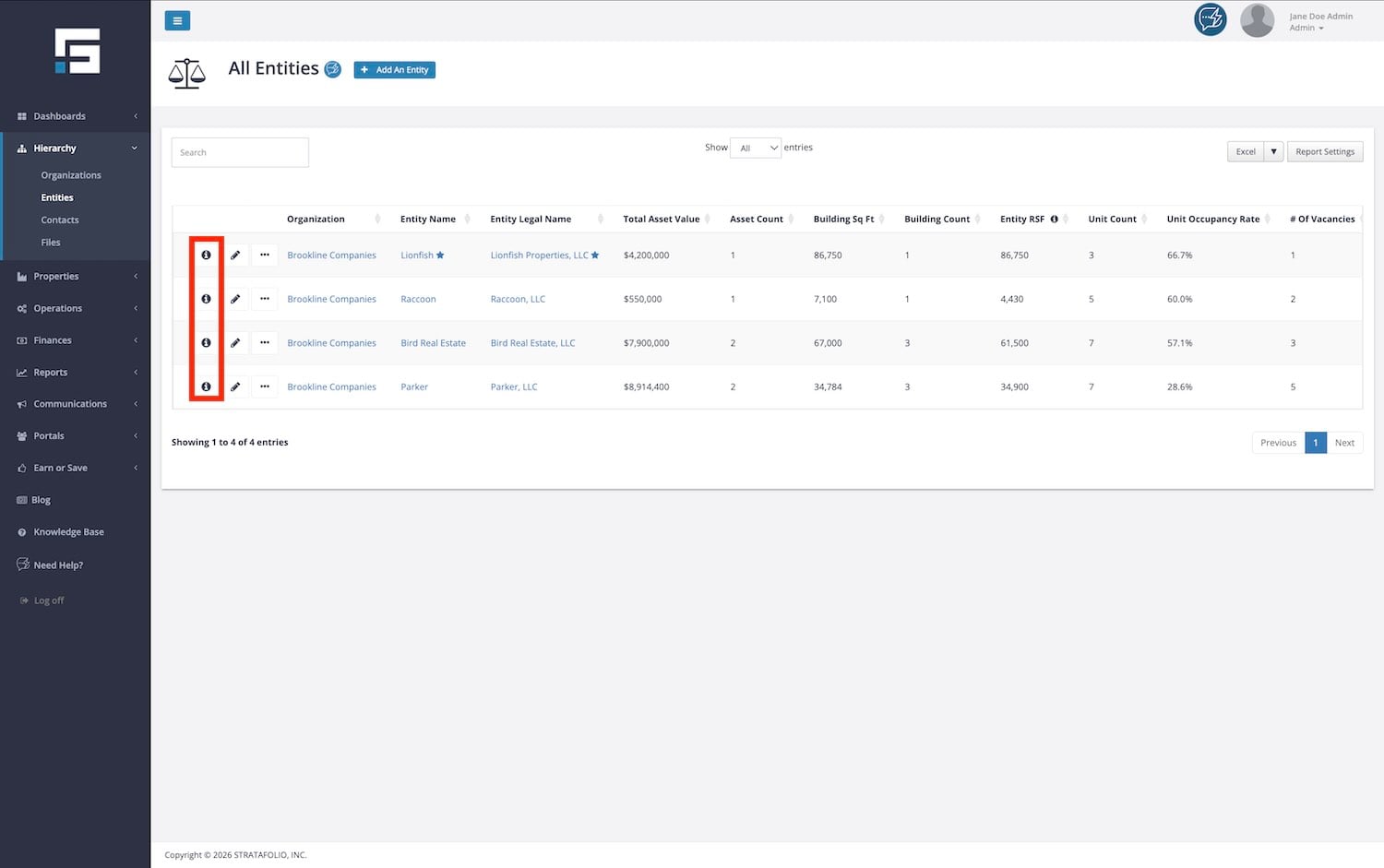
- Identify the entity to which the loan belongs, then select the i icon or the Information button.
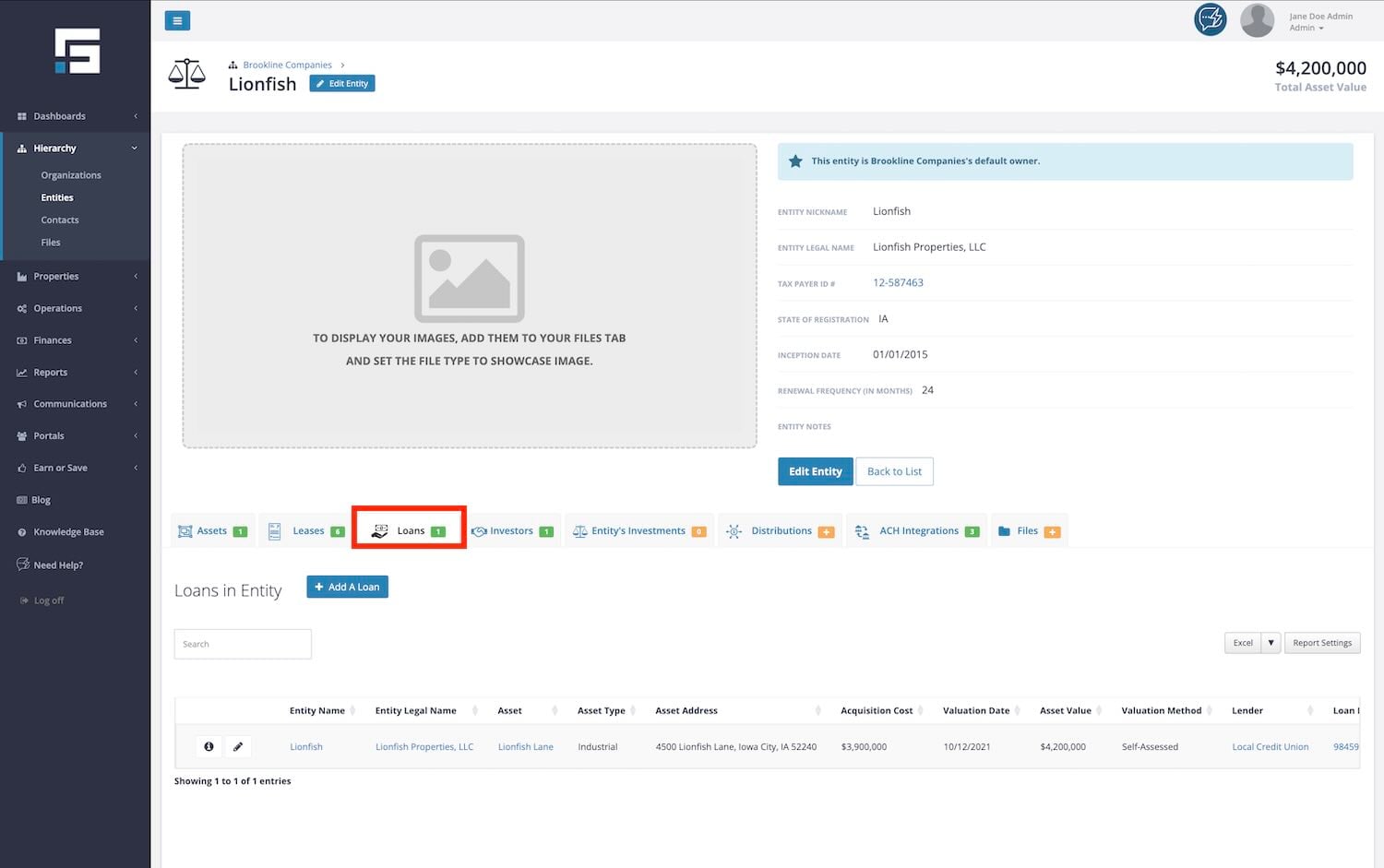
- From the Entity’s detail page, select the Loans tab and then click Add a Loan.
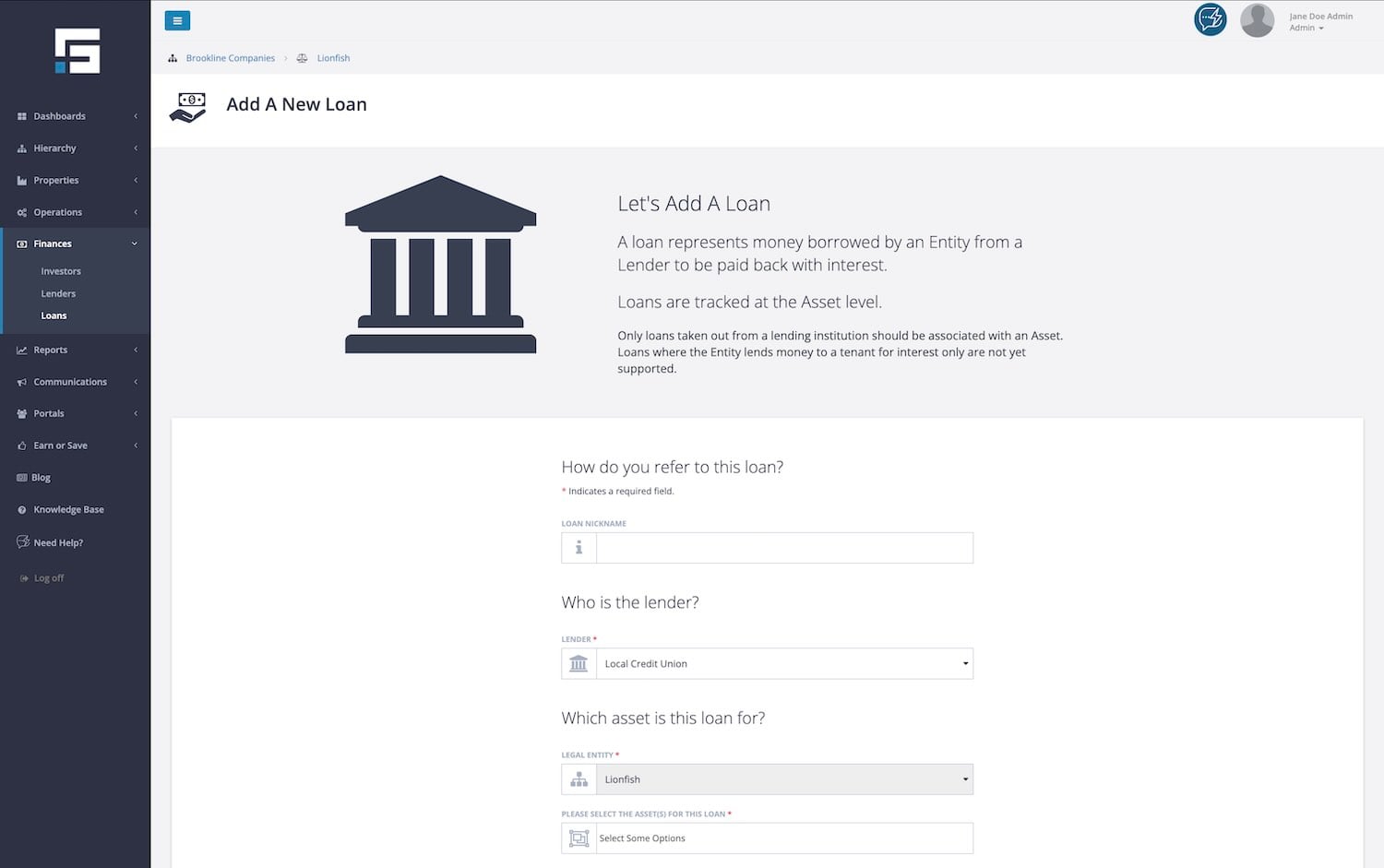
Once here, you will need to add the following information:
- Loan Nickname
- Lender Name
- Legal Entity for the Loan
- The Asset for the Loan
- Loan Purpose
Following the first steps of entering in the Loan information, we proceed with more information to input. The following information includes:
- Loan Number and Loan Start Date
- Interest Rate and Original Loan Amount
- Maturity Date and Loan Balance At Maturity
- Loan Term (Years)
- Amortization Period (Years)
- Loan Type and Debt Type
- If there is an Early Payment Penalty
- Monthly Principal & Interest Payments
- Monthly Escrow Payment (optional)
Additional information needed to finish entering the Loan includes:
- Loan Status –
- Current Loan Balance – this links with your QuickBooks account and will update every time your QuickBooks account updates
- Loan Covenant Alerts if applicable:
- Occupancy Rate Alert
- LTV Alert
- DCR Rate Alert
- Any Notes needed for the Loan
If you have another loan to enter, you can select Create Another Loan After Saving, then Save to add an additional loan at this time.
Loan Dashboard
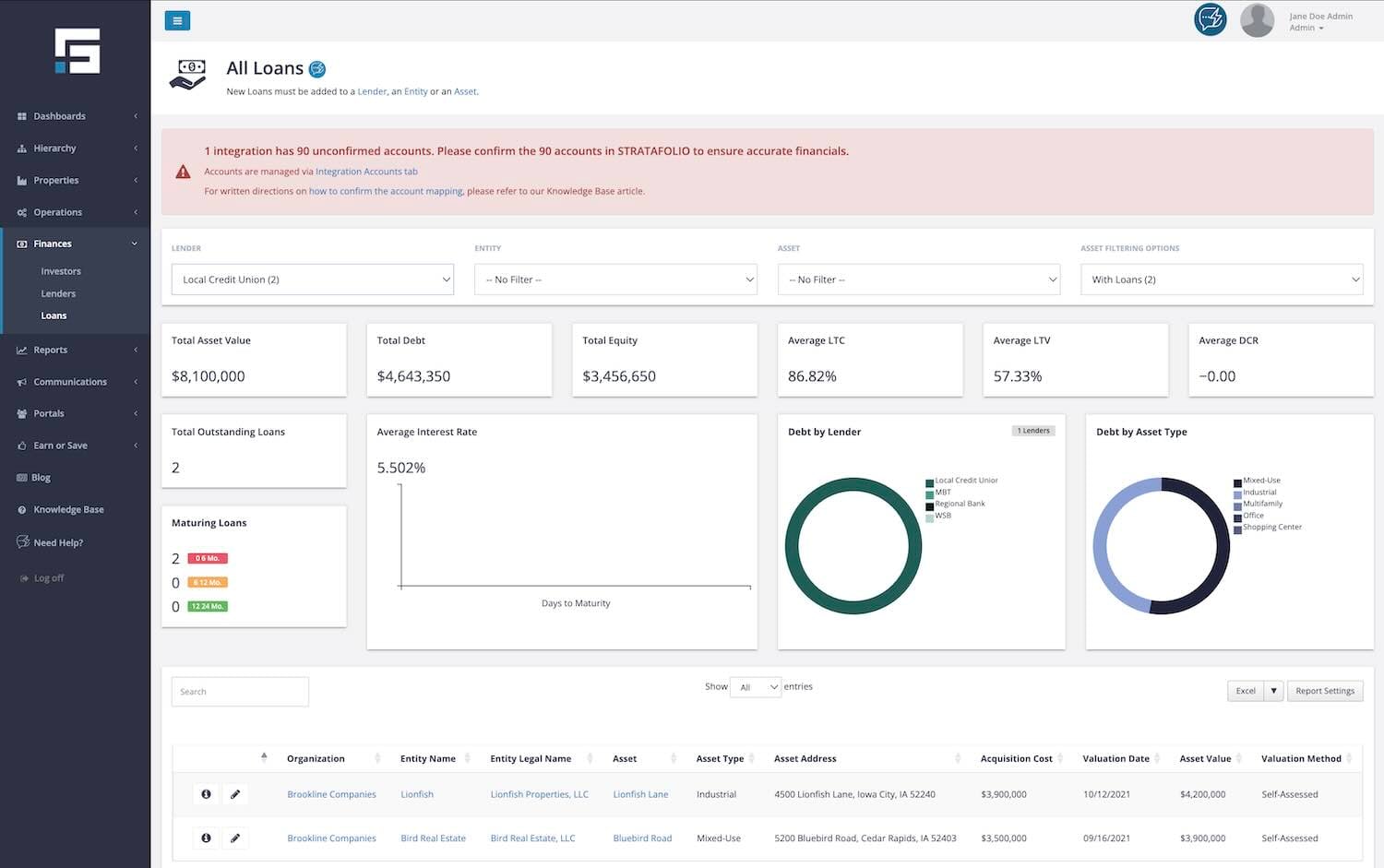
Once your loan information is entered and saved, you will be directed to the Loan Dashboard where you will be able to easily arrange and identify important information about your loan such as:
- Total Asset Value, Debt, and Equity
- Average LTC, LTV, and DCR
- Total Outstanding Loans and Maturing Loans
- Average Interest Rate
- Debt by Lender and by Asset Type
To maximize this page, you can also use the dropdown filters at the top of the page to filter by Lender, Entity, Asset, and show only assets with records of Loans.
At this point, you can upload any loan documents that you may have, as well as the Closing Statement, Deed to Trust, Appraisal, and any other documents that you might want to have accessible for this loan.
You will also need to map the loan so that the most current loan balance is automatically updated on the Loan Dashboard in STRATAFOLIO. The directions for Mapping New Loans in STRATAFOLIO are the final step in ensuring it stays up to date.
When you sell this asset or refinance your loan, make sure that you close out the loan in STRATAFOLIO. See the article on How to Close Out a Loan for more information.
