
The Leases Index Page is your master list of every lease in your portfolio, both active and historical, in one centralized table. Each row is a single lease, and it pulls together the property, the tenant, the financial terms, the payment setup, and the key dates that matter to you. This page is also called the Lease Index. It is where you go to find a lease fast, compare leases across your portfolio, and open any lease to manage it in detail.
Like the other index pages, this one is built for both management and reporting. Every column can be shown, hidden, sorted, filtered, and exported, so your lease list becomes a flexible reporting tool whenever you need one.
Before You Begin
A few ideas make this page easier to read:
RSF means Rentable Square Feet. Lease RSF is the space the tenant leases. A building’s RSF is the total area of the building. STRATAFOLIO uses these two figures to calculate the tenant’s Lease Pro-Rata Share, which is the percentage of the building the tenant occupies. That share then drives the allocation of shared costs like CAM and OpEx.
Per RSF means a value is shown for each rentable square foot. Many financial columns offer a Per RSF version so you can compare leases of different sizes on equal footing.
Income columns reflect what is billed to the tenant. Columns such as Mthly CAM Inc and Mthly OpEx Inc show the tenant’s share that you bill, not the building total.
Where to Find This Feature
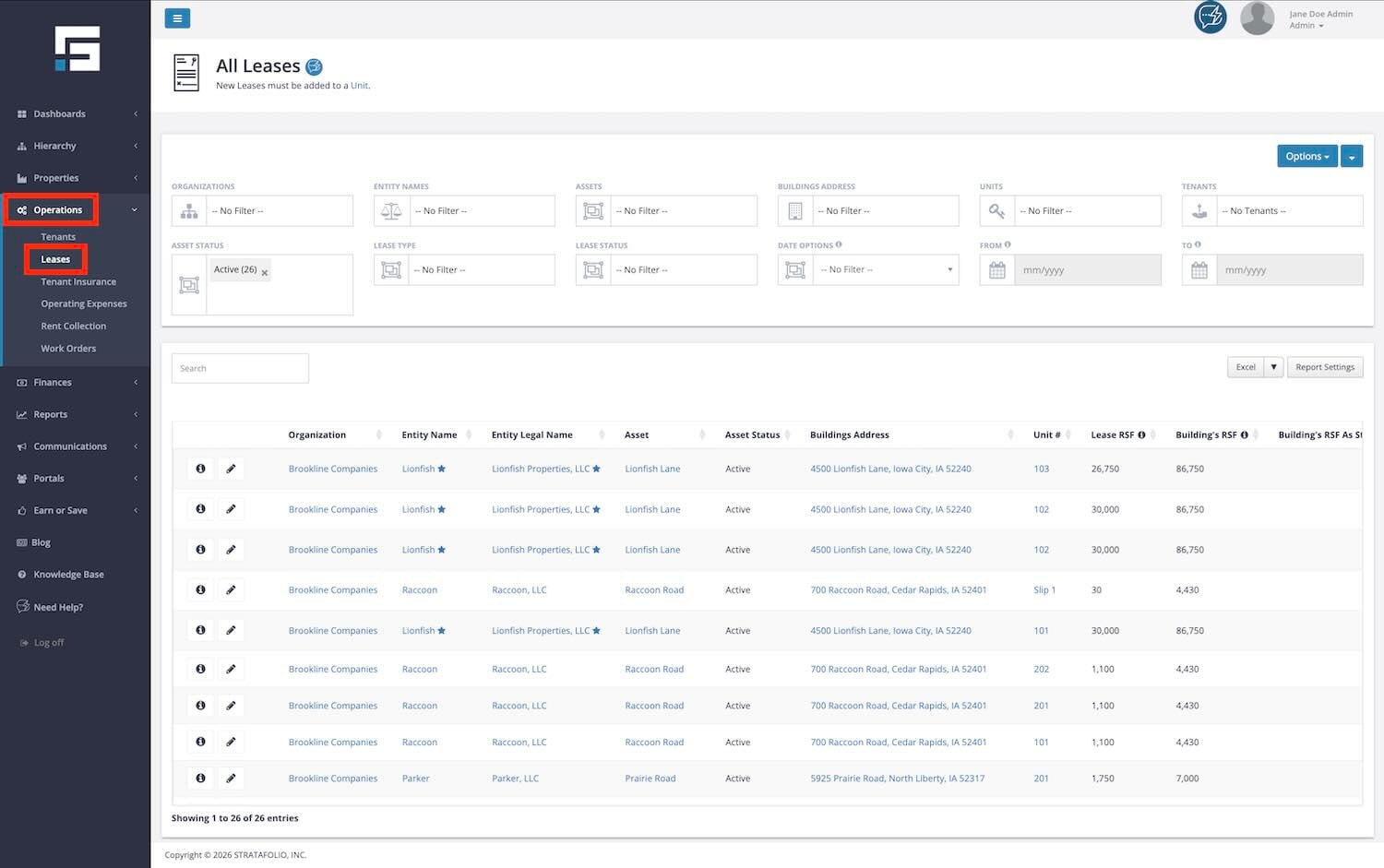
From the main STRATAFOLIO navigation, click on Operations and then Leases to reach the Leases Index Page. The page opens to your complete list of leases. Each lease name appears as a blue hyperlink, and selecting it opens that lease’s detail view, where you manage terms, charges, files, and dates.
How to Use This Feature
You can do four core things on this page: view, filter, edit, and export.
- View all leases. The page displays all active and historical leases in a single table. Select any column header to sort, and select a blue lease name to open its detail view.
- Filter and narrow results. Use the filters at the top of the page to refine your search by Organization, Entity, Asset, Building Address, Unit, or Tenant. You can also filter by Asset Status, Lease Type, and Lease Status. Date filters include Start Date, End Date, Throughout, and Within, which help you locate leases tied to specific timeframes.
- Edit a lease. Use the pencil icon to edit a lease directly from the list.
- Customize columns and export. Choose which columns are visible, set your sort and filters, then export the lease list to a file for reporting. The export matches what you see on screen.
NOTE: Your visible columns, sorts, and filters define your export. Build the view you want first, then export.
Understanding the Columns
The Leases Index Page is rich with detail, from property and tenant information to financials, deposits, dates, and accounting links. The table below defines every column so you can look up any heading and learn what it means and how to use it.
| Column Name | What It Means and How You Use It | Example Value |
|---|---|---|
| Company | The top level company or portfolio the lease belongs to. | Brookline Companies |
| Entity Name | The short name of the legal entity that owns the leased property. | Lionfish |
| Entity Legal Name | The full registered legal name of that entity. | Lionfish Properties, LLC |
| Asset | The property the lease covers. | Lionfish Lane |
| Asset Status | Whether the property is Active or Inactive in your portfolio. | Active |
| Buildings Address | The street address of the leased building. | 4500 Lionfish Lane, Iowa City, IA 52240 |
| Unit # | The unit or suite the lease covers. This can be a suite number, slip, or similar space label. | 103 |
| Lease RSF | Rentable Square Feet for the leased space. This is the area the tenant leases. | 26,750 |
| Building’s RSF | The total Rentable Square Feet of the whole building. Used with Lease RSF to calculate the tenant’s pro rata share. | 4,430 |
| Building’s RSF As Stated in Lease | The building square footage figure as written in the lease document, when it differs from the system building RSF. Often blank. | (blank) |
| Lease Pro-Rata Share | The tenant’s percentage share of the building, found by dividing Lease RSF by Building RSF. This drives CAM and OpEx cost allocation. | 30.4% |
| Tenants | The tenant or tenants named on the lease. | Betty Decker |
| Uses ACH | Shows whether the lease is paid by ACH bank transfer. | Yes / No |
| Autopay Enabled | Shows whether automatic recurring ACH payments are turned on for this lease. | No |
| ACH Transfer Settings | The ACH processing speed for this lease. Regular is standard. Expedited moves funds faster. | Regular |
| Lease Type | The lease structure, such as NNN, NN, Gross, or Not Defined. This defines expense responsibility. | NNN / Not Defined |
| Lease Status | The current state of the lease, such as Draft, Occupied, Month-to-Month, or Expired. | Occupied / Draft |
| Lease Start Date | The date the lease begins. | 03/01/2026 |
| Lease End Date | The date the lease is scheduled to end. | 06/30/2029 |
| Month Left On Lease | The number of months remaining until the lease end date. | 36 |
| Month Left On Escalation | The number of months until the next scheduled rent escalation, which is a planned rate increase. A value of 0.0 means none is scheduled or it has already passed. | 12 |
| Lease Expiration Alert (Days Prior) | How many days before the end date STRATAFOLIO will alert you that the lease is expiring. | 90 / 120 / 180 |
| Lease Renewal Option | hows whether the lease includes an option to renew. | Yes / No |
| Lease Renewal Status | Where the renewal currently stands, such as Renewing or Not Renewing. | Renewing |
| Restrictions/Exclusive Use | Shows whether the lease carries a use restriction or an exclusive use clause. | Yes / No |
| Restrictions/Exclusive Use Notes | The details of any restriction or exclusive use clause on the lease. | No other pharmacy within 1.0 mile |
| Payment Due Monthly On Day | The day of the month rent is due. A value of 1 means the first of the month. | 1 |
| Late Charges | The late fee rule applied when a payment is late. Blank when no late charge is set. | (blank) |
| Lease Rate Notes | Free text notes about how the rate is structured. | Original Lease Years 5 to 10 |
| Lease Amount Confirmed | Shows whether the lease financials have been reviewed and confirmed as accurate. | Yes / No |
| Lease Files Count | The number of documents attached to the lease record. | 1 |
| Estimated Monthly Invoice | The projected total monthly invoice amount for the lease. | $2500.00 |
| Total Annual Due (Per RSF) | The total annual amount due, expressed per rentable square foot. | $1.00 |
| Monthly Base Rent | The base rent charged each month, before additional charges. | $2500.00 |
| Annual Base Rent (Per RSF) | Base rent for the year, expressed per rentable square foot. | $15.82 |
| Monthly Additional Charges | Extra recurring monthly charges beyond base rent. | $150.00 |
| Annual Additonal Charges (Per RSF) | Those additional charges for the year, per rentable square foot. | $0.28 |
| Mthly OpEx Inc | Monthly Operating Expense income billed to the tenant. | $2500.00 |
| Period OpEx Inc (Per RSF) | Operating Expense income for the period, per rentable square foot. | $1.00 |
| Mthly Taxes Inc | Monthly property tax recovery billed to the tenant. | $7,150.00 |
| Period Taxes Inc (Per RSF) | Property tax recovery for the period, per rentable square foot. | $5.72 |
| Mthly Ins Exp Inc | Monthly insurance expense recovery billed to the tenant. | $1,600.00 |
| Period Ins Exp Inc (Per RSF) | Insurance recovery for the period, per rentable square foot. | $1.28 |
| Mthly CAM Inc | Monthly Common Area Maintenance income billed to the tenant. | $3,466.13 |
| Period CAM Inc (Per RSF) | CAM income for the period, per rentable square foot. | $2.77 |
| Mthly Other Exp Inc | Monthly recovery for any other expense category. Blank when none applies. | (blank) |
| Annual Other Exp Inc (Per RSF) | That other expense recovery for the year, per rentable square foot. | (blank) |
| Security Deposit | The deposit amount held for the lease. | $6,000.00 |
| Deposit Withheld | The portion of the deposit kept rather than refunded, for example for damages or unpaid balances. | $1,450.00 |
| Refunded Deposit | The portion of the deposit returned to the tenant. | $0.00 |
| Security Deposit Liability | The deposit amount STRATAFOLIO still recognizes as money you owe back to the tenant. Shows N/A when not applicable. | $6,000.00 / N/A |
| Tenant Move-Out Date | The date the tenant moved out, when applicable. | (blank) |
| Grace Period (Days) | The number of days after the due date before a payment counts as late. | 5 |
| Lease Closing Notes | Notes captured when closing out the lease, such as eviction or deposit handling. | Evicted Jan 31, 2021. No refunded deposit. |
| Lease Renewal Notes | Notes about renewal terms or decisions. | Opted to renew for 3 years on 9/1/2020 |
| Integration Type | The accounting system connected for this lease. | QuickBooks Online |
| Accounting Integration | The specific connected accounting file or integration used for this lease. | Lionfish |
| Accounting Customer | The customer record this lease maps to in your accounting system, so invoices sync correctly. | Cool Cars |
| Accounting Classification | The Class assigned in accounting for tracking. Often blank when classes are not used. | (blank) |
| Added Date | The date the lease record was created. | 03/18/2026 |
| Added Time (CT) | The time the record was created, in Central Time. | 10:15 AM |
| Added By | The email address of the user who created the record. | [email protected] |
| Added Name | The display name of the user who created the record. | Jane Doe |
| Last Edit Date | The date the record was last changed. | 06/24/2026 |
| Last Edit Time (CT) | The time of the last change, in Central Time. | 08:50 AM |
| Last Edit By | The email address of the user who made the last change. | [email protected] |
| Last Edit Name | The display name of the user who made the last change. | Jane Doe |
Suggested Reports
Every column here can be shaped into a report. These saved views are a strong starting point:
Lease Expiration and Renewal Pipeline. Show Lease End Date, Month Left On Lease, Lease Renewal Option, and Lease Renewal Status. This is your renewal planning view, so nothing expires by surprise.
Rent Roll Snapshot. Show Tenants, Unit #, Lease RSF, Monthly Base Rent, and Estimated Monthly Invoice for a quick income overview. For the dedicated rent roll, see How to Run a Rent Roll.
Pro-Rata and CAM Allocation. Show Lease RSF, Building’s RSF, Lease Pro-Rata Share, and Mthly CAM Inc to confirm that shared cost allocations look right.
Escalation Watch. Show Month Left On Escalation to spot upcoming rent step ups so you can prepare tenants and update billing.
Security Deposit Review. Show Security Deposit, Deposit Withheld, Refunded Deposit, and Security Deposit Liability to see which deposits you still hold and owe back.
Accounting Mapping Check. Show Accounting Integration, Accounting Customer, and Accounting Classification to catch leases that are not mapped to a customer, which can cause invoice sync issues.
Draft and Unconfirmed Leases. Filter Lease Status to Draft and Lease Amount Confirmed to No to clean up records that are not finished.
TIP: Save any view you will use again so you do not rebuild it each time. See How to Customize and Save a Report View for the steps, and the Reports Companion guide for the full reporting picture.
More Information on the Feature
The Leases Index Page functions as your master lease list, and it carries more than basic terms:
- Financial depth. Base rent, additional charges, and recovery income for OpEx, Taxes, Insurance, CAM, and Other each appear in both monthly and Per RSF forms, so you can compare leases of any size.
- Lifecycle visibility. Start and end dates, months remaining, escalation timing, renewal options, and expiration alerts let you manage each lease across its full life.
- Payment setup. The ACH, Autopay, and ACH Transfer Settings columns show how each lease is paid at a glance.
- Accounting connection. Integration Type, Accounting Integration, Accounting Customer, and Accounting Classification show how each lease links to your accounting system so invoices sync correctly.
Examples, Best Practices, and Tips
Examples When Using the Leases Index Page
- 90 day renewal review. Filter by End Date within the next 90 days, then show Lease Renewal Option and Lease Renewal Status. You get a clean renewal action list.
- CAM allocation sanity check. Sort by Lease Pro-Rata Share and review it next to Lease RSF and Building’s RSF. Shares that look wrong often point to an RSF that needs updating.
Best Practices When Using the Leases Index Page
- Confirm lease amounts. Use the Lease Amount Confirmed column to track which leases have been reviewed for accuracy, and clear out any that still show No.
- Keep accounting mapping complete. A blank Accounting Customer usually means invoices will not sync. Use the Accounting Mapping Check view to find and fix these.
TIP: Use Per RSF columns to compare. When two leases are different sizes, the Per RSF columns let you fairly compare rent and recoveries.
Troubleshooting
- A lease is missing from the list: Check your filters first, including the date filters such as Within and Throughout. A date filter can hide leases outside the chosen range. Clear filters to see everything.
- A lease shows Draft: Draft leases are still in progress. Open the lease, complete the required details, and confirm the amount to move it forward.
- Pro-rata share looks incorrect: Compare Lease RSF and Building’s RSF. The share is calculated from those two figures, so an outdated RSF will produce an outdated share.
- Income or financial columns show zero: A lease with zero values often has unconfirmed or unentered charges. Open the lease to review its rent and additional charges.
- An export is missing data you expected: Exports match your current view. Turn on the columns you need in column settings, set your filters, then export again.
