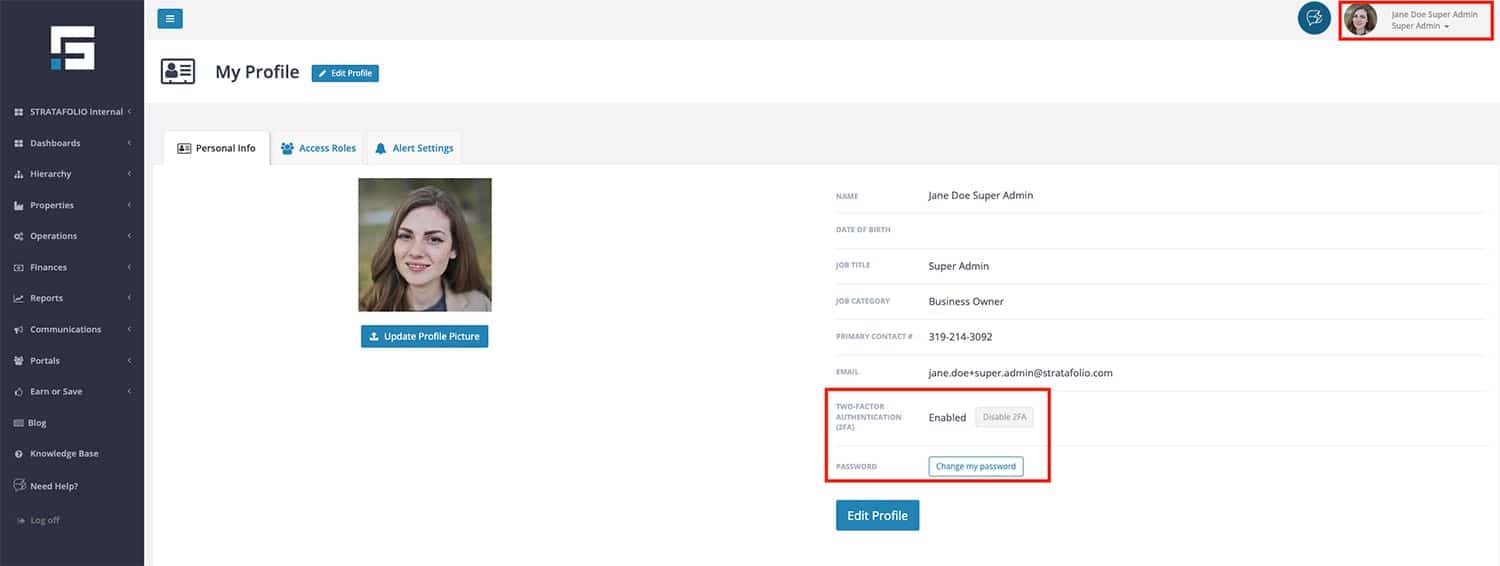
Your STRATAFOLIO profile allow you to manage important security features like your password and two-factor authentication (2FA/MFA). Both of these can be accessed by navigating to your profile in the top right corner of the screen.
Reset Your Password
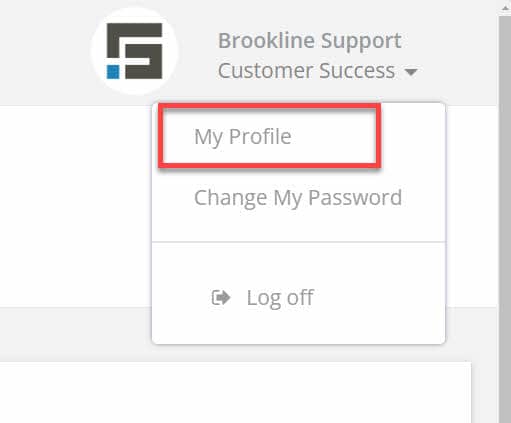
- Select your profile name in the top right corner.
- Select My Profile.
- Under the Personal Info tab, select Change my password.
- Enter your current password and your new password.
For security, new passwords must include:
- At least 12 characters
- One lowercase letter (a-z)
- One uppercase letter (A-Z)
- One numeral (0–9)
- One special character (e.g., !#$%^&*)
Select Change password to confirm. If you forget your current password, use the Forgot Password option on the login screen to reset it via email.
Set Up or Recover Two-Factor Authentication (2FA/MFA)
Two-factor authentication (2FA/MFA) adds an extra layer of security to your STRATAFOLIO account.
To manage 2FA:
- Select your profile name in the top right corner.
- Select My Profile.
- Under the Personal Info tab, look for the Two-Factor Authentication (2FA) section.
- Enable 2FA if it is not already turned on.
If you lose access to your 2FA method, contact your organization’s admin to reset it.
⚠️ Important: Disabling 2FA is strongly discouraged. In most cases, STRATAFOLIO organizations enforce mandatory 2FA. Only an admin can disable 2FA, and this should only be done in special circumstances.
Best Practices for Account Security
To get the most out of your STRATAFOLIO account while keeping your data secure, follow these best practices:
- Always use strong, unique passwords. Reusing passwords across multiple systems puts your organization at risk. Use a password manager to generate and store secure credentials.
- Update your password regularly. Consider changing it every 90 days, or sooner if you suspect suspicious activity.
- Enable 2FA for every user. STRATAFOLIO strongly recommends that all users protect their accounts with two-factor authentication. This extra step significantly reduces the risk of unauthorized access.
- Recover lost access quickly. If you misplace your 2FA device or can’t log in, contact your admin immediately. Do not attempt to create duplicate accounts to bypass the security process.
- Do not disable 2FA unless required. Even if you are an admin, avoid disabling 2FA for yourself or others. Doing so lowers security standards for your entire organization.
- Review your profile. Check periodically that your contact information and email are correct so you always receive important alerts and recovery emails.
- Educate your team. Remind all users that account credentials are personal and must never be shared, even with colleagues or managers.
How to Change Your Alert Settings
Did you know STRATAFOLIO can help your organization be on top of expiring leases, lease escalations, and loan maturities? It is as simple as adding an alert to your profile!
Before you begin
On the top right of your screen, you will see your name with a drop-down box below it. Select My Profile.
Alert Settings
Select the Alert Settings tab and see all the alert options available. Select Edit to make changes to your current selections.
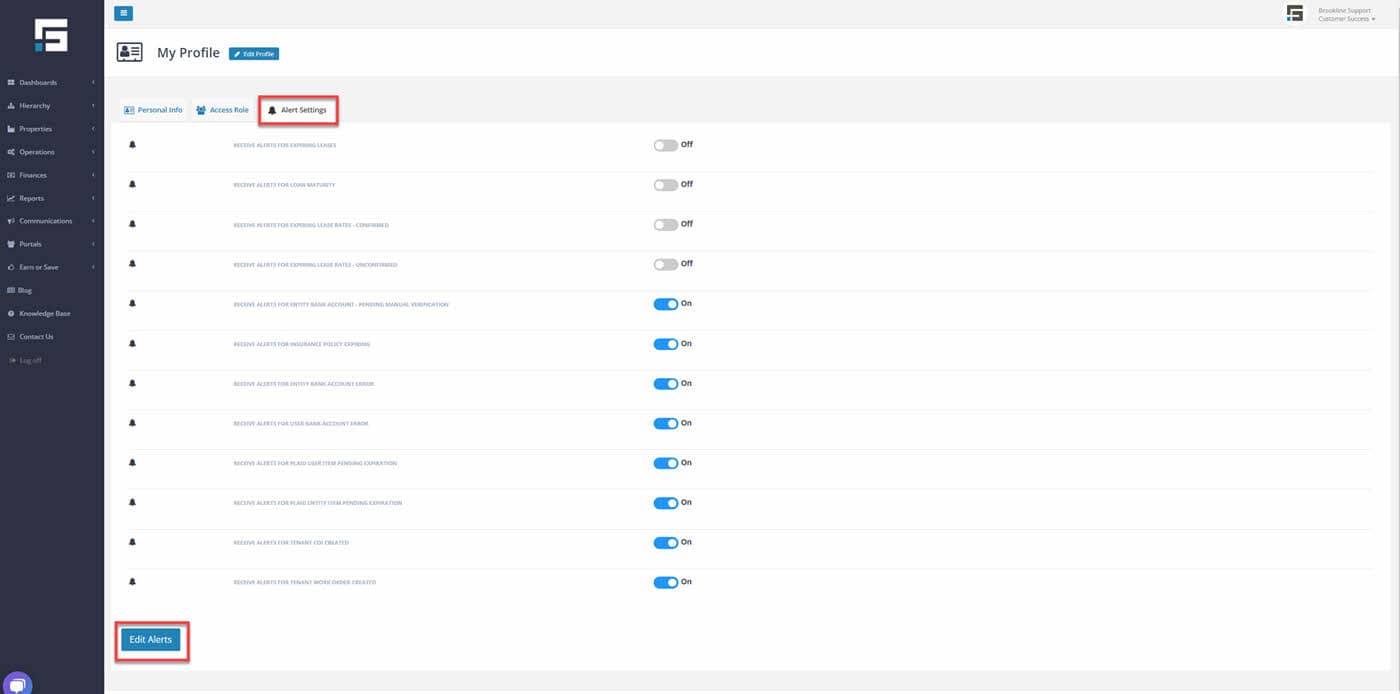
Toggle “On” for the alerts you want to receive and “Save Changes.” Once saved STRATAFOLIO will automatically send emails to you with the alert.
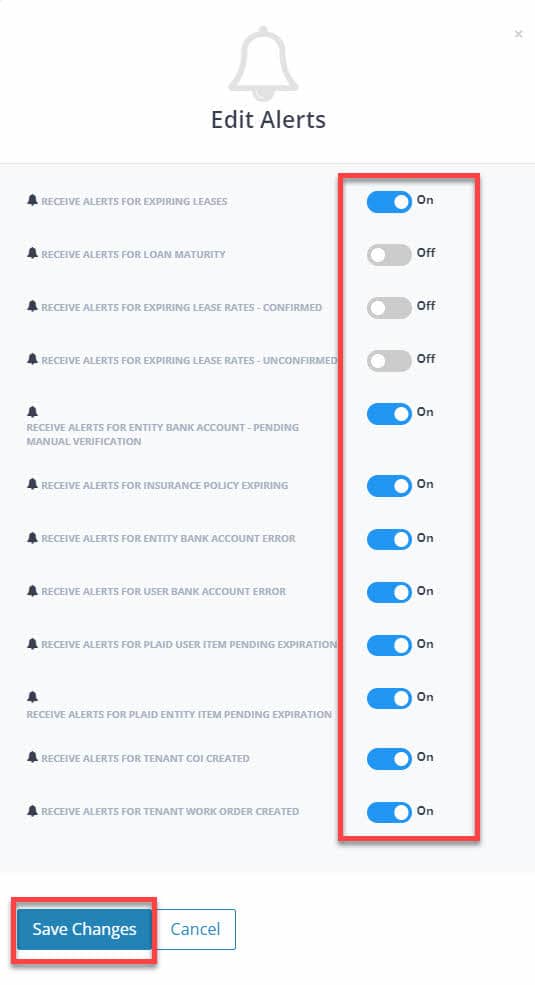
It’s as simple as that. STRATAFOLIO will automatically send an email notification for any expiring leases, or expiring lease rates that are confirmed and unconfirmed. In addition, notice for a maturing loan will give plenty of notice to take action before the loan reaches maturity.
Days for Renewal Alert
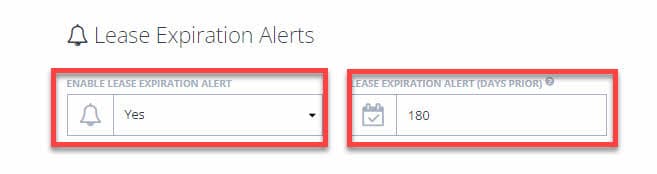
Just remember, to make sure the Enable Lease Expiration Alert has been set to “Yes” and the Lease Expiration Alert(Days Prior) number of days has been set to the number of days required per the lease or you can select a greater number of days to allow you more time to review. You can set both during the Creation of A Lease or by editing the lease and updating the Lease Expiration Alerts section of your lease.
When Do I Receive Alerts About Maturing Loans?
We commonly hear about companies learning at the last minute they have a loan that is about to mature. When this happens, there is no time for the company to shop around for the best rate.
How it works
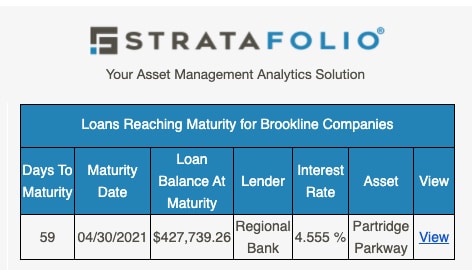
If you sign up to receive loan alerts, you will receive an alert about your maturing loan 90, 60, and 30 days before your loan matures. The alert you receive in your email will look like this. You can select the blue hyper-linked View for additional loan details.