In STRATAFOLIO, every tenant on a lease is linked to an Accounting Customer in QuickBooks. This link is what allows STRATAFOLIO to create invoices and match incoming payments to the right tenant. If more than one tenant shares an Accounting Customer, STRATAFOLIO can’t match the payment to the right tenant. For this reason, payments won’t show on the payments tab.
This article explains why each tenant needs a unique Accounting Customer, how STRATAFOLIO flags it, and how to fix missing payments. It also shows you what to check when you apply a payment or credit in QuickBooks, but the invoice still shows a balance in STRATAFOLIO.
Before You Troubleshoot Missing Payments
Before you make any changes, confirm the following.
- You have an active QuickBooks integration connected to STRATAFOLIO.
- You have permission to edit leases and to add or update customers in QuickBooks.
- You know which tenant or tenants are sharing the same Accounting Customer. If you are not sure, open each lease for the tenant in question and check the Accounting Customer field in the Invoicing section of the Edit Lease form.
The Accounting Customer Warning Banner
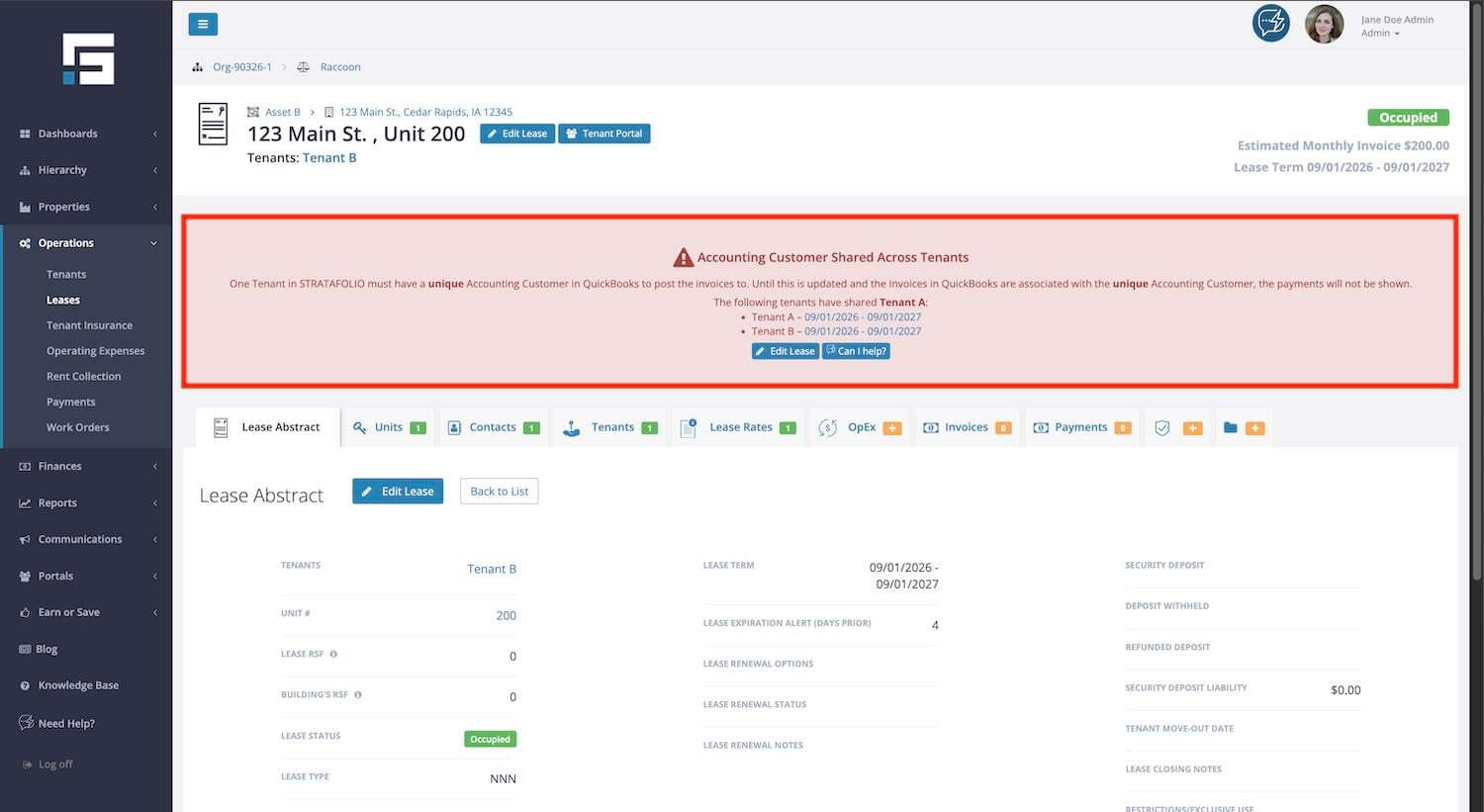
You’ll see a warning that the Accounting Customer field must be unique for each tenant, in two places:
- On the Lease Abstract of an existing lease.
- On the Edit Lease form, in the Invoicing section, whenever you add or change an Accounting Customer and click on Save.
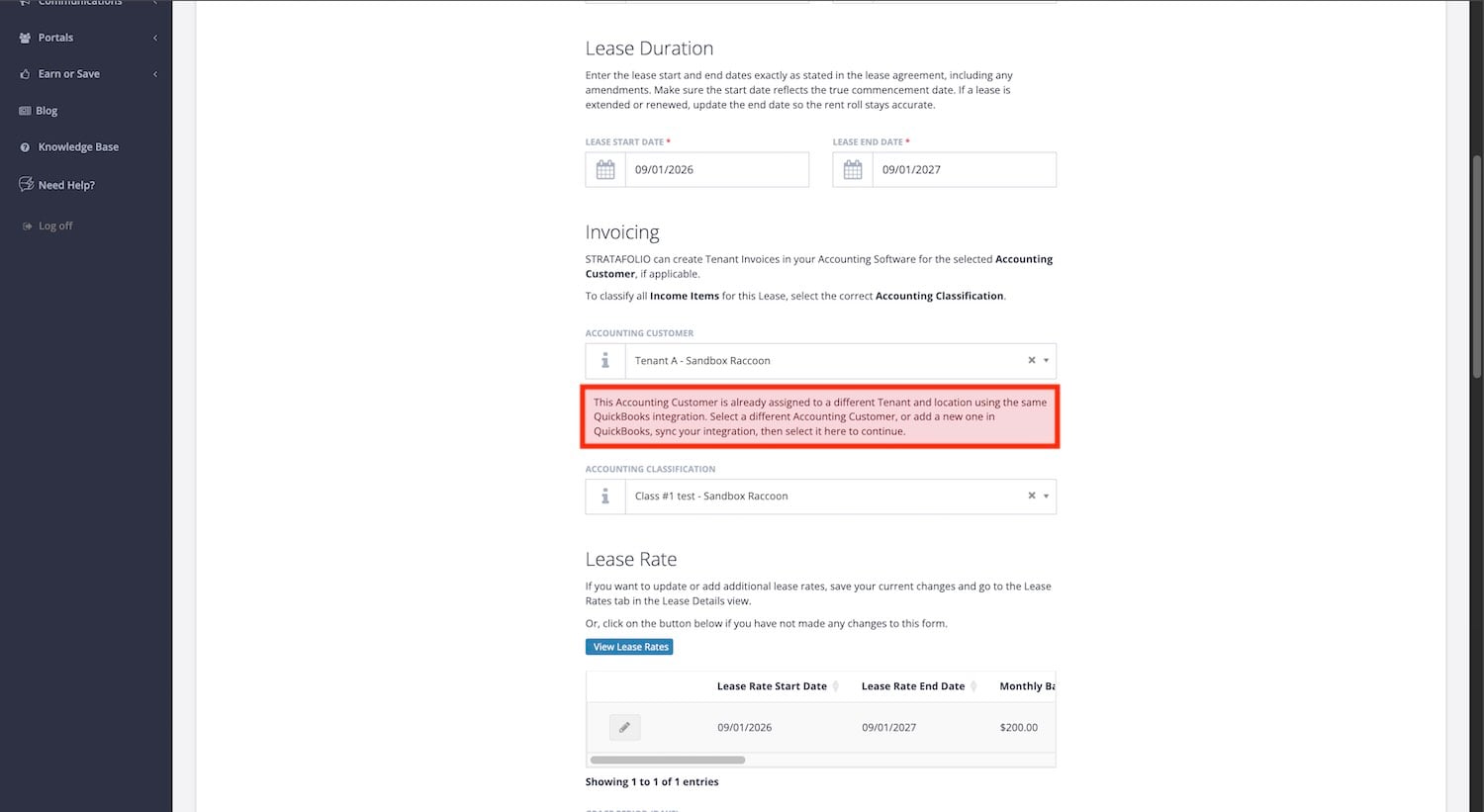
Both locations show the same warning message if the Accounting Customer you selected is already linked to a different tenant using the same QuickBooks integration.
Troubleshooting Your Linked Accounting Customer or Payments Not Showing on the Payments Tab
Follow these steps to identify and fix a shared Accounting Customer.
Step 1: Confirm the problem
Open the lease for the tenant with missing payments. Go to the Payments tab. If it is empty even though you know payments have been made, a shared Accounting Customer often causes this.
Step 2: Check the Accounting Customer field
Open the lease and go to the Invoicing section on the Lease Abstract. Look at the Accounting Customer field. If a warning message appears on this page saying the Accounting Customer is already assigned to a different tenant and location using the same QuickBooks integration, you have found the issue.
Step 3: Create a unique Accounting Customer in QuickBooks
Log in to QuickBooks. Add a new customer record for the tenant so that each tenant has its own dedicated Accounting Customer, rather than sharing one with another tenant.
TIP: You can create the new record as a standalone customer or as a subcustomer. Both will appear in the Accounting Customer dropdown. We recommend a standalone customer for each tenant. To group tenants by building or unit, use Classes instead of subcustomers.
Step 4: Sync your QuickBooks integration
Go back to STRATAFOLIO and sync the QuickBooks integration to make the new customer record selectable.
Step 5: Select the correct Accounting Customer on the lease
Go back to the Lease and select the Edit Lease button. In the Invoicing section, select the new, unique Accounting Customer from the dropdown. If the warning message disappears, the lease is set up correctly.
Step 6: Relink older invoices
If the tenant has older invoices tied to the shared Accounting Customer, open each one and point it to the new Accounting Customer. Invoices and payments will only show correctly once they’re linked to the lease’s new Accounting Customer.
Step 7: Confirm whether the issue was resolved
Check the Payments tab again to confirm that payments now appear.
Payment Applied in QuickBooks but the Invoice Still Shows a Balance
Sometimes you apply a payment or a credit to an invoice in QuickBooks, but the invoice still shows a balance in STRATAFOLIO. Most of the time, the update is still on its way, or the payment was not applied to that exact invoice in QuickBooks. Use the steps below to find out what is happening before you contact Support.
Step 1: Confirm which version of QuickBooks the Entity uses
If the Entity uses QuickBooks Desktop, changes only reach STRATAFOLIO after someone runs Web Connector. Run a sync first, then check the invoice again. For help, see Web Connector Do’s and Don’ts for QuickBooks Desktop.
If the Entity uses QuickBooks Online, changes usually reach STRATAFOLIO within minutes. Continue to Step 2.
Step 2: Check the invoice in QuickBooks
Open the invoice in QuickBooks and confirm the following:
- The invoice shows as paid, with a balance of zero.
- The payment or credit is applied to this exact invoice, under the correct customer.
- If you used a credit from an earlier payment, the credit is applied to this invoice and not left unapplied on the customer’s account.
If QuickBooks still shows a balance on the invoice, STRATAFOLIO will show the same balance. Correct the payment in QuickBooks first.
Step 3: Check when the payment was last changed
Each time you create or edit a payment in QuickBooks Online, that change syncs to STRATAFOLIO as its own update. If you edited a payment more than once, STRATAFOLIO shows the latest version once that last edit syncs. QuickBooks Online does not always send edits right away, so an edited payment can take longer to appear than a new one. STRATAFOLIO also runs a nightly sync that picks up any changes missed during the day.
Step 4: Compare the Lease with the Rent Collection page
Go to Operations, then Leases. Click the “i” button next to the Lease, then select the Invoices tab. Find the invoice and check its balance.
Next, go to Operations, then Rent Collection. Find the same invoice and check its balance. You can also check the Last Updated Date and Last Updated Time columns to see when the invoice last changed.
If both pages show a balance, the payment has not reached STRATAFOLIO yet. Go to Step 5.
If the Lease shows the invoice as paid but the Rent Collection page still shows a balance, the Rent Collection page has not refreshed. Contact Support and include screenshots of both pages.
NOTE: Credit memos applied in QuickBooks do not appear in Payment Activities. An invoice’s Paid total can be higher than the payments listed, and that is expected. For more details, see Record Customer Payments and Partial Payments.
Step 5: Contact Support if the invoice still does not match
If the invoice still shows a balance in STRATAFOLIO after the payment was applied in QuickBooks Online, submit a ticket. Select the Contact Us button on the left-side navigation and fill out the Help Ticket. Include the following:
- The invoice number and the tenant name.
- A screenshot of the invoice in STRATAFOLIO, with the browser address bar showing the full URL.
- A screenshot of the same invoice in QuickBooks, showing the payment or credit applied.
- The date and time you recorded or last edited the payment in QuickBooks.
- Whether you applied a credit from an earlier payment.
What Not to Do While You Wait
- Do not record the same payment again in STRATAFOLIO. Record each payment in only one place, either STRATAFOLIO or QuickBooks.
- Do not delete, void, or recreate the payment, the credit, or the invoice in QuickBooks. This can create duplicates or break the link between the payment and the invoice.
- Wait for Support to confirm the records before you make other changes.