With STRATAFOLIO, admins can add unlimited users to their organization at no additional cost. Security is one of our highest priorities, so we encourage organizations to assign each user who logs in to their organization a unique user role.
Adding new user roles to STRATAFOLIO enables controlled team collaboration, so your entire team can operate more efficiently.
Benefits of Adding Users
By adding more personnel as users to STRATAFOLIO, entire teams can add, edit, and/or view the most up-to-date information about the organization, so users can track things as they happen. Having your entire organization use STRATAFOLIO will avoid delays caused by waiting for key personnel to be available to answer questions. Having all your data in one location makes your team more efficient and ensures you can easily assign user roles in accounting software like STRATAFOLIO.
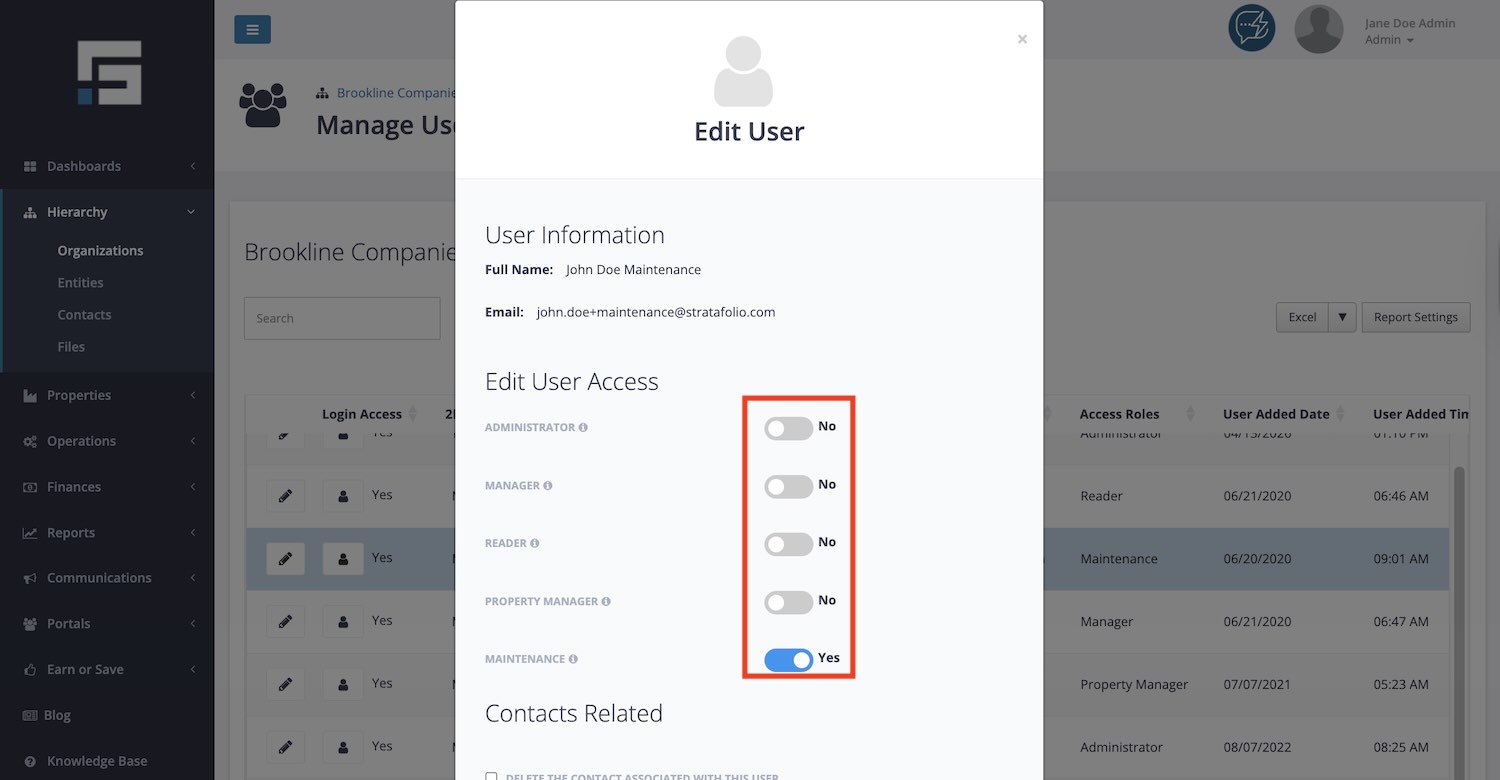
There are five permission levels: Administrator, Manager, Reader, Property Manager, and Maintenance. Each level has specific permissions that limit access to an organization’s information depending on their duties. For example, at the Maintenance level, users can view & edit work order information, but they do not have access to the organization’s financial information.
Why You Should Add a User for Each Person on Your Team
STRATAFOLIO does not allow two computers to be logged into the same user profile at the same time. If your property managers, admins, or other team members share a single login, you will both/all be logged out of the system. Only one person can access STRATAFOLIO at a time from a single profile. This can slow your team down and create login conflicts when more than one person needs to work in the system at once.
Since STRATAFOLIO places no limit on the number of users you can add and does not charge extra for additional users, there is no reason to share a login among multiple people. Instead, add each property manager, admin, or team member as their own user so everyone can log in and work in STRATAFOLIO at the same time.
BEST PRACTICE: Give every person on your team their own STRATAFOLIO login rather than sharing credentials. This keeps your team working without interruption and lets you assign each person the user role that matches their responsibilities.
Staff User Access Roles
The following is a list of the user roles that STRATAFOLIO has available, making it simple to assign user roles in accounting software alongside property and operations management. Access to these roles can only be granted by an Administrator through the Manage Users view.
- Administrator – A user with an Administrator role can manage other users and add/view/update/delete anything within the entire organization.
NOTE: If you have an administrator role, you do not need to add any of the other roles for yourself below. The Administrator role provides the highest level of access within your organization. Adding additional roles will result in getting duplicate email alerts. - Manager – A user with a Manager role cannot add/view/update/delete other user roles or Organization-specific information. They can also only add/view/update anything else within the organization, but do not have delete capabilities. Learn more about the Asset Manager role.
- Reader – A user with a Reader role cannot add/view/update/delete other user roles or Organization-specific information. They can only view anything else within the organization, but they cannot add/update/delete.
- Property Manager – A user with a Property Manager role can add/edit/view the organization’s hierarchy, including assets, buildings, and units. Additionally, they can add/edit/view all work orders, tenants, and leases in the Organization. They cannot add/edit/view any financial dashboards, ACH Payment integrations/setup for the entity or the tenants, and investor-related activities within the organization.
- Maintenance – A user with a Maintenance role can only add/edit/view all work orders in the Organization. They cannot view financial data across the Organization or edit anything else in the organization that is not a work order.
Tenant and Investor User Access Roles
STRATAFOLIO also offers special access to Investors and Tenants. Administrators, Managers, or Property Managers can add users in the tenant management portal through the Contacts view.
- Full Access Investor – Users with the Full Access Investor role can view information about the legal entities the investor is invested in within an Organization, but they cannot add/update/delete other data. This role can only upload files within their investor dashboard. They can only update or delete files uploaded with those settings enabled.
- Restricted Access Investor – Users with a Restricted Access Investor role can log in to their corresponding restricted Investor Dashboard. This role restricts the user from viewing other items in the organization, and they can only view items within their private dashboard. On their dashboard, the investor can view any distributions that they received. They will see a high-level view of all the investments the investor is associated with. This role can upload files only within their investor dashboard, and they can update/delete files only if those files were uploaded with those settings enabled.
- Tenant – A user with a Tenant role can view limited lease information for the leases where the user is a tenant within the Organization. The Tenant role can upload files, schedule recurring ACH payments, and make one-time ACH payments if the landlord has enabled the ACH option. This role can upload files only within their tenant portal, and can update/delete files only if those files were uploaded with those settings enabled.
How Can I Give Someone Access or Invite Someone to STRATAFOLIO
- Log in to an Administrator account in STRATAFOLIO to add users or assign staff roles. Only Administrators can add/edit user access.
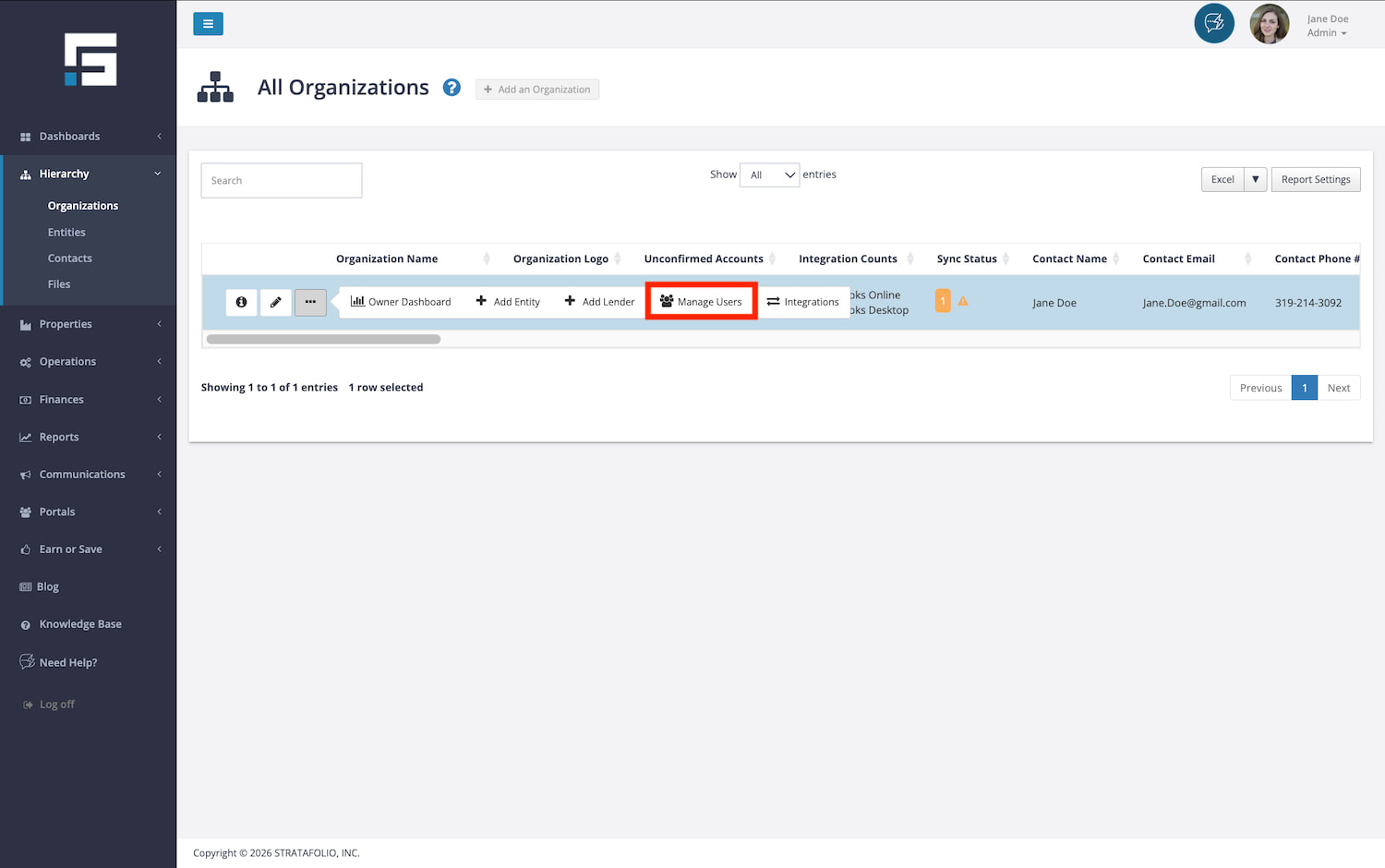
- Select Hierarchy, then Organizations on the left-side navigation menu. Locate the Organization you want to manage users for. Select the ellipsis (…) next to that specific Organization, and then select Manage Users.
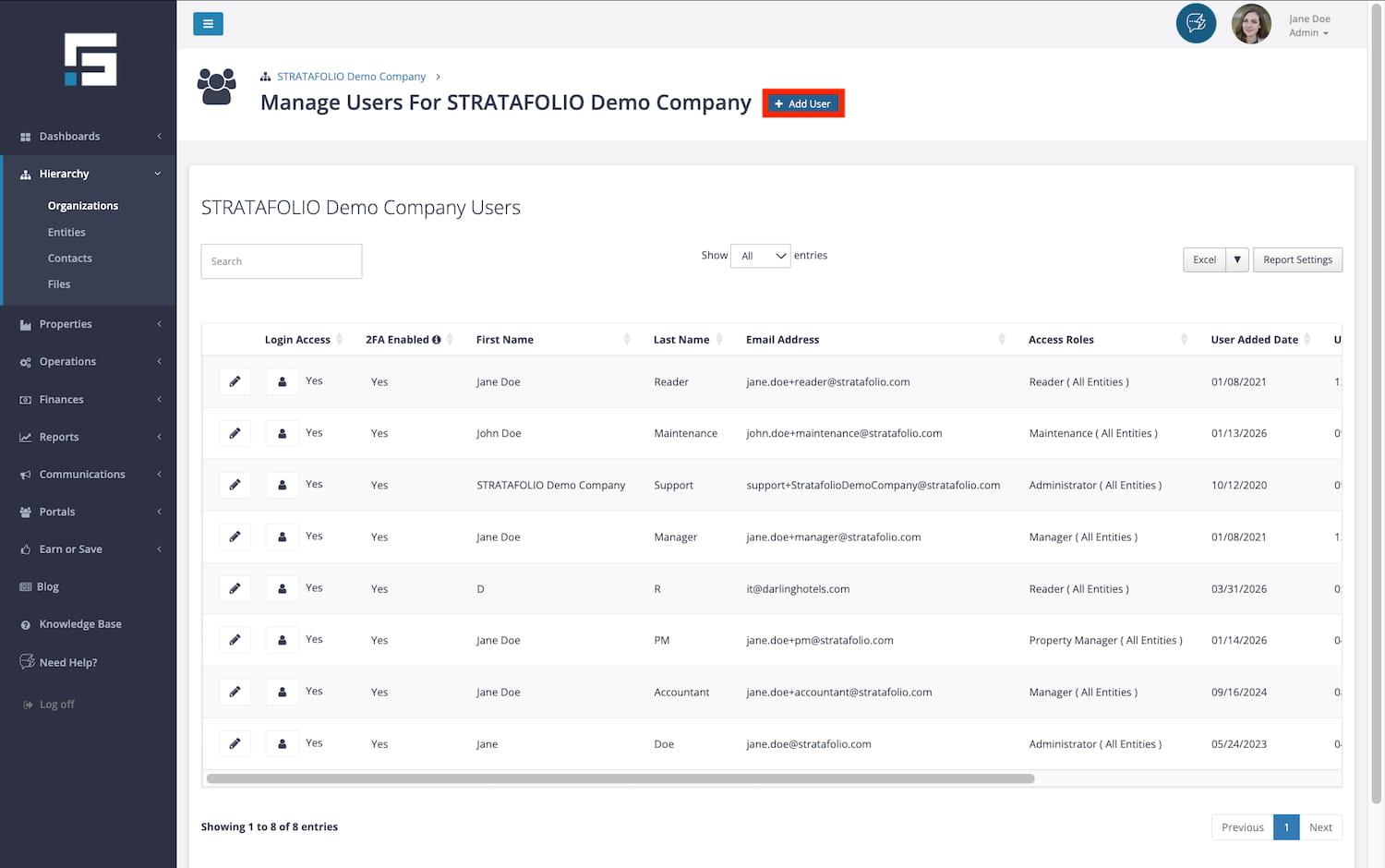
- Select Add User on the Manage Users page.
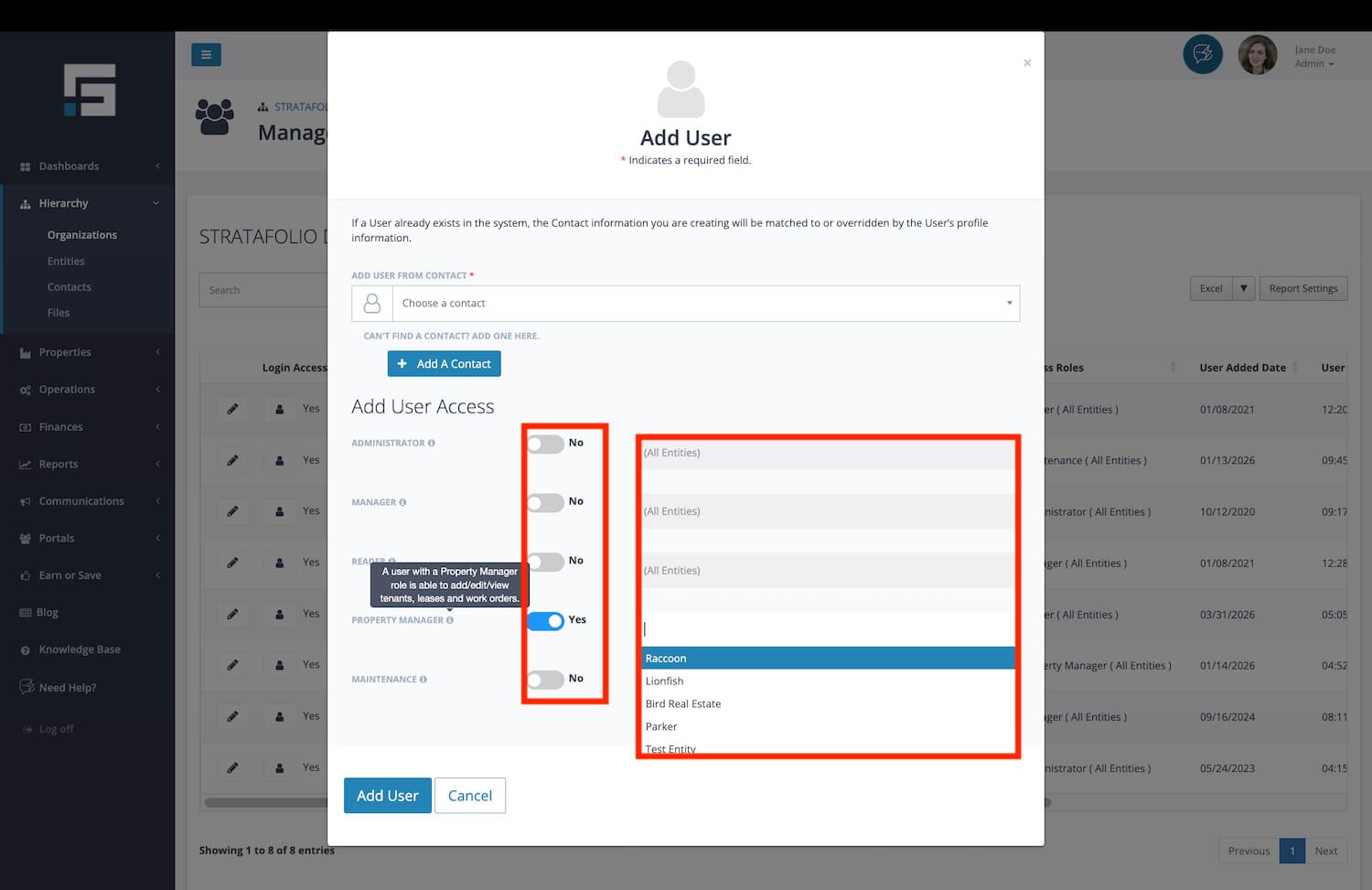
- Choose a Contact from the dropdown selections, or select Add a Contact to add someone new.
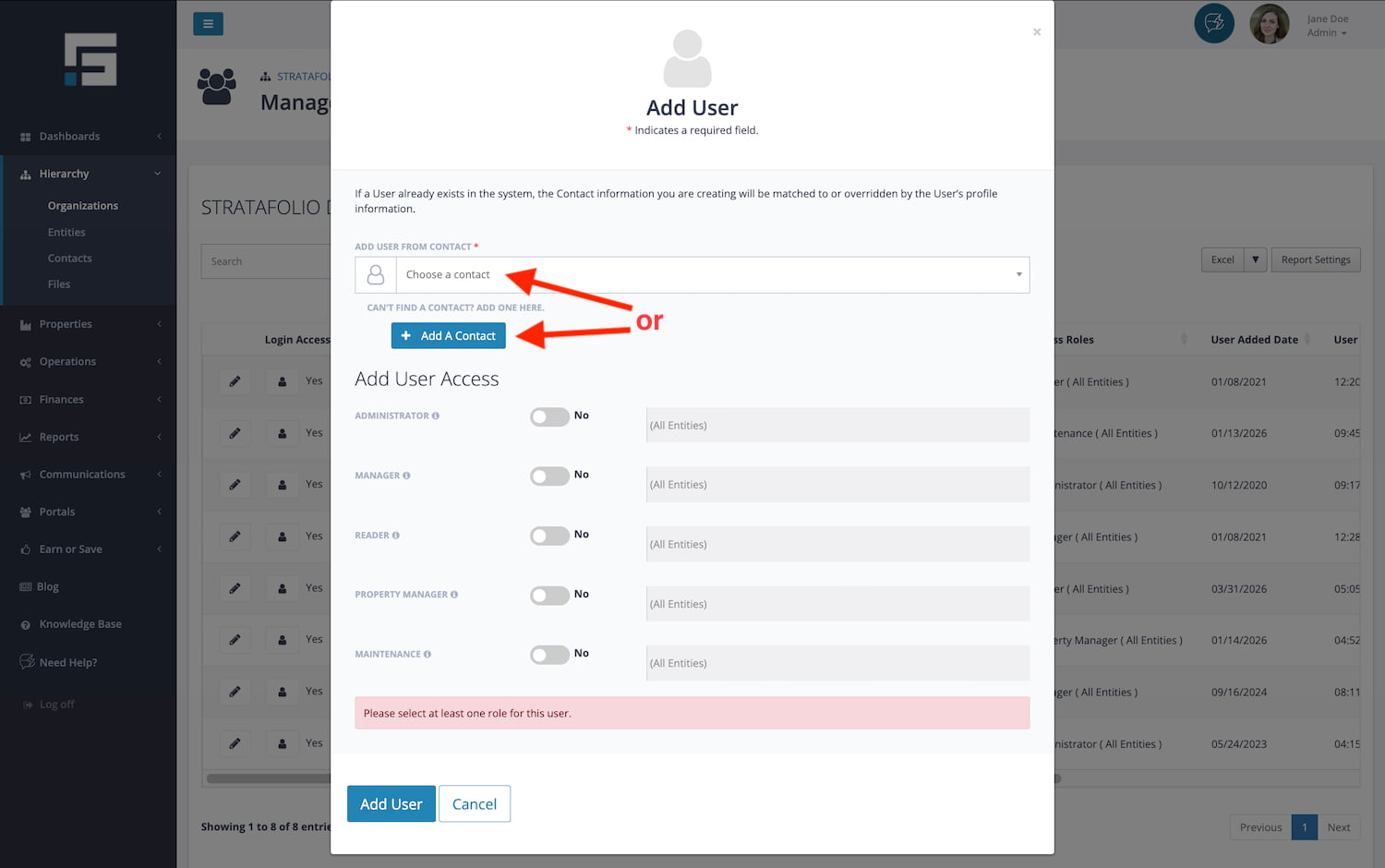
- Select the desired level of access. When hovering over the (i), a full description of each level will appear to help you make the right choice for each contact. Once you have made your selections, choose Add User.
NOTE: The Investor and Tenant roles follow a different process than the other access roles. Managers or Property Managers can add the Investor and Tenant roles.
Email Received by New User
- STRATAFOLIO will invite the new user via email.
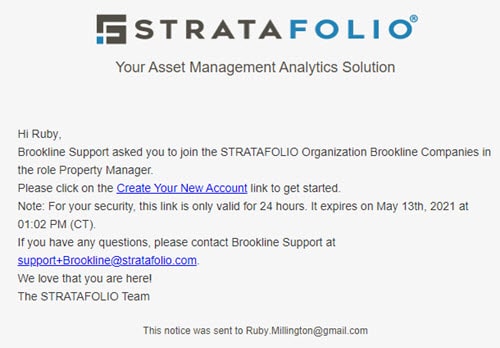
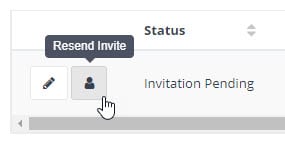
TIP: Let the new user know when you send the invitation. New users have 24 hours to accept the invitation. If they do not activate the account within 24 hours, an administrator can resend the invitation by selecting the person button on the Manage Users page (see Step 2).
How to Edit or Change User or Staff Access
Follow these steps any time you need to adjust someone’s permissions, add new capabilities, or remove access.
1. Select Manage Users
• From the left navigation menu, select Hierarchy
• Navigate to the Organization where the user belongs
• Select the ellipsis (…) next to the organization name
• Select Manage Users
2. Find the user you want to update
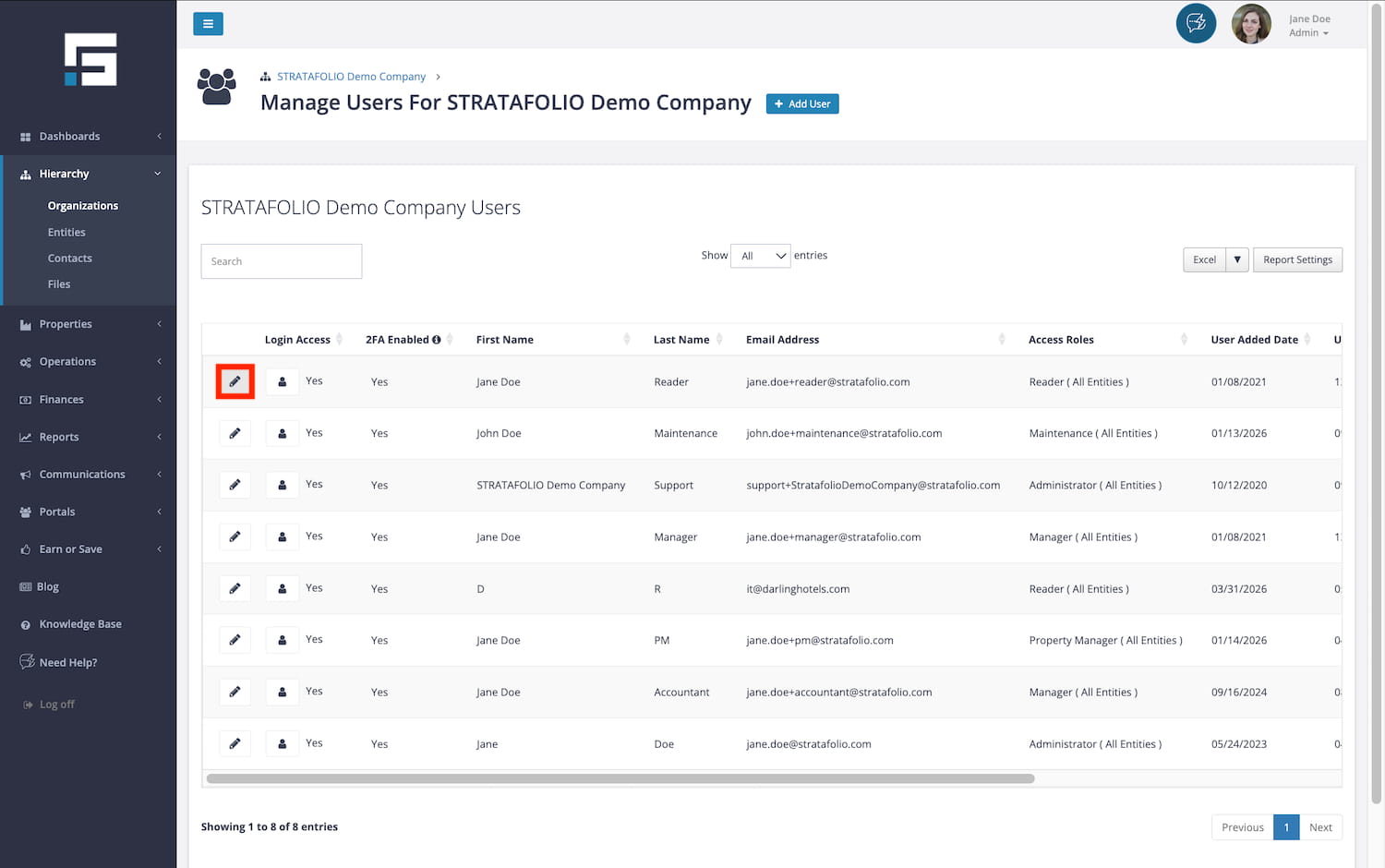
• You will see a list of all users and their current access levels
• Locate the user you want to modify
3. Open the edit access screen
• Select the pencil icon next to the user’s name
• This opens the access-level controls
4. Choose the correct access level
You will see toggle switches for the available roles, such as:
• Administrator
• Manager
• Reader
• Property Manager
• Investor
• Tenant
• Maintenance
Hovering over the info icon (i) next to each role displays a description of the permissions that role includes.
Toggle on the roles you want to grant.
Toggle off anything the user should no longer have.
5. Save your change
• Hit Save
• STRATAFOLIO will update the user’s access.
NOTE: It may take a few seconds for the new user to appear on the Manage Users page. If you do not see the update right away, wait a moment and refresh the page.
6. (Optional) If you invited a new user
If the update involves adding a new user:
• STRATAFOLIO automatically sends the invitation email
• New users have 24 hours to accept
• If they miss the window, select the Resend Invite button on the Manage Users page
7. Removing Access
If at any time you need to remove a user’s permissions:
• Return to Manage Users
• Select the i icon to open the pop-up to edit their user access.
• Toggle the settings based on the new access level of the contact and save your changes
This completely removes or restricts access based on your selection.