
When you add a lease in STRATAFOLIO, it stays in Draft status while you prepare it for abstraction. During this time, STRATAFOLIO shows you a status label that tells you exactly where things stand with your uploaded files. This status label helps you know when you still need to upload documents and when you’ve received everything.
IMPORTANT: Your lease abstraction does not begin automatically just because you uploaded files. STRATAFOLIO only starts abstracting your lease after you click the All Files Provided button and confirm that selection. Uploading documents alone will not move your lease forward. If you skip this step, your lease will stay in Files Pending status and no abstraction work will begin.
This article explains what each status means, how to confirm that you have provided all your files, and what to do if you need to upload something after you have already confirmed.
Before You Begin Uploading Files for Draft Leases
This information applies only to leases in Draft status. Have your lease documents ready before you begin, including the signed lease agreement and any requested amendments, addenda, or other files.
How to Use This Feature
Understanding the Files Pending Status
When a lease is in Draft status and you have not yet confirmed that all your files have been uploaded, the label on the Lease Files Status column on the index page will say Files Pending. This simply means STRATAFOLIO is still waiting for you to provide all the documents needed for this lease.
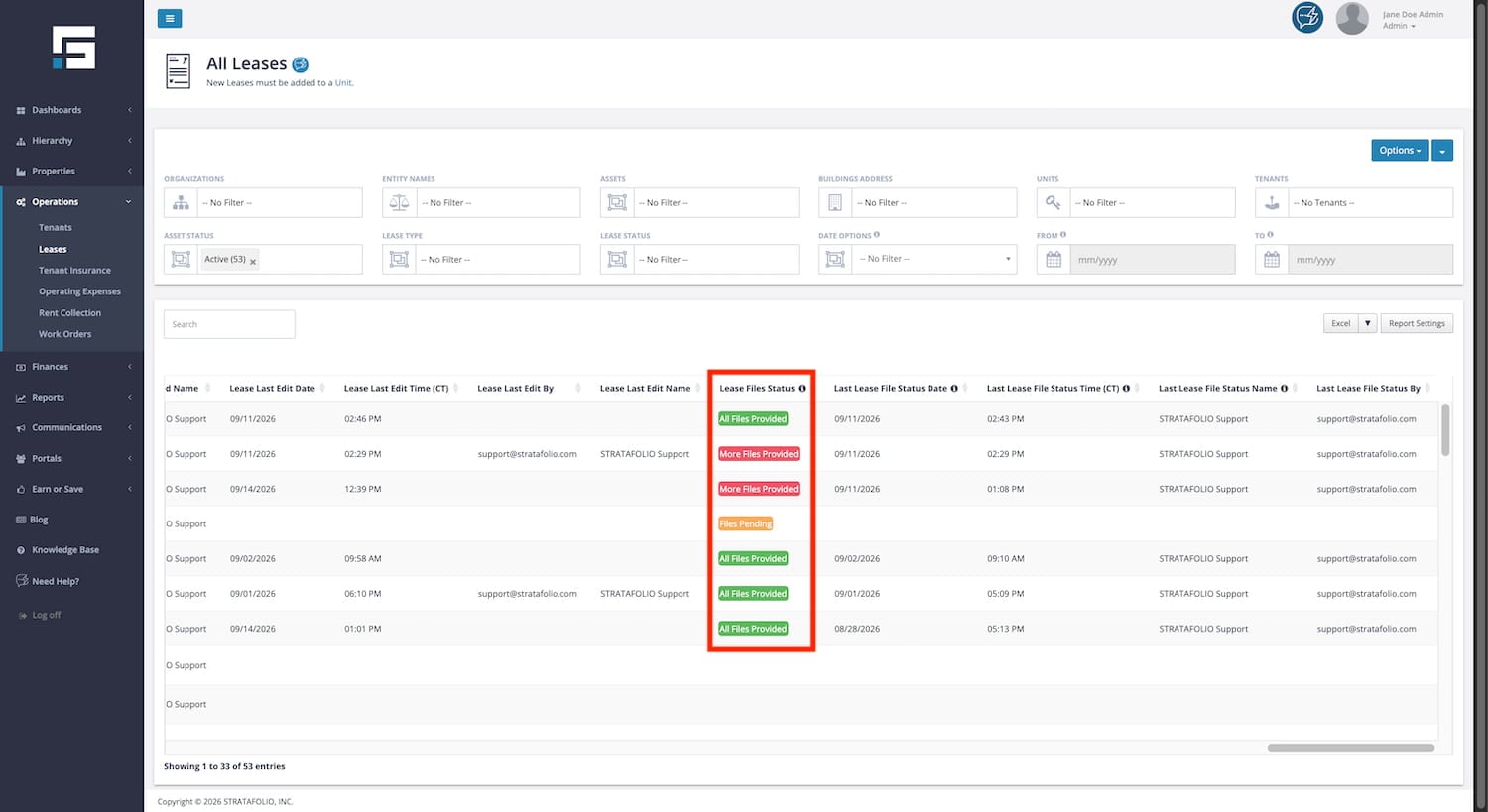
While you see Files Pending, continue uploading any documents that are still missing.
TIP: You can click on the status label at any time to see a short pop-up explaining what it means. This is a helpful way to double-check a status if you are ever unsure.
Confirming All Files Have Been Provided
Once you have uploaded every document needed for this lease, you can let STRATAFOLIO know by confirming your files are complete.
- Edit the Draft lease from the Lease Index by selecting the i icon next to it.
- Select the Files tab from the Lease Detail Page.
- If you have uploaded all files, click the All Files Provided button next to the Add A File button.
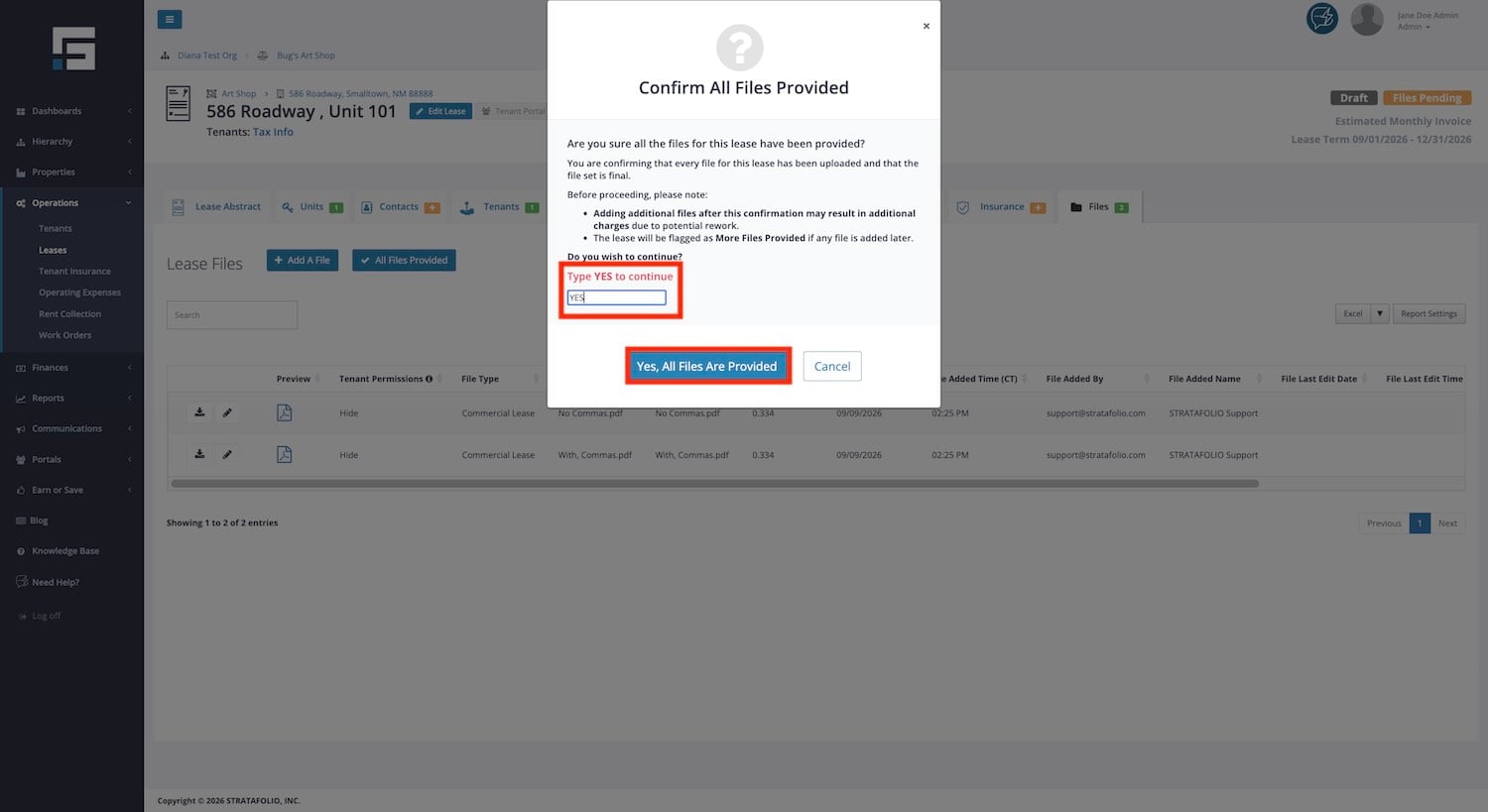
- A window will pop up asking you to verify that every required file has been uploaded.
- Read this window carefully. It lets you know that uploading more files after this point may cause delays and could result in additional charges.
- If you are confident everything has been uploaded, confirm your selection by typing YES and clicking “Yes, All Files Are Provided”.
REMEMBER: Clicking All Files Provided is what starts lease abstraction. Until you complete this step, your lease will remain in Files Pending status, and no work on your abstraction will begin, even if you’ve already uploaded every document.
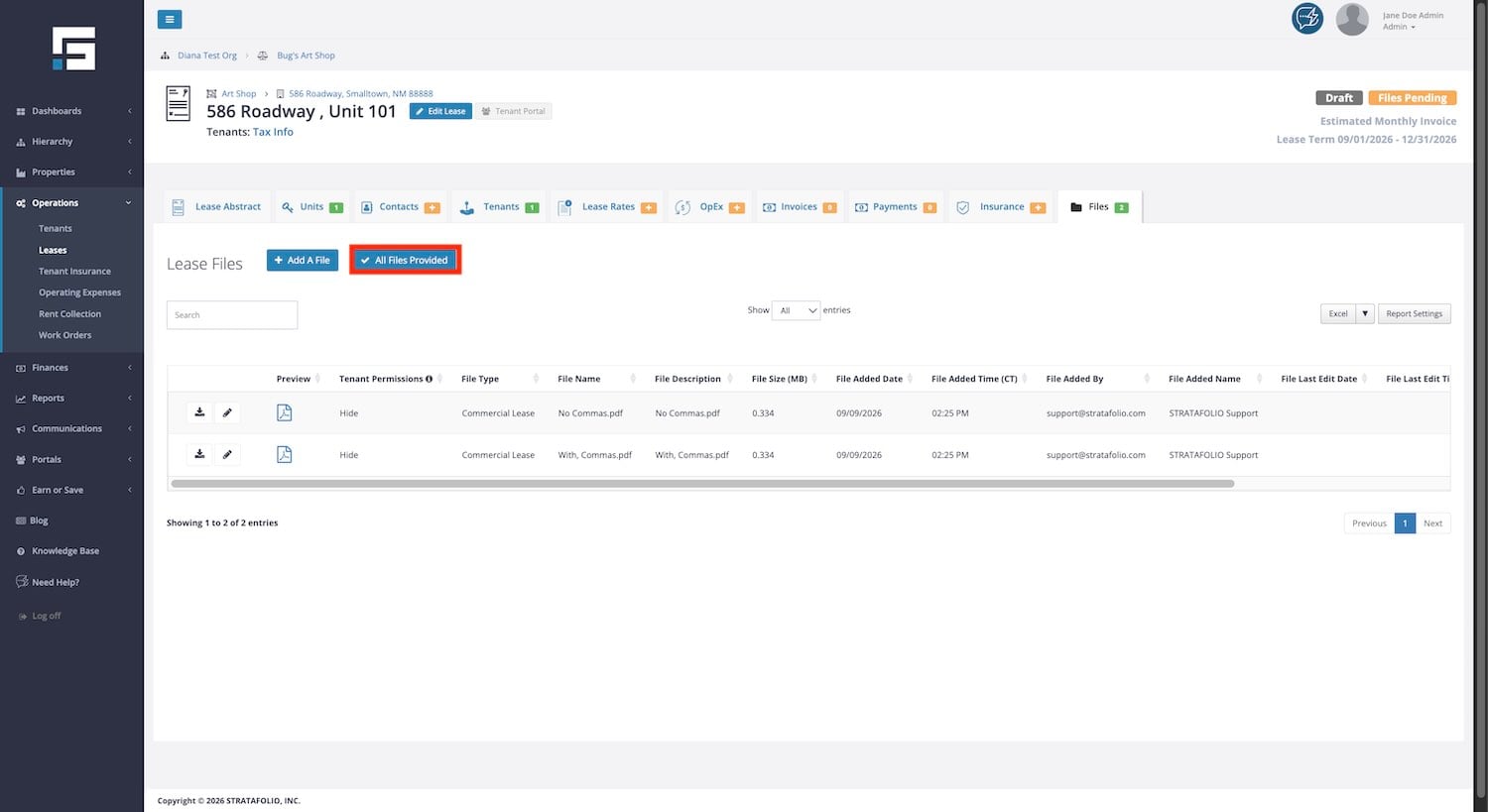
Once you confirm, the label updates from Files Pending to All Files Provided at the top right corner of the screen. If you hover your mouse on this label, the pop-up will show who confirmed the files were complete, along with the date and time of that confirmation. This gives you a clear record of when you completed this step.
What Happens If You Upload a File After Confirming
If you need to upload another document after you have already clicked All Files Provided, STRATAFOLIO will first show you a warning. This warning reminds you that adding files at this point may cause delays and could lead to additional charges, since work may already be underway.
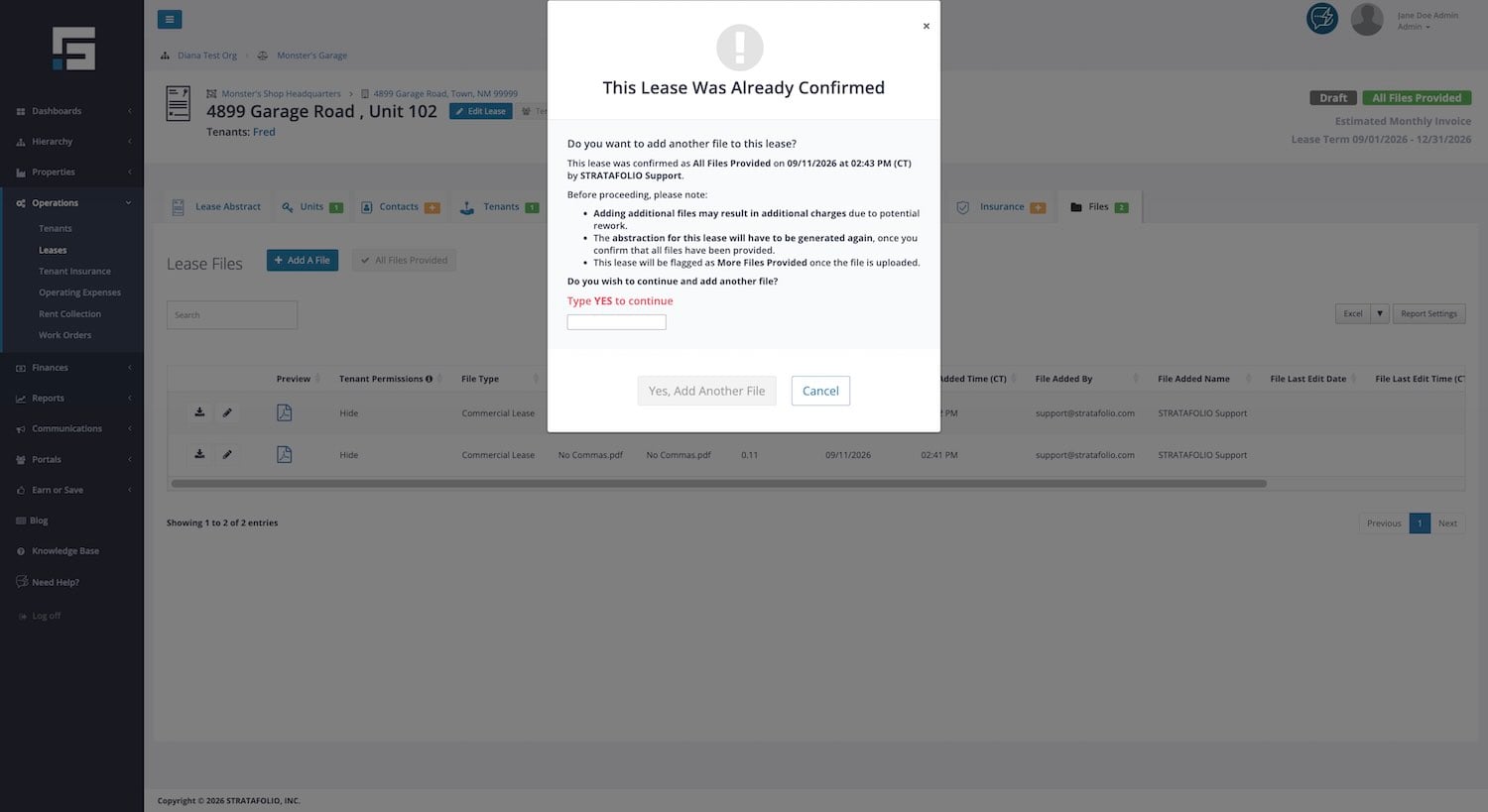
If you choose to continue and the upload is successful, the status label will change again to More Files Provided. This lets you know that a file was added after your original confirmation.
Troubleshooting Files Uploaded in Draft Status
If you do not see the All Files Provided button, check that the lease is still in Draft status. This button only appears while a lease is in this stage.
NOTE: The More Files Provided label will still show on Active Leases. This is as long as more files have been uploaded after confirming that all required files were already added.
If the status still says Files Pending after you believe you uploaded everything, make sure you actually clicked the All Files Provided button and completed the confirmation window. Uploading files alone does not update the status. You must confirm using the button.
If your status changed to More Files Provided and you didn’t expect it, check with anyone else on your team who may have access to this lease, since someone may have added a file after your original confirmation.